











10 NEW Updates to Assemblies in SOLIDWORKS 2024
Written by: Terry O'Reilly
Published: Dec 14, 2023
| View All Blogs
#1 – Component References Table
A massive time-saving enhancement kicks off our list. Component references can now be added for multiple components in a single table.

The table is accessed from the right click menu of the top-level assembly, then Edit Component References.
These component references are extremely useful for drawings and searchability, and can be pulled into BOMs and call outs too.
#2 – Configuration Description Visibility
Configuration descriptions are now visible alongside component names when inserting components in an assembly.

This ensures you’re selecting the exact configuration you want, first time. Hopefully this subtle enhancement will prevent incorrect placements and save you time.
#3 – Float First Component
Usually when you insert the first component, it is fixed in place at the origin of the assembly.

In SOLIDWORKS 2024, you can specify for any component whether they are fixed or floating from the insert component property manager.
This should give more flexibility and limit errors when dealing with mechanisms.
#4 – Width Mate Intelligence
SOLIDWORKS 2024 now allows you to select faces in any order to add width mates. The extra intelligence ensures that SOLIDWORKS can calculate and recognise what order the components need to be positioned in.

Any extra automation is a welcome relief to reduce frustrations and give freedom from repetitive tasks…
#5 – Named Mate References
To simplify things and make life a little easier for the assembly line, mate references can now be added only when a named reference exists.

These also now include an option to lock rotation within the referenced entities, to prevent concentrically mated components from spinning around.
Look out for these two tick boxes when adding mate references.
#6 – Share &Amp; Markup
Every seat of SOLIDWORKS 2024 comes with the SOLIDWORKS Cloud Services which grant access to new tools for collaboration and data management.

The Share & Markup feature of this allows you to share SOLIDWORKS parts, assemblies, and drawings to gain instant feedback from colleagues and clients via a shareable link.
From there, you can redline and markup designs to highlight areas for modification and comment directly on designs. These can be viewed directly inside SOLIDWORKS, so you don’t even need to leave the assembly you’re working on!
#7 – Save As Previous
A much-requested feature alongside the SOLIDWORKS Cloud Services, that opens the door to better collaboration.

Users with an active SOLIDWORKS Subscription can save files as previous versions up to two years old.
That means a SOLIDWORKS 2024 user working with a supplier who is still using SOLIDWORKS 2022 could save their designs as SOLIDWORKS 2022 files for their supplier to work with.
Bear in mind that this will only work with files that do not contain features that are not present in previous versions, e.g. the Sheet Metal Stamp Tool.
#8 – Step File Filters
This enhancement is so good that it takes up a spot in our list of the Top 10 New Features of SOLIDWORKS 2024!

When importing a STEP file, SOLIDWORKS provides a preview of the imported file. Within this preview, we can decide which bodies and components to import.
This will make working with supplier models and large STEP files easier.
#9 – Auto Repair Patterns
Last year, SOLIDWORKS introduced an automatic Mate repair tool. Assemblies in SOLIDWORKS 2024 builds on this tool by adding a version of it for patterns.

If a pattern has lost a reference to axes or edges, then we can use this tool to automatically repair the feature and reselect the correct entity.
#10 – Defeature Rule Sets
This is quite a powerful enhancement for those who rely on the Defeature tool, whether that’s to restrict intellectual property, running simulations, or any other need.

Rule sets can now be implemented when defeaturing a model to dictate what features and components are removed.
This gives a huge level of control for SOLIDWORKS users, and different rule sets can be saved so you can quickly access the tools you need without tedious repetition.
Categorised as: SOLIDWORKS Design | What's New
Discover our SOLIDWORKS Subscription
Get the most from your tools and the best from your designers with a SOLIDWORKS subscription package that is designed to help you succeed.

Related Posts

How to Find Reaction Forces in SOLIDWORKS Simulation
SOLIDWORKS helps us to find resultant forces through simulation studies. These virtual tests reduce the need for physical prototypes and give us an accurate answer.

Setting number of decimal places in a table on a drawing
When creating an equation in a drawing general table, is it possible to define the…

SOLIDWORKS Smart Fasteners
SOLIDWORKS Smart Fasteners is a really useful time saving tool, allowing you to automatically insert toolbox fasteners such as bolts and screws into an assembly providing there is a standard hole.

Why is my Flat Pattern not showing in SOLIDWORKS Drawings?
This may be linked to how the drawing is saved or it can be related to how sheet metal parts are displayed in drawings, read on to find out how to fix it.

SOLIDWORKS Tips: Are you Making this Common Mistake in Fatigue Analysis?
Simulation is a vital and complex engineering need. Fortunately, SOLIDWORKS makes it easy to test, correct mistakes and obtain accurate results.

How to Recover SOLIDWORKS Files After a Crash
SOLIDWORKS has two different methods to help you recover from an unexpected crash or loss of data in the form of auto-recovery and back-up settings.

Redesigning Santa’s Sleigh in SOLIDWORKS
Every year Father Christmas has to fly in his sleigh to deliver presents to boys and girls all over the world in just one night. To put this into perspective, it takes a little under 24 hours to fly from London (UK) to Sydney (Australia) in a streamlined Boeing 747, whereas Father Christmas’ mode of transport is believed to be a rather non-aerodynamic sleigh.

SOLIDWORKS Grid Systems – hidden away, but very useful!
Rory Niles provides an insight into the uses for Grid Systems within SOLIDWORKS 2018

Furniture Design Made Easy with SOLIDWORKS
Calling all furniture and interior designers: the days of creating square cabinets are over. What if we told you there’s a much easier way to bring your products to life?
Here’s 10 reasons why we feel SOLIDWORKS is better than any other software, especially if you’re designing furniture:
Making 3D Textures from Images on SOLIDWORKS
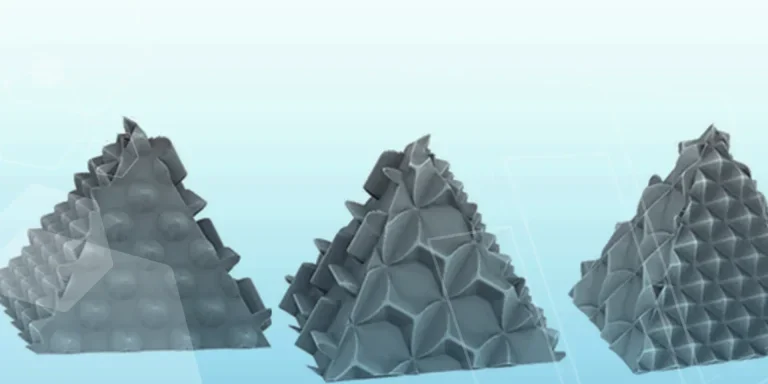
Turn images into 3D geometry with brand new SOLIDWORKS 3D Textures Feature