











10 NEW Updates to SOLIDWORKS Simulation 2024
Written by: Tom McHale
Published: Dec 13, 2023
| View All Blogs
Design validation is a key component of the design phase, and SOLIDWORKS Simulation provides an accessible and accurate way to calculate the performance of your products.
Over the next few months, we’ll be highlighting the latest updates and improvements to all the different areas of SOLIDWORKS in a series of blogs.
We previously brought you the Top 10 Best New Features of SOLIDWORKS 2024, but in this blog post, we’ll delve deeper and focus on what’s new in SOLIDWORKS Simulation and SOLIDWORKS Plastics for 2024.
#1 – AUTO SAVE FILE AFTER MESHING
SOLIDWORKS Simulation now offers users the option to automatically save files after meshing and after completion of a study.
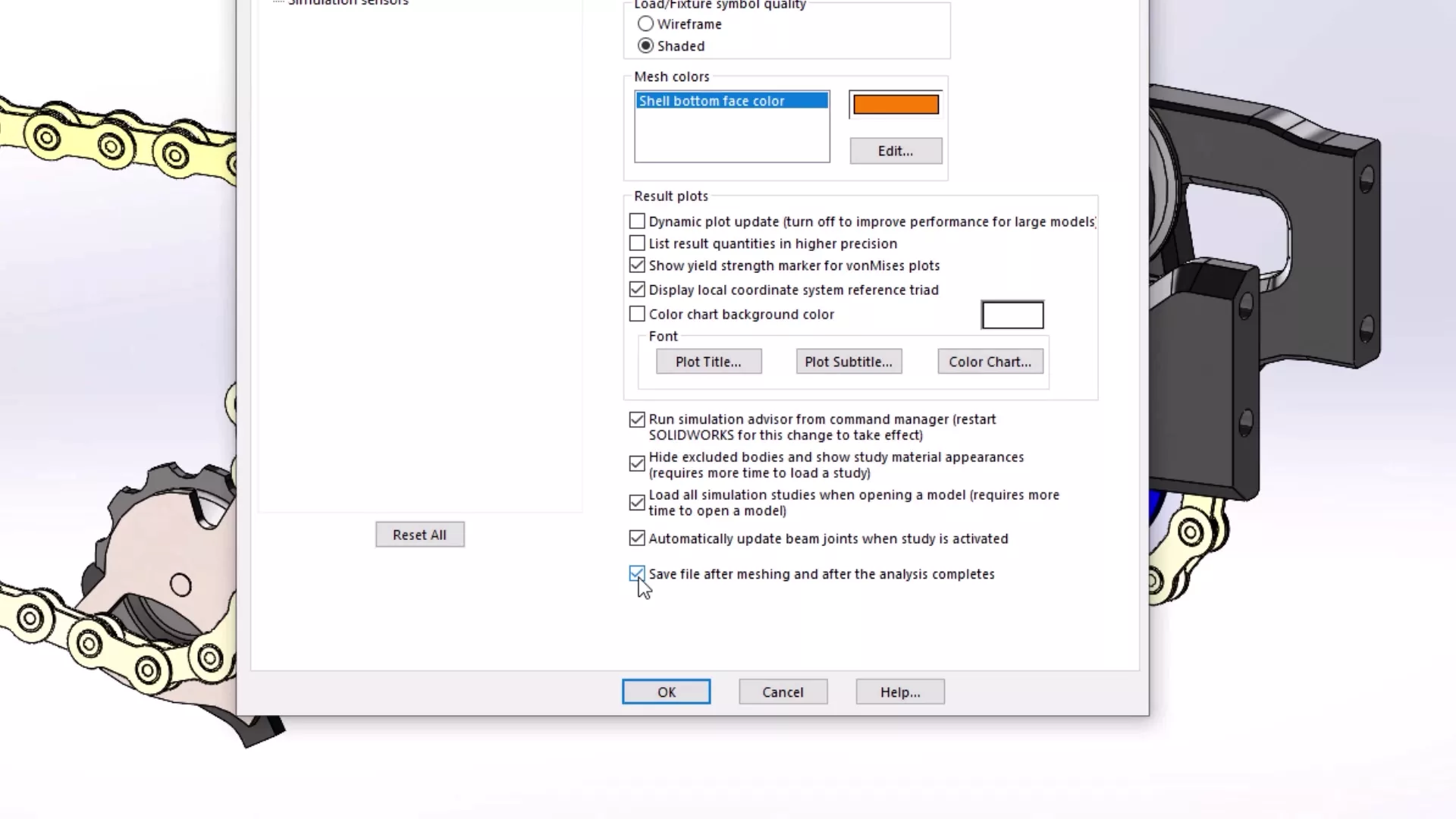
This means we’ll see less unexpected data losses to the void in the event of power cuts or interruptions, and presents the opportunity to run more studies in less time with the complementary performance enhancements.
#2 – NEW COPY STUDY OPTIONS
Mesh and results data can now be excluded when copying a simulation study to a new study. These can be applied at a global or individual study level.
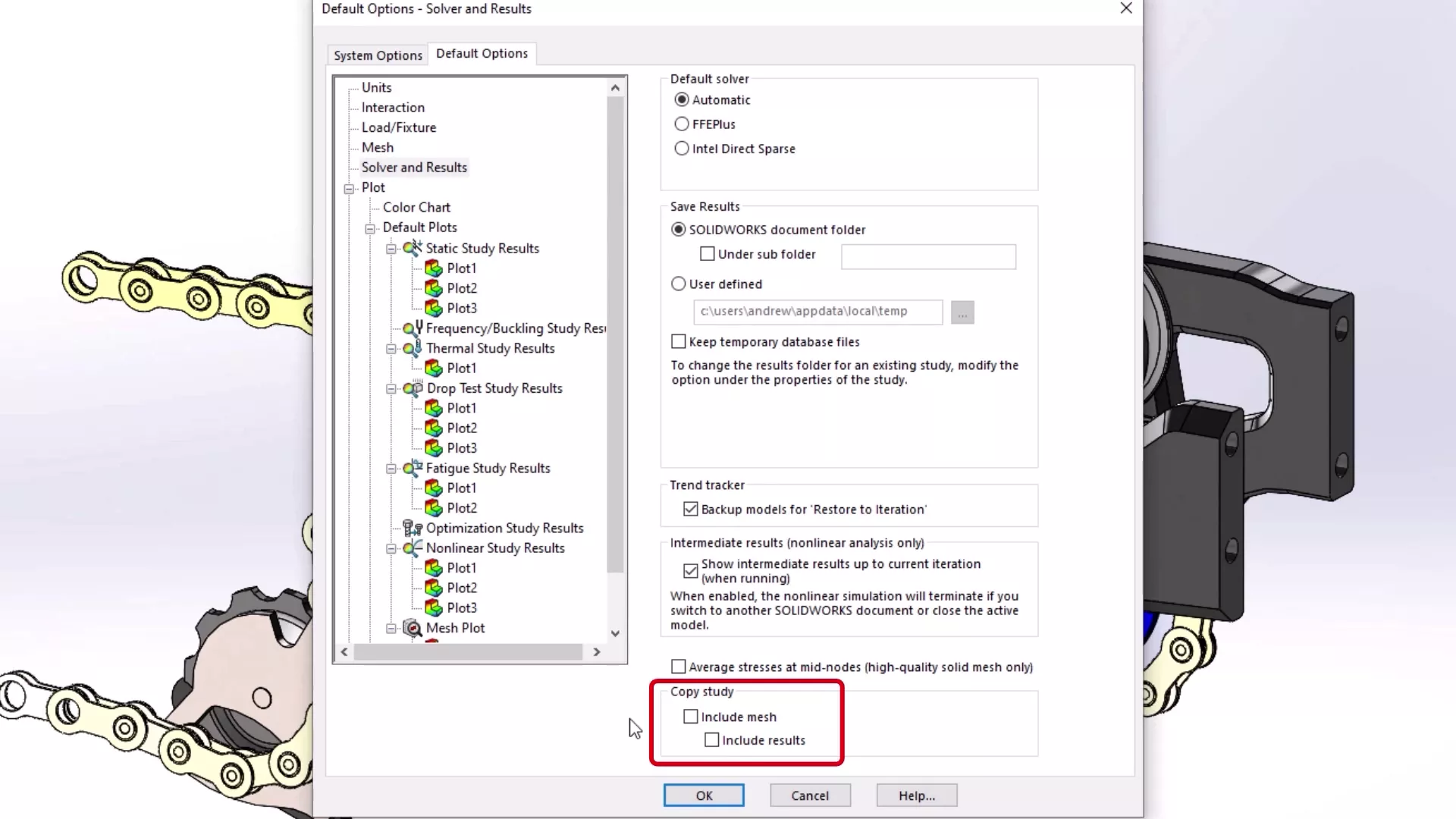
You can specify global default settings from the Default Options > Solver and Results > Copy Study dialog box.
For individual studies, you can modify the default settings for Include mesh and Include results in the Copy Study PropertyManager.
#3 – ROBUST BONDING INTERACTIONS
Shell bonding interactions have been enhanced with an algorithm to provide greater accuracy when dealing with gaps between shell elements.
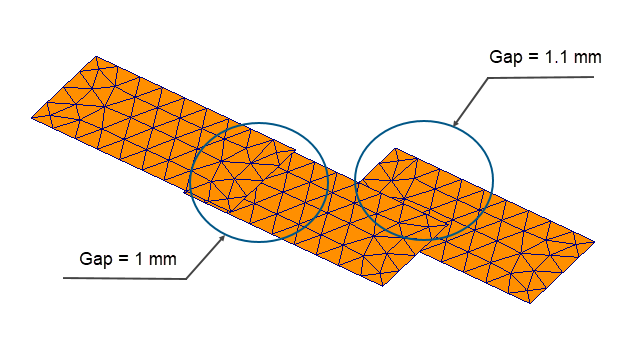
User-defined maximum gaps will ensure that multiple similar values are maintained when working with coarse meshes and several elements.
#4 – CONVERGENCE CHECK PLOT
SOLIDWORKS Simulation 2024 introduces a new results plot for convergence.
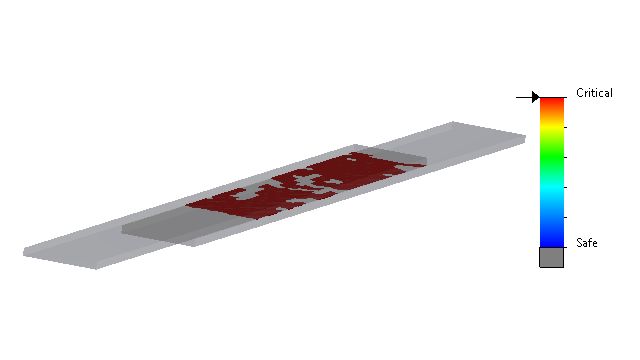
This plot can be accessed through the simulation study tree, by right-clicking Results and selecting Convergence Check Plot.
This plots the regions detected when the solver encounters contact convergence issues.
#5 – ENHANCED BEARING CONNECTORS
Virtual connectors have gained some new properties for 2024!
When adding a bearing connector, a new Distributed connection type and Torsional Stiffness property can be modified.
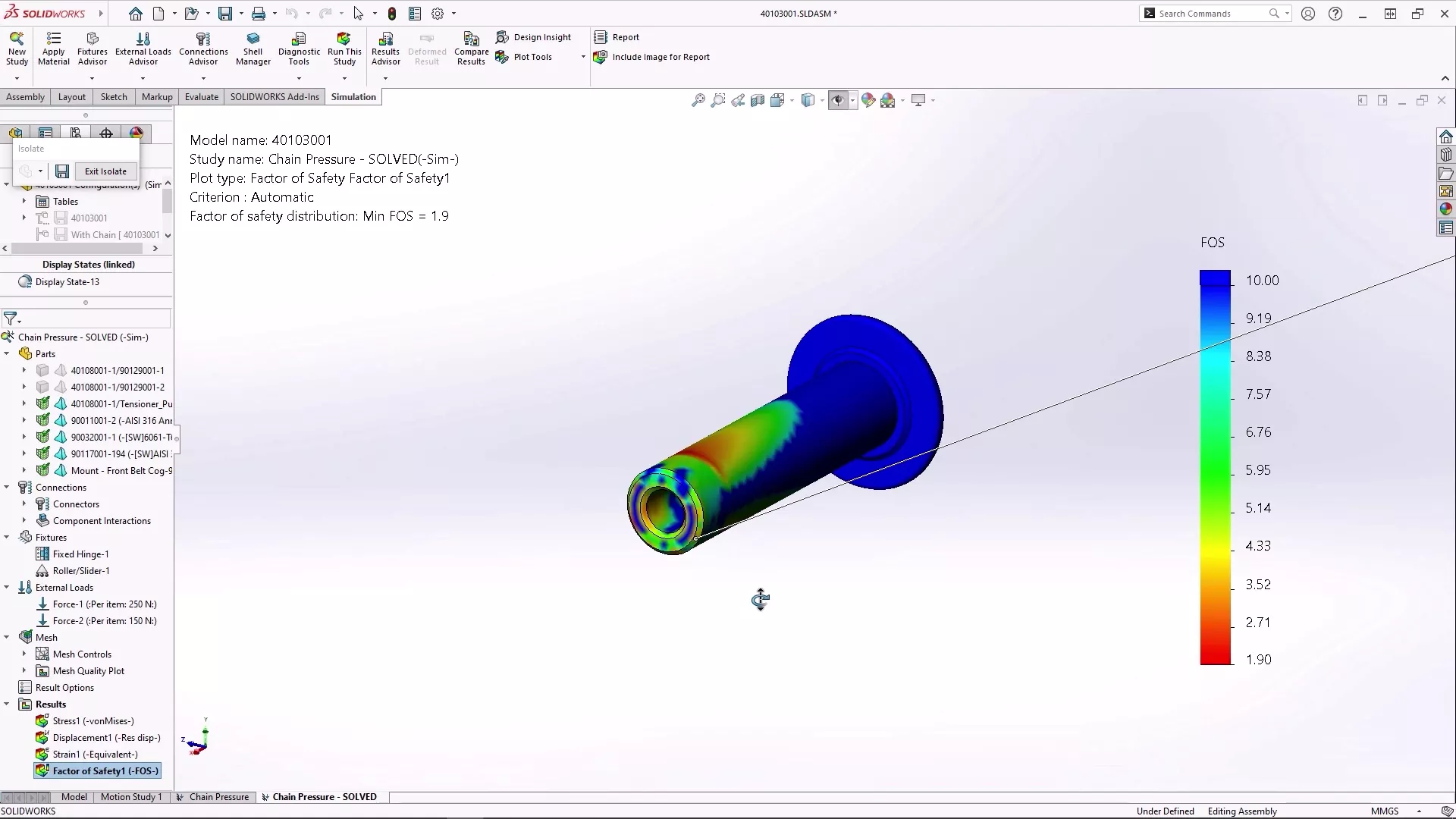
As faces of the connector will be allowed to deform under the distributed condition, and the torsional stiffness accounts for the bending stiffness of the shaft, these enhancements bring more accurate results when using virtual connectors.
Just be aware that the ‘Allow Self-Alignment’ option in previous releases is no longer available and is obtained by setting the torsional stiffness to zero.
Ready to Upgrade?
Make sure you’re ready to upgrade! Have you checked off these 10 things to do before installing SOLIDWORKS?
Read the full blog to get prepared and find out everything you need to do before installing SOLIDWORKS.
#6 – DIRECT SPARSE SOLVER RETIRED
This is less of an enhancement, but something to be aware of going forward, as support for the Direct Sparse solver has been retired with SOLIDWORKS Simulation 2024.
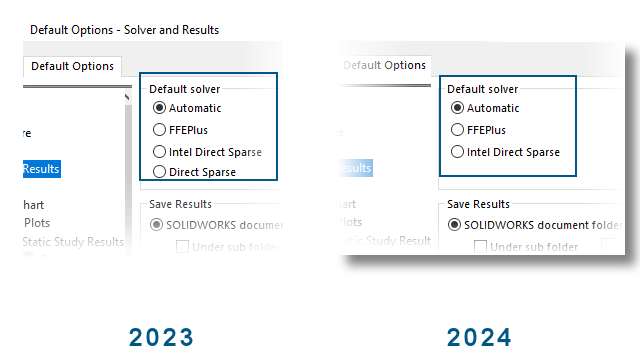
For legacy studies that use this solver, SOLIDWORKS Simulation 2024 will use the Intel Direct Sparse solver instead.
#7 – MULTIPLE GATES OPTIMISATION
Not sure how many gates you can use for a cavity?
Well, multiple gates can now be automatically optimised for in SOLIDWORKS Plastics 2024.
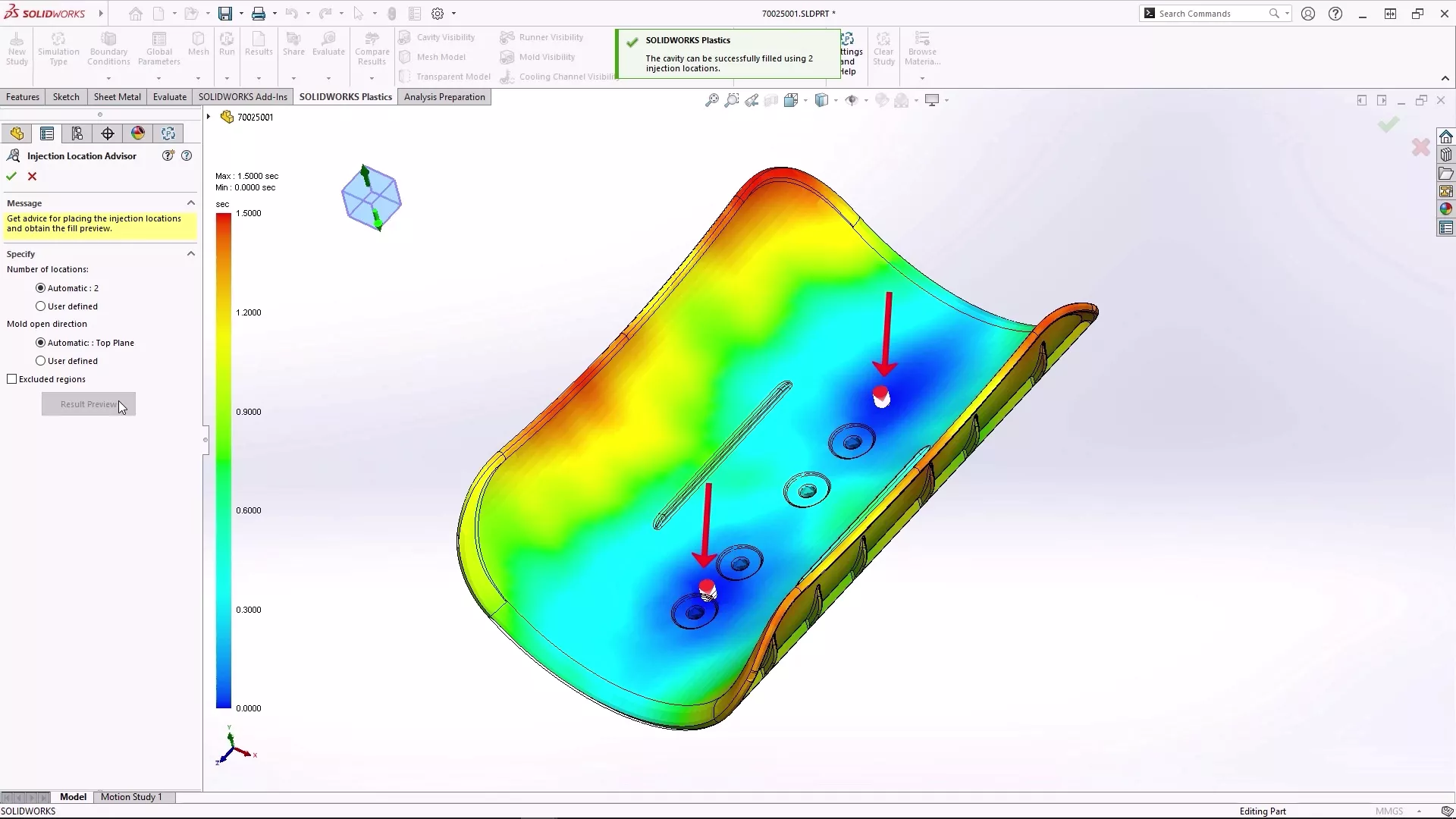
Up to 10 gates can be automatically added with the Injection Location Advisor, as SOLIDWORKS iteratively calculates how many a cavity requires.
#8 – PLASTICS BATCH MANAGER
The SOLIDWORKS Plastics 2024 batch manager lets you queue up simulations and run them all in one click.
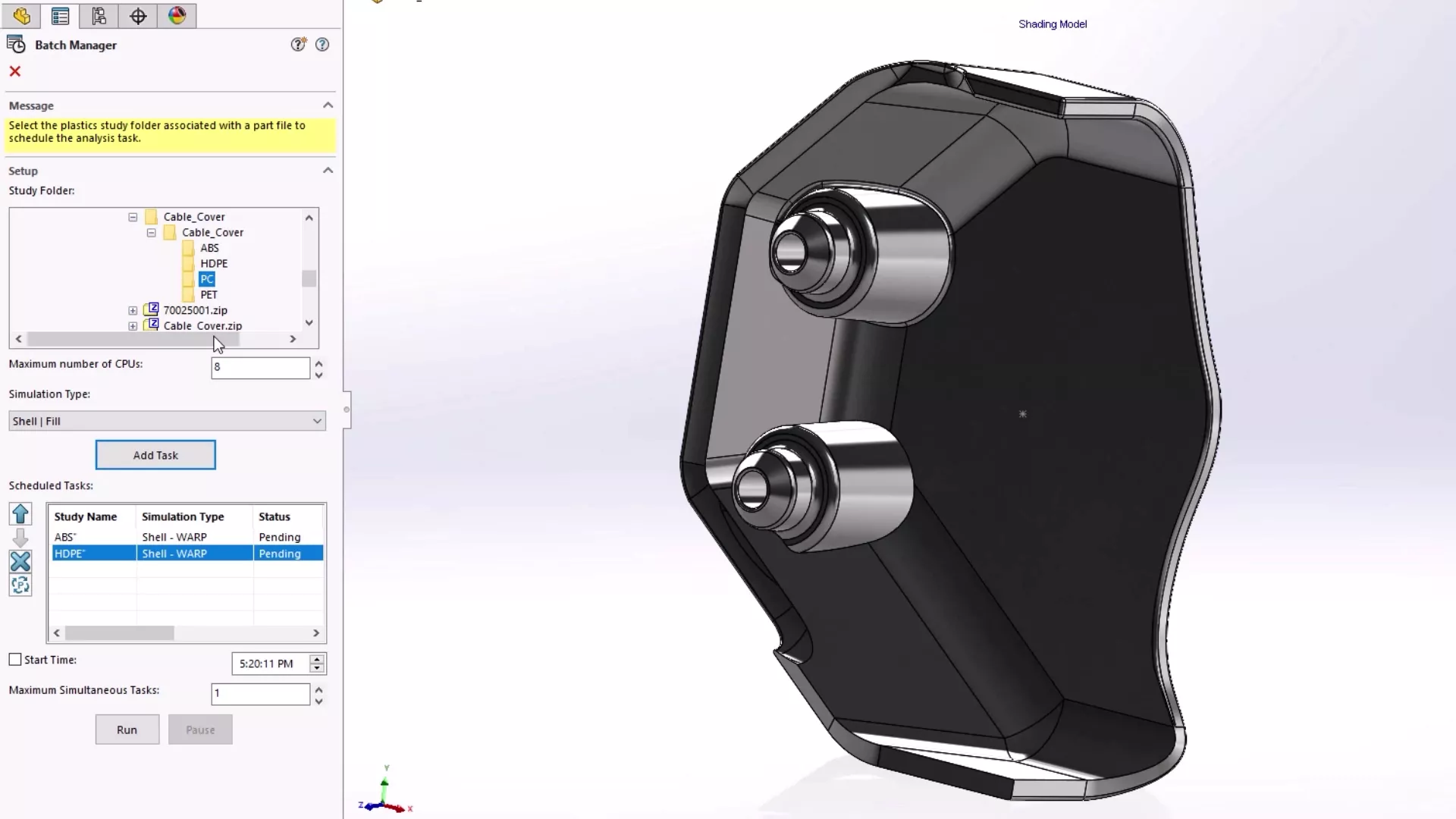
This tool is enhanced by allowing you to choose different study types and specify how many CPU cores you wish to dedicate to the tasks at hand.
#9 – PRESSURE-DEPENDENT VISCOSITY MATERIALS
SOLIDWORKS Plastics 2024 Fill and Pack simulations now support materials with pressure-dependent viscosity, and they have been added to the Plastics Materials Database.
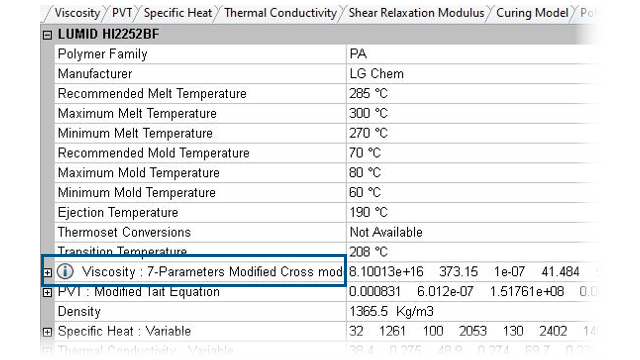
Pressure-dependent viscosity is an important consideration when working with high injection pressures and for parts with long flow lengths or extremely thin walls.
#10 – SNL USER TIMEOUTS IMPROVED
There’s no need to worry about licensing timeouts when running long studies.
SOLIDWORKS holding a license during solving is considered an activity, so your session will still technically be ‘active’, even if you’ve gone to make a cuppa or have a kip.
Inactivity periods required to trigger timeouts will begin after the completion of a study in SOLIDWORKS 2024.
There are a slew of new features and enhancements in SOLIDWORKS 2024 that cater to the evolving needs of the design and engineering industry.
For all of the latest updates and features coming to SOLIDWORKS, check out our dedicated webpage and discover what’s new in SOLIDWORKS 2024.
Take the Next Steps…
If you need help with SOLIDWORKS Simulation, our team can help you achieve accurate results and sharpen your skills.
Here’s a quick rundown of how we can help you get the best from SOLIDWORKS Simulation and virtual testing with our Simulation services.
Categorised as: SOLIDWORKS Design | Simulation
What's New in SOLIDWORKS?
Explore the latest innovations in SOLIDWORKS with our exclusive breakdown of live webinar, giving you on-demand access to the insights that matter most to your workflow.
Related Posts

How to Find Reaction Forces in SOLIDWORKS Simulation
SOLIDWORKS helps us to find resultant forces through simulation studies. These virtual tests reduce the need for physical prototypes and give us an accurate answer.

Setting number of decimal places in a table on a drawing
When creating an equation in a drawing general table, is it possible to define the…

SOLIDWORKS Smart Fasteners
SOLIDWORKS Smart Fasteners is a really useful time saving tool, allowing you to automatically insert toolbox fasteners such as bolts and screws into an assembly providing there is a standard hole.

Why is my Flat Pattern not showing in SOLIDWORKS Drawings?
This may be linked to how the drawing is saved or it can be related to how sheet metal parts are displayed in drawings, read on to find out how to fix it.

SOLIDWORKS Tips: Are you Making this Common Mistake in Fatigue Analysis?
Simulation is a vital and complex engineering need. Fortunately, SOLIDWORKS makes it easy to test, correct mistakes and obtain accurate results.

How to Recover SOLIDWORKS Files After a Crash
SOLIDWORKS has two different methods to help you recover from an unexpected crash or loss of data in the form of auto-recovery and back-up settings.

Redesigning Santa’s Sleigh in SOLIDWORKS
Every year Father Christmas has to fly in his sleigh to deliver presents to boys and girls all over the world in just one night. To put this into perspective, it takes a little under 24 hours to fly from London (UK) to Sydney (Australia) in a streamlined Boeing 747, whereas Father Christmas’ mode of transport is believed to be a rather non-aerodynamic sleigh.

Radiation in Flow Simulation – Part 1 : Reflection
Technical Manager Andy Fulcher explores ‘Radiation in Flow Simulation, Part 1 : Reflection’
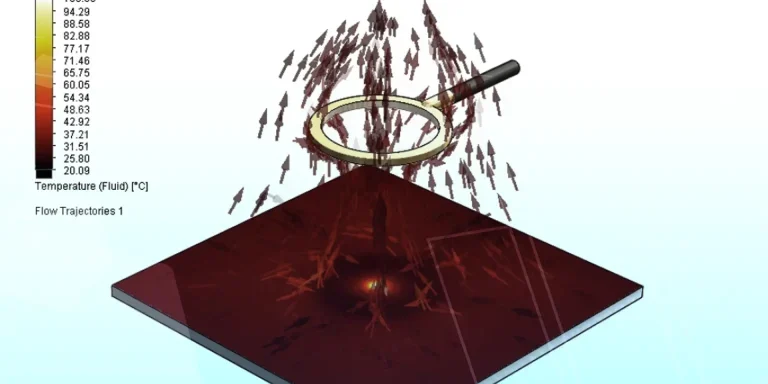
Radiation in Flow Simulation – Part 2 : Refraction
Technical Manager Andy Fulcher explores ‘Radiation in Flow Simulation, Part 2 : Refraction’
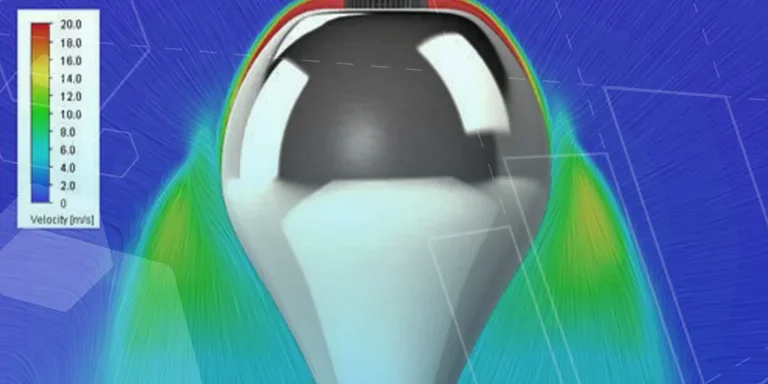
The Coanda Effect in Flow Simulation
Can you take advantage of the Coanda Effect & can SOLIDWORKS Flow simulate it? Applications Engineer Romel Cumare investigates in his latest blog post.