











4 Ways to Add Custom Properties in SOLIDWORKS

Written by: Terry O'Reilly
Published: Feb 7, 2024
| View All Blogs
Custom properties are used extensively throughout SOLIDWORKS parts, assemblies, and drawings.
They are simply text-based information that helps to describe a document and add extra information – they are sometimes known as metadata.
Properties can be used in many areas of SOLIDWORKS to populate Bills of Materials, build templates, and link information in drawing borders, but they also provide additional searchable information.
#1 – File Properties
The first and most commonly used way to create file properties is from the File > Properties menu.
In the pop-up dialog, use the drop-down menus to add the appropriate fields and values, or type in your own.
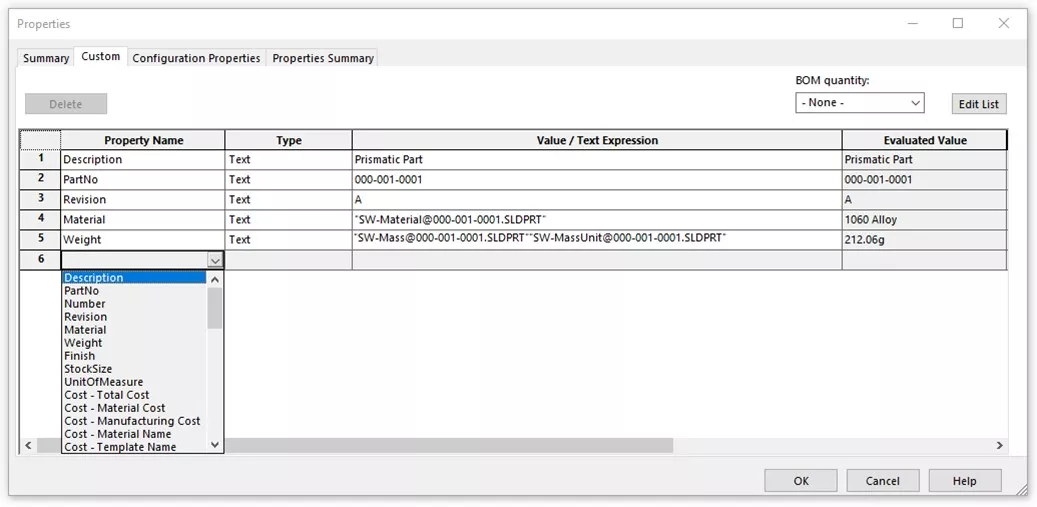
Customising this list is covered in the SOLIDWORKS Drawings training course, where you’ll also learn to set up and create drawing borders and templates.
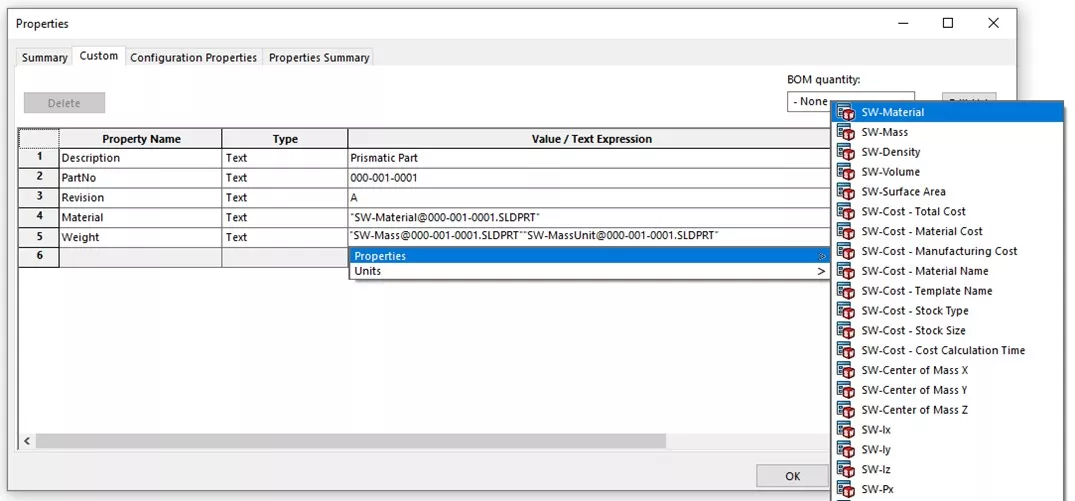
You might also link a property to a standard value, such as SW-Mass or SW-Material so it automatically updates as you model.
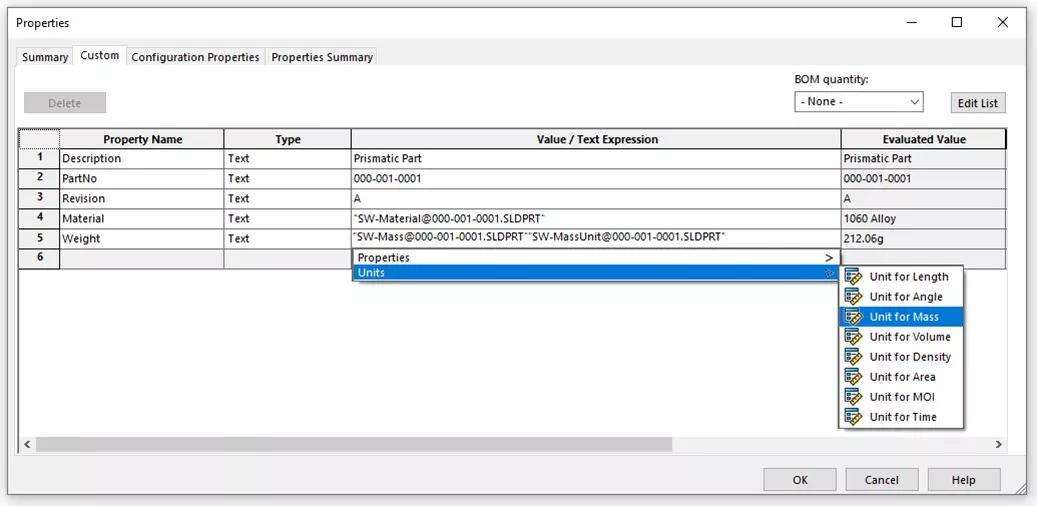
Units of measurement can be added at the end of the Value/Text Expression field. The Evaluated field shows the output result of this cell.
#2 – Property Tab Builder
Located within the Start Menu > SOLIDWORKS Tools 20XX*, you will find the Property Tab Builder.
*XX represents the year version of SOLIDWORKS.
This takes a form-based approach, and we can use it to produce an interactive field with intelligent controls from drop down lists to radio buttons.
This method ensures all properties required are presented to the user on the right-hand side of the Screen within the Task Pane.
Watch this tutorial to learn how to create your own custom property tab builders.
Within this interface you can still access the traditional file properties through the More properties… button at the bottom of the screen.
#3 – Task Automation
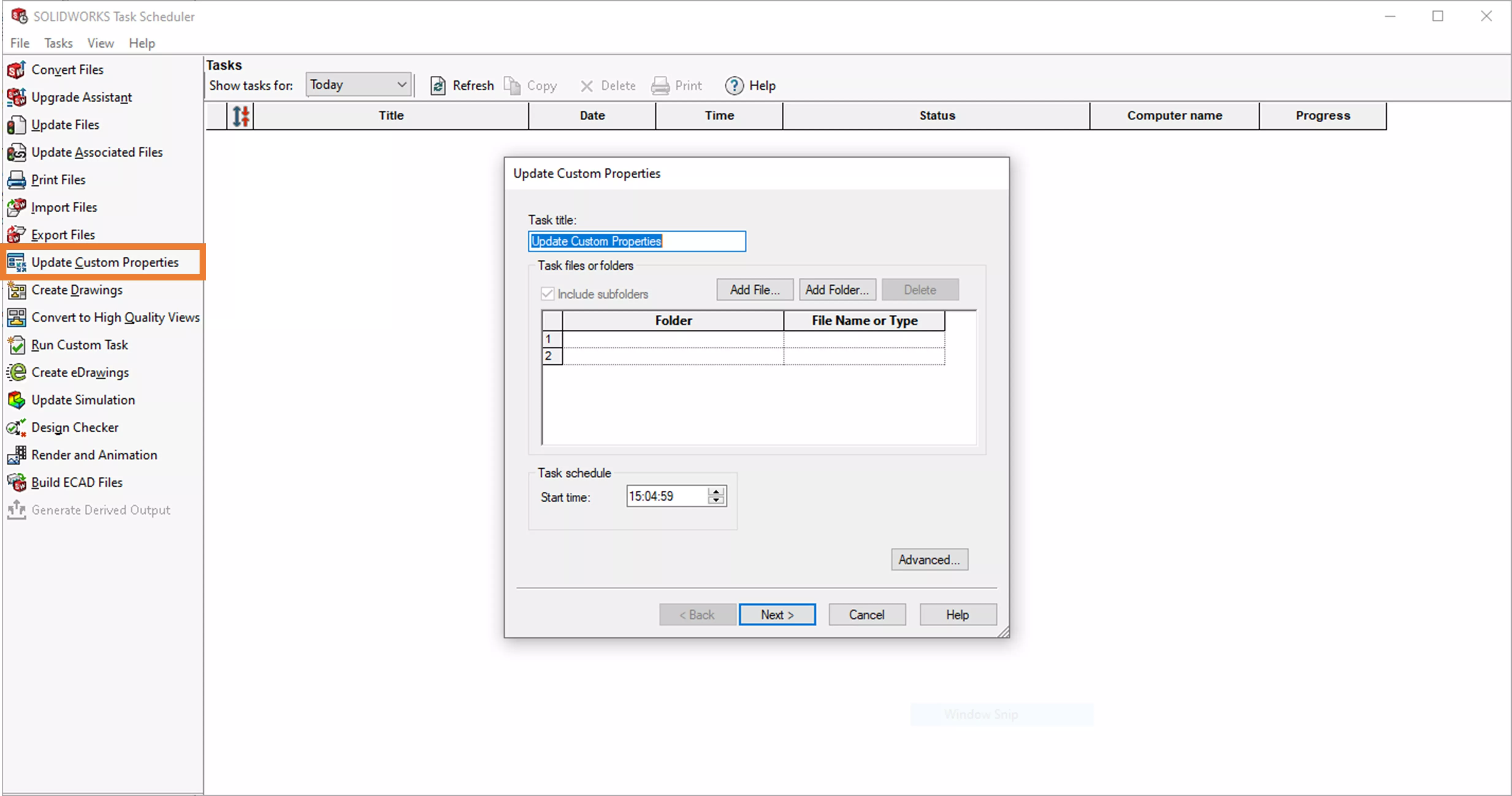
The SOLIDWORKS Task Scheduler allows us to update custom properties at a scheduled date and time based on a file or a folder.
We can then specify the properties we wish to update. One big time saving feature here is the fact you can process an entire folder of files, therefore automating what could be a very tedious task.
Solid Solutions’ own batch processor for SOLIDWORKS, SolidQ, can also be used to schedule tasks, update custom properties, and generate drawings automatically!
#4 – SOLIDWORKS PDM Data Cards
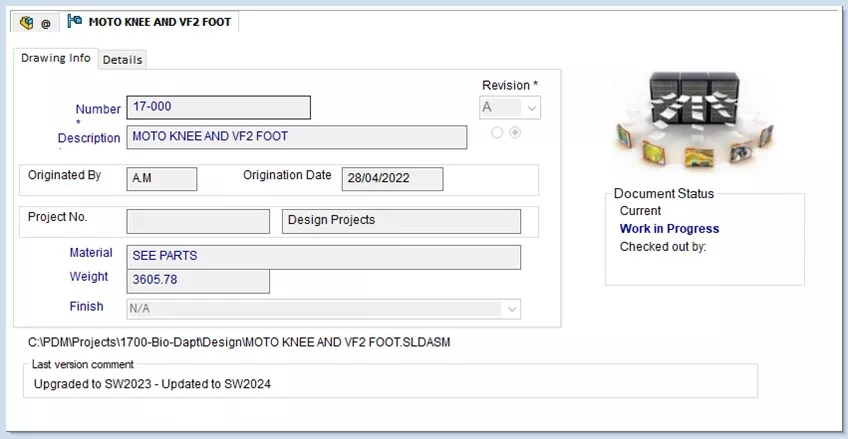
When managing your files with SOLIDWORKS PDM, there are many ways of populating properties using Data Cards and file Variables.
These can be generated from lists, drop down menus, or automatically generated and entered during workflows and state changes.
Not securing your CAD files with PDM? Make sure you check out these 10 reasons why you should manage your data with SOLIDWORKS PDM Standard.
No matter the method used to create the properties in the first place, using them – particularly in SOLIDWORKS drawings – can automate some of the more tedious data entry tasks, meaning fewer mistakes and better consistency.
Categorised as: SOLIDWORKS Design | Tech Tips
Get Expert SOLIDWORKS Training
Get hands-on SOLIDWORKS training in-person or online, led by certified experts with real industry experience. With venues across the UK & Ireland, it’s easy to start learning today.
Related Posts

How to Find Reaction Forces in SOLIDWORKS Simulation
SOLIDWORKS helps us to find resultant forces through simulation studies. These virtual tests reduce the need for physical prototypes and give us an accurate answer.

Setting number of decimal places in a table on a drawing
When creating an equation in a drawing general table, is it possible to define the…

SOLIDWORKS Smart Fasteners
SOLIDWORKS Smart Fasteners is a really useful time saving tool, allowing you to automatically insert toolbox fasteners such as bolts and screws into an assembly providing there is a standard hole.

Why is my Flat Pattern not showing in SOLIDWORKS Drawings?
This may be linked to how the drawing is saved or it can be related to how sheet metal parts are displayed in drawings, read on to find out how to fix it.

Why is SOLIDWORKS Crashing?
It’s one of the great mysteries of life – why is SOLIDWORKS crashing? Let’s explore how SOLIDWORKS crashes and how we can improve performance in SOLIDWORKS.

SOLIDWORKS Tips: Are you Making this Common Mistake in Fatigue Analysis?
Simulation is a vital and complex engineering need. Fortunately, SOLIDWORKS makes it easy to test, correct mistakes and obtain accurate results.

Tech Support Blog: Why are my SOLIDWORKS BOM Quantities Wrong?
Why are my SOLIDWORKS BOM Quantities Wrong? A support call cropped up this week which…

How to Get Your Serial Number for SOLIDWORKS Visualize Standard
Want to download Visualize to make photorealistic renders? Follow this guide for accessing your Visualize serial number that comes bundled in with SolidWorks Professional and Premium.

How to Recover SOLIDWORKS Files After a Crash
SOLIDWORKS has two different methods to help you recover from an unexpected crash or loss of data in the form of auto-recovery and back-up settings.

Redesigning Santa’s Sleigh in SOLIDWORKS
Every year Father Christmas has to fly in his sleigh to deliver presents to boys and girls all over the world in just one night. To put this into perspective, it takes a little under 24 hours to fly from London (UK) to Sydney (Australia) in a streamlined Boeing 747, whereas Father Christmas’ mode of transport is believed to be a rather non-aerodynamic sleigh.