











Connection Detailing in SOLIDWORKS 2022

Written by: Terry O'Reilly
Published: Dec 15, 2021
| View All Blogs
What is connection detailing?
Connection detailing is the principal way of joining beams and columns in structural engineering. They are fundamental components of structural design and work to transfer loads, reduce movement and provide stability.
You’ll commonly see them used in timber and steel framed buildings as plates, hangers, and brackets, usually bolted and/or welded to the structural members.
To understand their mechanical properties and performance, structural beams and connections can be simulated within SOLIDWORKS.
What connections can I add in SOLIDWORKS?
SOLIDWORKS 2022 comes with a few sample plates and brackets to get you started, but you can create any connection element you want!
It’s as simple as making a part file and defining a few positioning references within it. We’ll walk you through the process – we took this timber-framed stable that we created with Structure Systems and added some connection elements to it.
How do you make connection elements in SOLIDWORKS?
Design your connection element – it might be a part you design and manufacture yourselves, or a standard part that you buy in. Just like with weldment profiles, we can build our own library of connection details. Here we’re working with a steel hanger for timber beams.
There are two main ways of creating connections in SOLIDWORKS: with configurations or dimensions.
With configurations we can establish a variety of different forms that fit about common position references and choose between them in a drop-down menu.
Using dimensions allows us to change specific dimensions of the connection element when positioning. The two can be combined for an additional level of control.
How to define connection elements in SOLIDWORKS
Once modelled, the connection elements needed to be defined. Defining connection elements allows us to specify faces and features for use when inserting and positioning them on structures.
Having enabled the Structure System tab and selected Define Connection Element to turn a standard SOLIDWORKS part into a connection element, we specified our connection placement type.
The placement type determines how many position references we can select. End connections only use one primary reference for the end of a structural member, while the generic connection provides us with more flexibility when positioning.
With three references to choose, we wanted to select those that make the most sense for positioning. Our primary reference is the plane that the connection fits against, and selecting the right plane as the secondary reference ensured the hanger would remain centred about the structural elements. The tertiary reference would be used to determine the vertical position of the connection.
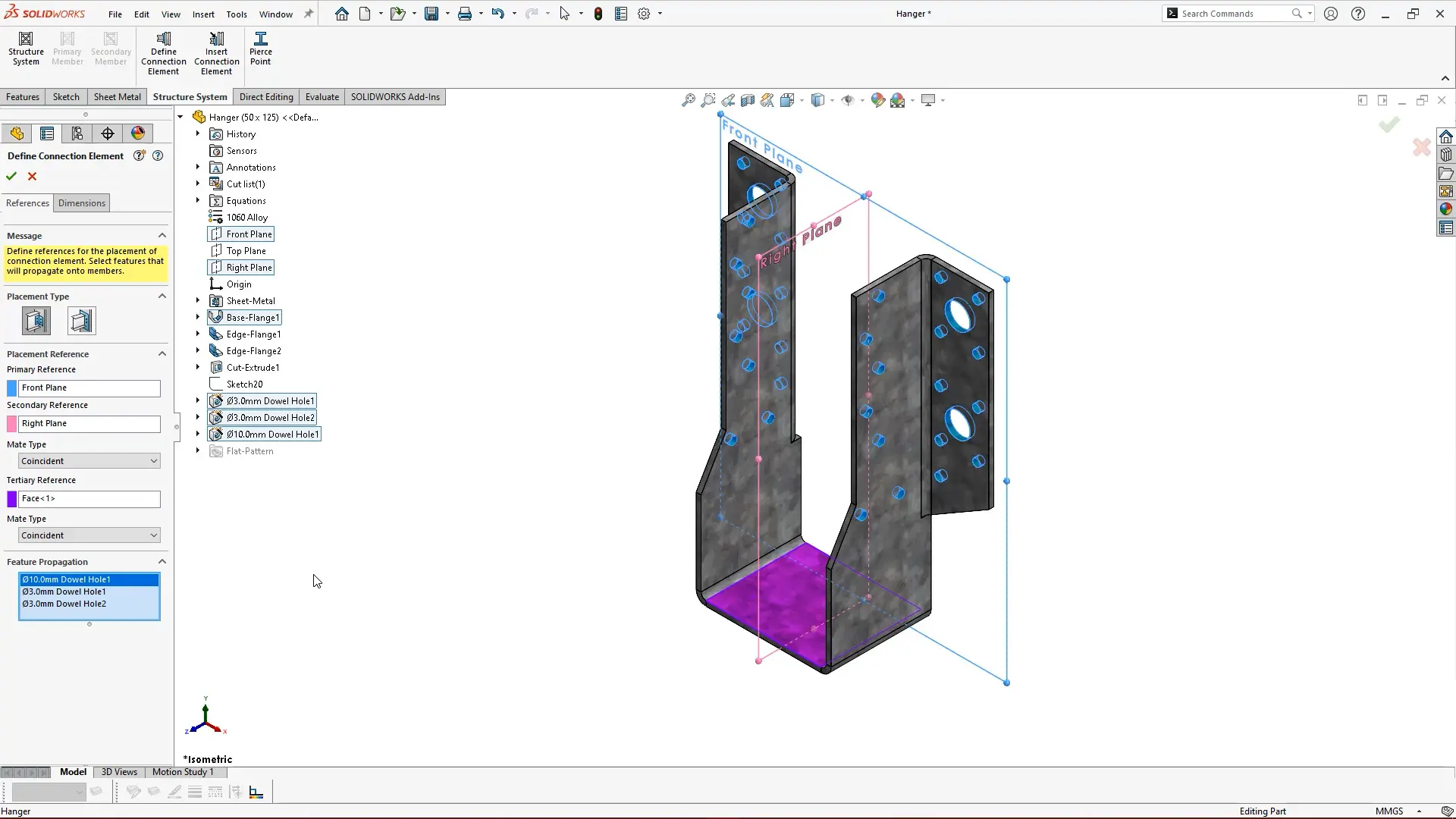
Mate types can be selected within the Property Manager for the references – coincident mates were appropriate in this instance, but we can also choose from concentric and parallel mates, depending on a structural member’s shape and connection type.
The Feature Propagation box lets us select features that we want to have an influence on other bodies when the connection is inserted. This is useful when we have holes in a connection element that also cut into or through the structural members.
We selected the features to propagate from the viewport and Feature Manager Tree drop down, before saving and closing the file. Connection element files cannot be open while trying to insert them.
Next we created a connection element with the dimensions option. Under the dimension tab, we can create groups of named dimensions that we can alter when we insert the connection.
We renamed desired dimensions in the sketch to something logical, and created appropriate groups for them when defining the connection element.
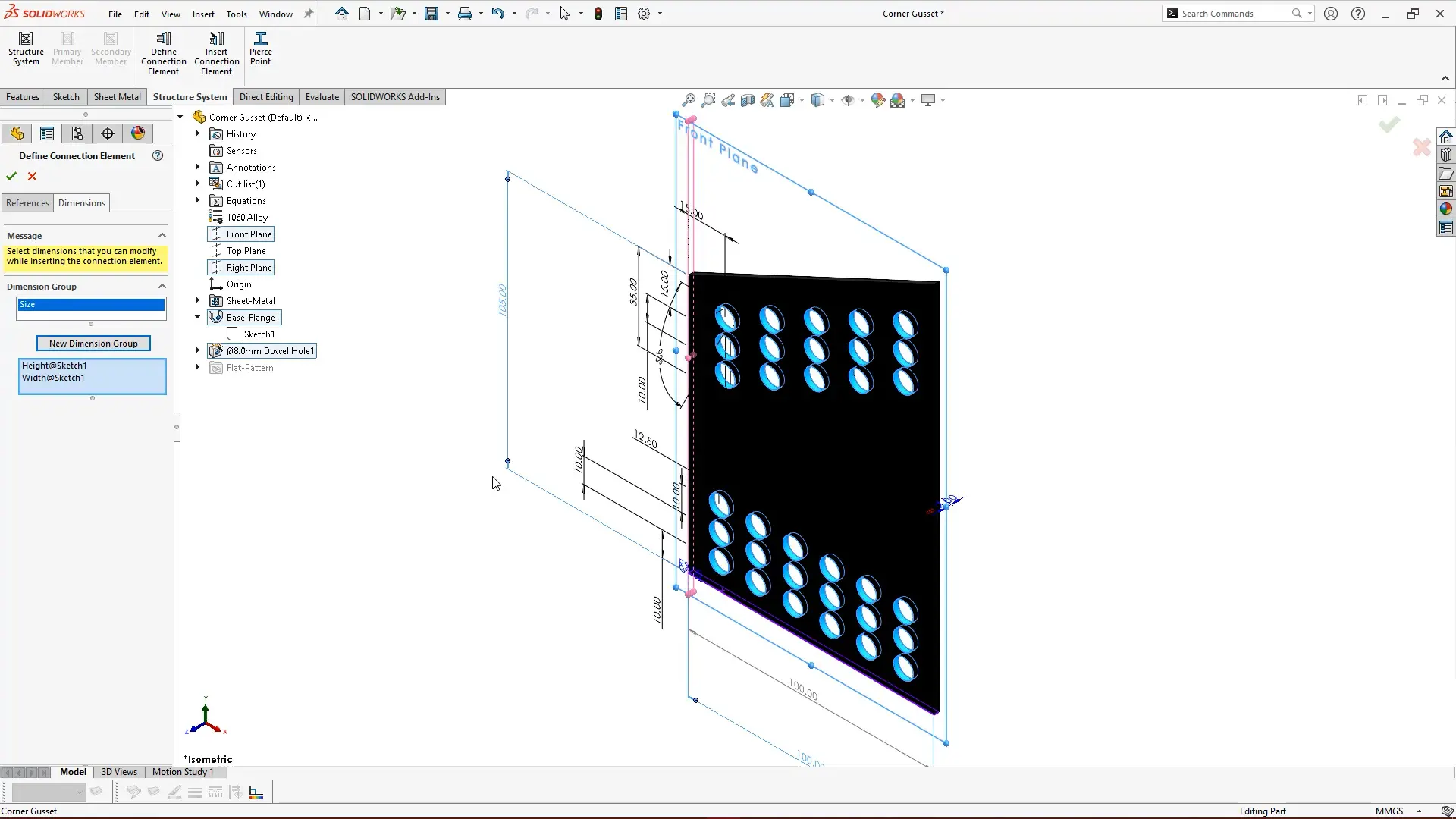
Dimension groups are a great feature if you need to manually adjust the size of a connection while viewing the structure or are working with several flexible dimensions, however, configurations are recommended to keep sizes consistent across all models.
With our connection elements created, it was time to add them to our library.
Where is the connection element folder?
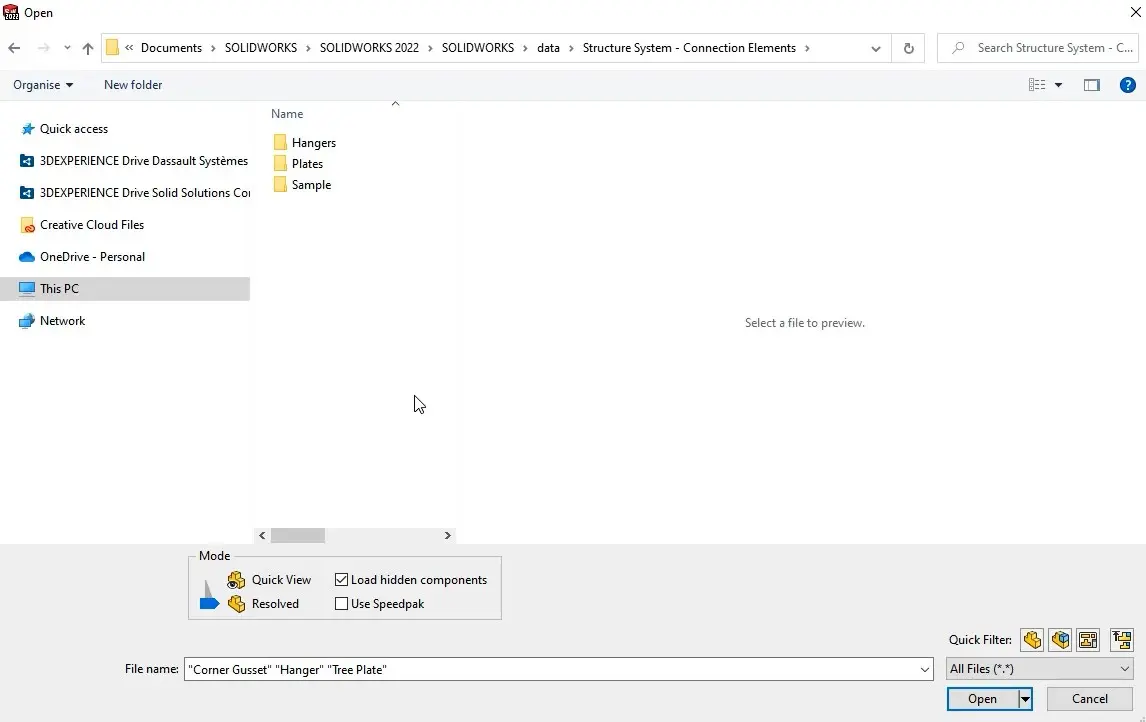
All created connection elements needed to be copied to the Structure System – Connection Elements folder. This is typically located within your C: Drive > Program Files > SOLIDWORKS Corp 2022 > SOLIDWORKS > data.
We recommend creating a simple folder structure within there to stay organised. Top level folders will be Standards and should only include part files.
Inserting connection elements in SOLIDWORKS
When it comes to inserting connection elements into a design, SOLIDWORKS 2022 has made it exceptionally straightforward.
Under the Structure Systems tab, we selected Insert Connection element. A familiar Weldment-like menu shows in the Property Manager.
The standard menu browses the top-level folders in the connection elements folder, the type is the file name, and the size is determined by the configurations within a connection element part.
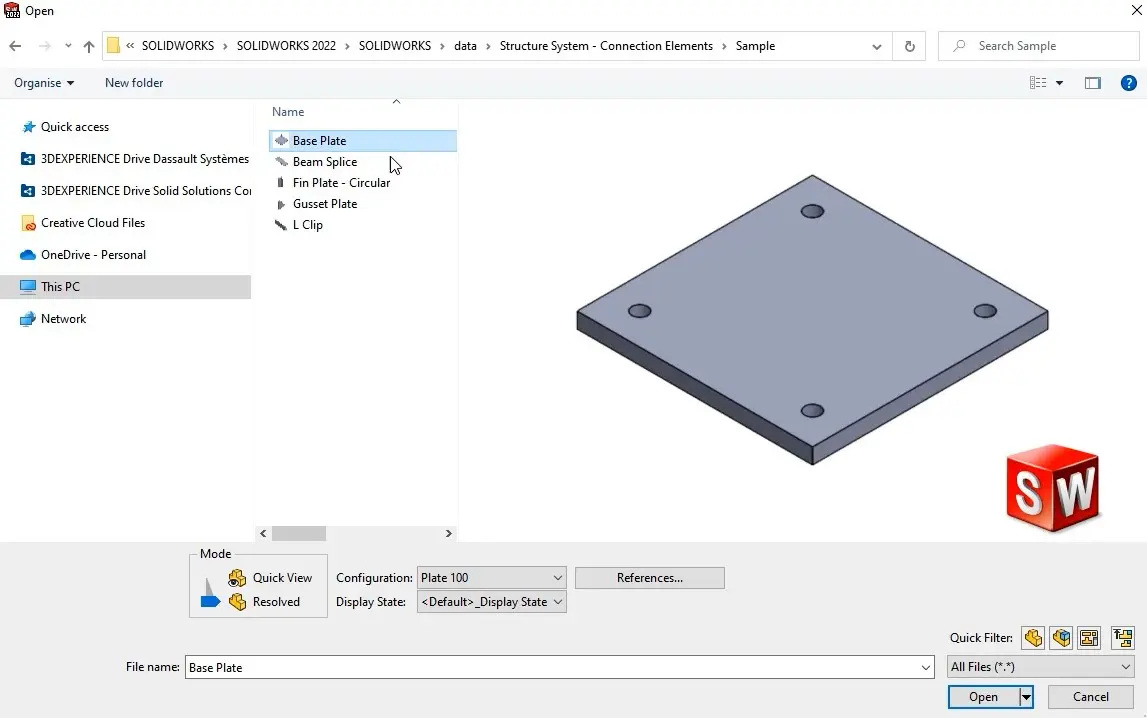
Once we chose our size, we could then position the element. Selecting the placement tab initiates the primary reference locator. These references relate to what we defined when creating the elements.
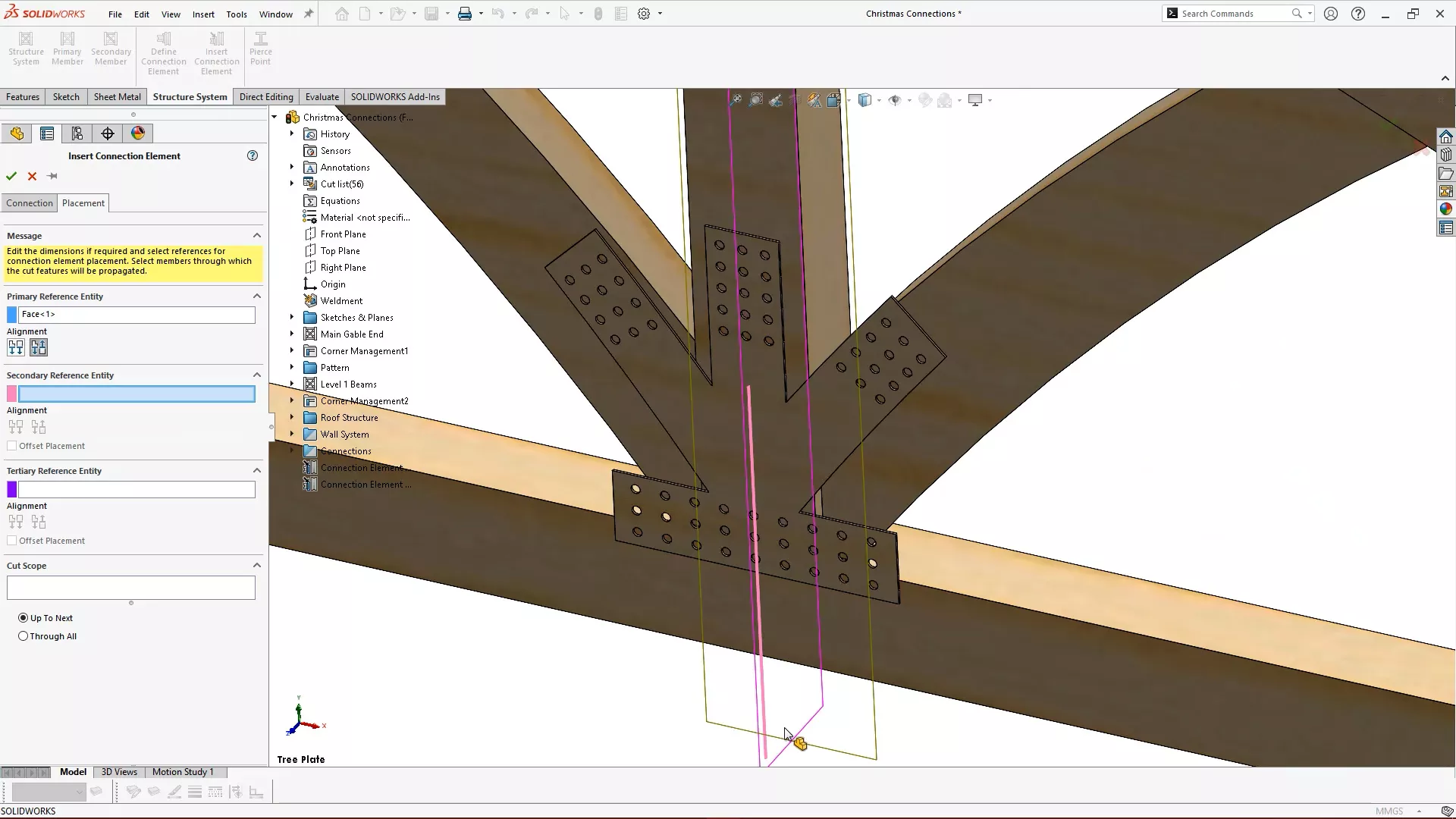
When selecting references, the planes of structural members become visible for easy selection. We chose the appropriate faces for each reference, adjusted alignments and added any offsets as required.
The Cut Scope allows us to select which bodies we want to be affected by the propagating cuts, so we selected our various structural members which needed holes cutting through them.
Connection elements sit in the Feature Manager Tree as new features and can be edited to change or modify the detailing element and position. Be aware that connection detailing is currently only compatible with structural members created in Structure Systems and not with Weldment bodies.
With SOLIDWORKS 2022 it’s simple to add and manipulate connection detailing on structures. Check out the finished product render after passing our model through SOLIDWORKS Visualize to see the full power of SOLIDWORKS 2022.
Why not take a look at more great new features coming in SOLIDWORKS 2022?
Categorised as: SOLIDWORKS Design | Tutorials
Get a SOLIDWORKS Quote
Interested in SOLIDWORKS? Contact us for questions, trials, or demos by clicking the button below or call 01926 333777. Our experts will help you find the perfect solution.

Related Posts

How to Find Reaction Forces in SOLIDWORKS Simulation
SOLIDWORKS helps us to find resultant forces through simulation studies. These virtual tests reduce the need for physical prototypes and give us an accurate answer.

Setting number of decimal places in a table on a drawing
When creating an equation in a drawing general table, is it possible to define the…

SOLIDWORKS Smart Fasteners
SOLIDWORKS Smart Fasteners is a really useful time saving tool, allowing you to automatically insert toolbox fasteners such as bolts and screws into an assembly providing there is a standard hole.

Why is my Flat Pattern not showing in SOLIDWORKS Drawings?
This may be linked to how the drawing is saved or it can be related to how sheet metal parts are displayed in drawings, read on to find out how to fix it.

SOLIDWORKS Tips: Are you Making this Common Mistake in Fatigue Analysis?
Simulation is a vital and complex engineering need. Fortunately, SOLIDWORKS makes it easy to test, correct mistakes and obtain accurate results.

Series 1 Land Rover Pedal Car – Made Easy with Solidworks!
The Series1 began production in 1948 designed to help get Britain farming after the war effort. It grew extremely popular and today enthusiasts are prepared to throw their life savings at restoring originals from that period.

How to Recover SOLIDWORKS Files After a Crash
SOLIDWORKS has two different methods to help you recover from an unexpected crash or loss of data in the form of auto-recovery and back-up settings.

Redesigning Santa’s Sleigh in SOLIDWORKS
Every year Father Christmas has to fly in his sleigh to deliver presents to boys and girls all over the world in just one night. To put this into perspective, it takes a little under 24 hours to fly from London (UK) to Sydney (Australia) in a streamlined Boeing 747, whereas Father Christmas’ mode of transport is believed to be a rather non-aerodynamic sleigh.

SOLIDWORKS Grid Systems – hidden away, but very useful!
Rory Niles provides an insight into the uses for Grid Systems within SOLIDWORKS 2018

Furniture Design Made Easy with SOLIDWORKS
Calling all furniture and interior designers: the days of creating square cabinets are over. What if we told you there’s a much easier way to bring your products to life?
Here’s 10 reasons why we feel SOLIDWORKS is better than any other software, especially if you’re designing furniture: