











Data Management: 10 Tips to Mastering SOLIDWORKS PDM 2025
Written by: Wayne Marshall
Published: Feb 3, 2025
| View All Blogs
SOLIDWORKS PDM is a vast and powerful tool that lets you manage your CAD data easily.
As a highly configurable and secure system, it comes as no surprise that it’s one of the most popular SOLIDWORKS CAD data management software solutions.
We’ve asked our expert data management consultants what tips they’d recommend to those users who want to unlock the secrets of SOLIDWORKS PDM or are ready to get started with SOLIDWORKS data management.
Check out these top 10 tips that will help you master SOLIDWORKS PDM.
#1 – Maximise Previews
In SOLIDWORKS PDM, you can use preview tabs to get information about a file, including a full eDrawings view.
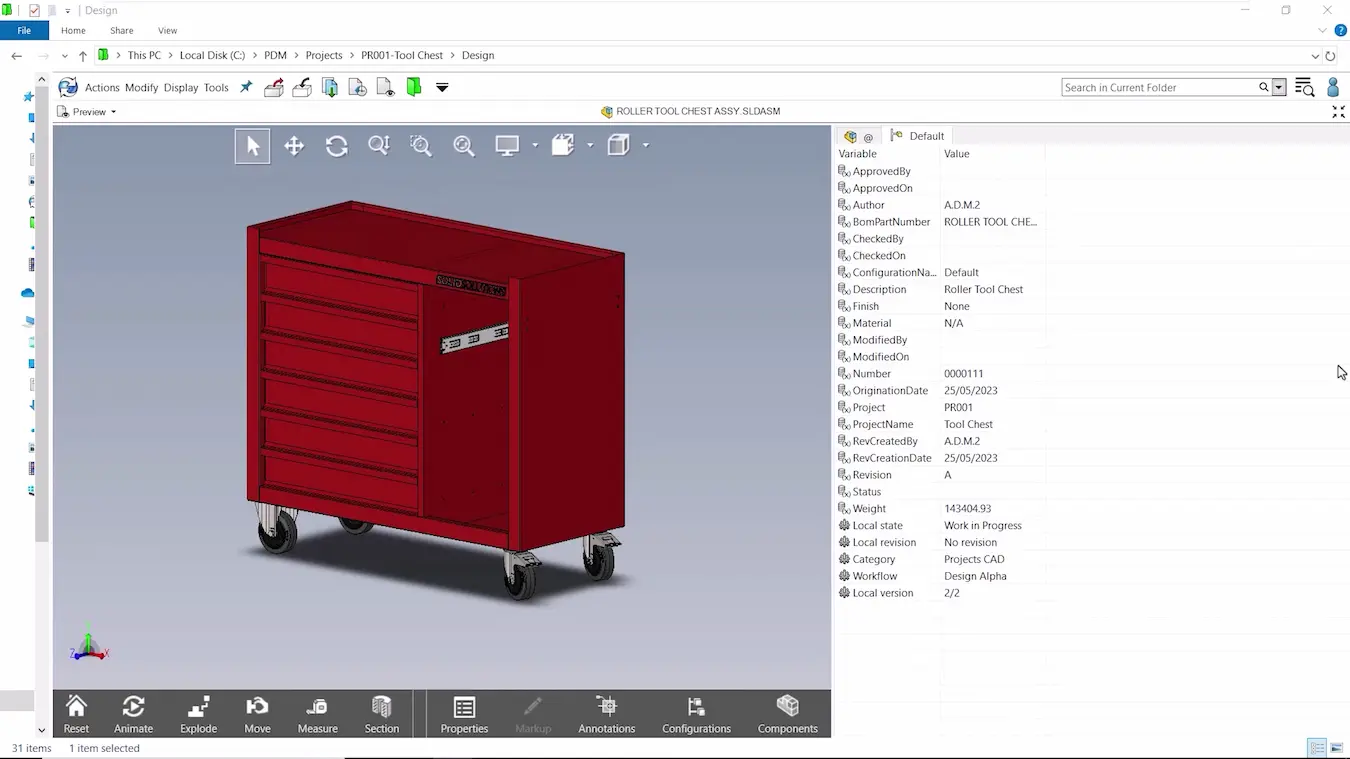
We recommend turning off the card display so you can expand preview tabs to full screen for a clearer view of a selected tab and its information, making it easier to see more information quickly.
Turn off the card preview under Display > Card Preview.
#2 – Visualise File Structures
SOLIDWORKS PDM Professional offers a graphical Treehouse mode to visualize these references in a graphical hierarchy.
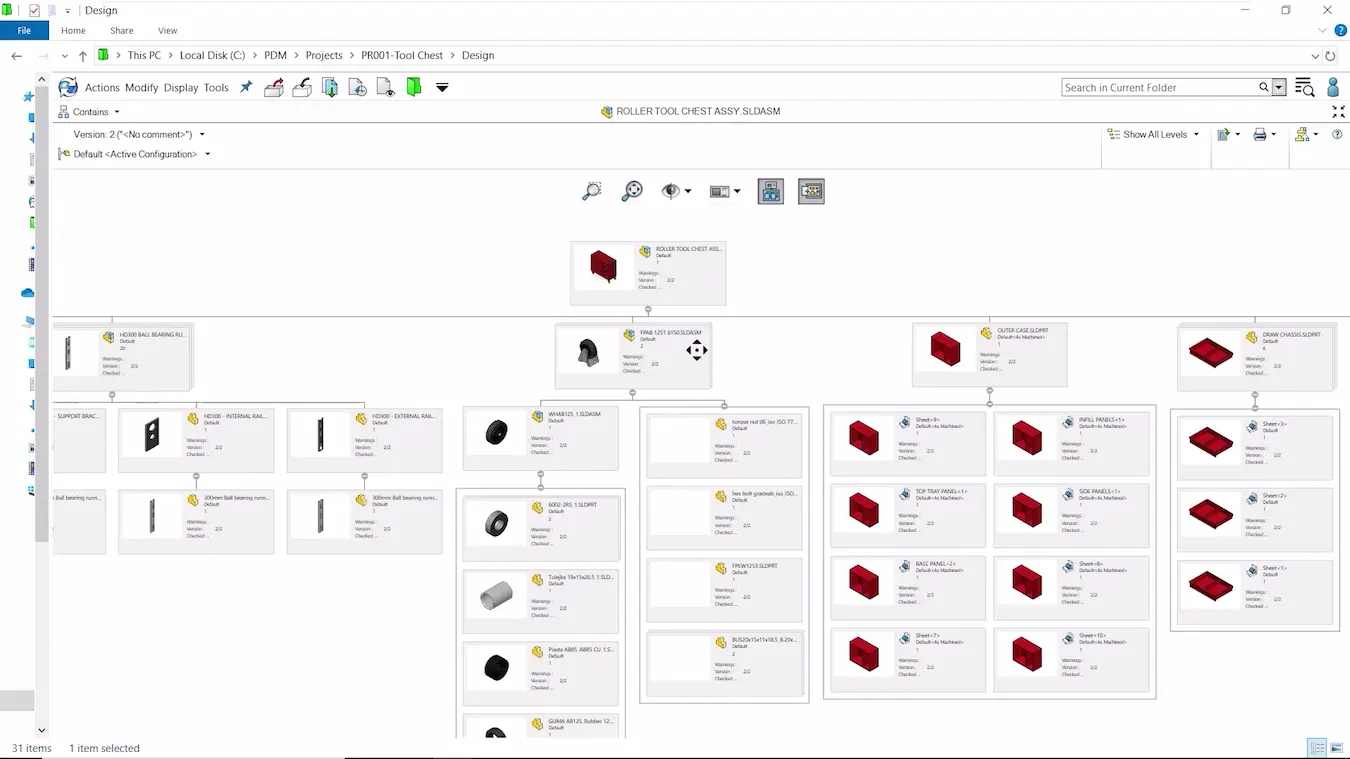
Through the Contains and Where Used tabs, you can quickly see what other files are referenced by the selected file.
Access Treehouse mode under the View dropdown in the top right corner of these tabs.
#3 – Click the Blueberry?
What’s a blueberry? Well that blue PDM icon with the arrows in the top left corner of your vault.
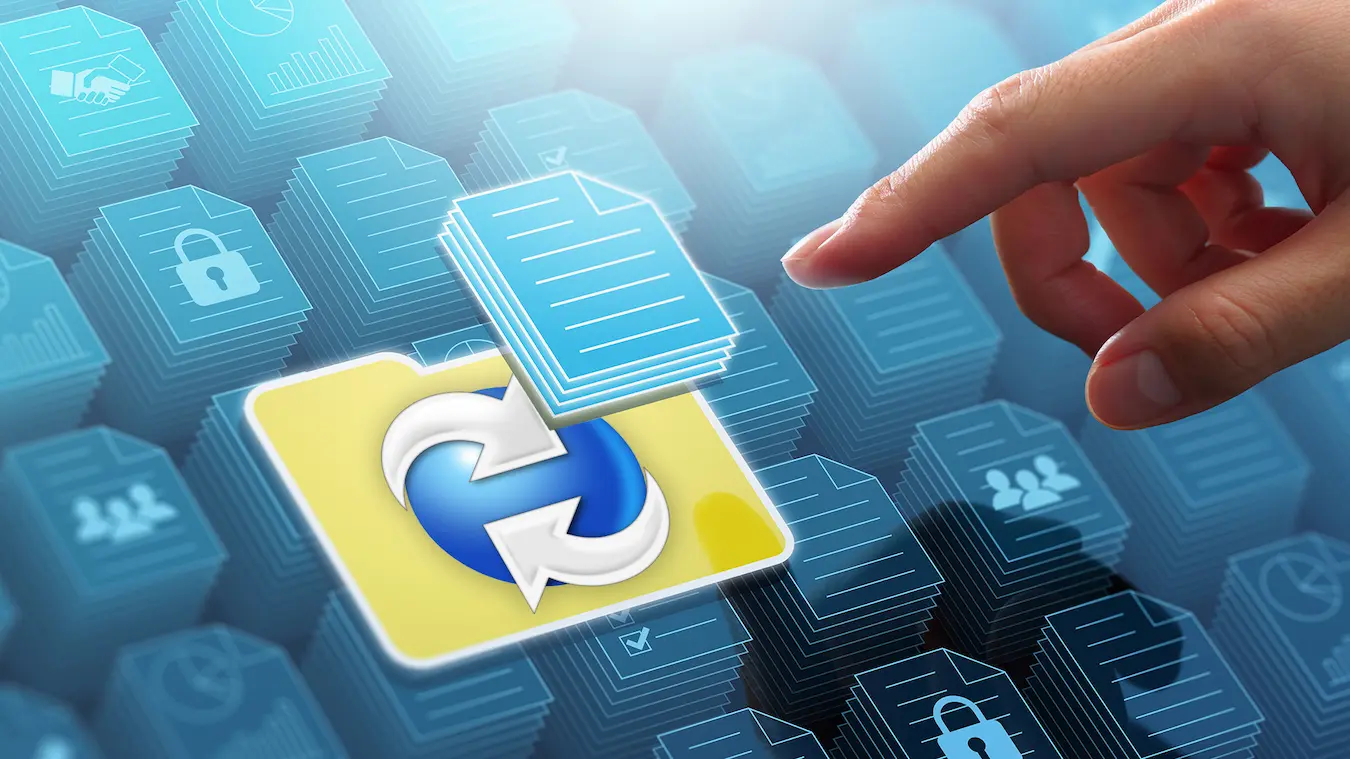
It turns out that clicking on that PDM blueberry allows you to jump back to the top level of the local vault view, regardless of your current location.
Who knew?
#4 – Set Presence Notes
Presence notes are PDM’s version of an out of office email or an MSN status filled with your favourite lyrics.
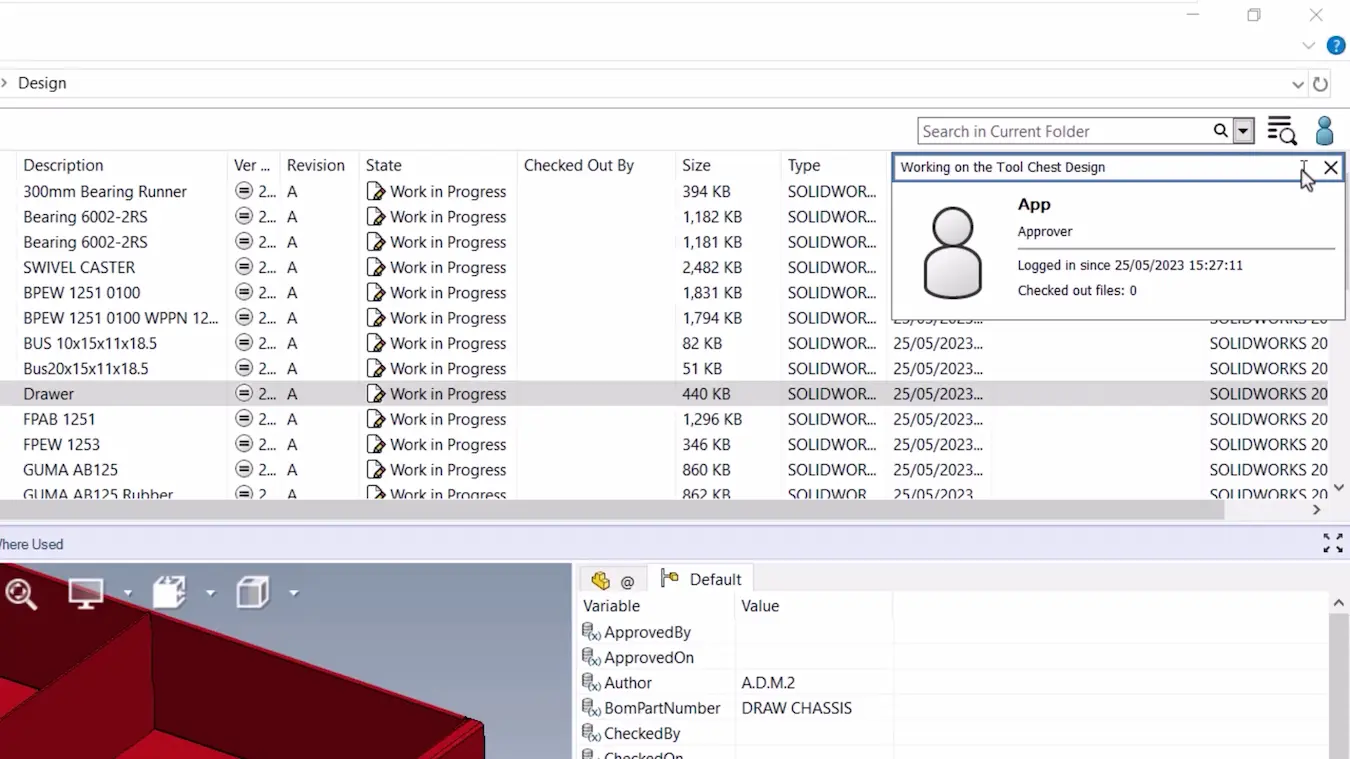
You can use presence notes to inform colleagues about your current activities or location, which is helpful for communication within the team.
Set your presence note by clicking on the user icon in the vault view.
#5 – Utilise Notifications
SOLIDWORKS PDM lets you alert your colleagues when files change state and progress through the workflow with notifications.
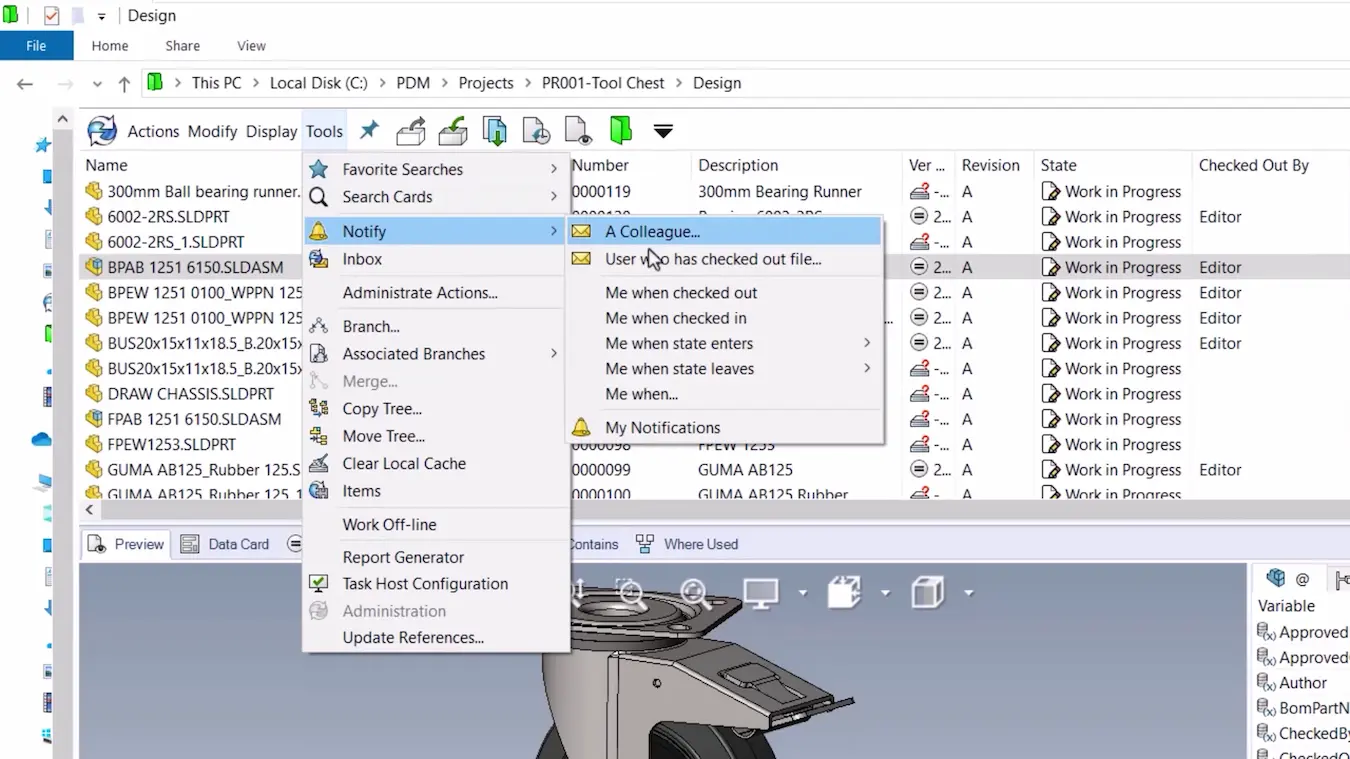
But did you know that you can also set up notifications to nudge yourself?
These can be set up to let you know when a file is checked back in or reaches a certain workflow status.
Select a file and head to Tools > Notify to customise your preference.
#6 – Quick Version Comparison
Within the history of a file, clicking on the view icon will open that version of the file in eDrawings.
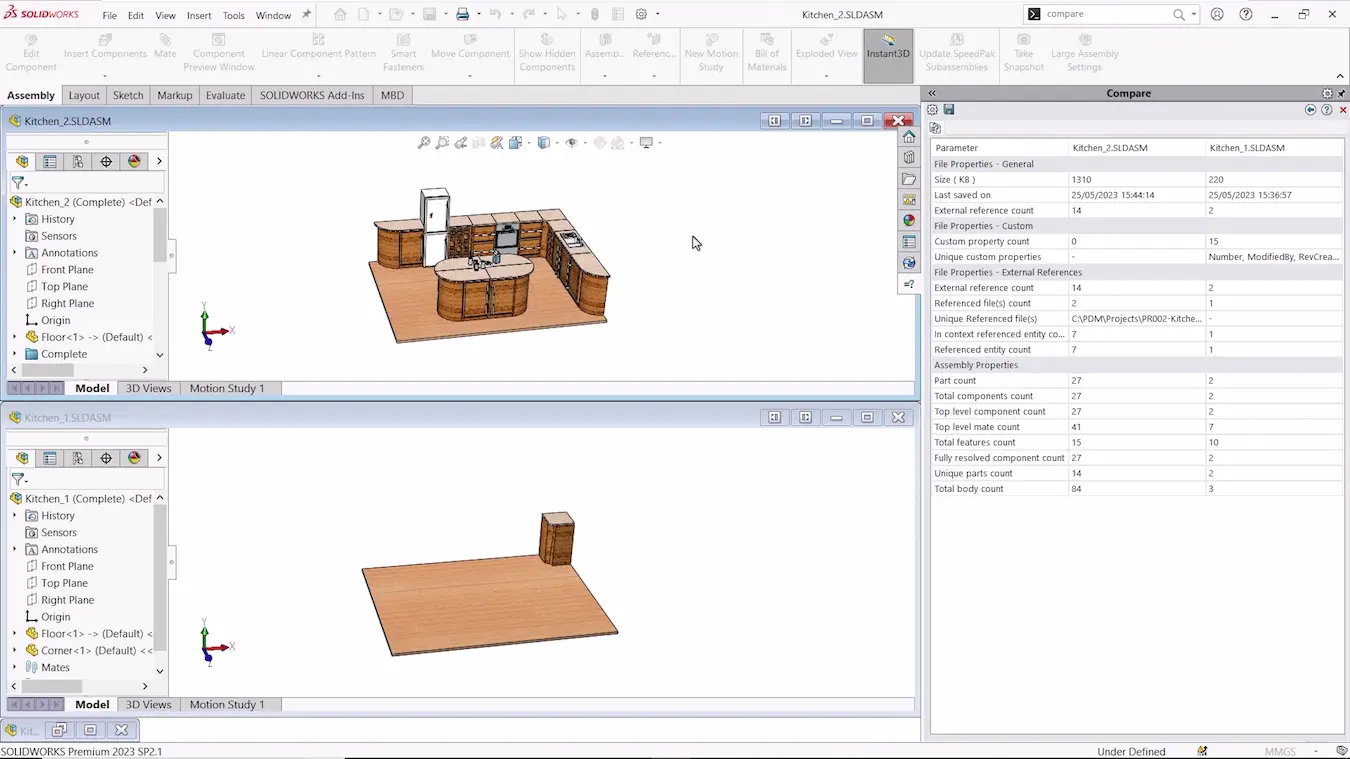
You can use this to quickly compare multiple versions of a file, without having to update the cache.
This is super helpful to visually check in on changes and modifications. With SOLIDWORKS PDM Pro, you gain access to a more powerful Compare tool to compare models in context.
#7 – Copy Links to Files
The ‘Copy Link’ option allows you to send a link to a colleague via email or integrate it into your ERP or MRP system.
If the recipient has view access and the PDM client installed, then clicking the link takes users directly to the correct file and version.
It also means you aren’t duplicating files when sharing by taking them out of your PDM vault.
#8 – Paste as Shared
Avoid creating duplicate files in SOLIDWORKS PDM Pro by using the ‘Paste as Shared’ option, which creates a shortcut to the original file in a new location.
This also gives users access to the file from multiple locations, without creating duplicates.
Note that this function is suitable for any flat document (like an ECN), but should not be used with CAD data.
#9 – Consider Placeholders
Virtual files can be used as placeholders for project and part numbers.
File formats can be described in a virtual file before a file is created, meaning you can anticipate production.
Create a virtual file through the Right-click Menu> New > Virtual Document.
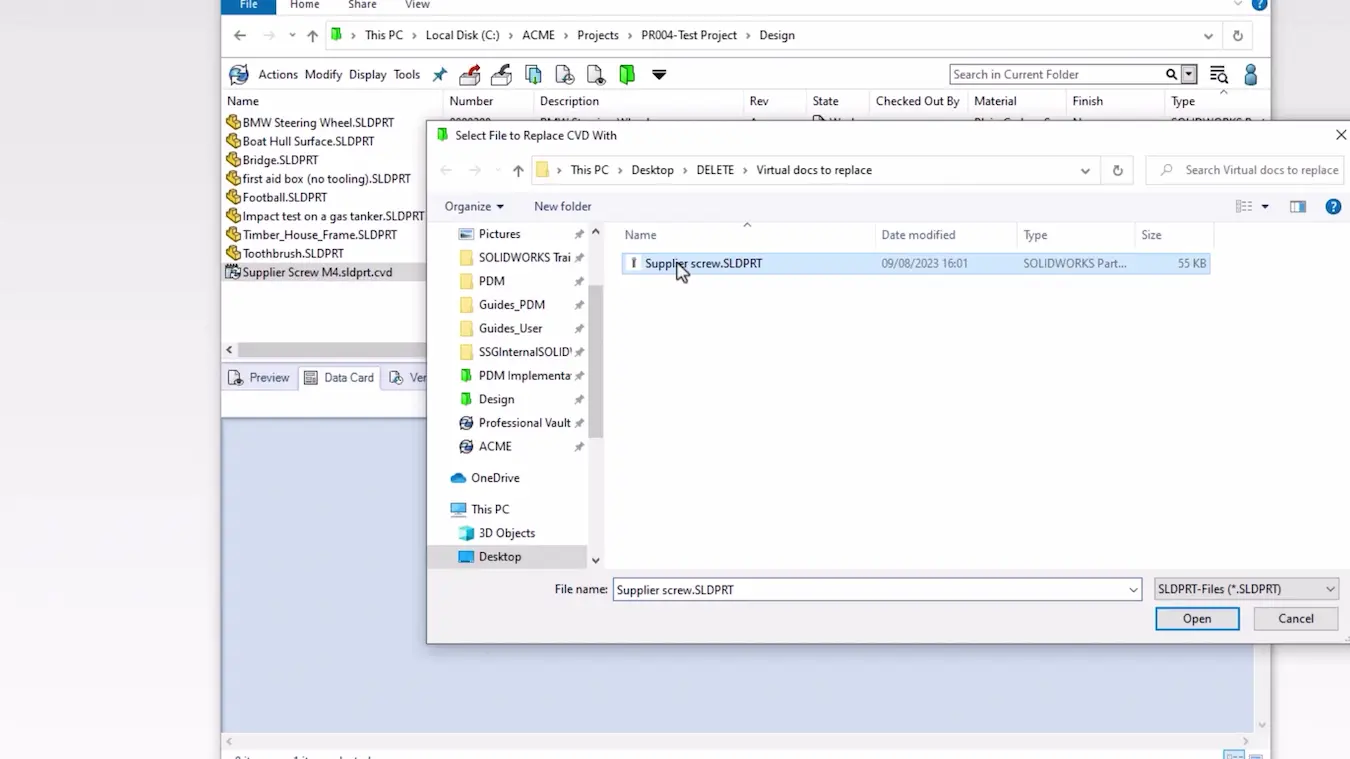
Virtual files are easy to replace when the new file is ready by selecting the replace command on right click and browsing to the file location to import the document.
#10 – Associate Files as References
You can use the ‘Paste as Reference’ option to link two files together as references, which is useful for tracking project data and connecting related files.
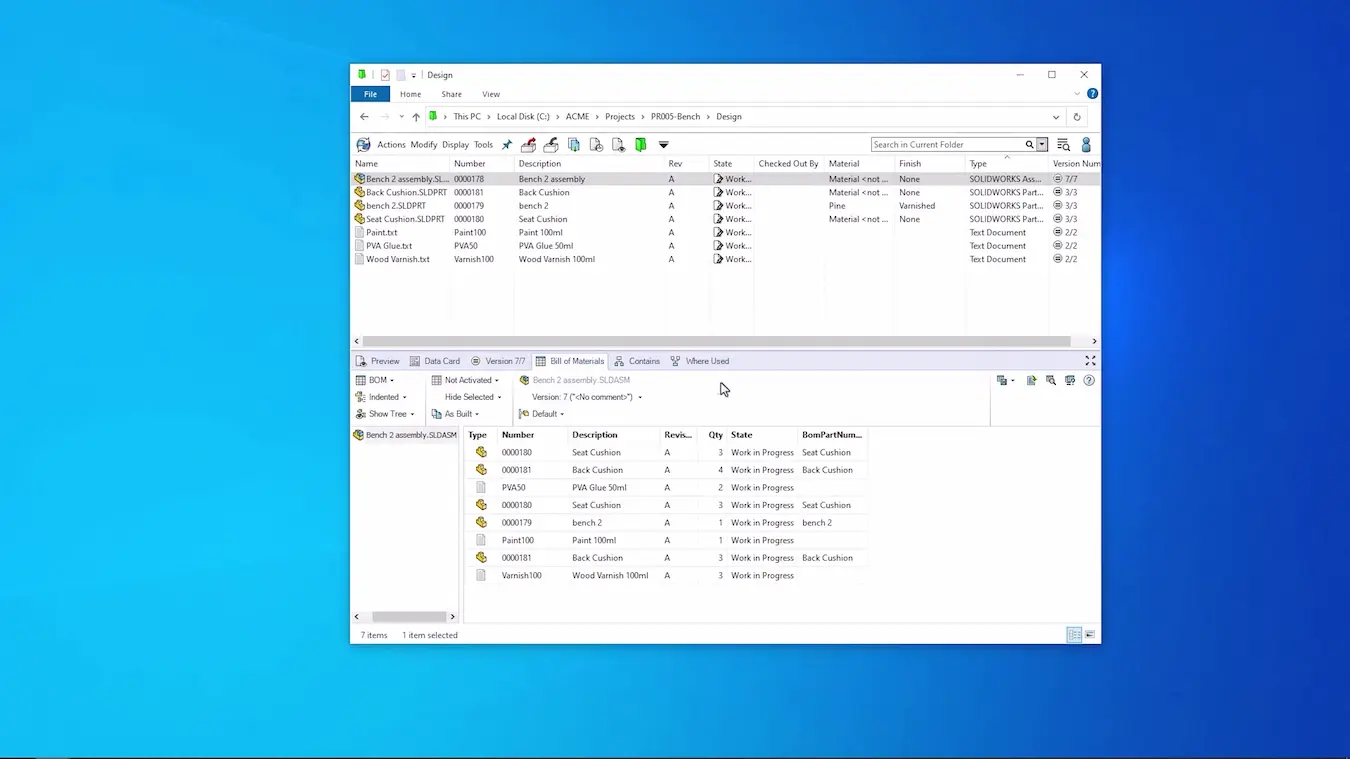
Link ECNs to the affected files, data sheet to bought-in components, or consumables to assembly BOMs.
Copy a file and right click on a checked-out file. Then you can select ‘Paste as Reference’ to link the files.
Take the Next Steps
Take a deeper dive into SOLIDWORKS PDM and learn how this highly configurable data management system can work for you and your business.
Or learn to master data management with our CPD-accredited SOLIDWORKS PDM training courses delivered by industry experts.
Categorised as: Data Management | What's New
Get Expert SOLIDWORKS Training
Get hands-on SOLIDWORKS training in-person or online, led by certified experts with real industry experience. With venues across the UK & Ireland, it’s easy to start learning today.
Related Posts

How to Create a Pack and Go in SOLIDWORKS
Pack and Go in SOLIDWORKS should be used when sending SOLIDWORKS files to another person. Use this simple guide to help you safely send entire SOLIDWORKS projects.
What is 3DSWYM? A 3DEXPERIENCE Platform Tutorial
3DSwym is the application at the heart of the 3DEXPERIENCE, allowing users to connect and collaborate across the platform.
Microsoft SQL Server licensing for SOLIDWORKS PDM
October 2020 marks two important milestones for the SOLIDWORKS PDM family and SQL Server.

Part Numbering in SOLIDWORKS PDM Professional
When implementing a new PDM Professional Vault Customers will have the option to review their part numbering and classification requirements as they move to a system that allows them to, in most cases, automate the way the identify ‘parts’ within the Vault. Part Numbering is something that a lot of customers approach differently and this is often based on ‘how it’s always been done’ without necessarily considering what is the purpose of a Part Number within their organisations and wider within their supply chains. If we consider the humble part number. What is it’s purpose?

The 6 Golden Rules of Managing Data in SOLIDWORKS
When modelling in SOLIDWORKS, before you know it, you will have created lots of parts, assembly and drawing files, so it’s important to think about how you will manage these files and keep everything organised. Here we discuss the ‘6 Golden Rules’ of managing your SOLIDWORKS files using Windows Explorer and recommended methods for file naming, structuring your projects and managing revisions.
This kicks off a month looking at the management of CAD data, register for one of our upcoming live webinars at the bottom of this article.

PDM Professional – Assigning Users with Conditional Notifications
Often customers will create smaller project teams for specific jobs and in the past we have been asked if it is possible, within a multi stage workflow, to pre-assign at the creation stage users who will be notified as checker / approver within those transitions. This blog will demonstrate how, using conditional Notifications in PDM Professional, this can be configured. We will also create some logic to allow for certain parts of the workflow to be bypassed by validating the selected ‘names’ against transition conditions. In this example the ‘approvers’ will be assigned on the files DataCard, but it would be just as feasible to have these names inherited from a project folder card if defining the rules at a higher level was possible within your Teams.
Managing Disk Space with SOLIDWORKS PDM Part #1: Distributing the Archive
This blog series was prompted by a recent support ticket, logged when a customer found their PDM Professional installation suddenly became unusable. The warning message, led to my reviewing the Archive Server Log file and this quickly identified the problem being a result of the PDM Server running out of disk space.
Managing Disk Space with SOLIDWORKS PDM Part #2: Deleted vs Destroyed and the Vault Cleaner Service
In this blog series we are examining the factors influencing disk usage within PDM and what you can do to manage them. In the first part we discussed how you can re-organise your archive across multiple drives to get you back up and running quickly should you find you are short on space. This blog and the next part will discuss behaviours in PDM that can result in redundant disk usage and how you can free that up with the vault cleaner service.
Managing Disk Space with SOLIDWORKS PDM Part #3: Web2.0 Temporary Session Files
In this blog series we are examining the factors influencing disk usage within PDM and what you can do to manage them. In the first part we discussed how you can re-organise your archive across multiple drives to get you back up and running quickly should you find you are short on space. In the second part we looked at the differences between a deleted and a destroyed file and the impact the PDM recycle bin has on Disk usage. In this third part we are looking at storage for Web2 temporary files, so this is especially important to customers who have deployed the Web2.0 interface for PDM Professional and have lots of users viewing / interacting with managed data.
Managing Disk Space with SOLIDWORKS PDM Part #4: Cold Storage
In this blog series we are examining the factors influencing disk usage within PDM and what you can do to manage them. In the first part we discussed how you can re-organise your Archive across multiple drives to get you back up and running quickly should you find you are short on space. In the second part we looked at the differences between a deleted and a destroyed file and the impact the PDM recycle bin has on Disk usage. Part three discussed temporary session files created by the PDM Web Server and this Part will look at an option within PDM called Cold Storage.