











Enhancements for Organised CAD Files | What’s New in SOLIDWORKS PDM 2025
Written by: Wayne Marshall
Published: Dec 18, 2024
| View All Blogs
It is that time of the year again where we get the chance to share some of the highlights of the new release of SOLIDWORKS PDM and this year we have another bumper crop of features for both Users and Administrators.
In fact, with SOLIDWORKS PDM 2025 there have been a raft of changes focused on enhancing user experience, improving performance, and providing more flexibility. So… let us dive into some of those key improvements and benefits.
#1 – User Interface Enhancements
New PDM Tab in SOLIDWORKS
SOLIDWORKS 2025 now streamlines access to the commands you use most often by adding a new SOLIDWORKS PDM tab in the SOLIDWORKS Command Manager toolbar. You will also see improvements in the Task Pane which has had its toolbar and shortcut menu’s overhauled, reorganizing some commands and adding several new options to help with navigation.

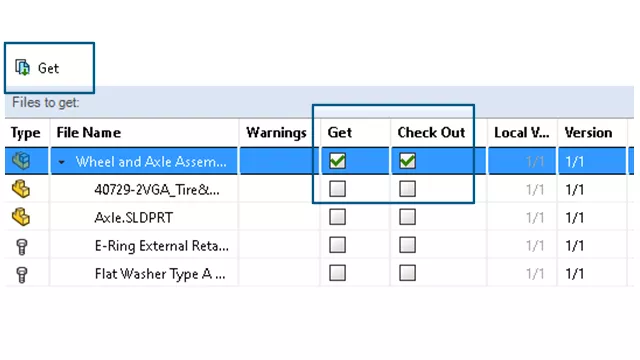
Check Out Files Directly from Get Latest
Another great user enhancement in PDM 2025 now makes it possible to Check out files directly from the Get Latest dialog, saving you time and enabling you to quickly get on with the job in hand.
Get Latest Revision
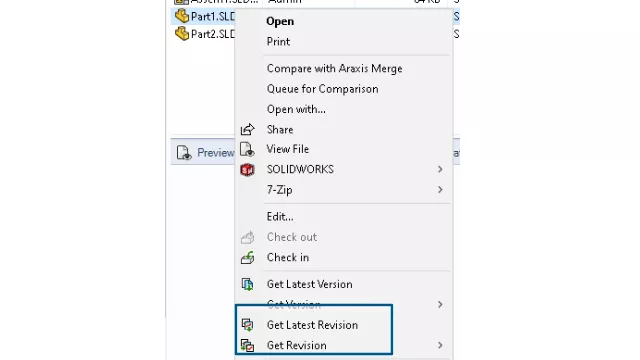
And finally, here, whilst it has always been possible to ‘get latest Version’ in PDM we now have an additional option to “get the latest revision.” For enable this a Latest Revision variable has been added to the existing system variables and is now displayed on the Version Tab.
#2 – Implemented Enhancement Requests
Improved BOM Functionality
There are also a few changes to PDM behaviour that address some extremely popular enhancement requests. Have you ever been frustrated that the BOM (Bill of Material) in PDM seems to have a random order that does not match the SOLIDWORKS Feature Manager for the Assembly? Well with PDM 2025 the Bill of materials (BOM) is now more intuitive, following the same order as the SOLIDWORKS FeatureManager.
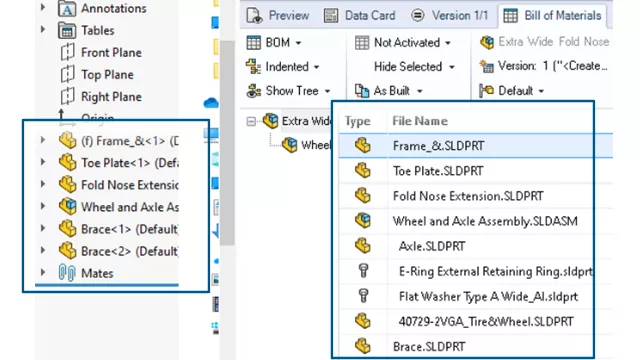
However, to get any existing PDM BOM’s to update you would need to check them out / rebuild and Check In, so you could consider adding the File Version Upgrade Tool service to your next Upgrade if you wanted to batch process your existing data.
Specify Default View and Options for a Computer BOM
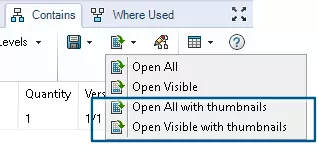
In the background, there are also a few other improvements around BOM’s that help Administration and Users alike. For Administrators it is now possible to specify the default view and options for the computed BOM while setting up a Bill of Materials (BOM) in the SOLIDWORKS PDM Administration tool, and for Users it is now possible, when opening a BOM direct in Excel to include the thumbnail previews for each item. This popular enhancement is also available within ‘Contains,’ and ‘Where Used’ within the SOLIDWORKS PDM File Explorer.
#3 – Performance Upgrades
SOLIDWORKS PDM performance is a key area of every upgrade and 2025 is no exception.
In 2025 you should expect to see improved times during file check in to the SOLIDWORKS PDM database with tests showing the file check in operation is two times faster than before in many cases.
#4 – View Time Taken to Open Files
Not an obvious enhancement but if you have ever needed to call the help desk believing your system has ‘slowed down’ its trickly to contextualise that without more information.
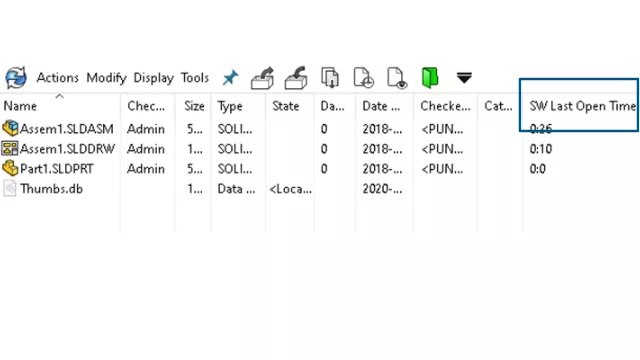
With PDM 2025 you can now see the time taken to open a file when it was last opened in SOLIDWORKS 2023 and above as a column in Explorer.
#5 – IT and Administrative Improvements
Behind the scenes, there are also some great enhancements for IT and your PDM Administrator.
SOLIDWORKS PDM and SOLIDWORKS Electrical Deployment
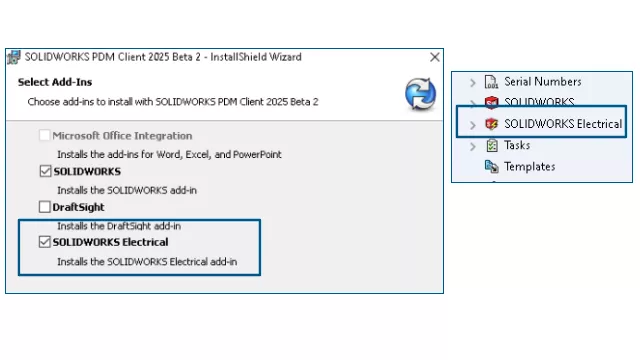
Firstly, to speed up the deployment of SOLIDWORKS PDM with SOLIDWORKS Electrical, the SOLIDWORKS Electrical to SOLIDWORKS PDM connector is now available as a standard option within the SOLIDWORKS PDM install.
This means that the connector is now permanently integrated with SOLIDWORKS PDM and no longer requires installing and configuring as a separate SOLIDWORKS PDM add-in. Configuring the SOLIDWORKS Electrical connector is now done within the Administration tool via a SOLIDWORKS Electrical node in the main Administration tree.
More User Permission Options
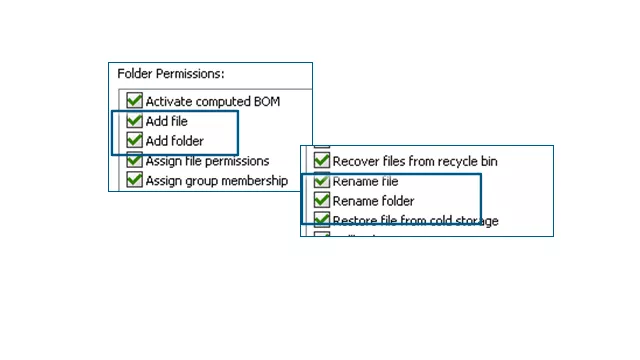
We have also added a bite more granularity when it comes to setting User permissions. The previously combined permissions “Add or rename file” and “Add or rename folder” have been split into separate permissions; add and rename, meaning you have a lot more control over whether a file or folder can be renamed after creation.
Complete Audit Trails
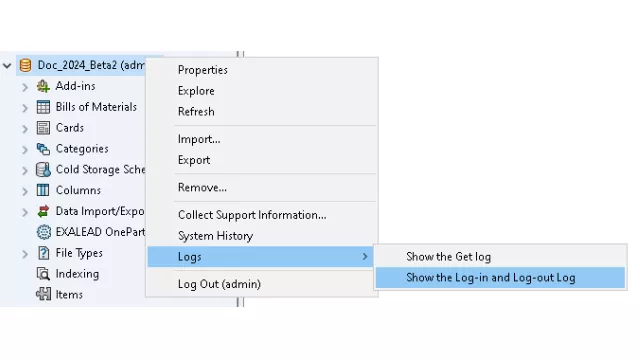
From an audit perspective after the 2024 enhancement to log ‘get’ operations, the system now also tracks user logins and logouts, providing a more complete audit trail.
SSL or TLS Authentication for SMTP Email Notifications
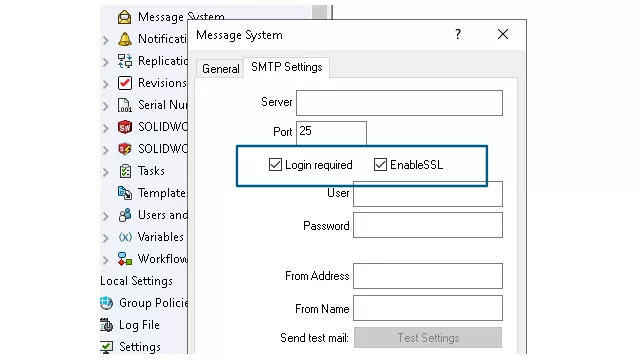
And finally, from an IT setup perspective with notifications in PDM Professional, you can now enable Secured Socket Layer (SSL) or TLS (Transport Layer Security) authentication in the SMTP email notification set-up. This means that SOLIDWORKS PDM 2025 now offers support for smtp.gmail.com, smtp.outlook.com, smtp.office365.com and smtp.mail.yahoo.com.
In summary, we hope you agree that SOLIDWORKS PDM 2025 will be another great release which continues to enhance the user experience, improves performance, and provides more flexibility than ever.
Categorised as: Data Management | News | SOLIDWORKS PDM
Get Expert SOLIDWORKS Training
Get hands-on SOLIDWORKS training in-person or online, led by certified experts with real industry experience. With venues across the UK & Ireland, it’s easy to start learning today.
Related Posts

How to Create a Pack and Go in SOLIDWORKS
Pack and Go in SOLIDWORKS should be used when sending SOLIDWORKS files to another person. Use this simple guide to help you safely send entire SOLIDWORKS projects.
What is 3DSWYM? A 3DEXPERIENCE Platform Tutorial
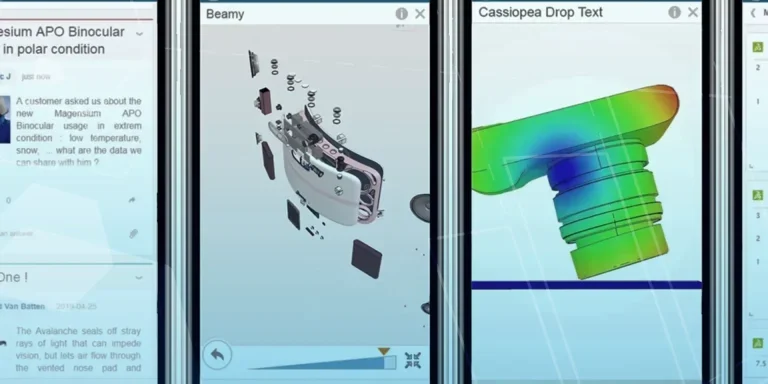
3DSwym is the application at the heart of the 3DEXPERIENCE, allowing users to connect and collaborate across the platform.
Microsoft SQL Server licensing for SOLIDWORKS PDM
October 2020 marks two important milestones for the SOLIDWORKS PDM family and SQL Server.

Part Numbering in SOLIDWORKS PDM Professional
When implementing a new PDM Professional Vault Customers will have the option to review their part numbering and classification requirements as they move to a system that allows them to, in most cases, automate the way the identify ‘parts’ within the Vault. Part Numbering is something that a lot of customers approach differently and this is often based on ‘how it’s always been done’ without necessarily considering what is the purpose of a Part Number within their organisations and wider within their supply chains. If we consider the humble part number. What is it’s purpose?

The 6 Golden Rules of Managing Data in SOLIDWORKS
When modelling in SOLIDWORKS, before you know it, you will have created lots of parts, assembly and drawing files, so it’s important to think about how you will manage these files and keep everything organised. Here we discuss the ‘6 Golden Rules’ of managing your SOLIDWORKS files using Windows Explorer and recommended methods for file naming, structuring your projects and managing revisions.
This kicks off a month looking at the management of CAD data, register for one of our upcoming live webinars at the bottom of this article.

PDM Professional – Assigning Users with Conditional Notifications
Often customers will create smaller project teams for specific jobs and in the past we have been asked if it is possible, within a multi stage workflow, to pre-assign at the creation stage users who will be notified as checker / approver within those transitions. This blog will demonstrate how, using conditional Notifications in PDM Professional, this can be configured. We will also create some logic to allow for certain parts of the workflow to be bypassed by validating the selected ‘names’ against transition conditions. In this example the ‘approvers’ will be assigned on the files DataCard, but it would be just as feasible to have these names inherited from a project folder card if defining the rules at a higher level was possible within your Teams.
Managing Disk Space with SOLIDWORKS PDM Part #1: Distributing the Archive
This blog series was prompted by a recent support ticket, logged when a customer found their PDM Professional installation suddenly became unusable. The warning message, led to my reviewing the Archive Server Log file and this quickly identified the problem being a result of the PDM Server running out of disk space.
Managing Disk Space with SOLIDWORKS PDM Part #2: Deleted vs Destroyed and the Vault Cleaner Service
In this blog series we are examining the factors influencing disk usage within PDM and what you can do to manage them. In the first part we discussed how you can re-organise your archive across multiple drives to get you back up and running quickly should you find you are short on space. This blog and the next part will discuss behaviours in PDM that can result in redundant disk usage and how you can free that up with the vault cleaner service.
Managing Disk Space with SOLIDWORKS PDM Part #4: Cold Storage
In this blog series we are examining the factors influencing disk usage within PDM and what you can do to manage them. In the first part we discussed how you can re-organise your Archive across multiple drives to get you back up and running quickly should you find you are short on space. In the second part we looked at the differences between a deleted and a destroyed file and the impact the PDM recycle bin has on Disk usage. Part three discussed temporary session files created by the PDM Web Server and this Part will look at an option within PDM called Cold Storage.
Managing Disk Space with SOLIDWORKS PDM Part #5: Archive Compression
In this blog series we are examining the factors influencing disk usage within PDM and what you can do to manage them. In the first part we discussed how you can re-organise your archive across multiple drives to get you back up and running quickly should you find you are short on space. In the second part we looked at the differences between a deleted and a destroyed file and the impact the PDM recycle bin has on Disk usage. Part three discussed temporary session files created by the PDM Web Server. In part four we discussed cold storage and in this last part we will look at archive compression.