











Furniture Design Made Easy with SOLIDWORKS

Written by: Terry O'Reilly
Published: Oct 24, 2018
| View All Blogs
1) Create complicated shapes
SOLIDWORKS can do more than simple square furniture design, with its advanced surfacing capabilities SOLIDWORKS allows you to create complicated shapes with ease.
Tom Raffield lamps. Solid Solutions customer. https://www.tomraffield.com

2) Versatile modelling Tools
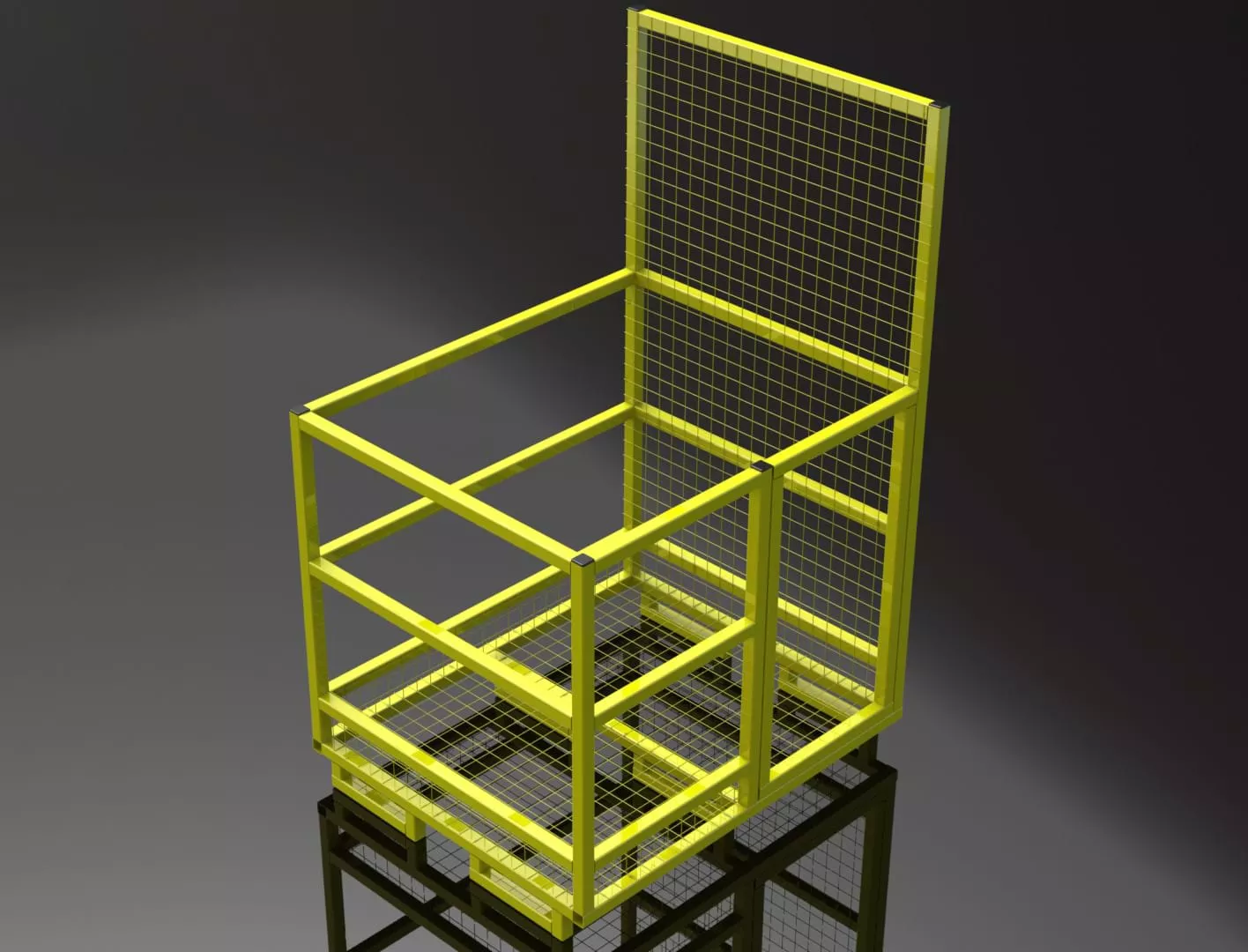
SOLIDWORKS is a versatile CAD software that is capable of modelling virtually any product, you aren’t limited to just furniture design. Using SOLIDWORKS you can design stairs, handles, connecting components, sheet metal, steel framing and much more all within a single software package. This means you won’t have any issues with data translation between programs.
3) Automatically update drawings
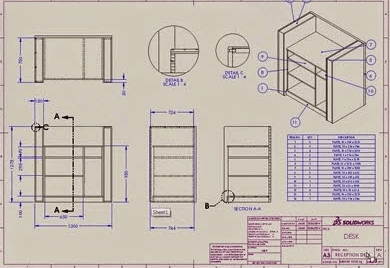
All drawing views generated in SOLIDWORKS are linked back to the original 3D model, this means any amendments made to the model are automatically updated within the drawing. This guarantees your design documents will always be up to date, without any hassle.
4) Seamless integration with other software
SOLIDWORKS is capable of importing and exporting many different file types. This flexibility simplifies working with suppliers and customers, even if they are using different software. DXF, DWG, step, iges, obj are just a few of the different file types available.
5) Customisable to any solution
SOLIDWORKS library features are fully customisable so you aren’t limited to what is provided within the package. Save and reuse your features so that you can simplify your repetitive tasks to just a few clicks. Smart Components allow you to add parts to your design and automatically create related holes and fasteners.
6) Download standard components
SOLIDWORKS files are often available to download from supplier websites for items such as cams, hinges, drawer runners. This saves time and helps create more accurate models.
7) Create photorealistic renders
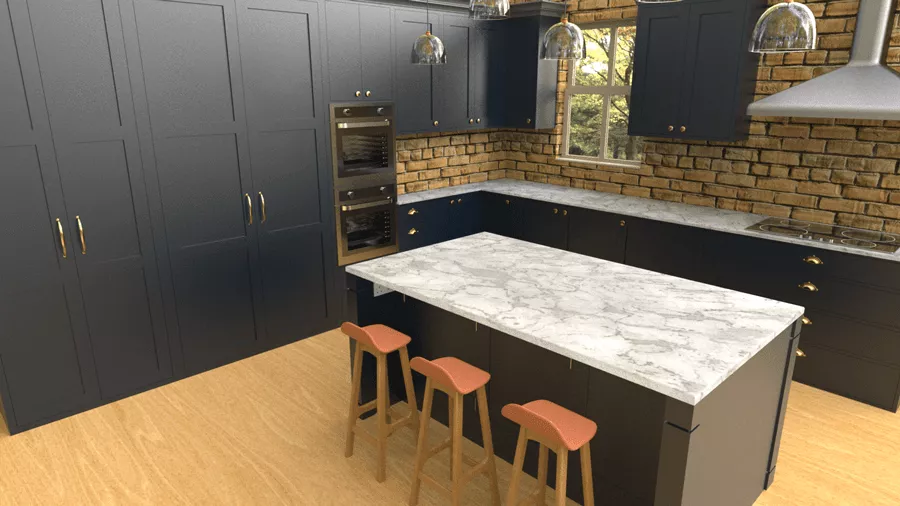
SOLIDWORKS Visualize enables you to create professional photo-quality images, animations, and other 3D content in the fastest and easiest way possible. Show your products to clients in their best light, in a way that’s appealing and easy for them to understand. Renders allow you to display different colours and product styles without having to pay for costly prototypes and photoshoots.
8) Simplify Cut-list and BoM creation
Cut-lists and Bills of Materials can be generated automatically from your assembly design. This data is linked to the assembly so you never need to worry about it getting out of date.
9) Full software solution
SOLIDWORKS gives you more than just 3D CAD, the product portfolio available can be tailored to fit your workflow. Whether you want to predict real world behaviour, cut inspection time, or improve a particular design, there’s an easy solution for any design within SOLIDWORKS.
10) Grow your design team
SOLIDWORKS is one of the most prevalent CAD products, there are many skilled users in the U.K. and it has become the program of choice for many top Universities. Finding competent CAD users has never been easier!
Categorised as: Design | SOLIDWORKS Design
Get Expert SOLIDWORKS Training
Get hands-on SOLIDWORKS training in-person or online, led by certified experts with real industry experience. With venues across the UK & Ireland, it’s easy to start learning today.
Related Posts

How to Find Reaction Forces in SOLIDWORKS Simulation
SOLIDWORKS helps us to find resultant forces through simulation studies. These virtual tests reduce the need for physical prototypes and give us an accurate answer.

Setting number of decimal places in a table on a drawing
When creating an equation in a drawing general table, is it possible to define the…

SOLIDWORKS Smart Fasteners
SOLIDWORKS Smart Fasteners is a really useful time saving tool, allowing you to automatically insert toolbox fasteners such as bolts and screws into an assembly providing there is a standard hole.

Why is my Flat Pattern not showing in SOLIDWORKS Drawings?
This may be linked to how the drawing is saved or it can be related to how sheet metal parts are displayed in drawings, read on to find out how to fix it.

SOLIDWORKS Tips: Are you Making this Common Mistake in Fatigue Analysis?
Simulation is a vital and complex engineering need. Fortunately, SOLIDWORKS makes it easy to test, correct mistakes and obtain accurate results.

Series 1 Land Rover Pedal Car – Made Easy with Solidworks!
The Series1 began production in 1948 designed to help get Britain farming after the war effort. It grew extremely popular and today enthusiasts are prepared to throw their life savings at restoring originals from that period.

How to Recover SOLIDWORKS Files After a Crash
SOLIDWORKS has two different methods to help you recover from an unexpected crash or loss of data in the form of auto-recovery and back-up settings.

Redesigning Santa’s Sleigh in SOLIDWORKS
Every year Father Christmas has to fly in his sleigh to deliver presents to boys and girls all over the world in just one night. To put this into perspective, it takes a little under 24 hours to fly from London (UK) to Sydney (Australia) in a streamlined Boeing 747, whereas Father Christmas’ mode of transport is believed to be a rather non-aerodynamic sleigh.

SOLIDWORKS Grid Systems – hidden away, but very useful!
Rory Niles provides an insight into the uses for Grid Systems within SOLIDWORKS 2018
Making 3D Textures from Images on SOLIDWORKS
Turn images into 3D geometry with brand new SOLIDWORKS 3D Textures Feature