











How to Add Virtual Sharps in SOLIDWORKS
Written by: Terry O'Reilly
Published: Feb 20, 2024
| View All Blogs
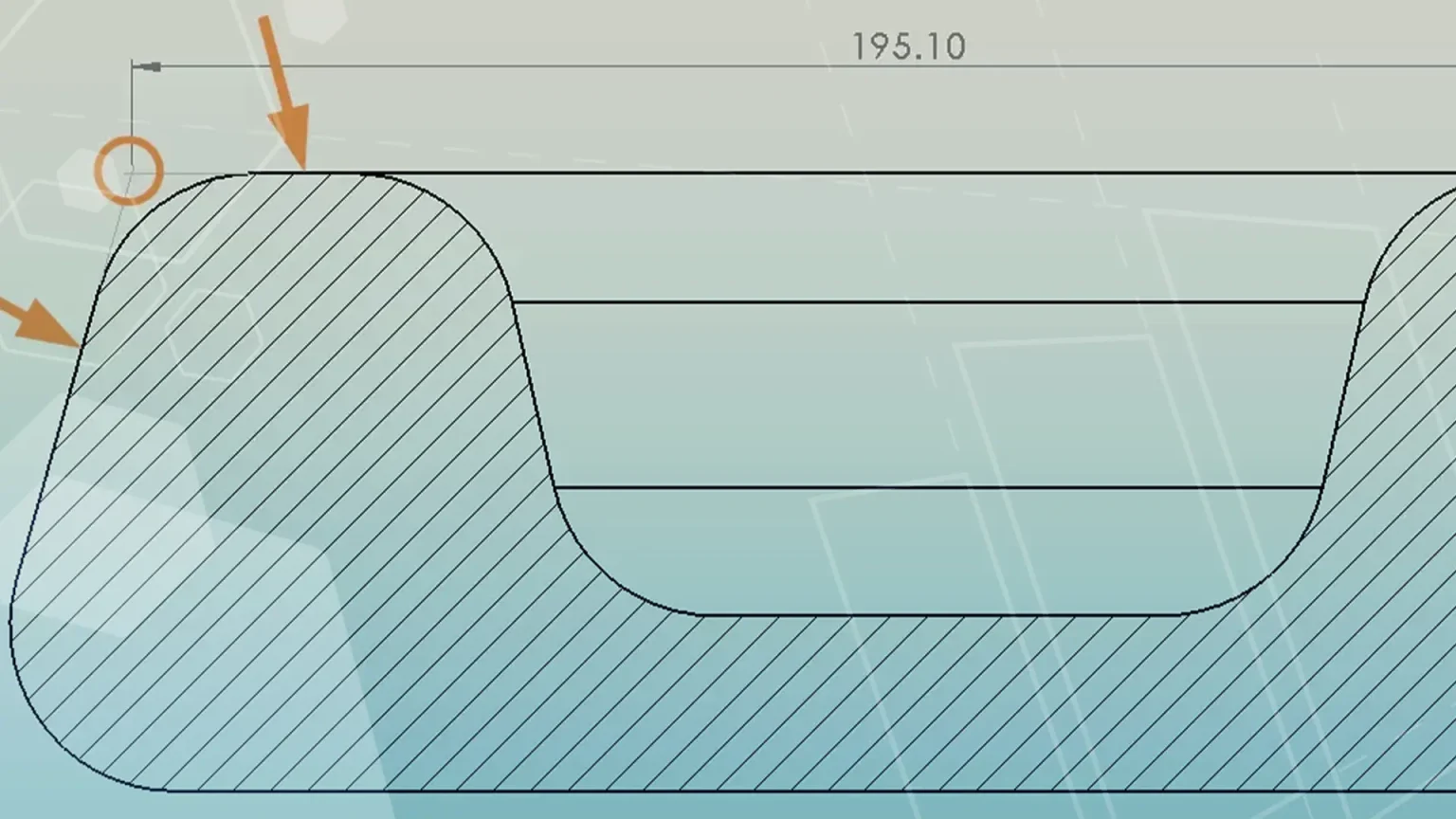
Whenever we add a fillet or chamfer to a corner, we remove the existing intersection point between two sketch entities, which can make it difficult to add certain dimensions.
A virtual sharp is a sketch point created at the virtual intersection point between two sketch entities – dimensions and relations can then be added to this sketch point.

To create a virtual sharp in an open sketch, hold down the CTRL key and select two sketch entities.
Select the Point command from the Sketch toolbar in the Command Manager and a virtual sharp is created at the point where the sketch entities would intersect.
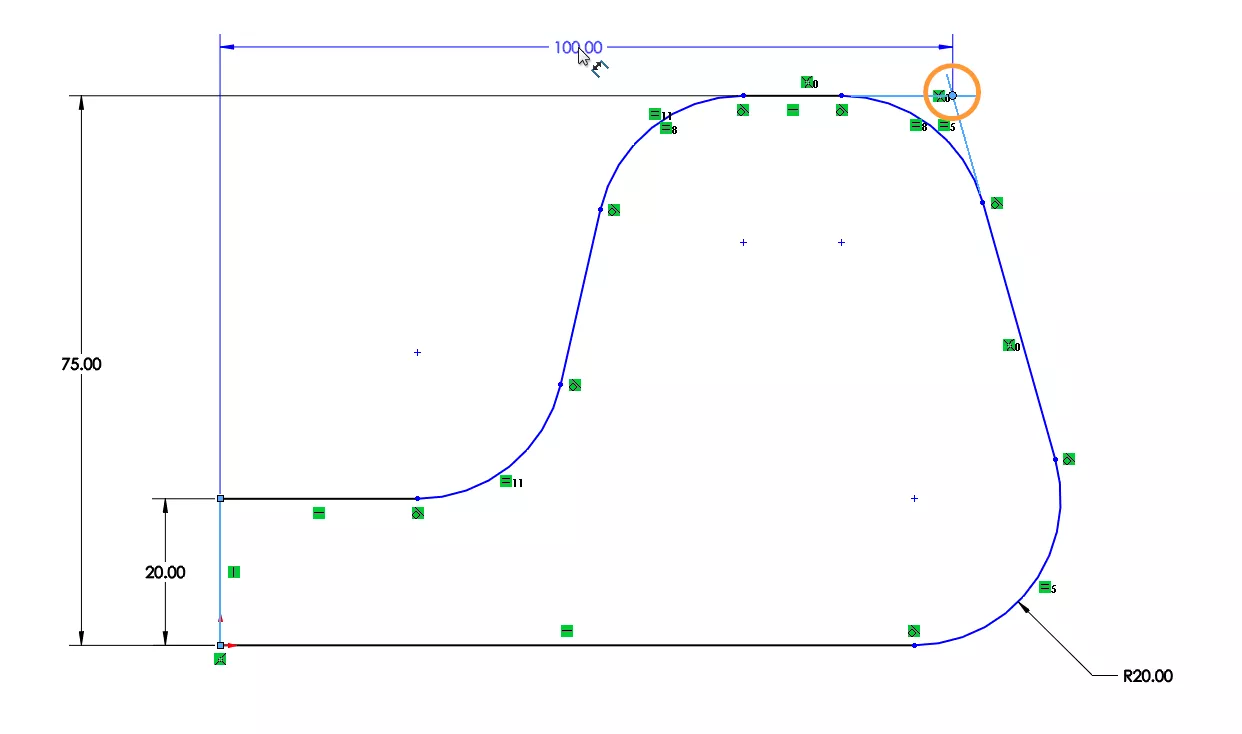
The Smart Dimension tool offers an alternative method to add virtual sharps to sketches.
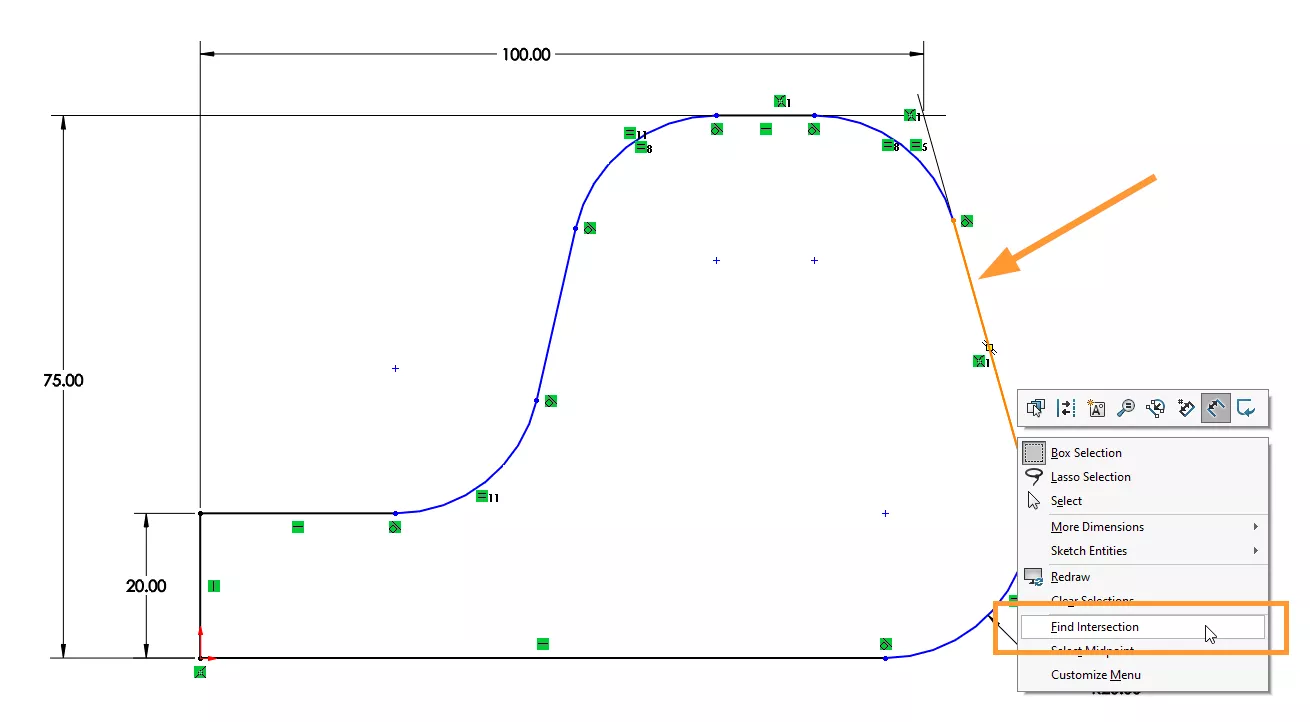
Select the Smart Dimension tool, then right click on the first sketch entity and select Find Intersection.
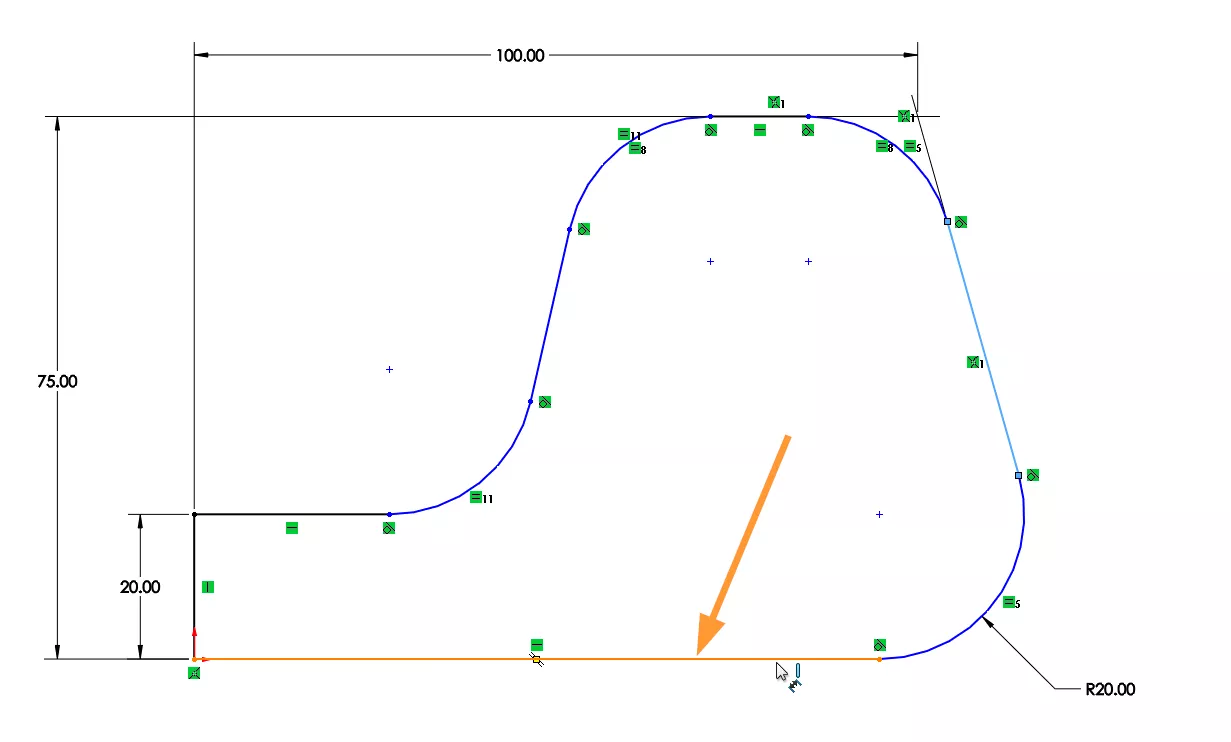
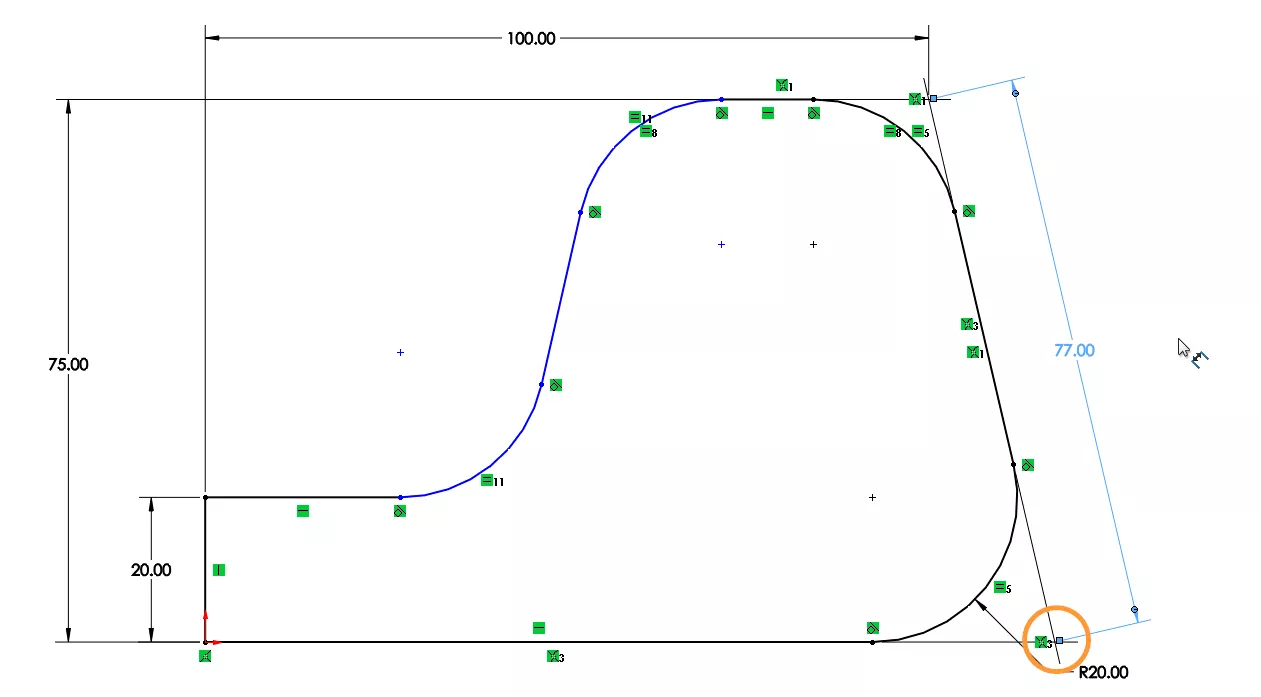
Now select the second sketch entity and the virtual sharp will be created and selected automatically, ready for you to select the second dimension reference.
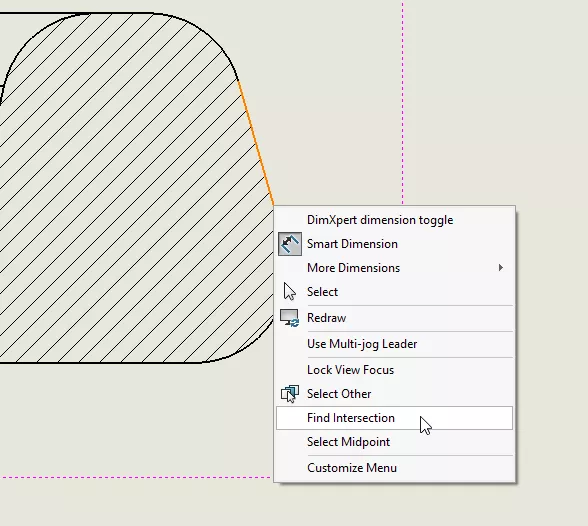
This method is especially useful when working with drawing views on 2D technical drawings in SOLIDWORKS.
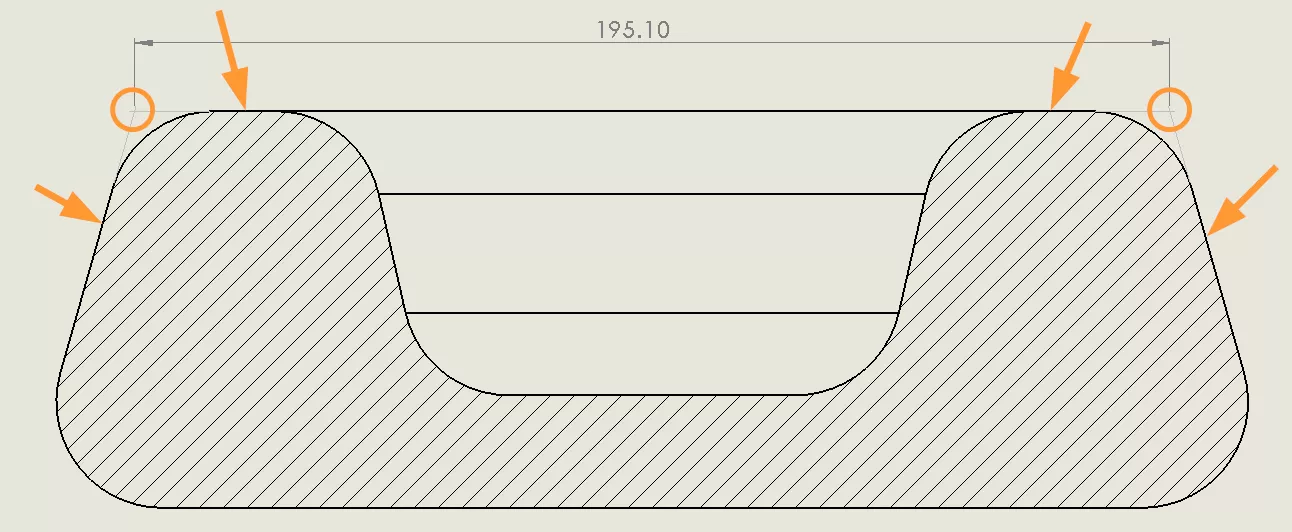
If the virtual sharp doesn’t stand out enough or comply with your company standards, then it can be modified within the System Options.
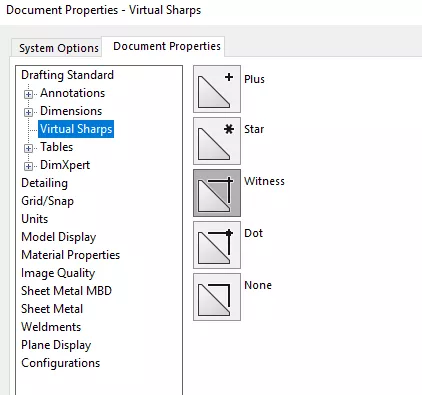
To change how virtual sharps display, navigate to the Options cog > Document Properties > Virtual Sharps, where the virtual sharp point can be represented by various symbols.
Remember that as these are document properties, they will either need to be modified for each file, or saved into a template.
Check out our blog tutorial to learn how to save custom part templates, or discover how to create your own custom drawing borders and templates by attending our SOLIDWORKS Drawings training course.
Categorised as: SOLIDWORKS Design | Software | Tutorials
Get Expert SOLIDWORKS Training
Get hands-on SOLIDWORKS training in-person or online, led by certified experts with real industry experience. With venues across the UK & Ireland, it’s easy to start learning today.
Related Posts

How to Find Reaction Forces in SOLIDWORKS Simulation
SOLIDWORKS helps us to find resultant forces through simulation studies. These virtual tests reduce the need for physical prototypes and give us an accurate answer.

Setting number of decimal places in a table on a drawing
When creating an equation in a drawing general table, is it possible to define the…

SOLIDWORKS Smart Fasteners
SOLIDWORKS Smart Fasteners is a really useful time saving tool, allowing you to automatically insert toolbox fasteners such as bolts and screws into an assembly providing there is a standard hole.

Why is my Flat Pattern not showing in SOLIDWORKS Drawings?
This may be linked to how the drawing is saved or it can be related to how sheet metal parts are displayed in drawings, read on to find out how to fix it.

SOLIDWORKS Tips: Are you Making this Common Mistake in Fatigue Analysis?
Simulation is a vital and complex engineering need. Fortunately, SOLIDWORKS makes it easy to test, correct mistakes and obtain accurate results.

Series 1 Land Rover Pedal Car – Made Easy with Solidworks!
The Series1 began production in 1948 designed to help get Britain farming after the war effort. It grew extremely popular and today enthusiasts are prepared to throw their life savings at restoring originals from that period.

SOLIDWORKS Visualize. Why go pro? – 6 Post Processing
In this blog we will be look at the post-processing options that can be found in SOLIDWORKS Visualize

SOLIDWORKS Visualize. Why go pro? – 7 Lighting
SOLIDWORKS Visualize uses a non-biased rendering engine, which allows for physically accurate lighting within a scene. It generates images with high amount of realism and correct set up can replicate photo studio lighting.

How to Get Your Serial Number for SOLIDWORKS Visualize Standard
Want to download Visualize to make photorealistic renders? Follow this guide for accessing your Visualize serial number that comes bundled in with SolidWorks Professional and Premium.

How to Recover SOLIDWORKS Files After a Crash
SOLIDWORKS has two different methods to help you recover from an unexpected crash or loss of data in the form of auto-recovery and back-up settings.