











How to Calculate Internal Volumes in SOLIDWORKS
Written by: Lewys Elvins
Published: Mar 14, 2024
| View All Blogs
It can be tricky to calculate internal volumes, especially when we’re dealing with non-uniform cross-sections.
Fortunately, SOLIDWORKS is capable of handling volume calculations easily thanks to the Intersect tool. Alongside its usual application in surface modelling, this tool allows you to generate solids from negative space.
So let’s show you how to quickly calculate volumes of fluids in SOLIDWORKS using it.
A SHORTCUT FOR ADDING NEW PLANES
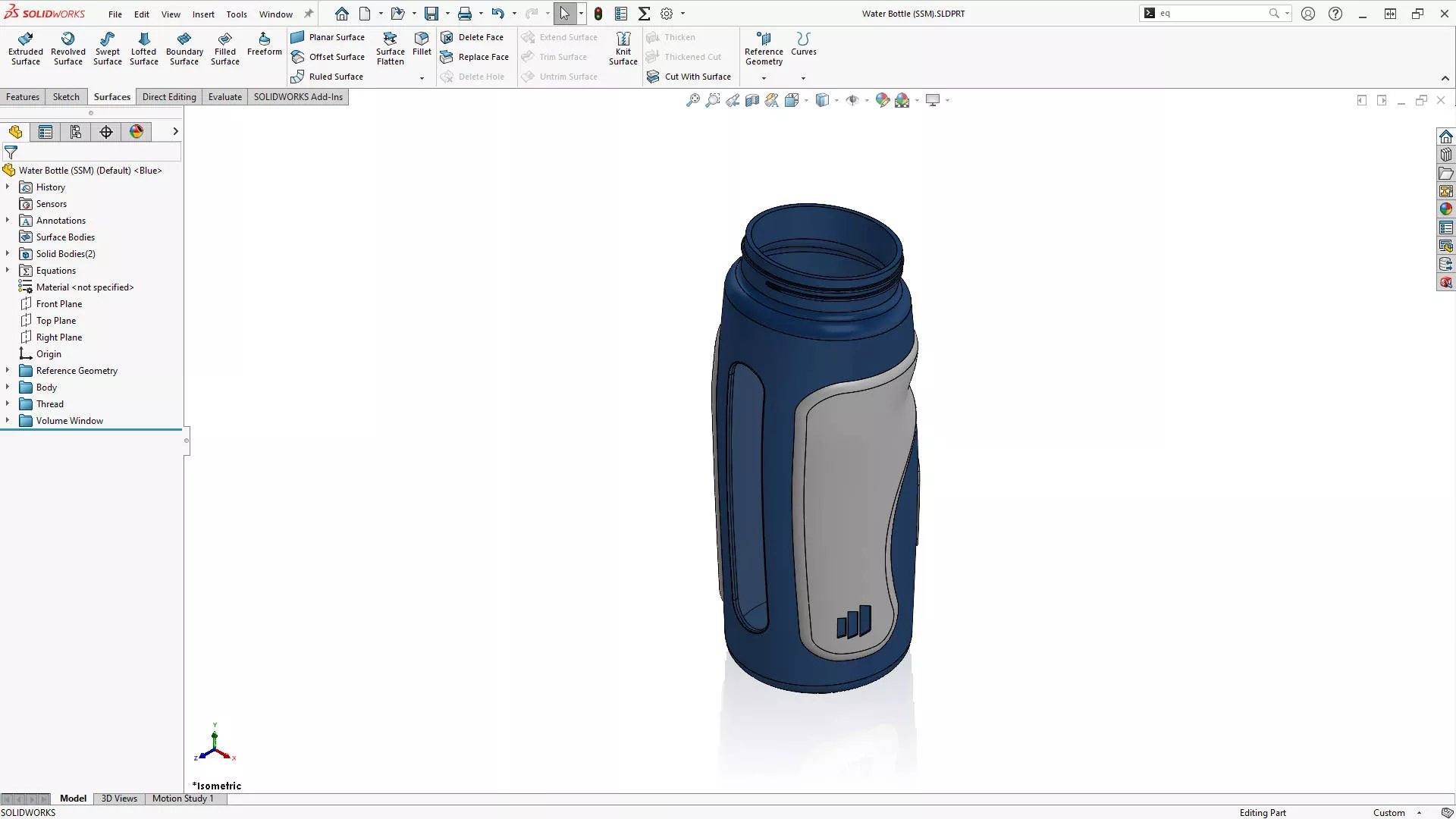
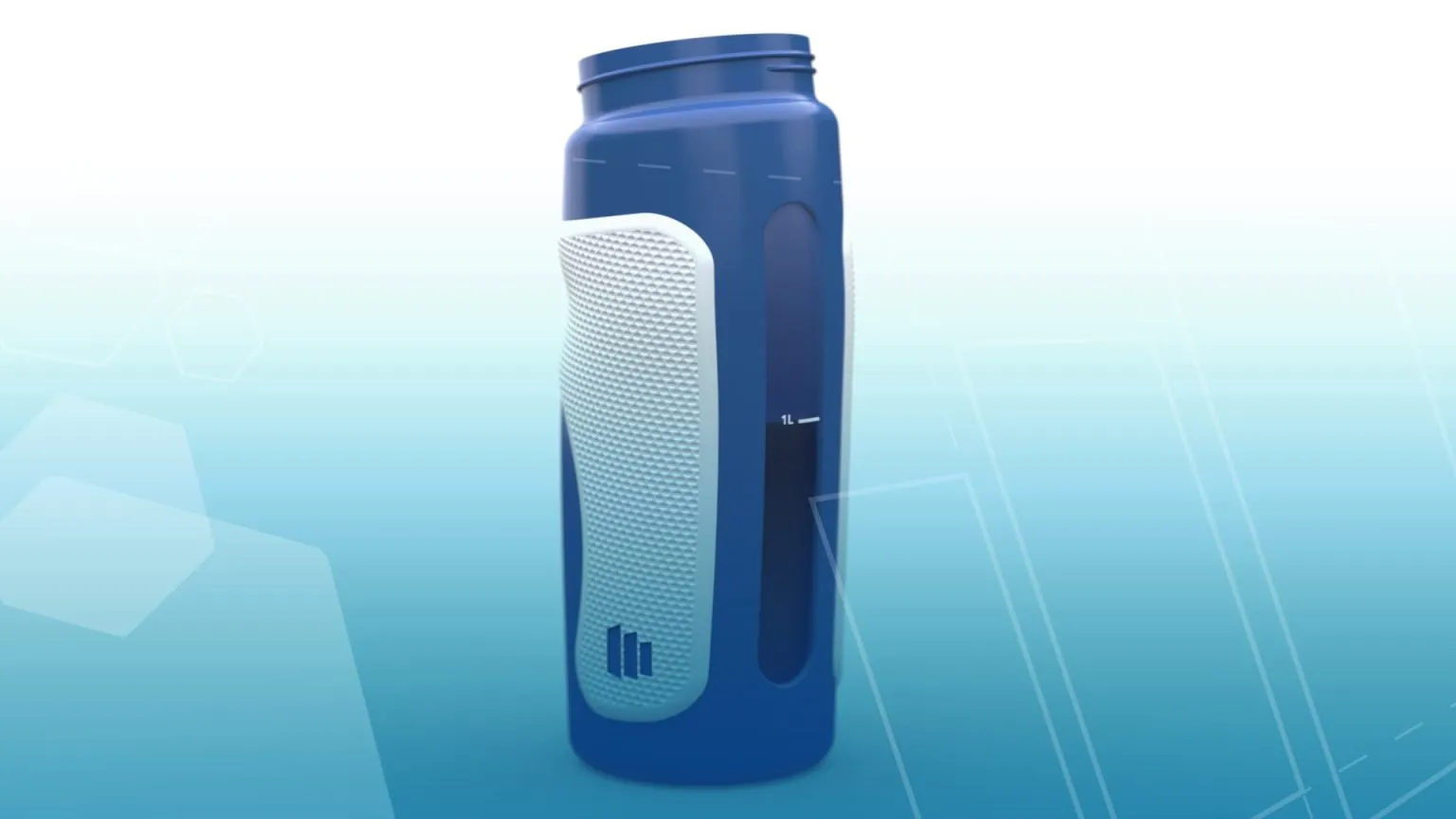
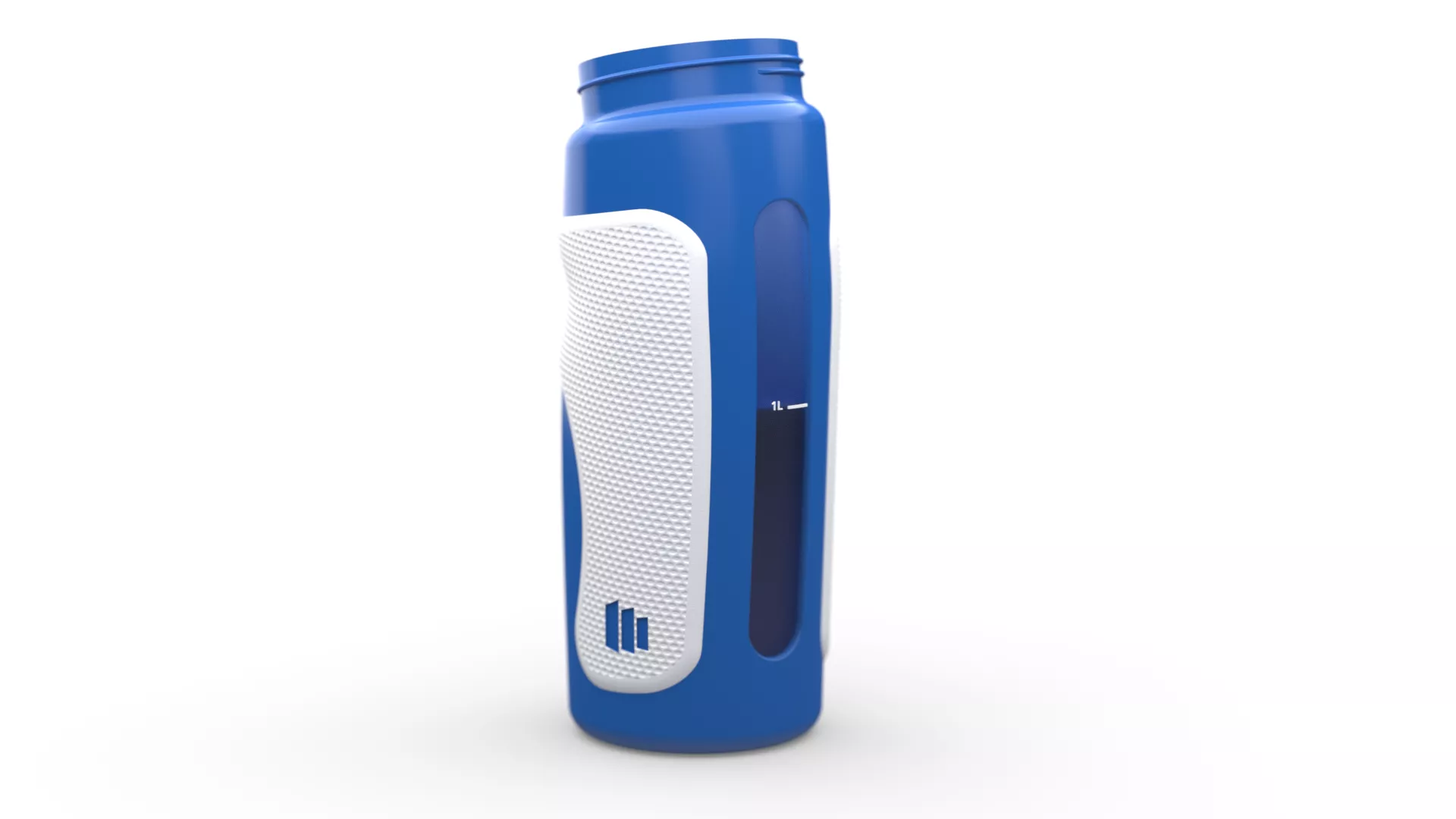
This water bottle design needs some water level markers adding to the translucent window on the side.
There are two unmerged bodies in this model, so we’ll need to use the intersect command, a new plane, and a little bit of iterative design.
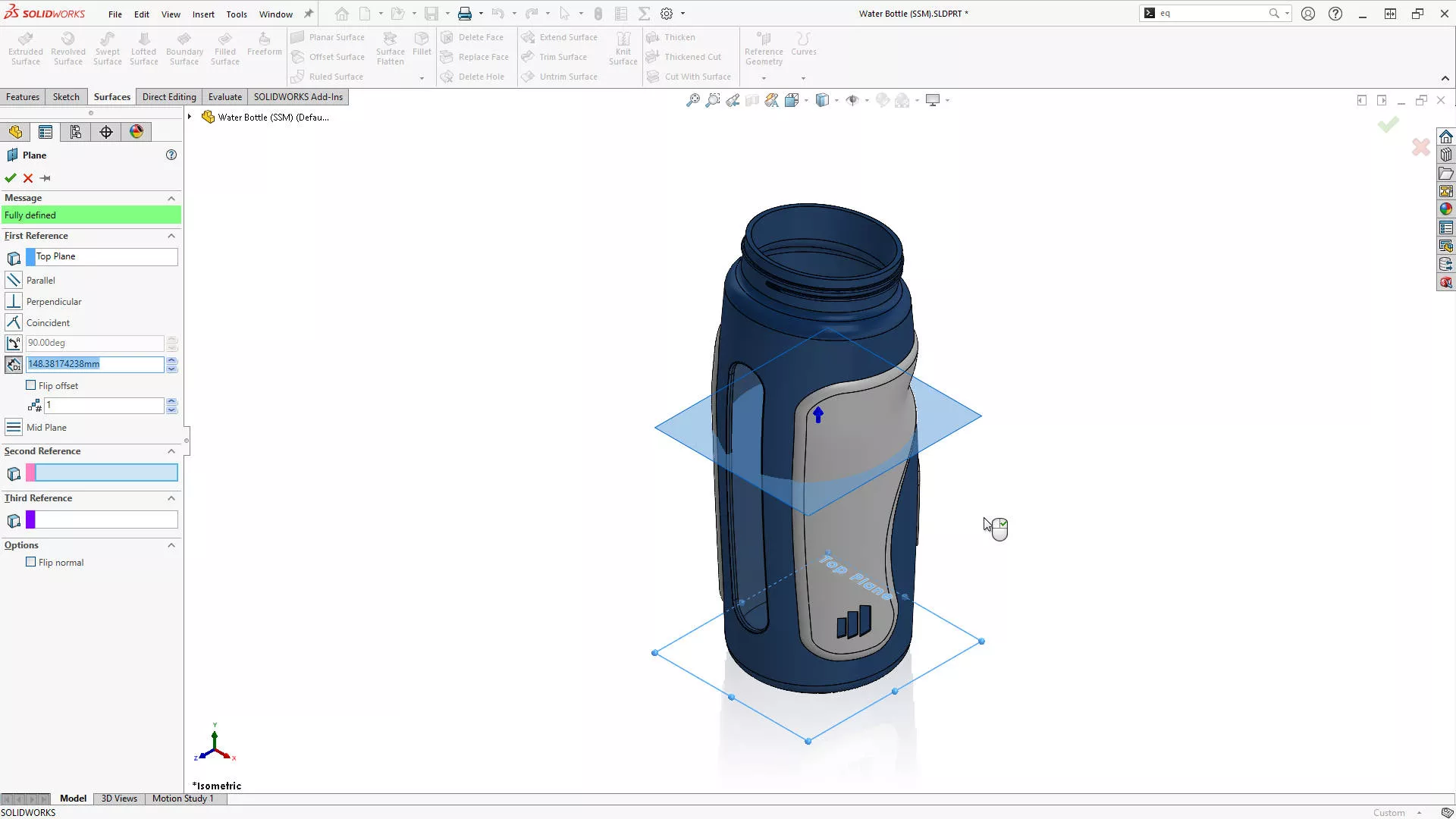
Firstly, we’ll add the new plane by selecting the top plane and CTRL + dragging one of the blue points to create a parallel copy.
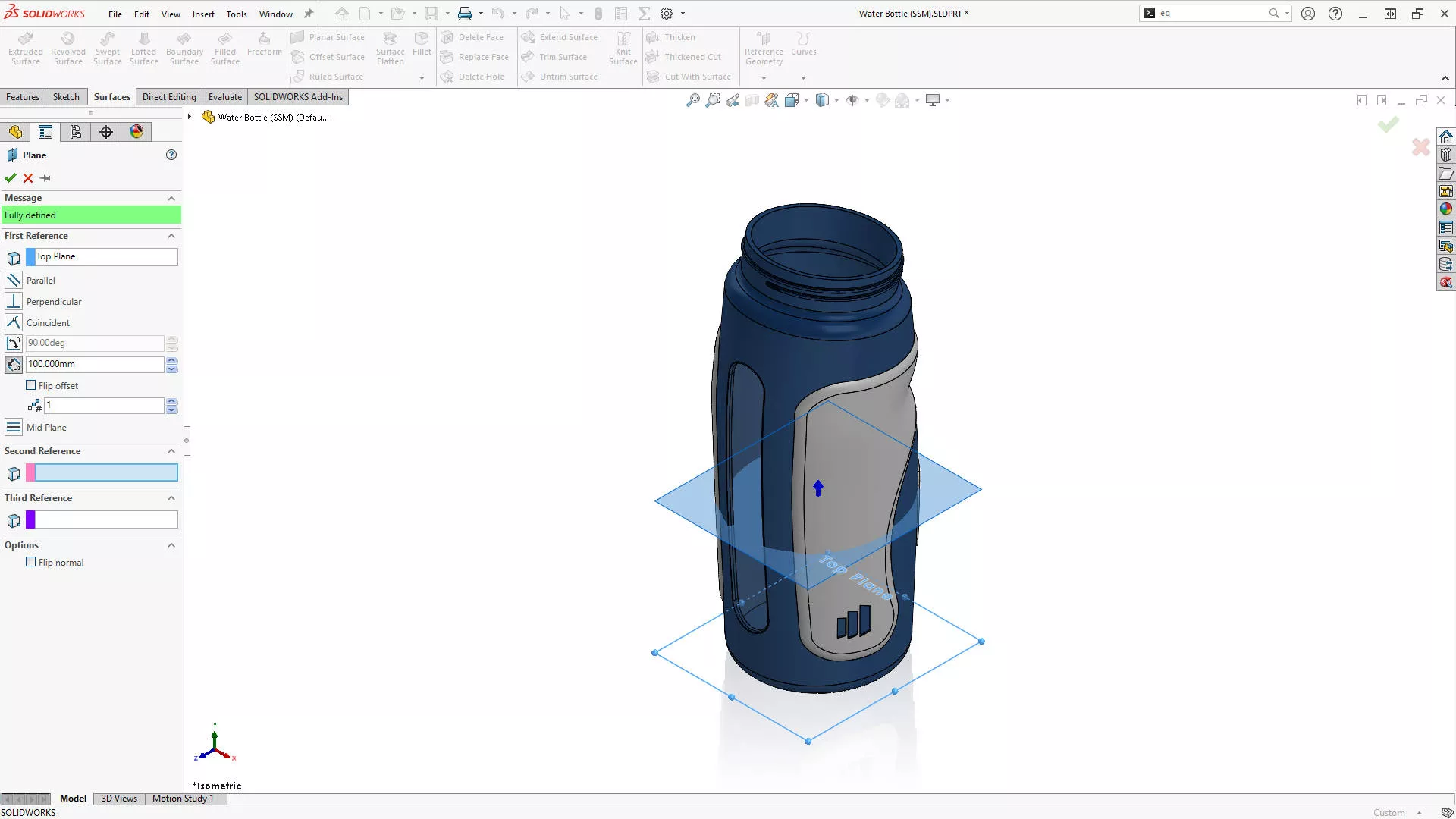
An offset of 100mm will do us for now – we’ll use this plane to evaluate the volume at this height, so we’ll also rename it to ‘Fill Level’.
USING INTERSECT TO FIND VOLUMES IN SOLIDWORKS
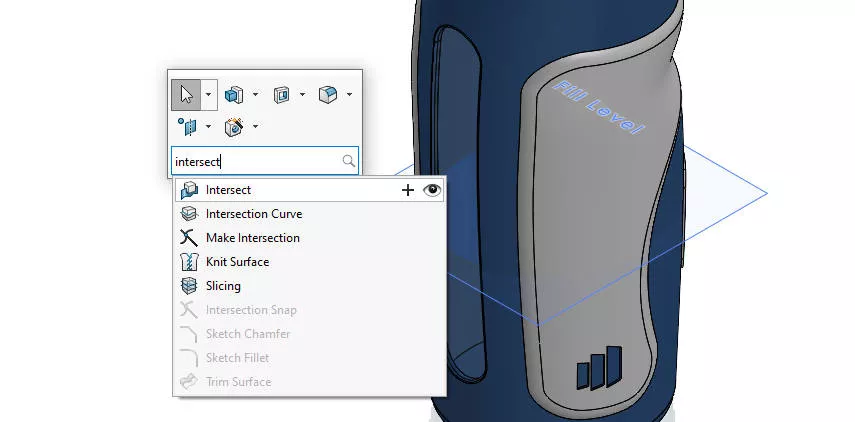
We’ll access our Intersect tool by searching for it on our shortcut bar. Hit the ’S’ key on your keyboard and search for ’Intersect’.
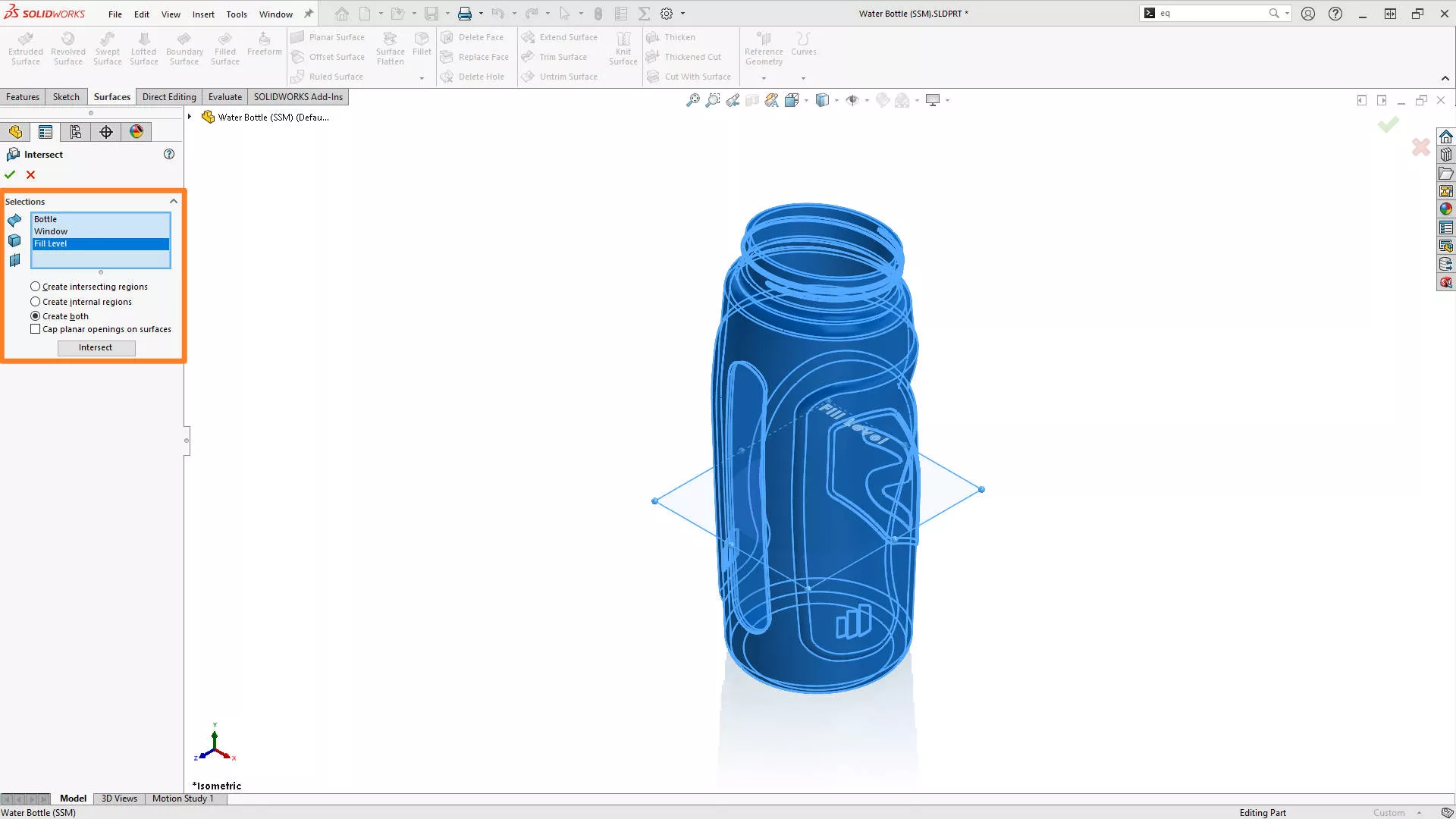
We then need to select all the relevant bodies and planes. We’ll pick the Window and the Bottle bodies, and also the Fill Level plane we just created.
’Create both’ should be selected from the property manager to ensure we create an internal volume up to the level of the plane, and we’ll click ‘Intersect’.
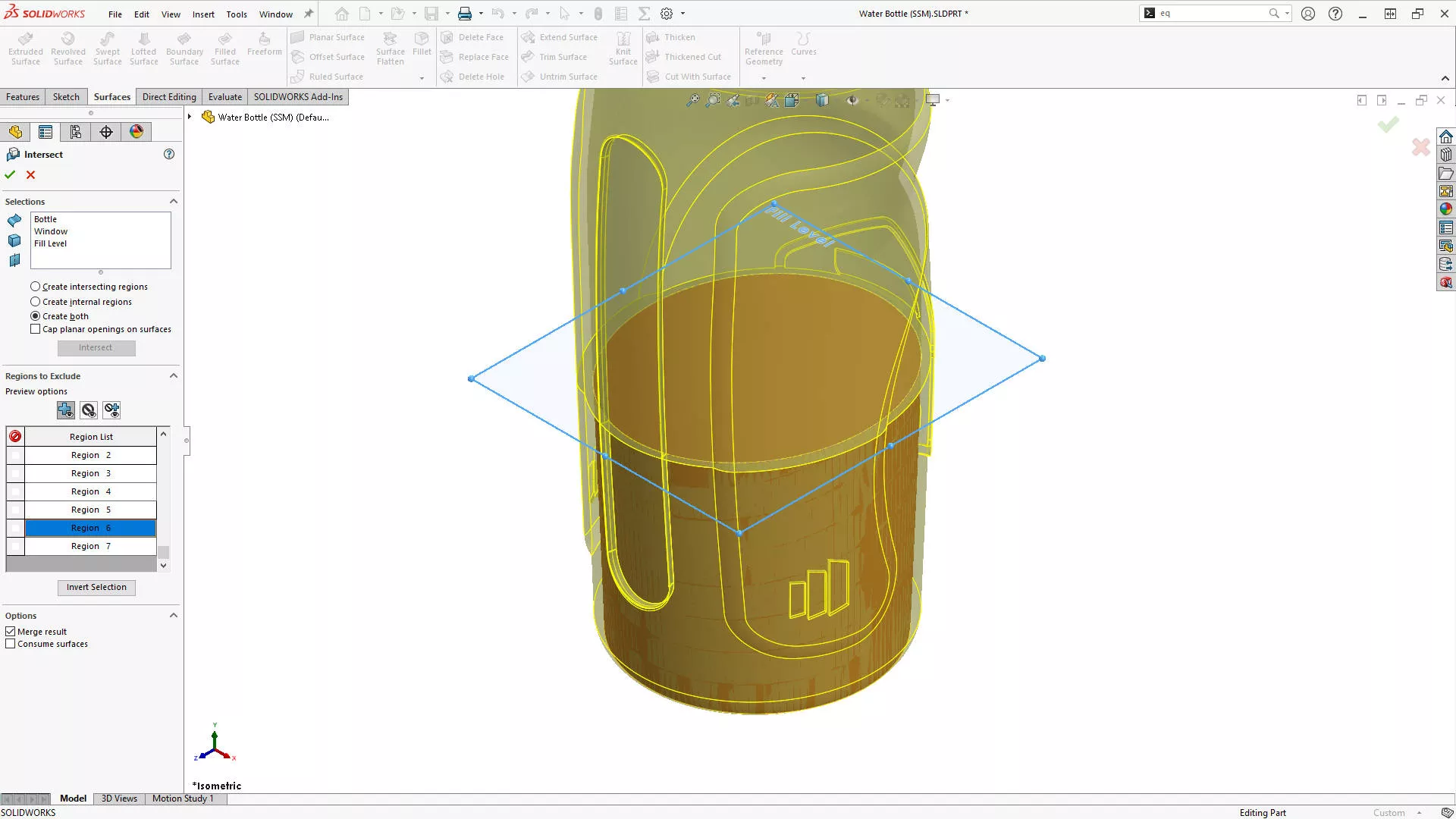
There are 7 regions created between the intersecting geometry. We’re only interested in one, however.
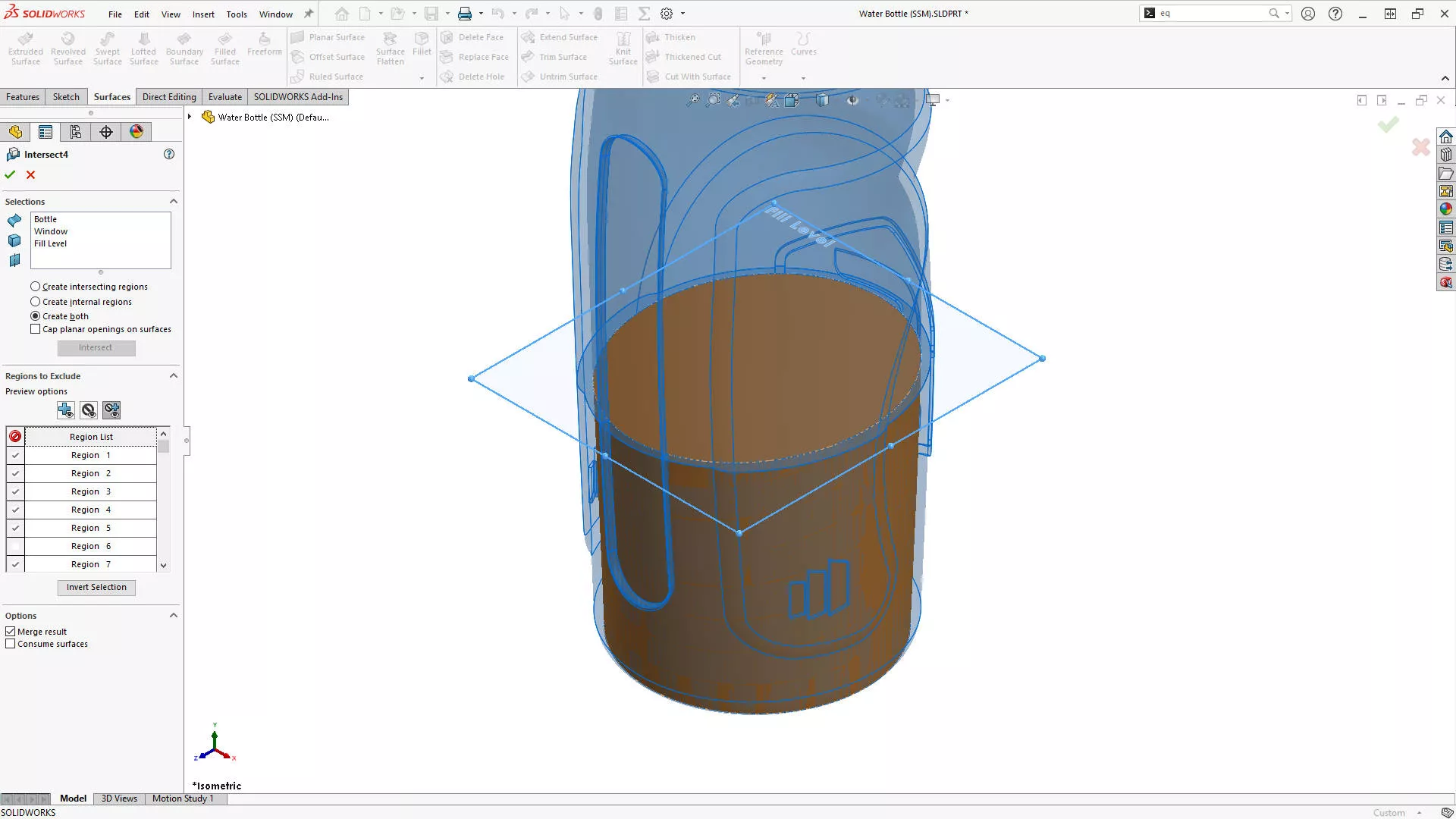
We’ll check the region we want to keep and hit Invert Selection. As there’s only one body we’re keeping, merge result is irrelevant.
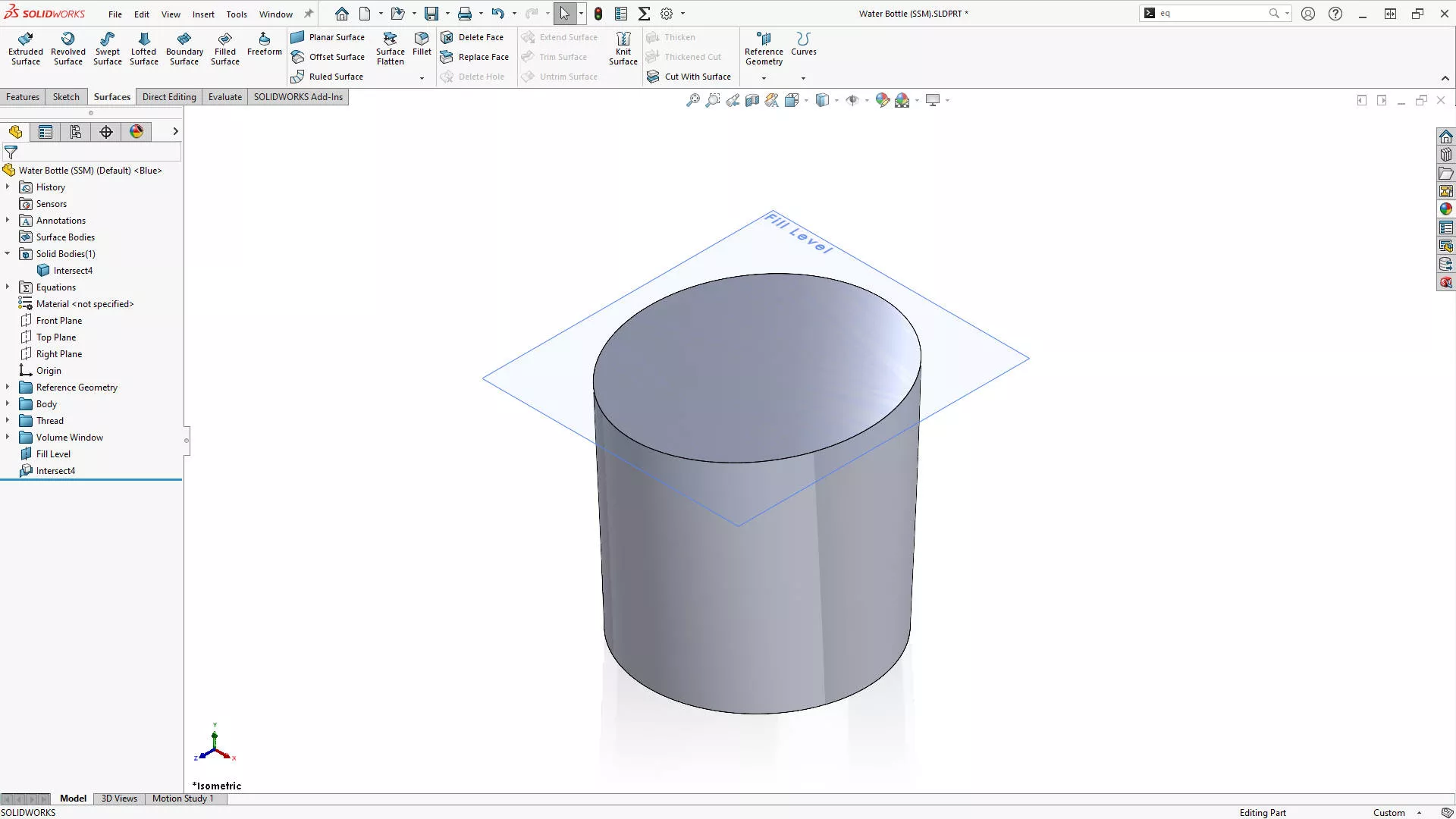
Confirming the command leaves us with the internal volume, and we can evaluate this solid geometry to find the exact volume.
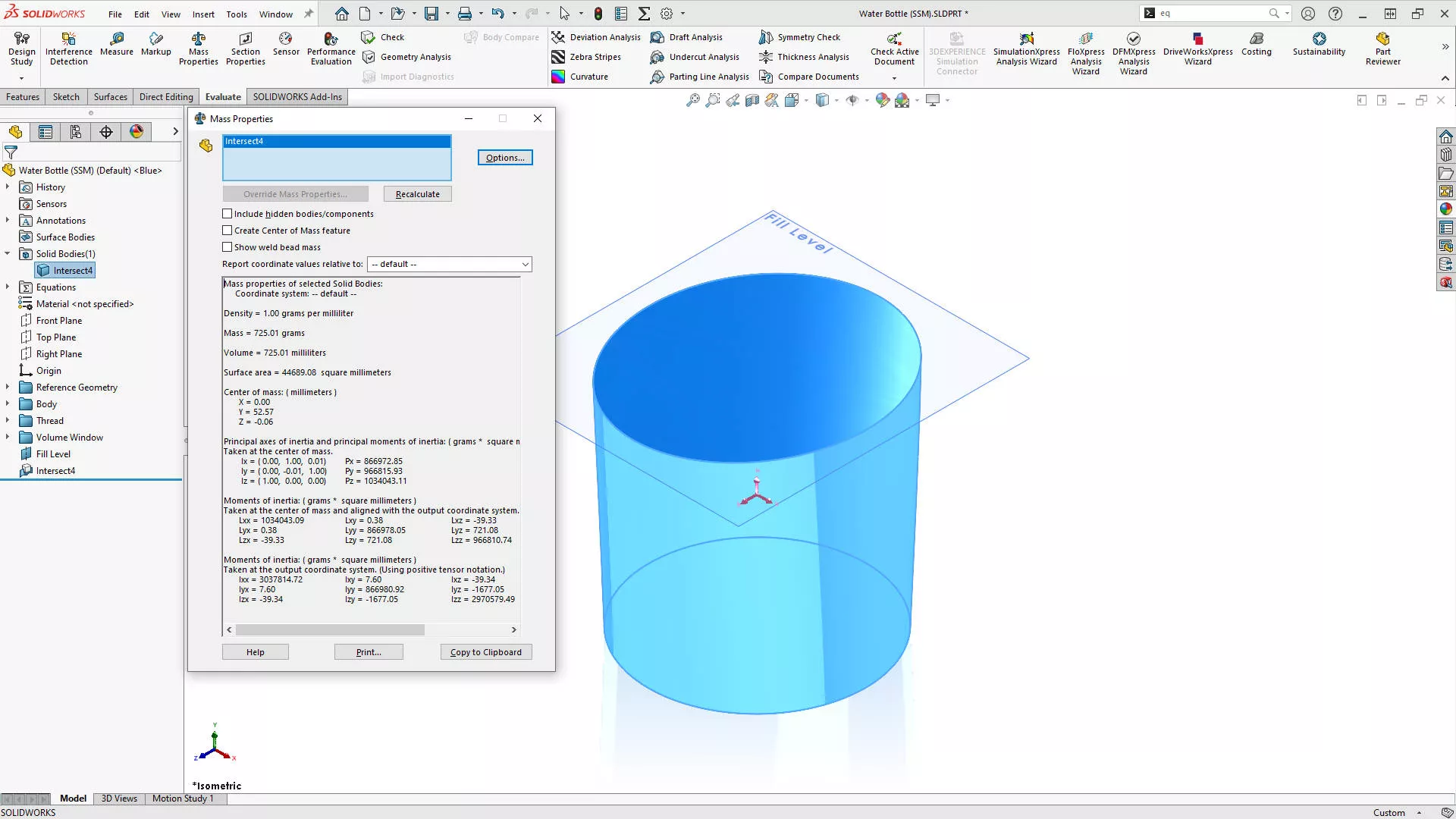
Our Mass Properties command on the Evaluate tab tells us we’re sitting at 725 ml, a little off the litre we’re after. Conveniently, there’s no need to modify the intersect feature to find the correct value.
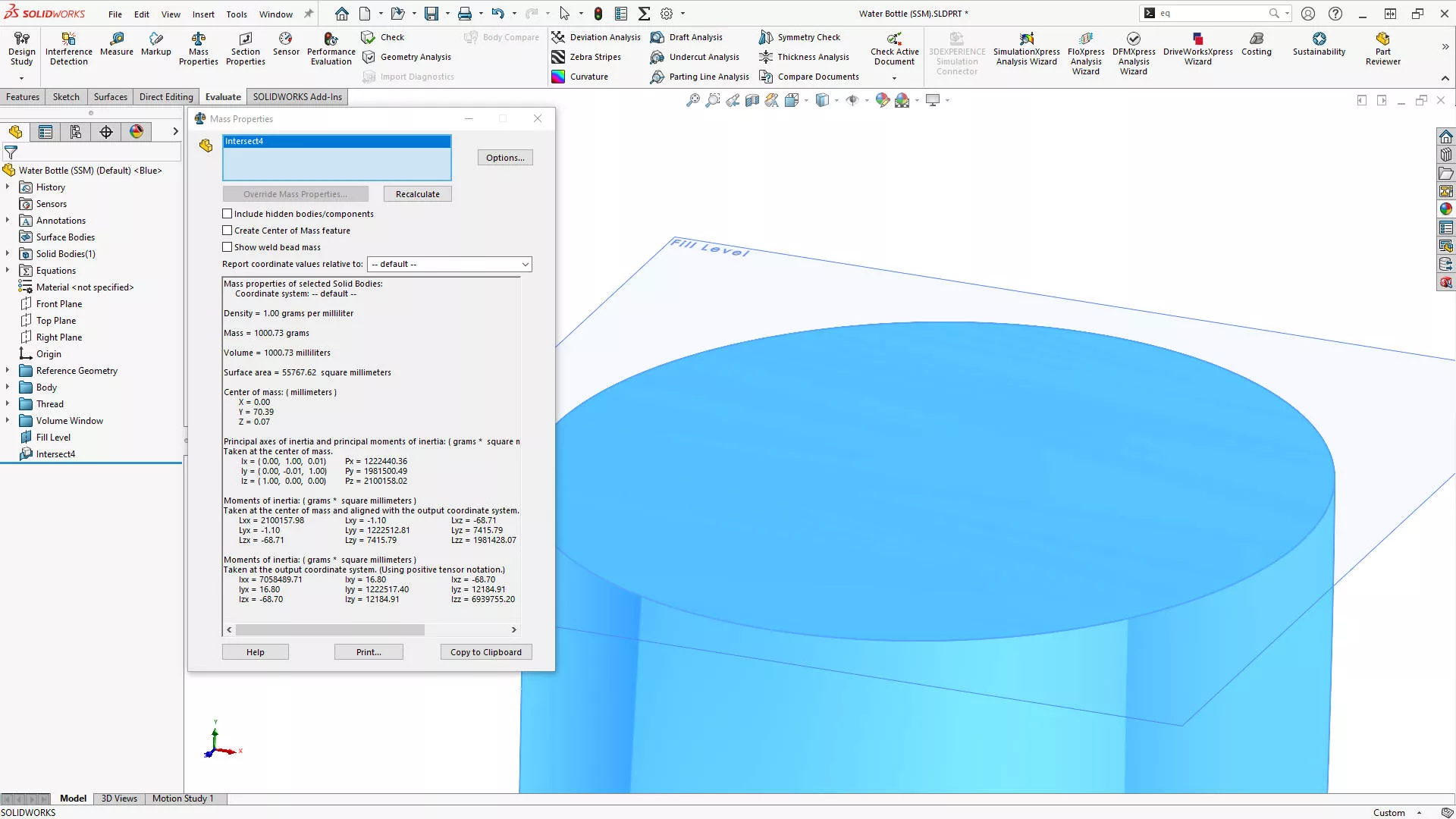
Simply by editing the offset dimension of the plane, SOLIDWORKS automatically rebuilds and we can check our value again in the Mass Properties.
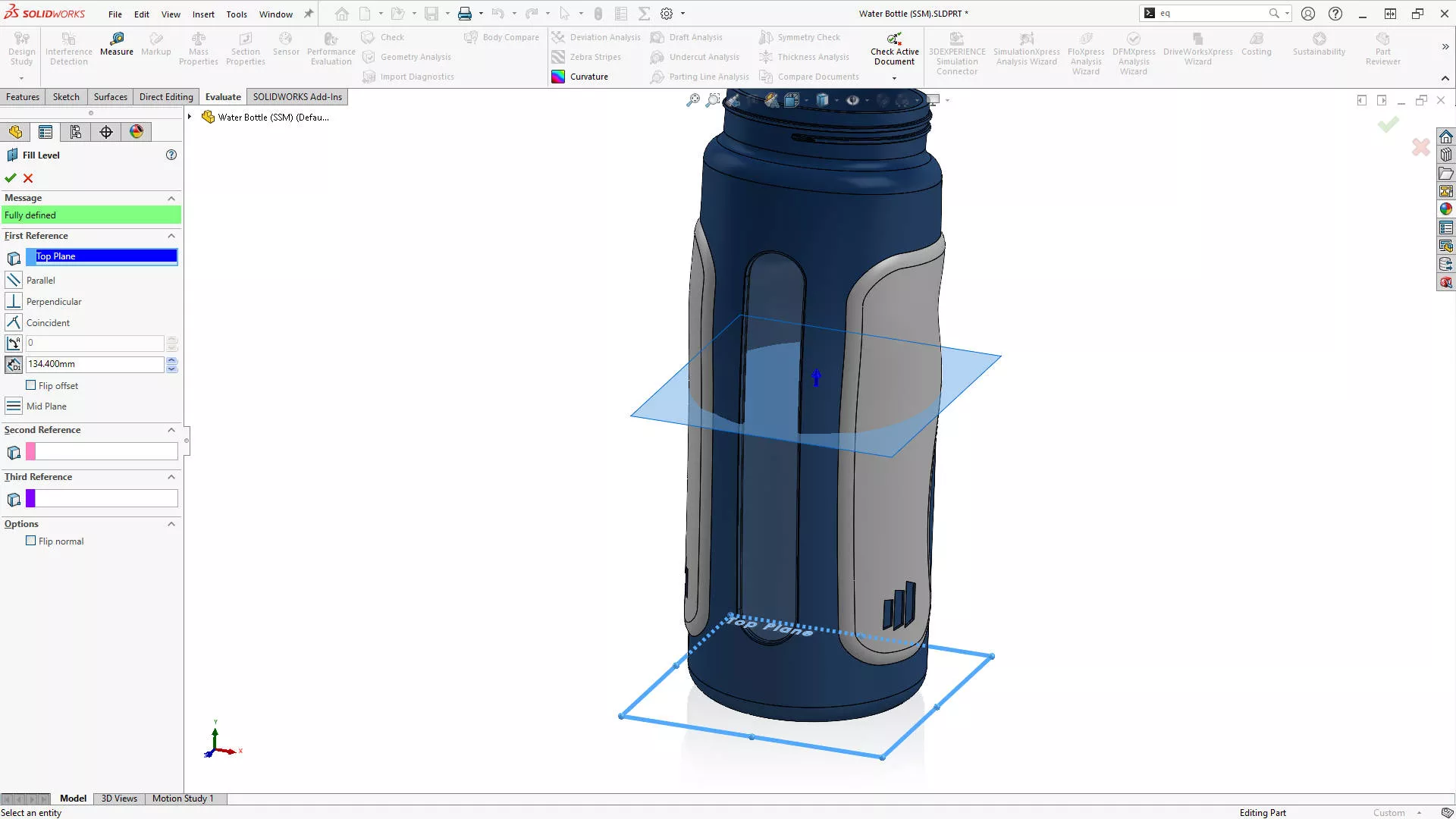
After a few iterations, our 1L mark comes in at 134.40mm.
Categorised as: SOLIDWORKS Design
Get a SOLIDWORKS Quote
Interested in SOLIDWORKS? Contact us for questions, trials, or demos by clicking the button below or call 01926 333777. Our experts will help you find the perfect solution.

Related Posts

How to Find Reaction Forces in SOLIDWORKS Simulation
SOLIDWORKS helps us to find resultant forces through simulation studies. These virtual tests reduce the need for physical prototypes and give us an accurate answer.

Setting number of decimal places in a table on a drawing
When creating an equation in a drawing general table, is it possible to define the…

SOLIDWORKS Smart Fasteners
SOLIDWORKS Smart Fasteners is a really useful time saving tool, allowing you to automatically insert toolbox fasteners such as bolts and screws into an assembly providing there is a standard hole.

Why is my Flat Pattern not showing in SOLIDWORKS Drawings?
This may be linked to how the drawing is saved or it can be related to how sheet metal parts are displayed in drawings, read on to find out how to fix it.

SOLIDWORKS Tips: Are you Making this Common Mistake in Fatigue Analysis?
Simulation is a vital and complex engineering need. Fortunately, SOLIDWORKS makes it easy to test, correct mistakes and obtain accurate results.

How to Recover SOLIDWORKS Files After a Crash
SOLIDWORKS has two different methods to help you recover from an unexpected crash or loss of data in the form of auto-recovery and back-up settings.

Redesigning Santa’s Sleigh in SOLIDWORKS
Every year Father Christmas has to fly in his sleigh to deliver presents to boys and girls all over the world in just one night. To put this into perspective, it takes a little under 24 hours to fly from London (UK) to Sydney (Australia) in a streamlined Boeing 747, whereas Father Christmas’ mode of transport is believed to be a rather non-aerodynamic sleigh.

SOLIDWORKS Grid Systems – hidden away, but very useful!
Rory Niles provides an insight into the uses for Grid Systems within SOLIDWORKS 2018

Furniture Design Made Easy with SOLIDWORKS
Calling all furniture and interior designers: the days of creating square cabinets are over. What if we told you there’s a much easier way to bring your products to life?
Here’s 10 reasons why we feel SOLIDWORKS is better than any other software, especially if you’re designing furniture:
Making 3D Textures from Images on SOLIDWORKS
Turn images into 3D geometry with brand new SOLIDWORKS 3D Textures Feature