











How to Create 360VR Video using SOLIDWORKS Visualize

Written by: Richard Earley
Published: Sep 18, 2019
| View All Blogs
Virtual Reality(VR) videos provide one of the most immersive methods of viewing a design concept and can be used to bring your product showcases to the next level. Recently VR has become a valuable tool for many companies when it comes to design reviews and interactive product training.
Read on to learn how to export 360VR videos using SOLIDWORKS Visualize.
To create a Virtual Reality 360 video you will need go through the following steps:
1. On the Camera tab inside Visualize select the General tab and change
camera type to 360.

2. Select Output Tools > Animation, then ensure that ‘Adjust for Virtual Reality playback on social media’ is checked. Specify the length of your VR animation under Frame Range and the press Start Animation Render.
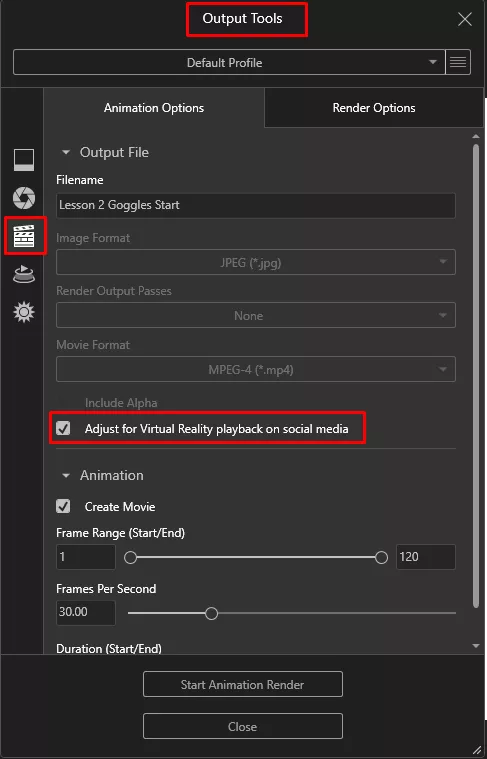
3. As ‘Adjust for Virtual Reality playback on social media’ has been checked this animation can be uploaded to YouTube. If you are using a Virtual Reality Headset or Google Cardboard, when you load the video you will get the option to change the view to suit.

The method described will create a 360 VR environment for a single camera view. If you want to create a VR environment which changes camera views, you can render out multiple 360 cameras as a standard Render rather than Animation, ensuring that ‘Adjust for Virtual Reality playback on social media’ is still checked on.
These can then be spliced together in a video editing software, such as Adobe Premiere Pro. The final video will then need to be 360 enabled before uploading to YouTube. To do so you can use the 360 Video Metadata App outlined here.
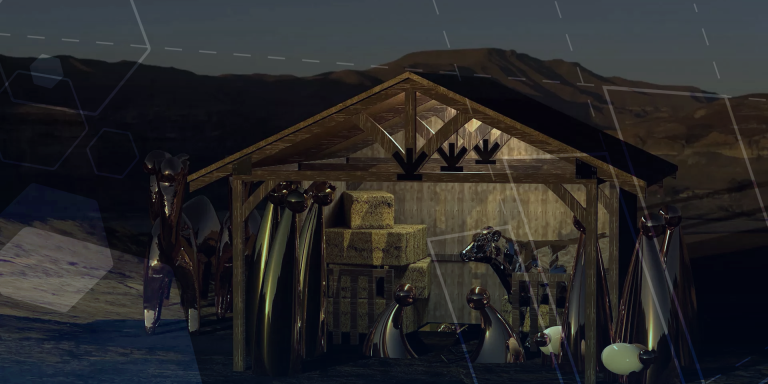
Play the video below if you’d like to check out an example of a 360º VR video produced using SOLIDWORKS Visualize.
Categorised as: SOLIDWORKS Visualize | Tutorials | Visualisation
Get a SOLIDWORKS Quote
Interested in SOLIDWORKS? Contact us for questions, trials, or demos by clicking the button below or call 01926 333777. Our experts will help you find the perfect solution.

Related Posts

Series 1 Land Rover Pedal Car – Made Easy with Solidworks!
The Series1 began production in 1948 designed to help get Britain farming after the war effort. It grew extremely popular and today enthusiasts are prepared to throw their life savings at restoring originals from that period.

SOLIDWORKS Visualize. Why go pro? – 6 Post Processing
In this blog we will be look at the post-processing options that can be found in SOLIDWORKS Visualize

SOLIDWORKS Visualize. Why go pro? – 7 Lighting
SOLIDWORKS Visualize uses a non-biased rendering engine, which allows for physically accurate lighting within a scene. It generates images with high amount of realism and correct set up can replicate photo studio lighting.

How to Get Your Serial Number for SOLIDWORKS Visualize Standard
Want to download Visualize to make photorealistic renders? Follow this guide for accessing your Visualize serial number that comes bundled in with SolidWorks Professional and Premium.
Creating Interactive Animations with SOLIDWORKS Visualize
Interactive Images are a great export option within Visualize Professional, allowing you to view the model in a series of 360 orbital spins within a web browser.
However, what happens if I want to use this interactive method to demonstrate a mechanism or animation instead?

How to Find & Activate SOLIDWORKS Xpress Products
Find & activate SOLIDWORKS Xpress products in five simple steps. Xpress tools come with every seat of SOLIDWORKS and unlock additional functionality.
Modelling an Archimedes’ Screw with SOLIDWORKS
Archimedean screws are often referred to as “water screws” since they are commonly used to transport water between different heights. We often see some of our customers do screw feeders and we thought it may be beneficial to create a blog documenting an effective modelling workflow to create your very own Archimedean screw.

How to come up with ideas for your design or engineering project – some helpful tips
We know coming up with an interesting and creative design or engineering project can be…
Creating a Kicking Tee for the Rugby Lions Series – Modelling Walkthrough
As the Rugby Lions Series continues Solid Solutions and MECAD are continuing to compete off the pitch using SOLIDWORKS. Our second challenge was to create a Kicking Tee, a small yet key piece of equipment that is used almost every game. Various designs exist but we decided to model an adjustable kicking tee. Read on for some SOLIDWORKS tips and an overview of our modelling process.
Connection Detailing in SOLIDWORKS 2022
With SOLIDWORKS 2022 you can add connection detailing to your structural members. Learn how to create and add structural connections to your SOLIDWORKS models quickly and easily.