











How to Create Realistic Lighting in SOLIDWORKS Visualize
Written by: Richard Earley
Published: May 24, 2023
| View All Blogs
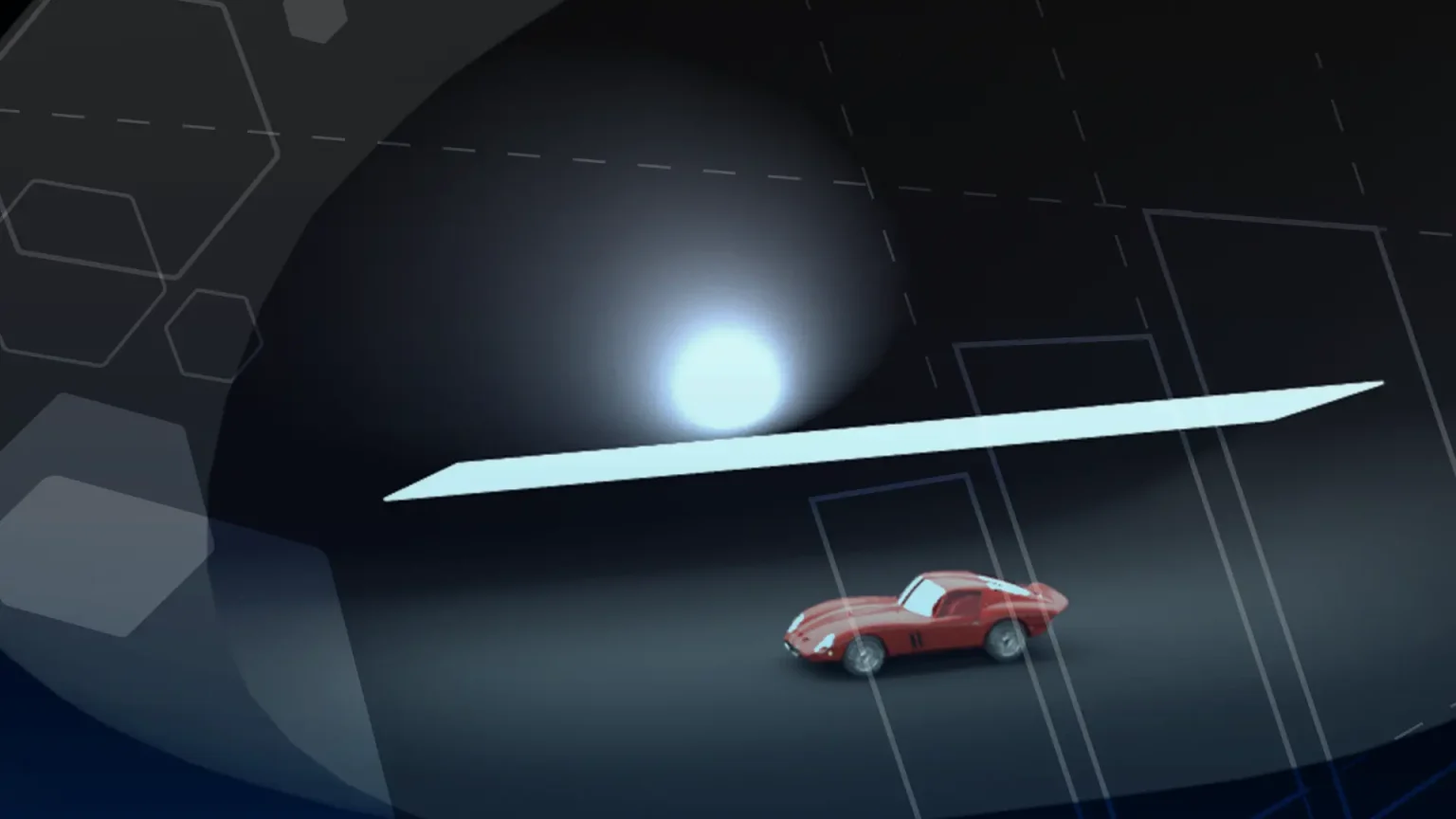
SOLIDWORKS Visualize is equipped with some simple tools to help you get realistic lighting for your product renders.
The standard scenes and environments are great for getting you started and familiar with creating photorealistic renders, but sometimes we need to get a bit creative and go beyond simple brightness and light position changes.
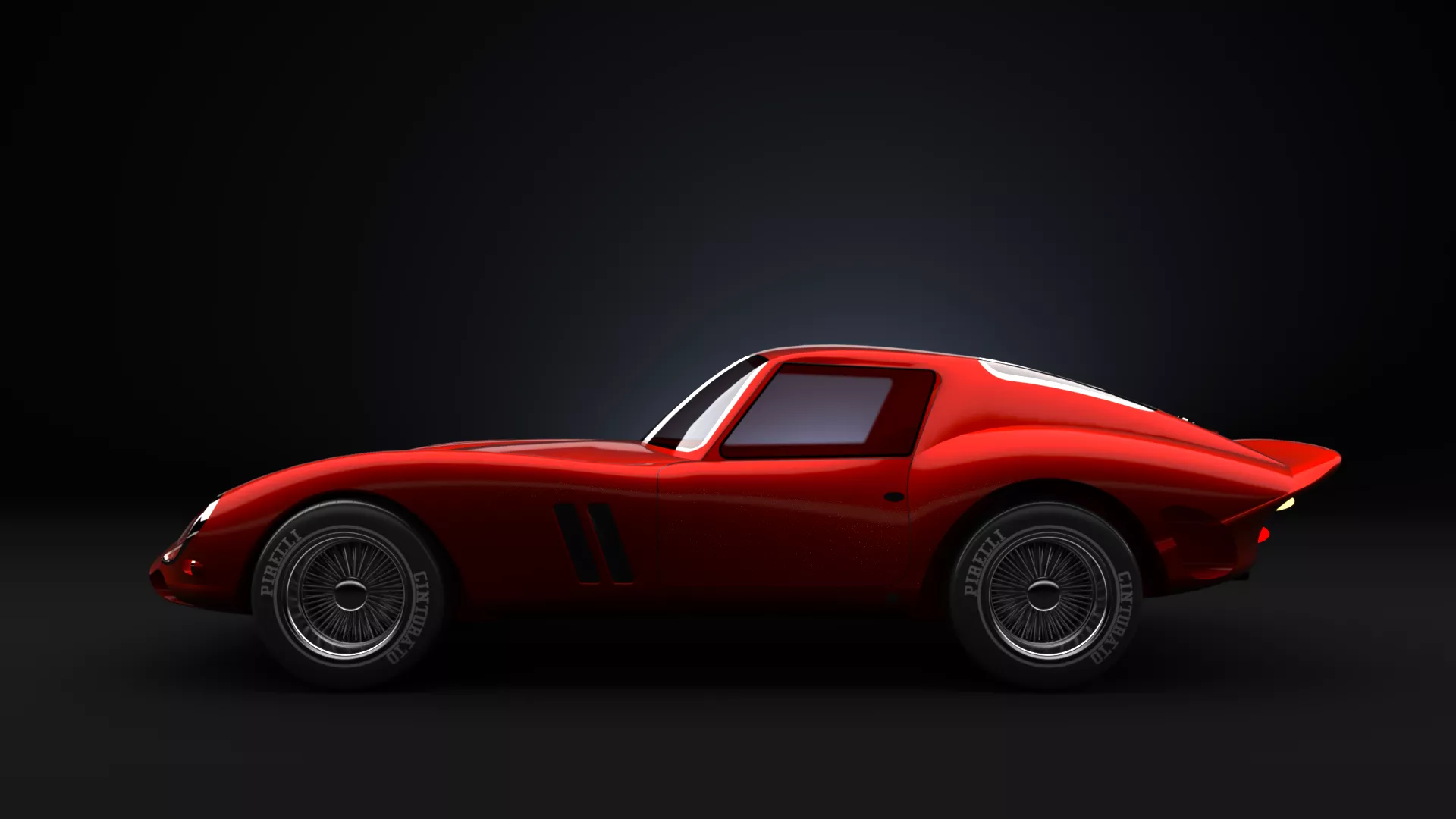
So when you can’t find the perfect scene for your Visualize project, try designing your own environment!
With custom lighting, textures, and HDRI capabilities, you can enhance the eye-catching details of your models and really make them pop.
So let’s look at a quick and easy technique and show you how to create realistic renders in SOLIDWORKS Visualize.

First, set up a new camera with what you feel are the ideal settings and position to capture the details you want to show off on your model. Once you have the right shot, lock it and switch back to the default camera.
We can then set up the environment and lighting whilst regularly referring to this camera view to see the effect.
For the environment, add a Visualize model and scale this to surround the main object. This model will be used as the scene, acting similar to a photography studio where adding lighting within this space will be reflected off the walls and focused on the geometry.
The Rounded Gumdrop model is a great example to use as this produces smooth reflections. The appearance applied to this model will control the reflectivity, for this example we have used the Matte appearance type.
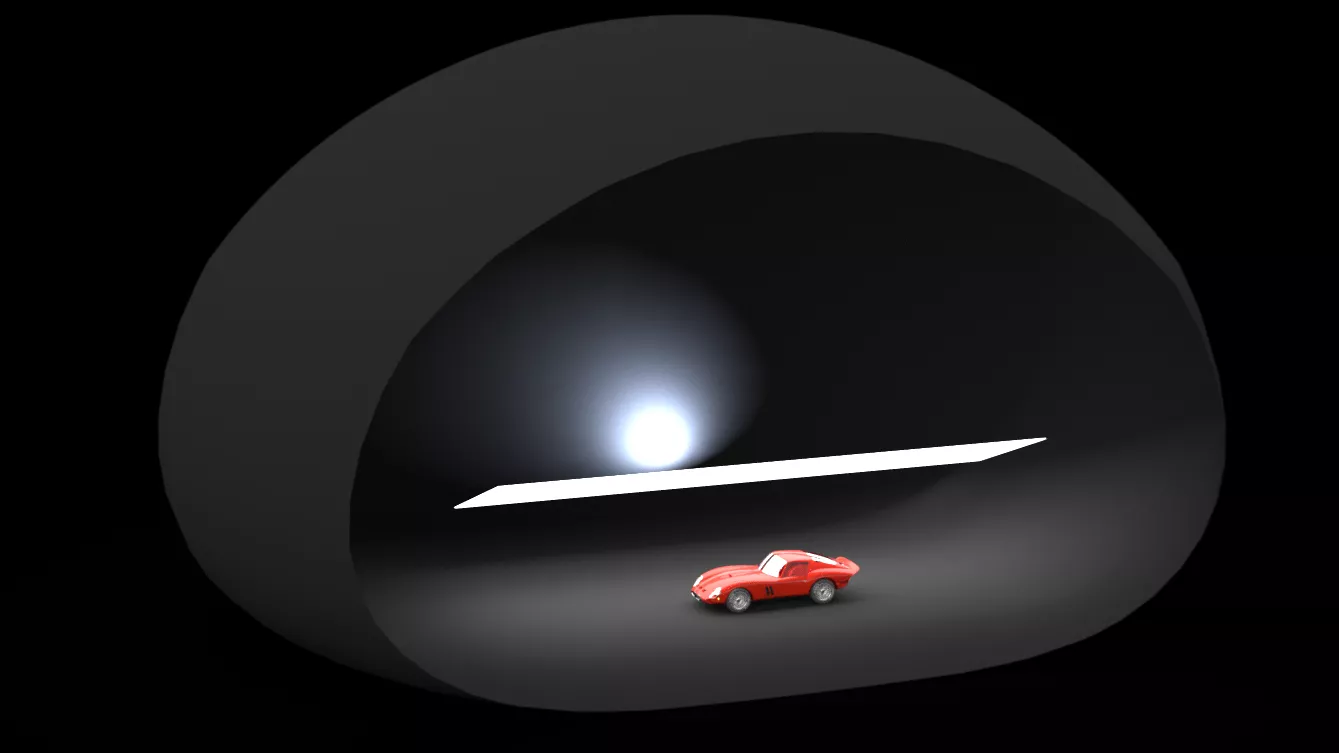
You now have complete control in this space to add lighting in locations which highlight the desired details of your model and to add effects to the background behind the geometry.

The positioning of lights can be made easier using multiple viewports in Visualize, selecting View > Multi Viewports > Dual Horizontal Viewports. With this method, you can quickly check your original camera view to see the effect after making any subtle changes to the lighting.


Lights are only included in Visualize Professional however, an alternative for setting up the lighting can be to use Visualize models within the space and apply an emissive appearance to their surface.
You can adjust the settings of the emissive appearance and translate the models to highlight the level of detail on the model.
In this example we have added two spheres from the Visualize models, then applied any emissive appearance, adjusting the brightness level and moving the spheres closer to the model for more effect.
If any models or lights are showing in the camera view, you can hide these by unticking Visible for each entity on their General tab.
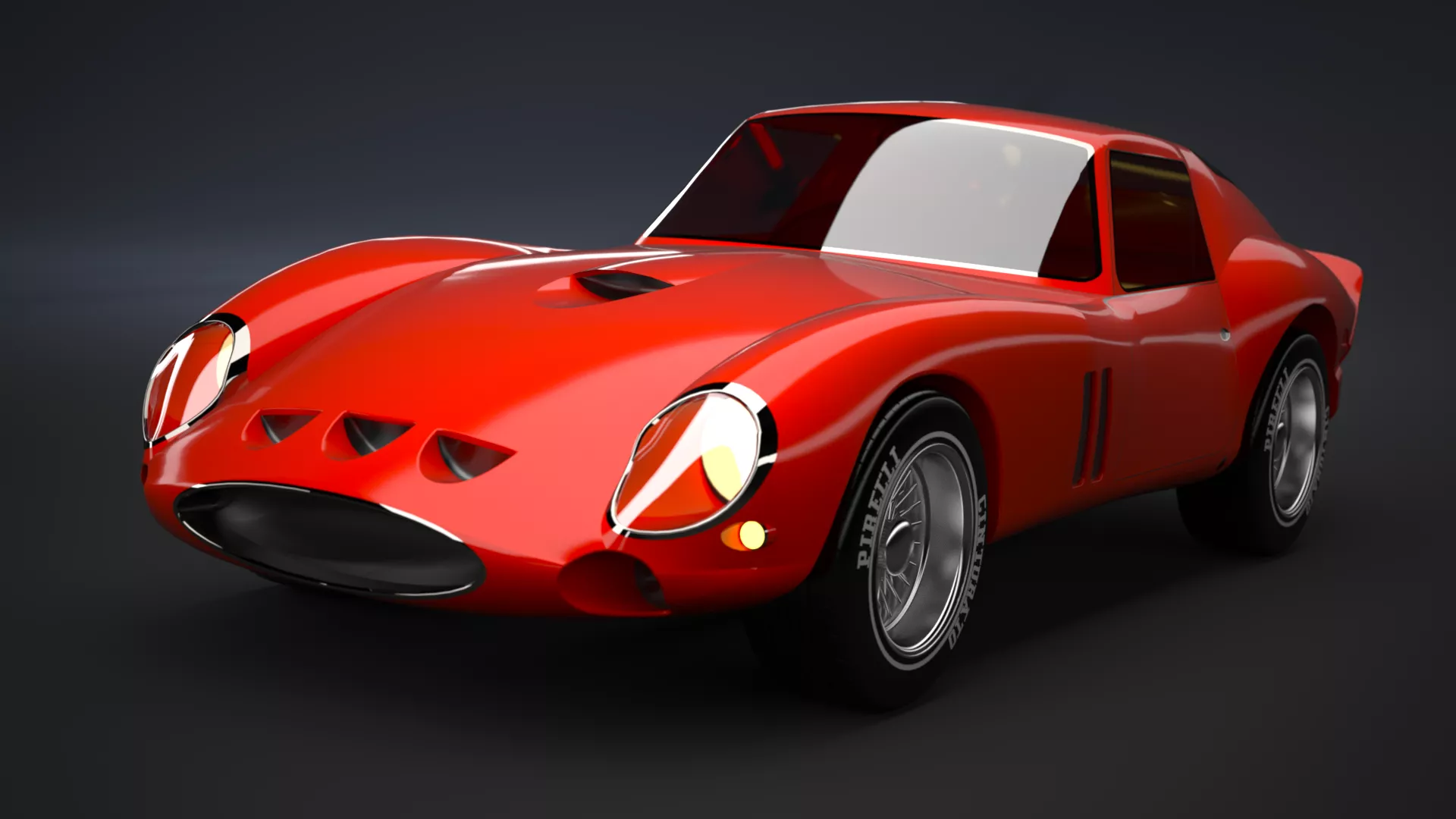
The camera settings, type of lights and positioning create dramatic effect for specific products.
Check out this tutorial to learn how to use ground planes in SOLIDWORKS Visualize to add even more realism to your renders.
Take the Next Steps…
To learn more about SOLIDWORKS Visualize and how you can create stunning realistic product renders, why not book on to one of our CPD-accredited training courses?
Whether you’re a beginner or are intimately familiar with CAD, our friendly and expert trainers are ready to help you get the most out of SOLIDWORKS, either online or in a classroom local to you.
Categorised as: Tutorials | Visualisation
Get Expert SOLIDWORKS Training
Get hands-on SOLIDWORKS training in-person or online, led by certified experts with real industry experience. With venues across the UK & Ireland, it’s easy to start learning today.
Related Posts

Series 1 Land Rover Pedal Car – Made Easy with Solidworks!
The Series1 began production in 1948 designed to help get Britain farming after the war effort. It grew extremely popular and today enthusiasts are prepared to throw their life savings at restoring originals from that period.

SOLIDWORKS Visualize. Why go pro? – 6 Post Processing
In this blog we will be look at the post-processing options that can be found in SOLIDWORKS Visualize

SOLIDWORKS Visualize. Why go pro? – 7 Lighting
SOLIDWORKS Visualize uses a non-biased rendering engine, which allows for physically accurate lighting within a scene. It generates images with high amount of realism and correct set up can replicate photo studio lighting.

How to Get Your Serial Number for SOLIDWORKS Visualize Standard
Want to download Visualize to make photorealistic renders? Follow this guide for accessing your Visualize serial number that comes bundled in with SolidWorks Professional and Premium.
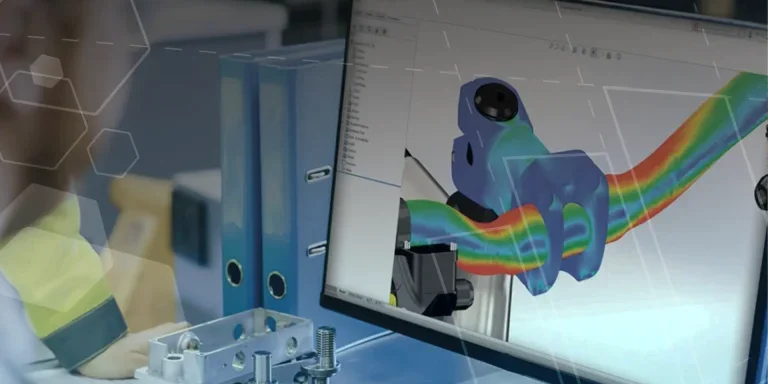
Creating Interactive Animations with SOLIDWORKS Visualize
Interactive Images are a great export option within Visualize Professional, allowing you to view the model in a series of 360 orbital spins within a web browser.
However, what happens if I want to use this interactive method to demonstrate a mechanism or animation instead?

How to Find & Activate SOLIDWORKS Xpress Products
Find & activate SOLIDWORKS Xpress products in five simple steps. Xpress tools come with every seat of SOLIDWORKS and unlock additional functionality.

How to Create 360VR Video using SOLIDWORKS Visualize
Virtual Reality(VR) videos provide one of the most immersive methods of viewing a design concept and can be used to bring your product showcases to the next level. Recently VR has become a valuable tool for many companies when it comes to design reviews and interactive product training. Check out this short blog to learn how to export 360VR videos using SOLIDWORKS Visualize.
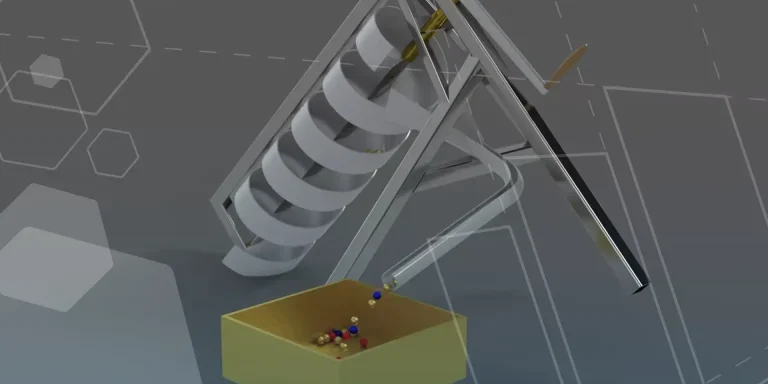
Modelling an Archimedes’ Screw with SOLIDWORKS
Archimedean screws are often referred to as “water screws” since they are commonly used to transport water between different heights. We often see some of our customers do screw feeders and we thought it may be beneficial to create a blog documenting an effective modelling workflow to create your very own Archimedean screw.

How to come up with ideas for your design or engineering project – some helpful tips
We know coming up with an interesting and creative design or engineering project can be…
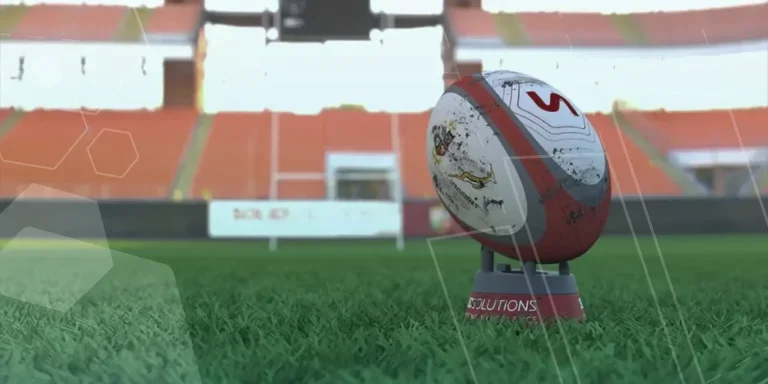
Creating a Kicking Tee for the Rugby Lions Series – Modelling Walkthrough
As the Rugby Lions Series continues Solid Solutions and MECAD are continuing to compete off the pitch using SOLIDWORKS. Our second challenge was to create a Kicking Tee, a small yet key piece of equipment that is used almost every game. Various designs exist but we decided to model an adjustable kicking tee. Read on for some SOLIDWORKS tips and an overview of our modelling process.