











How to Install and Use SWOOD Editor
Written by: Adam Humphries
Published: Apr 12, 2023
| View All Blogs
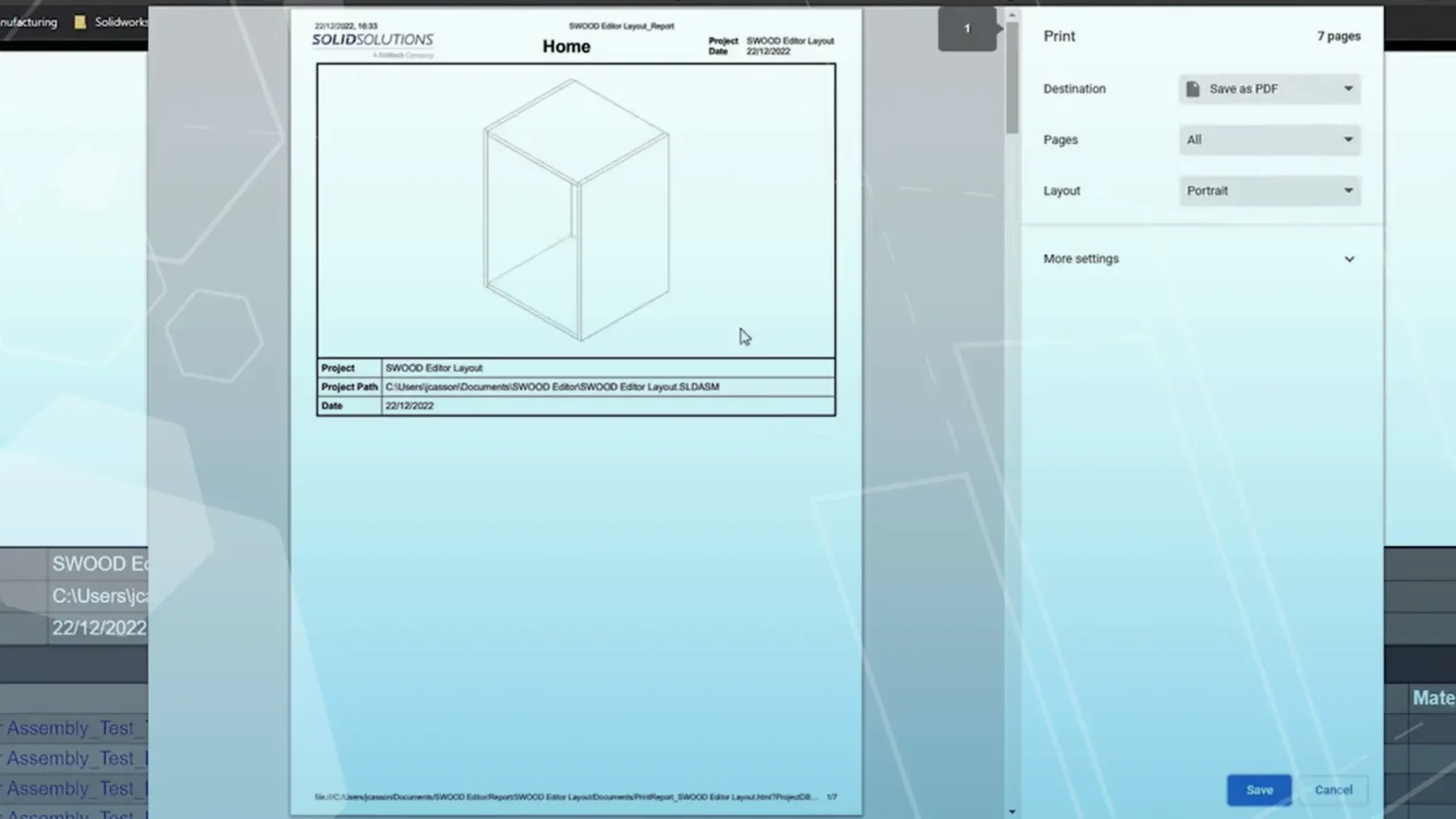
SWOOD reports provide a comprehensive set of documentation for production including cutting lists, hardware lists, labels, and material summaries.
With the introduction of the new SWOOD report Editor, we can now modify the report much more easily.
Let’s take you through how to install and use the SWOOD Report Editor.
How to Activate SWOOD Editor License?
On receiving the SWOOD Editor, you will need to add the license for it to the Solid Solutions Licensing app.
Browse to the DAT folder in the appropriate SWOOD Data folder.
Run the Solid Solutions Licensing installer SolidSolutionsLicensing.exe. Once installed, you will need to activate the license in the licensing app.
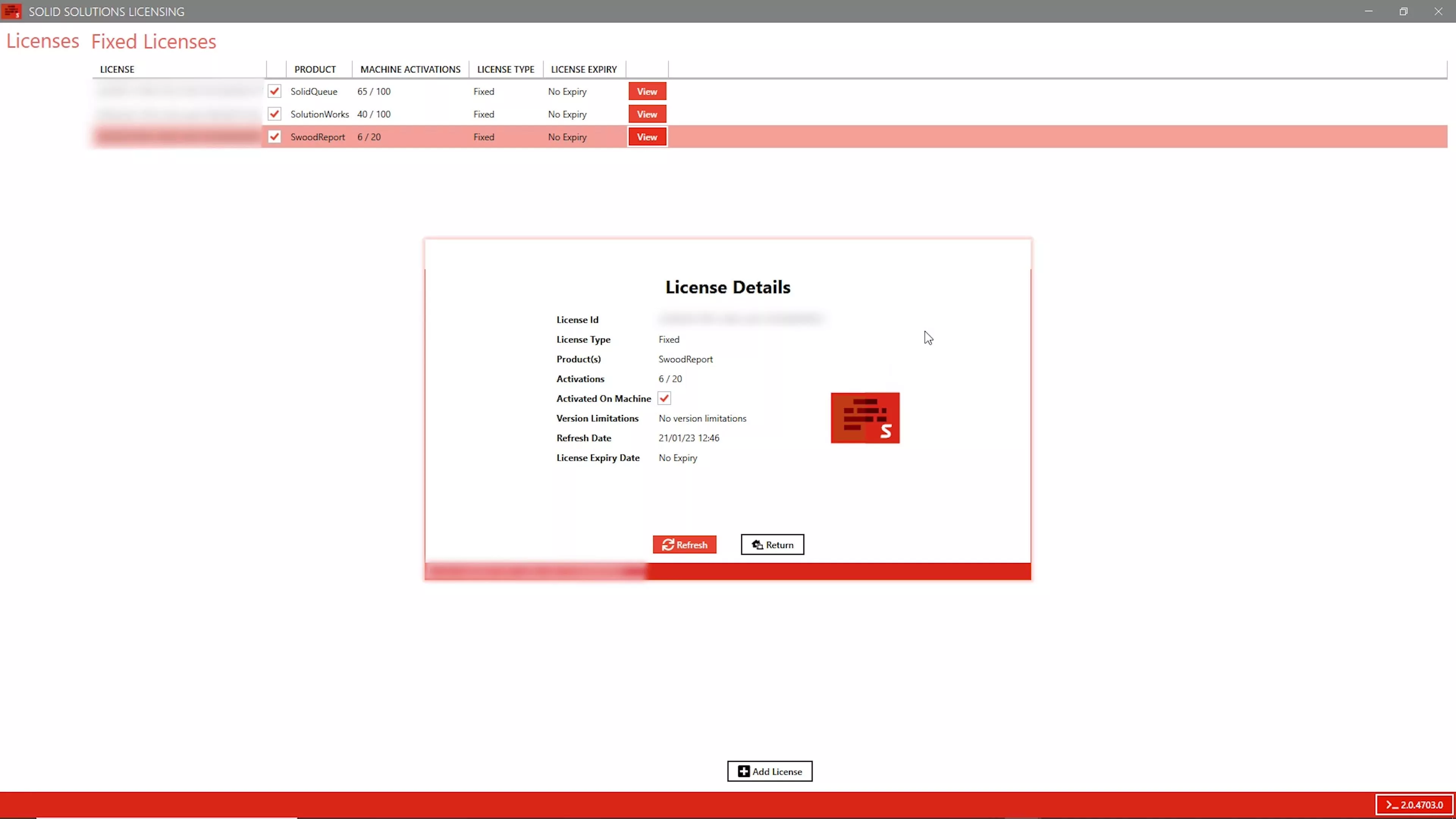
Open the Solid Solutions licensing app through the Start menu, then follow the steps on screen to activate the license.
Simply click Add License, then input your serial key and click Add to activate the license.
If you need to deactivate your license, click to view your license and click Return.
How to Install SOLIDWORKS SWOOD Editor?
Your license should now be active and the SWOOD Editor is ready to be installed.
Run the SWOOD Editor Setup application from your SWOOD Downloads folder to install the SWOOD Report Editor.
Once installed, the application should open automatically.
How to Use the SWOOD Editor?
The Main tab shows you which data directory you are referencing in the app.
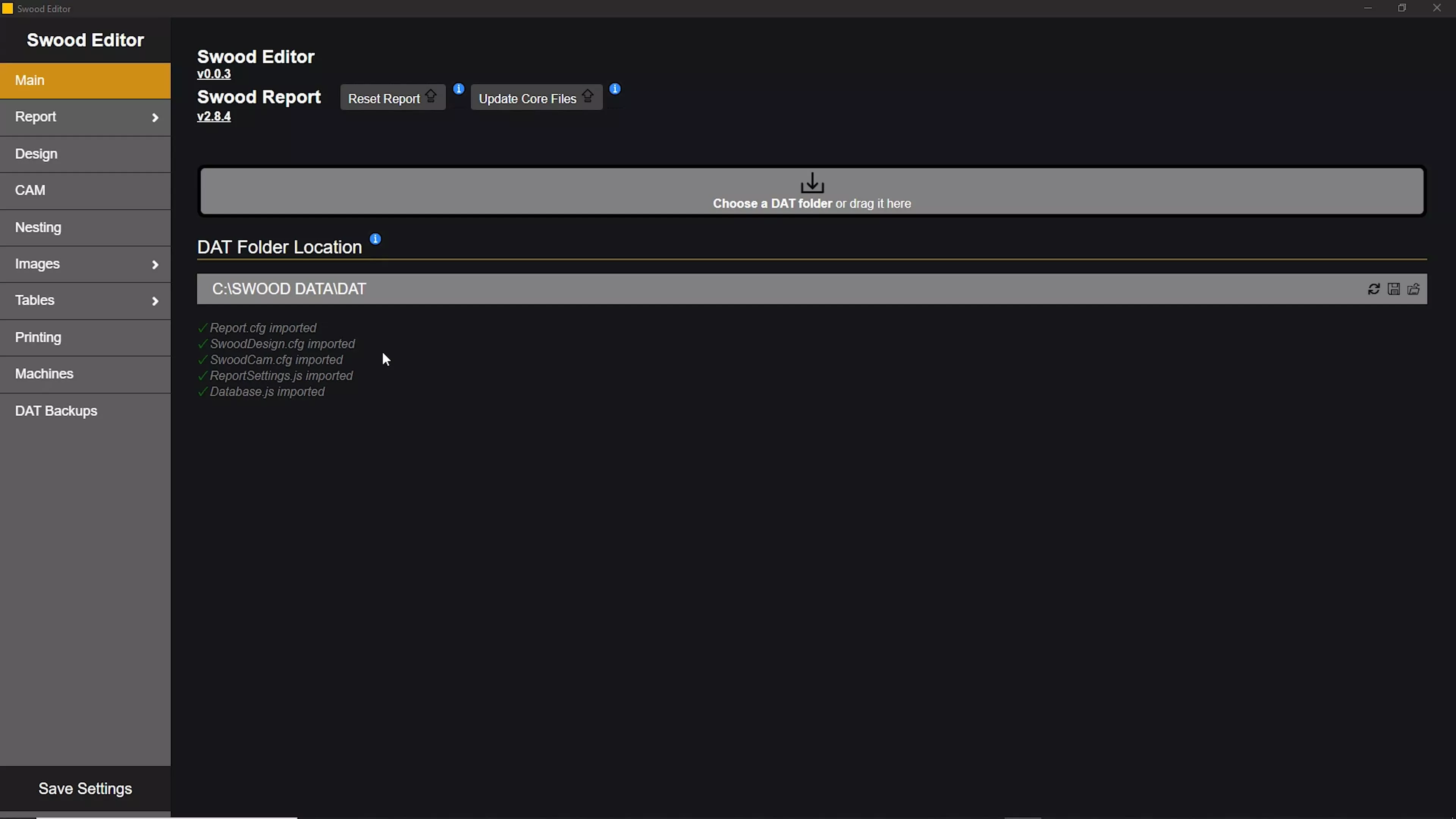
DAT folders can be redirected here by dragging the new folder into the app and you can update the report in the referenced directory by clicking Reset Report.
The update will use the report embedded into the SWOOD Editor tool. To ensure the embedded report is up to date, you can click Update Core Files.
The Main Report tab contains the output report location and the units to be used throughout the report.
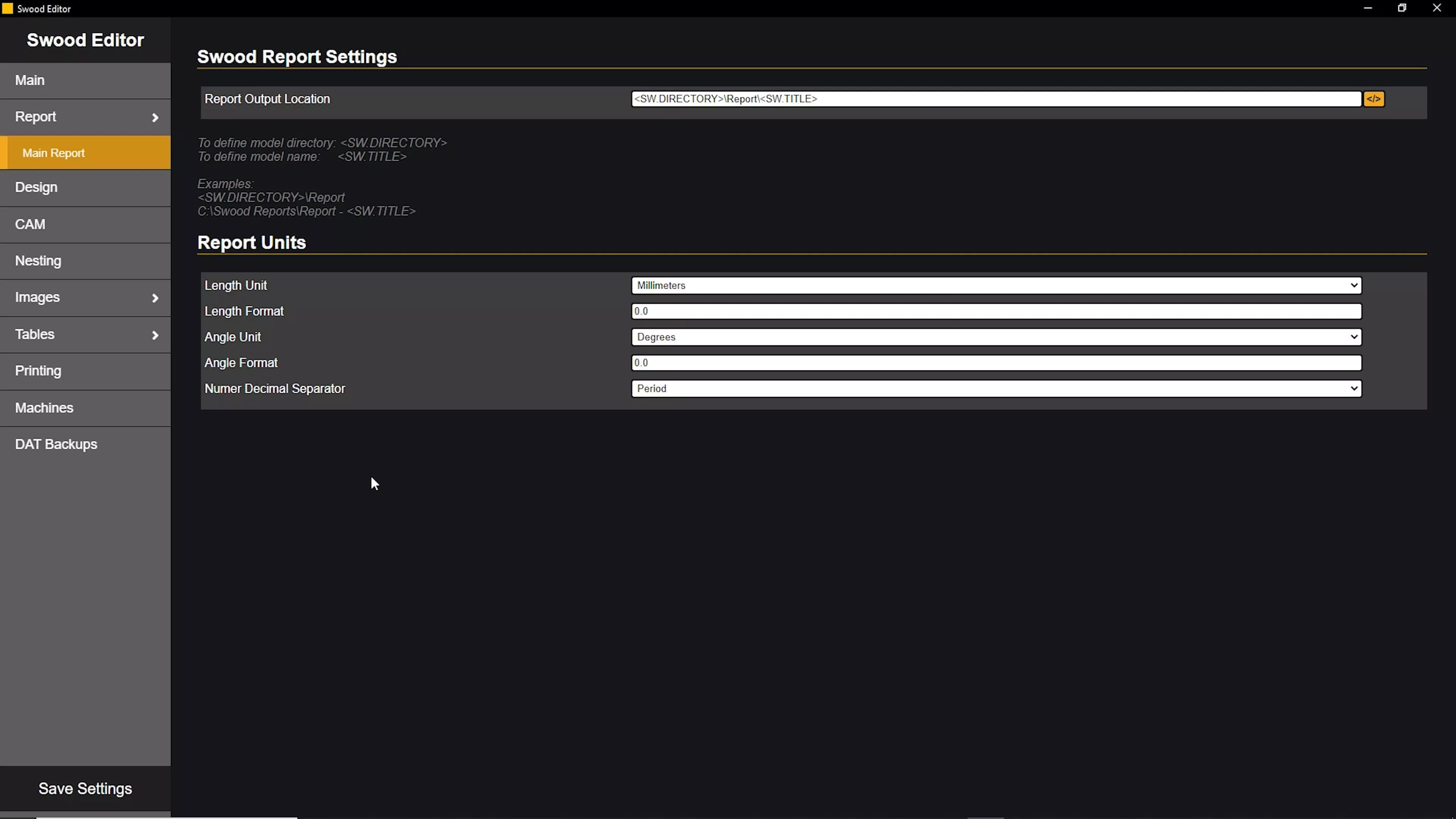 Changing the directory to Report to ensure reports are added to a Report folder inside your project folder with the same project name.
Naming conventions of your SWOOD files can be assigned on the Design tab and Copier tools can be activated.

The Copier tool allows frames to be renamed on insertion into layouts. This can be applied to panels and SWOOD Boxes as well.
The Default Post Processor and the Auto Drilling Option can be defined on the CAM tab.
Nesting settings can also be modified under the Nesting tab.

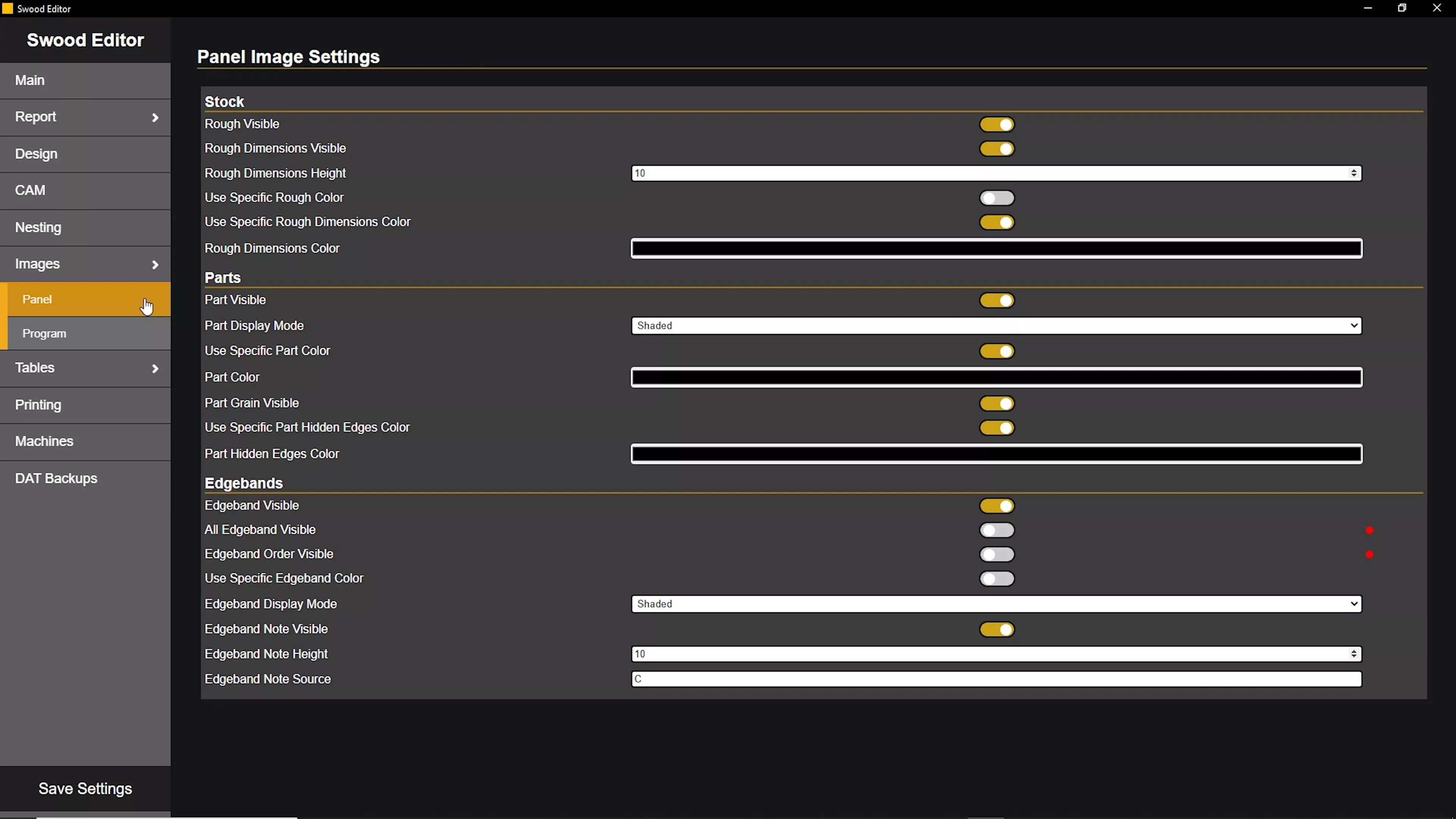
The Images tab contains separate options for panel and program images that control how images are displayed for customisation in reports.
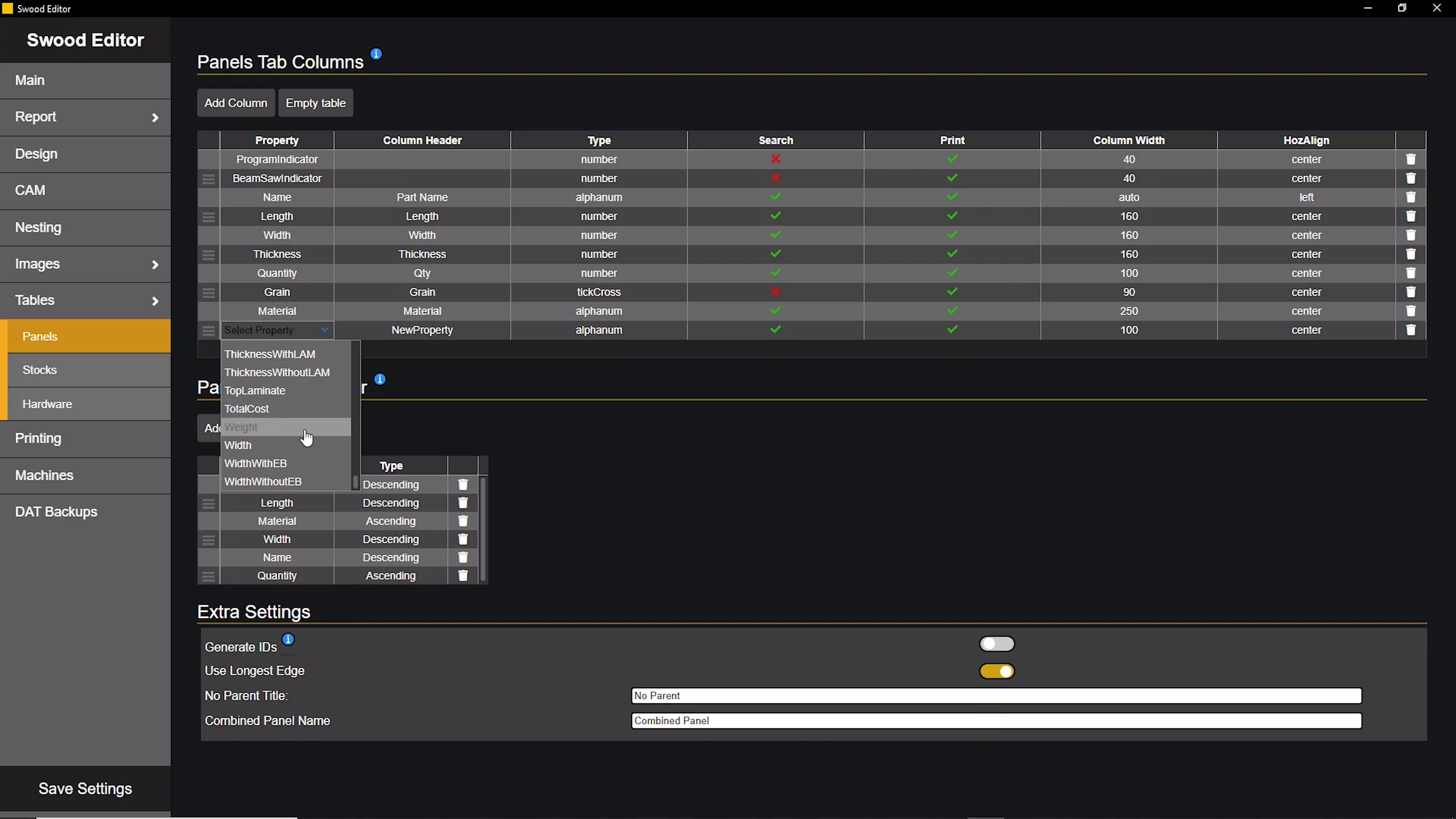
In the Tables tab, you can customize panels, stocks, and hardware tables by adding extra columns and editing the sorting order. Columns can be added and deleted, and change referenced data by using the property dropdown list. Tables are fully customisable, including text alignment and formatting.
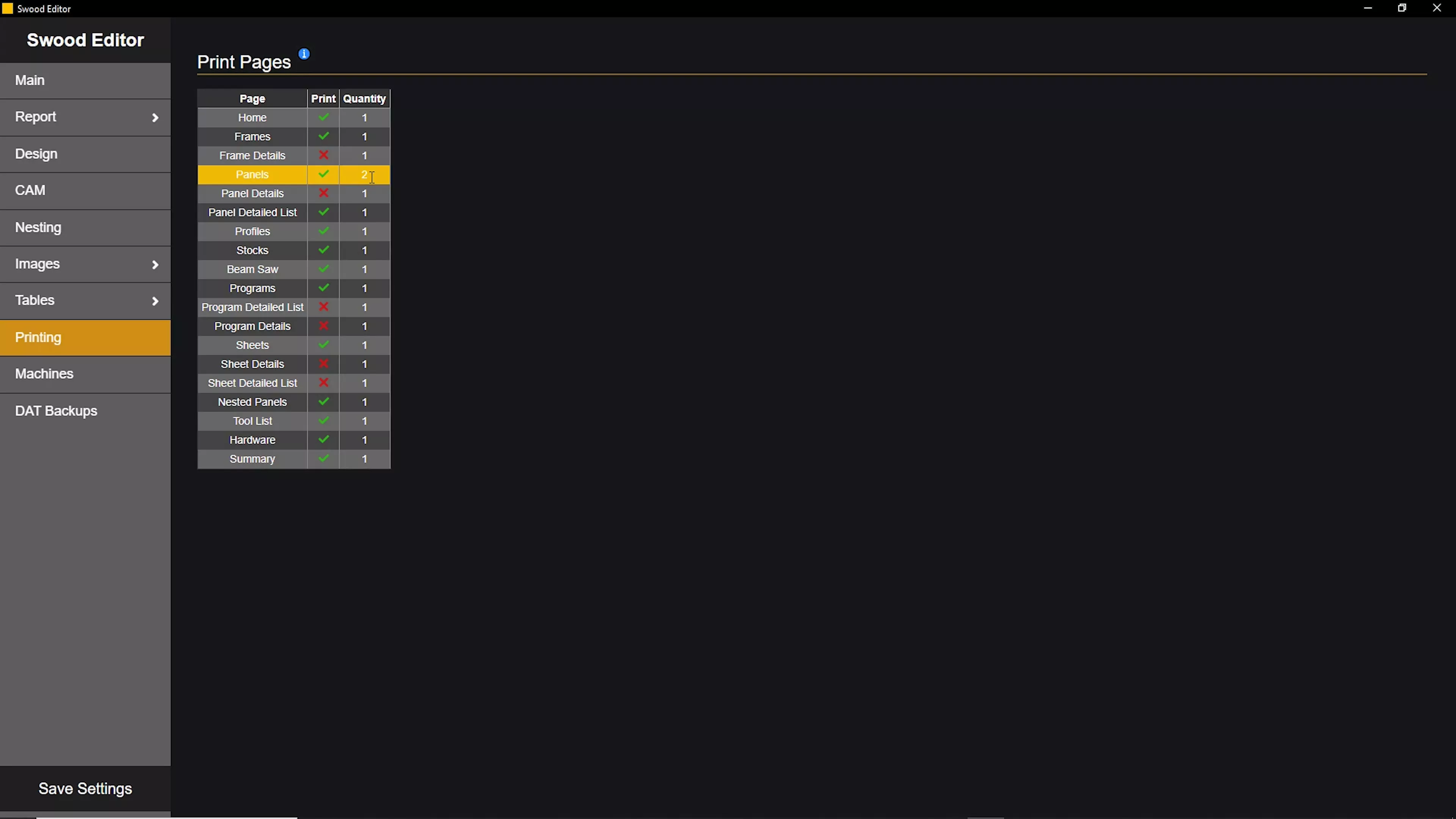
The Printing tab lets you can decide what you want to print from a report. Pages with ticks will be printed and quantities can be set for each type of pages.
Once you have made changes to your settings, you can use the Main page to reset any unsaved changes using the reload button.
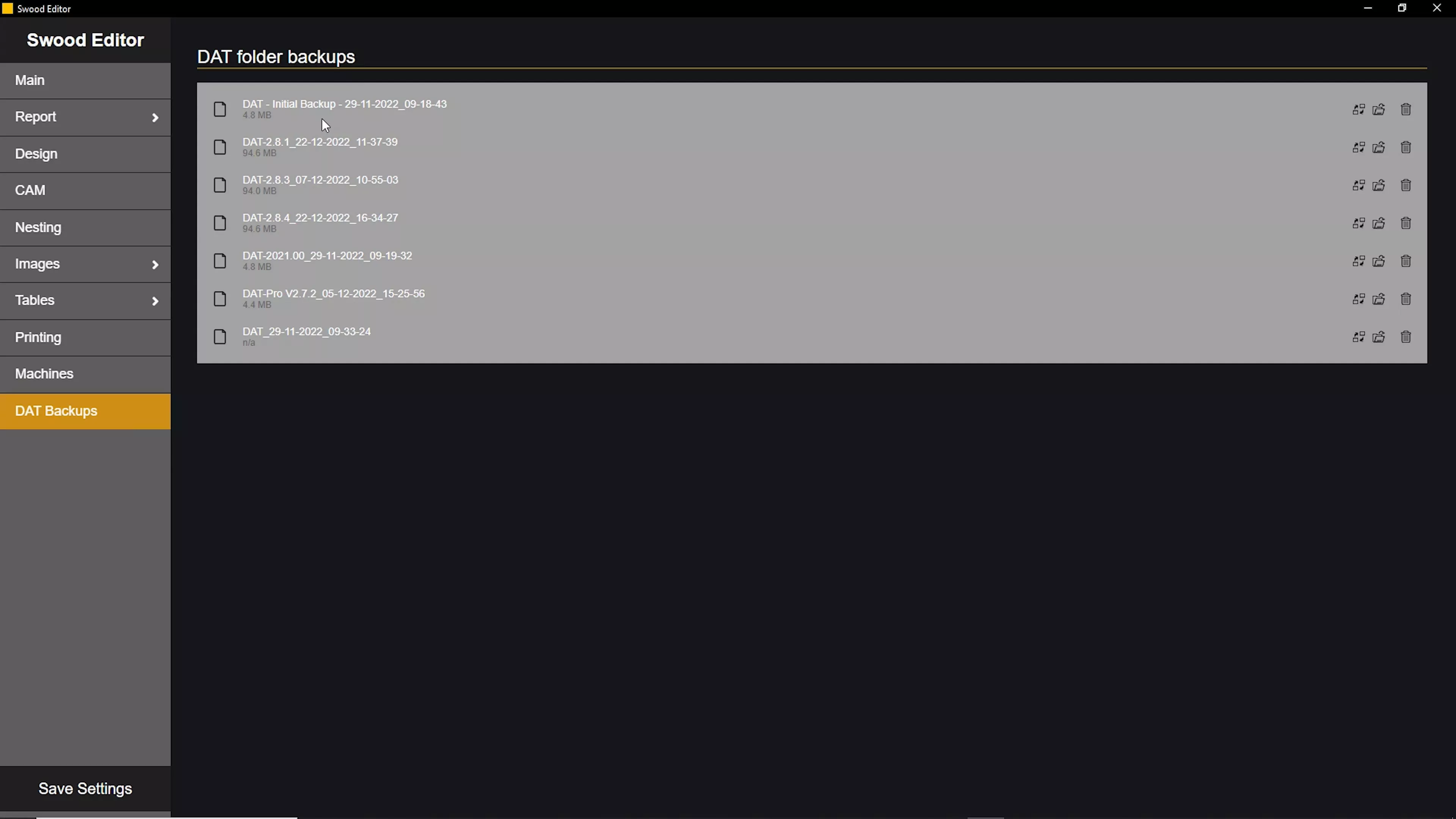
We recommend creating a backup of your settings using the Create Backup button. Backup history is saved to the DAT Backups menu.
Categorised as: Manufacturing | SWOOD | Tech Tips
Get Expert SOLIDWORKS Training
Get hands-on SOLIDWORKS training in-person or online, led by certified experts with real industry experience. With venues across the UK & Ireland, it’s easy to start learning today.
Related Posts

How to Find Reaction Forces in SOLIDWORKS Simulation
SOLIDWORKS helps us to find resultant forces through simulation studies. These virtual tests reduce the need for physical prototypes and give us an accurate answer.

Setting number of decimal places in a table on a drawing
When creating an equation in a drawing general table, is it possible to define the…

Why is my Flat Pattern not showing in SOLIDWORKS Drawings?
This may be linked to how the drawing is saved or it can be related to how sheet metal parts are displayed in drawings, read on to find out how to fix it.

Why is SOLIDWORKS Crashing?
It’s one of the great mysteries of life – why is SOLIDWORKS crashing? Let’s explore how SOLIDWORKS crashes and how we can improve performance in SOLIDWORKS.

Tech Support Blog: Why are my SOLIDWORKS BOM Quantities Wrong?
Why are my SOLIDWORKS BOM Quantities Wrong? A support call cropped up this week which…

How to Get Your Serial Number for SOLIDWORKS Visualize Standard
Want to download Visualize to make photorealistic renders? Follow this guide for accessing your Visualize serial number that comes bundled in with SolidWorks Professional and Premium.

How to Recover SOLIDWORKS Files After a Crash
SOLIDWORKS has two different methods to help you recover from an unexpected crash or loss of data in the form of auto-recovery and back-up settings.

SOLIDWORKS Magnetic Mates
Magnetic makes are used within SolidWorks assemblies to easily configure and position assembly components. Through defining connection points and ground plane(s) – position components through drag and dropping one component within close proximity of another to snap the asset into position.

SOLIDWORKS Dimensions – Collated Quick Tips
We have collated some of our favourite tips on creating, manipulating and controlling dimensions in SolidWorks, both at a sketching and drawing level. Read on to find out more…

How to Deactivate (Transfer) a SOLIDWORKS License
A SOLIDWORKS standalone license can only be activated on one machine at a time. If you plan on moving your SOLIDWORKS license to another machine you will first need to deactivate it. Additionally if a standalone license has ended up on multiple machines or you are making a change to your computer, you will need to deactivate the license first.