











How to Recover SOLIDWORKS Files After a Crash
Written by: Terry O'Reilly
Published: Nov 8, 2016
| View All Blogs
There are two different methods to help you recover SOLIDWORKS files from an unexpected crash or loss of data in the form of auto-recovery and back-up settings.
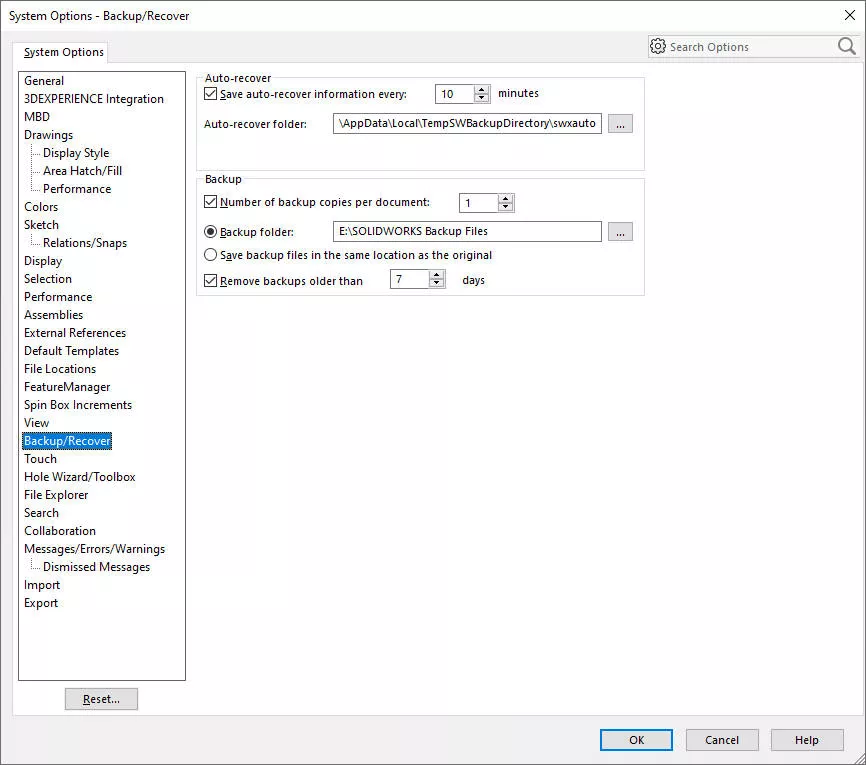
These can be found within System Options > Backup/Recover and should be turned on before getting started in SOLIDWORKS. Let’s run you through how to turn them on and recover SOLIDWORKS file lost data.
SOLIDWORKS Auto-Recovery
Turn on the Auto-Recovery tool by ensuring the ‘save auto-recover information’ checkbox is selected and set the interval value to 1 or more.
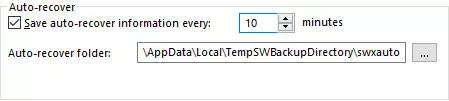
Then, when you restart SOLIDWORKS after a crash, any documents that had been active for more than the specified interval should appear in the SOLIDWORKS Document Recovery tab. These can then be recovered and saved to replace the original file or create a new file.

As you work in SOLIDWORKS with auto-recovery turned on, temporary files are created in the specified file location. These files are deleted when the original file is saved and closed normally, but the temporary files will remain in the folder if the software did not close down normally.
If you are not prompted to recover files upon restarting SOLIDWORKS, then navigate to the auto recovery folder specified through Windows Explorer to check for files with .SWAR extensions.
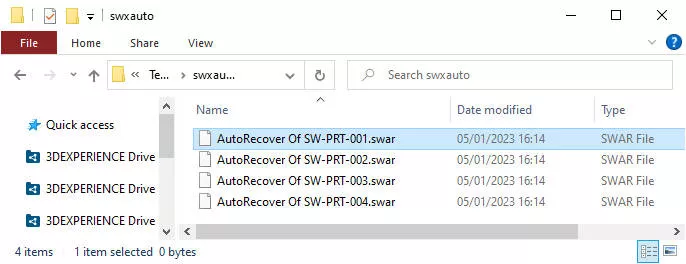
The default folder path is:
C:UsersUserNameAppDataLocalTempSWBackupDirectoryswxauto
Auto-recovered files will be named with a prefix ‘AutoRecover of’, the SOLIDWORKS file name and then the file extension ‘.SWAR’.
E.g. Propeller.SLDPRT is saved as: AutoRecover Of Propeller.SLDPRT.swar
You can recover a copy of your original file at the last saved state by editing the file name and extension. Remove the AutoRecover prefix, and remember to replace the .swar extension with the correct part [.SLDPRT], assembly [.SLDASM] or drawing [.SLDDRW] file extension.
SOLIDWORKS Back-Up
The backup feature saves a copy of the document every time changes are saved to the original file. Turn it on with the checkbox.
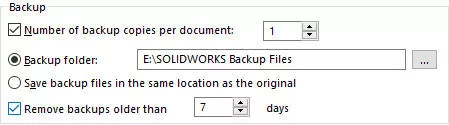
So each time you save, a copy is created with that timestamp in the folder specified, providing you with a series of revisions. That means if you accidentally save a file but then wish to undo some changes, you can recover the previous version.
Increasing the ‘Number of backup copies per document’ will create a new version of the file on each save, until the number is reached, and the first backup version is overwritten.
The backup copies are either stored in the same folder as the original files, or you can specify a backup folder on a local drive.
Manage Data Securely
While these are both great tools, auto-recovery should never be solely relied upon. Make sure you’re saving regularly, especially before creating a complicated or intense feature, and are employing a data management system to secure and control your data.
We’ve pulled together 10 reasons why you should be using SOLIDWORKS PDM to back up and store your design data. Learn more about SOLIDWORKS PDM Pro and how Solid Solutions can help you get set up and working more efficiently.
Categorised as: SOLIDWORKS Design | Tech Tips
Get Expert SOLIDWORKS Training
Get hands-on SOLIDWORKS training in-person or online, led by certified experts with real industry experience. With venues across the UK & Ireland, it’s easy to start learning today.
Related Posts

How to Find Reaction Forces in SOLIDWORKS Simulation
SOLIDWORKS helps us to find resultant forces through simulation studies. These virtual tests reduce the need for physical prototypes and give us an accurate answer.

Setting number of decimal places in a table on a drawing
When creating an equation in a drawing general table, is it possible to define the…

SOLIDWORKS Smart Fasteners
SOLIDWORKS Smart Fasteners is a really useful time saving tool, allowing you to automatically insert toolbox fasteners such as bolts and screws into an assembly providing there is a standard hole.

Why is my Flat Pattern not showing in SOLIDWORKS Drawings?
This may be linked to how the drawing is saved or it can be related to how sheet metal parts are displayed in drawings, read on to find out how to fix it.

Why is SOLIDWORKS Crashing?
It’s one of the great mysteries of life – why is SOLIDWORKS crashing? Let’s explore how SOLIDWORKS crashes and how we can improve performance in SOLIDWORKS.

SOLIDWORKS Tips: Are you Making this Common Mistake in Fatigue Analysis?
Simulation is a vital and complex engineering need. Fortunately, SOLIDWORKS makes it easy to test, correct mistakes and obtain accurate results.

Tech Support Blog: Why are my SOLIDWORKS BOM Quantities Wrong?
Why are my SOLIDWORKS BOM Quantities Wrong? A support call cropped up this week which…

How to Get Your Serial Number for SOLIDWORKS Visualize Standard
Want to download Visualize to make photorealistic renders? Follow this guide for accessing your Visualize serial number that comes bundled in with SolidWorks Professional and Premium.

Redesigning Santa’s Sleigh in SOLIDWORKS
Every year Father Christmas has to fly in his sleigh to deliver presents to boys and girls all over the world in just one night. To put this into perspective, it takes a little under 24 hours to fly from London (UK) to Sydney (Australia) in a streamlined Boeing 747, whereas Father Christmas’ mode of transport is believed to be a rather non-aerodynamic sleigh.

SOLIDWORKS Grid Systems – hidden away, but very useful!
Rory Niles provides an insight into the uses for Grid Systems within SOLIDWORKS 2018