











Making 3D Textures from Images on SOLIDWORKS
Written by: Terry O'Reilly
Published: Nov 9, 2018
| View All Blogs
New to SOLIDWORKS 2019 you are now able to take any black and white image and use it to create geometry on your model. This tool provides many options when looking to create patterns of complicated shapes; it is also likely the fastest way of embossing a complicated logo onto your part. After seeing the example model from the developers, we decided to test just how capable this new feature was. We began by modelling a simple design and adding our first black and white image to one of the faces.
This image was used to define a knurled pattern, though it required resizing using the standard image controls first.
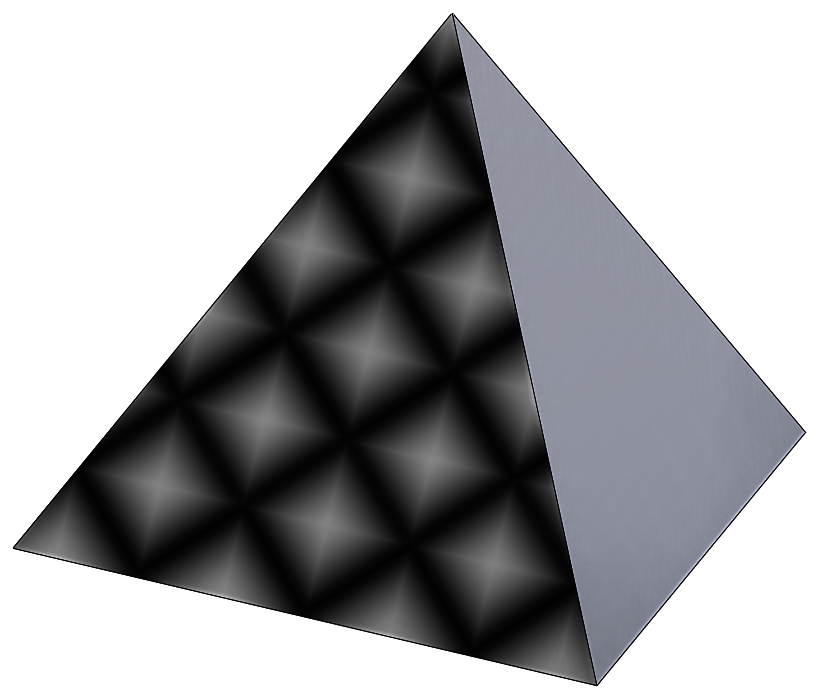
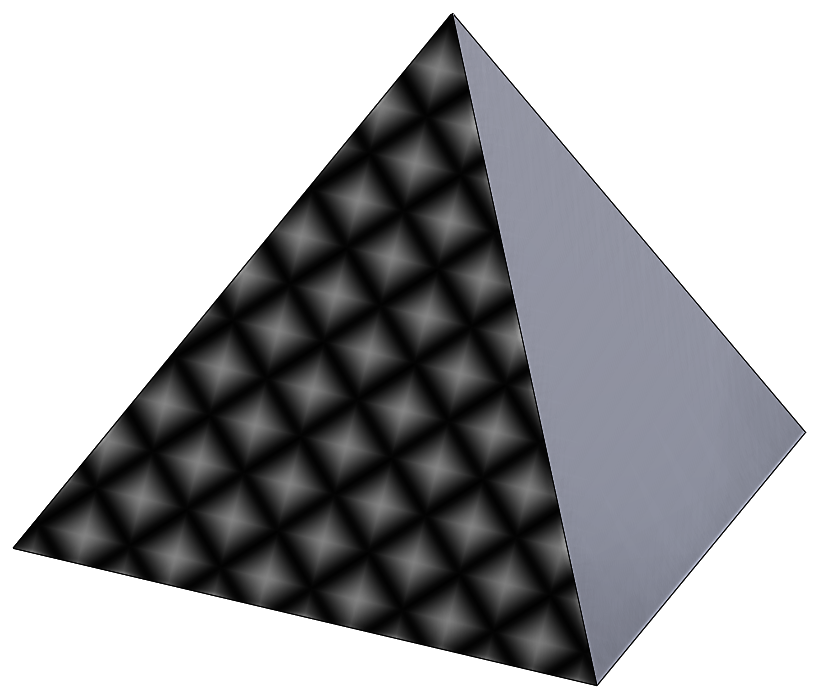
After setting the required size, the 3D texture command can be triggered by selecting the body from the feature tree and then pressing the button shown below.
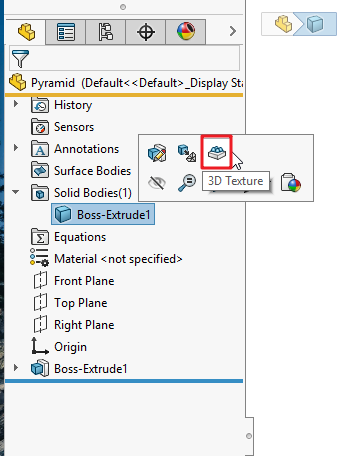
Within the command you set the level of mesh refinement and define the distance for the texture to offset the geometry.
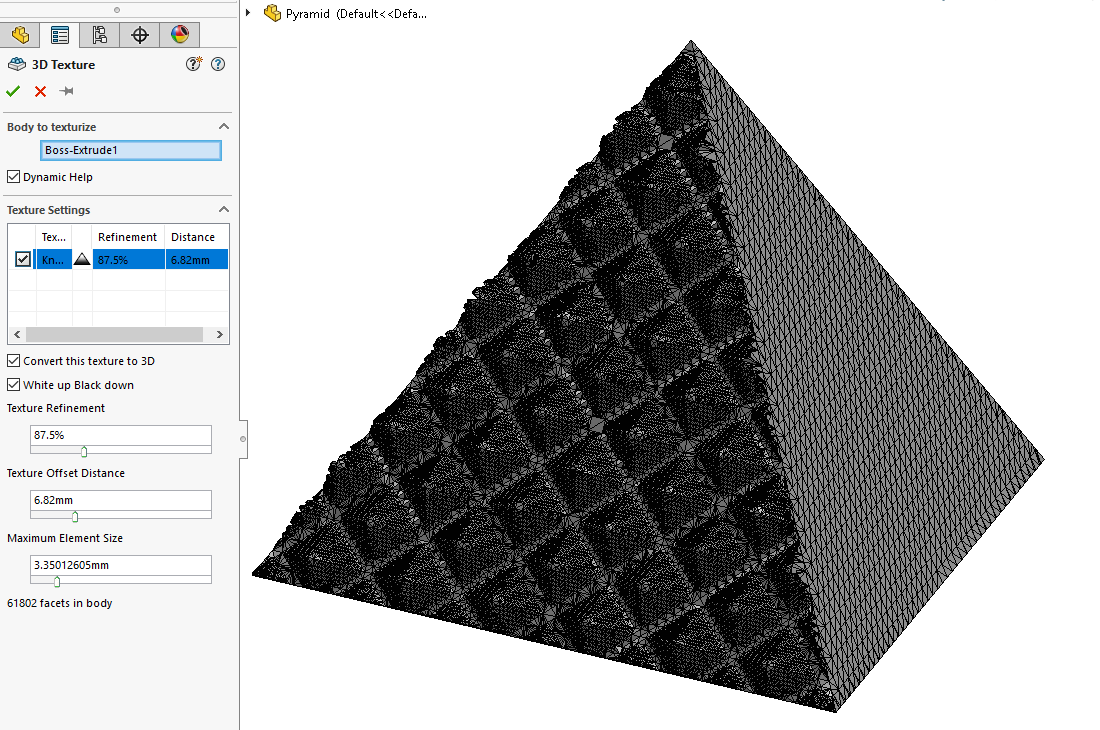
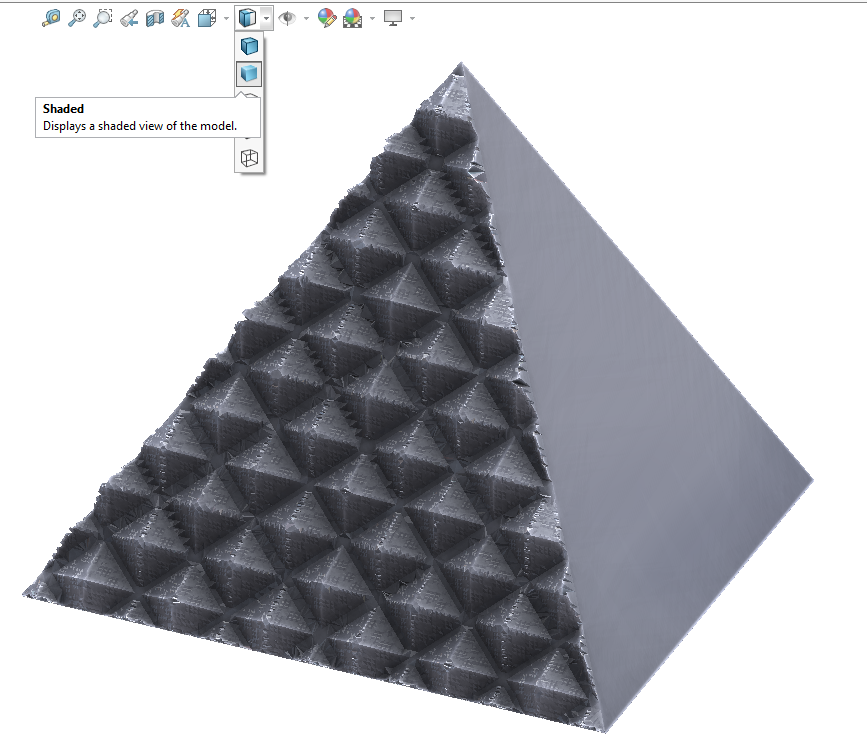
After finishing the command SOLIDWORKS creates the new geometry as a mesh body, to view the results a little clearer we switched to a simple shaded view.
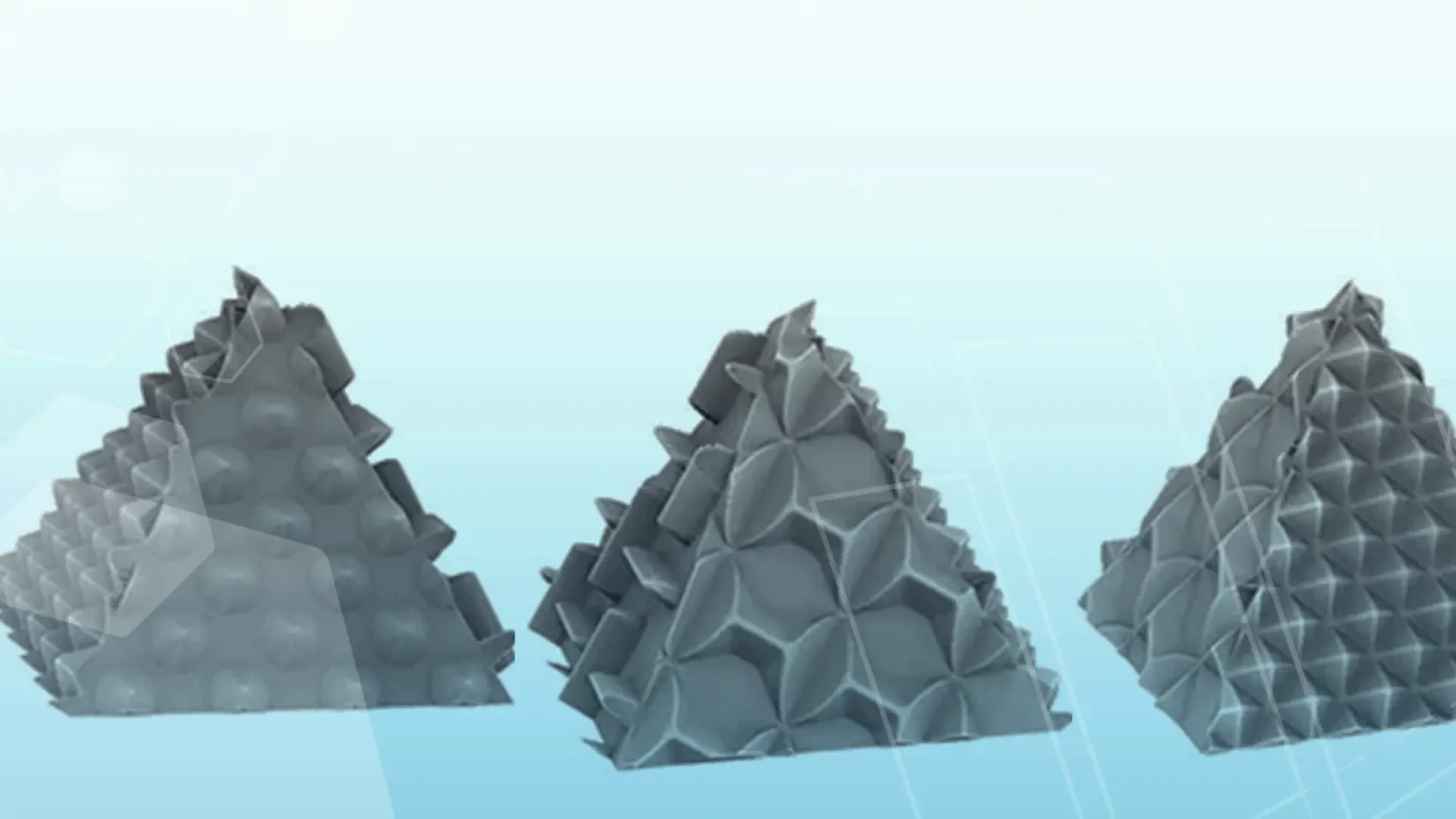
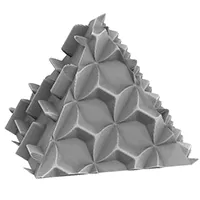
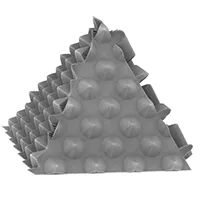
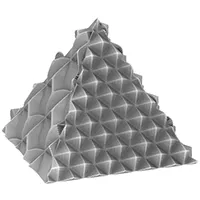
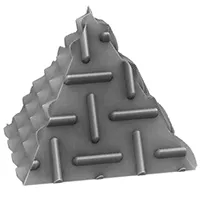
Finally to see how well this feature translates into the real word we applied textures to the other faces and 3D printed the model. Check out the images below to see some more of what’s possible with the new 3D texture command.
Categorised as: SOLIDWORKS Design
Get a SOLIDWORKS Quote
Interested in SOLIDWORKS? Contact us for questions, trials, or demos by clicking the button below or call 01926 333777. Our experts will help you find the perfect solution.

Related Posts

How to Find Reaction Forces in SOLIDWORKS Simulation
SOLIDWORKS helps us to find resultant forces through simulation studies. These virtual tests reduce the need for physical prototypes and give us an accurate answer.

Setting number of decimal places in a table on a drawing
When creating an equation in a drawing general table, is it possible to define the…

SOLIDWORKS Smart Fasteners
SOLIDWORKS Smart Fasteners is a really useful time saving tool, allowing you to automatically insert toolbox fasteners such as bolts and screws into an assembly providing there is a standard hole.

Why is my Flat Pattern not showing in SOLIDWORKS Drawings?
This may be linked to how the drawing is saved or it can be related to how sheet metal parts are displayed in drawings, read on to find out how to fix it.

SOLIDWORKS Tips: Are you Making this Common Mistake in Fatigue Analysis?
Simulation is a vital and complex engineering need. Fortunately, SOLIDWORKS makes it easy to test, correct mistakes and obtain accurate results.

How to Recover SOLIDWORKS Files After a Crash
SOLIDWORKS has two different methods to help you recover from an unexpected crash or loss of data in the form of auto-recovery and back-up settings.

Redesigning Santa’s Sleigh in SOLIDWORKS
Every year Father Christmas has to fly in his sleigh to deliver presents to boys and girls all over the world in just one night. To put this into perspective, it takes a little under 24 hours to fly from London (UK) to Sydney (Australia) in a streamlined Boeing 747, whereas Father Christmas’ mode of transport is believed to be a rather non-aerodynamic sleigh.

SOLIDWORKS Grid Systems – hidden away, but very useful!
Rory Niles provides an insight into the uses for Grid Systems within SOLIDWORKS 2018

Furniture Design Made Easy with SOLIDWORKS
Calling all furniture and interior designers: the days of creating square cabinets are over. What if we told you there’s a much easier way to bring your products to life?
Here’s 10 reasons why we feel SOLIDWORKS is better than any other software, especially if you’re designing furniture:

SOLIDWORKS Magnetic Mates
Magnetic makes are used within SolidWorks assemblies to easily configure and position assembly components. Through defining connection points and ground plane(s) – position components through drag and dropping one component within close proximity of another to snap the asset into position.