











Manufacturing: How to Create Templates in SolidCAM

Written by: Tom Buxton
Published: Jul 12, 2023
| View All Blogs
We are always looking for ways to speed up our manufacturing processes. Fortunately, we can take advantage of SolidCAM templates to reduce repetitive tasks and boost productivity.
SolidCAM templates come in two main variations: an operation template and a process template.
These are both great ways for you to rapidly create complex machining strategies that you use frequently.
WHY SHOULD I USE SOLIDCAM TEMPLATES?
Using templates not only allows you to apply your machining intent quickly onto a part, but they also make sure you are doing this consistently as well.
Add to this the ability to share templates between users, which means you can make certain that everyone in the production team is making parts in the same way.
HOW DO I CREATE A TEMPLATE IN SOLIDCAM?
Creating a template in SolidCAM is a straightforward process. Let’s guide you through creating each type.
For an Operation Template:
- Open an existing toolpath or create a new toolpath with the settings you want to use.
- Click the save template icon at the top of the toolpath manager.
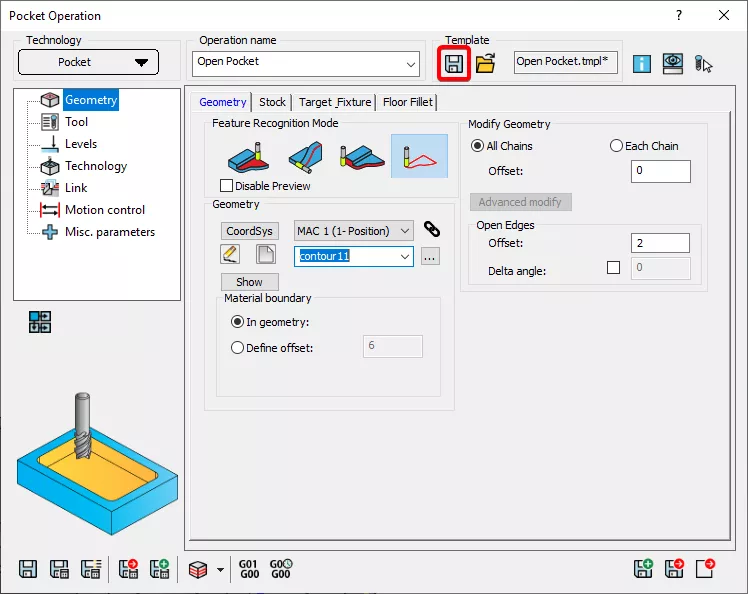
- Assign a name and whether you want to keep the tooling and geometry filters.
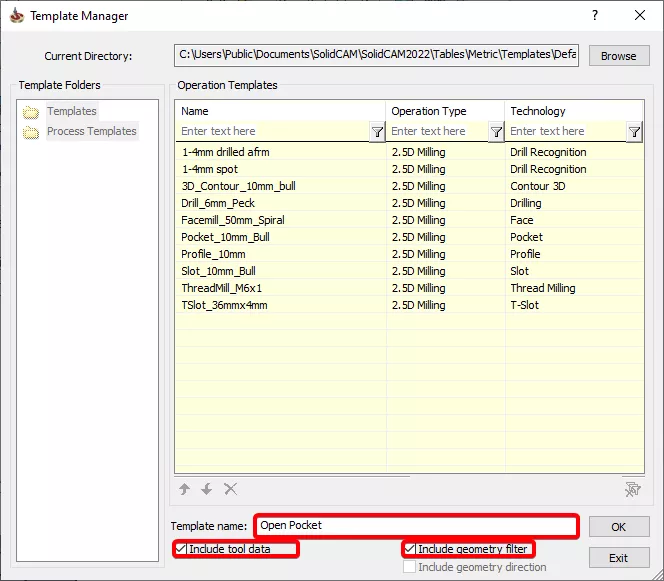
For a Process Template:
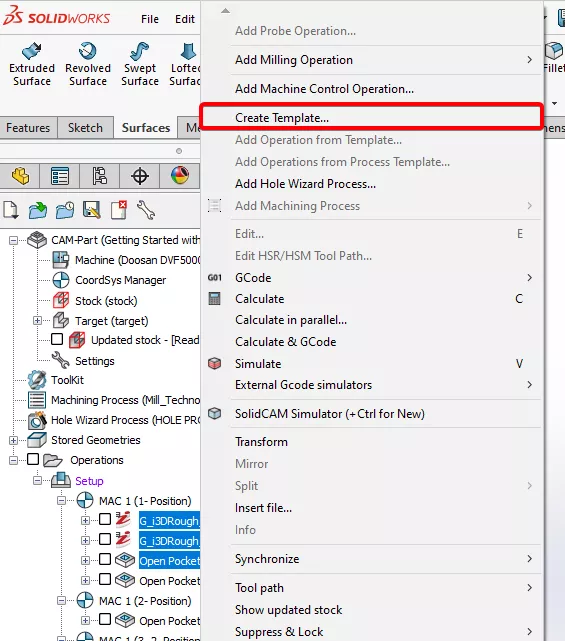
- Open or create a part with multiple toolpaths (for example, a roughing and a finishing operation).
- Select all the toolpaths you want to assign to your process.
- Right click in the CAM Manager and select Create Template
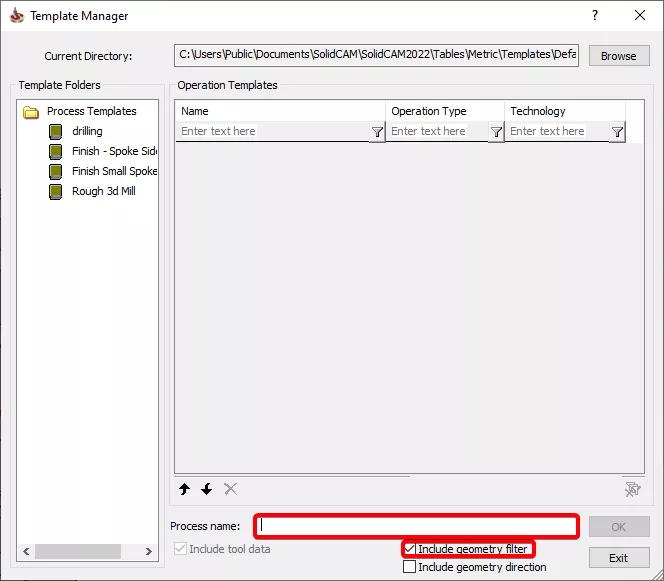
- Assign a name and whether you want to keep the tooling and geometry filters.
HOW DO I USE A TEMPLATE IN SOLIDCAM?
Once we have templates, the next thing is we need to do is use them. To use a template, there are multiple ways to do this.
Drag and Drop
- Open the SolidCAM Drag and Drop Templates task pane tab.
- Ensure Operation and Process templates are toggled visible.
- Select an Operation Template or Process Template and drag and drop it onto a face in the cad model or into the CAM Manager to create toolpath(s) you desire.
Assign Templates
- Create a new toolpath or open the toolpath you wish to follow a template.
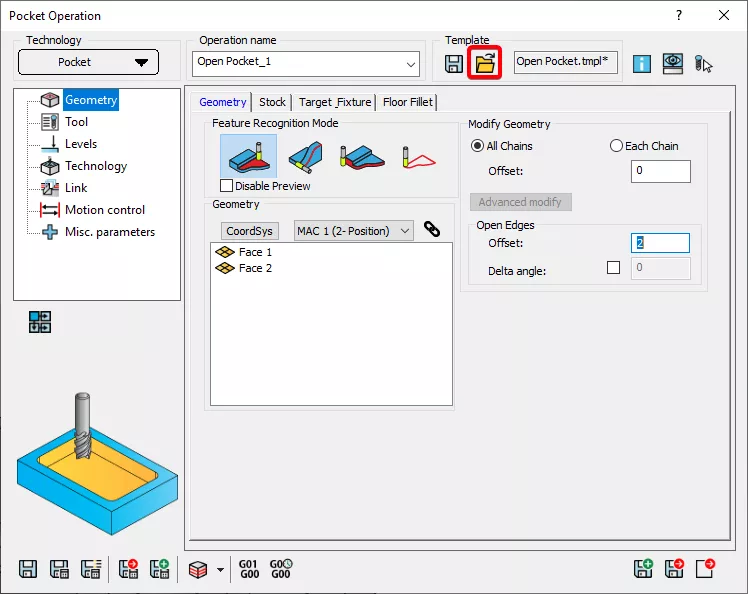
2. Click Load Template in the toolpath manager.
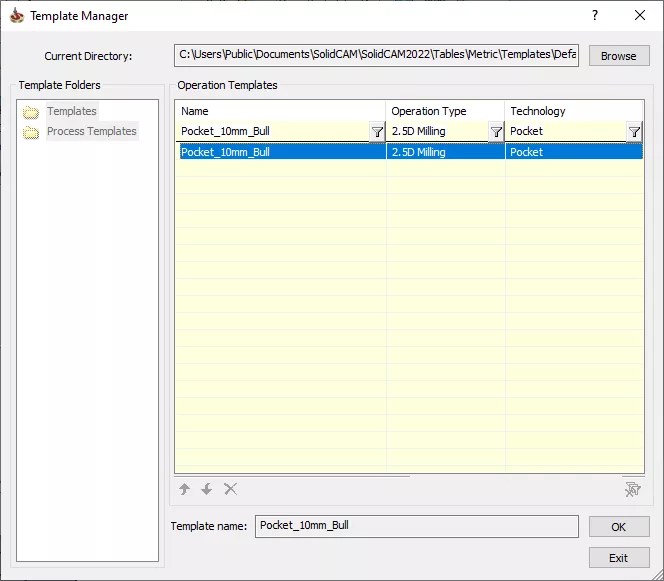
3. Select the toolpath template you want to use and click OK.
- TOP TIP – Distil the common processes you frequently use and start adding them to your own templates.
Take the Next Steps…
Our team of manufacturing experts can help you achieve accurate results and sharpen your skills.
SOLIDWORKS offers a comprehensive portfolio of manufacturing software solutions, and we can help you find the one that’s right for you. Check out this video to learn more.
Not only do we offer CPD-accredited training courses for a variety of CAM tools, but we also provide finger-tip access to an expert Technical Support team and consultants who will tailor to your needs.
Categorised as: Manufacturing | SolidCAM | Tutorials
Get a SOLIDWORKS Quote
Interested in SOLIDWORKS? Contact us for questions, trials, or demos by clicking the button below or call 01926 333777. Our experts will help you find the perfect solution.

Related Posts

Series 1 Land Rover Pedal Car – Made Easy with Solidworks!
The Series1 began production in 1948 designed to help get Britain farming after the war effort. It grew extremely popular and today enthusiasts are prepared to throw their life savings at restoring originals from that period.
Creating Interactive Animations with SOLIDWORKS Visualize
Interactive Images are a great export option within Visualize Professional, allowing you to view the model in a series of 360 orbital spins within a web browser.
However, what happens if I want to use this interactive method to demonstrate a mechanism or animation instead?
How to Find & Activate SOLIDWORKS Xpress Products
Find & activate SOLIDWORKS Xpress products in five simple steps. Xpress tools come with every seat of SOLIDWORKS and unlock additional functionality.

How to Create 360VR Video using SOLIDWORKS Visualize
Virtual Reality(VR) videos provide one of the most immersive methods of viewing a design concept and can be used to bring your product showcases to the next level. Recently VR has become a valuable tool for many companies when it comes to design reviews and interactive product training. Check out this short blog to learn how to export 360VR videos using SOLIDWORKS Visualize.
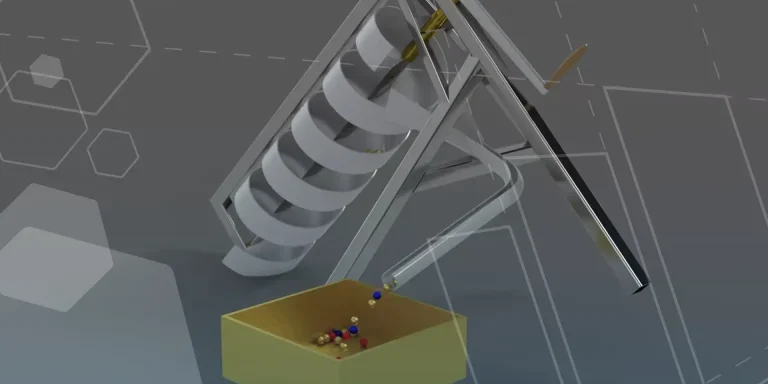
Modelling an Archimedes’ Screw with SOLIDWORKS
Archimedean screws are often referred to as “water screws” since they are commonly used to transport water between different heights. We often see some of our customers do screw feeders and we thought it may be beneficial to create a blog documenting an effective modelling workflow to create your very own Archimedean screw.

How to come up with ideas for your design or engineering project – some helpful tips
We know coming up with an interesting and creative design or engineering project can be…

Design considerations when 3D printing
3D printing is a colloquial term used to generalise a family of additive manufacturing processes. At the consumer level the most common 3D printing process is Fused Deposition Modelling (FDM) – a technique whereby thermoplastics are extruded through a nozzle, and a part is built up layer by layer. FDM is very popular with hobbyists due to the relatively low cost of the printer, alongside the wide range of properties and appearances thermoplastics present. The conveniency to turn a custom CAD model into a product in a short space of time is a superb way to make life easier.
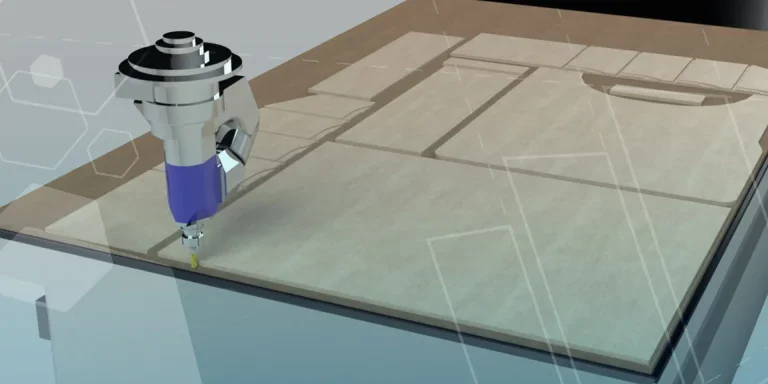
Why should I be nesting parts?
Firstly we should define what is nesting? Nesting is like putting the pieces of a jigsaw together, it is the process of creating an optimal layout of your flat parts so that you get the most out of your material. Typically this process would be used in the sheet metal, fabric, plastic and wood/joinery markets. Nesting can also be used to align parts with a specific grain such as brushed metal products, patterned materials or wood grain.

Connection Detailing in SOLIDWORKS 2022
With SOLIDWORKS 2022 you can add connection detailing to your structural members. Learn how to create and add structural connections to your SOLIDWORKS models quickly and easily.
How to use Configuration Tables in SOLIDWORKS
Learn how to add, manage, and control features between configurations with configuration tables and find out what’s new in SOLIDWORKS 2022.