











Parts & Features | What’s New in SOLIDWORKS 2025?
Written by: Terry O'Reilly
Published: Dec 24, 2024
| View All Blogs
SOLIDWORKS 2025 introduces a range of exciting features and enhancements aimed at boosting your productivity, simplifying workflows, and improving performance, especially when it comes to part modelling.
Let’s take a closer look at the standout improvements for parts and features in this latest release.
#10 – Improved Cosmetic Thread Performance
SOLIDWORKS 2025 improves performance when working with cosmetic threads in multibody and sheet metal parts.
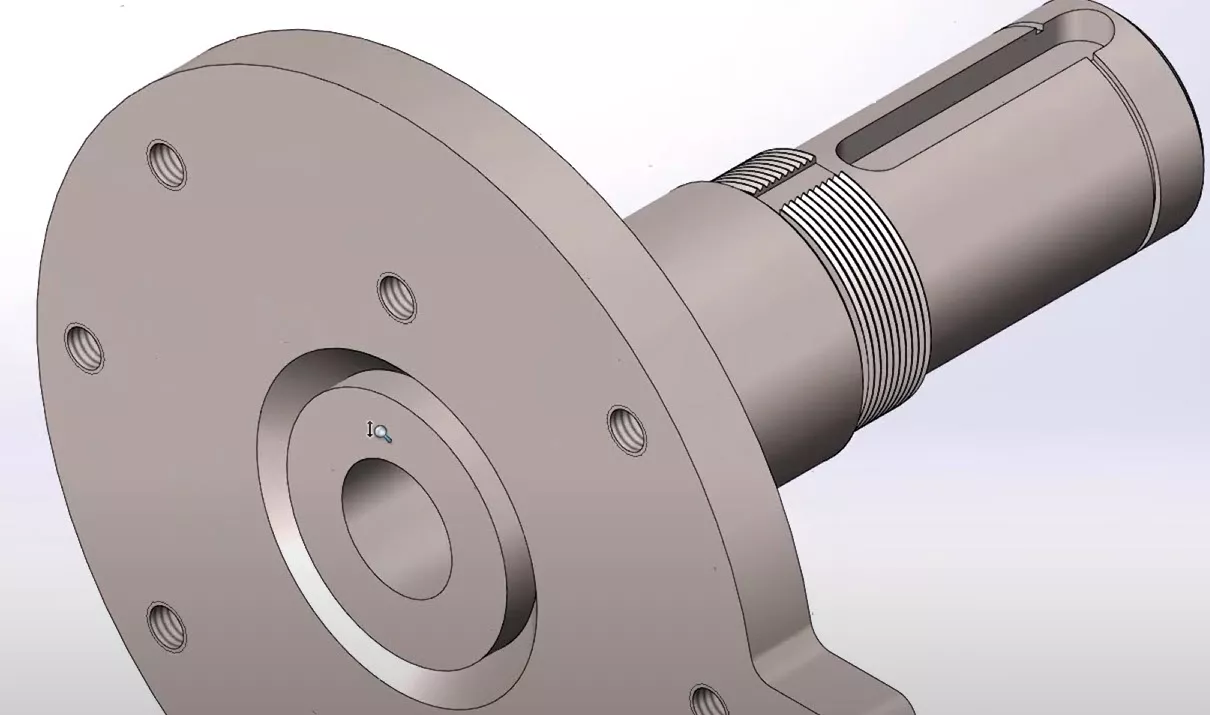
This should reduce opening and rebuild times.
#9 – Z-Up Templates
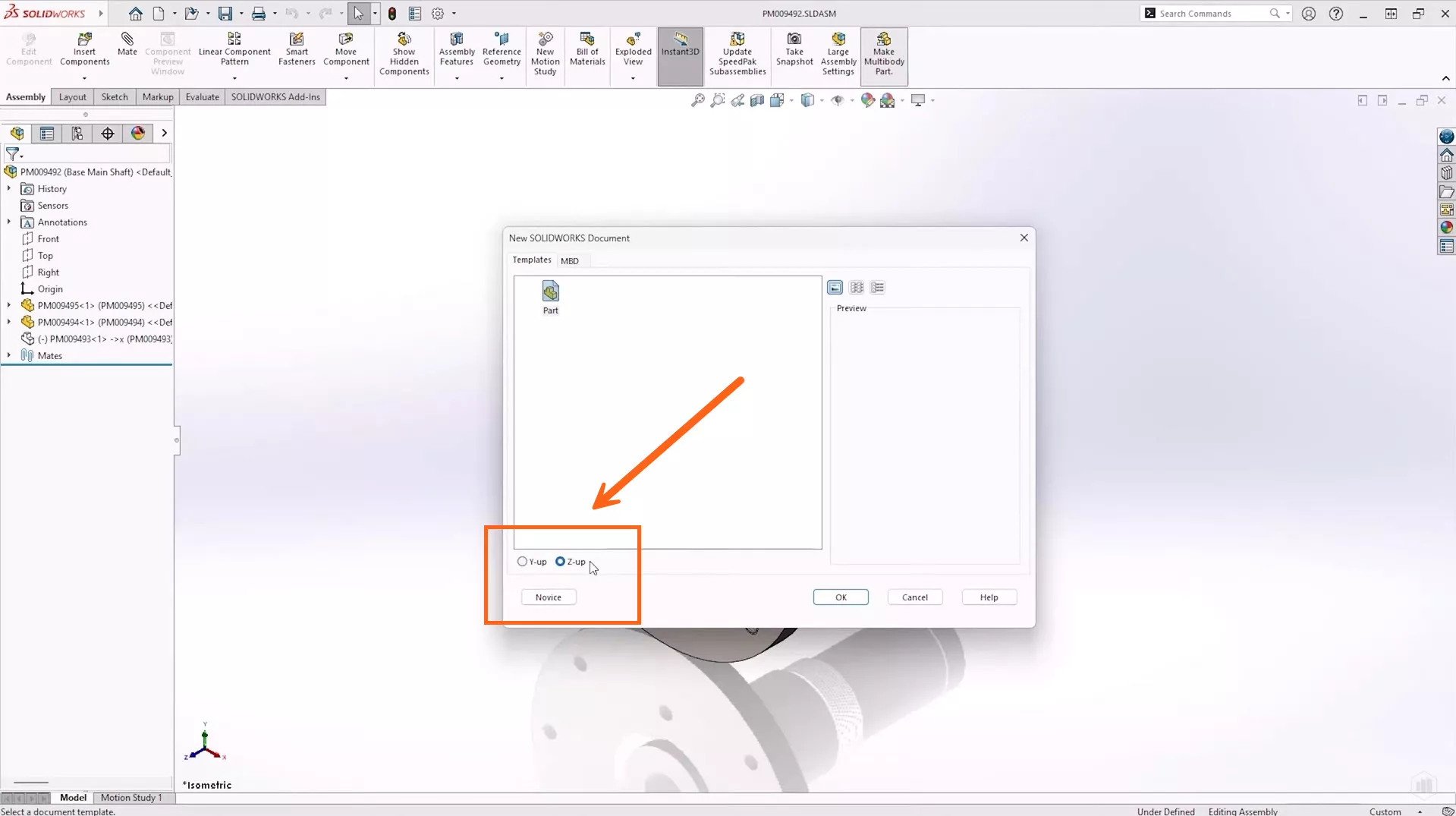
In previous versions of SOLIDWORKS, orientation choices were limited. In SOLIDWORKS 2025, you to choose between Y-up or Z-up orientations when creating both parts and assemblies. This is especially useful when working with vendors who require different coordinate system orientations.
#8 – Accelerated Chamfer Creation
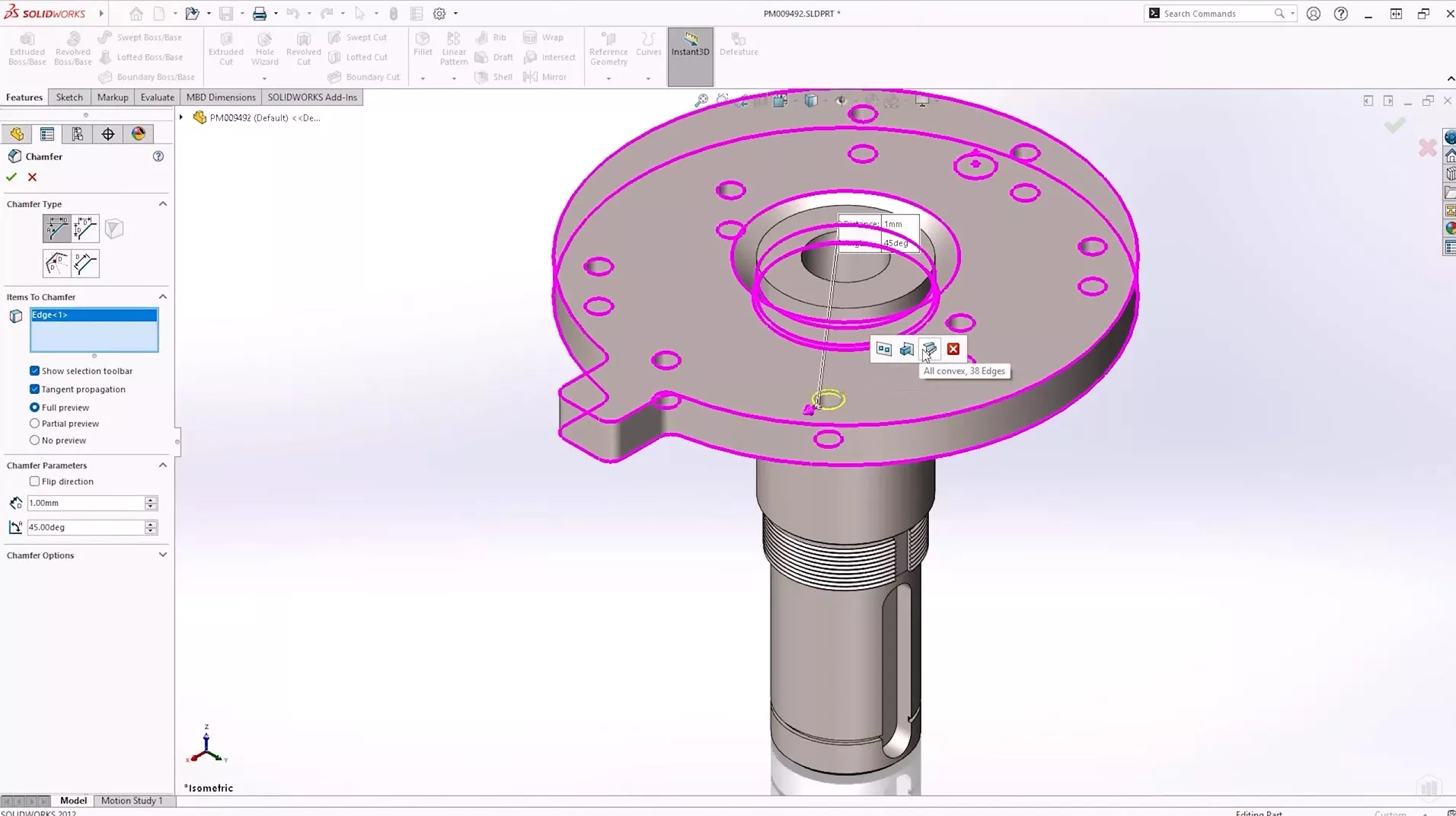
Adding chamfers and fillets has never been easier in SOLIDWORKS 2025.
The new Selection Accelerator toolbar allows you to quickly select multiple edges when creating chamfers, speeding up your workflow. This is the same functionality which you may have previously used with fillets.
#7 – Simplified Part Representation with Silhouette Defeature
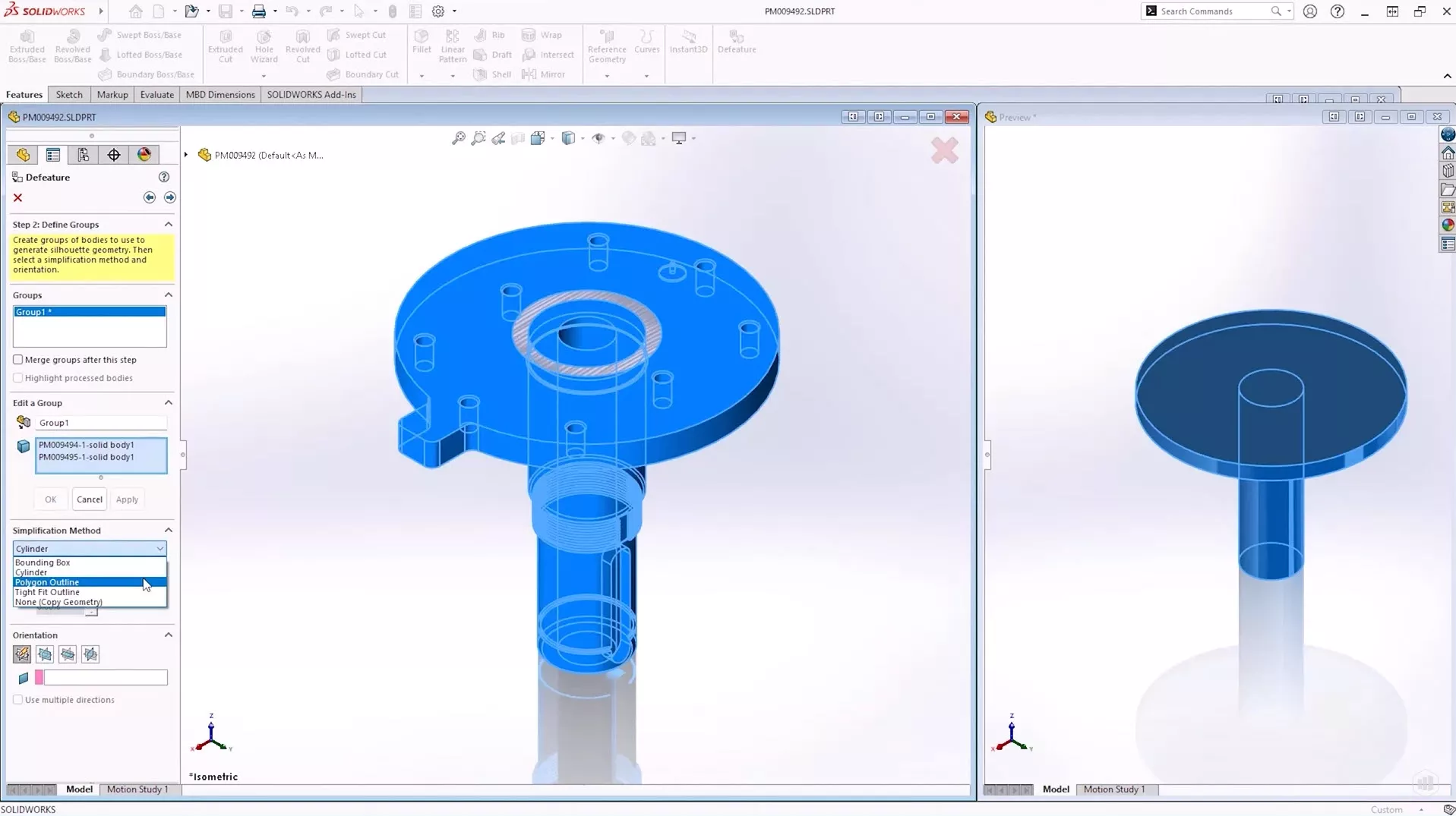
SOLIDWORKS 2025 introduces a second defeature method called silhouette mode. This tool lets you create simplified models based on the outline of your parts, providing multiple output options. Whether you need a simplified model for quoting or to replace a component in an assembly, SOLIDWORKS now offers more flexibility in how you reduce part complexity while retaining essential features such as internal loops (e.g., holes).
#6 – Improved Part Performance with Visibility on Graphics Triangles and Face Count
For parts with high graphical complexity, SOLIDWORKS 2025 provides detailed insights into the performance impact.
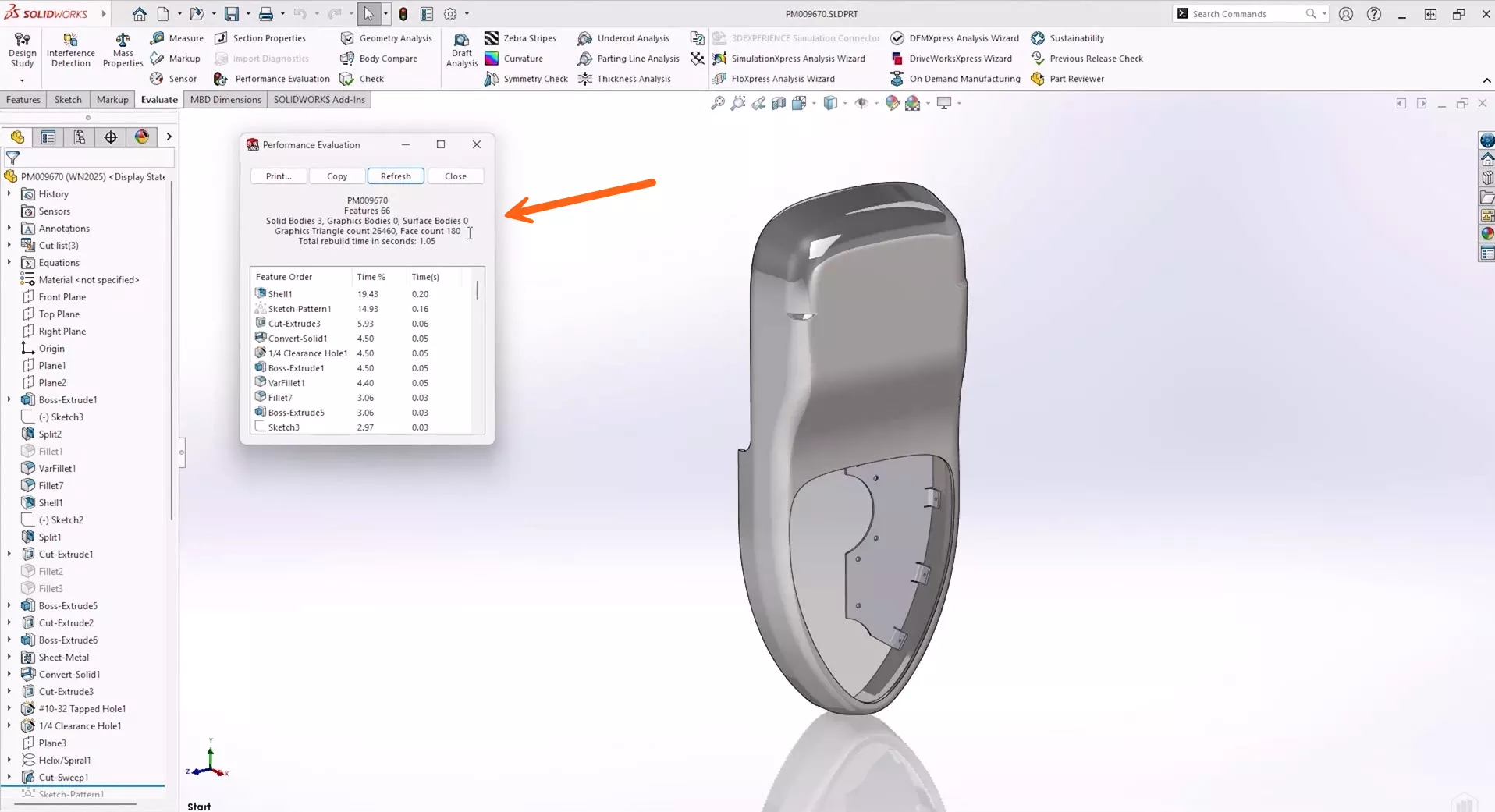
You can now view the graphic triangle count and face count of your parts, allowing you to identify which features may be slowing down your design process. By adjusting settings to reduce the triangle count, you can significantly enhance performance, especially when dealing with highly detailed parts.
#5 – Continuous Edge Blend for Variable Size Fillets
The introduction of the continuous edge blend option for variable size fillets is another powerful addition to SOLIDWORKS 2025.
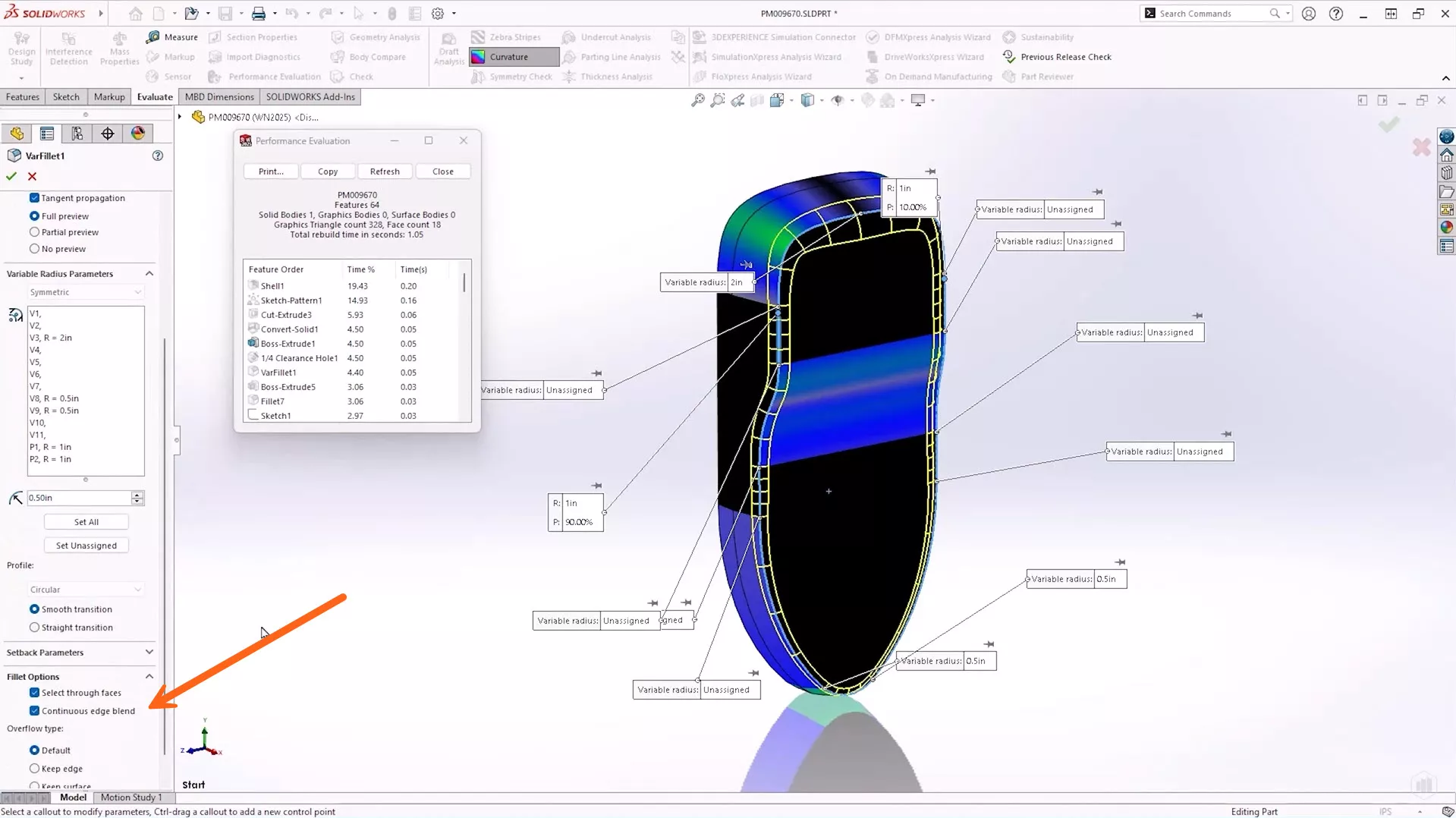
This feature ensures that fillet edges blend smoothly and continuously, improving the appearance of your part and reducing the overall triangle and face count.
This results in better rendering performance and a smoother workflow when working with complex geometries.
#4 – Delete Features Below the Rollback Bar
Managing complex parts with multiple features can sometimes result in unnecessary computational strain.
In SOLIDWORKS 2025, it’s now much easier to delete broken or complex features that lie below the rollback bar.
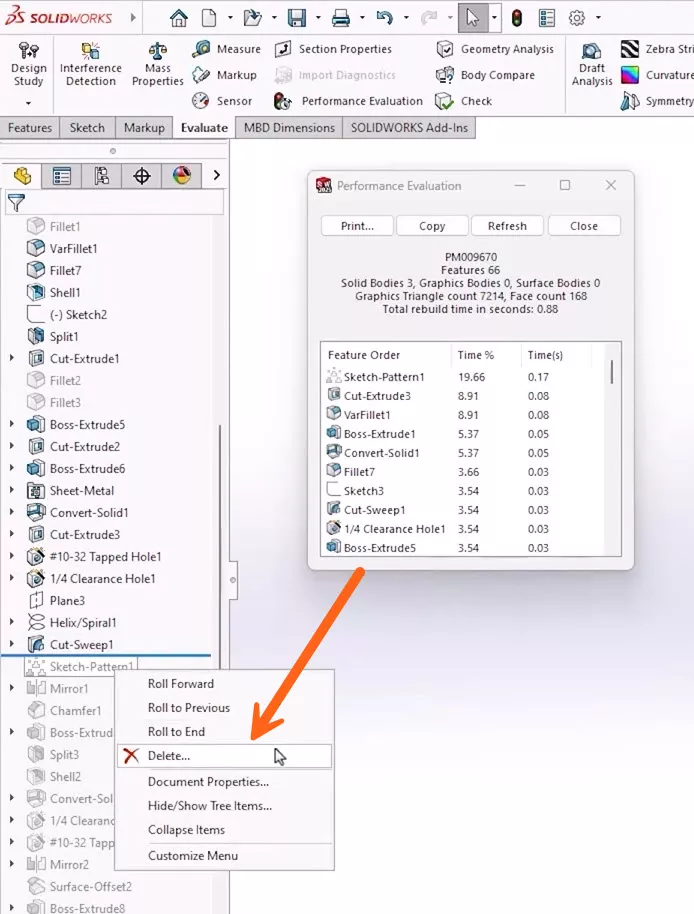
With a simple right-click, you can quickly remove these features to streamline your design process, making it more efficient when working on large or intricate models.
#3 – Streamlined Projected Area Measurement
If you’re working on parts destined for injection moulding or other manufacturing processes, SOLIDWORKS 2025 makes it easier to measure projected areas.
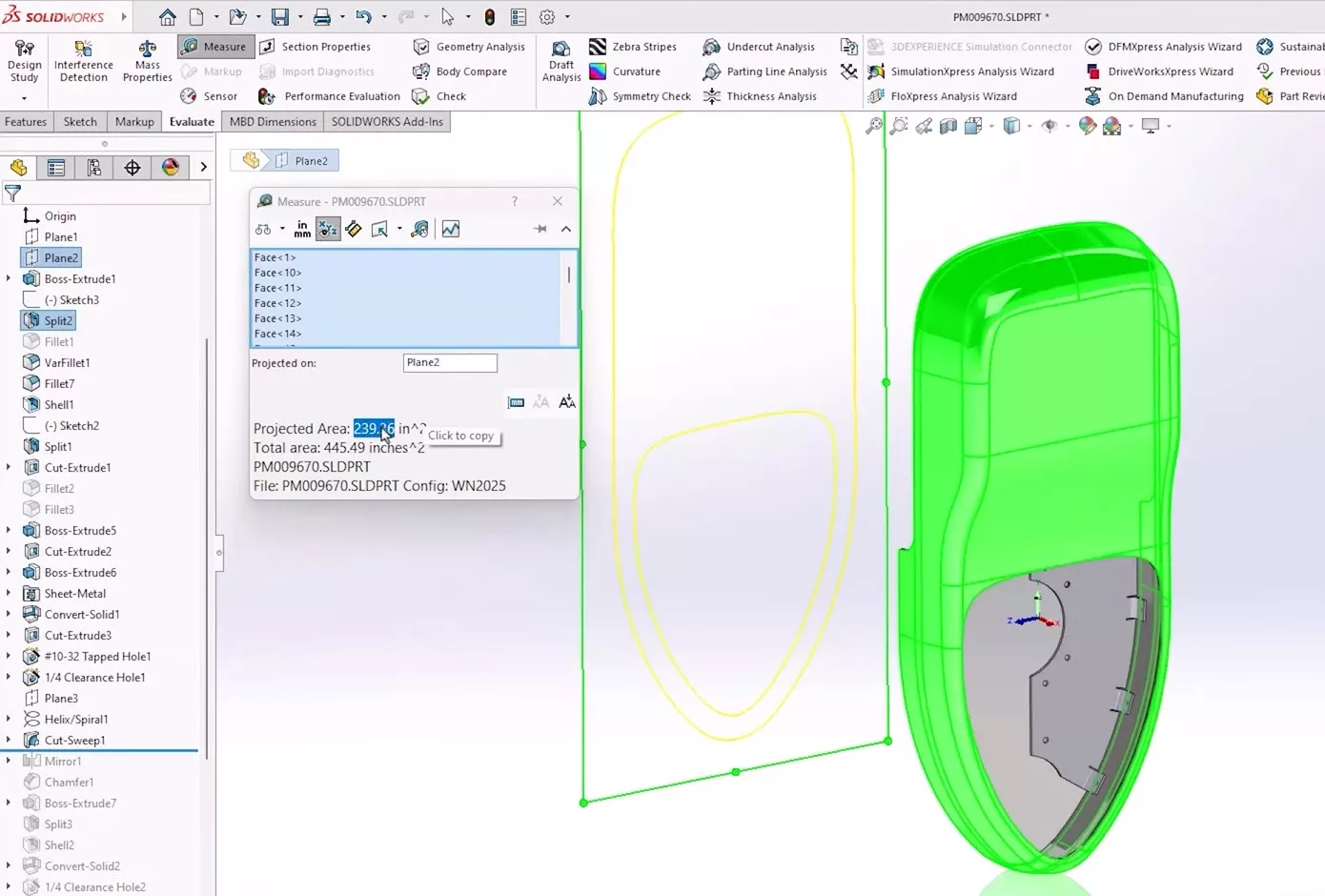
You can now select bodies or faces and project them onto a plane to calculate the area quickly. This enhancement is perfect for those needing to calculate areas normal to the pull direction for cost estimation or process analysis.
#2 – Automatic Repair of Dangling Sketch Relations
SOLIDWORKS 2025 introduces an automatic repair tool that helps quickly resolve dangling sketch relations.
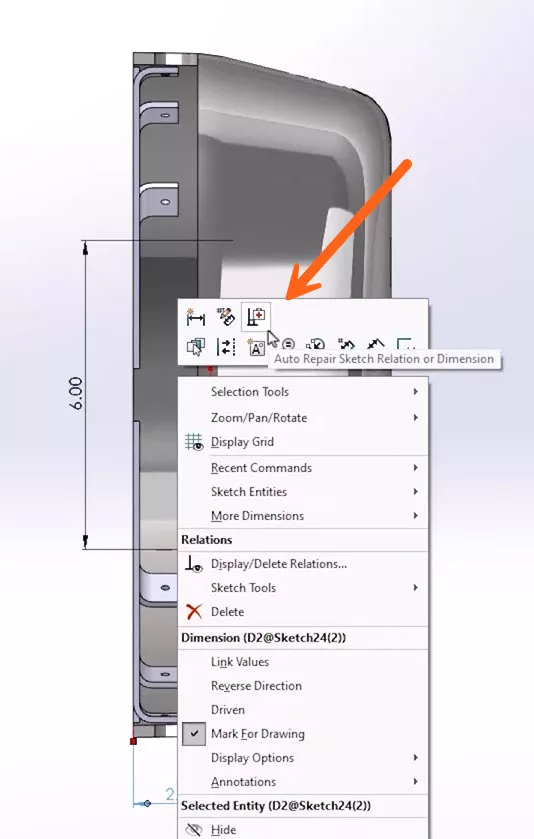
This tool can be accessed from the right-click menu and allows for a one-click fix of all dangling relations, saving you from manually reattaching them. It should be a huge time-saver, especially when dealing with complex sketches that require frequent modification.
#1 – Even More Tools!
SOLIDWORKS 2025 gives us plenty of shiny new tools to play with, including:
- Convert mesh to Standard BREP bodies
- Create linear and circular patterns for reference geometry
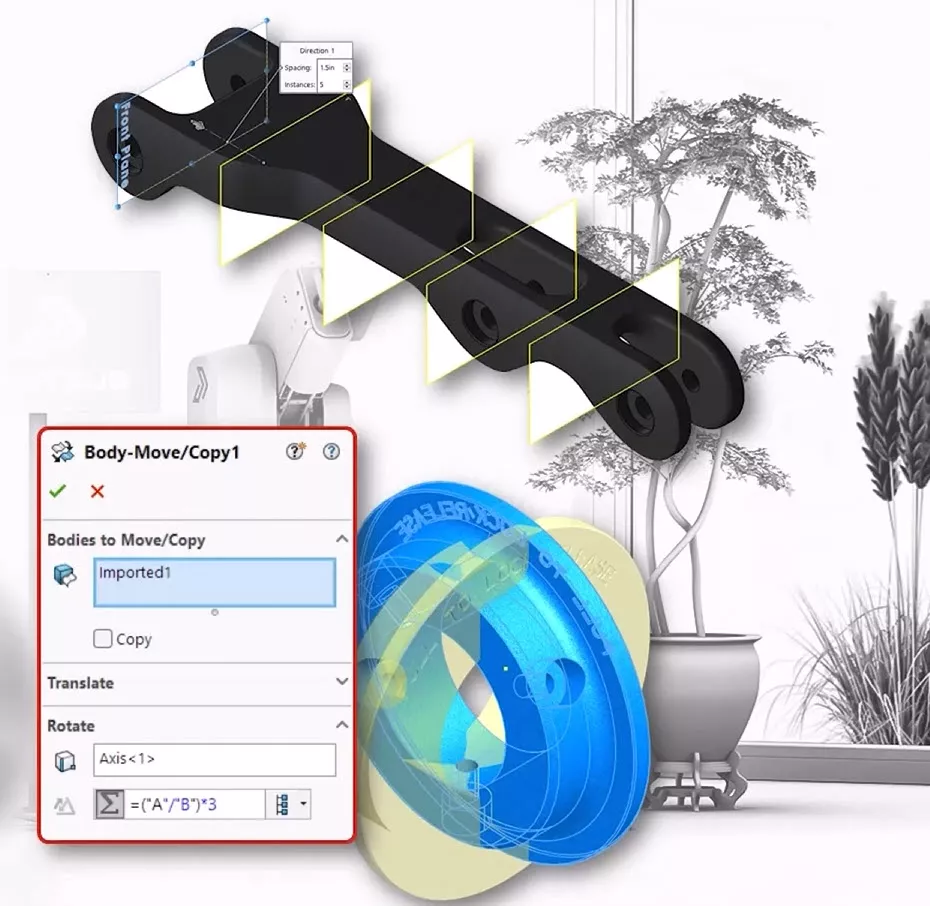
- Included support for equations, configurations and flip dimension in the move/copy bodies command
- Curve through X,Y,Z points will now respect a selected coordinate system
- Convert entities as construction geometry
SOLIDWORKS 2025 promises to be the best SOLIDWORKS release yet with so many new features and improvements.
For the full list, be sure to check out the complete What’s New documentation on the SOLIDWORKS website.
Categorised as: News | SOLIDWORKS Design
What's New in SOLIDWORKS?
Explore the latest innovations in SOLIDWORKS with our exclusive breakdown of live webinar, giving you on-demand access to the insights that matter most to your workflow.
Related Posts

How to Find Reaction Forces in SOLIDWORKS Simulation
SOLIDWORKS helps us to find resultant forces through simulation studies. These virtual tests reduce the need for physical prototypes and give us an accurate answer.

Setting number of decimal places in a table on a drawing
When creating an equation in a drawing general table, is it possible to define the…

SOLIDWORKS Smart Fasteners
SOLIDWORKS Smart Fasteners is a really useful time saving tool, allowing you to automatically insert toolbox fasteners such as bolts and screws into an assembly providing there is a standard hole.

Why is my Flat Pattern not showing in SOLIDWORKS Drawings?
This may be linked to how the drawing is saved or it can be related to how sheet metal parts are displayed in drawings, read on to find out how to fix it.

SOLIDWORKS Tips: Are you Making this Common Mistake in Fatigue Analysis?
Simulation is a vital and complex engineering need. Fortunately, SOLIDWORKS makes it easy to test, correct mistakes and obtain accurate results.

How to Recover SOLIDWORKS Files After a Crash
SOLIDWORKS has two different methods to help you recover from an unexpected crash or loss of data in the form of auto-recovery and back-up settings.

Redesigning Santa’s Sleigh in SOLIDWORKS
Every year Father Christmas has to fly in his sleigh to deliver presents to boys and girls all over the world in just one night. To put this into perspective, it takes a little under 24 hours to fly from London (UK) to Sydney (Australia) in a streamlined Boeing 747, whereas Father Christmas’ mode of transport is believed to be a rather non-aerodynamic sleigh.

SOLIDWORKS Grid Systems – hidden away, but very useful!
Rory Niles provides an insight into the uses for Grid Systems within SOLIDWORKS 2018

Furniture Design Made Easy with SOLIDWORKS
Calling all furniture and interior designers: the days of creating square cabinets are over. What if we told you there’s a much easier way to bring your products to life?
Here’s 10 reasons why we feel SOLIDWORKS is better than any other software, especially if you’re designing furniture:
Making 3D Textures from Images on SOLIDWORKS
Turn images into 3D geometry with brand new SOLIDWORKS 3D Textures Feature