











SOLIDWORKS Prerequisites: 10 Things to Do Before Upgrading to SOLIDWORKS 2025

Written by: Terry O'Reilly
Published: Nov 28, 2023
| View All Blogs
Packed full of great new features, SOLIDWORKS 2025 is now available to download and install.
However, before you click ‘download’, it is a good idea to take some time to do a bit of a system health check and make sure you’re ready for SOLIDWORKS 2025.
So we’ve pulled together 10 things that you should consider before upgrading to SOLIDWORKS 2025.
#1 – Check the System Requirements

You should always consult the SOLIDWORKS official System Requirements and End of Life pages prior to any upgrade.
As software advances, we find that it moves beyond the capabilities of older, auxiliary software. As such, it’s important to note that SOLIDWORKS 2025 no longer supports:
- Windows Server 2016
- Microsoft Excel/Word 2016/2019
- SQL Server 2016
Whether or not you are affected by the above changes, it’s worth giving our Hardware team a call to make sure your system checks out, and that you are using a system that works for you.
While it is certainly not a necessity, you may wish to use this as an opportunity to review your PC hardware, especially as it starts to show signs of age or decreased performance.
Consider whether you could boost your productivity with our range of certified, professional Dell laptops and desktop CAD workstations, delivered to your door in as little as 48 hours!
#2 – Plan Time for your Upgrade

As with any major software update, you must consider the time required to upgrade and plan accordingly.
We would certainly not suggest upgrading the software midway through a major project or with deadlines looming.
While the installation shouldn’t take long, it’s worthwhile planning time out of your main working hours to minimise disruption.
Also consider if your company operates over multiple sites, as you would want to schedule the upgrade to happen in a way that has the entire team update at the same time.
If you are running a floating/network license, you also need to update the SolidNetWork License Manager (SNL), and reactivate it so that the client machines can retrieve a license.
This is available via the download by running the “Server Products” option on the first screen.
You should also consider who you work with, i.e. your suppliers and customers.
With an active subscription, SOLIDWORKS 2025 files can be opened in a fully editable format by older versions up to two years prior (so SOLIDWORKS 2023 and 2024), to aid collaboration on any projects you have with external parties.
It’s also good to include a bit of a buffer, so that if you do run into any problems during installation, then our Technical Support team can get you up and running again quickly and keep you on schedule.
#3 – Check your IT Permissions

We would always recommend the installation to be done whilst logged in as a local or domain level administrator. A user with admin rights may not be sufficient.
The program normally asks for a reboot on completion, so do ensure after the reboot you log back in as the same user (admin) that conducted the initial installation for the process to fully complete.
#4 – Double check if you are using SOLIDWORKS PDM

The process for upgrading SOLIDWORKS when also using SOLIDWORKS PDM is a little different.
We strongly recommend contacting our PDM consultants via the Technical Support desk before proceeding with any upgrades.
If you aren’t using SOLIDWORKS PDM, then consider utilising the SOLIDWORKS Cloud Services to manage your CAD data instead via the 3DEXPERIENCE platform and continue with your installation!
#5 – Deactivate Previous SOLIDWORKS Versions
This is good practise for any piece of software when available.
If you have any previous versions of SOLIDWORKS installed, then be sure to open up SOLIDWORKS and deactivate your licenses before downloading SOLIDWORKS 2025.
This applies to all types of SOLIDWORKS installations, whether they are Standalone, Network, or Admin Images.
How to Deactivate Standalone SOLIDWORKS Licenses?
- Open SOLIDWORKS
- Go to Help > Licenses > Deactivate…
- Click ‘Select All’
- Click ‘Next’ to deactivate the selected SOLIDWORKS licenses.
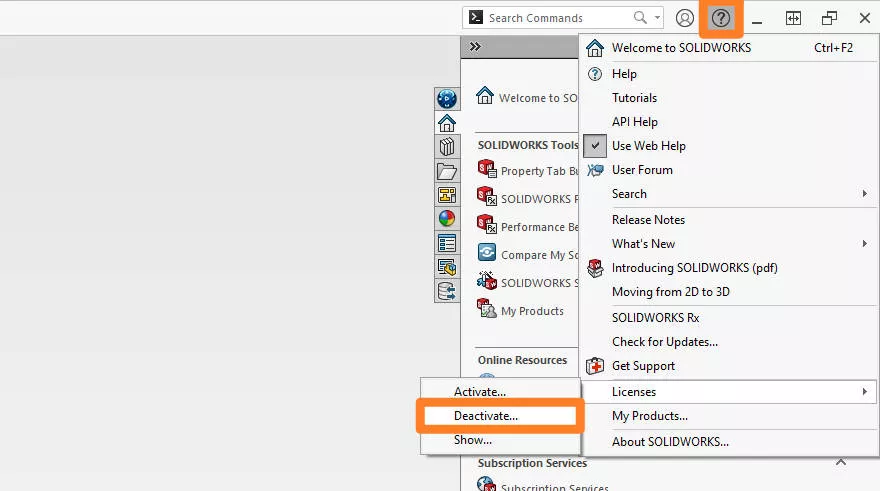
For help deactivating network licenses or admin image installations, please contact our Technical Support team on 01926 333 777 or via support@solidsolutions.co.uk
#6 – Activate your 3DEXPERIENCE Platform

New licenses of SOLIDWORKS 2025 come with the SOLIDWORKS Cloud Services.
To begin using the built-in data management system and collaborative tools and that come with these, make sure you activate your 3DEXPERIENCE platform.
Click the link in your activation email to activate the platform and get started by following our free starter guides to the SOLIDWORKS Cloud Services here.
If you have a SOLIDWORKS Subscription, but haven’t yet got around to upgrading your existing licenses to include the SOLIDWORKS Cloud Services, then get in touch with your Solid Solutions Account Manager.
#7 – Organise your SOLIDWORKS Folders

It’s time for some spring cleaning!
At this point while you are SOLIDWORKS ‘naked’, it’s a great time to do a few bits of admin.
Ensure that your SOLIDWORKS installation files are stored in an accessible location. When it comes to installing the latest version, it’s sensible to amend the SOLIDWORKS Corp and SOLIDWORKS Data folders with the suffix ‘2025’ added.
Don’t worry, our installation guide covers everything you need to know about the actual installation.
You should also double check that your template files are stored outside of the SOLIDWORKS Corp, Program Files, ProgramData, and SOLIDWORKS Data folders. These are all folders that could be removed during an upgrade, should you decide to do a clean installation of SOLIDWORKS 2025.
When working with multiple users it is good practise to store template files in a shared folder, such as a SOLIDWORKS PDM vault.
#8 – Make Backups of Key Files

We always recommend to all of our customers that they should be keeping regular backups of their key files.
This will include standard templates, toolbox databases, and the output data from SOLIDWORKS (parts, assemblies and drawings).
For those using Product Data Management (PDM) Systems and other database driven systems (SOLIDWORKS Electrical and PCB), we strongly encourage customers employ backup schemes of the archive and databases as the software will not do this automatically for you.
Some files (such as toolbox) will be upgraded with the new version install, and this process is not reversible, so it is imperative you have a backup copy just in case.
You should take care to backup any key data related to SOLIDWORKS, this includes the actual CAD files, templates and standard documentation, shared data such as SOLIDWORKS Toolbox, and any databases associated with programs such as PDM or SOLIDWORKS Electrical.
#9 – Update Microsoft Office to 2021

As mentioned in the first item in this list, SOLIDWORKS 2025 does not support Microsoft Office 2019 or older.
That means if you want to maximise your SOLIDWORKS productivity and prevent any issues further down the line, you should update your Microsoft Office products to 2021 before installing SOLIDWORKS 2025.
Microsoft Office is used to drive design tables, sustainability reports, and loads more functionality within SOLIDWORKS.
#10 – Pencil in your Subsequent Service Pack Updates

Every major SOLIDWORKS version sees 5 scheduled updates throughout the year called Service Packs. These provide performance enhancements as new technology becomes available, and roll out updates under the hood to improve your experience as a SOLIDWORKS user.
It may feel a little early to think about another SOLIDWORKS update before you’ve even installed this one… but at least being aware of the update schedule is helpful for now.
Based on historical releases, we expect the following Service Pack updates:
- SP01: January 2025
- SP02: March 2025
- SP03: May 2025
- SP04: August 2025
- SP05: November 2025 (Overlaps with release of SOLIDWORKS 2026)
As SOLIDWORKS is continually developed during the year, these dates are subject to change at any point.
Do consider pencilling in some time during those months to update your SOLIDWORKS again.
Categorised as: SOLIDWORKS Design | Tech Tips
Get a SOLIDWORKS Quote
Interested in SOLIDWORKS? Contact us for questions, trials, or demos by clicking the button below or call 01926 333777. Our experts will help you find the perfect solution.

Related Posts

How to Find Reaction Forces in SOLIDWORKS Simulation
SOLIDWORKS helps us to find resultant forces through simulation studies. These virtual tests reduce the need for physical prototypes and give us an accurate answer.

Setting number of decimal places in a table on a drawing
When creating an equation in a drawing general table, is it possible to define the…

SOLIDWORKS Smart Fasteners
SOLIDWORKS Smart Fasteners is a really useful time saving tool, allowing you to automatically insert toolbox fasteners such as bolts and screws into an assembly providing there is a standard hole.

Why is my Flat Pattern not showing in SOLIDWORKS Drawings?
This may be linked to how the drawing is saved or it can be related to how sheet metal parts are displayed in drawings, read on to find out how to fix it.

Why is SOLIDWORKS Crashing?
It’s one of the great mysteries of life – why is SOLIDWORKS crashing? Let’s explore how SOLIDWORKS crashes and how we can improve performance in SOLIDWORKS.

SOLIDWORKS Tips: Are you Making this Common Mistake in Fatigue Analysis?
Simulation is a vital and complex engineering need. Fortunately, SOLIDWORKS makes it easy to test, correct mistakes and obtain accurate results.

Tech Support Blog: Why are my SOLIDWORKS BOM Quantities Wrong?
Why are my SOLIDWORKS BOM Quantities Wrong? A support call cropped up this week which…

How to Get Your Serial Number for SOLIDWORKS Visualize Standard
Want to download Visualize to make photorealistic renders? Follow this guide for accessing your Visualize serial number that comes bundled in with SolidWorks Professional and Premium.

How to Recover SOLIDWORKS Files After a Crash
SOLIDWORKS has two different methods to help you recover from an unexpected crash or loss of data in the form of auto-recovery and back-up settings.

Redesigning Santa’s Sleigh in SOLIDWORKS
Every year Father Christmas has to fly in his sleigh to deliver presents to boys and girls all over the world in just one night. To put this into perspective, it takes a little under 24 hours to fly from London (UK) to Sydney (Australia) in a streamlined Boeing 747, whereas Father Christmas’ mode of transport is believed to be a rather non-aerodynamic sleigh.