











SOLIDWORKS Support: How to Access Your Account and Raise a Support Ticket

Written by: Terry O'Reilly
Published: Jan 16, 2025
| View All Blogs
Now that you have received your license for SOLIDWORKS, how do you access your account or raise a SOLIDWORKS support ticket? Let’s walk you through the process.
Where to Find Your SOLIDWORKS Subscription Status
To access information about your SOLIDWORKS subscription status, book onto training courses, or view your certificates for completed training courses, head to MySolidSolutions, also accessible from the account icon in the top right of the website.
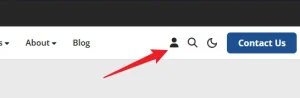
From here, you can log in to your MySolidSolutions account or register if you haven’t already.
After logging in, you’ll be able to manage your account details and find your SOLIDWORKS subscription status in this area. You’ll also be able to access exclusive tutorials, download training certificates, and view your ongoing Support Tickets.
How can I get support for SOLIDWORKS?
All Solid Solutions customers with a valid SOLIDWORKS subscription are entitled to receive Technical Support as part of that customer care package.
You can reach out to our experienced SOLIDWORKS Support Team via telephone, email, and online via our support portal. Our support lines are active Monday to Friday between 08:00 AM to 17:30 PM GMT.
But don’t let that prevent you night owls from logging a ticket! While our team rests up, you can still email in or log a ticket via the online support portal for us to pick up as soon as our lines reopen.
Upgrade your SOLIDWORKS subscription and gain access to premium support and exclusive discounts.
How to Log a SOLIDWORKS Support Ticket
There are three easy ways to log a ticket to get support with SOLIDWORKS from Solid Solutions:
- Call us on 01926 333777.
- Send an email to support@solidsolutions.co.uk.
- Sign into our online support portal and add a new ticket!
About our Support Portal
Solid Solutions customers with an active SOLIDWORKS Subscription can log tickets online via our Online Support Portal.
There you can see your contact details (and make changes to them if needed!) and view details about open tickets and previous support cases. Watch the video or follow the steps outlined below to learn how to log a ticket.
In the portal you can raise a new support ticket from the ‘Raise a Ticket’ option.
Fill out a brief description of your problem, associate it with a specific product and upload any relevant files. Accepted file formats include SOLIDWORKS part, assembly, and drawing files; common image types and .zip files.
You can also write a more detailed description if required and submit your request.
Once submitted, your ticket will get sent straight to one of our SOLIDWORKS experts who will begin working on your case and respond as soon as possible.
Please note that our support desk is open Monday to Friday from 08:00 A to 17:30 PM (GMT).
For more urgent cases please call our support line directly on 01926 333777 and select option 1 from the menu.
Additional Subscription Benefits
Are you making the most of your SOLIDWORKS subscription? Check out all the benefits you’re entitled to, redeem discounts, and discover what more you can unlock (from exclusive discounts to additional software) by upgrading to an Enhanced Subscription package.
With your SOLIDWORKS subscription you also receive full support for downloads and access to the latest and greatest versions of SOLIDWORKS.
For more information on downloads and access head over to and select the ‘Downloads’ tab.
SOLIDWORKS Resources & Further Information
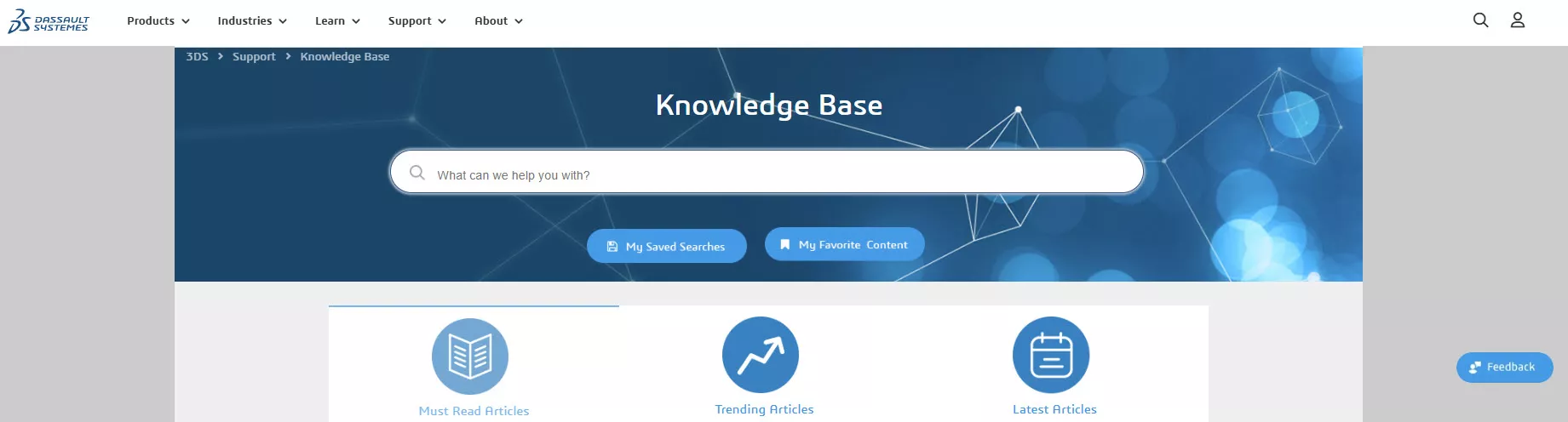
For any issues outside of our Support Desk opening times, please either raise a ticket and await contact from a member of the Support Team within our support hours, or login to the DS Knowledge Base with your 3DEXPERIENCE ID and search for possible solutions.
Take the Next Steps
Master SOLIDWORKS with expert-led courses that help you boost your skills and confidence. You can attend online or in a classroom near you!
Choose from a huge range of professional SOLIDWORKS training courses and save on multiple courses with a Training Passport.
Categorised as: Troubleshooting
Get Expert SOLIDWORKS Training
Get hands-on SOLIDWORKS training in-person or online, led by certified experts with real industry experience. With venues across the UK & Ireland, it’s easy to start learning today.
Related Posts

Why is SOLIDWORKS Crashing?
It’s one of the great mysteries of life – why is SOLIDWORKS crashing? Let’s explore how SOLIDWORKS crashes and how we can improve performance in SOLIDWORKS.

Tech Support Blog: Why are my SOLIDWORKS BOM Quantities Wrong?
Why are my SOLIDWORKS BOM Quantities Wrong? A support call cropped up this week which…
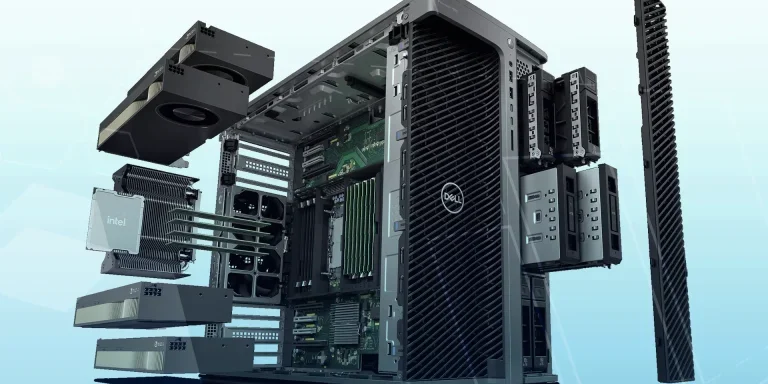
Hardware Setup and Support
When you receive a new system there are some things you can do to ensure optimum performance and other things that are good to know in the event of problems. This blog details everything you need to know if you encounter an issue.
SOLIDWORKS PDM Disaster Recovery
Understand the steps involved in preparing for and then executing a SOLIDWORKS PDM Disaster Recovery, should you need to rebuild a copy of a PDM vault after your SOLIDWORKS PDM infrastructure becomes inoperable, inaccessible, or damaged as the result of unplanned disasters.

A systematic approach to complex analysis models – “Crawl, Walk, Run”
Most engineers start out performing simple linear statics analysis model. Provided you’ve done the basic…

How to Fix “A Sharing Violation Occurred while Accessing an Unnamed File” in SOLIDWORKS Simulation
‘A sharing violation occurred while accessing an unnamed file’ is an error which you might see when using SOLIDWORKS Simulation, here is how to avoid it.
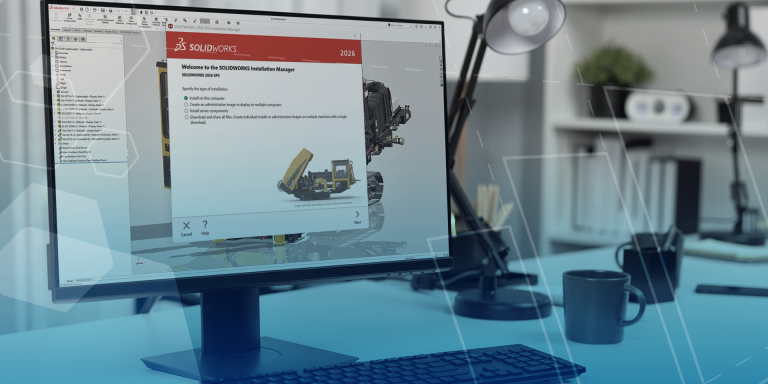
SOLIDWORKS Pre-Requisites: 10 Things to Do Before Upgrading to SOLIDWORKS 2026
Packed full of great new features, SOLIDWORKS 2026 is now available to download and install. Make sure your system meets the pre-requisite criteria for installing SOLIDWORKS with these 10 things to do before upgrading to SOLIDWORKS 2026.
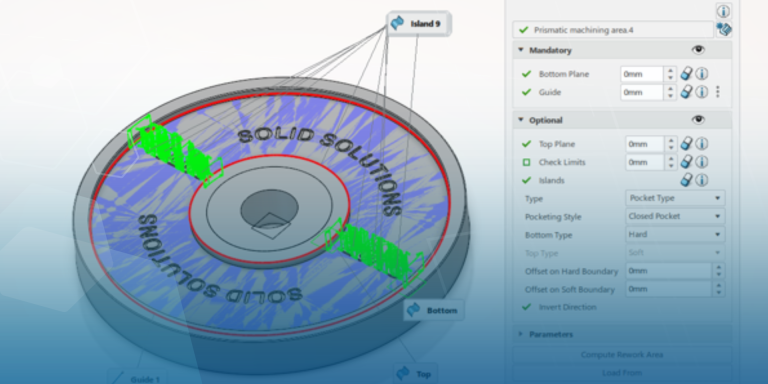
Rework Areas 3Dexperience DELMIA Machining
Manufacturing components often requires multiple machining operations to achieve the desired geometry, quality, and tolerance.…
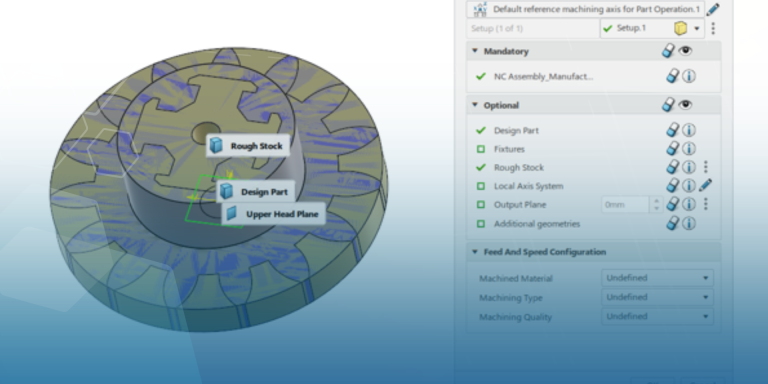
Getting Started With Wire EDM In 3DExperience DELMIA
Programming Wire EDM machines can be a complex and time-consuming task, particularly when dealing with…