











How to Create a Sphere in SOLIDWORKS

Written by: Tom McHale
Published: Jul 4, 2023
| View All Blogs
Creating a sphere in SOLIDWORKS can be achieved simply by using a sketch and a feature.
Now that you know how to create a revolve (you do know how to, right? If not, check out this tutorial to learn how to create revolves in SOLIDWORKS first), you can create a sphere in a few simple steps.
During Wimbledon, we’re guiding you through creating and simulating tennis balls in SOLIDWORKS. Our next tutorial focuses on using more advanced techniques to create the tennis ball!
SOLID VS SURFACE GEOMETRY
A sphere can be created in SOLIDWORKS as a solid or as a surface.
Both methods require a sketch and a revolved feature.
But the key understanding is that solid geometry is a filled void with a density, whereas surface geometry is infinitely thin and has no mass.
To learn the difference between solid and surface geometry and enhance your SOLIDWORKS skills, we recommend attending our Essentials SOLIDWORKS training course.
CREATING A SPHERE IN SOLIDWORKS
To start creating a sphere, we need to sketch a semi-circle. We’ll then add a construction centreline, delete the unwanted edge, and then revolve the sketch.
Let’s break that down.
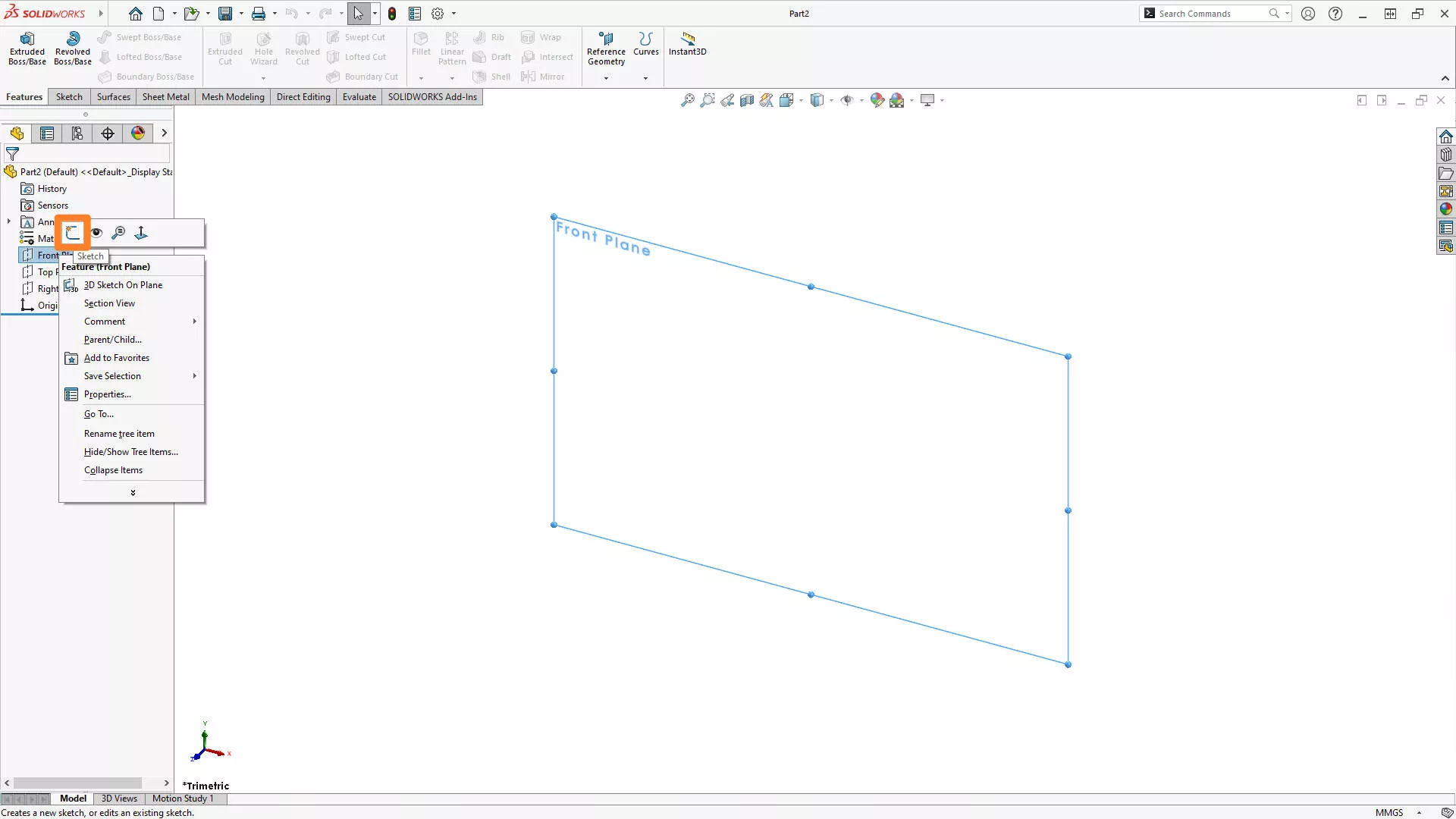
1. Start a new sketch on the Front, Right or Top plane.
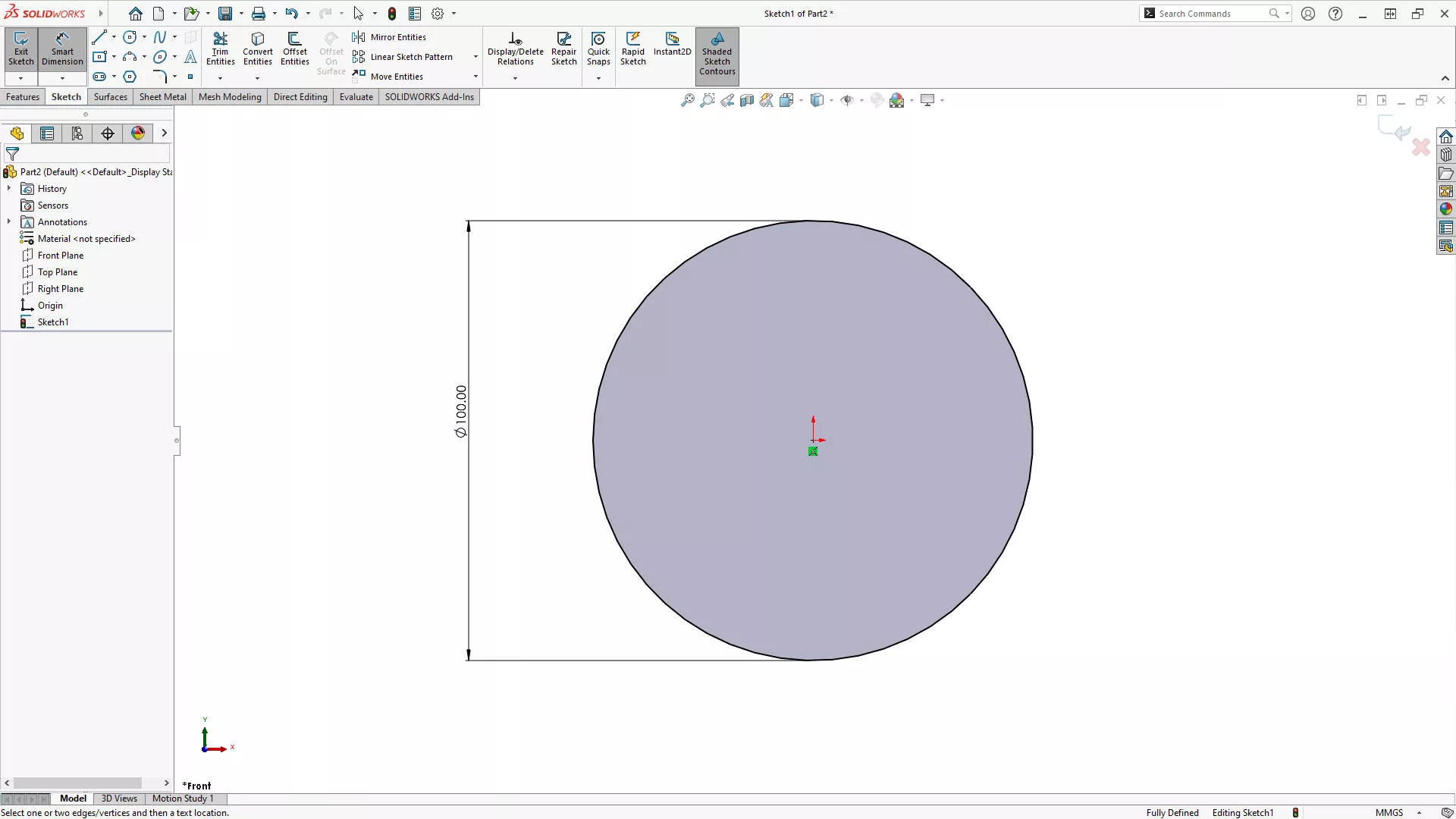
2. Draw a circle with the centre at the origin.
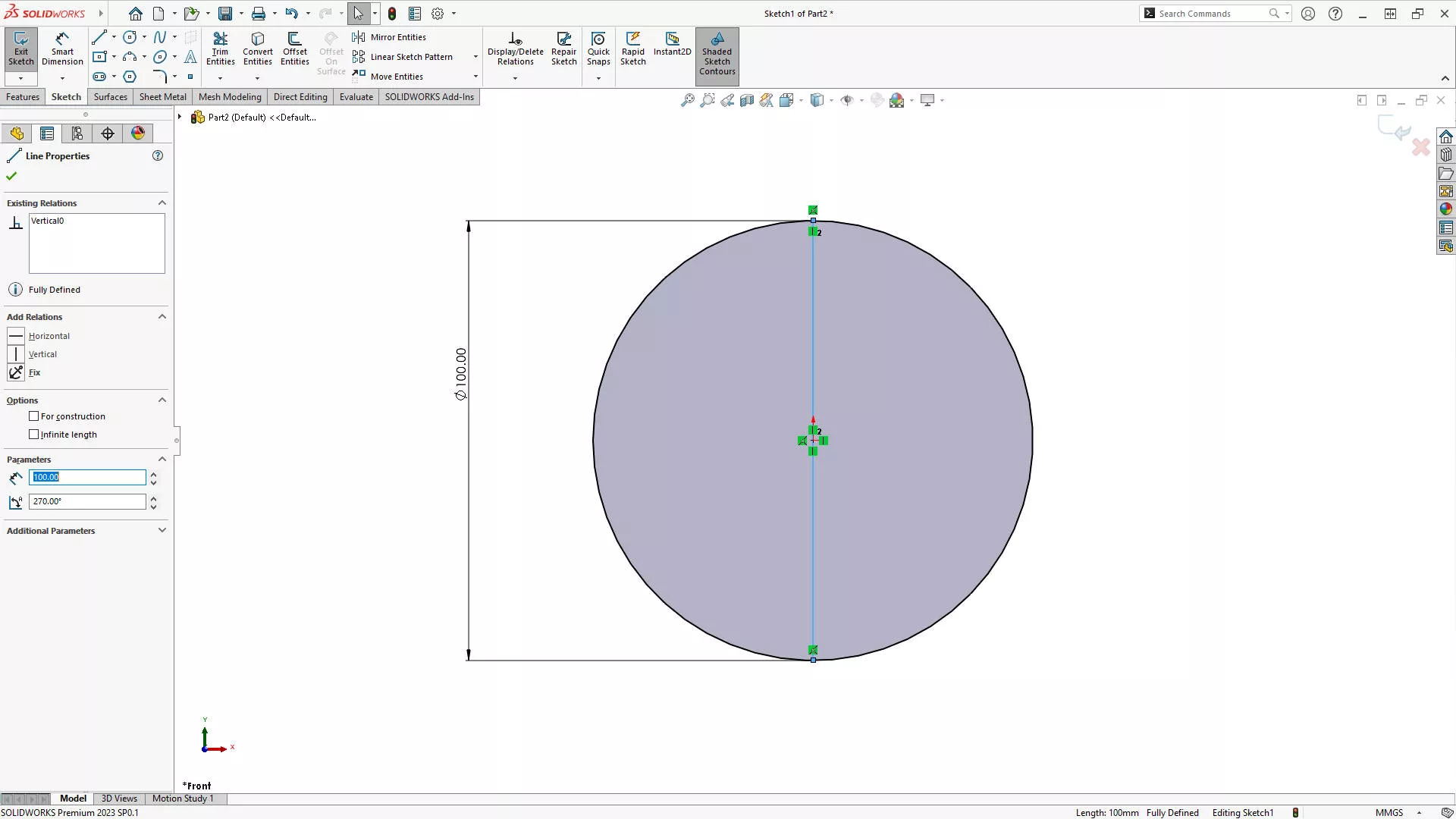
3. Bisect the circle with a sketched line through the centre point.
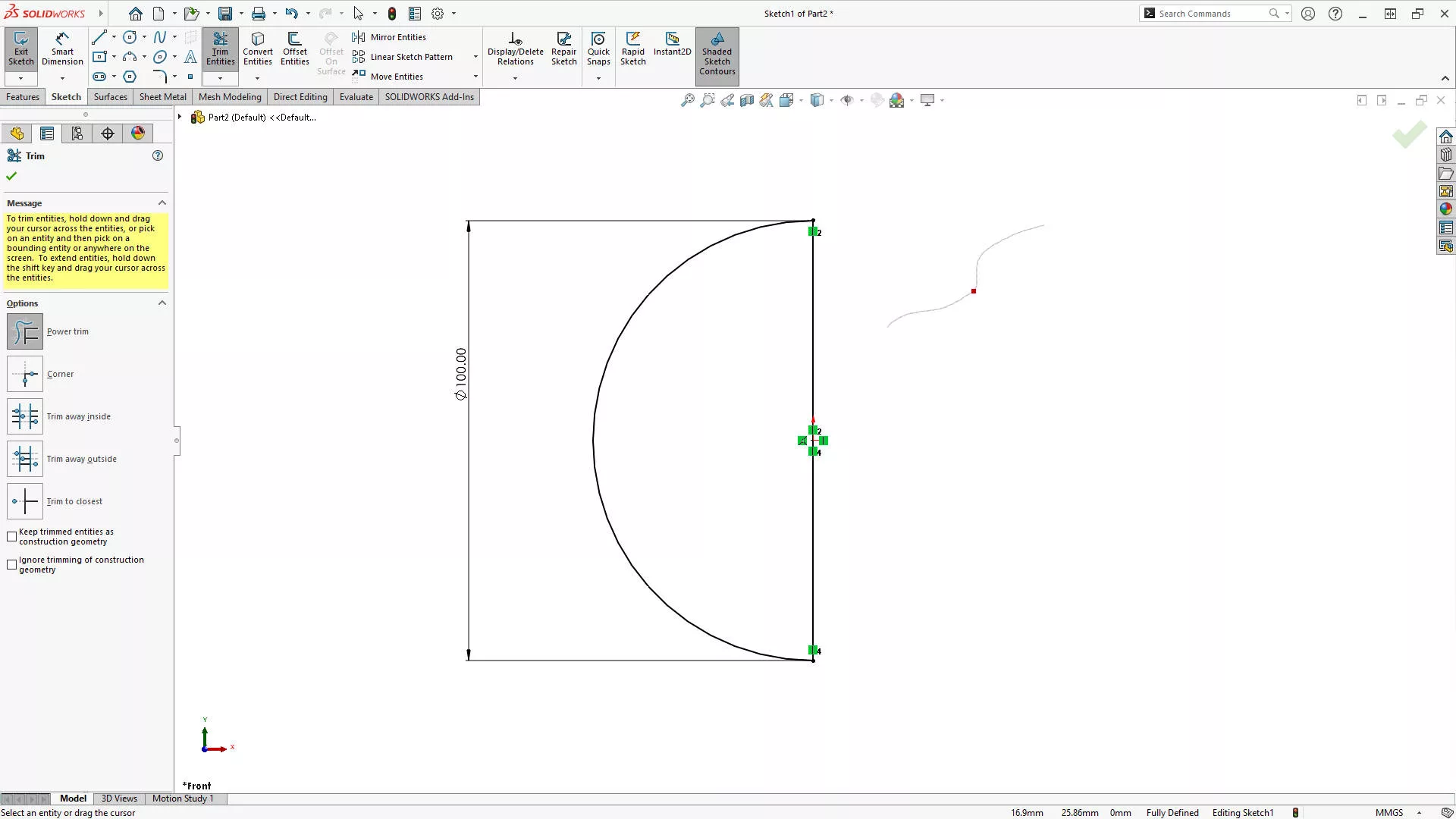
4. Use the Trim Entities tool on the Features tab to remove one side of the circle.
- TOP TIP – Use
- to speed up your sketching process!
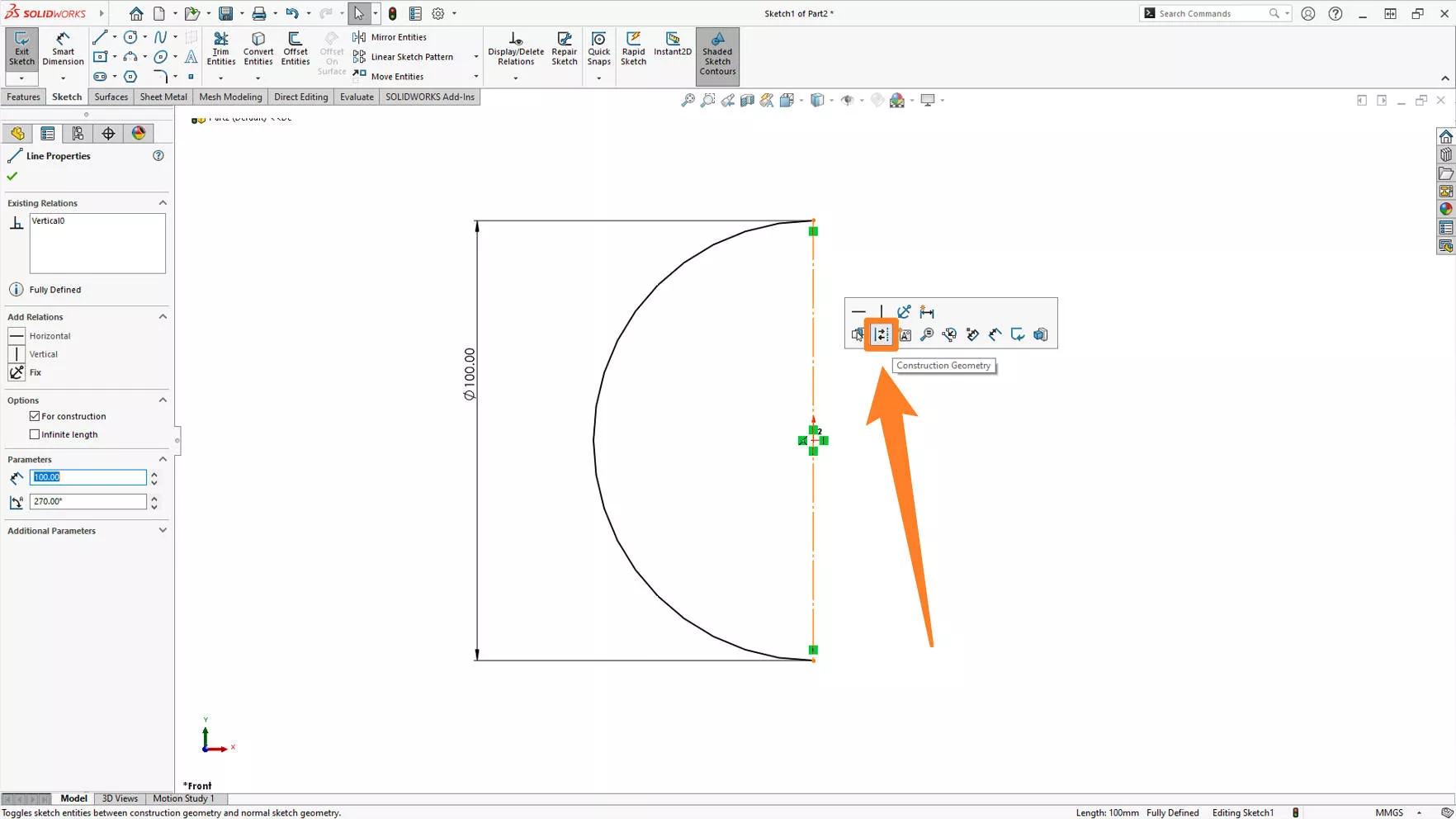
5. Convert the straight line to construction geometry.
TOP TIP – Modify the keyboard shortcuts so activates your
- Construction Geometry
- conversion tool.
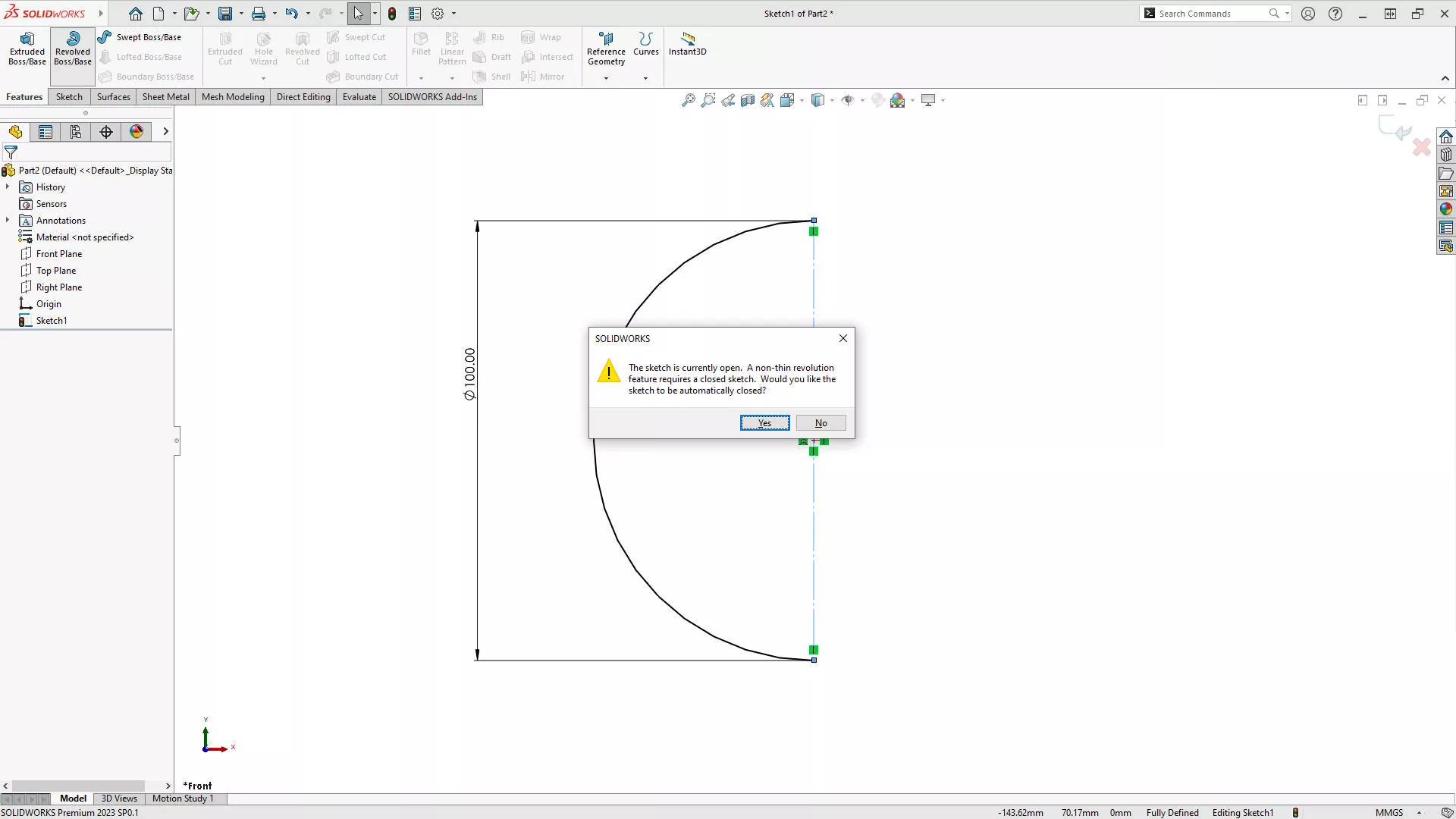
6. While in the sketch, activate the Revolve Boss/Base tool.
You might be asked about creating a non-thin revolution. Here, SOLIDWORKS is simply asking if you want to create a hollow or solid sphere.
Click Yes to create a solid sphere. Notice the construction geometry is automatically selected as the axis to revolve around, but this could be selected manually.
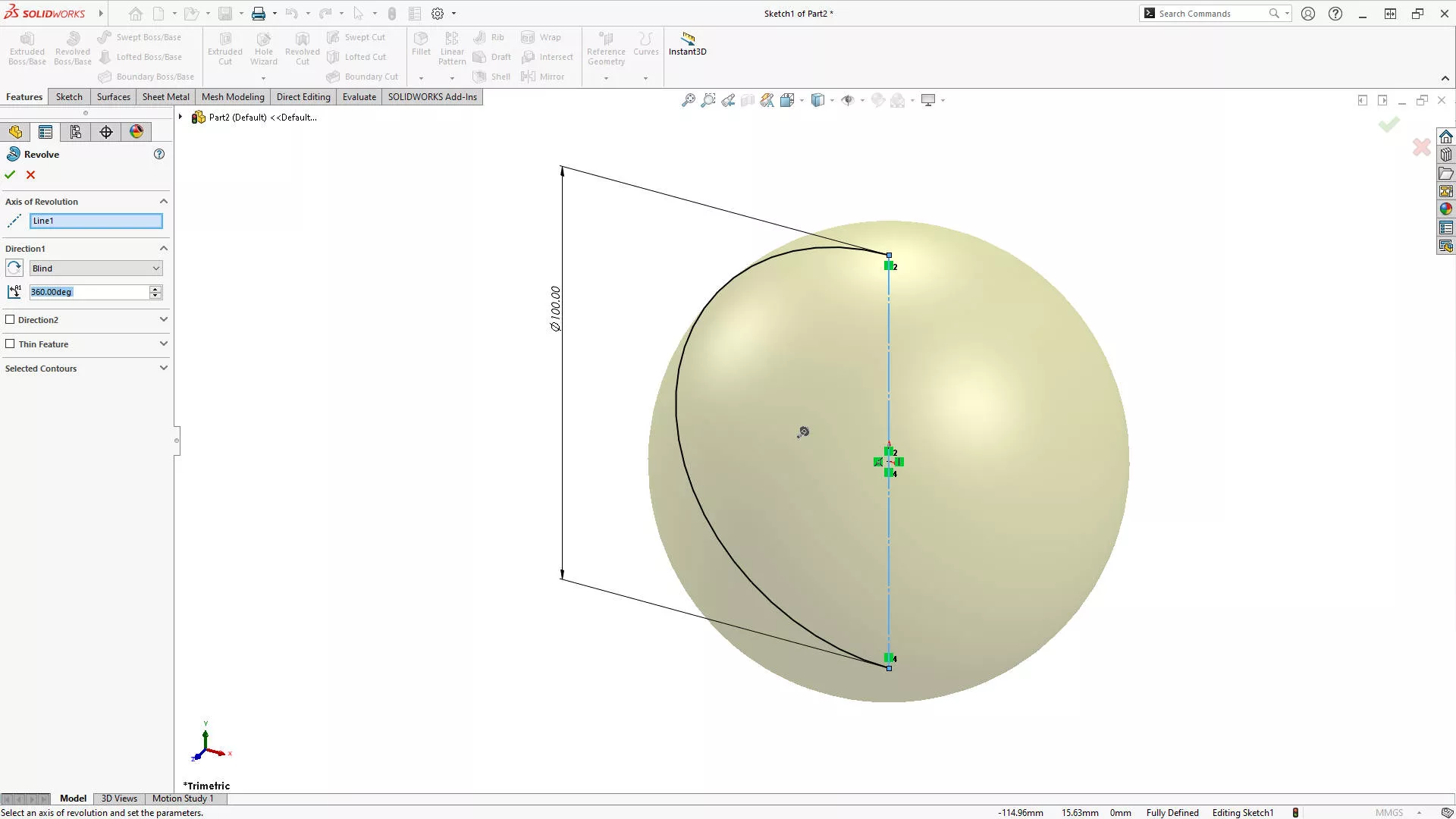
7. Direction1 should be set to 360° for a complete revolution.
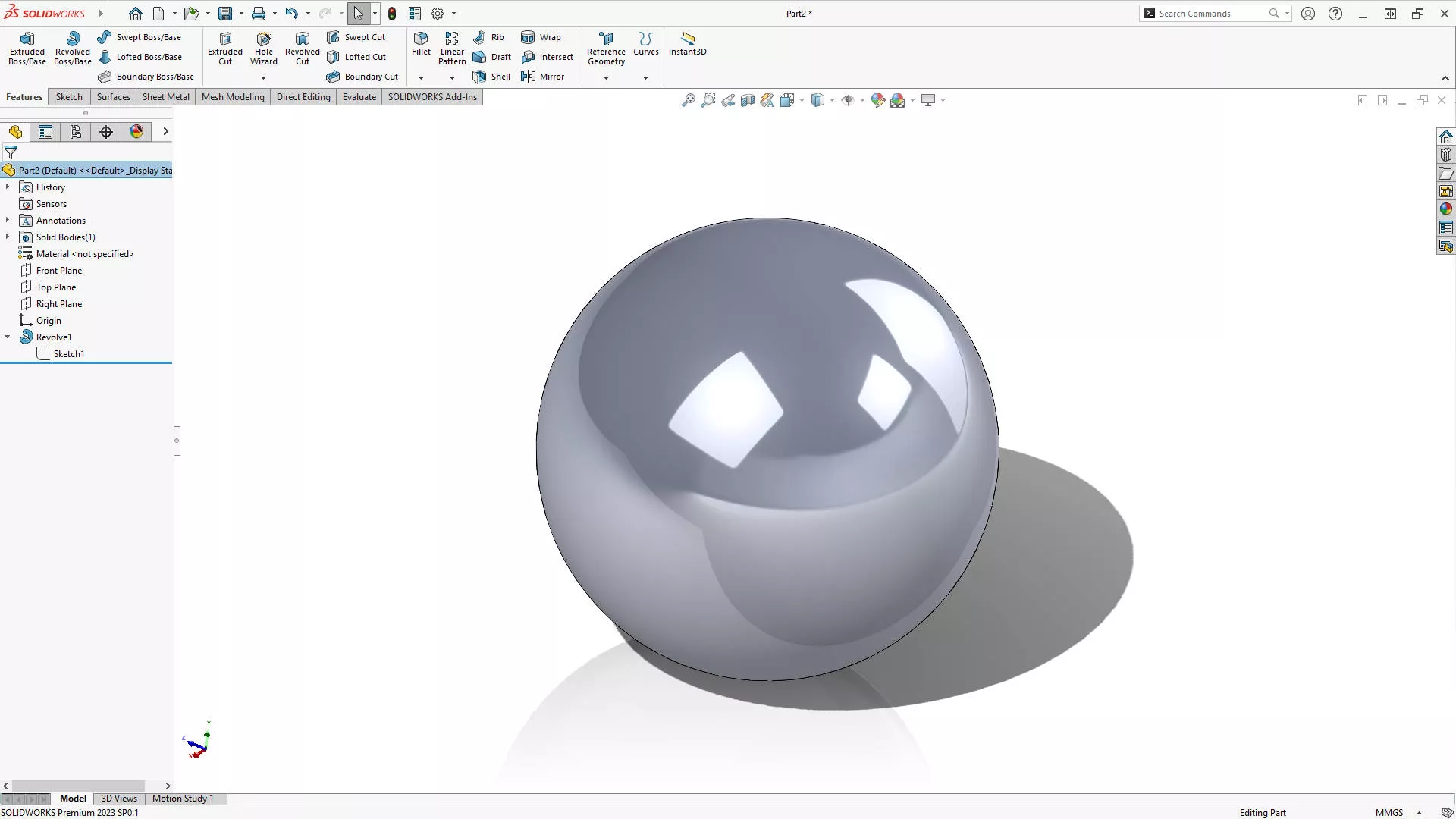
8. Click accept to complete the sphere.
Practise this workflow and soon you’ll be creating spheres in 10 seconds flat.
Creating a sphere forms the basis for creating most sports balls. Check back on throughout the week as we guide you through creating and simulating the movement of a tennis ball.
Fancy a more advanced SOLIDWORKS modelling challenge?
Get modelling a tennis ball with this step-by-step guide to modelling a tennis ball in SOLIDWORKS.
Categorised as: SOLIDWORKS Simulation | Simulation | Tech Tips
Get Expert SOLIDWORKS Training
Get hands-on SOLIDWORKS training in-person or online, led by certified experts with real industry experience. With venues across the UK & Ireland, it’s easy to start learning today.
Related Posts

How to Find Reaction Forces in SOLIDWORKS Simulation
SOLIDWORKS helps us to find resultant forces through simulation studies. These virtual tests reduce the need for physical prototypes and give us an accurate answer.

Setting number of decimal places in a table on a drawing
When creating an equation in a drawing general table, is it possible to define the…

Why is my Flat Pattern not showing in SOLIDWORKS Drawings?
This may be linked to how the drawing is saved or it can be related to how sheet metal parts are displayed in drawings, read on to find out how to fix it.

Why is SOLIDWORKS Crashing?
It’s one of the great mysteries of life – why is SOLIDWORKS crashing? Let’s explore how SOLIDWORKS crashes and how we can improve performance in SOLIDWORKS.

SOLIDWORKS Tips: Are you Making this Common Mistake in Fatigue Analysis?
Simulation is a vital and complex engineering need. Fortunately, SOLIDWORKS makes it easy to test, correct mistakes and obtain accurate results.

Tech Support Blog: Why are my SOLIDWORKS BOM Quantities Wrong?
Why are my SOLIDWORKS BOM Quantities Wrong? A support call cropped up this week which…

How to Get Your Serial Number for SOLIDWORKS Visualize Standard
Want to download Visualize to make photorealistic renders? Follow this guide for accessing your Visualize serial number that comes bundled in with SolidWorks Professional and Premium.

How to Recover SOLIDWORKS Files After a Crash
SOLIDWORKS has two different methods to help you recover from an unexpected crash or loss of data in the form of auto-recovery and back-up settings.

Redesigning Santa’s Sleigh in SOLIDWORKS
Every year Father Christmas has to fly in his sleigh to deliver presents to boys and girls all over the world in just one night. To put this into perspective, it takes a little under 24 hours to fly from London (UK) to Sydney (Australia) in a streamlined Boeing 747, whereas Father Christmas’ mode of transport is believed to be a rather non-aerodynamic sleigh.

Radiation in Flow Simulation – Part 1 : Reflection
Technical Manager Andy Fulcher explores ‘Radiation in Flow Simulation, Part 1 : Reflection’