











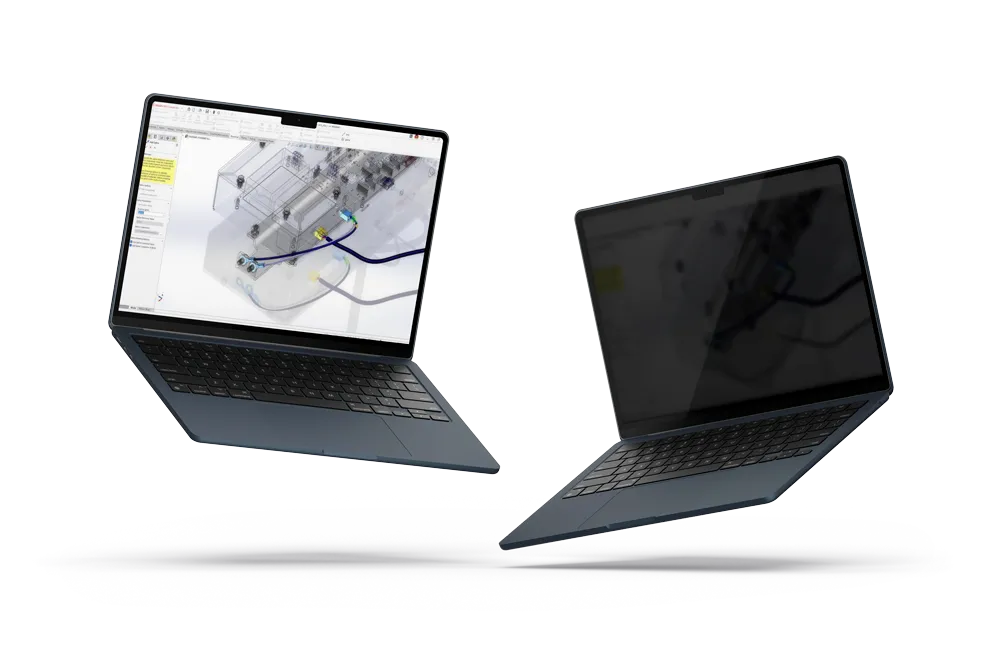
Troubleshooting & Common Issues
Stuck? Let’s Get You Moving Again.
Technical hurdles are part of the process, but they shouldn’t slow you down for long. We’ve compiled the most frequent challenges reported to our support desk with the fastest way to solve them.
The "Quick Fix" Checklist
Before diving into deep troubleshooting, try these three steps which resolve 60% of reported issues:
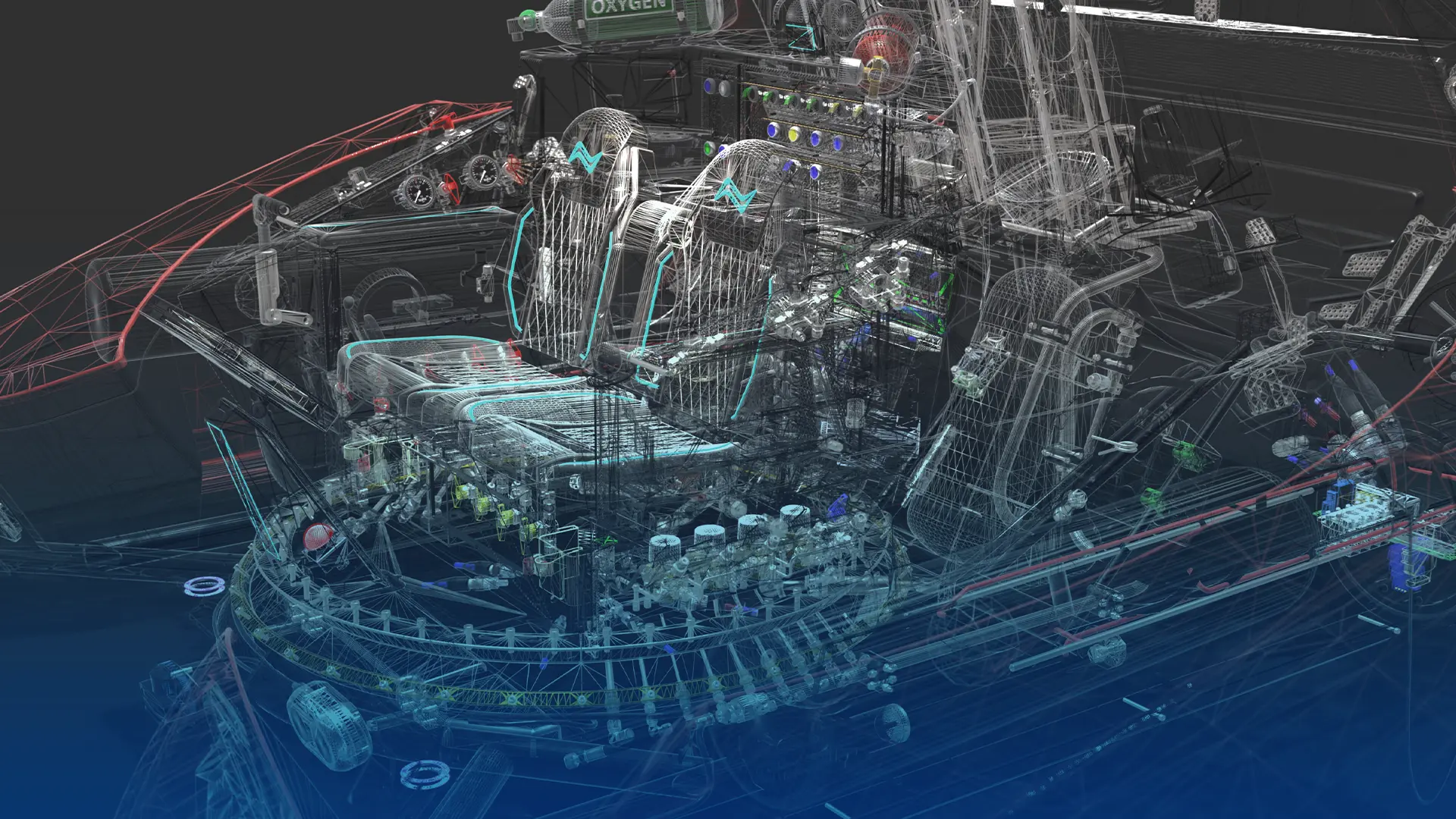
Performance & Graphics
Are you using Large Design Review mode? Check for "out of date" lightweight components.
Verify that "Enhanced Graphics Performance" is toggled correctly in your System Options.
This is often related to Windows updates or GPU driver conflicts.
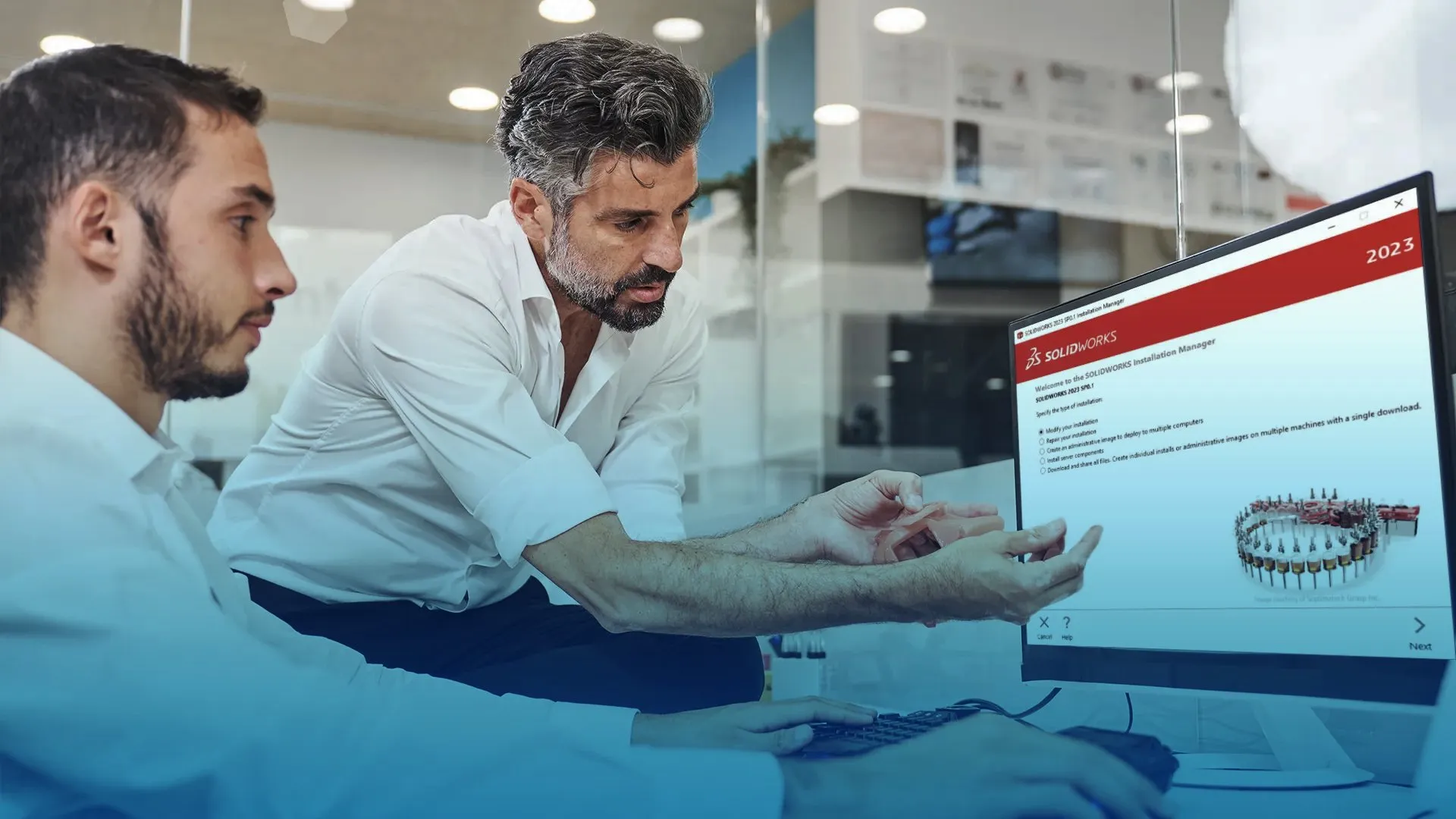
Installation & Licensing
Ensure you are entering the correct 24-digit key for your current version.
If you've moved computers without "deactivating" the old one, our team can help you reset your activation count.
Common after Windows updates; usually requires a quick reinstall of the Microsoft VBA components.
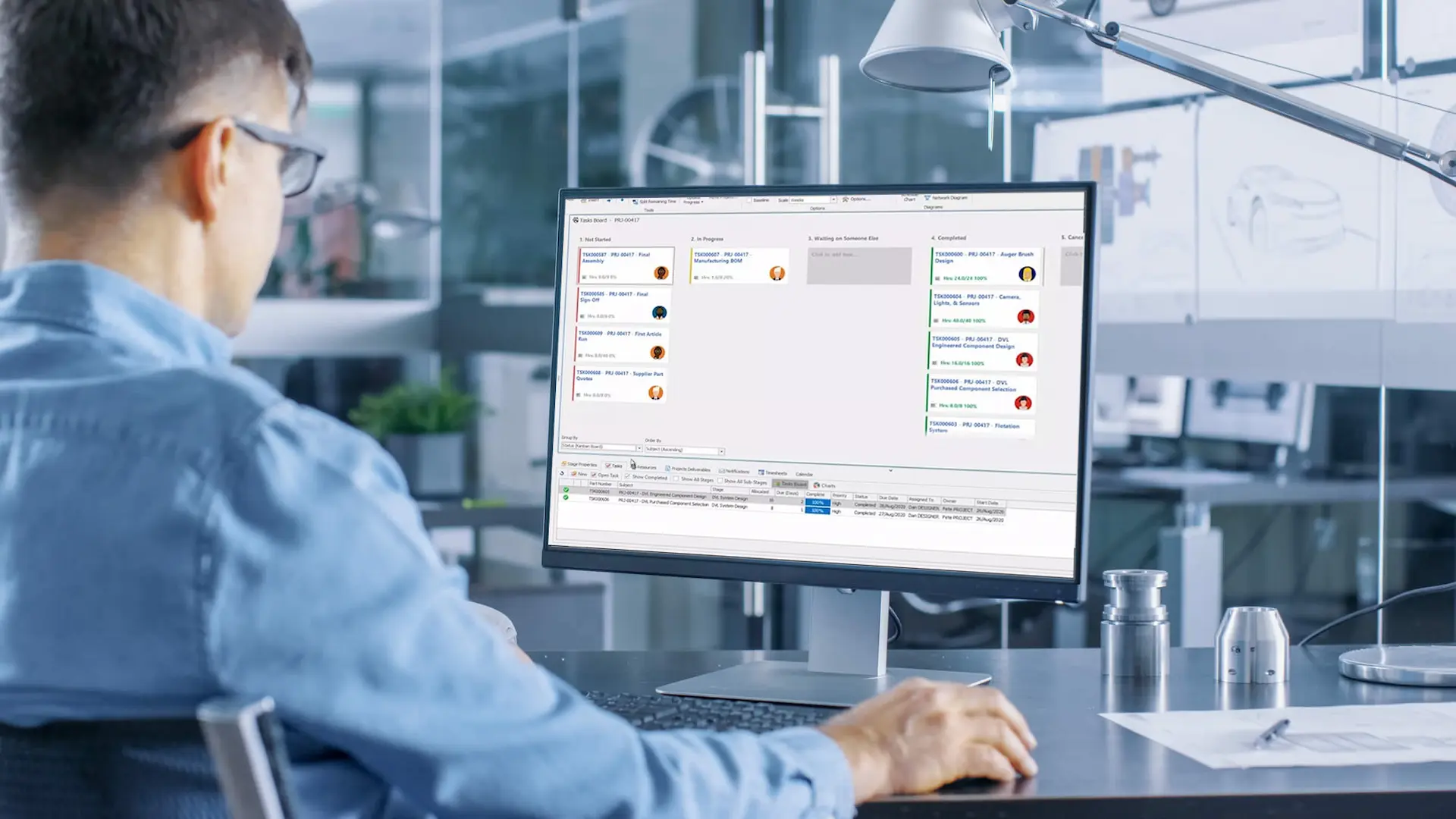
Data Management (PDM & Cloud)
How to clear local caches and verify check-in status.
Troubleshooting the connection between your desktop and the 3DEXPERIENCE platform.
Tips for optimising SQL performance for PDM Professional users.

Hardware & System Requirements
NVIDIA RTX or AMD Radeon Pro (Gaming cards are not supported).
Minimum 32GB for complex assembly work in 2026.
High clock speed (GHz) is more important for SOLIDWORKS than a high core count.
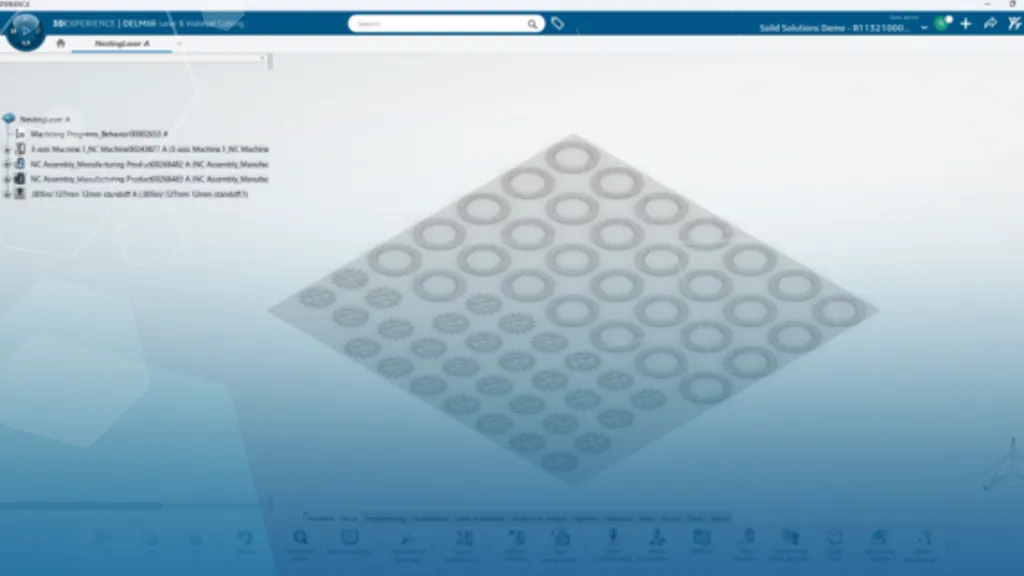
Nesting 2D Components In 3DEXPERIENCE DELMIA
Efficiency and material waste optimization are fundamental to the manufacturing process. Sheet metal nesting plays a vital…
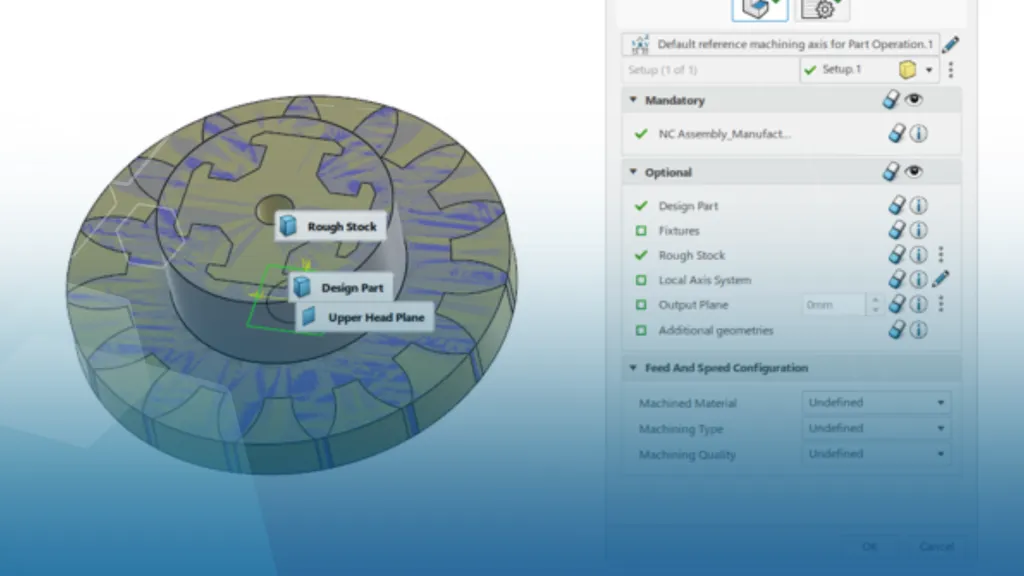
Getting Started With Wire EDM In 3DExperience DELMIA
Programming Wire EDM machines can be a complex and time-consuming task, particularly when dealing with intricate geometries,…
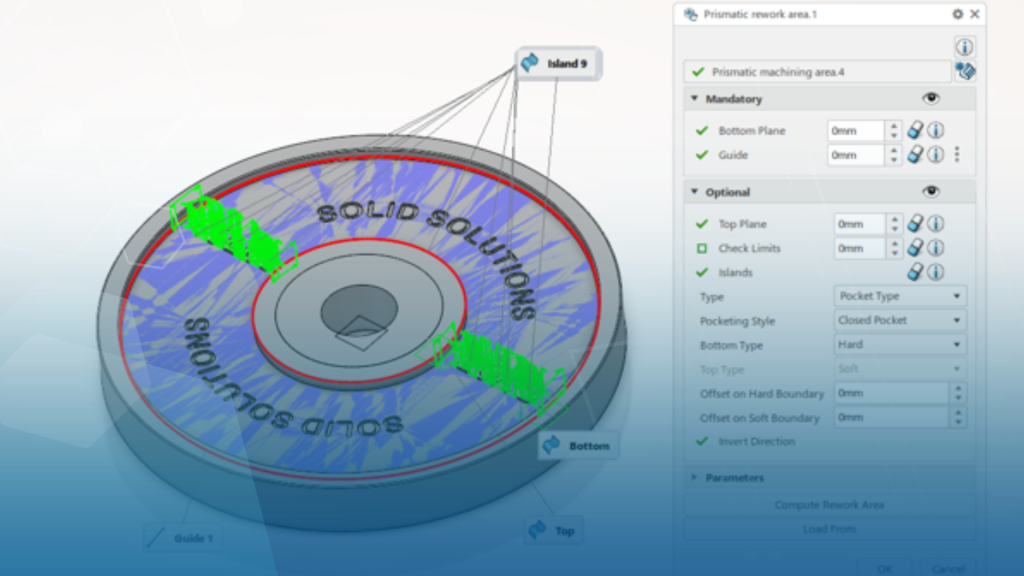
Rework Areas 3Dexperience DELMIA Machining
Manufacturing components often requires multiple machining operations to achieve the desired geometry, quality, and tolerance. To make…
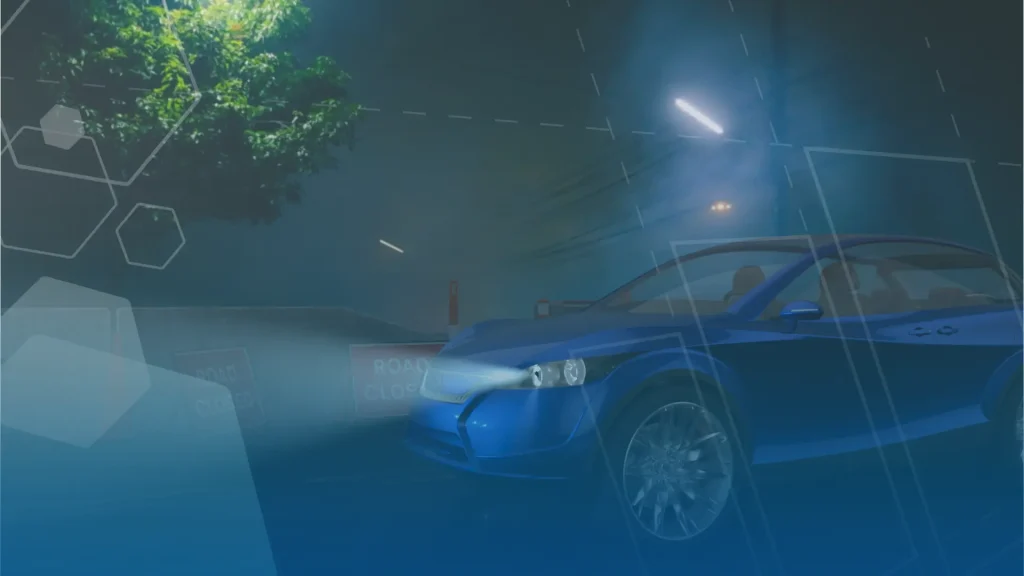
How to Use Volumetric Lighting in SOLIDWORKS Visualize
Volumetric lighting allows you to simulate how light interacts with atmospheric elements such as dust, fog, smoke…
What are the Best File Formats to Export from SOLIDWORKS?
SOLIDWORKS can import and export a variety of file formats to allow you to work collaboratively with…
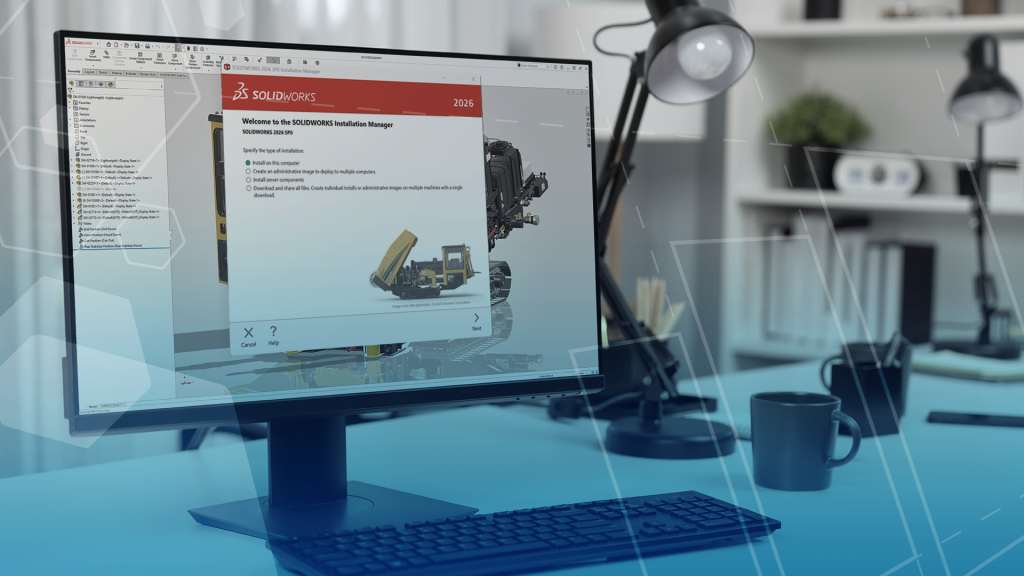
SOLIDWORKS Pre-Requisites: 10 Things to Do Before Upgrading to SOLIDWORKS 2026
Packed full of great new features, SOLIDWORKS 2026 is now available to download and install. Make sure your system meets the pre-requisite criteria for installing SOLIDWORKS with these 10 things to do before upgrading to SOLIDWORKS 2026.
Advanced Assemblies: What are Envelopes in SOLIDWORKS and when to use them?
Discover how this ‘unknown’ feature of SOLIDWORKS can help boost performance when working on complex assemblies.

A Part Inside a Part? The Basics of Master Modelling in SOLIDWORKS
Learn more about the master modelling technique, used to create references to existing parts to ensure adequate fit.
How to Back Up Your SOLIDWORKS Electrical Schematics Data with the Environment Archiver
Back up your SOLIDWORKS Electrical data automatically using the Environment Archiver, ensuring a reliable restore point for all critical project data.

SOLIDWORKS Certification Exams: What’s Covered & How Do You Take Them?
Assess your SOLIDWORKS skills, boost your confidence, and enhance the value of your CV with SOLIDWORKS Certification Exams.

How to Fix “A Sharing Violation Occurred while Accessing an Unnamed File” in SOLIDWORKS Simulation
‘A sharing violation occurred while accessing an unnamed file’ is an error which you might see when using SOLIDWORKS Simulation, here is how to avoid it.
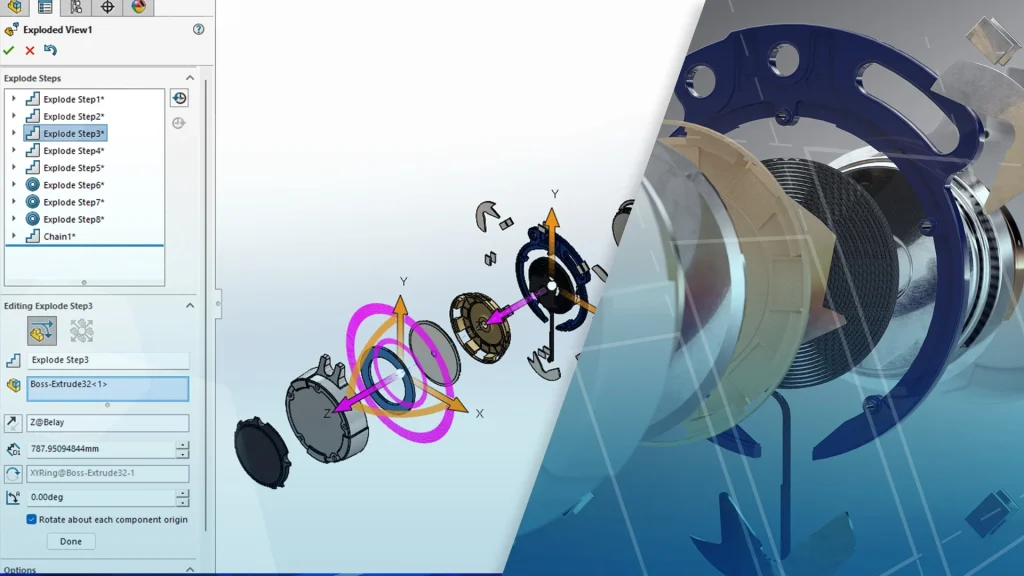
How to Create an Exploded View in SOLIDWORKS | Beginner Tutorial
Learn how to create an exploded view of an assembly in SOLIDWORKS with this beginner-friendly tutorial.
Frequently Asked Questions
This is usually due to a corrupted component or a broken reference. Try opening the assembly with all components "Suppressed" and unsuppress them one by one to identify the culprit.
Right-click the Command Manager (the area where the tabs are) and ensure the specific tab is checked. If it’s still missing, a "Registry Reset" or "Copy Settings Wizard" restore may be required.
Visit the SOLIDWORKS Hardware Certification page. Select your computer brand, model, and SOLIDWORKS version to download the specific, tested driver for your GPU
First, check your internet connection. If you are on a network license (SNL), ensure you are connected to your company’s VPN or server. If the issue persists, the License Manager service may need a restart on your server.
SOLIDWORKS is a Windows-native application. While it can run via Boot Camp or Parallels on some Macs, it is not officially supported and often leads to significant graphics and stability issues.
Go to Help > Licenses > Deactivate on your old machine first. Then, install SOLIDWORKS on the new machine and use the same serial number to activate.