











SOLIDWORKS Visualize: How Many Passes Should I Do?

Written by: Richard Earley
Published: Jul 18, 2023
| View All Blogs
Rendering is a delicate art and the secret to achieving high quality renders is to keep practising your SOLIDWORKS Visualize skills.
Something we are often asked on training courses is, “How many passes we need to do to render a realistic image?”
There is often the misconception that ramping up the number of passes will get you a higher quality image, but the truth is that you may not need anywhere near as many passes as you initially think…
So let’s run you through everything you need to know about render passes and help you create the best renders without having to wait an eternity for them to complete.
WHAT ARE RENDER PASSES?
Render passes are effectively a layer of image improvement.
In essence, we are talking about refinement. Passes are iterations or cycles that are performed on your image, and the more we have, the greater the quality of the final image.
So, fewer passes may mean a quicker render, but with fewer light calculations being completed and more noise. Noise is a random variation of colour and/or brightness in an image. It’s usually visible as speckled dots breaking up colours.
More passes may mean the render will take longer, but with less noise and more complete light calculations.
Did you know? The number of render passes does not imply file size.
It’s all about finding the correct balance with what you are rendering. In most cases, 250 passes result in a complete image. But when we have interior/enclosed environments, complex lighting and reflections/refractions, we will want to increase that to around 1000 passes.
Here we’ve put some examples of the same simple product but at different render passes:
When we are looking for quality given by passes, we need to look at areas with light effects. So look for shadows, reflections, and any clear or glass components.
The differences in the controller images are seen in the shadows underneath, but the keen-eyed among you might also notice noise/quality differences across some faces.
The AI Denoiser is a tool which can reduce the number of passes needed by a factor of 10.
This tool allows Visualise to anticipate and therefore eliminate all noise in your images without compromising quality; so instead of stating 1000 render passes to get a clear result, if the AI Denoiser is enabled, you only have to set 100 passes.
Here is the same remote control as above:
When working with the denoiser, you want it to turn on as late as possible, so that it has the most information to work with.
The denoiser settings can be found under the 3D Viewport tab in the Tools > Options menu. Set this value to 1 pass less than you will be performing on the render.
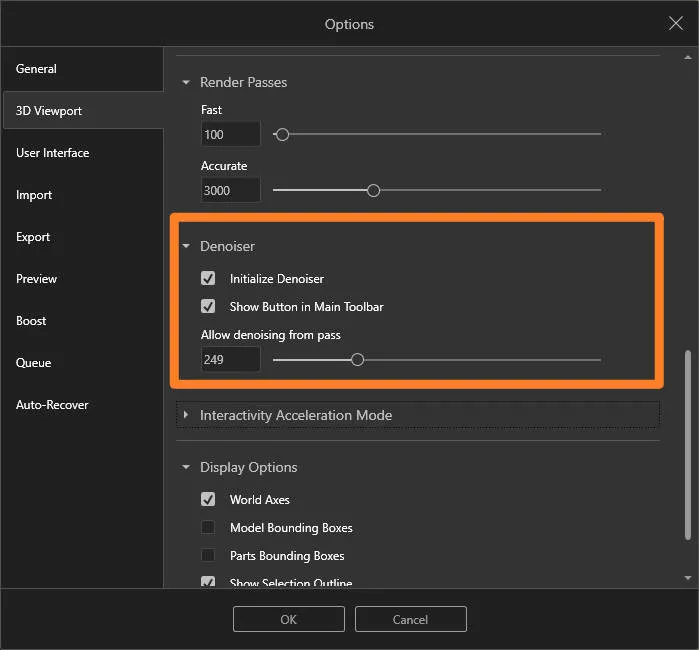
e.g. if you are rendering 250 passes, then set the denoiser to turn on at pass 249.
WHAT IS THE BEST VALUE FOR SOLIDWORKS VISUALIZE RENDER PASSES?
You’d like a nice straightforward answer, wouldn’t you? But it really depends on your model and environment.
Let’s take a look at some images with complex textures, reflections, refractions and enclosures. This is where we will start to see the AI Denoiser and a high render pass count really benefiting us.
Look through the glass and compare the refractions through the sides. Granted, both are great renders, but the extra finesse comes through on the higher pass count where you can see more detailed refractions.
Similarly, with this interior scene, the shadows in the high render pass image are more defined and the subtle shadows (like the one between the chair and the radiator) are much more evident.
Another interior scene here with some volumetric lighting. Spot the clear differences between the texture and definition of the sofa cushions, along with the light beams coming through the blinds.
The feet of this sofa have a brushed aluminium texture applied. The clarity of this texture is dramatically different between the two render pass amounts.
Essentially, providing you have the denoiser turned on, you can lower the pass counts and increase render speeds without sacrificing much at all in terms of quality.
As soon as you add textured appearances and complexity to the scene, it will be worth increasing the render pass value in order to achieve the necessary depth and detail.
Take the Next Steps…
To learn more about SOLIDWORKS Visualize and how you can create stunning realistic product renders, why not book on to one of our CPD-accredited training courses?
Whether you’re a beginner or already intimately familiar with CAD, our friendly and expert trainers are ready to help you get the most out of SOLIDWORKS and SOLIDWORKS Visualize, either online or in a classroom local to you.
Categorised as: Tech Tips | Visualisation
Get a SOLIDWORKS Quote
Interested in SOLIDWORKS? Contact us for questions, trials, or demos by clicking the button below or call 01926 333777. Our experts will help you find the perfect solution.

Related Posts

How to Find Reaction Forces in SOLIDWORKS Simulation
SOLIDWORKS helps us to find resultant forces through simulation studies. These virtual tests reduce the need for physical prototypes and give us an accurate answer.

Setting number of decimal places in a table on a drawing
When creating an equation in a drawing general table, is it possible to define the…

Why is my Flat Pattern not showing in SOLIDWORKS Drawings?
This may be linked to how the drawing is saved or it can be related to how sheet metal parts are displayed in drawings, read on to find out how to fix it.

Why is SOLIDWORKS Crashing?
It’s one of the great mysteries of life – why is SOLIDWORKS crashing? Let’s explore how SOLIDWORKS crashes and how we can improve performance in SOLIDWORKS.

Tech Support Blog: Why are my SOLIDWORKS BOM Quantities Wrong?
Why are my SOLIDWORKS BOM Quantities Wrong? A support call cropped up this week which…

SOLIDWORKS Visualize. Why go pro? – 6 Post Processing
In this blog we will be look at the post-processing options that can be found in SOLIDWORKS Visualize

SOLIDWORKS Visualize. Why go pro? – 7 Lighting
SOLIDWORKS Visualize uses a non-biased rendering engine, which allows for physically accurate lighting within a scene. It generates images with high amount of realism and correct set up can replicate photo studio lighting.

How to Get Your Serial Number for SOLIDWORKS Visualize Standard
Want to download Visualize to make photorealistic renders? Follow this guide for accessing your Visualize serial number that comes bundled in with SolidWorks Professional and Premium.

How to Recover SOLIDWORKS Files After a Crash
SOLIDWORKS has two different methods to help you recover from an unexpected crash or loss of data in the form of auto-recovery and back-up settings.

SOLIDWORKS Magnetic Mates
Magnetic makes are used within SolidWorks assemblies to easily configure and position assembly components. Through defining connection points and ground plane(s) – position components through drag and dropping one component within close proximity of another to snap the asset into position.