











Top 10 Best New Features? SOLIDWORKS 2026 What’s New
Written by: Terry O'Reilly
Published: Jan 15, 2026
| View All Blogs
As SOLIDWORKS celebrates its 30th anniversary, the 2026 release marks a milestone in CAD innovation.
From its humble beginnings as a startup in 1995, SOLIDWORKS has grown into a global leader in 3D mechanical design, empowering engineers across industries.
The latest version continues this legacy with a suite of enhancements that streamline workflows, boost performance, and integrate cutting-edge technologies like AI.
We’ve picked our favourites and asked our expert SOLIDWORKS Engineers about how they think user workflows will benefit as we count down our top 10 best new features in SOLIDWORKS 2026.
#10 – More Productive Imports and Exports
Working with non-native 3D file formats often causes bottlenecks in CAD workflows.
SOLIDWORKS 2026 introduces background processing for imports, allowing engineers to open large files without locking up their workstation.
The background import feature is a game-changer. I can finally keep working while large STEP files load in the background.
The new “Import Model as Background Process” task pane lets you continue working while files load.
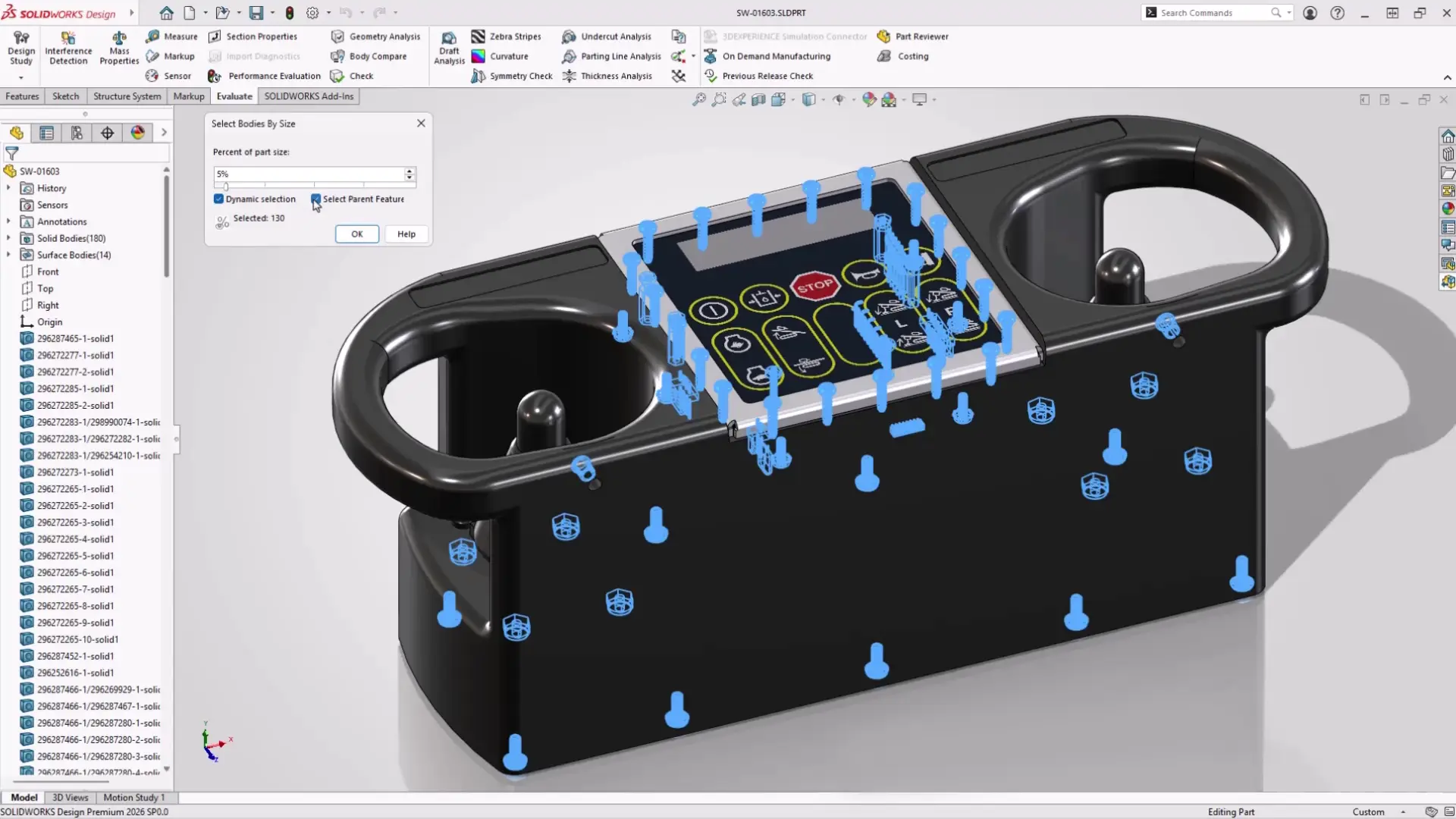
Additionally, multi-body part environments now include filters to simplify complex parts by selecting bodies based on size or volume.
These enhancements drastically reduce time spent managing imported geometry and improve overall productivity.
#9 – New Appearances & Rendering Options
Missing PhotoView360? Well, have we got some good news for you!
Rendering in SOLIDWORKS 2026 gets a major upgrade with support for DSPBR materials.
Users with licenses of SOLIDWORKS Visualize will be able to render direct from SOLIDWORKS by activating the Visualize add-in will be able to render direct from SOLIDWORKS from a single command”
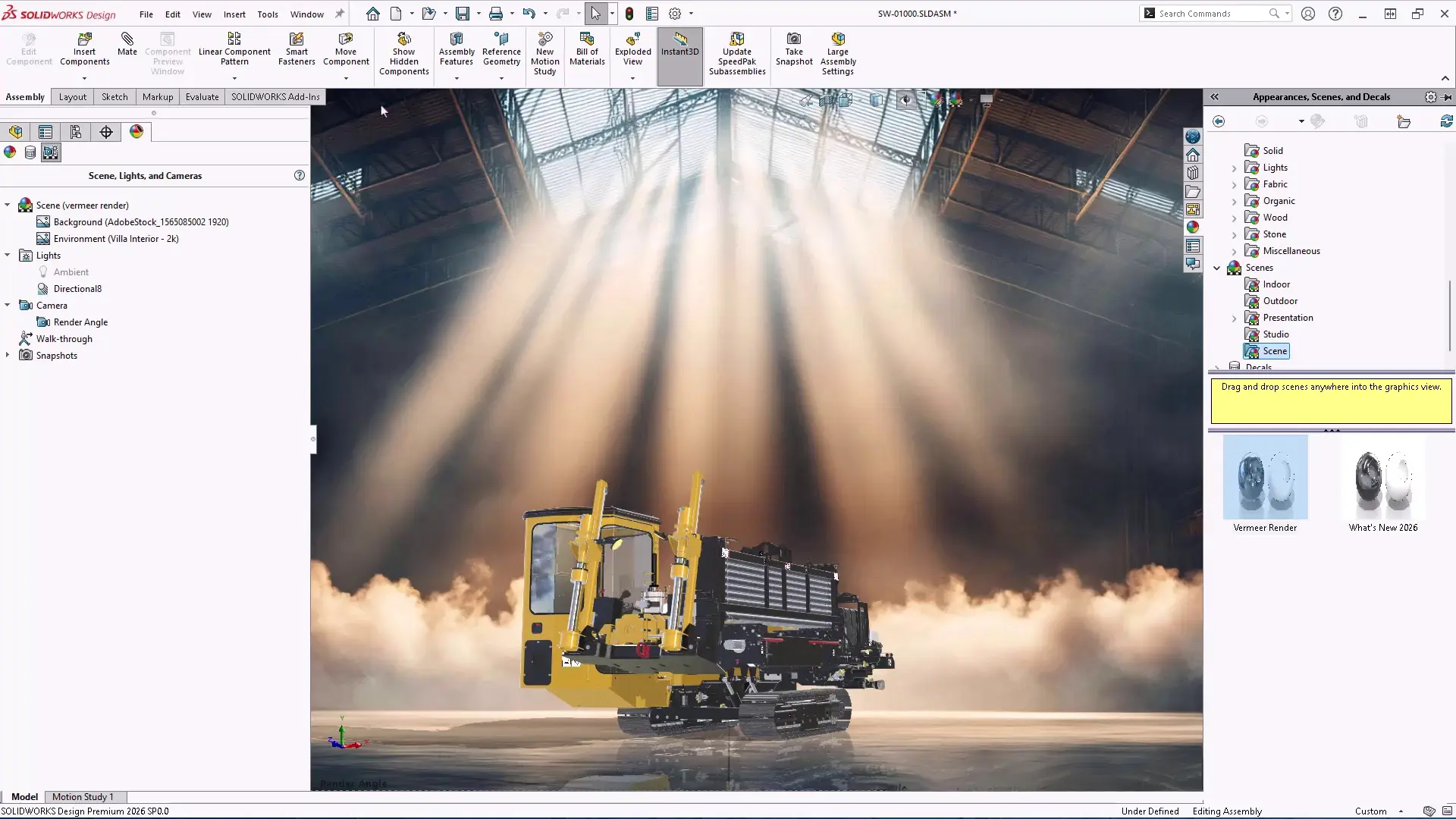
The updated appearance library delivers stunning realism while maintaining the simplicity of drag-and-drop application, as well as accurate visual import into Visualize.
As long as users have access to SOLIDWORKS Visualize, you will never need to take a screenshot of CAD again. With high quality appearances now being the standard, and single-command rendering from within SOLIDWORKS – your internal design review presentations just got better!
These are the materials we’ve come to know and love in SOLIDWORKS Visualize over the last few years, bringing a seamless rendering experience as we say goodbye to replacing appearances on import.
This streamlined workflow makes high-quality visualizations faster and more accessible than ever.
Learn more about easy ways to enhance renders with SOLIDWORKS and deliver realistic results.
#8 – Streamlined ECAD-MCAD Collaboration
Last year, CircuitWorks made headlines by formally integrating into SOLIDWORKS Electrical.
So it’s great to see more love being shown to electrical design workflows in SOLIDWORKS 2026, as collaboration between electrical and mechanical design teams is smoother.
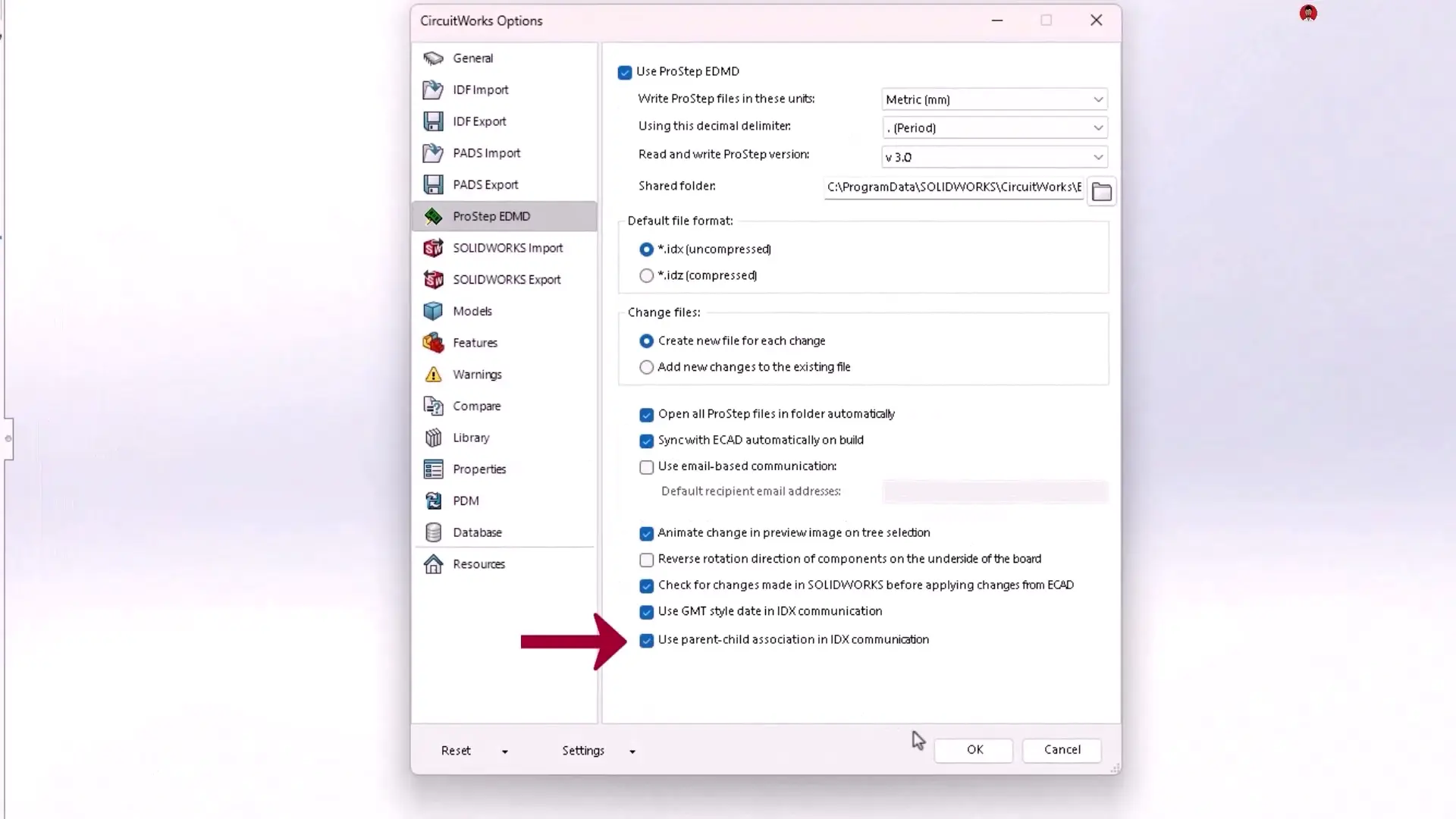
CircuitWorks now tracks parent-child data, including key pins and plated/non-plated holes, improving traceability.
Users can review and undo MCAD changes before final updates, thanks to enhancements in IDM 3.0.
The ability to undo MCAD changes before pushing updates is sure to save teams from costly PCB redesigns.
These features simplify PCB design workflows and reduce errors, making cross-disciplinary collaboration more intuitive and efficient.
#7 – Increased Flexibility for Electrical, Pipe, and Tube Routing
Routing tools in SOLIDWORKS 2026 offer greater control and customisation.
Engineers can now model insulation jackets and other protective layers directly within routes and save them as reusable favourites.
Routing BOMs can be combined across subassemblies for a comprehensive item count.
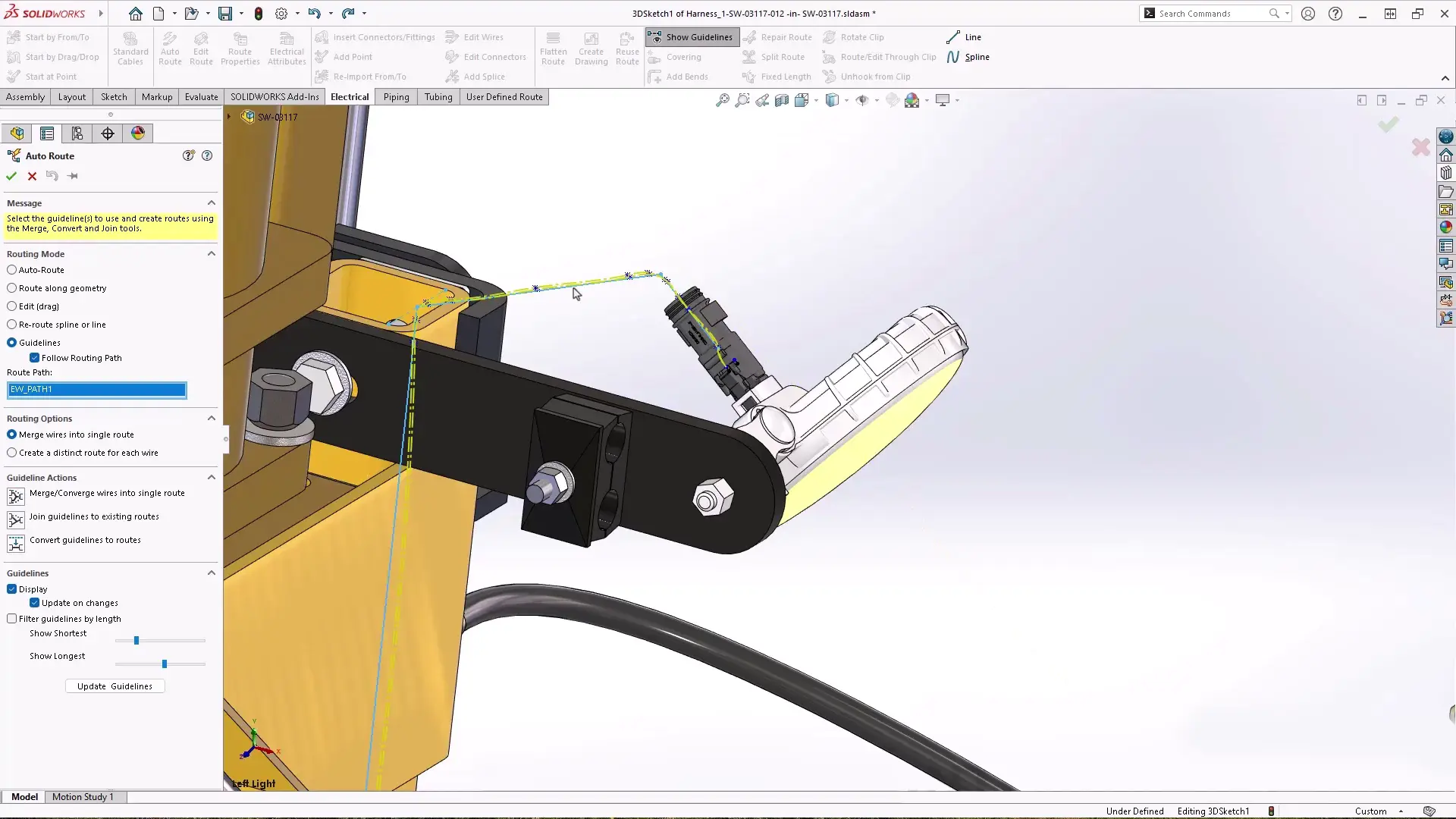
Auto-Route now supports guideline-based routing using 3D sketches, enabling organised wire, cable, and harness layouts.
The new guideline-based routing is brilliant. We should see customers creating cleaner harness designs that are easier for them to reproduce consistently.
Learn how routing enhancements can benefit your next project. Book a consultation with our experts and see how you can streamline your team workflows with SOLIDWORKS 2026.
#6 – Improved Drawing and Detailing
Technical drawings can be made clearer and more readable in SOLIDWORKS 2026 courtesy of key enhancements, improving clarity and minimising manufacturing errors.
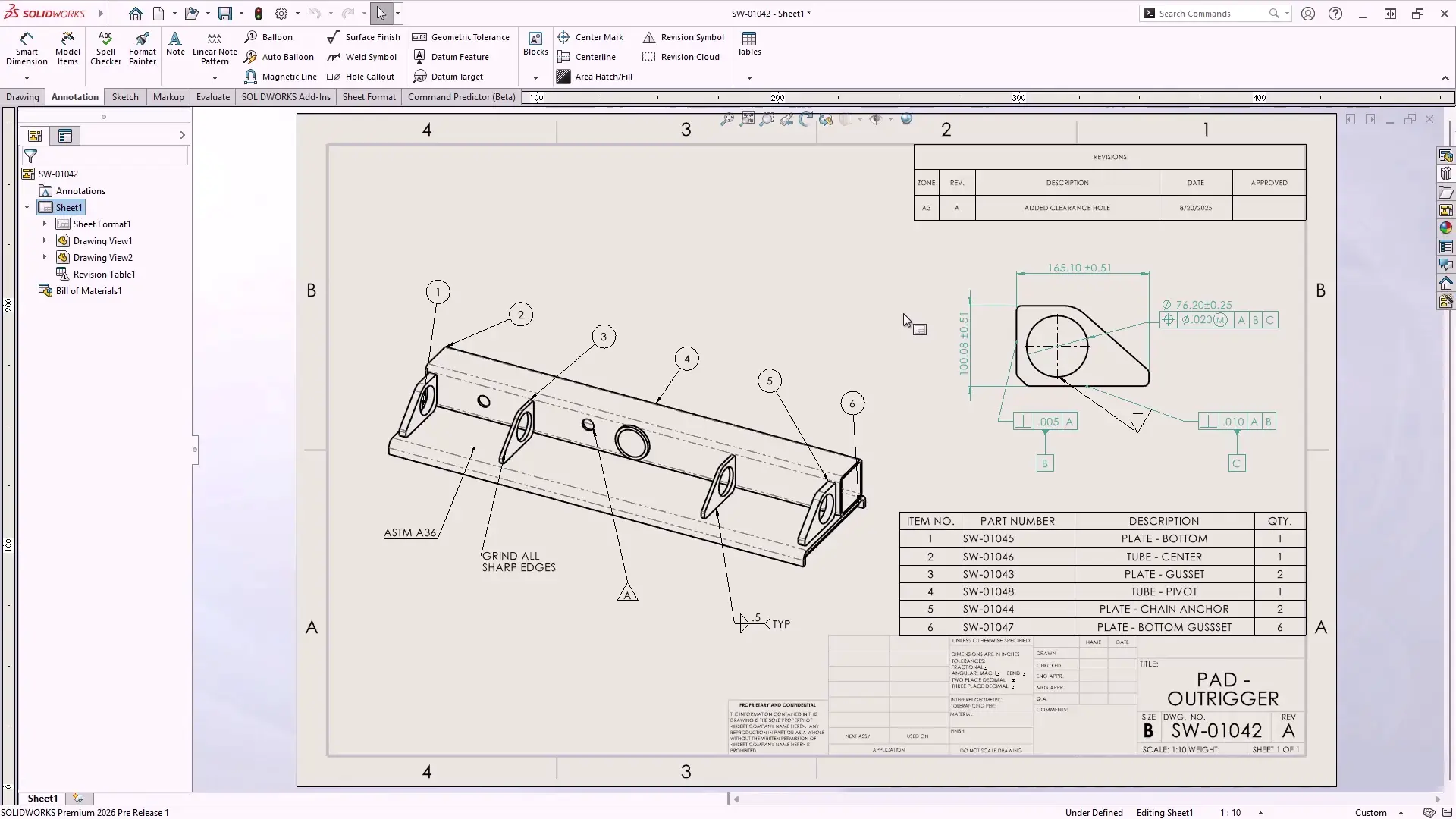
Magnetic lines now support notes, weld symbols, revision symbols and dimensions – not just balloons -making layout alignment easier.
For users of SOLIDWORKS MBD (model-based definition) you’ll also be able to hide or show multiple annotations at once, just like in 2D drawings.
These updates ensure that documentation meets diverse vendor requirements while maintaining precision.
The new dimension breaks and magnetic line updates will make interpreting released on the shop floor drawings so much easier.
#5 – More Efficient Collaboration and Data Management
Team-based design is more streamlined in SOLIDWORKS 2026 as connecting through the SOLIDWORKS Cloud Services allows you to share designs from within SOLIDWORKS with ease, keeping focus on the task at hand.
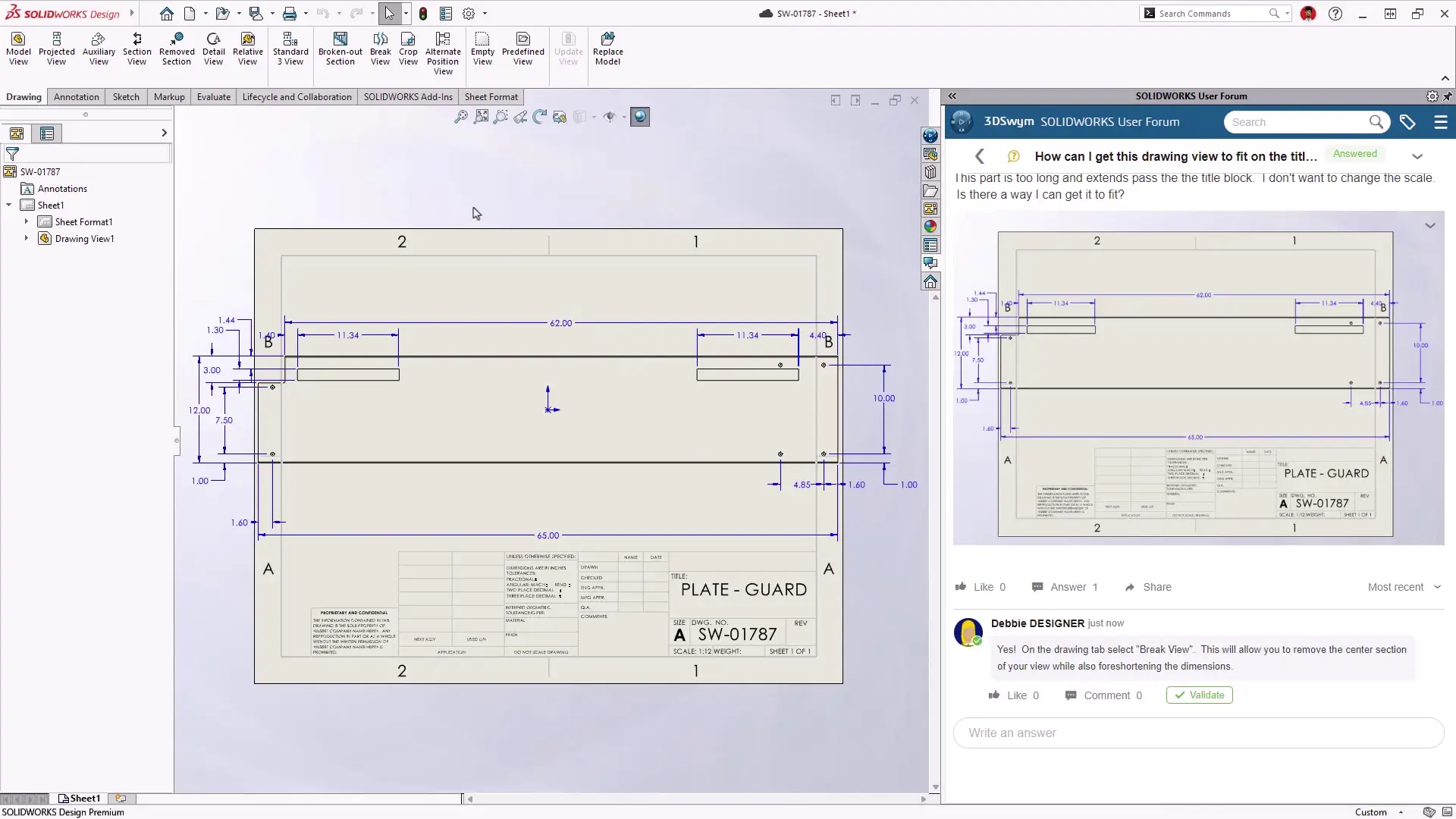
Maturity tracking and drawing history are now automated with evaluated attributes.
Configurations can be saved as individual physical products, offering greater flexibility in design structuring.
Sharing is simplified with support for standard formats like PDF, STEP, STL, and IGES, and access control ensures secure collaboration.
Sharing designs and tracking changes is now seamless with SOLIDWORKS 2026. The integration with 3DSwym will be great for keeping teams aligned.
SOLIDWORKS PDM 2026 also introduces the automatic synchronisation of Vault Views, letting the users (same or different!) work on checked-out files on different computers without having to check files in by making the most of Transfer Ownership.
#4 – Streamlined Part Design
Part creation and modification are faster and more intuitive in SOLIDWORKS 2026.
Sheet metal tools now support offset flanges and quick corner breaks and we can at long last delete equations that cause errors after the sketch or feature has been deleted!
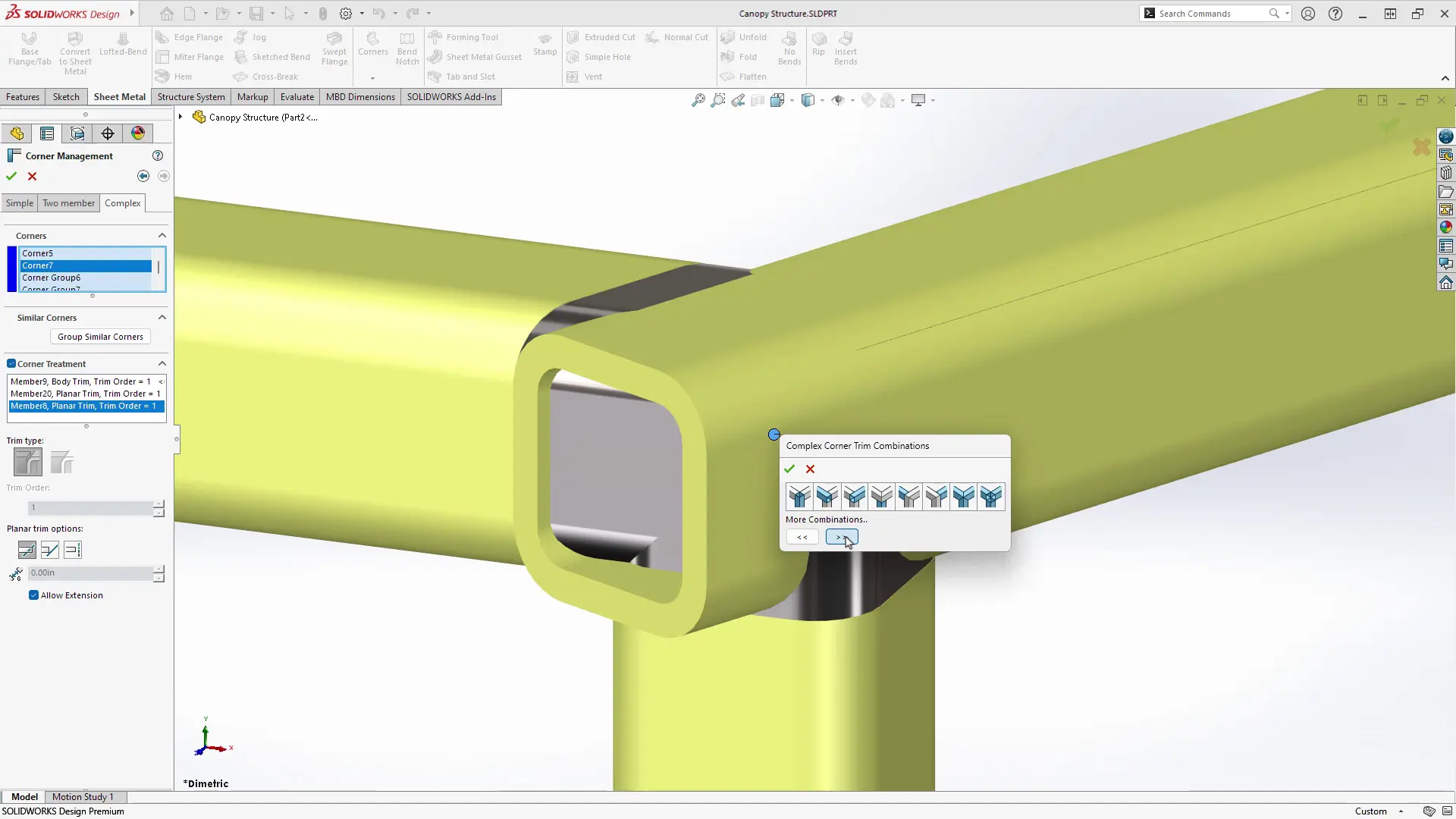
Structural system parts benefit from improved corner treatment previews and Cut List properties are now more compatible with PLM and ERP systems, enhancing traceability.
Bounding box calculations can be aligned with coordinate systems for precise volume estimations.
Offset flanges and bounding box control are sure to make the fabrication and sheet metal design process much more predictable.
#3 – Improved User Experience
SOLIDWORKS 2026 enhances usability across the board, and the 3DEXPERIENCE version of SOLIDWORKS introduces automatic offline mode to ensure uninterrupted access during connectivity issues.
The UI highlights commonly used commands, helping new users stay focused on design.
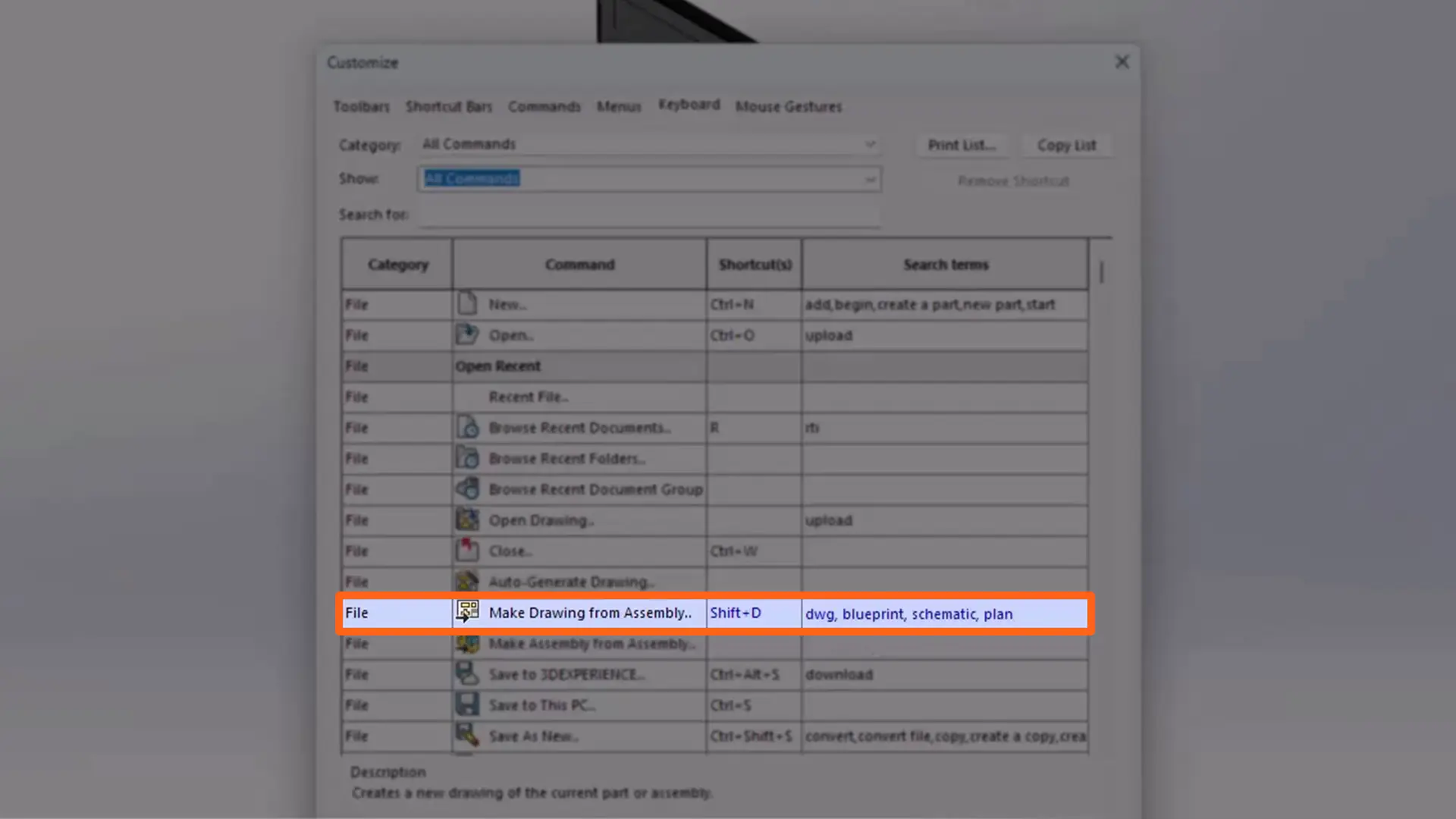
Command search is now more powerful with customizable keywords, making it easier to find tools and features. These refinements make the software more approachable for newcomers and more efficient for seasoned professionals.
The new UI is intuitive and I think the automatic offline mode is going to be really useful, especially when working with patchy WiFi!
#2 – Enhanced Large Assembly Features
Handling large assemblies is faster and more efficient.
Engineers can now filter specific portions of a design using component relationship visualisation and advanced filters from the 3DEXPERIENCE platform.
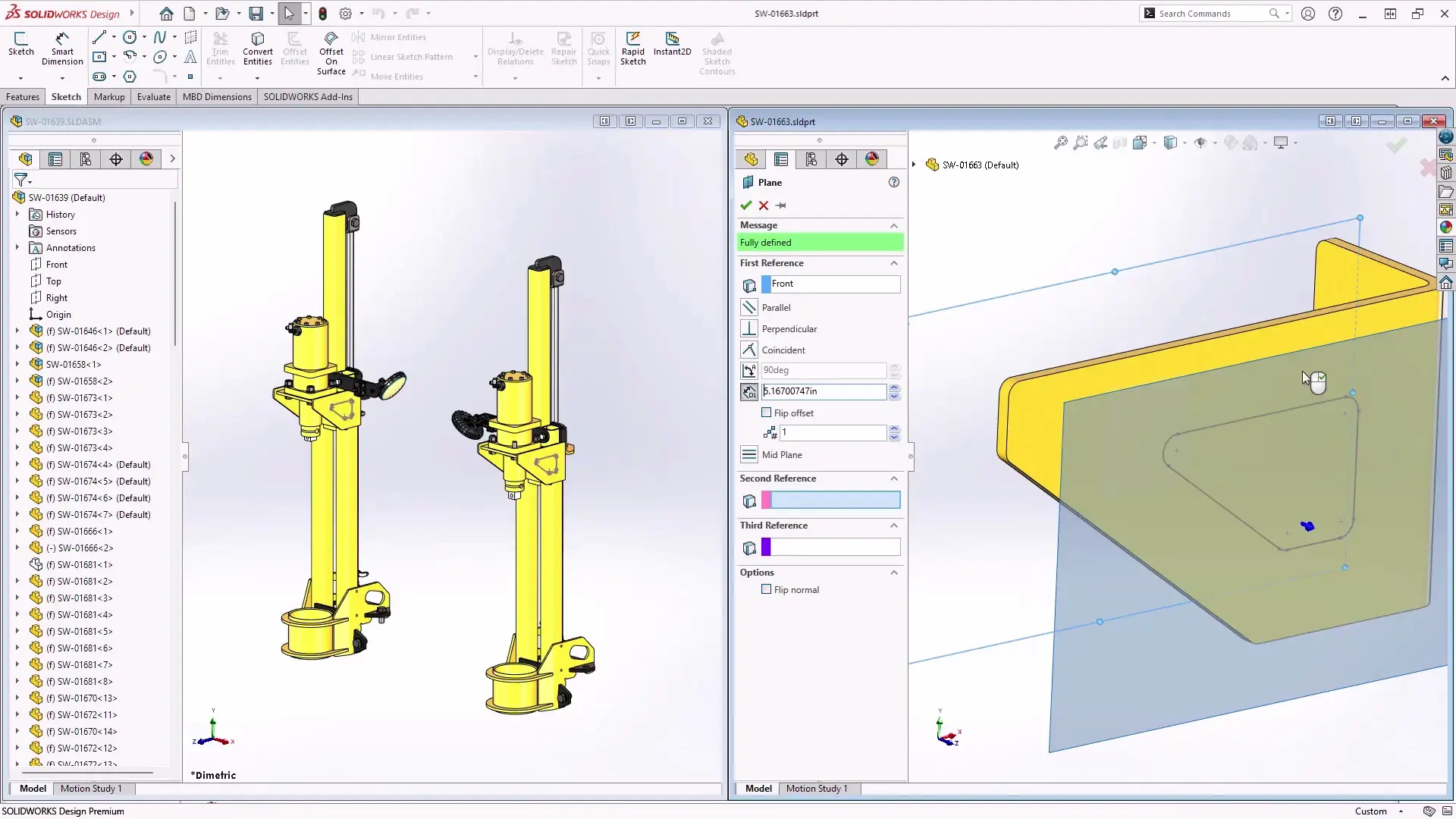
Cosmetic changes no longer trigger rebuilds, saving time and reducing network traffic.
These improvements are a game-changer for teams working with complex, data-heavy models.
Like a repeated error message, UI and performance upgrades are often dismissed. But honestly SOLIDWORKS 2026 is taking this seriously!
Skipping rebuilds for cosmetic changes is going to cut save times in half. It’s a huge win for engineering teams.”
#1 – AI-Powered Design and Detailing
The headline feature of SOLIDWORKS 2026 is its further integration of artificial intelligence.
AI now assists with drawing creation, including automated views, hole callouts, dimensioning, sheet format selection, and scaling.
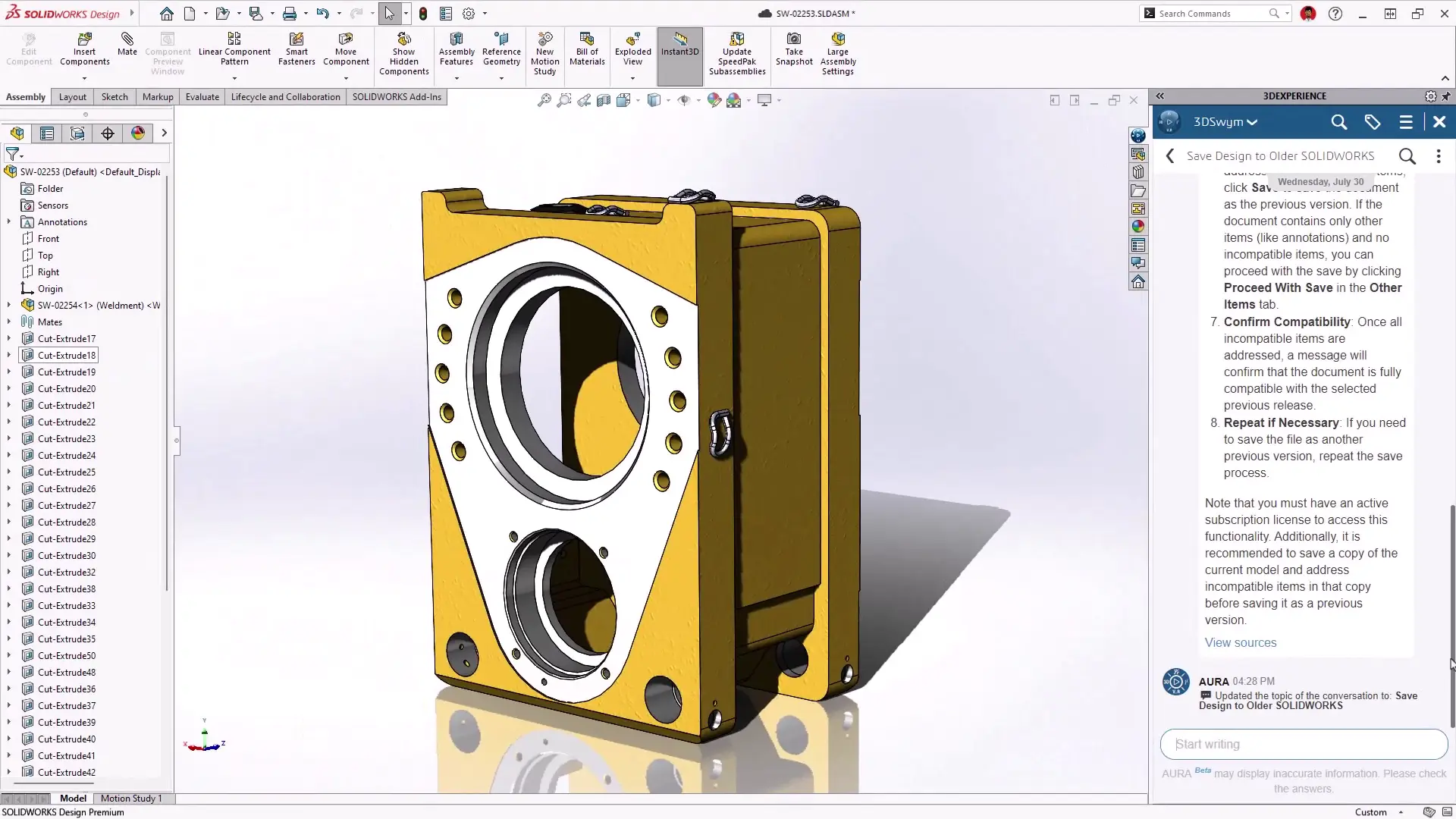
Fasteners are automatically recognised and mated—even without the SOLIDWORKS Toolbox—saving valuable time.
Drag-and-drop placement is now smarter and faster. As these AI tools evolve, they promise to eliminate repetitive tasks and free engineers to focus on innovation.
AI-powered detailing is really exciting. The intelligence coming to toolbox fasteners and drawing layouts in particular should help teams to drastically cut drawing time.
It’s like having your own support team built into SOLIDWORKS! But obviously I’d still recommend human insight when looking for creative solutions or when tackling infrastructure challenges.
AI won’t replace our Technical Support team!
It Doesn’t Stop At 10…
SOLIDWORKS 2026 represents a leap forward in CAD technology, blending performance, usability, and intelligence to meet the demands of modern engineering with countless updates across the SOLIDWORKS portfolio.
So whether you’re designing intricate assemblies or collaborating across disciplines, this release delivers tools that make your workflow faster and smarter.
Categorised as: Software | What's New
Discover our SOLIDWORKS Subscription
Get the most from your tools and the best from your designers with a SOLIDWORKS subscription package that is designed to help you succeed.

Related Posts

How to Find Reaction Forces in SOLIDWORKS Simulation
SOLIDWORKS helps us to find resultant forces through simulation studies. These virtual tests reduce the need for physical prototypes and give us an accurate answer.

Setting number of decimal places in a table on a drawing
When creating an equation in a drawing general table, is it possible to define the…

SOLIDWORKS Smart Fasteners
SOLIDWORKS Smart Fasteners is a really useful time saving tool, allowing you to automatically insert toolbox fasteners such as bolts and screws into an assembly providing there is a standard hole.

Why is my Flat Pattern not showing in SOLIDWORKS Drawings?
This may be linked to how the drawing is saved or it can be related to how sheet metal parts are displayed in drawings, read on to find out how to fix it.

SOLIDWORKS Tips: Are you Making this Common Mistake in Fatigue Analysis?
Simulation is a vital and complex engineering need. Fortunately, SOLIDWORKS makes it easy to test, correct mistakes and obtain accurate results.

SOLIDWORKS Visualize. Why go pro? – 6 Post Processing
In this blog we will be look at the post-processing options that can be found in SOLIDWORKS Visualize

SOLIDWORKS Visualize. Why go pro? – 7 Lighting
SOLIDWORKS Visualize uses a non-biased rendering engine, which allows for physically accurate lighting within a scene. It generates images with high amount of realism and correct set up can replicate photo studio lighting.

How to Get Your Serial Number for SOLIDWORKS Visualize Standard
Want to download Visualize to make photorealistic renders? Follow this guide for accessing your Visualize serial number that comes bundled in with SolidWorks Professional and Premium.

How to Recover SOLIDWORKS Files After a Crash
SOLIDWORKS has two different methods to help you recover from an unexpected crash or loss of data in the form of auto-recovery and back-up settings.

Redesigning Santa’s Sleigh in SOLIDWORKS
Every year Father Christmas has to fly in his sleigh to deliver presents to boys and girls all over the world in just one night. To put this into perspective, it takes a little under 24 hours to fly from London (UK) to Sydney (Australia) in a streamlined Boeing 747, whereas Father Christmas’ mode of transport is believed to be a rather non-aerodynamic sleigh.