











Top 5 Challenges in Furniture Design and How SWOOD Solves Them
Written by: Franklin Fairbrass
Published: Mar 18, 2026
| View All Blogs
Furniture design and production come with a unique set of challenges which can slow down workflows and limit flexibility. From managing custom specifications to bridging the gap between design and manufacturing. These common hurdles often prevent teams from working as efficiently and creatively as they’d like.
SWOOD is purpose-built for the furniture industry, designed to eliminate these workflow barriers. It streamlines processes and integrates seamlessly within SOLIDWORKS, enabling a more agile, accurate, and productive approach to furniture design.
Adapting To Client Changes
Working closely with clients means you must be able to quickly and nimbly cater to changing demand and design requirements. SWOOD is designed to provide you with a simple interface to allow you to drive changes as when required with minimal effort.
Material Changes/Changing Board Sizes
The Edit Frame command allows you to effortlessly change the material or thickness of panel used in your projects. This parametrically updates your model, allowing hardware and other features to rebuild to the correct depths, and it will also change edge band size and material to match, saving you time spent tinkering with model geometry.
Size Changes
Layouts are ideal for driving size changes quickly and easily across multiple models, this allows you to make changes and see the update in the models in a matter of a few clicks.
SWOOD Centre
Do you often find yourself creating the same model with different sizing and features over and over again? With SWOOD Centre Service, that delay is a thing of the past. By capturing key parameters from your SWOOD models and organising them in a user-friendly interface, any team member can quickly and easily drive changes to generate a copy of an existing model with different parameters, ready to be manufactured. This frees up time spent re-doing existing work, and ensures your team stays agile and productive.
Miscommunication between teams
Often designs are passed through multiple teams from product conception to manufacture. This leaves you vulnerable to miscommunications when progressing through the workflow. SWOOD has several inbuilt features designed to make transition between teams seamless with no fuss.
Grain
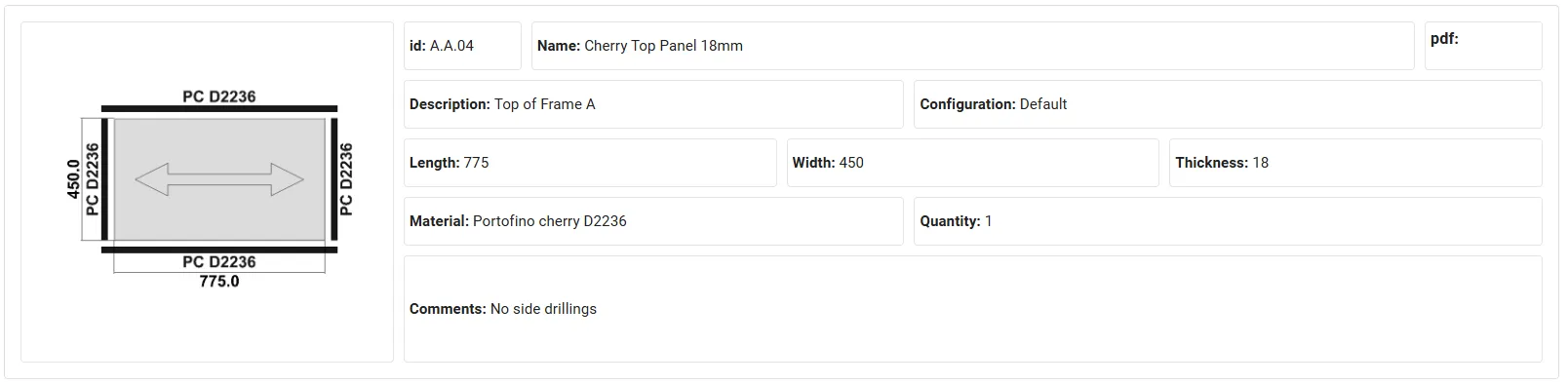
When working with boards containing grain it is important to communicate grain direction for each of the panels. This tracked throughout the design process in SWOOD ensuring all board are nested and cut with the correct grain orientation. Additionally, this is easily communicated within the SWOOD Report interface, ensuring all panels are correctly cut first time leaving no room for confusion.
Cut Size Vs Finished Size
Edge banding is common practise when manufacturing furniture. It is important the manufacturing team can clearly read sizing for panels both with and without edge bands. SWOOD uniquely offers the ability to simply and effectively display this within the reporting interface meaning no more cut sizing mistakes.
Data Management
As new revisions of products are released it is easy for a miscommunication to occur where the wrong version of the product is being used for manufacture. Eliminate this by combining the power of SWOODs collaborative library with PDM integration, allowing for a shared library of panels connectors and frames alongside dedicated workflows, revision systems, and approval states.
Inefficient Material usage
Nesting
Efficient material usage is a top priority in furniture manufacturing, SWOOD Nesting reduces the likelihood of material wastage. It automatically arranges panels onto boards which match your stock availability. It leverages advanced nesting algorithms, minimising offcuts and maximising yield. The software considers all design requirements allowing for seamless CNC integration. You can reduce waste, lower costs, and streamline production all whilst maintaining high-quality standards and sustainability goals.
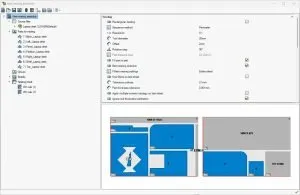
- SWOOD Nesting Interface
Reusing Offcuts
Do you often end up with offcuts of material that aren’t reused? SWOOD Nesting allows you to calculate offcuts and reimport them into your library for reuses. The offcut material can also be prioritised to be used first meaning you won’t have a surplus of board offcuts.
Workflow Efficiency
Creating duplicates of work and spending excess time modelling similar carcasses and inserting correct connectors and machining wastes designer’s time. SWOOD design offers automation at almost every step of the design process. From allowing you to easily copy and edit existing geometry, to setting up connector scripting so that models automatically update to size changes. SWOOD Design aims to make the design process as simple as possible with little room for manual error.
Insert Machining Definition with SWOOD Boxes
Make full use of SWOOD automation capabilities and ensure you add relevant machining operations to your panels with a simple click and drag. SWOOD Boxes can be set up with Machining definition allowing you to propagate relevant holes and cuts through to your frame panels, so you never forget to add them, and they never end up misaligned due to design changes.
Automated CAM Features
Add automatic machining operations to your panels. SWOOD has the intelligence to automatically recognise pockets, drills, and common connector geometry such as Clamex grooves. Combining this with automatic machining insertion can greatly reduce the amount of additional steps required to set your part up for manufacture.
Translation from 2D to 3D
Traditional design methods such as sketch pages have long been a staple of early-stage ideation. These quick, informal drawings often capture the spirit of a concept but lack the precision needed for modern manufacturing, and the transition from 2D to the manufactured result can leave room for errors. This disconnect slows down workflows and leads to costly mistakes in production. SWOOD integrates design and manufacturing within the SOLIDWORKS environment, offering a fully parametric 3D modelling solution from concept to final machining instructions. SWOOD eliminates the guesswork and bridges the gap between concept and execution, ensuring accuracy from sketch to shop floor.
The Report
At the manufacturing stage there is often no need for the machinists to have access to the full design software. The SWOOD report encapsulates all necessary data to send to the workshop in a lightweight html file format, allowing it to be viewed on any device. The report is also fully customisable ensuring all the data critical to your designs is communicated efficiently between teams.
Categorised as: Manufacturing | SWOOD | Tech Tips
Get a SOLIDWORKS Quote
Interested in SOLIDWORKS? Contact us for questions, trials, or demos by clicking the button below or call 01926 333777. Our experts will help you find the perfect solution.

Related Posts

How to Find Reaction Forces in SOLIDWORKS Simulation
SOLIDWORKS helps us to find resultant forces through simulation studies. These virtual tests reduce the need for physical prototypes and give us an accurate answer.

Setting number of decimal places in a table on a drawing
When creating an equation in a drawing general table, is it possible to define the…

Why is my Flat Pattern not showing in SOLIDWORKS Drawings?
This may be linked to how the drawing is saved or it can be related to how sheet metal parts are displayed in drawings, read on to find out how to fix it.

Why is SOLIDWORKS Crashing?
It’s one of the great mysteries of life – why is SOLIDWORKS crashing? Let’s explore how SOLIDWORKS crashes and how we can improve performance in SOLIDWORKS.

Tech Support Blog: Why are my SOLIDWORKS BOM Quantities Wrong?
Why are my SOLIDWORKS BOM Quantities Wrong? A support call cropped up this week which…

How to Get Your Serial Number for SOLIDWORKS Visualize Standard
Want to download Visualize to make photorealistic renders? Follow this guide for accessing your Visualize serial number that comes bundled in with SolidWorks Professional and Premium.

How to Recover SOLIDWORKS Files After a Crash
SOLIDWORKS has two different methods to help you recover from an unexpected crash or loss of data in the form of auto-recovery and back-up settings.

SOLIDWORKS Magnetic Mates
Magnetic makes are used within SolidWorks assemblies to easily configure and position assembly components. Through defining connection points and ground plane(s) – position components through drag and dropping one component within close proximity of another to snap the asset into position.

SOLIDWORKS Dimensions – Collated Quick Tips
We have collated some of our favourite tips on creating, manipulating and controlling dimensions in SolidWorks, both at a sketching and drawing level. Read on to find out more…

How to Deactivate (Transfer) a SOLIDWORKS License
A SOLIDWORKS standalone license can only be activated on one machine at a time. If you plan on moving your SOLIDWORKS license to another machine you will first need to deactivate it. Additionally if a standalone license has ended up on multiple machines or you are making a change to your computer, you will need to deactivate the license first.