











SOLIDWORKS Assembly Modelling Training
In the SOLIDWORKS Assembly Modelling training course learners master top-down assembly design in SOLIDWORKS for bespoke components. Learn shortcuts, automated configurations, and advanced assembly management for improved large assembly performance.

Course Overview
SOLIDWORKS Assembly Modelling training explores designing “top down” within the context of an assembly, ideal for bespoke/ one off components. Speed up assembly generation with shortcuts and tips and tricks for standard parts and fixings.
The course also looks at automated assemblies with configurations, post assembly modifications and an in depth look at assembly management. This course is a must for customers that generate larger assemblies to understand how to reap benefits of large assembly performance and management.
NOTE: This course is available as part of the Silver, Gold & Platinum Training Passports.
What You'll Learn
Course Agenda
Lesson 1: Advanced Mate Techniques
The first lesson of this course introduces the user to the SOLIDWORKS assembly structure and how they reference other files. The user will learn how to use various mate types and how to utilize shortcuts for mating components.
Lesson 2: Top-Down Assembly Modelling
In lesson 2, the user will learn how to build and edit a new part within the context of an assembly by employing Top-Down assembly modelling techniques. The user will be taught how to create component features in the assembly context by referencing geometry in existing neighbouring parts, and then how to remove these external references so that the part becomes completely independent from the Assembly File.
Lesson 3: Assembly Features, Smart Fasteners and Smart Components
Upon completion of lesson 3 the user will be able to create features that represent post-assembly machining operations. They will learn how to insert hardware using Smart Fasteners as well as how to create and use Smart Components.
Lesson 4: Assembly Editing
Lesson 4 teaches the user how to replace components in an assembly and how to diagnose and fix any mating errors when the assembly becomes over-defined. This lesson also introduces some of the mirroring and patterning features that are available within an assembly such as creating opposite-hand versions of existing components.
Lesson 5: Using Configurations with Assemblies
Lesson 5 focuses on creating different variations of your assembly by switching components on and off via the use of configurations. The user will firstly learn how to create a configuration of an assembly and then how to automate the creation using a table approach. Secondly, the user will be taught how to link and build mathematical equations between component dimensions. Lastly, the lesson moves on to using sensors to define design requirements such as minimum acceptable clearance and using the mate controller to animate varying positions of an assembly with the use of distance and angle mates.
Lesson 6: Display States and Appearances
In Lesson 6, the user will learn how to create display states to create visual representations of the assembly and learn how to apply appearances and materials to components and modify the mapping of textures to create a more realistic visual. The user will also be taught methods of selecting multiple components using the selection manager.
Lesson 7: Large Assemblies
Lesson 7 teaches the user how to configure large assembly settings, and take advantage of lightweight components to improve performance when working with large assemblies. The user will learn how to use advanced selection techniques, create graphical representations of sub-assemblies (SpeedPak), and simplify assembly components by replacing them with less detailed part versions. Finally, the user will be taught how to use the Assembly Visualisation tool to sort the assembly components in a list based on various properties such as Mass.
Lesson 8: Large Design Review
Lesson 8 demonstrates the abilities and advantages with Large Design Review mode. This mode itself allows you to open large assemblies quickly, with only a subset of model data loaded into memory. The user will configure a large assembly and evaluate the model taking measurements, hiding components, snapshots and using interference detection. We will also demonstrate the limited editing capabilities this tool has to offer, like manipulating mates and deleting components using the Edit Assembly mode.
Lesson 9: Facility Layout
In Lesson 9, the user will learn how to setup & make use of Magnetic Mates to automate the mating and positioning between components. The user will start by creating various connection points on each component, which can then be snapped together within the top-level assembly.
What do our customers say?
We use Feefo (the global feedback engine) to gather anonymous but certified genuine reviews from our customers. We continually use customer feedback to improve the service that we offer to our customers and to motivate our team.
Click the Feefo button below to read the latest reviews for this course.
Training Booking Process
How to book a course?
Training Methods

Self-Paced
Student, job-seeker, or working professional? Our SOLIDWORKS self-paced training essentials course gives you the flexibility to learn when and where you want.
In-Classroom / Virtual
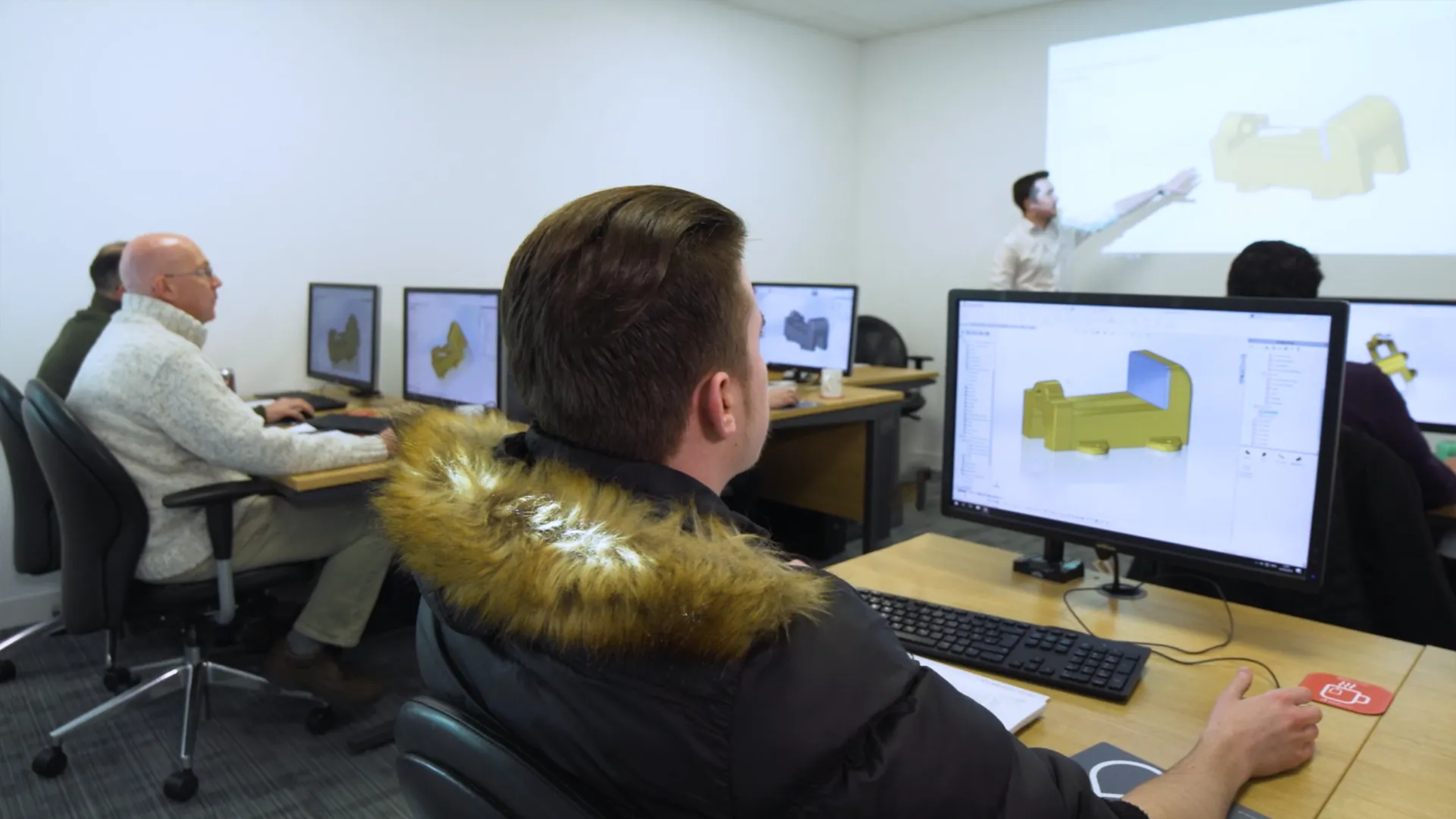
For those who prefer a traditional classroom environment courses can be taken in one of our training locations in the UK and Ireland.
Our virtual courses provide hands-on, live, interactive group training session from a professional, qualified instructor.
Onsite / Bespoke
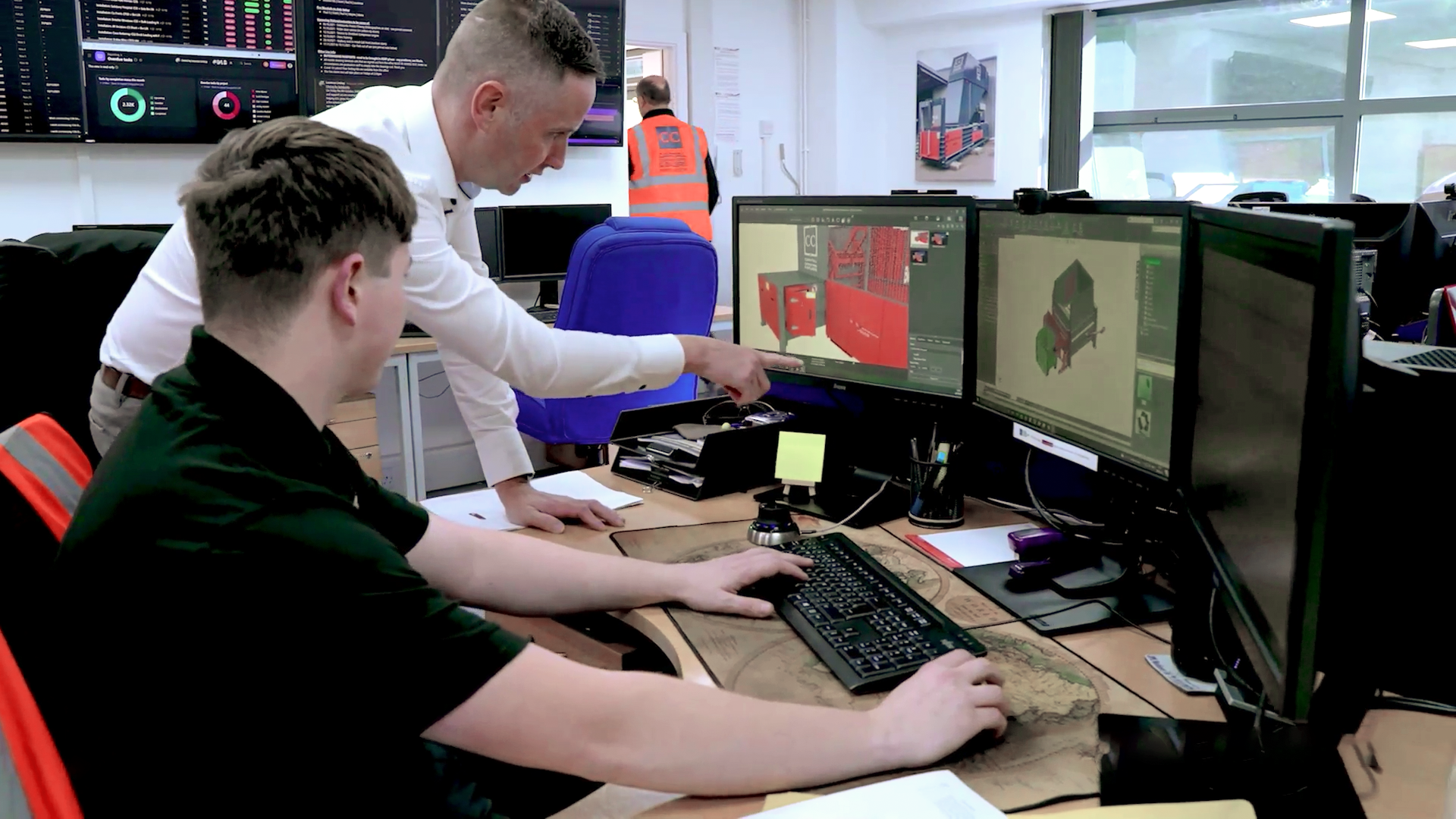
We can arrange onsite training for any of our courses, contact us to discuss further.
Book your course
Click to view upcoming SOLIDWORKS Assembly Modelling Training courses, book your place on the course today to save your space. No upfront payment necessary.
Frequently Asked Questions
Accredited
- SOLIDWORKS certified training instructors
- All courses are CPD-accredited for professional development
- Attendees receive certificates for every course
Variety & Frequency
- Courses run every week of the year (1200+ per year)
- 70+ courses, we cover a broad range of topics and software
- Training passport bundles provide amazing value
Convenience
- 22 training venues located across the UK & Ireland
- State-of-the-art Virtual training is available
- We can arrange onsite and bespoke training courses
Quality
- 4.9 Star rating on Feefo for training courses
- Limited class sizes ensure personal attention
- Hands-on format with high-end PCs for every attendee
You can reserve your place on our SOLIDWORKS training courses for free via our course schedule.
Simply find the course you'd like to attend and click 'Book Now' and complete your registration.
If you have already purchased a course or passport then there is nothing else you need to do. If you haven't bought the course yet then your SOLIDWORKS account manager will be in touch to discuss your requirements and arrange payment.
Alternatively you can give us a call on 01926 333777 and book your course today!
Yes! All of our classroom and virtual courses are CPD-accredited, meaning you are guaranteed to progress in your professional development.
A SOLIDWORKS Passport offers you a comprehensive training and development plan in one single purchase.
These Passports allow you to make massive savings on training, compared to purchasing multiple courses one at a time.
Separate Passports are available for SOLIDWORKS CAD & SolidCAM, depending on your design & manufacturing needs.
Each SOLIDWORKS CAD Passport can be purchased in different lengths that are valid for 1, 2, 3 or 5 years. The passport is active from the date of the first course you attend.
We recommend new SOLIDWORKS users start off with SOLIDWORKS Essentials. From there the courses that you benefit you most will depend on your products and workflow.
For most professional SOLIDWORKS users the best courses to take next are: Advanced Part Modelling, Drawings, Advanced Assembly modeling.
We are always happy to discuss your requirements and provide advice on the best training and resources for you. Speak to your account manager, contact us online or get in touch via training@solidsolutions.co.uk.
Every license of SOLIDWORKS on subscription comes with complimentary exam vouchers so you can get certified. Learn more about the series of exams on our dedicated SOLIDWORKS Certifications page.
Book your next course to continue your journey to becoming a certified SOLIDWORKS expert.
We have a variety of classrooms across the UK and Ireland where you can learn SOLIDWORKS. Check out our SOLIDWORKS Training locations here and find a venue near you.
Our virtual classrooms can be accessed by anyone, anywhere. So in the unlikely event that there isn't a classroom nearby, or you'd prefer to attend remotely, You can still attend your chosen training course.
Get in touch with our team as soon as you are able to. Give us a call on 01926 333777 or email training@solidsolutions.co.uk and we can assist you.
Take a look at our Training Course Schedule, as you may be able to rearrange to attend an alternative date for your chosen course.
Our courses offer free cancellation providing the cancellation occurs outside of the fourteen days before the course start date.
Please refer to the Terms & Conditions for full information surrounding cancellations & fees.
Other Training Courses
SOLIDWORKS CAM Professional Training
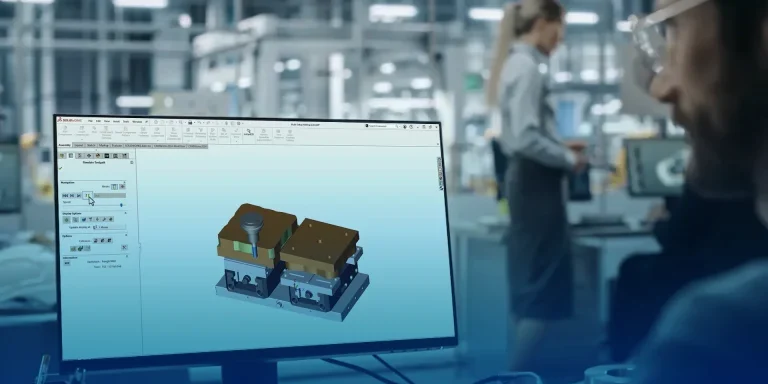
The SOLIDWORKS CAM Professional training course expands your CAM abilities to work with assembly files and Volumill for complex 3D shapes.

SOLIDWORKS Manage Training
The SOLIDWORKS Manage training is designed to develop the fundamental skills and concepts required to administrate SOLIDWORKS Manage effectively.
SolidCAM Advanced Mill-Turn Training
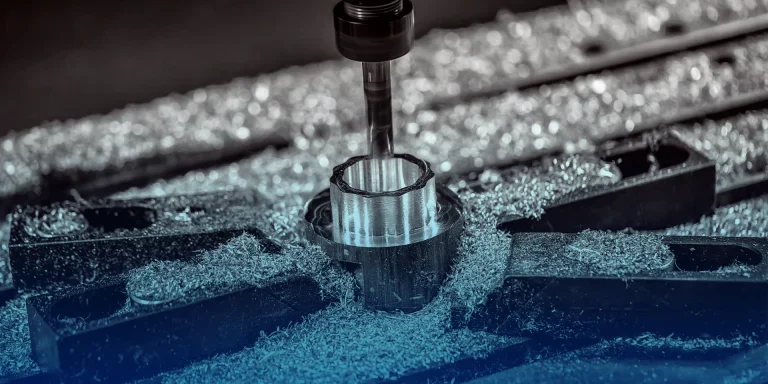
Discover more complex techniques involved with turning and further your knowledge of SolidCAM.

SOLIDWORKS Electrical 3D Training
The SOLIDWORKS Electrical 3D training course teach you how to use SOLIDWORKS Electrical to optimise your drawings and designs for manufacturability so you can maximise quality, avoid rework and decrease time to market. This course is focused on 3D Design.
SOLIDWORKS CAM Standard Training
A comprehensive introduction to SOLIDWORKS CAM and the basic principles behind Milling and the Tech DB.
SWOOD Design Creator Training
Our SWOOD Design Creator Training will teach you how to build an intelligent library of frames, connectors, and SWOODBoxes for use in your SWOOD Design projects.
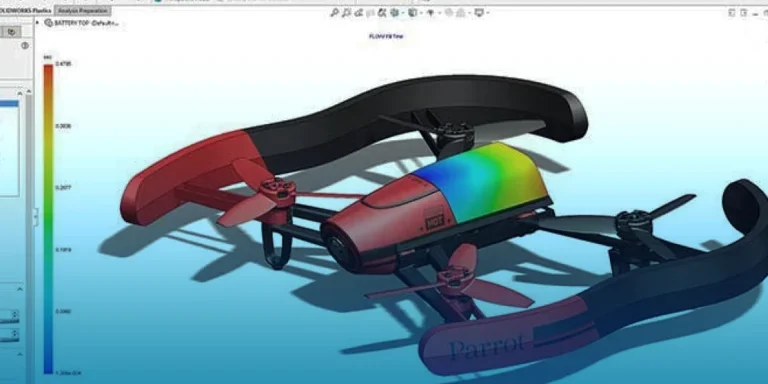
SOLIDWORKS Plastics Standard Simulation Training
SOLIDWORKS Plastics Standard Simulation training course teaches users how to simulate early stages of the injection moulding process to improve performance.
SOLIDWORKS Motion Simulation Training
Simulate the effect of gravity, movement, and interactions between components with our SOLIDWORKS Motion Simulation training.

SOLIDWORKS Animations Training
By joining our SOLIDWORKS Animations training, you will learn how to create dynamic animations for documentation, review, or marketing with SOLIDWORKS and SOLIDWORKS Visualize
SOLIDWORKS Composer Training
The SOLIDWORKS Composer training teaches you how to create high quality vector images, animated assembly sequences, and fully interactive documents.