











What’s New in SOLIDWORKS Data Management for 2024?

Written by: Wayne Marshall
Published: Feb 27, 2024
| View All Blogs
In SOLIDWORKS PDM, adding files and changing state is now twice as fast, and the option to copy tree to compressed archives is orders of magnitude faster than in previous years!
It’s not just performance, though, as there are plenty of new and improved features coming with the latest release!
SOLIDWORKS PDM, SOLIDWORKS Manage, and the 3DEXPERIENCE platform all see helpful updates that are sure to enhance the user experience, increase productivity, and boost collaboration.
#1 – ASSEMBLY VISUALISATION
You can now visually represent your PDM variables in your model with the improved Assembly Visualisation tool in SOLIDWORKS.

This can link up to your PDM variables, even those which aren’t connected to SOLIDWORKS custom properties and system variables.
You could use this to display the overall project maturity by highlighting all approved documents in one colour and those awaiting approval in another.
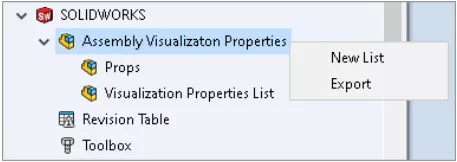
This feature also adds the Assembly Visualisation node into the SOLIDWORKS settings in the PDM Administration tool, allowing you to customise the list of usable variables and control which users/groups can use them in this way.
#2 – IMPROVED PDM ADD-IN
The SOLIDWORKS PDM Add-In handles actions such as saving files into PDM, performing file operations, and reviewing data card variables from within SOLIDWORKS, allowing you to work seamlessly on your SOLIDWORKS files stored in PDM.
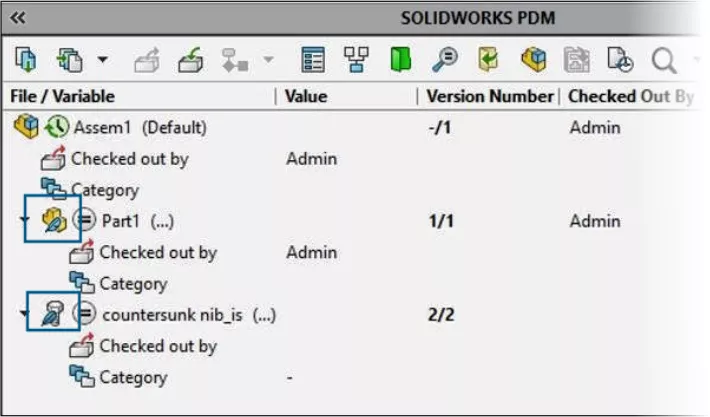
Previously, this had limited functionality when working with lightweight components, forcing you to resolve lightweight components to ensure full control.
The add-in now displays these with an icon overlay and supports all PDM operations on lightweight components.
You can also enable the setting ‘Automatically optimise resolved mode, hide lightweight mode’ while the PDM Add-In is enabled, which was previously prohibited.
The add-in options also support more system variables than before, allowing more information to be displayed.
There’s no better way to learn SOLIDWORKS than to get hands-on with the software in a classroom environment, under the tutelage of our expert and friendly trainers.
Discover our SOLIDWORKS Training Courses and develop your skills.
#3 – LATEST VS CACHED VERSIONS
The Version tab in Explorer now lets you see the information of the latest version, and not just the cached file information, clarifying the information being shown.
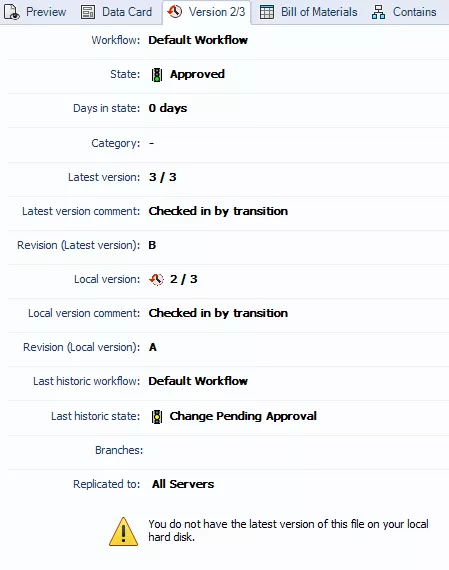
The Days in State information is also displayed, so at a glance this can be used to determine files which may need addressing (for example, if they are pending approval).
#4 – FILE DETAILS & OPERATIONS
Weldment cut list items now show unique file type icons in the file details (e.g. Where Used) and file operations (e.g. Check Out) dialogs, as well as through the Web 2.0 interface.
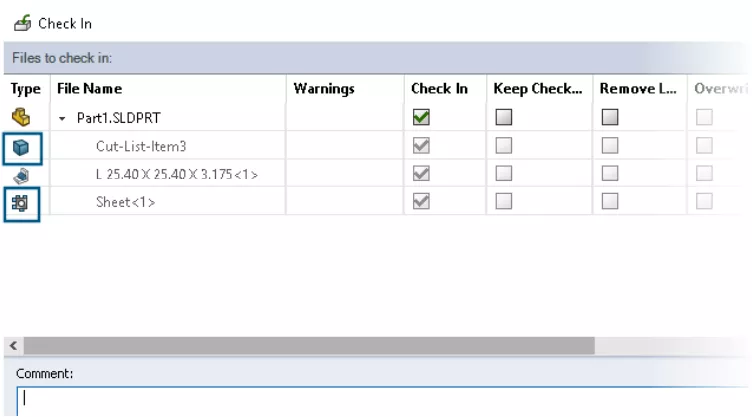
This can help determine the difference between bodies at a glance.
In previous releases, files which would normally be hidden due to a lack of permissions can still be visible in many file operation and file detail dialogs.
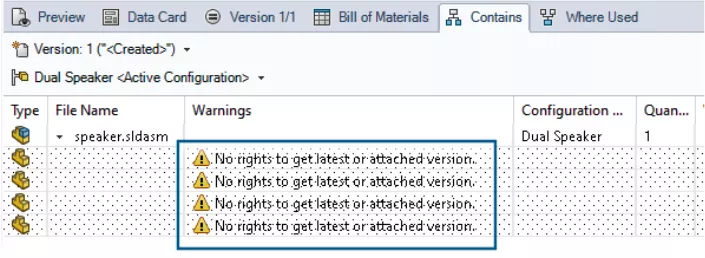
In 2024, a message is now displayed, informing users that they have “no rights to get latest or attached version”, hence the information is no longer visible to unauthorised users.
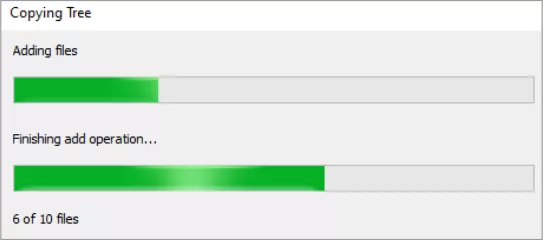
A new progress dialog has also been introduced for Copy Tree and Change State, with two progress bars describing the actions in more detail.
Check In and Reading File References progress dialogs now display more information.
#5 – CHECK IT OUT
When changing state on a file, you now have the option to immediately check the file out from the Change State dialog.
This saves precious clicks when you want to immediately begin working on the files after moving to a new revision.
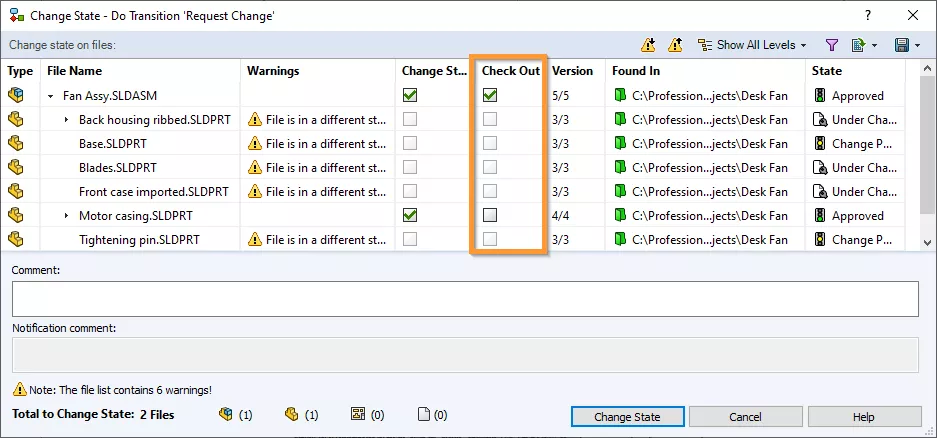
Now, whenever a file is checked out, this is logged in the file’s history, which is useful for determining how long you have been working on a model.

You can also see Undo Checkout events in the history.
#6 – LICENSE NODE ACCESS
The License node has always been a useful tool for reviewing the available licenses and where they are being used.
It previously included the Server List page, which is used to point PDM to the license server and should only be handled by an administrator and rarely requires modification.
This meant the entire section was locked by permissions, and allowing someone to view in-use licenses would also allow them to modify the license server.

Now these have been split into their own nodes, so you can view license information without any administrative permissions required.
The permission name has been updated to ‘Can update license server’ and only controls access to the license server settings.
#7 – EXTRA DATA CARD CONTROL
You can now assign a data card within PDM Professional file and folder templates.
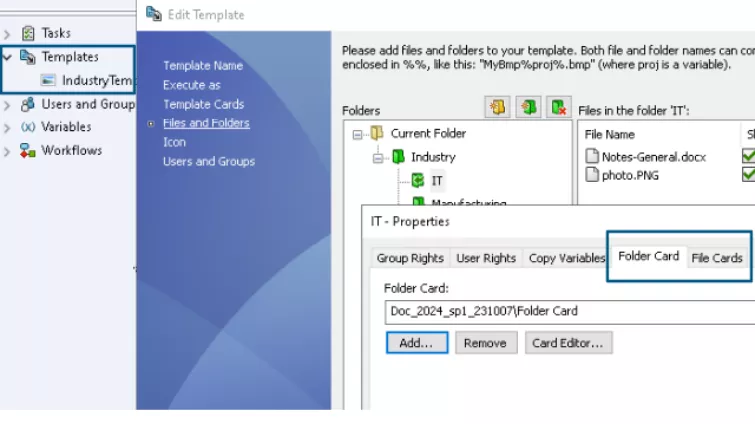
When the template is used to create files and folders, the associated data card is automatically assigned.

To help manage this new functionality, you can see which templates a given data card is used in by right-clicking on the card in the Administration Tool and selecting ‘Show Where Used’.
#8 – CLEANING UP YOUR WORKFLOW
A previous limitation of Workflows was that, once files had been in a state at least once in their history, the state could not be deleted until all those files were destroyed.
This could sometimes leave orphaned states which are no longer used but cannot be removed, which was especially frustrating in a PDM Standard workflow that’s limited to 10 states.
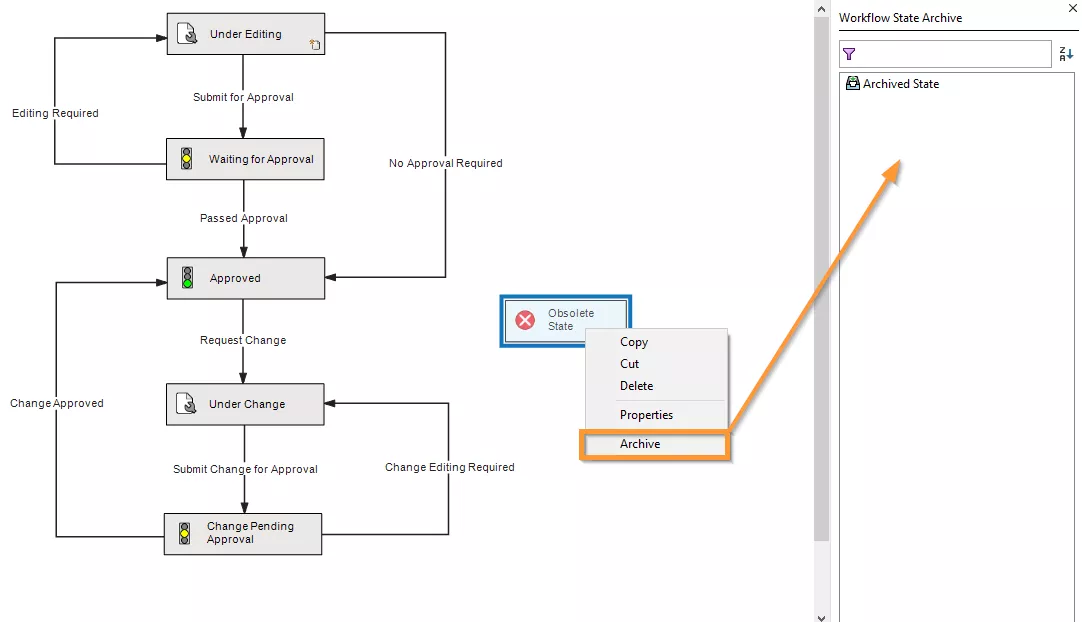
Instead of leaving old states floating around, they can now be archived simply by right-clicking and selecting ‘Archive’.
The archived states can be reviewed and unarchived by accessing the Workflow State Archive.
Ready to Upgrade?
Make sure you’re ready to upgrade! Have you checked off these 10 things to do before installing SOLIDWORKS?
Read the full blog to get prepared and find out everything you need to do before installing SOLIDWORKS.
#9 – SURFING WEB 2.0
This enhancement is a little bundle of joy, as the Web 2.0 interface has several improvements which make it more user-friendly:

- Web 2.0 now includes the ability to switch to Grid View, making searching for a file by its thumbnail that much easier.
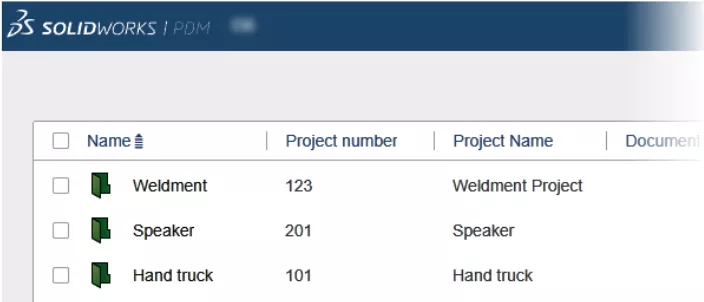
- When browsing folders, the folder card variables now appear in Web 2.0 where before only the folder name was visible. Project descriptions and other metadata is now more readily available to Web 2.0 users.

- You can now choose which version of a file to download, so reviewing changes or sending an old drawing for replacement parts is now possible.
#10 – EDRAWINGS FILE PREVIEWS
The SOLIDWORKS Manage desktop and web clients now include a full eDrawings preview, including being able to measure, explode, and show section views.

This makes it easier to review designs for engineering change without leaving the client.
#11 – IMPROVED BOM CREATION AND DATA MANAGEMENT
You can now create Bills of Materials using a record-based approach, reducing the need for SOLIDWORKS data management to be available, and create them at any stage of development.
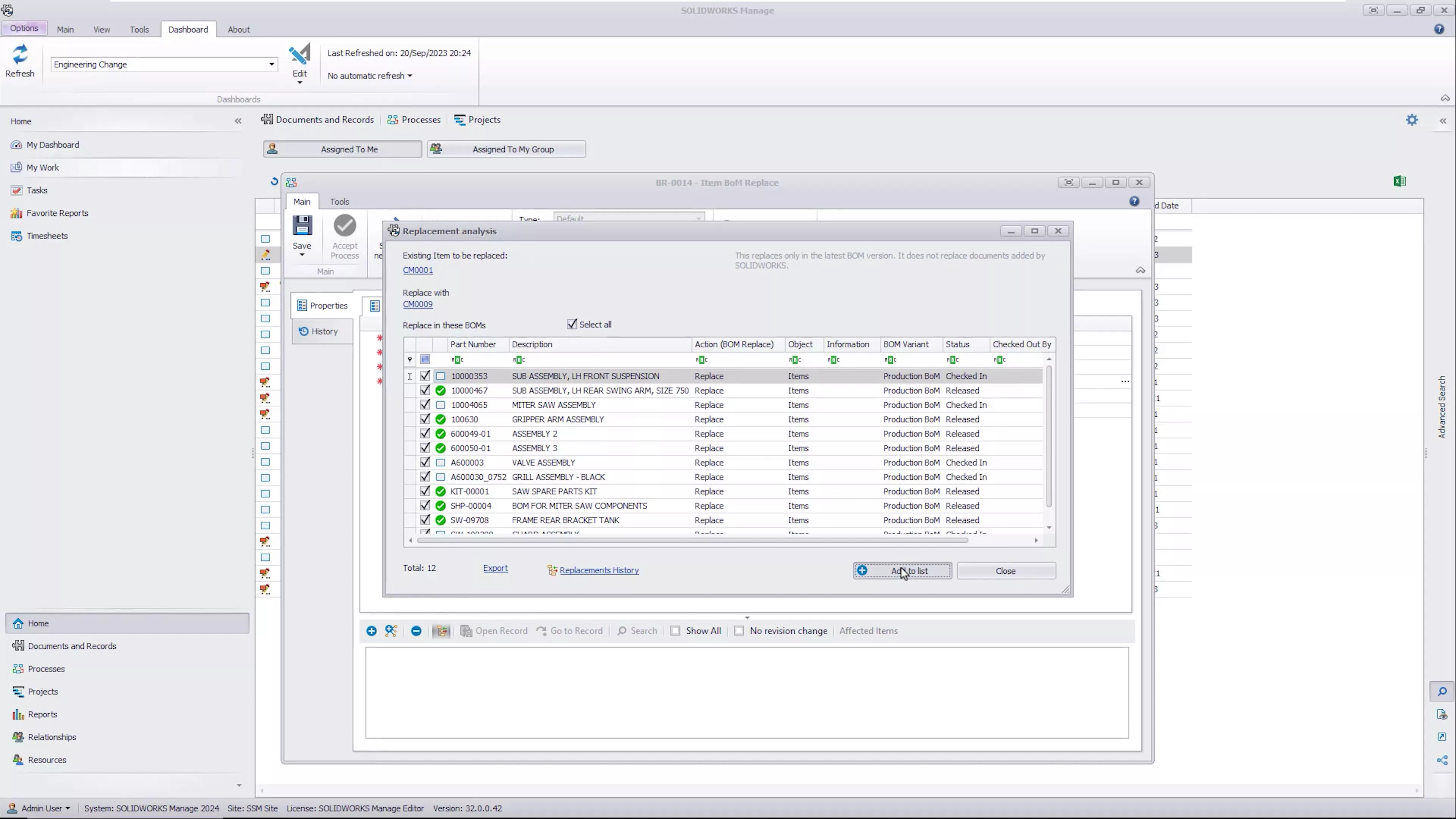
In SOLIDWORKS Manage 2023, you would have to replace Bills of Materials one at a time. Now, you can globally replace an obsolete component with an alternative part, and update all its parent Bills of Materials in one operation, saving valuable time.
#12 – SOLIDWORKS CLOUD SERVICES
We couldn’t have a list of updates to data management without including the cloud storage option that is now available with SOLIDWORKS licenses.
Categorised as: Data Management | SOLIDWORKS Design
Get a SOLIDWORKS Quote
Interested in SOLIDWORKS? Contact us for questions, trials, or demos by clicking the button below or call 01926 333777. Our experts will help you find the perfect solution.

Related Posts

How to Find Reaction Forces in SOLIDWORKS Simulation
SOLIDWORKS helps us to find resultant forces through simulation studies. These virtual tests reduce the need for physical prototypes and give us an accurate answer.

Setting number of decimal places in a table on a drawing
When creating an equation in a drawing general table, is it possible to define the…

SOLIDWORKS Smart Fasteners
SOLIDWORKS Smart Fasteners is a really useful time saving tool, allowing you to automatically insert toolbox fasteners such as bolts and screws into an assembly providing there is a standard hole.

Why is my Flat Pattern not showing in SOLIDWORKS Drawings?
This may be linked to how the drawing is saved or it can be related to how sheet metal parts are displayed in drawings, read on to find out how to fix it.

SOLIDWORKS Tips: Are you Making this Common Mistake in Fatigue Analysis?
Simulation is a vital and complex engineering need. Fortunately, SOLIDWORKS makes it easy to test, correct mistakes and obtain accurate results.

How to Recover SOLIDWORKS Files After a Crash
SOLIDWORKS has two different methods to help you recover from an unexpected crash or loss of data in the form of auto-recovery and back-up settings.

Redesigning Santa’s Sleigh in SOLIDWORKS
Every year Father Christmas has to fly in his sleigh to deliver presents to boys and girls all over the world in just one night. To put this into perspective, it takes a little under 24 hours to fly from London (UK) to Sydney (Australia) in a streamlined Boeing 747, whereas Father Christmas’ mode of transport is believed to be a rather non-aerodynamic sleigh.

SOLIDWORKS Grid Systems – hidden away, but very useful!
Rory Niles provides an insight into the uses for Grid Systems within SOLIDWORKS 2018

Furniture Design Made Easy with SOLIDWORKS
Calling all furniture and interior designers: the days of creating square cabinets are over. What if we told you there’s a much easier way to bring your products to life?
Here’s 10 reasons why we feel SOLIDWORKS is better than any other software, especially if you’re designing furniture:
Making 3D Textures from Images on SOLIDWORKS
Turn images into 3D geometry with brand new SOLIDWORKS 3D Textures Feature