











Windows 10 End of Life Announced! When does support end and how will it affect SOLIDWORKS users?
Written by: Alan Sweetenham
Published: Oct 11, 2024
| View All Blogs
Microsoft are ending support for Windows 10 on October 14th 2025… but what does this mean for SOLIDWORKS users?
While businesses can continue to pay Microsoft for critical security updates for a further 3 years, this runs into hundreds of pounds per PC and does not extend to support – only critical security patches not software support.
As a result, Dassault Systemes plan to end support for their software products on Windows 10 at the same time as Microsoft stops providing support for both users and software developers in October 2025.
Which versions of SOLIDWORKS Support Windows 11?
SOLIDWORKS 2022 or newer are supported for Windows 11.
However, as Microsoft regularly update Windows 11, we would advise using a release that is within the SOLIDWORKS product support lifecycle for hotfixes, each release receives 1 year of service packs followed by a further year of hotfix support for critical issues.
SOLIDWORKS Subscription and active term license users can upgrade to the latest release straight away (here’s all you need to know before you upgrade SOLIDWORKS!), but if not, then please get in touch for options so we can help you stay up-to-date and provide any assistance you might need with the upgrade process.
How can SOLIDWORKS PDM users prepare for the end of Windows 10?
If you are running SOLIDWORKS PDM then don’t forget that the PDM server components must be upgraded at the same time as the clients.
The main thing to be aware of is if the operating system is supported per the system requirements; for SOLIDWORKS 2022 this is Windows server 2016, 2019 or 2022 (SP4+), and for SOLIDWORKS 2023-25 Windows server 2019 or 2022.
We can also assist with planning this upgrade from advice to a fully managed service to upgrade your SOLIDWORKS PDM and SOLIDWORKS client software!
Will My PC Support Windows 11?
Windows 11 support requirements are tighter than previous releases, and systems must have a relatively modern CPU (broadly speaking) from Intel’s 2018 8th generation or AMD’s 2019 Zen 2 CPUs plus a motherboard with support for TPM 2.0 security.
Should I Upgrade or Get a New PC?
Even if your system meets that requirement, our recommended replacement cycle is 3-5 years for engineering users to typically see the biggest benefit from the latest hardware.
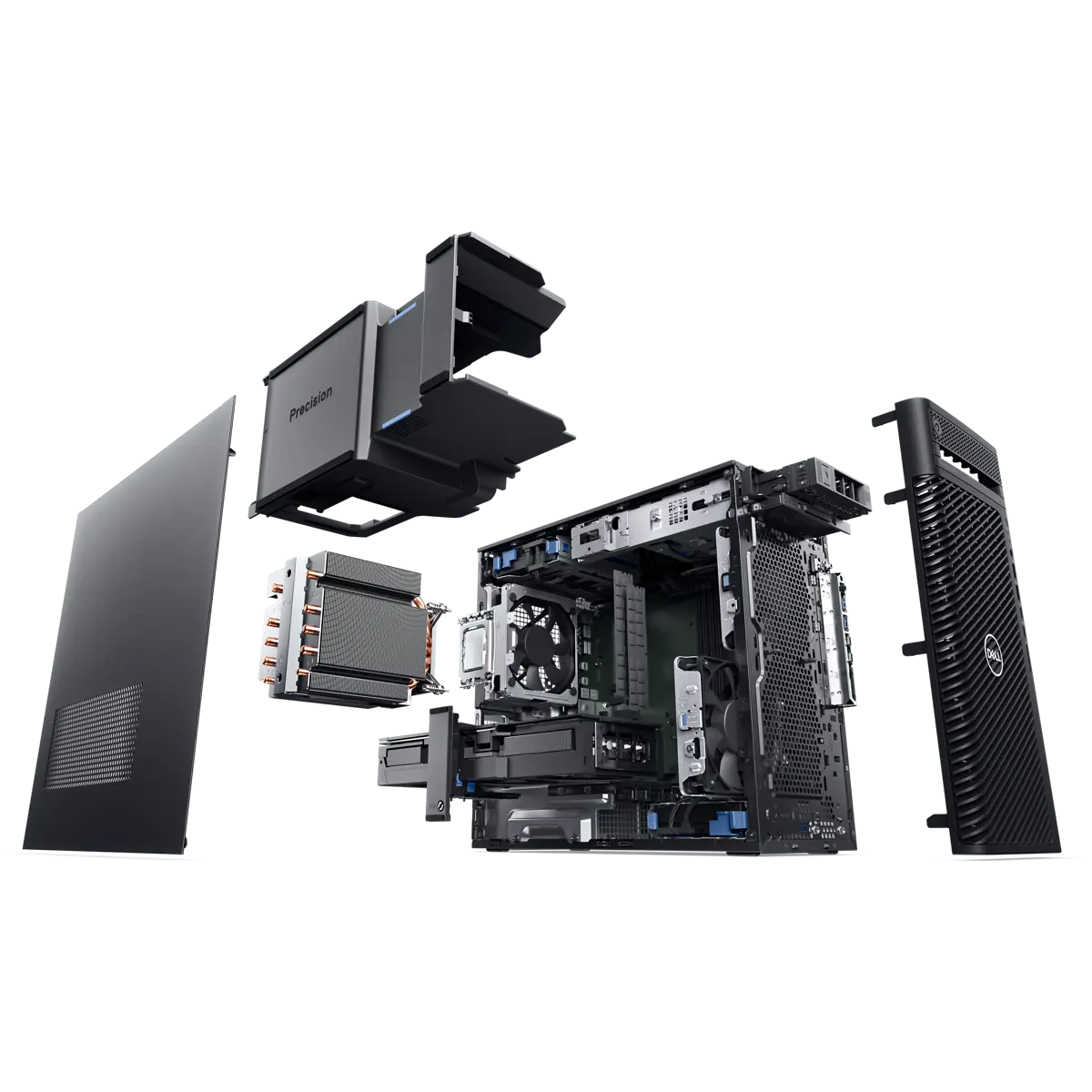
If you’re coming up to the latter stages of that cycle, then we’d advise you to consider upgrading to a new system and repurposing the existing one either within your business or via Dell’s Asset recovery service to extend the life of your current workstations.
To give you an idea of the significance of upgrading PCs for CAD work, we compared a high-end Precision 3630 system from 2018 with our latest recommended Precision 3680 Desktop.
For typical CAD tasks like part modelling and navigating large assemblies, the latest workstations were around twice as fast, plus the top of the range laptops were within 5-10% of the desktop performance, opening up portable options for hybrid and remote work.
We have a range of recommended Dell Precision Workstations optimally configured for SOLIDWORKS products and can offer free reviews of your current hardware environment and performance to make sure you have the ideal setup for your requirements.
Categorised as: Hardware | News | SOLIDWORKS Design
Free SOLIDWORKS for Start‑Ups
Join the SOLIDWORKS for Start-ups programme and access professional SOLIDWORKS CAD software FREE for 12 months. Perfect for entrepreneurs, freelancers, and new businesses ready to build the future.
Related Posts

How to Find Reaction Forces in SOLIDWORKS Simulation
SOLIDWORKS helps us to find resultant forces through simulation studies. These virtual tests reduce the need for physical prototypes and give us an accurate answer.

Setting number of decimal places in a table on a drawing
When creating an equation in a drawing general table, is it possible to define the…

SOLIDWORKS Smart Fasteners
SOLIDWORKS Smart Fasteners is a really useful time saving tool, allowing you to automatically insert toolbox fasteners such as bolts and screws into an assembly providing there is a standard hole.

Why is my Flat Pattern not showing in SOLIDWORKS Drawings?
This may be linked to how the drawing is saved or it can be related to how sheet metal parts are displayed in drawings, read on to find out how to fix it.

SOLIDWORKS Tips: Are you Making this Common Mistake in Fatigue Analysis?
Simulation is a vital and complex engineering need. Fortunately, SOLIDWORKS makes it easy to test, correct mistakes and obtain accurate results.

How to Recover SOLIDWORKS Files After a Crash
SOLIDWORKS has two different methods to help you recover from an unexpected crash or loss of data in the form of auto-recovery and back-up settings.

Redesigning Santa’s Sleigh in SOLIDWORKS
Every year Father Christmas has to fly in his sleigh to deliver presents to boys and girls all over the world in just one night. To put this into perspective, it takes a little under 24 hours to fly from London (UK) to Sydney (Australia) in a streamlined Boeing 747, whereas Father Christmas’ mode of transport is believed to be a rather non-aerodynamic sleigh.

SOLIDWORKS Grid Systems – hidden away, but very useful!
Rory Niles provides an insight into the uses for Grid Systems within SOLIDWORKS 2018

Furniture Design Made Easy with SOLIDWORKS
Calling all furniture and interior designers: the days of creating square cabinets are over. What if we told you there’s a much easier way to bring your products to life?
Here’s 10 reasons why we feel SOLIDWORKS is better than any other software, especially if you’re designing furniture:
Making 3D Textures from Images on SOLIDWORKS
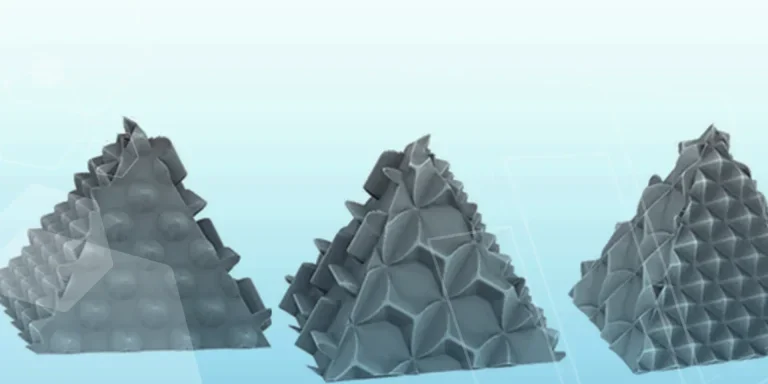
Turn images into 3D geometry with brand new SOLIDWORKS 3D Textures Feature