











SOLIDWORKS Electrical Schematics Training
The goal of this SOLIDWORKS Electrical Schematics training course is to teach you how to use SOLIDWORKS Electrical to optimize your drawings and designs for manufacturability so you can maximize quality, avoid rework and decrease time to market. This course is focused on 2D Design.
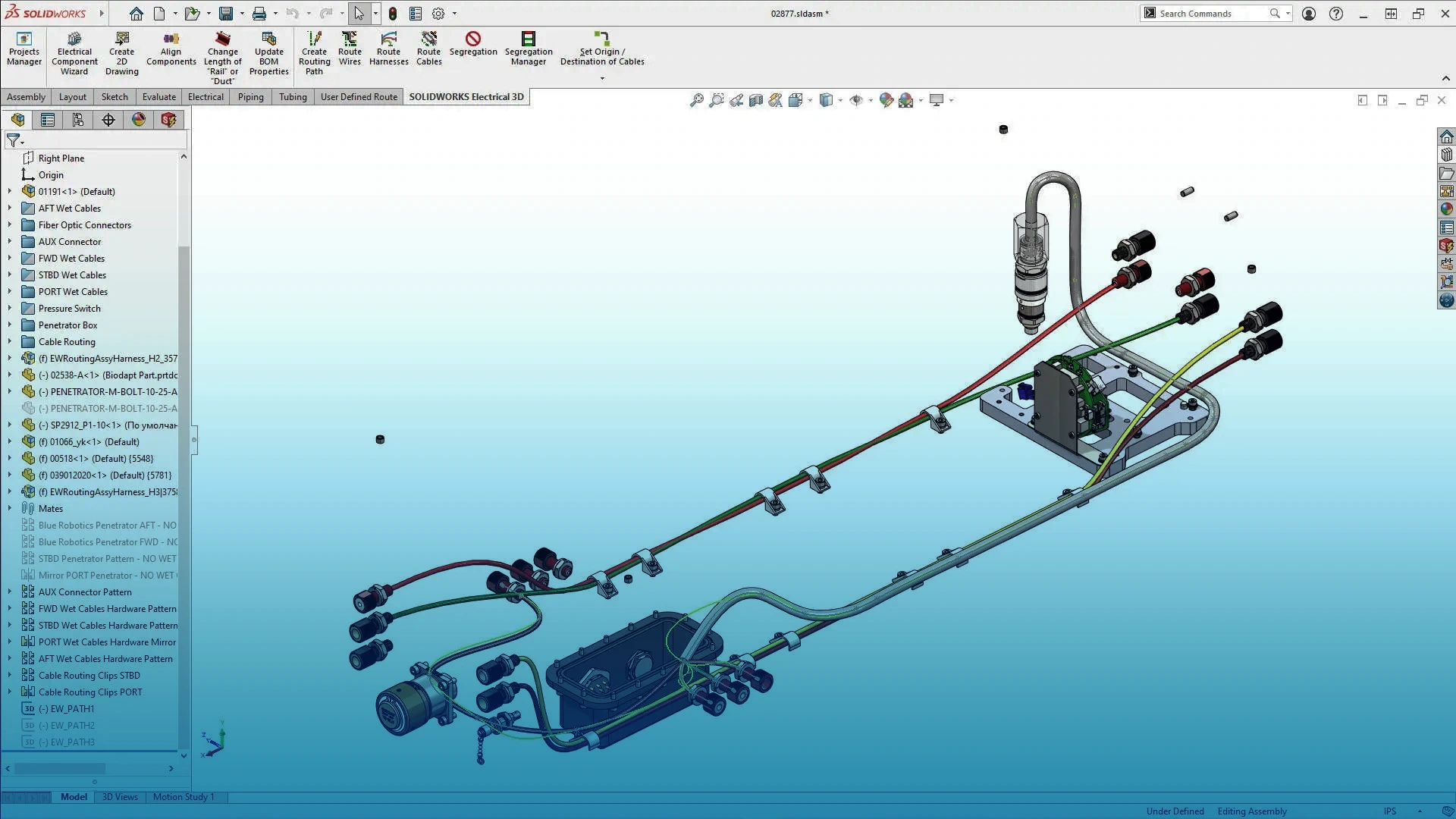
Course Overview
SOLIDWORKS Electrical is a recent addition to the product portfolio which allows integration between the electrical and mechanical design processes.
This course introduces the user to the 2D application allowing you to create electrical schematics and wiring diagrams using the extensive library and verification tools.
This course can then lead into the 3D module allowing you to import the components and wires into SOLIDWORKS as 3D models.
NOTE: This course is available as part of the Gold & Platinum Training Passports.
What You'll Learn
Course Agenda
Lesson 1 – Project Templates
The first lesson of this course introduces the user to the basics of SOLIDWORKS Electrical schematics, covering all bases to get up and running with the software. The user will learn how archive and unarchive projects, understanding the application settings and project configurations and finally produce a standard template.
Lesson 2 – Modifying Project Templates
In Lesson 2 the user will be taught how to create a project from a template, create a project macro and then employ the project macro into a new project. In addition to this the user will learn how to update existing project templates and create environmental archives for backups.
Lesson 3 – Drawing Types
Lesson 3 introduces the user on how to unarchive a project, which is a key process when using electrical. Also, they will take thorough look into the differences between line diagrams and schematic diagrams. Further to this, scheme symbols and drawing multiple lines are also covered.
Lesson 4 – Components
Lesson 4 ensures the user fully understands components and the associativity between symbols and components in electrical, they will look to create a component from scratch, insert the component symbol correctly and assign multiple symbols to a component.
Lesson 5 – Manufacturers Parts
In Lesson 5 the user will understand manufacturer parts and how to obtain manufacturer parts online. Following this the user will locate and create manufacturer parts. Finally the user will learn how to modify a project level component part and change the circuit associations.
Lesson 6 – Wires and Equipotentials
Upon completion of Lesson 6 the user will be able to understand the difference between Wires and Equipotentials, create and modify numberings group and multi wire styles within the Wire Styles. Finally the user will learn how to number the wires based on Equipotential or using Wire and also alter wire properties and change connections.
Lesson 7 – Cabling
Lesson 7 teaches the user how to use the cabling section of the software. This includes; reserving a cable, cable between components using a detailed cable and cable between components in the terminal editor. Further to this, the user will also look at applying these by creating a user defined cable and cores, employ copy and paste special.
Lesson 8 – Symbol Creation
As the title suggested, in Lesson 8 the user will learn how to create symbols from scratch using different methods, modify symbol properties to reduce design time, use symbol circuits, terminal and passing types and finally, replace schematic symbols where necessary.
Lesson 9 – Macros
Upon completion of Lesson 9 the user will be able to create new macro groups, create macros from geometry, create and understand project macros and also create a macro classification. These all build up to, inserting a macro into a drawing, employ the paste special method, insert a project macro and then finally look at renumbering and reordering a project.
Lesson 10 – Cross Referencing
Lesson 10 teaches the user about associating symbols to components, navigating between associated symbols, changing cross references, modifying cross reference configurations and also resolve cross reference errors.
Lesson 11 – Managing Origin-Destination arrows
In Lesson 11, the user will be introduced to origin-destination arrows and the manager that comes with it. They will look into replacing existing wires, edit wires marks and add origin-destination arrows to complete the schematic.
Lesson 12 – Dynamic Programmable Logic Control
Lesson 12 covers all you need to know about dynamic PLC and the method behind it. The user will look at creating PLC Mark components, add a PLC symbol onto a drawing then creating and modifying the configuration and finally add to a new scheme.
Lesson 13 – Automatic Programmable Logic Control
Lesson 13 trains the user on Automatic PLCs. The user will learn to create a PLC by Part, look to create Inputs/Outputs, Save I/O’s to macro and also apply descriptions to them as well. Finally, will look at creating and modifying project level PLC configurations, manage the PLC I/O drawing macros and then automating PLC drawings.
Lesson 14 – Connectors
Upon the completion of Lesson 14 the user will be able to understand and create new connector configurations, insert connectors as symbols, insert connectors as a dynamic block and finally, insert connectors as individual pins.
Lesson 15 – 2D Cabinet Layouts
In Lesson 15 the user will look at 2D Cabinet layouts or 2D footprints. The key features will be looked at such as, manage locations in relation to 2D layouts, create 2D layouts, and insert cabinets, ducts and rails and finally, insert components.
Lesson 16 – Design Rule Check
Upon completion of Lesson 16 the user, as the title suggests, will understand how to use the design rule checker. They will also look to identify and resolve a range of common electrical issues.
Lesson 17 – Reports
Lesson 17 the user will move onto reports. The user will be taught how to add a report to the project, look to duplicate and modify a default report – going into such details like adding more report columns and applying sort and break criteria.
Lesson 18 – Simple Reports
Lesson 18, a brand new addition to Electrical schematic, Simple Reports covers Views which are simple SQL queries that have been created and stored within the application database available for use to aid report creation.
What do our customers say?
We use Feefo (the global feedback engine) to gather anonymous but certified genuine reviews from our customers. We continually use customer feedback to improve the service that we offer to our customers and to motivate our team.
Click the Feefo button below to read the latest reviews for this course.
Training Booking Process
How to book a course?
Training Methods

Self-Paced
Student, job-seeker, or working professional? Our SOLIDWORKS self-paced training essentials course gives you the flexibility to learn when and where you want.
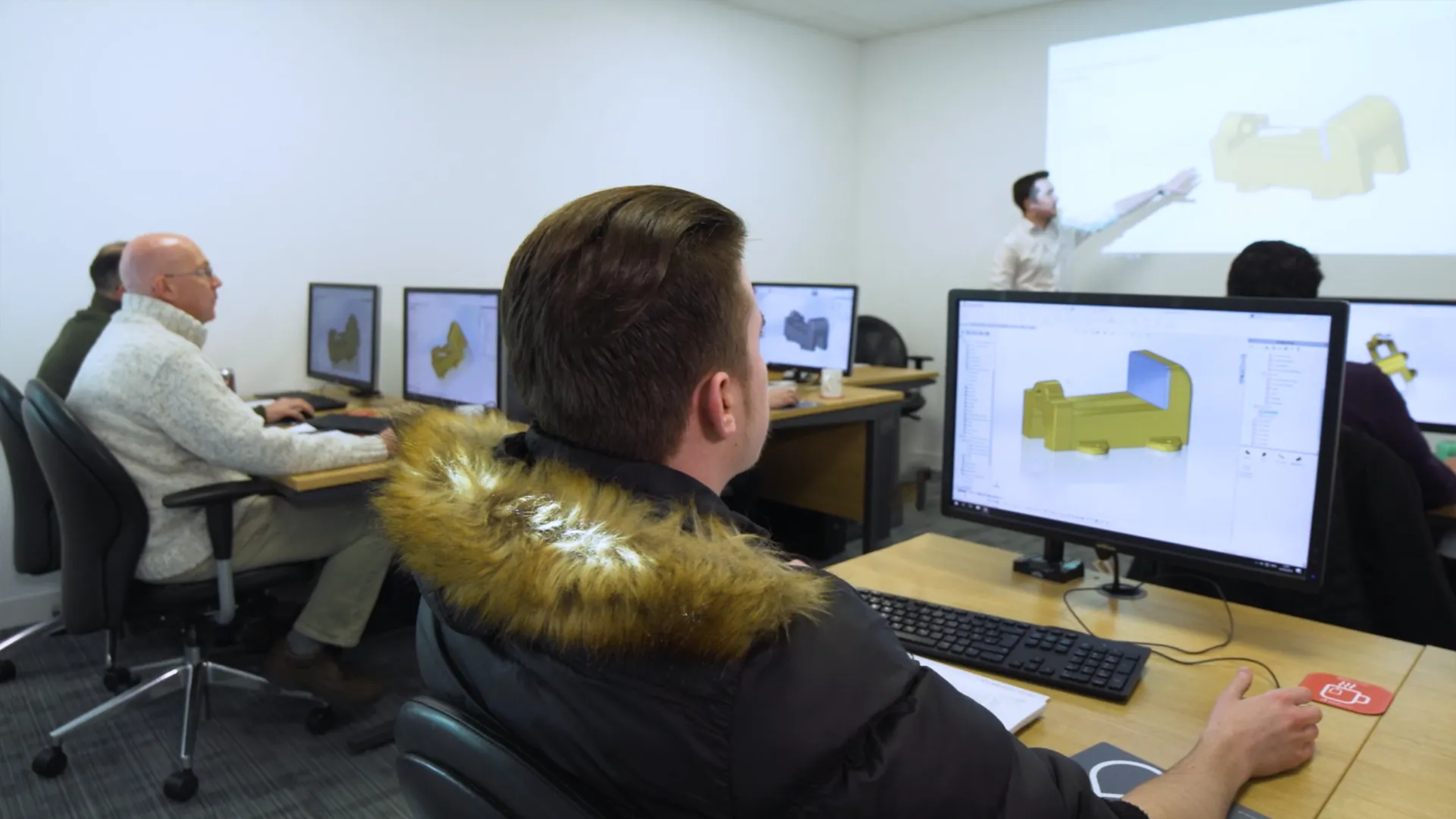
In-Classroom / Virtual
For those who prefer a traditional classroom environment courses can be taken in one of our training locations in the UK and Ireland.
Our virtual courses provide hands-on, live, interactive group training session from a professional, qualified instructor.
Onsite / Bespoke
We can arrange onsite training for any of our courses, contact us to discuss further.
Book your course
Click to view upcoming SOLIDWORKS Electrical Schematics Training courses, book your place on the course today to save your space. No upfront payment necessary.
Frequently Asked Questions
Accredited
- SOLIDWORKS certified training instructors
- All courses are CPD-accredited for professional development
- Attendees receive certificates for every course
Variety & Frequency
- Courses run every week of the year (1200+ per year)
- 70+ courses, we cover a broad range of topics and software
- Training passport bundles provide amazing value
Convenience
- 22 training venues located across the UK & Ireland
- State-of-the-art Virtual training is available
- We can arrange onsite and bespoke training courses
Quality
- 4.9 Star rating on Feefo for training courses
- Limited class sizes ensure personal attention
- Hands-on format with high-end PCs for every attendee
You can reserve your place on our SOLIDWORKS training courses for free via our course schedule.
Simply find the course you'd like to attend and click 'Book Now' and complete your registration.
If you have already purchased a course or passport then there is nothing else you need to do. If you haven't bought the course yet then your SOLIDWORKS account manager will be in touch to discuss your requirements and arrange payment.
Alternatively you can give us a call on 01926 333777 and book your course today!
Yes! All of our classroom and virtual courses are CPD-accredited, meaning you are guaranteed to progress in your professional development.
A SOLIDWORKS Passport offers you a comprehensive training and development plan in one single purchase.
These Passports allow you to make massive savings on training, compared to purchasing multiple courses one at a time.
Separate Passports are available for SOLIDWORKS CAD & SolidCAM, depending on your design & manufacturing needs.
Each SOLIDWORKS CAD Passport can be purchased in different lengths that are valid for 1, 2, 3 or 5 years. The passport is active from the date of the first course you attend.
We recommend new SOLIDWORKS users start off with SOLIDWORKS Essentials. From there the courses that you benefit you most will depend on your products and workflow.
For most professional SOLIDWORKS users the best courses to take next are: Advanced Part Modelling, Drawings, Advanced Assembly modeling.
We are always happy to discuss your requirements and provide advice on the best training and resources for you. Speak to your account manager, contact us online or get in touch via training@solidsolutions.co.uk.
Every license of SOLIDWORKS on subscription comes with complimentary exam vouchers so you can get certified. Learn more about the series of exams on our dedicated SOLIDWORKS Certifications page.
Book your next course to continue your journey to becoming a certified SOLIDWORKS expert.
We have a variety of classrooms across the UK and Ireland where you can learn SOLIDWORKS. Check out our SOLIDWORKS Training locations here and find a venue near you.
Our virtual classrooms can be accessed by anyone, anywhere. So in the unlikely event that there isn't a classroom nearby, or you'd prefer to attend remotely, You can still attend your chosen training course.
Get in touch with our team as soon as you are able to. Give us a call on 01926 333777 or email training@solidsolutions.co.uk and we can assist you.
Take a look at our Training Course Schedule, as you may be able to rearrange to attend an alternative date for your chosen course.
Our courses offer free cancellation providing the cancellation occurs outside of the fourteen days before the course start date.
Please refer to the Terms & Conditions for full information surrounding cancellations & fees.
Other Training Courses
SWOOD CAM Training
Prepare parts for manufacture with a range of different machining operations in SWOOD CAM.
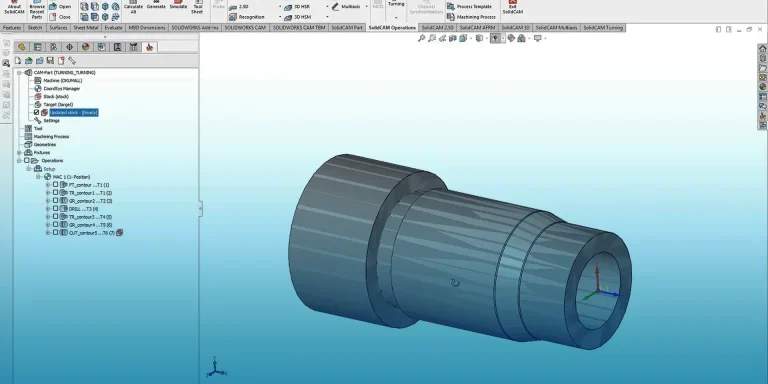
SolidCAM Turning Training
Introduction to basic concepts of turning and interface of SolidCAM for efficient manufacturing.

API Fundamentals Training
This course begins by introducing the Macro Recorder before going on to look at programming system options, document properties and adding customer properties. Upon successful completion of this course, attendees will be able to program part, assembly and drawing automation.

Using 3DEXPERIENCE Platform and SOLIDWORKS Training
This course on using 3DEXPERIENCE Platform and SOLIDWORKS training explores efficient workflows for in 3DEXPERIENCE alongside SOLIDWORKS.

GD&T Training
We offer various GD&T courses where you can learn how to calculate, apply, and analyse tolerances to guarantee that parts fit together and are totally interchangeable at the design stage before physical parts are created.

SolidCAM 4-Axis Machining Training
SolidCAM 4-Axis machining makes the most of 3-axis machines with simultaneous rotary capabilities.
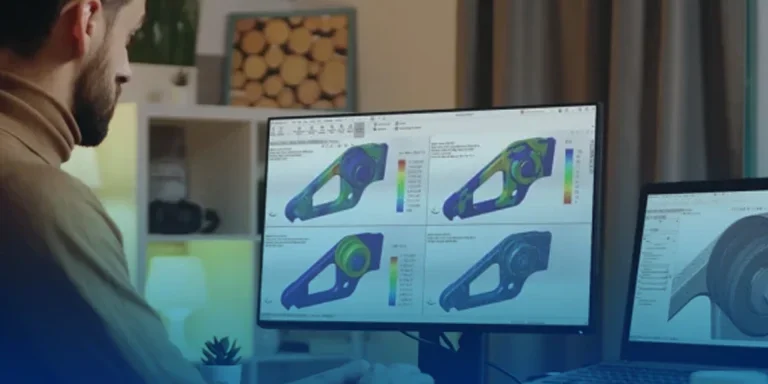
SOLIDWORKS Simulation Professional Training
SOLIDWORKS Simulation Professional training is designed to advance your understanding of SOLIDWORKS Simulation for deeper structural analysis.

DriveWorks Pro Essentials Training
DriveWorks Pro Essentials training is designed to teach you how to create, run, and manage DriveWorks Pro projects with rules, forms, drawings, and documents.
Geomagic Design X Training
The Geomagic Design X Training is recommended for discovering essential techniques to work with scan data to generate 3D models with positive design intent.
SWOOD Design User Training
Our SWOOD Design User Training will teach you how to develop parametric furniture and joinery designs both quickly and at scale.