











SOLIDWORKS 3D CAD
SOLIDWORKS What's New
View Enhancements for Each Year
What's New in SOLIDWORKS?

What’s New in SOLIDWORKS 2026
SOLIDWORKS 2026 brings a range on enhancements from improved design commands to smarter collaboration tools, each section highlights key updates across seven core areas, giving you on-demand access to the insights that matter most to your workflow.

What’s New in SOLIDWORKS 2025
Explore what’s new in SOLIDWORKS 2025 and see how advanced automation, improved UI, DraftSight 2025 and cloud-connected workflows can boost your productivity and design accuracy.
What’s New SOLIDWORKS 2024
Find out what’s new in SOLIDWORKS 2024 including a new automatic repair command, sheet metal tools, and a much-awaited new saving ability. The enhancements to help you model, visualise, and validate more easily with new cloud-based tools to aid collaboration and boost your productivity.
What’s New SOLIDWORKS 2023
SOLIDWORKS 2023 introduces refinements to popular features such as patterning and the ‘Move/Copy Body’ command, making everyday tasks more efficient. Combined with numerous behind-the-scenes performance and stability enhancements, this release offers practical improvements for users across a wide range of workflows.
What’s New SOLIDWORKS 2022
Supercharge your teams productivity with brand new enhancements coming in SOLIDWORKS 2022. Expect to see improved drawing capabilities, enhanced 3D texture support, a more flexible ‘Pack & Go’ feature, upgrades to part modeling and more.
What’s New in SOLIDWORKS 2021
SOLIDWORKS 2021 helps boost engineering productivity with new features like edge flanges on curved sheet metal and mesh diagnostics in Simulation, while GPU-accelerated graphics and streamlined assembly tools improve performance and workflow efficiency.
Latest What's New Blog Posts
In addition to the annual major release, there are typically five updates are delivered each year that bringing new features and improvements. Browse our latest blog posts below to stay up to date with the latest changes.

Understanding SOLIDWORKS AI Blue Tokens
Understanding SOLIDWORKS AI Blue Tokens: A Practical Guide for Engineers Artificial intelligence is rapidly becoming…
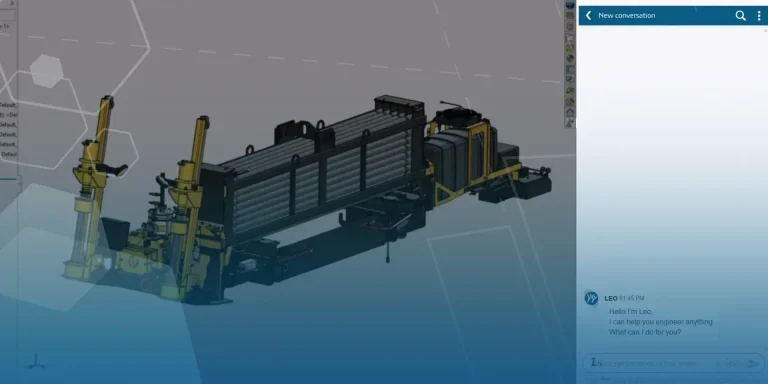
What’s New in the Functional Delivery 02 Update | SOLIDWORKS Design & 3DEXPERIENCE Platform
SOLIDWORKS 2026x FD02 continues the cycle of Functional Deliveries, introducing a new set of enhancements…

AI in SOLIDWORKS
Note: Some of the features and videos referenced in this article are currently released in…
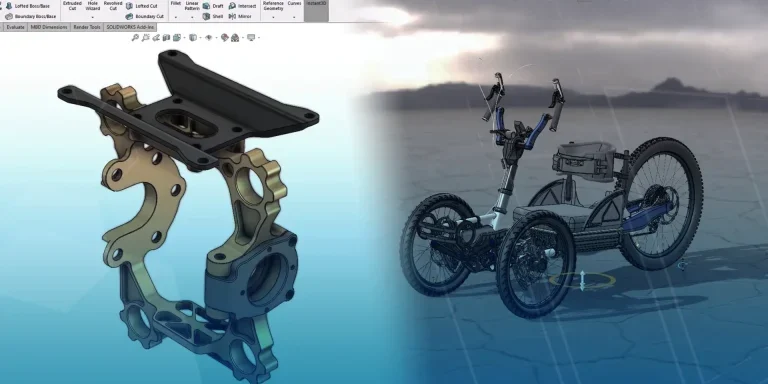
What’s New in the Service Pack & Functional Delivery 01 Update | SOLIDWORKS Design & 3DEXPERIENCE Platform
SOLIDWORKS 2026x SP/FD 01 introduces a broad set of enhancements across design, modelling, assemblies, drawings,…
Top 10 Best New Features? SOLIDWORKS 2026 What’s New
As SOLIDWORKS celebrates its 30th anniversary, the 2026 release marks a milestone in CAD innovation….
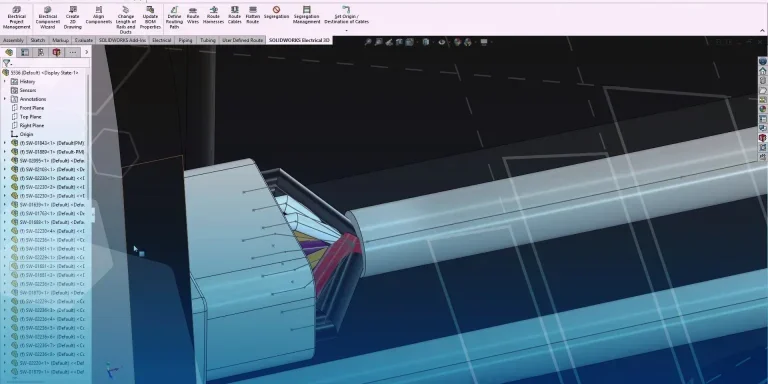
8 Great New Features for SOLIDWORKS Electrical 2026
SOLIDWORKS 2026 brings enhancements across the entire SOLIDWORKS Portfolio, with new features that are sure…
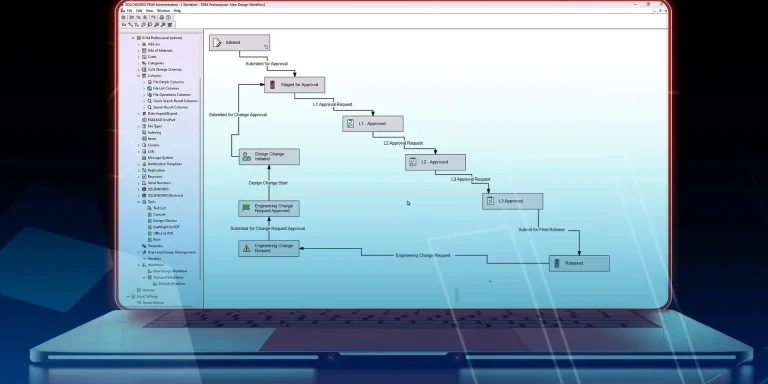
What’s New? The Best Enhancements for Data Management coming to SOLIDWORKS PDM 2026
With the release of SOLIDWORKS PDM Professional 2026, Dassault Systèmes has introduced a suite of…
Rendering & Life After PhotoView 360 | What’s New in SOLIDWORKS Visualize 2026
Whether you’re pitching concepts to stakeholders or refining designs internally, the latest enhancements in SOLIDWORKS…
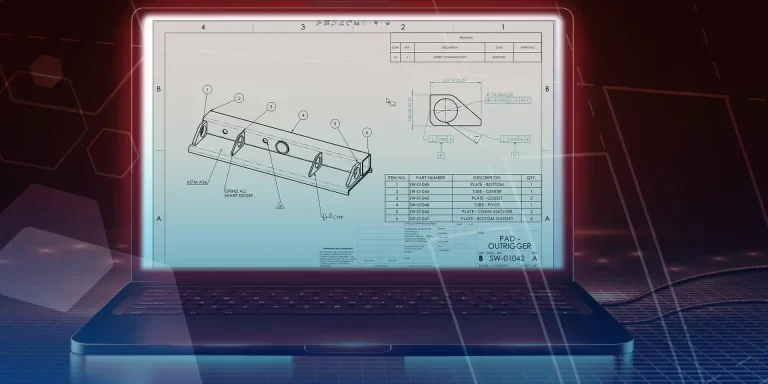
Assistive AI for Drawing Creation | What’s New in SOLIDWORKS Drawings & MBD 2026
SOLIDWORKS 2026 is the first release we’re seeing equipped with multiple AI tools as Dassault…
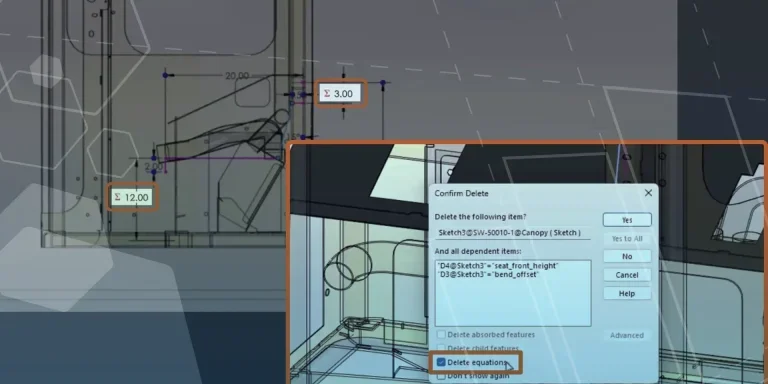
New Tools & Features for Part Modelling Workflows in SOLIDWORKS Design 2026
Every year, SOLIDWORKS introduces a suite of enhancements across the portfolio to upgrade the software…