











FEA Simulation: How to Reduce Simulation Time of Automotive Wheel Models

Written by: Tom McHale
Published: Jun 23, 2023
| View All Blogs
Modelling things like wheels can be a lengthy process in simulation time due to the large initial interference of the tyre on the rim.
If you want to look at the effects of axle weight on the stresses in the wheel you first need to establish the preload condition from fitting the tyre on and inflating it if it is pneumatic.
The degree of initial interference of the tyre/rim assembly can be very large and hence not appropriate for a classic interference fit approach relying on contact to push things neatly into place.
The example shown in this article has such a degree of interference.
| Assembled condition | Pre-assembled condition | 2D cross section |
|---|---|---|
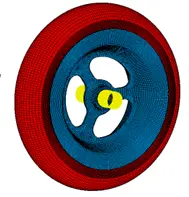 | 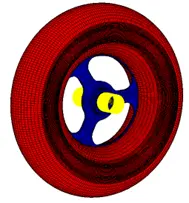 | 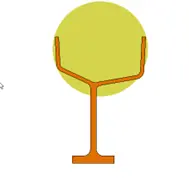 |
As you can see, the foam rubber tyre in its unfitted state has a huge interference on the rim. Modelling the assembly of this in 3D would be very tricky and run an extremely long simulation time.
MSC Marc has a specific capability to address this kind of problem, called ‘Axisymmetric to 3D analysis’. This allows us to simulate our assembly in three steps.
1. AXISYMMETRIC FITTING

We work with a 2D slice through the model. We use rigid line contact bodies to represent the faces of the rim that the tyre will conform to and additional rigid bodies to stretch and squeeze the tyre into place. We use contact tables to switch the contact interaction from the tyre to the assembly bodies to tyre to rim contact. The animation shows a plot of contact status – a scalar value confirming which nodes are in contact – while the assembly steps take place. At the end of this step we have an ‘as assembled’ cross section which can be easily exported back to CAD to revolve for a representative solid in PLM.
2. 2D TO 3D MAPPING
After step one we have the tyre fitted to a rigid rim. We’ve also assumed the rim is axisymmetric for the purpose of this fitting stage. Neither assumption is true, but we can compensate for this in the next step.
The Mentat GUI for Marc has a simple tool that allows us to expand the 2D section mesh to a 3D revolved mesh for the tyre. We also create a nice hex mesh for the wheel itself using MSC Apex.
We bring these two together in a new model and use a pre-state option to map the 2D deformation and strain field to the 3D expanded mesh and let it settle over a non-linear simulation time step to distribute the load to the now flexible wheel.
3. AXLE WEIGHT LOAD
We model the effects of the axle weight by introducing a rigid surface to represent the ground. We use a Body Approach Step – which moves the ground into place so that it is just touching the tyre – and then apply the weight as a force to the ground contact body. The whole 3D simulation for steps 2 and 3 is shown in the animation below.
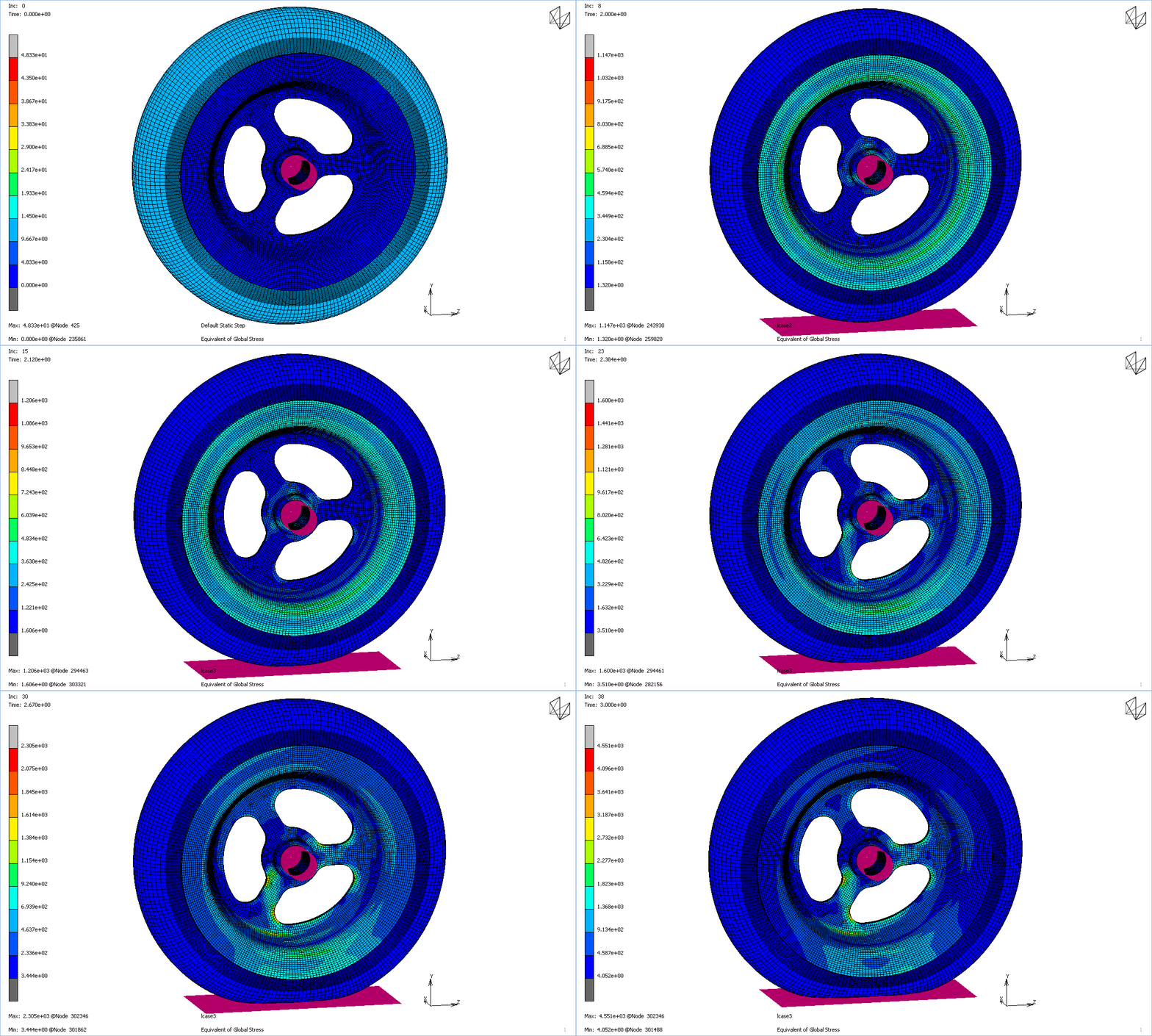
The real benefit here is the time saving in design. Setting up the initial 2D model takes less than an hour and solver iterations for the fitting are couple of seconds runtime. This means you can perform rapid iterations to size the tyre and rim as an initial process. Once the tyre has been sized and fitted to the rim we can reuse the results of that simulation for mapping the pre-state to 3D analysis repeatedly. Meshing the wheel as shown takes a few minutes and importing that to Mentat, swapping out a previous mesh, will take a few minutes more. The 3D simulation time is less than 35 minutes. These runtimes indicate that multiple design iterations including an accurate pre-load stress can be performed in a day.

This technique is not limited to wheels and tyres. It’s been used for all sorts of applications where the assembly of the critical non-linear component, such as a seal, can be represented axi-symetrically. Further capability in Marc allows the mapping of 2D-3D displacement/strain fields to model shell to brick mapping:
MSC Marc is available within the MSC One token licensing system. This includes tools such as Apex that was used to rapidly generate the hex mesh used for the wheel itself, but also many other tools like Simufact which could be used to simulate forming and/or welding the steel wheel and Adams which could incorporate the wheel model into a full vehicle simulation including suspension, steering and powertrain and run it over a virtual road surface to generate fatigue stress histories which can then be processed to life predictions in CAEFatigue. If any of this is of interest, please contact us for a chat with our CAE Consultant.
Categorised as: Manufacturing | Tech Tips
Get Expert SOLIDWORKS Training
Get hands-on SOLIDWORKS training in-person or online, led by certified experts with real industry experience. With venues across the UK & Ireland, it’s easy to start learning today.
Related Posts

How to Find Reaction Forces in SOLIDWORKS Simulation
SOLIDWORKS helps us to find resultant forces through simulation studies. These virtual tests reduce the need for physical prototypes and give us an accurate answer.

Setting number of decimal places in a table on a drawing
When creating an equation in a drawing general table, is it possible to define the…

Why is my Flat Pattern not showing in SOLIDWORKS Drawings?
This may be linked to how the drawing is saved or it can be related to how sheet metal parts are displayed in drawings, read on to find out how to fix it.

Why is SOLIDWORKS Crashing?
It’s one of the great mysteries of life – why is SOLIDWORKS crashing? Let’s explore how SOLIDWORKS crashes and how we can improve performance in SOLIDWORKS.

Tech Support Blog: Why are my SOLIDWORKS BOM Quantities Wrong?
Why are my SOLIDWORKS BOM Quantities Wrong? A support call cropped up this week which…

How to Get Your Serial Number for SOLIDWORKS Visualize Standard
Want to download Visualize to make photorealistic renders? Follow this guide for accessing your Visualize serial number that comes bundled in with SolidWorks Professional and Premium.

How to Recover SOLIDWORKS Files After a Crash
SOLIDWORKS has two different methods to help you recover from an unexpected crash or loss of data in the form of auto-recovery and back-up settings.

SOLIDWORKS Magnetic Mates
Magnetic makes are used within SolidWorks assemblies to easily configure and position assembly components. Through defining connection points and ground plane(s) – position components through drag and dropping one component within close proximity of another to snap the asset into position.

SOLIDWORKS Dimensions – Collated Quick Tips
We have collated some of our favourite tips on creating, manipulating and controlling dimensions in SolidWorks, both at a sketching and drawing level. Read on to find out more…

How to Deactivate (Transfer) a SOLIDWORKS License
A SOLIDWORKS standalone license can only be activated on one machine at a time. If you plan on moving your SOLIDWORKS license to another machine you will first need to deactivate it. Additionally if a standalone license has ended up on multiple machines or you are making a change to your computer, you will need to deactivate the license first.