











How to Get Your Serial Number for SOLIDWORKS Visualize Standard

Written by: Richard Earley
Published: Oct 28, 2016
| View All Blogs
SOLIDWORKS serial numbers are all managed and installed via the SOLIDWORKS Installation Manager or SolidNetwork License Manager.
Follow this guide to access your Visualize serial number that comes bundled in with SOLIDWORKS Professional, Premium and Ultimate.
Is SOLIDWORKS Visualize included with SOLIDWORKS?
If you’re a SOLIDWORKS Professional, Premium or Ultimate user, then SOLIDWORKS Visualize Standard is included as part of your subscription packages.
SOLIDWORKS Visualize Professional is available as a separate purchase but is also included with the SOLIDWORKS for Startups program.
Regardless of how you purchased it, SOLIDWORKS Visualize Professional requires a separate installation and serial number to that of your SOLIDWORKS 3D CAD installation.
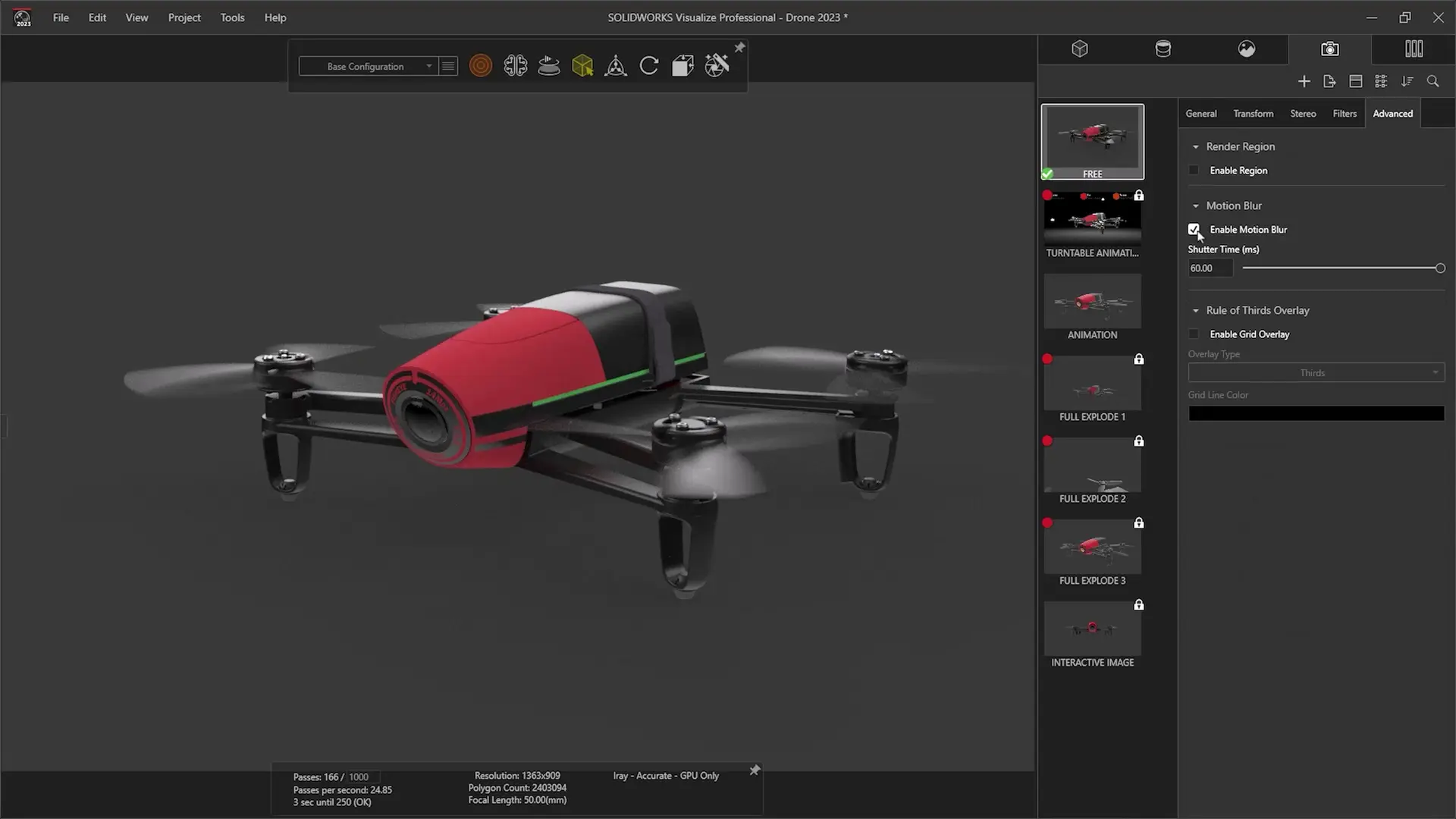
Where to Find Your SOLIDWORKS Visualize Serial Number
If you have purchased SOLIDWORKS Visualize Standard separately or purchased Visualize Professional, then you will have received an email with your additional serial numbers upon completion of your purchase.
You can find serial numbers for all of your purchased software when you log into your Solid Solutions account. You’ll also be able to see a list of your 3DEXPERIENCE roles you have access to.
SOLIDWORKS Visualize Professional also comes with Visualize Boost, allowing you to offload renders onto a network machine or a render cluster made up of multiple computers – effectively leveraging more powerful hardware for rendering tasks.
SOLIDWORKS Visualize Boost also requires its own serial number in addition to the one for your SOLIDWORKS Visualize Professional installation.
How to Obtain Your Complimentary SOLIDWORKS Visualize License
To add and activate the complimentary license of Visualize Standard included with your SOLIDWORKS Professional, Premium or Ultimate subscription, the following extra steps are required:
Network Licenses
SOLIDWORKS Network License users need to install the SolidNetwork License Manager that matches their installation version (e.g. 2025 for SOLIDWORKS 2025) and then reactivate the SOLIDWORKS License to obtain the additional SOLIDWORKS Visualize Standard license.
You should be prompted to do this upon first opening the new version of the License Manager.
Alternatively, this can be performed manually via the License Administration tab > Modify.
Standalone Licenses
For standalone licenses of SOLIDWORKS, log in to your Solid Solutions account and head to our Getting Started page to view your SOLIDWORKS serial numbers online.
All of your license keys will be listed under the ‘Your Products’ section of the Getting Started page. If you don’t see your serial numbers or have difficulty accessing your account, then get in touch with our Technical Support team.
Log a ticket online, drop an email to support@solidsolutions.co.uk, or give us a call on 01926 333 777 to get instant help finding your SOLIDWORKS serial numbers.
How to Install SOLIDWORKS Visualize
If you do not have any SOLIDWORKS products already installed, please download the SolidWorks Installation Manager.
Upon downloading and unzipping, the Installation Manager will launch and prompt you to enter the serial number.
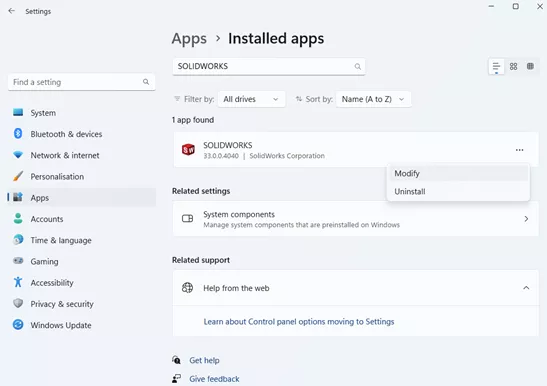
If you do have SOLIDWORKS products already installed, you can access the Installation Manager by searching for ‘Add or Remove Programs’ within Windows > Search for ‘SOLIDWORKS’ > Click ‘Modify’
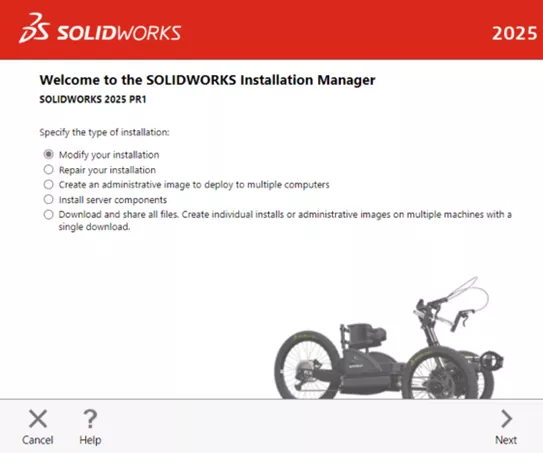
NOTE: Many organisations require Administrator access to open the Installation Manager. Please refer to your IT department if necessary.
Once open, click ‘Next’ to modify the installation. The following page will allow you to enter your SOLIDWORKS Visualize serial number.
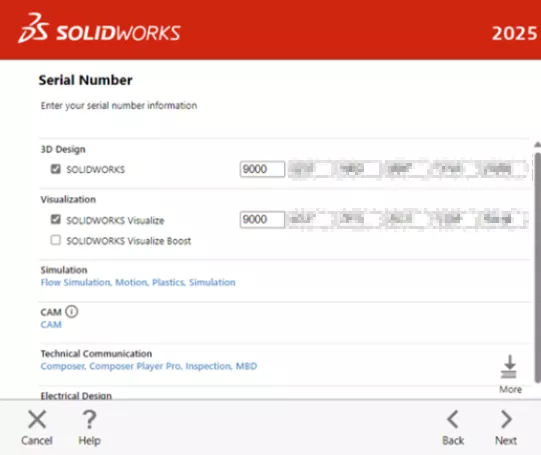
Enter your 24-digit SOLIDWORKS Visualize serial number and click ‘Next’.
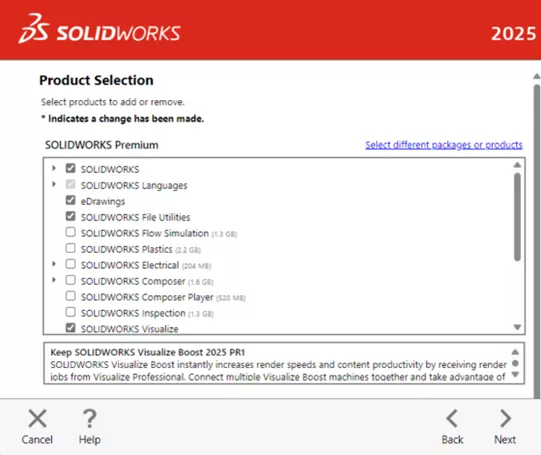
Check the box for SOLIDWORKS Visualize on the product selection page.
If you still can’t find your serial numbers or have any issues with installing SOLIDWORKS Visualize, then be sure to get in touch with our expert SOLIDWORKS Technical Support team.
Utilise your SOLIDWORKS subscription benefits and our engineers will assist to get you up-and-running with minimal downtime.
Categorised as: SOLIDWORKS Visualize | Tech Tips | Visualisation
Get Expert SOLIDWORKS Training
Get hands-on SOLIDWORKS training in-person or online, led by certified experts with real industry experience. With venues across the UK & Ireland, it’s easy to start learning today.
Related Posts

How to Find Reaction Forces in SOLIDWORKS Simulation
SOLIDWORKS helps us to find resultant forces through simulation studies. These virtual tests reduce the need for physical prototypes and give us an accurate answer.

Setting number of decimal places in a table on a drawing
When creating an equation in a drawing general table, is it possible to define the…

Why is my Flat Pattern not showing in SOLIDWORKS Drawings?
This may be linked to how the drawing is saved or it can be related to how sheet metal parts are displayed in drawings, read on to find out how to fix it.

Why is SOLIDWORKS Crashing?
It’s one of the great mysteries of life – why is SOLIDWORKS crashing? Let’s explore how SOLIDWORKS crashes and how we can improve performance in SOLIDWORKS.

Tech Support Blog: Why are my SOLIDWORKS BOM Quantities Wrong?
Why are my SOLIDWORKS BOM Quantities Wrong? A support call cropped up this week which…

SOLIDWORKS Visualize. Why go pro? – 6 Post Processing
In this blog we will be look at the post-processing options that can be found in SOLIDWORKS Visualize

SOLIDWORKS Visualize. Why go pro? – 7 Lighting
SOLIDWORKS Visualize uses a non-biased rendering engine, which allows for physically accurate lighting within a scene. It generates images with high amount of realism and correct set up can replicate photo studio lighting.

How to Recover SOLIDWORKS Files After a Crash
SOLIDWORKS has two different methods to help you recover from an unexpected crash or loss of data in the form of auto-recovery and back-up settings.

SOLIDWORKS Magnetic Mates
Magnetic makes are used within SolidWorks assemblies to easily configure and position assembly components. Through defining connection points and ground plane(s) – position components through drag and dropping one component within close proximity of another to snap the asset into position.

SOLIDWORKS Dimensions – Collated Quick Tips
We have collated some of our favourite tips on creating, manipulating and controlling dimensions in SolidWorks, both at a sketching and drawing level. Read on to find out more…