











How to Connect ERP Databases to SOLIDWORKS Electrical

Written by: Stefano Bigazzi
Published: Apr 18, 2023
| View All Blogs
Let’s show you how to connect ERP databases to SOLIDWORKS Electrical.
Regardless of whether these are databases for equipment stock, management databases, or manufacturer catalogues, the method below will show you how to connect a database to SOLIDWORKS Electrical.
First, let’s associate this SQLite database to the existing Manufacturer Part library.
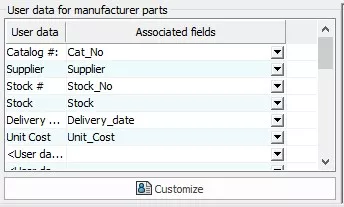
We can associate up to 20 user data with cables and other 20 user data with manufacturer parts.
Below we can see only the technical data of a single part.

We can associate the ERP through the Library Tab > ERP connection Database. We need to tick the option Authorize connection to connect the database and select the database type:
- ADO Access Connection
- SQL Server Connection
- SQLite connection
- ODBC Data Source connection

For the SQLite we need just the database name and if you have specific credentials, you must insert them too.
The section Main Data is fundamental to mapping the database and ensure the attributes are assigned to the correct parts.

The reference number is alphanumerical code. Most of the time it is a unique cipher, but it may happen that two brands have the same reference number (e.g. Siemens and ABB).
Both parts should have the same part number but different attributes. To make sure these map correctly to their respective parts, we need two values. Ideally, these are the reference and the manufacturer.
Assign a name to each user data and sort them into groups before associated each user data with the right SQLite field.
Let’s test the new SQLite database. As we can see, the part that we assign to this push button has a dedicated ERP tab and all the values are pulled through as expected.

To show any of these properties on the scheme, modify the symbol and within the Part User Data section, add the right attribute. After adding any of these attributes, we can display their values next to the symbol.
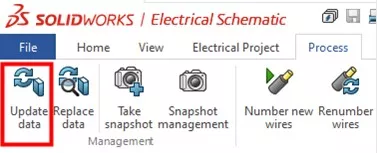
The SQL database is edited and only the parts in the library will have this information updated. To update the parts already inserted into the project we can
use the command Update Data in the Process tab.
This tool shows all the parts that have some property discrepancies with the library and allows us to choose which part we want to update. In a few click we can update the entire project.
To show the new properties in the report, add a new column. Sometimes the user data that we want to show is not listed in the predefined query, so we need to add it manually.
Access the Expert Mode section, find the User Data fields, click edit and add them to the report query. The command Test will show us a preview of the available properties. Finally, we can add the column and save the report.

Every time we connect an ERP database a .EWINI file is generated on the server in the ERP folder, this file stores the connection settings, field mapping, database location, username, and password.
Open and modify it to change these settings.

Categorised as: SOLIDWORKS Electrical | Tech Tips
Get Expert SOLIDWORKS Training
Get hands-on SOLIDWORKS training in-person or online, led by certified experts with real industry experience. With venues across the UK & Ireland, it’s easy to start learning today.
Related Posts

How to Find Reaction Forces in SOLIDWORKS Simulation
SOLIDWORKS helps us to find resultant forces through simulation studies. These virtual tests reduce the need for physical prototypes and give us an accurate answer.

Setting number of decimal places in a table on a drawing
When creating an equation in a drawing general table, is it possible to define the…

Why is my Flat Pattern not showing in SOLIDWORKS Drawings?
This may be linked to how the drawing is saved or it can be related to how sheet metal parts are displayed in drawings, read on to find out how to fix it.

Why is SOLIDWORKS Crashing?
It’s one of the great mysteries of life – why is SOLIDWORKS crashing? Let’s explore how SOLIDWORKS crashes and how we can improve performance in SOLIDWORKS.

Tech Support Blog: Why are my SOLIDWORKS BOM Quantities Wrong?
Why are my SOLIDWORKS BOM Quantities Wrong? A support call cropped up this week which…

How to Get Your Serial Number for SOLIDWORKS Visualize Standard
Want to download Visualize to make photorealistic renders? Follow this guide for accessing your Visualize serial number that comes bundled in with SolidWorks Professional and Premium.

How to Recover SOLIDWORKS Files After a Crash
SOLIDWORKS has two different methods to help you recover from an unexpected crash or loss of data in the form of auto-recovery and back-up settings.

SOLIDWORKS Magnetic Mates
Magnetic makes are used within SolidWorks assemblies to easily configure and position assembly components. Through defining connection points and ground plane(s) – position components through drag and dropping one component within close proximity of another to snap the asset into position.

SOLIDWORKS Dimensions – Collated Quick Tips
We have collated some of our favourite tips on creating, manipulating and controlling dimensions in SolidWorks, both at a sketching and drawing level. Read on to find out more…

How to Deactivate (Transfer) a SOLIDWORKS License
A SOLIDWORKS standalone license can only be activated on one machine at a time. If you plan on moving your SOLIDWORKS license to another machine you will first need to deactivate it. Additionally if a standalone license has ended up on multiple machines or you are making a change to your computer, you will need to deactivate the license first.