











How to Import Connectors in SWOOD Design with Connector Library Exchange

Written by: Adam Humphries
Published: Sep 26, 2024
| View All Blogs
While working in SWOOD Design, you may find yourself needing to import or export connectors between different installations of the software. The Connector Library Exchange tool makes this a very simple process, so let’s show you how to copy a connector between SWOOD libraries.
Where is the connector library stored?
The file that holds your connector library data is called Assemblages.efiass and can be found in your SWOOD Data folder under the sub folder SWOOD Design > Connectors.
Start by making sure you have a copy of the Assemblages.efiass file from both the source library and the target library on your machine. We can then begin the import process.
How to Access the Connector Library Exchange
To access the Library Exchange tool, we need to open the connectors library.
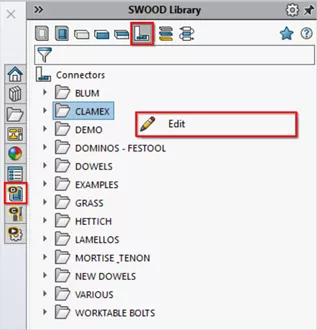
In the SWOOD Design tab of the task pane, select the connectors icon to show the library, then right click anywhere in the task pane window and click Edit.
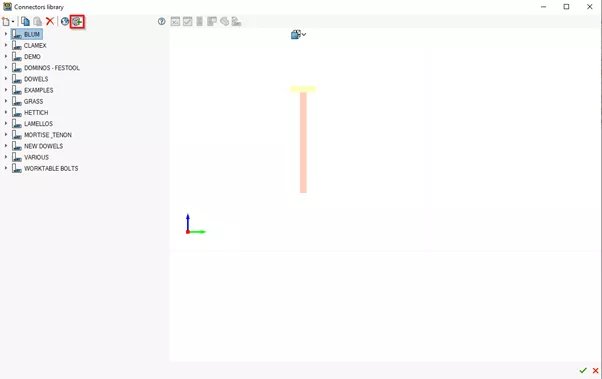
Once we are in the connector library, click the import icon to access the Connector Library Exchange window.
Using the Connector Library Exchange
By default, the connectors library that is currently being referenced by SWOOD will be loaded in as the source library on the left-hand side of the window.
If you would like to change to a different library, you can click the open icon to the top left of the window.
To load the target library, we will click open in the top right of the window and browse for the Assemblages.efiass file from that library.
Once both libraries are loaded, we can compare the two to see which connectors need to be imported.
Master SWOOD with expert-led courses that help you boost your skills and confidence.
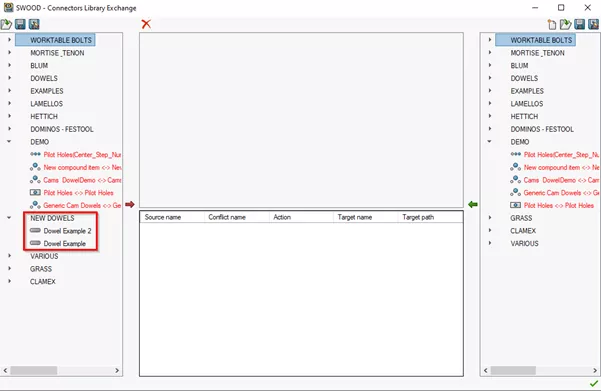
Connectors that are shared between the libraries can be seen in red, while connectors that are unique to either library are shown in black.
In the example below, you can see that all items under the folder Demo are present in both libraries, but the folder New Dowels is only present in the source library.
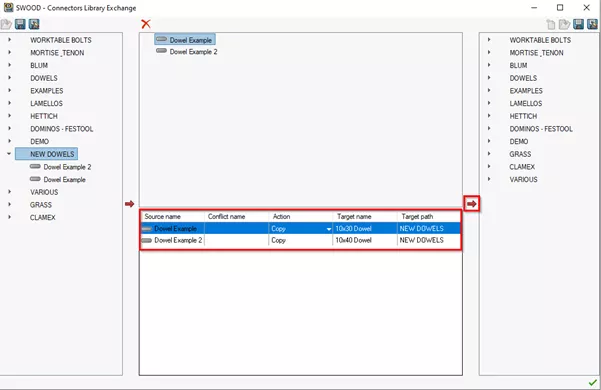
To transfer the two connectors in the New Dowels folder we can either select them both in the tree, or select the folder itself, and then click the arrow pointing to the central section of the window.
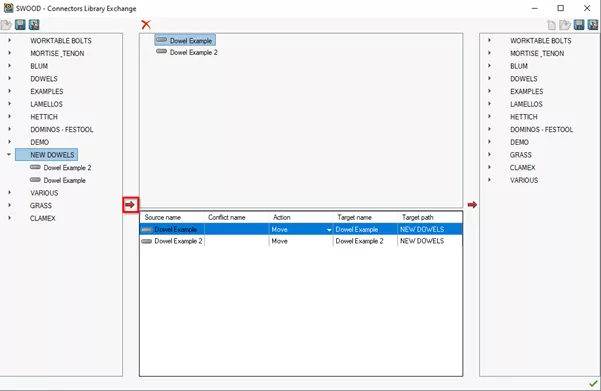
In this central section, the names of the connectors and the folder within the target library can be changed, and they can be moved or copied from the source library.
In this example, we’ve changed the names of the connectors to be more descriptive of their measurements and changed them to copy from the source library instead of moving them.
Once we have made all the desired changes, we can click the arrow pointing to the target library to transfer them.
The connectors can now be found in the target library.
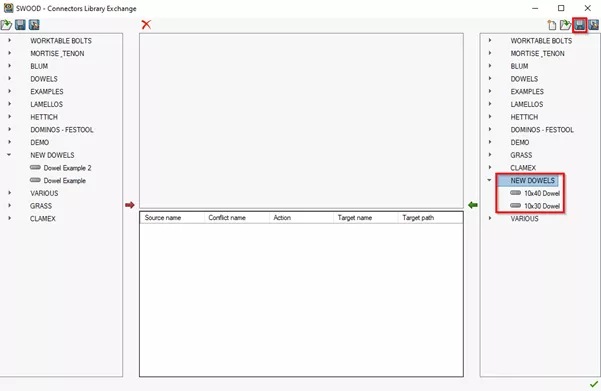
Note: This process can be performed in reverse to transfer connectors from the target library on the right to the source library on the left.
To finish up, click the save icon in the top right corner to save our changes, then click the green tick in the bottom right to close the window.
SWOOD really does help to reduce workloads by streamlining processes and freeing up machining time while minimising the risk of human error.
Categorised as: Manufacturing | SWOOD | Tech Tips
Get Expert SOLIDWORKS Training
Get hands-on SOLIDWORKS training in-person or online, led by certified experts with real industry experience. With venues across the UK & Ireland, it’s easy to start learning today.
Related Posts

How to Find Reaction Forces in SOLIDWORKS Simulation
SOLIDWORKS helps us to find resultant forces through simulation studies. These virtual tests reduce the need for physical prototypes and give us an accurate answer.

Setting number of decimal places in a table on a drawing
When creating an equation in a drawing general table, is it possible to define the…

Why is my Flat Pattern not showing in SOLIDWORKS Drawings?
This may be linked to how the drawing is saved or it can be related to how sheet metal parts are displayed in drawings, read on to find out how to fix it.

Why is SOLIDWORKS Crashing?
It’s one of the great mysteries of life – why is SOLIDWORKS crashing? Let’s explore how SOLIDWORKS crashes and how we can improve performance in SOLIDWORKS.

Tech Support Blog: Why are my SOLIDWORKS BOM Quantities Wrong?
Why are my SOLIDWORKS BOM Quantities Wrong? A support call cropped up this week which…

How to Get Your Serial Number for SOLIDWORKS Visualize Standard
Want to download Visualize to make photorealistic renders? Follow this guide for accessing your Visualize serial number that comes bundled in with SolidWorks Professional and Premium.

How to Recover SOLIDWORKS Files After a Crash
SOLIDWORKS has two different methods to help you recover from an unexpected crash or loss of data in the form of auto-recovery and back-up settings.

SOLIDWORKS Magnetic Mates
Magnetic makes are used within SolidWorks assemblies to easily configure and position assembly components. Through defining connection points and ground plane(s) – position components through drag and dropping one component within close proximity of another to snap the asset into position.

SOLIDWORKS Dimensions – Collated Quick Tips
We have collated some of our favourite tips on creating, manipulating and controlling dimensions in SolidWorks, both at a sketching and drawing level. Read on to find out more…

How to Deactivate (Transfer) a SOLIDWORKS License
A SOLIDWORKS standalone license can only be activated on one machine at a time. If you plan on moving your SOLIDWORKS license to another machine you will first need to deactivate it. Additionally if a standalone license has ended up on multiple machines or you are making a change to your computer, you will need to deactivate the license first.