











How to Update Your Graphics Card Driver on Windows 11

Written by: Terry O'Reilly
Published: May 12, 2025
| View All Blogs
The correct graphics card and up-to-date drivers are essential for optimising SOLIDWORKS performance.
Since SOLIDWORKS relies heavily on GPU acceleration to render complex models, running it on uncertified hardware or outdated drivers can lead to crashes, instability, and poor visual quality.
Regularly updating your graphics driver not only prevents graphical issues such as glitching and artefacts, but also ensures you benefit from the latest performance enhancements and bug fixes.
Let’s dive in to how to update a graphics card driver on Windows 11.
The Best Graphics Card Settings for SOLIDWORKS
Are you getting the best from your workstation? Configure your graphics card to boost SOLIDWORKS performance and reduce instability.
What is a Graphics Card?
A graphics card (or GPU) is responsible for rendering images, animations and video on your display.
SOLIDWORKS requires a professional-grade GPU to handle complex assemblies and detailed models without slowdown. Solid Solutions can recommend the ideal hardware specifications for your needs.

What is a Graphics Card Driver?
A graphics card driver is a programme that enables communication between your operating system (OS) and the GPU. As the OS and other system components receive updates, drivers must also be refreshed to maintain compatibility.
Failing to update leads to miscommunication between the OS and the GPU, resulting in graphical issues like flickering, glitching or even application crashes.
Thinking about upgrading? Find the best CAD workstation for you with our range of Dell hardware.
Why the Right GPU and Driver Matter
Running SOLIDWORKS on uncertified hardware or drivers can compromise both stability and productivity.
It’s important to ensure that your hardware is set up correctly to maximise your working time, so you can stay free to design and innovate, rather than losing hours to an incorrect graphics card driver.
Whether you are a professional CAD designer or side-hustling SOLIDWORKS user, installing and maintaining your GPU can bring the following benefits:
- Compatibility: Ensures SOLIDWORKS is certified for your hardware configuration.
- Performance: Unlocks the latest optimisations tested by Dassault Systèmes.
- Visual Quality: Eliminates rendering artefacts and glitching.
- Stability: Prevents crashes and unresponsive sessions.
Dassault Systèmes rigorously tests and certifies specific GPUs and driver versions to guarantee seamless operation. If you are experiencing any kind of graphical issue when using SOLIDWORKS, then be sure to get in touch with our Technical Support team so we can get you back in business with minimal delay.
How to Check and Update Your Graphics Driver
The SOLIDWORKS Rx Tool can be used to analyse your system’s setup and check for any available updates.
Step 1: Launch the SOLIDWORKS Rx Tool
Search for “SOLIDWORKS Rx [Version Year]” in the Windows Start menu.

Step 2: Gather System Data
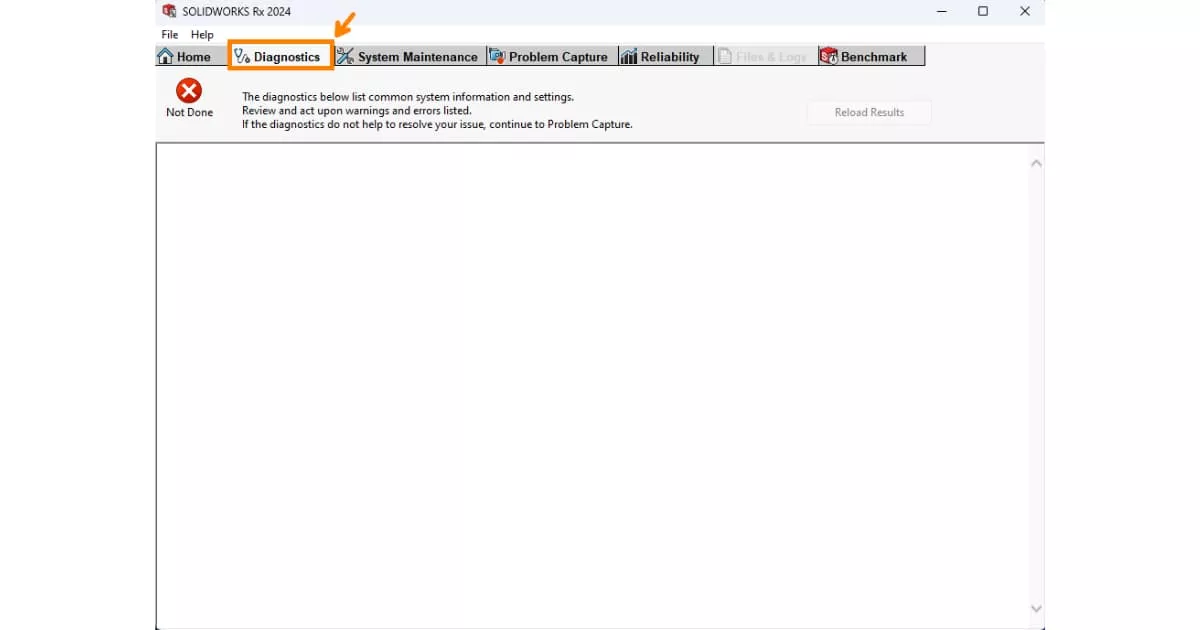
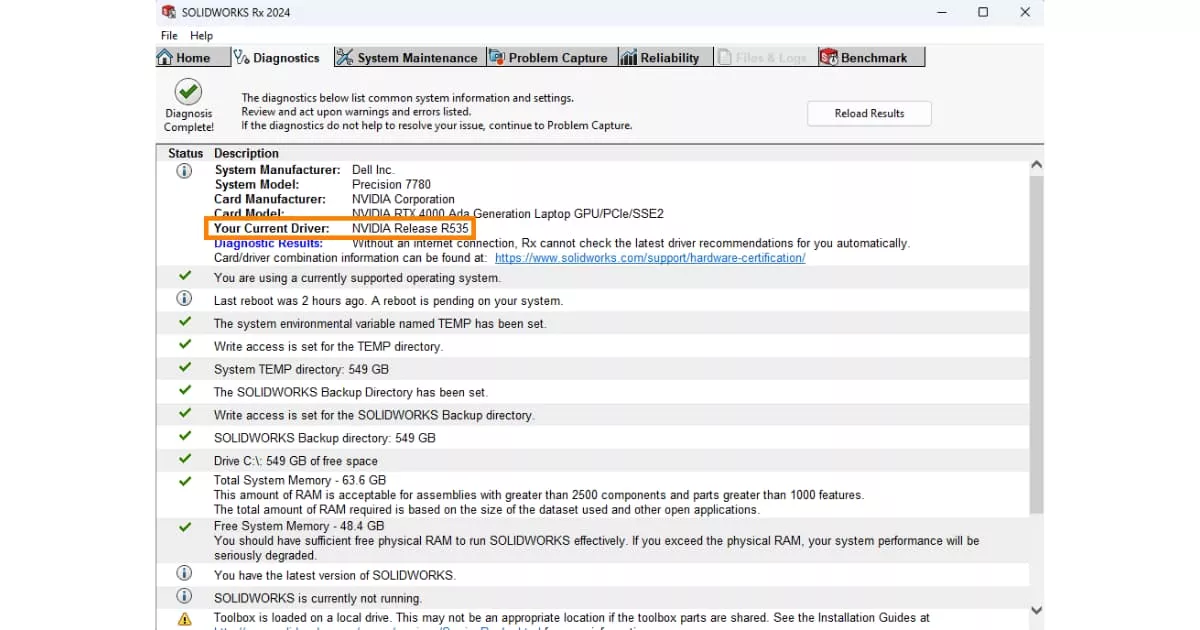
Open the SOLIDWORKS Rx and go to the Diagnostics tab – the Rx tool will analyse your machine and check whether your driver is supported for your version of SOLIDWORKS.
Here you can review your System Manufacturer, Model, GPU and current driver version.
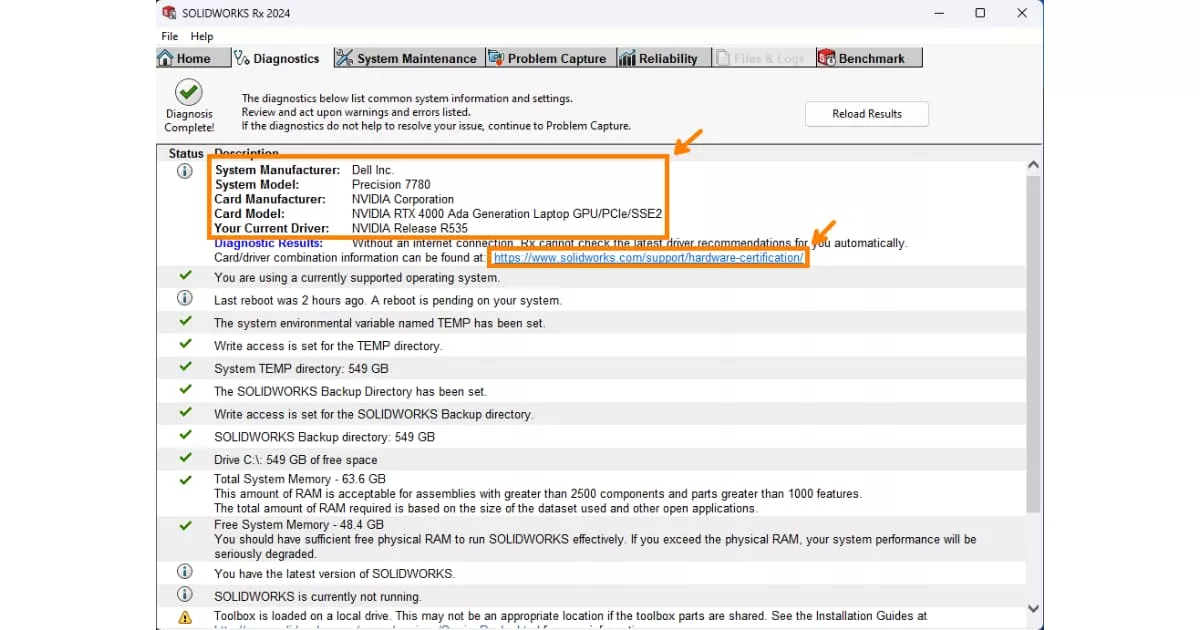
Step 3: Find Certified Drivers for SOLIDWORKS
Click the hyperlink in the Diagnostics tab to open the SOLIDWORKS Hardware Certification page.

Use the dropdown menus to select your graphics card manufacturer, model, and operating system version. Certified drivers that have been tested with your version of SOLIDWORKS will be displayed.
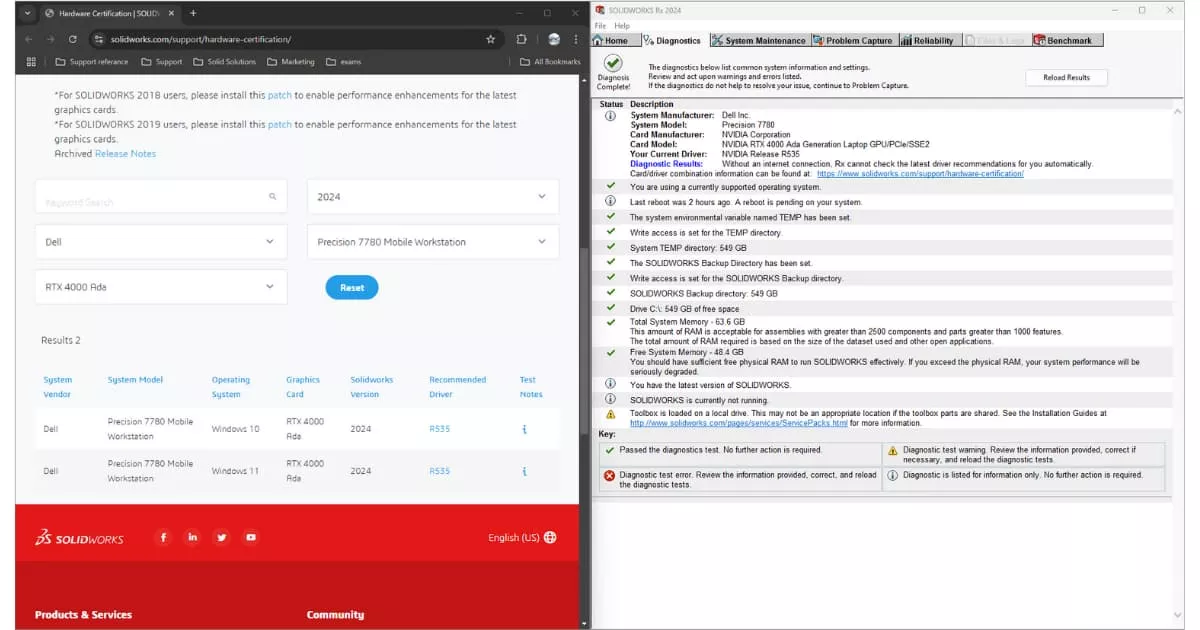
If you’re unsure of your OS version, search for System Information, then check OS Name under ‘System Summary’.
Step 4: Locate the Recommended Driver
On the Hardware Certification page, click the link in the ‘recommended driver’ column – this will direct you to the driver page on the manufacturer’s website where you will be able to download the latest driver for your setup.
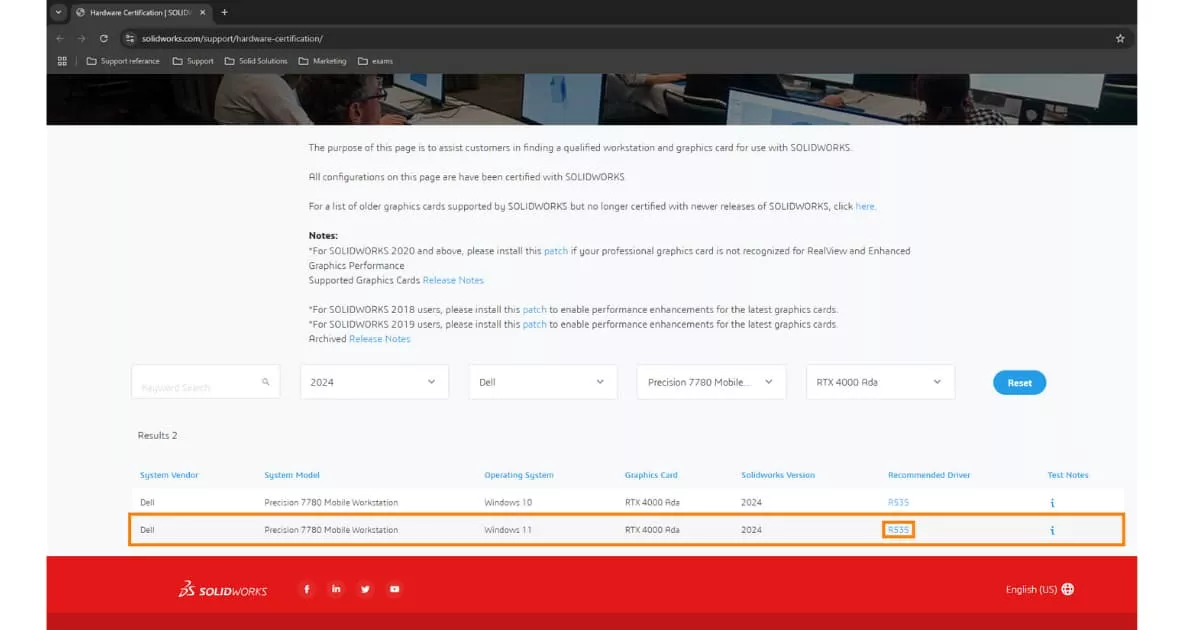
Step 5: Download the Driver
Follow the instructions on the page to download the installer for the latest certified driver. These can be surprisingly large files, so be patient with the download if needed, and save the file on your local drive.
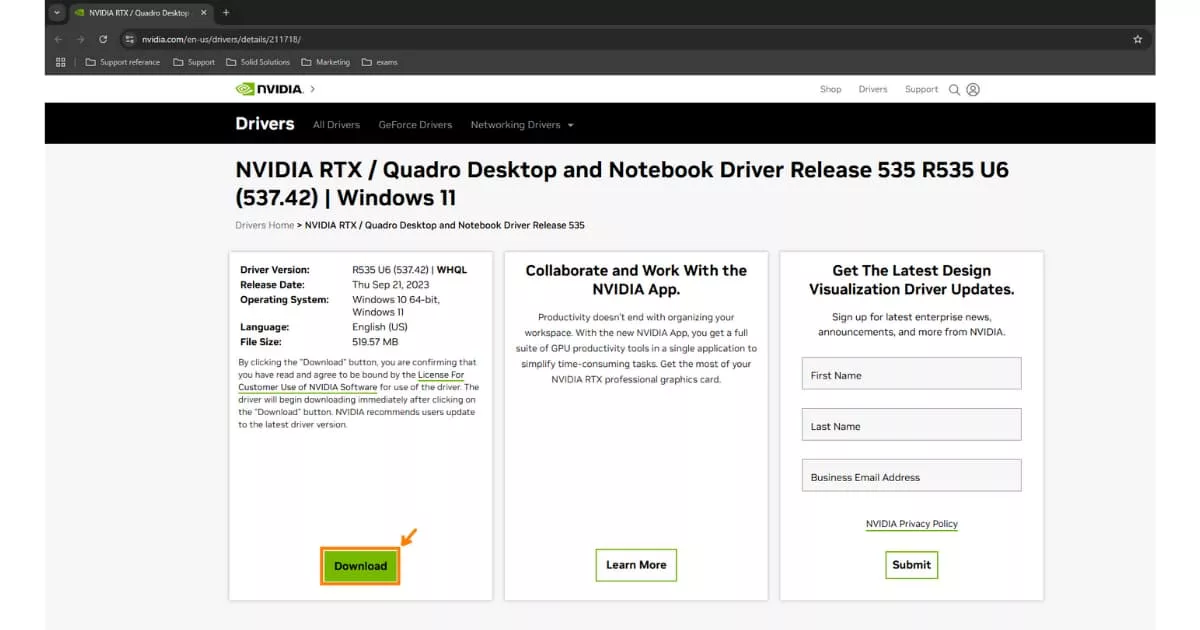
IMPORTANT: Before you install any drivers, make sure to close SOLIDWORKS and any other software that may be particularly reliant on the graphics card. Don’t forget to save your work first!
Step 6: Install the Updated Driver
When you’re ready to install the new driver, double-click the downloaded installer .exe file to start the installation process.

Confirm the extraction path and click OK.

Read and agree to the terms of the licensing agreement, then choose the ‘Custom (Advanced)’ installation option to remove and reinstall the driver (recommended if you have a newer version installed).

Tick ‘Perform a clean installation’, then click Next. Your monitors or laptop screen may flicker or go black briefly during this process – fear not, that is expected behaviour as the graphics card is effectively rebooting!
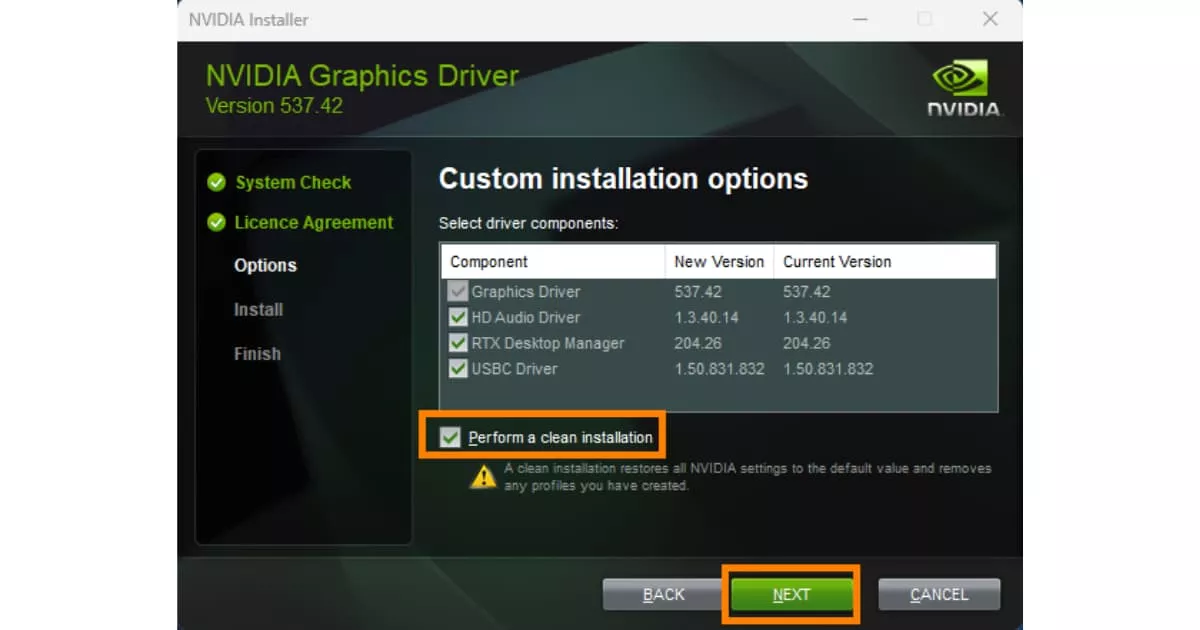
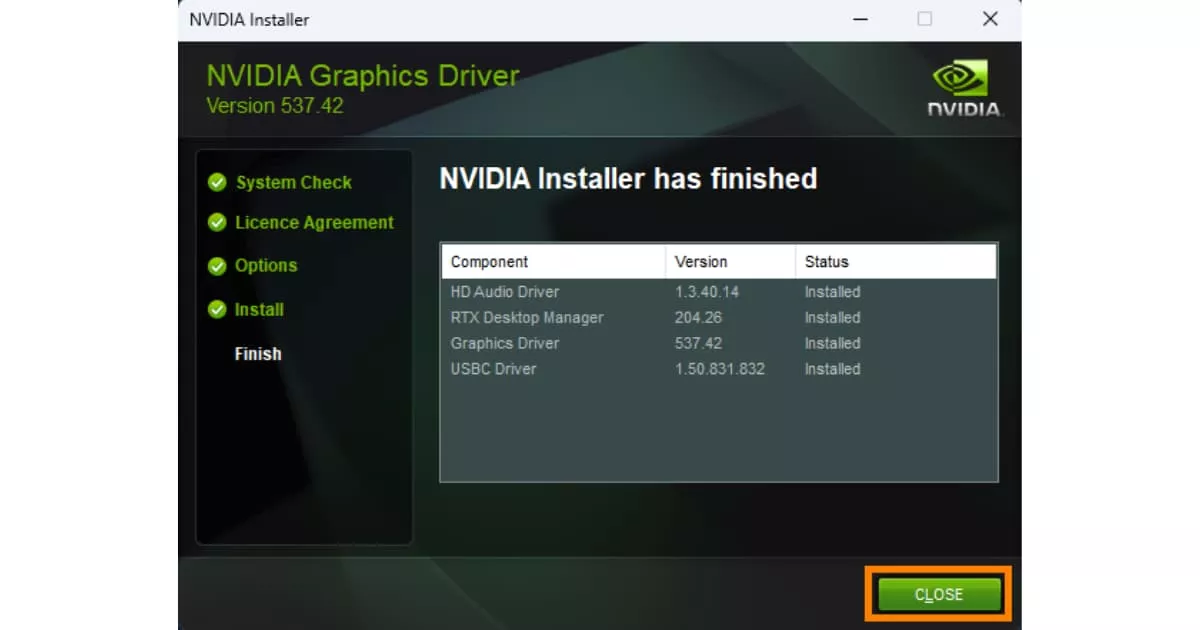
Allow the installer to remove the old driver and install the new one. Once complete, you can close the installer window.
Re-open SOLIDWORKS Rx and verify that the updated driver is now in use.
Force SOLIDWORKS to Use Your NVIDIA GPU
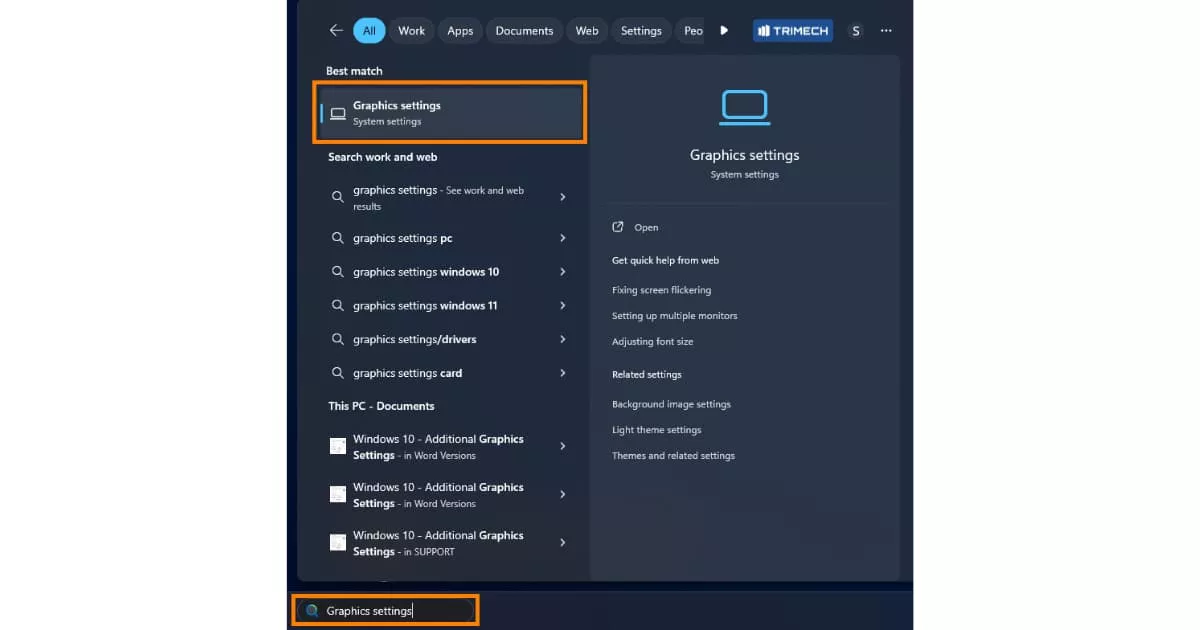
If the SOLIDWORKS Rx tool still shows the software using the processor-integrated GPU, then it’s time to dig deeper! We can force SOLIDWORKS to look at the correct graphics card by following these steps:
1. Search for your graphics settings in your Windows Start menu.
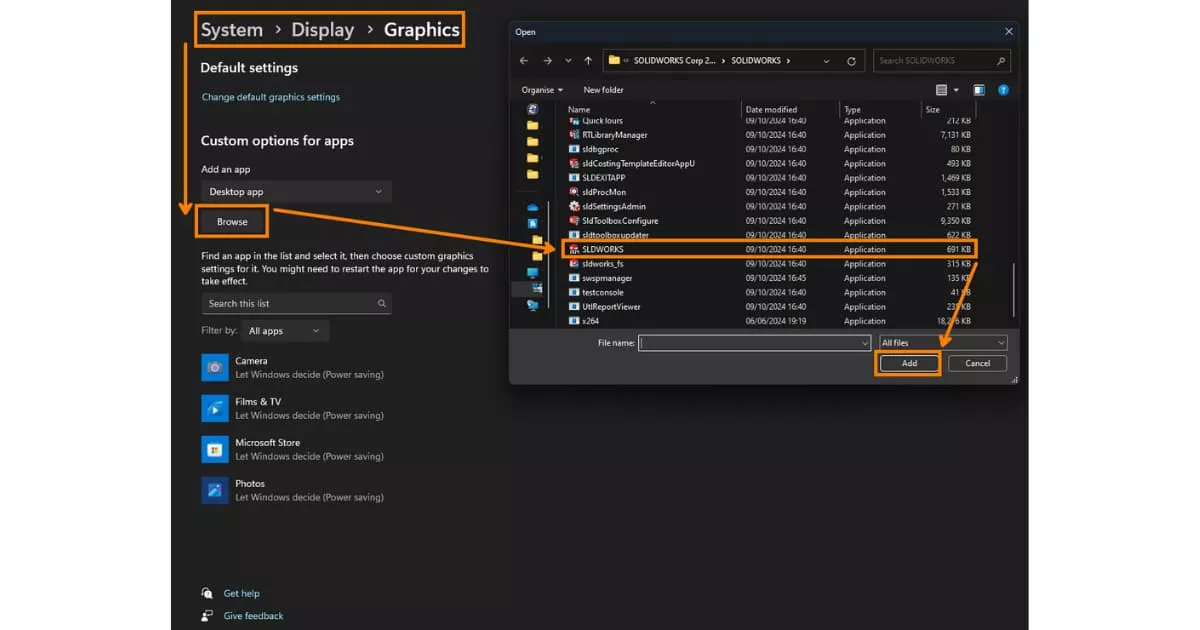
2. Under ‘Graphics performance preferences’, click Browse and navigate to your SOLIDWORKS executable file
Default SOLIDWORKS Installation Path: C:Program FilesSOLIDWORKS Corp 2024SOLIDWORKS.exe).
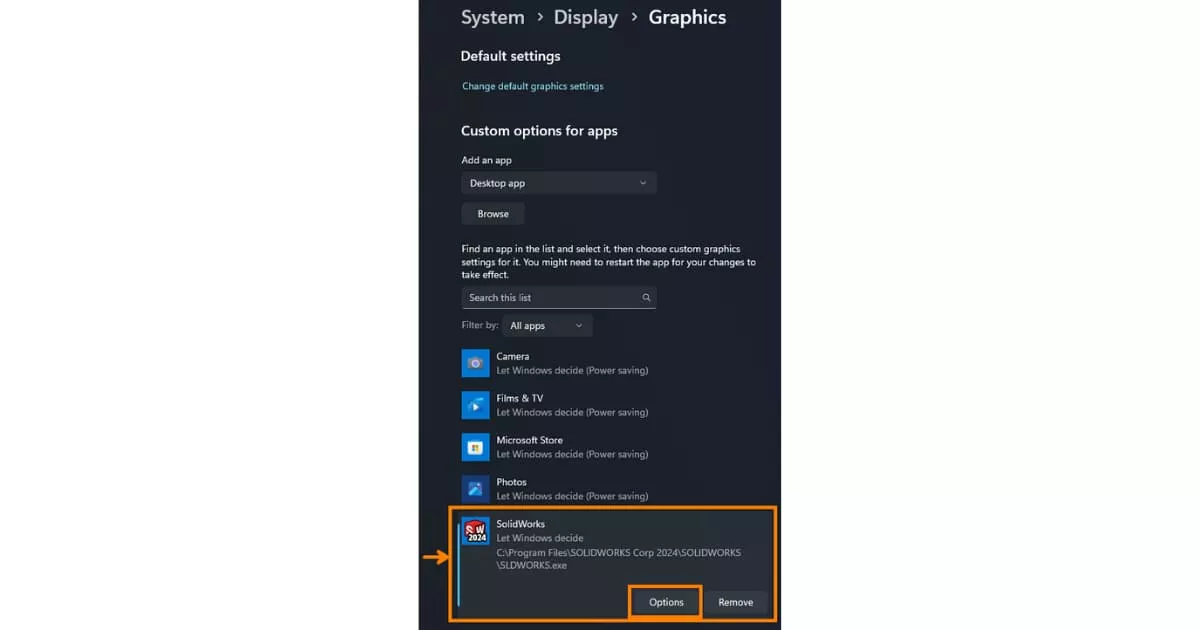
3. Select SOLIDWORKS from the list and click Options.
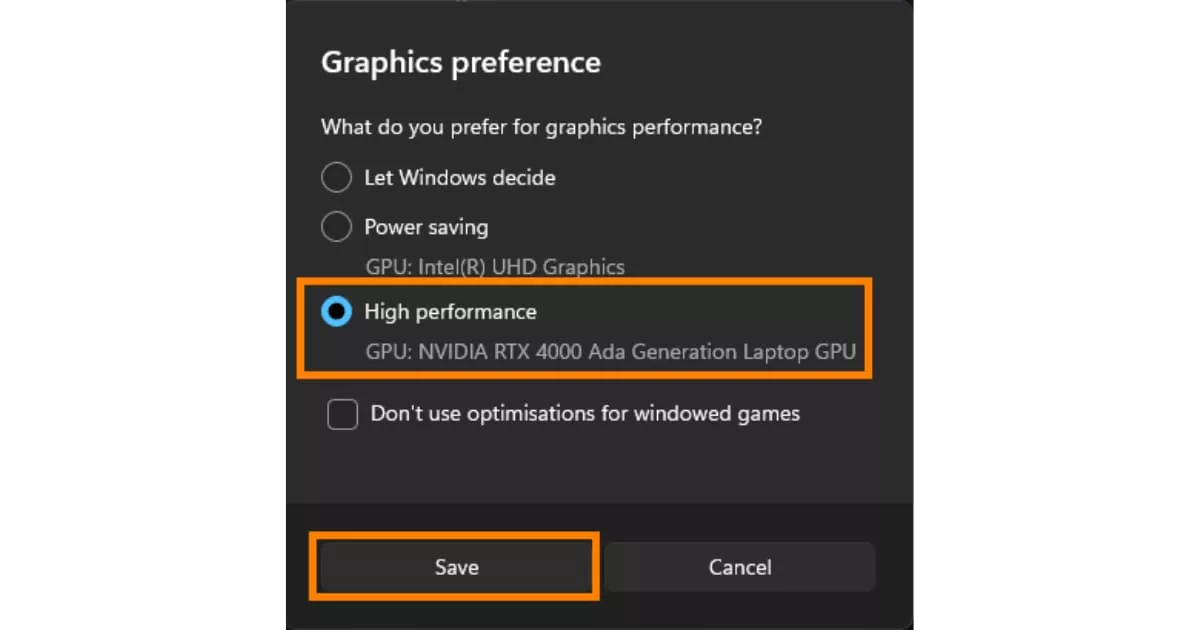
4. Choose High Performance (GPU: NVIDIA), then click Save. SOLIDWORKS will now default to using your NVIDIA card.
Still Experiencing Graphical Issues?
Ensuring your GPU and driver are both certified and up-to-date will keep SOLIDWORKS running smoothly so you can focus on design rather than troubleshooting.
If you are still experiencing issues or have difficulty installing or updating your graphics card drivers, then it’s time to utilise that SOLIDWORKS subscription.
There can be many causes for graphical issues in SOLIDWORKS and our team can help you investigate and resolve the issues via a short phone call so you can be back up and running as quickly as possible.
Are you a Startup?
Make your design dreams a reality with the SOLIDWORKS for Startups programme that provides new startups with the CAD software, support and guidance to succeed.
Learn more about unlocking your FREE CAD software for a year with the startup programme.
Categorised as: Tech Tips
Start-ups Get SOLIDWORKS for FREE
Join the SOLIDWORKS for Start-ups programme and access professional SOLIDWORKS CAD software FREE for 12 months. Perfect for entrepreneurs, freelancers, and new businesses ready to build the future.
Related Posts

How to Find Reaction Forces in SOLIDWORKS Simulation
SOLIDWORKS helps us to find resultant forces through simulation studies. These virtual tests reduce the need for physical prototypes and give us an accurate answer.

Setting number of decimal places in a table on a drawing
When creating an equation in a drawing general table, is it possible to define the…

Why is my Flat Pattern not showing in SOLIDWORKS Drawings?
This may be linked to how the drawing is saved or it can be related to how sheet metal parts are displayed in drawings, read on to find out how to fix it.

Why is SOLIDWORKS Crashing?
It’s one of the great mysteries of life – why is SOLIDWORKS crashing? Let’s explore how SOLIDWORKS crashes and how we can improve performance in SOLIDWORKS.

Tech Support Blog: Why are my SOLIDWORKS BOM Quantities Wrong?
Why are my SOLIDWORKS BOM Quantities Wrong? A support call cropped up this week which…

How to Get Your Serial Number for SOLIDWORKS Visualize Standard
Want to download Visualize to make photorealistic renders? Follow this guide for accessing your Visualize serial number that comes bundled in with SolidWorks Professional and Premium.

How to Recover SOLIDWORKS Files After a Crash
SOLIDWORKS has two different methods to help you recover from an unexpected crash or loss of data in the form of auto-recovery and back-up settings.

SOLIDWORKS Magnetic Mates
Magnetic makes are used within SolidWorks assemblies to easily configure and position assembly components. Through defining connection points and ground plane(s) – position components through drag and dropping one component within close proximity of another to snap the asset into position.

SOLIDWORKS Dimensions – Collated Quick Tips
We have collated some of our favourite tips on creating, manipulating and controlling dimensions in SolidWorks, both at a sketching and drawing level. Read on to find out more…

How to Deactivate (Transfer) a SOLIDWORKS License
A SOLIDWORKS standalone license can only be activated on one machine at a time. If you plan on moving your SOLIDWORKS license to another machine you will first need to deactivate it. Additionally if a standalone license has ended up on multiple machines or you are making a change to your computer, you will need to deactivate the license first.