











How to Use the Draw Tab Tools in SOLIDWORKS Electrical
Written by: Stefano Bigazzi
Published: Mar 23, 2023
| View All Blogs
What is Draw Tabs in SOLIDWORKS?
Text, hatching, images, blocks, and dimensions are all important tools that helps us add detail to our projects.
In SOLIDWORKS Electrical, one of the most often used tabs is the Draw tab. It’s essential to understand the basic tools available to you, so you can design and detail your schematics with ease.
Let’s get you familiarised with the Draw tab.

SOLIDWORKS Electrical Draw Tab
In the creation section we can find all the tools to create sketch entities such as lines, circles, rectangles, arcs, etc. These tools are typical of any 2D CAD software.
It is worth highlighting the difference between lines and polylines – they can create the same shapes after all…
With the Line command, the objects are made up of individual segments, while the Polyline tool creates one combined entity.
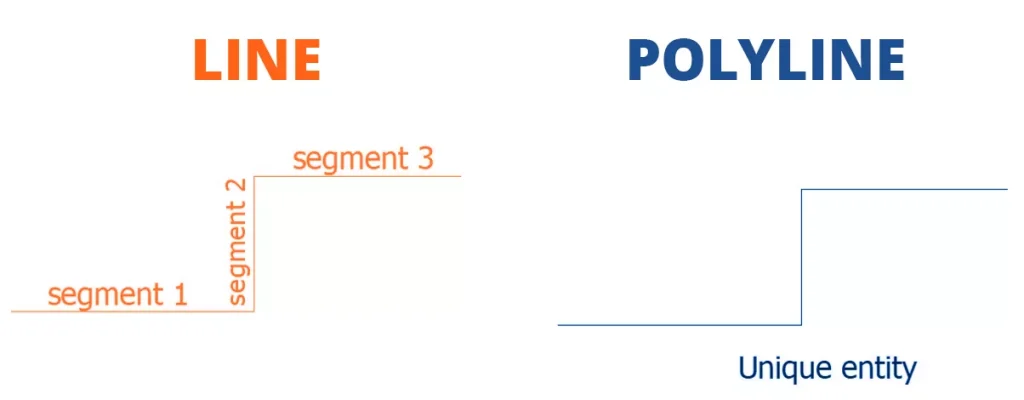
Line and Polyline Command
Another difference is the thickness. For a polyline we can change the thickness using the field Global Width. For a line we need to use the Line Weight option.
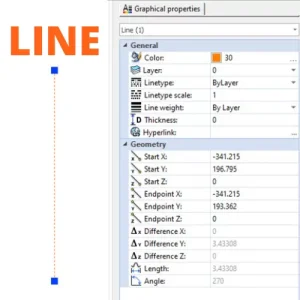
Line Properties
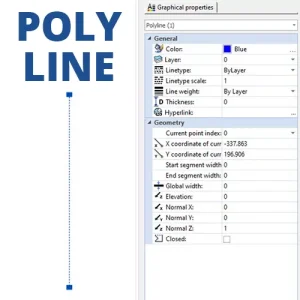
Polyline Properties
The Cloud tool can be used to leave notes on the drawing or to highlight circuits. It’s commonly used as a markup to indicate to the designer that a review is required.
A hatch can be easily drawn on the scheme in a few clicks. We’ll leave you in the capable hands of the Hatch Wizard to guide you through this one – choose your type, pattern, angle, and scale of hatch.
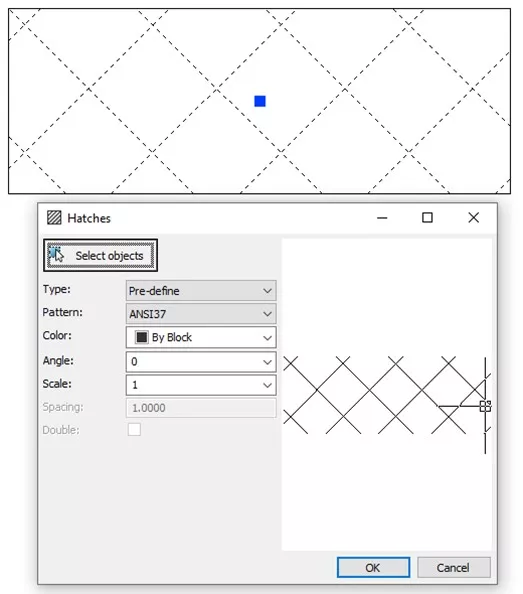
The Hatch Wizard
The Wipeout allows to hide part of the drawing.
To hide the Wipeout border line, we need to turn off the Wipeout option in the drawing parameters.
Deselect the option Show Wipeout Frames.
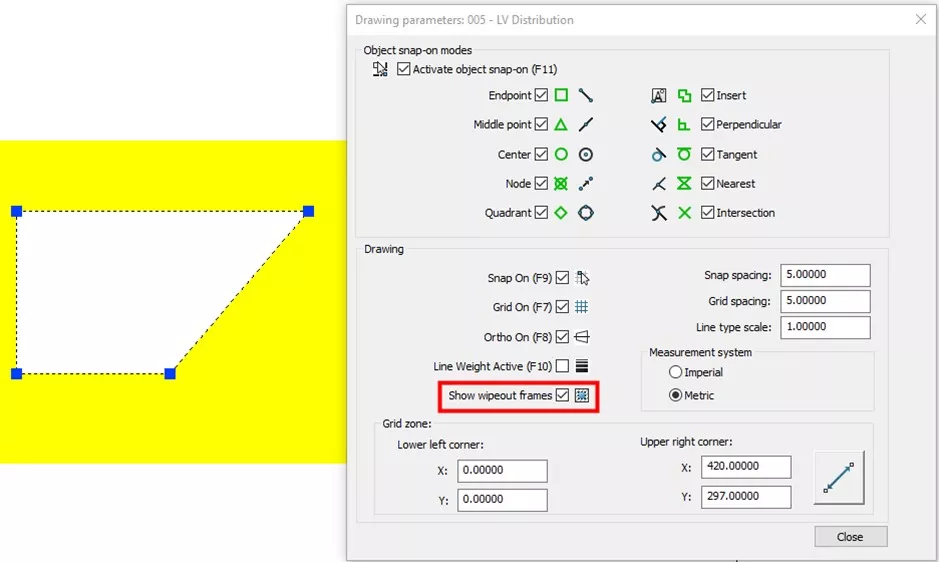
Show Wipeout Frames
The Attach Image command creates a hyperlink between the project and the image location.
Common image formats are supported, but if the image is moved into a new folder, the hyperlink will be broken, and the image won’t be shown in the drawing.
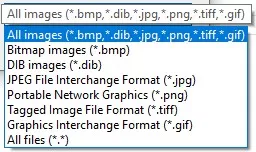
Dropdown Image File Type
With SOLIDWORKS Electrical 2023, the Insert Image command has been enhanced now supports the insertion of common image formats including JPEG and PNG formats. Previous versions only supported DIB and BMP images.
Images that are inserted rather than attached will be saved within the project, so you can move those files around if needed without breaking any links.
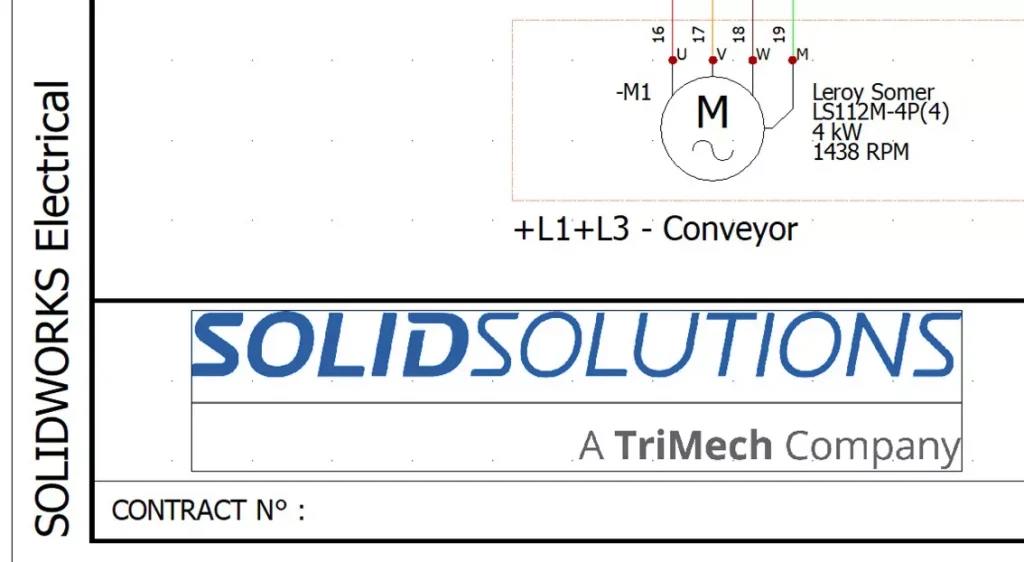
Text boxes in SOLIDWORKS Electrical
SOLIDWORKS Electrical allows us to add text boxes to drawings through 3 commands: Add Text, Multiline Text and Attribute.
The first two allow us to add basic strings of text to our schemes. In SOLIDWORKS Electrical, attributes are used to propagate electrical project data in graphical objects.
The Hyperlink tool allows the user to create links to external information, including data sheets and your company website. The hyperlinks also carry through to the smart PDF output.
Check out our other blog to learn how to create and link data sheets in SOLIDWORKS Electrical.
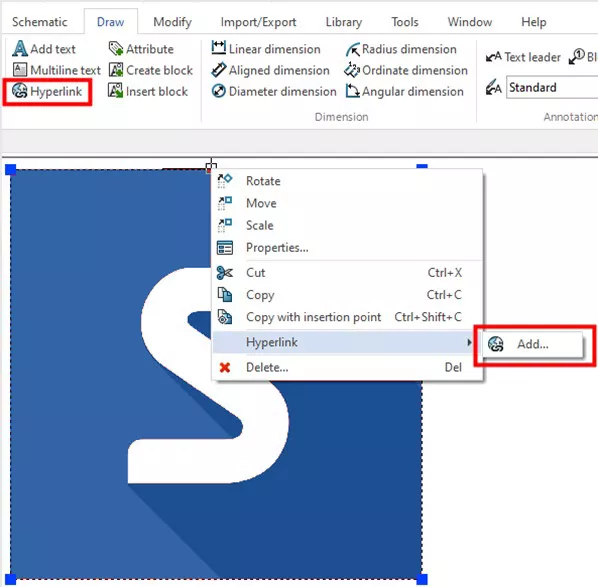
Electrical Hyperlink Tool
If you have a complex set of entities that you commonly use but don’t want to have to draw again, then the Create Block and Insert Block commands can help.
These commands save drawn entities as block files to help you manage and build up a library of graphical entities for re-use in future projects.
In the Dimension section we can find various tools for dimensioning drawings. Text size can be modified in the right-hand property panel, and the dimension style can be redefined in Modify Tab > Dimension Styles, for all future uses of the tool.
Commonly, the tools located in the Annotation section are used for cabinet layouts because they help to finish to detail the drawing adding balloons and text leaders.
The Multilingual command allows us to insert a multiline text box, where each line is written in a different language.
The Draw tab contains all the commands you need to generate title blocks, symbols, 2D footprints and more.
Do note that the graphical entities placed with these commands are not managed in the electrical project database and are meant for graphical purposes only.
Categorised as: SOLIDWORKS Electrical | Tech Tips
Get Expert SOLIDWORKS Training
Get hands-on SOLIDWORKS training in-person or online, led by certified experts with real industry experience. With venues across the UK & Ireland, it’s easy to start learning today.
Related Posts

How to Find Reaction Forces in SOLIDWORKS Simulation
SOLIDWORKS helps us to find resultant forces through simulation studies. These virtual tests reduce the need for physical prototypes and give us an accurate answer.

Setting number of decimal places in a table on a drawing
When creating an equation in a drawing general table, is it possible to define the…

Why is my Flat Pattern not showing in SOLIDWORKS Drawings?
This may be linked to how the drawing is saved or it can be related to how sheet metal parts are displayed in drawings, read on to find out how to fix it.

Why is SOLIDWORKS Crashing?
It’s one of the great mysteries of life – why is SOLIDWORKS crashing? Let’s explore how SOLIDWORKS crashes and how we can improve performance in SOLIDWORKS.

Tech Support Blog: Why are my SOLIDWORKS BOM Quantities Wrong?
Why are my SOLIDWORKS BOM Quantities Wrong? A support call cropped up this week which…

How to Get Your Serial Number for SOLIDWORKS Visualize Standard
Want to download Visualize to make photorealistic renders? Follow this guide for accessing your Visualize serial number that comes bundled in with SolidWorks Professional and Premium.

How to Recover SOLIDWORKS Files After a Crash
SOLIDWORKS has two different methods to help you recover from an unexpected crash or loss of data in the form of auto-recovery and back-up settings.

SOLIDWORKS Magnetic Mates
Magnetic makes are used within SolidWorks assemblies to easily configure and position assembly components. Through defining connection points and ground plane(s) – position components through drag and dropping one component within close proximity of another to snap the asset into position.

SOLIDWORKS Dimensions – Collated Quick Tips
We have collated some of our favourite tips on creating, manipulating and controlling dimensions in SolidWorks, both at a sketching and drawing level. Read on to find out more…

How to Deactivate (Transfer) a SOLIDWORKS License
A SOLIDWORKS standalone license can only be activated on one machine at a time. If you plan on moving your SOLIDWORKS license to another machine you will first need to deactivate it. Additionally if a standalone license has ended up on multiple machines or you are making a change to your computer, you will need to deactivate the license first.