











Managing Disk Space with SOLIDWORKS PDM Part #1: Distributing the Archive
Written by: Wayne Marshall
Published: Jul 30, 2021
| View All Blogs
This blog series was prompted by a recent support ticket, logged when a customer found their PDM Professional installation suddenly became unusable. The warning message, led to my reviewing the archive server’s log file and this quickly identified the problem being a result of the PDM Server running out of disk space.
When this happens there are a couple of things you can do straight away to get you up and running again, but it is probably also worth thinking about what processes and systems you have in place already to ensure you are maximising the space available to you within that setup.
The first thing to do if you run out of disk space is nothing really to do with PDM, it’s simply to run the built in disk clean-up tool within Windows Explorer. Right click over your ‘full’ hard drive, select Properties then from the general tab click Disk Clean-up.
What you decide to remove/keep will be down to you, but it still surprises me how often I forget to clear my own recycle bin! Choosing the option to also inspect system files can often reveal lots of old Windows update installers taking up GB’s of space on the drive which, in most situations, I would suggest you can probably do away with, now and again.
Note: Before taking any steps to relocate, remove or compress data in your archive please ensure that all files have been checked in by the users and that backups have been taken of both the database and archives. In the event of a relocation, you should ensure that all users log off or go into offline mode before attempting the move.
Part #1: Distributing the Archive
By redistributing the archive across multiple hard drives, you can reduce the load on the primary drive. Due to the way that the archive is structured, the archive file store can be split up over as many as 16 locations. The distribution is done from the archive server itself and can be pointed to any directories or drives that the server has access to. This can include drives that are located on the network, as well as those physically attached to the server. My advice would always be to use built-in drives where possible, since network drives could be affected by bandwidth and although NAS/SAN devices could also be employed here, officially that would not be a supported configuration.
Essentially, if you have multiple drives in your server and the one holding the archive is at capacity, then this is one of the quickest methods for addressing free-space concerns that doesn’t require an entire server move, and it is easy to carry out directly within the archive server configuration tool.
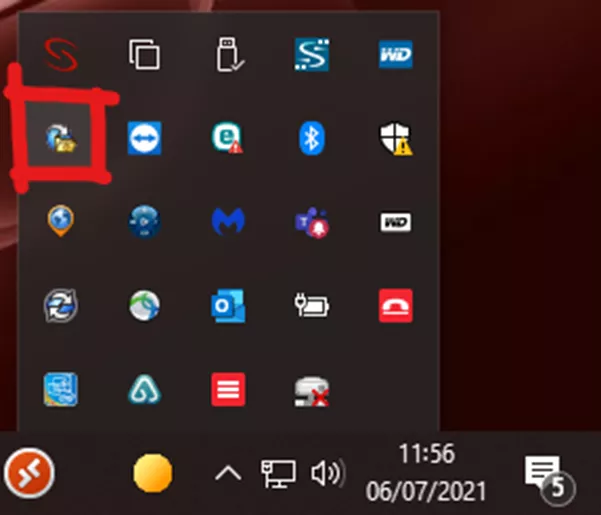
To start the process, launch the Archive Server Configuration application from the start menu of the PDM server. If, upon launch, a dialogue is not shown it is likely that the application has been minimised. Check the system tray (by the clock) as in the image above. Right click the archive server icon and select Open.
Once open, expand the folder under This Computer select your vault then right click and choose Relocate.
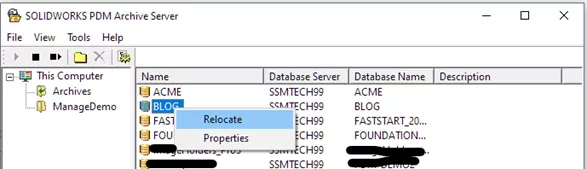
Note: The name of the folder may be different on your server.
After the dialog box appears, there are a couple of steps you now need to complete.
- Add the new archive folder location.
I created a new folder on my D: drive for this purpose - Adjust the size of the archive that will reside in each location.
Note: Due to the way PDM identifies and structures the data within the archive, it is split into 16 folders. When relocating, a whole folder will be moved (it cannot exist in two places) so by moving 25% of the archive to the D: Drive I am actually moving four archive folders. The size of those folders is not inspected, so 25% of the archive may not actually be 25% of the archive size.
Note: You cannot click OK unless the total size equals 100% - Optionally, add more locations and repeat the process, up to the maximum of 16
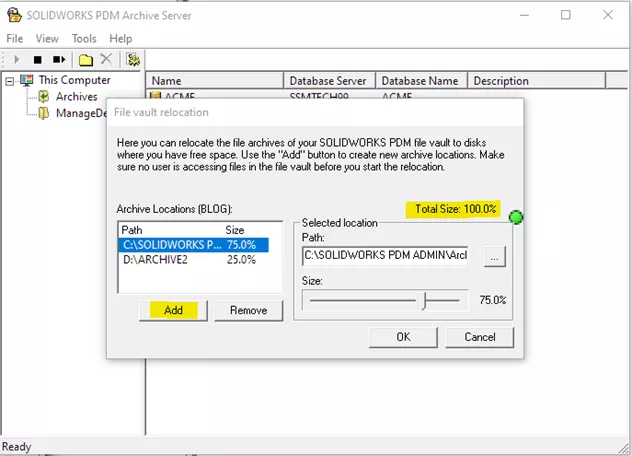
Note: By adding one new location and setting its size at 100% and the old location at 0%, the compete archive can be relocated. However, this may not be the most efficient way to achieve this and a manual relocation (moving the archive on disk then updating the server registry keys) may be more suitable. Please refer to the installation guide or call our helpdesk to discuss this option, if preferred.
Blog Series Contents
Categorised as: Data Management | SOLIDWORKS PDM | Tech Tips
Get a SOLIDWORKS Quote
Interested in SOLIDWORKS? Contact us for questions, trials, or demos by clicking the button below or call 01926 333777. Our experts will help you find the perfect solution.

Related Posts

How to Find Reaction Forces in SOLIDWORKS Simulation
SOLIDWORKS helps us to find resultant forces through simulation studies. These virtual tests reduce the need for physical prototypes and give us an accurate answer.

Setting number of decimal places in a table on a drawing
When creating an equation in a drawing general table, is it possible to define the…

Why is my Flat Pattern not showing in SOLIDWORKS Drawings?
This may be linked to how the drawing is saved or it can be related to how sheet metal parts are displayed in drawings, read on to find out how to fix it.

Why is SOLIDWORKS Crashing?
It’s one of the great mysteries of life – why is SOLIDWORKS crashing? Let’s explore how SOLIDWORKS crashes and how we can improve performance in SOLIDWORKS.

Tech Support Blog: Why are my SOLIDWORKS BOM Quantities Wrong?
Why are my SOLIDWORKS BOM Quantities Wrong? A support call cropped up this week which…

How to Get Your Serial Number for SOLIDWORKS Visualize Standard
Want to download Visualize to make photorealistic renders? Follow this guide for accessing your Visualize serial number that comes bundled in with SolidWorks Professional and Premium.

How to Recover SOLIDWORKS Files After a Crash
SOLIDWORKS has two different methods to help you recover from an unexpected crash or loss of data in the form of auto-recovery and back-up settings.

SOLIDWORKS Magnetic Mates
Magnetic makes are used within SolidWorks assemblies to easily configure and position assembly components. Through defining connection points and ground plane(s) – position components through drag and dropping one component within close proximity of another to snap the asset into position.

SOLIDWORKS Dimensions – Collated Quick Tips
We have collated some of our favourite tips on creating, manipulating and controlling dimensions in SolidWorks, both at a sketching and drawing level. Read on to find out more…

How to Deactivate (Transfer) a SOLIDWORKS License
A SOLIDWORKS standalone license can only be activated on one machine at a time. If you plan on moving your SOLIDWORKS license to another machine you will first need to deactivate it. Additionally if a standalone license has ended up on multiple machines or you are making a change to your computer, you will need to deactivate the license first.