











Managing Disk Space with SOLIDWORKS PDM Part #4: Cold Storage
Written by: Wayne Marshall
Published: Jul 30, 2021
| View All Blogs
In this blog series we are examining the factors influencing disk usage within PDM and what you can do to manage them. In the first part we discussed how you can re-organise your Archive across multiple drives to get you back up and running quickly should you find you are short on space. In the second part we looked at the differences between a deleted and a destroyed file and the impact the PDM recycle bin has on Disk usage. Part three discussed temporary session files created by the PDM Web Server and this Part will look at an option within PDM called Cold Storage.
Cold storage is a feature in SOLIDWORKS PDM that,based on a defined schedule and schema, will automatically move or delete old versions of files and therefore can be used to reduce the amount of disk space required on an archive server. Whilst it would be possible to recover file versions ‘moved’ by cold storage, if you choose to delete an old version instead then it is permanently removed from the archive and cannot be recovered.
To create a cold storage schema, log in to the vault within the administration tool, right click over the cold storage node and select New Cold Storage Schema
Use the dialog displayed to configure the scope, options, and frequency of the cold storage operation.
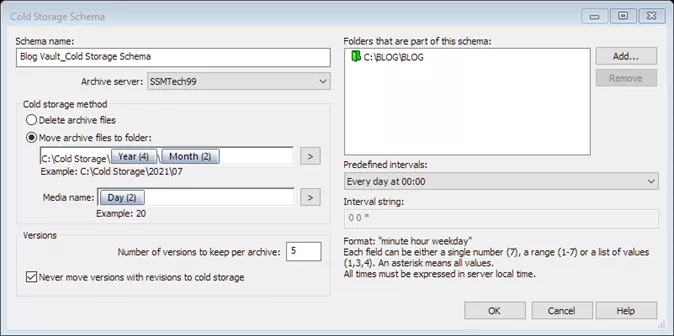
After naming your schema select and then configure the Cold Storage method for dealing with those earlier versions.
If you choose to delete then versions deleted by cold storage will not be recoverable using the cold storage system and you would need to recover wholly from an earlier database / archive backup.
If you choose to Move the earlier versions (preferred), this would typically be to a larger storage drive.
If you select move, then we need to define a high-level folder path and a sub folder ‘media name’ for the specific versions cold stored each time the schema executes. As my schema will run daily, I will just use the day of the month as the media (sub folder) name.
Note: In both ‘path’ fields it is possible to use the fly out (>) to select system variables or counter options.
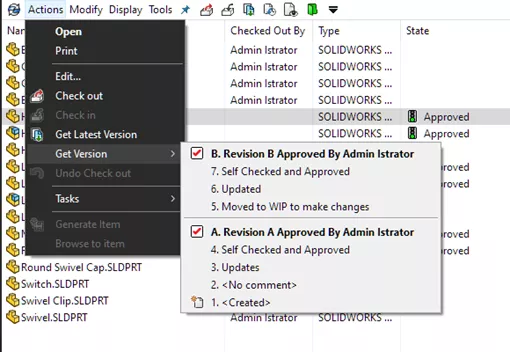
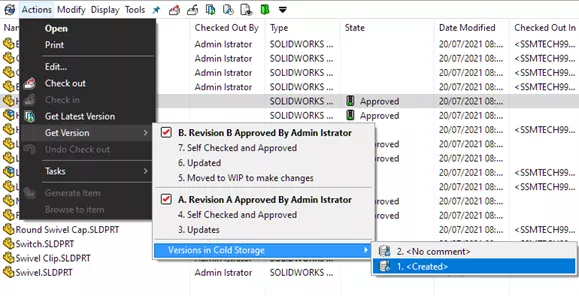
In the next section, versions, we specify which versions we want to cold store, noting that by ticking Never move versions with revisions to cold storage that any versions with a revision increment (shown as a red tick along side the revision value in the history / get menu) will be skipped.
E.g. in the first image (before cold storage) you can see multiple versions, of which two are revisions. In the second image (after cold storage) you will see that the two versions in cold storage have been excluded from the main list but can be ‘recalled’ if required.
Note: ‘Labelled’ Versions are always excluded from cold storage.
In the top right of the dialog, we can specify the folders within the vault that we want to include in the cold storage schema. Cold storage will process all files under the selected folders in the cold storage schema and remove the defined number of older versions. This also applies to all subfolders of the selected folder and cannot be restricted to certain file types or files in certain states.
Note: When managing toolbox within a PDM vault it is likely that you will create many versions of the toolbox parts and that your assemblies will often be referencing an ‘older’ version of the toolbox component when they are loaded ‘as built’ or when ‘getting’ previous versions. Therefore, when a cold storage schema includes the toolbox folder this can result in situations where users are often faced with errors when they are not set to ‘always work with latest version’ in that the required version of the toolbox part referenced in the version of the assembly being opened has been ‘cold stored’ and needs to be recovered. I would advise against including toolbox folders in your cold storage schema.
Finally, we need to configure the cold storage schedule. The interval is formatted Minute Hour Day. The drop list allows for the selection of a number of pre-configured options, or for the selection of a user defined scheme where:
- Minute: Use numerals 0 to 59.
- Hour: Use numerals 0 to 23, where 0 is midnight.
- Weekday: Use numerals 1 to 7, where 1 is Monday.
Separate sections with a space. Sections can contain a single number, a range (1-7), or a list (0,15,30,45). An asterisk represents the entire range. For example:
- 0 0 * – Run every day at midnight.
- 0 2 1-5 – Run every Monday to Friday at 2 a.m.
- 0 * * – Run every hour on the hour every day.
- 0 */2 * – Run every other hour every day.
- 0,15,30,45 * * – Run every 15 minutes every day.
- 0,30 * 1-5 – Run every half hour Monday to Friday.
- 0 6-18 1-5 – Run every hour between 6 a.m. and 6 p.m. Monday to Friday.
The time is local to the server.
Note: Before implementing cold storage, it is useful to consider the following points outlining the benefits and drawbacks of using cold storage.
- Cold storage will only delete or move older versions from the physical archive folders. All history entries for each processed file (check in information, card values etc.) will remain in the database. Cold storage cannot be used to delete older history entries in the database. If you want to delete all older versions of a file but keep the latest version you can make a copy of the file and delete the original to create a new version history for the copied file.
- If you select to delete older file versions, the operation is irreversible. The only way to recover versions that are deleted by cold storage is to manually restore them from a backup of the archive server that was processed.
- Only use cold storage if the versions that are deleted or moved are not intended to be frequently needed. While it is possible to recover a moved version, it is a complex procedure to continually recover the version depending on how often the version is required.
- Before implementing cold storage, consider enabling compression instead. That way you still reduce disk space, but you still have all the versions accessible.
- In a replicated environment, cold storage schemas are set up per archive server so that it is possible to implement cold storage only on one out of multiple servers. Note: however that the versions that are cold stored would not be accessible from clients attached to that server. The versions will still be accessible from clients attached to the other replicated servers if the versions have been replicated to those servers.
Blog Series Contents
Categorised as: Data Management | SOLIDWORKS PDM | Tech Tips
Get a SOLIDWORKS Quote
Interested in SOLIDWORKS? Contact us for questions, trials, or demos by clicking the button below or call 01926 333777. Our experts will help you find the perfect solution.

Related Posts

How to Find Reaction Forces in SOLIDWORKS Simulation
SOLIDWORKS helps us to find resultant forces through simulation studies. These virtual tests reduce the need for physical prototypes and give us an accurate answer.

Setting number of decimal places in a table on a drawing
When creating an equation in a drawing general table, is it possible to define the…

Why is my Flat Pattern not showing in SOLIDWORKS Drawings?
This may be linked to how the drawing is saved or it can be related to how sheet metal parts are displayed in drawings, read on to find out how to fix it.

Why is SOLIDWORKS Crashing?
It’s one of the great mysteries of life – why is SOLIDWORKS crashing? Let’s explore how SOLIDWORKS crashes and how we can improve performance in SOLIDWORKS.

Tech Support Blog: Why are my SOLIDWORKS BOM Quantities Wrong?
Why are my SOLIDWORKS BOM Quantities Wrong? A support call cropped up this week which…

How to Get Your Serial Number for SOLIDWORKS Visualize Standard
Want to download Visualize to make photorealistic renders? Follow this guide for accessing your Visualize serial number that comes bundled in with SolidWorks Professional and Premium.

How to Recover SOLIDWORKS Files After a Crash
SOLIDWORKS has two different methods to help you recover from an unexpected crash or loss of data in the form of auto-recovery and back-up settings.

SOLIDWORKS Magnetic Mates
Magnetic makes are used within SolidWorks assemblies to easily configure and position assembly components. Through defining connection points and ground plane(s) – position components through drag and dropping one component within close proximity of another to snap the asset into position.

SOLIDWORKS Dimensions – Collated Quick Tips
We have collated some of our favourite tips on creating, manipulating and controlling dimensions in SolidWorks, both at a sketching and drawing level. Read on to find out more…

How to Deactivate (Transfer) a SOLIDWORKS License
A SOLIDWORKS standalone license can only be activated on one machine at a time. If you plan on moving your SOLIDWORKS license to another machine you will first need to deactivate it. Additionally if a standalone license has ended up on multiple machines or you are making a change to your computer, you will need to deactivate the license first.