











MSC Nastran: Automating Post-Processing to Save Time and Avoid Errors.
Written by: Tom McHale
Published: Sep 14, 2023
| View All Blogs
Engineers perform analysis to gain insight into their designs. This generates a huge amount of data, and post-processing it through a graphical user interface isn’t always the most efficient way to do it.
Doing it that way can introduce ‘pilot error’ into the process, particularly with repetitive tasks like plotting force vs time for a number of interface nodes for a report.
So let’s show you an immensely powerful tool for post-processing large data sets from MSC Nastran.
Scripting Saves Times

There’s an uncommon saying that lazy people make the best engineers because they’re always looking for an easier way to do something.
Rather than endless repeated clicks and pulldown menus to get the data you want from a GUI, it can be far more efficient to spend some time writing a script to do it.
If that script accesses the solver output rather than driving the API of a GUI, it will likely be all the more efficient and it will be more likely to work the next time and the time after that, without changes – meaning much less work for the ‘lazy’ engineer in the long run.
We have lots of customers in the Aerospace and Defence market who have been using MSC Nastran for decades and have generated their own scripts for extracting results from the Nastran output files.
Nastran writes results to a variety of binary files as well as text files like the punch and the f06 file – which anyone of a certain vintage will recognise as being formatted for an old dot-matrix printer – so it’s a very stable format!
THE POWER OF OPEN SOURCE
The f06 is relatively easy to process with a script, maybe awk and grep on a Linux system or PERL/Python on either Linux or Windows. For a big model with lots of output, this can be slow because the file can be huge, and you have to ‘step over’ the page feed and title information as you progress through the file.
The historic Nastran binary formats, op2 and xdb, were a bit impenetrable and difficult to code for access. In recent years though, MSC have moved to an open-source format: the HDF5 file.
HDF, from Hierarchical Data File, was developed by the US National Centre for Supercomputer Applications explicitly for scientific data, but is now maintained by a non-profit organisation called the HDF Group.
These files can be written from Nastran (and Marc) in either ASCII or Binary format, and due to the origin in the open-source community, there are plug-ins for many standard coding environments (such as C++, Python, PERL) making it very easy to access the data in an SQL-like manner.
So how easy is it to do this? Let’s illustrate with one of the examples provided by MSC for Python.
MSC have settled on Python for API programming going forward, with Apex, Mentat and Adams/View all using it, and Python’s wide usage means there are lots of plug-in packages that make things like charts, simple GUI’s and interfacing with other commercial applications like Excel a breeze.
We do need to understand a little about the structure of our HDF5 result file when we set out to code for access. Luckily the HDF5 Group produce a free viewer, and opening a Nastran result file lets us browse through to see what’s in it.
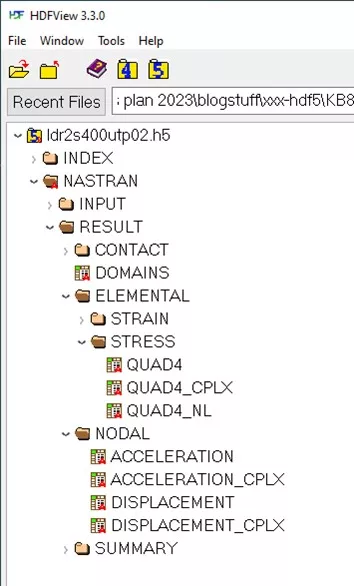
The file optionally contains the input data as well as the results, but looking at the results we can see they are organised by type (elemental or nodal), then by output (stress, displacement etc) and finally by element type.
We can get at the results with the viewer and even export or copy/paste them by double clicking the bottom level, for example displacement:
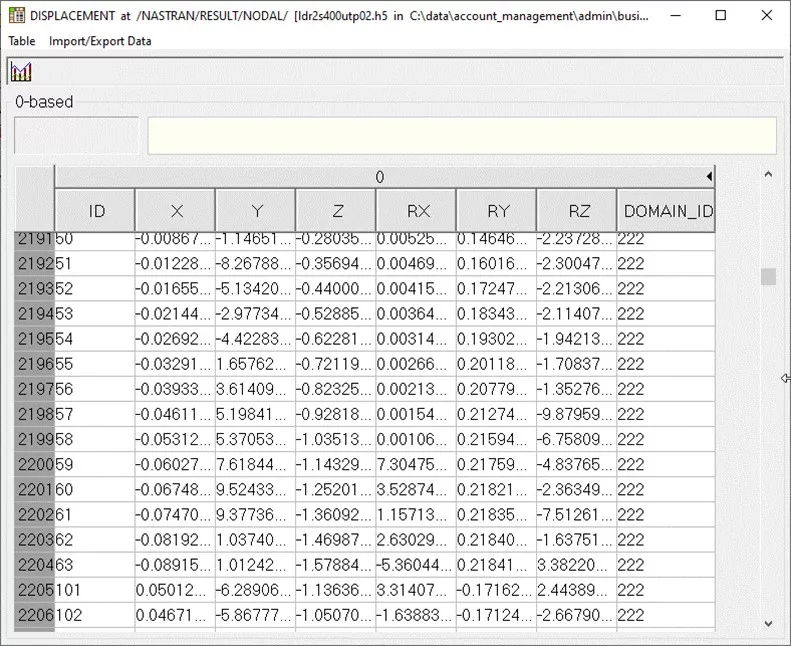
However, the organisation of these data tables is by Domain which is defined in the Index portion of the file and isn’t easy to sort in e.g. Excel. The Domain sets a unique number to a set of output, for example in a normal mode, Mode 1 might be Domain 7, Mode 2 Domain 8 etc. That way, if we want the displacements for Mode 1, we can look up all the nodal results for Domain 7.
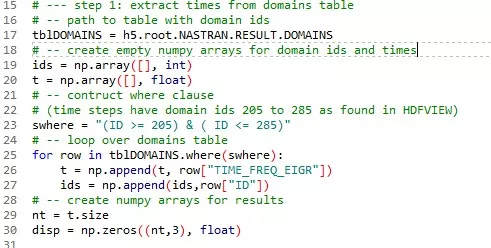
The example supplied allows us to extract the time and displacement result for a given node using a pretty simple bit of code that we can use as the basis for our own attempts.
There’s 58 lines in there, but 27 are either comments or blanks, so it’s not a huge effort to create, and this can be reused with minor edits each time you need to extract e.g. nodal results. A little explanation might demystify the process.
HOW TO SPEED UP POST-PROCESSING DATA
Firstly, we import some packages that facilitate working with tabular data and arrays before opening the H5 file. There are hundreds of these Python packages available for free online to make it easier to do all sorts of things.
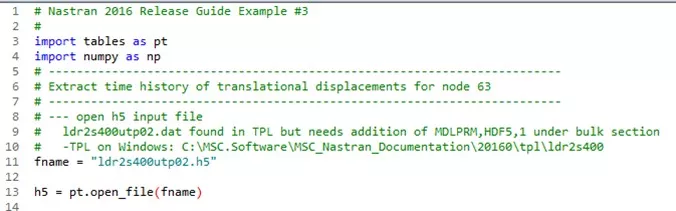
We then access the indexing for the H5 file using the hierarchical address (the h5.root.NASTRAN bit) – this maps the Domain ID to the timestep for the non-linear analysis into an array to make it easy to look up in later loops.
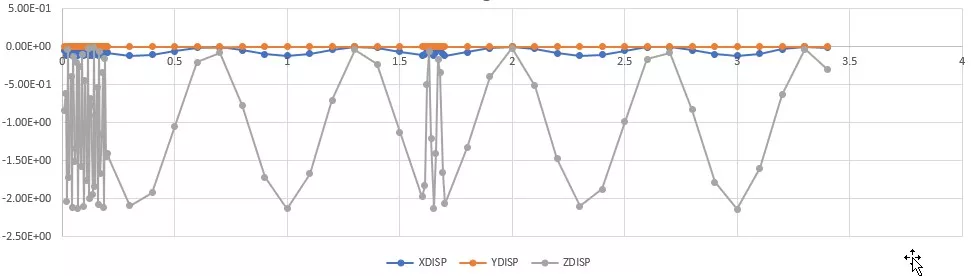
Lastly, we loop through the displacement results (selected by node ID and using the hierarchical address) to write out a CSV file of time vs displacement, which can be plotted in Excel.
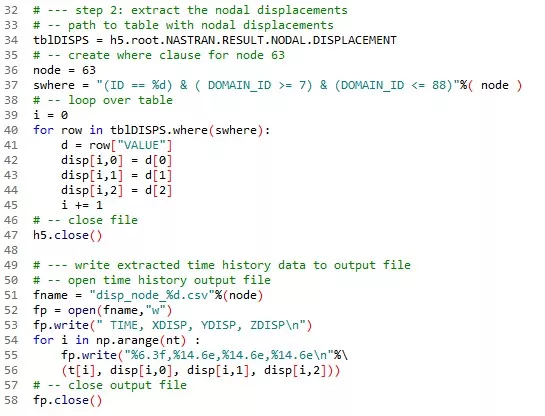
This core code can be easily extended and improved.
We can modify it so that the H5 file name and node ID are taken from command line arguments, removing the need to edit it each time for a different node and or file, for example.
EXPERIMENT WITH PYTHON
We could use the pyplot module to plot the graphs directly, meaning you could screenshot them for the report without going through further steps. Alternatively, we could use one of the many python-excel packages to push the data into a new workbook and create the graphs ready to be viewed when opened by Excel.
If you haven’t looked into scripting, we recommend you spend some time with it. Python is widely used, so finding code snippets via Google to construct simple programmes does not take a lot of time, and the time saving and error reduction from replacing iterative manual steps is well worth the effort.
Categorised as: Automation | Tech Tips
Get a SOLIDWORKS Quote
Interested in SOLIDWORKS? Contact us for questions, trials, or demos by clicking the button below or call 01926 333777. Our experts will help you find the perfect solution.

Related Posts

How to Find Reaction Forces in SOLIDWORKS Simulation
SOLIDWORKS helps us to find resultant forces through simulation studies. These virtual tests reduce the need for physical prototypes and give us an accurate answer.

Setting number of decimal places in a table on a drawing
When creating an equation in a drawing general table, is it possible to define the…

Why is my Flat Pattern not showing in SOLIDWORKS Drawings?
This may be linked to how the drawing is saved or it can be related to how sheet metal parts are displayed in drawings, read on to find out how to fix it.

Why is SOLIDWORKS Crashing?
It’s one of the great mysteries of life – why is SOLIDWORKS crashing? Let’s explore how SOLIDWORKS crashes and how we can improve performance in SOLIDWORKS.

Tech Support Blog: Why are my SOLIDWORKS BOM Quantities Wrong?
Why are my SOLIDWORKS BOM Quantities Wrong? A support call cropped up this week which…

How to Get Your Serial Number for SOLIDWORKS Visualize Standard
Want to download Visualize to make photorealistic renders? Follow this guide for accessing your Visualize serial number that comes bundled in with SolidWorks Professional and Premium.

How to Recover SOLIDWORKS Files After a Crash
SOLIDWORKS has two different methods to help you recover from an unexpected crash or loss of data in the form of auto-recovery and back-up settings.

SOLIDWORKS Magnetic Mates
Magnetic makes are used within SolidWorks assemblies to easily configure and position assembly components. Through defining connection points and ground plane(s) – position components through drag and dropping one component within close proximity of another to snap the asset into position.

SOLIDWORKS Dimensions – Collated Quick Tips
We have collated some of our favourite tips on creating, manipulating and controlling dimensions in SolidWorks, both at a sketching and drawing level. Read on to find out more…

How to Deactivate (Transfer) a SOLIDWORKS License
A SOLIDWORKS standalone license can only be activated on one machine at a time. If you plan on moving your SOLIDWORKS license to another machine you will first need to deactivate it. Additionally if a standalone license has ended up on multiple machines or you are making a change to your computer, you will need to deactivate the license first.