











SOLIDWORKS Tips: How to Create Threads in SOLIDWORKS
Written by: Terry O'Reilly
Published: Jun 7, 2023
| View All Blogs
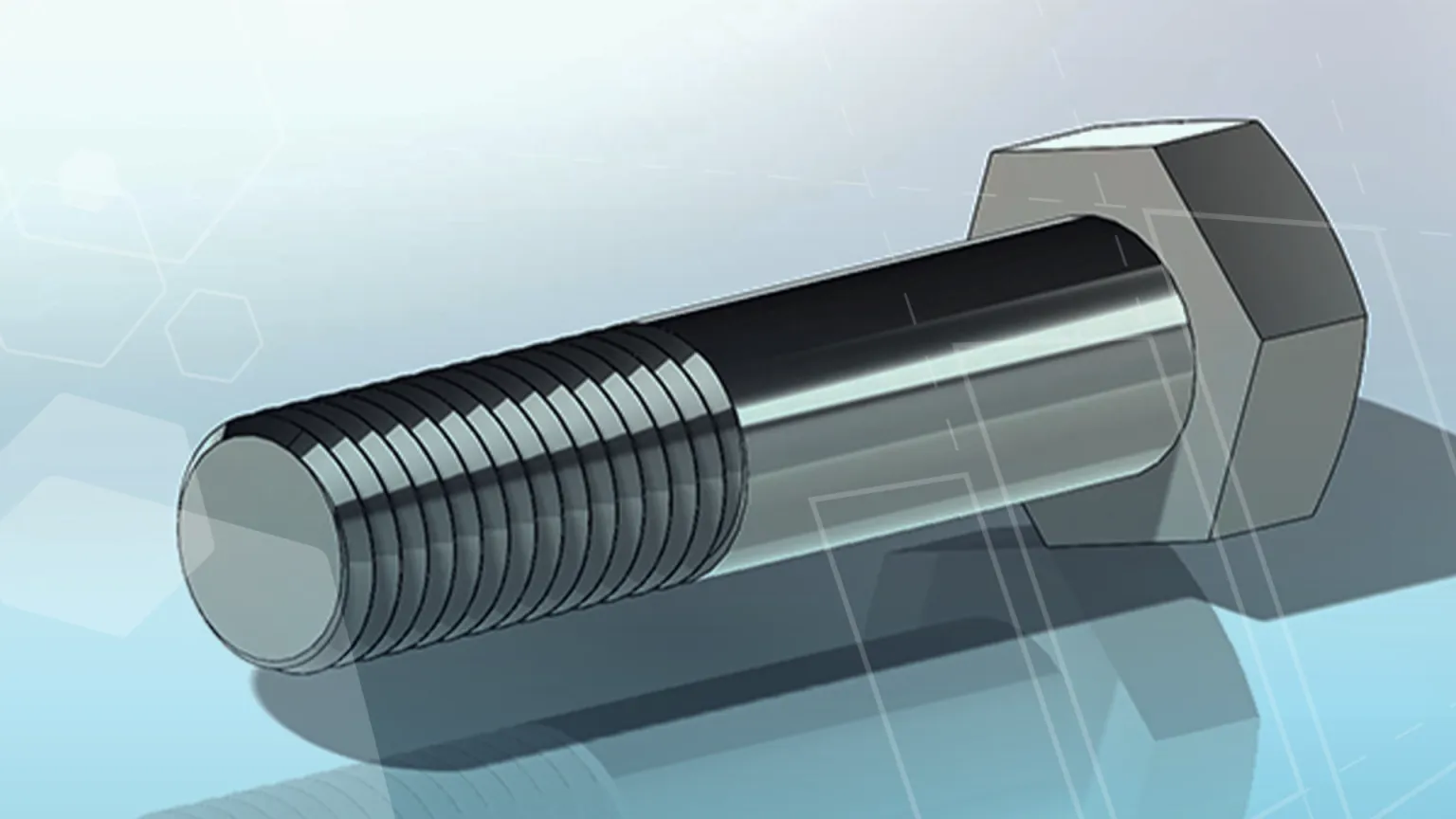
There are two types of threads we can create in SOLIDWORKS: physical and cosmetic.
A physical thread creates a lot of geometry. So if your model requires a thread, then we recommend adding threads as cosmetic threads to maximise performance.
We typically recommend only adding physical threads to configurations of the model that will be 3D printed or if you need to render the physical geometry in SOLIDWORKS Visualize.
Did you know you can also render cosmetic threads realistically in SOLIDWORKS Visualize?
HOW TO CREATE COSMETIC THREADS IN SOLIDWORKS
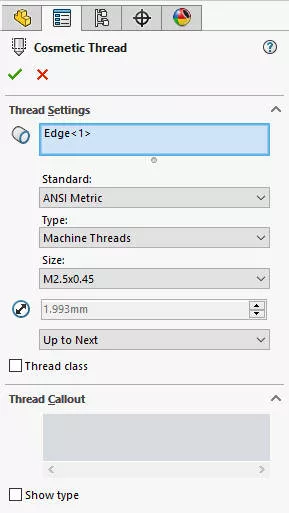
Cosmetic Thread is a simple and effective tool to create threads.
The easiest way to access this command is to tap the S key on your keyboard and start typing to search for the command, but it can be found under Tools > Annotations > Cosmetic Thread.
Here, you need one circular edge selection as a minimum – this is the edge you want the thread to start from.
We can then set the standard, which will auto-fill the Thread Callout section for use in any drawings.
When confirmed, this new feature will be absorbed under the feature that the edge you selected belongs to.
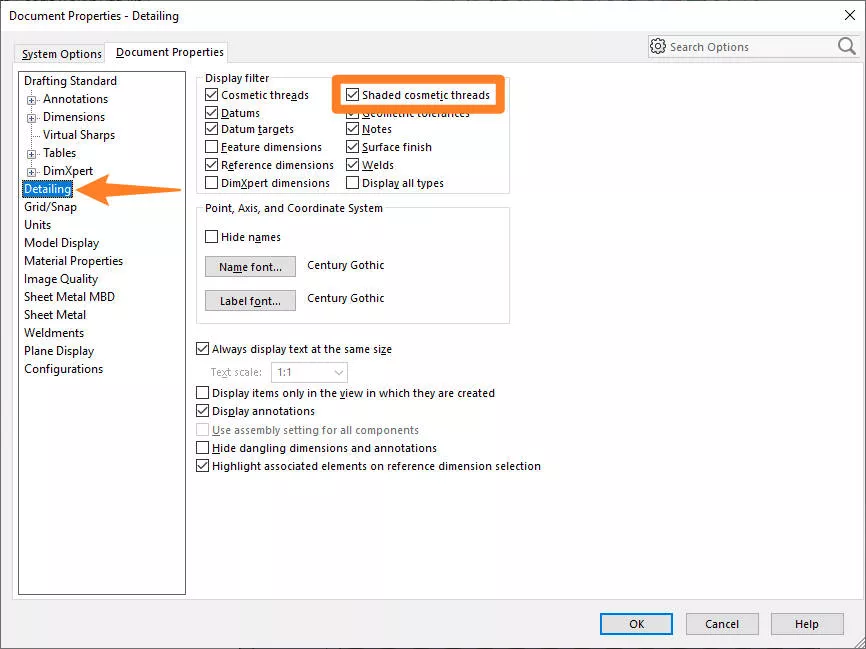
Your graphics view will just show a visual representation of a thread. If you can’t see it… go to Document Properties and tick to show Shaded cosmetic threads.
But what if you want a tapered cosmetic thread?
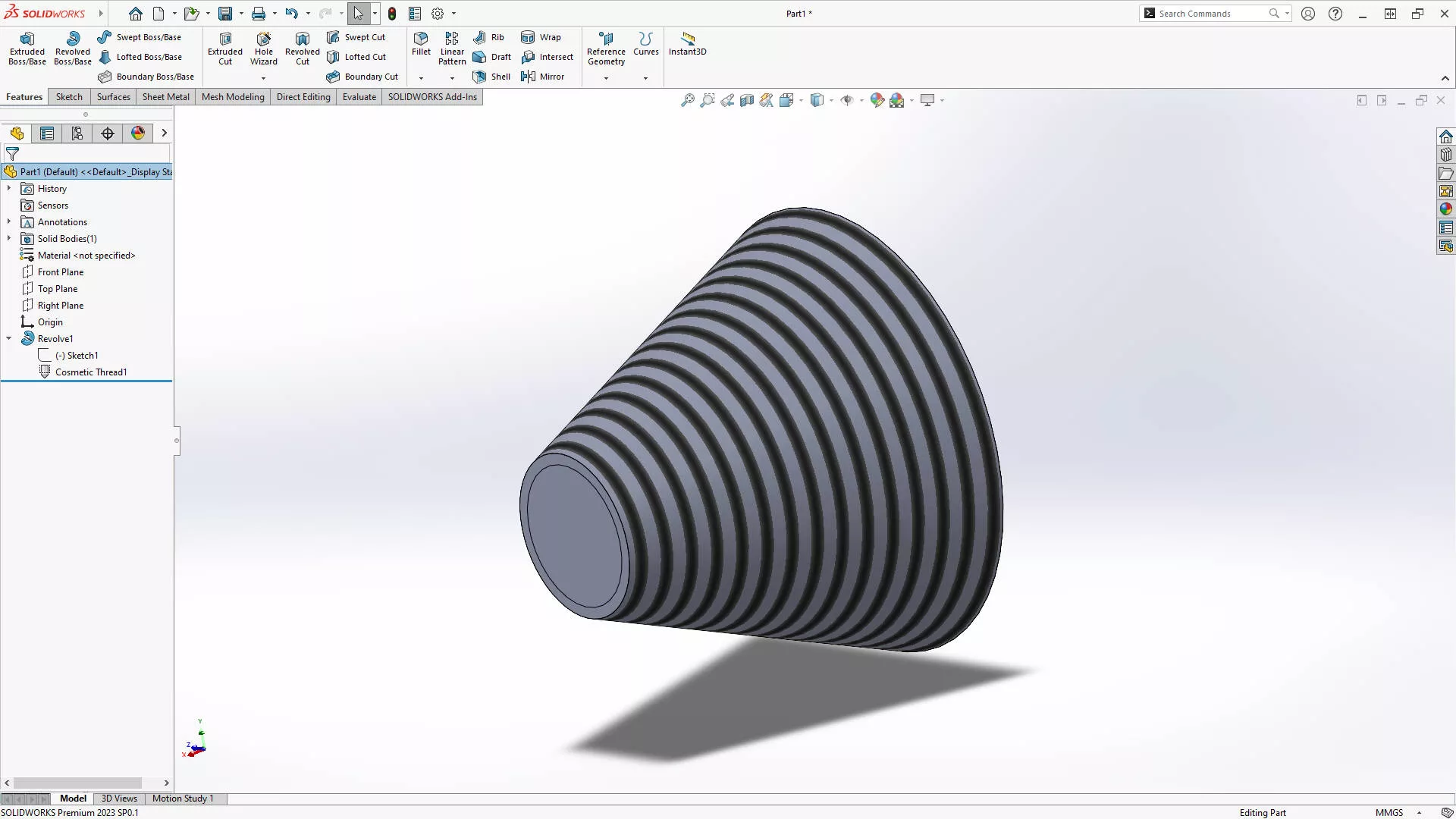
Simply select the circular edge of the minor diameter (the smallest end of the taper) as necessary, and the cosmetic thread will still function correctly.
HOW TO CREATE A PHYSICAL THREAD IN SOLIDWORKS
As we mentioned, physical threads should be used sparingly, and never on hardware (represent threads on hardware with cosmetic threads) that will be frequently inserted into assemblies.
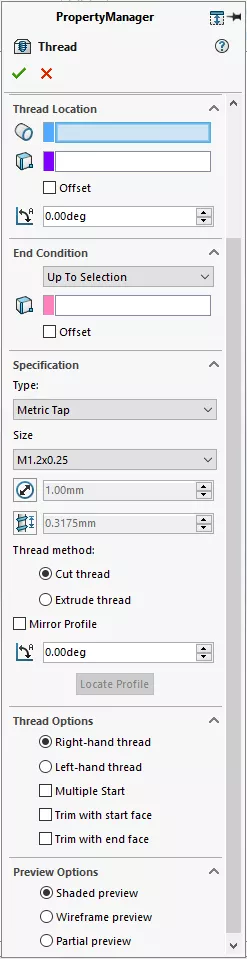
To create physical threads, we have the Thread tool under the Hole Wizard drop down on the Features tab.
A minimum of two selection boxes need to be populated in the property manager for a successful thread.
Thread Location requires a cylindrical edge from where we want the thread to start, while the End Condition is where the thread will end, and we can specify the thread type and method.
A good tip here is to set the Preview Options to Shaded Preview so you can clearly visualize how your thread will look.
When the property manager is confirmed, you will have a new feature at the end of your SOLIDWORKS Feature Tree.
This method creates a physical thread and is a relatively complex feature when compounded on top of or alongside longer feature trees.
We can check the effect of this using Performance Evaluation under the Evaluate tab.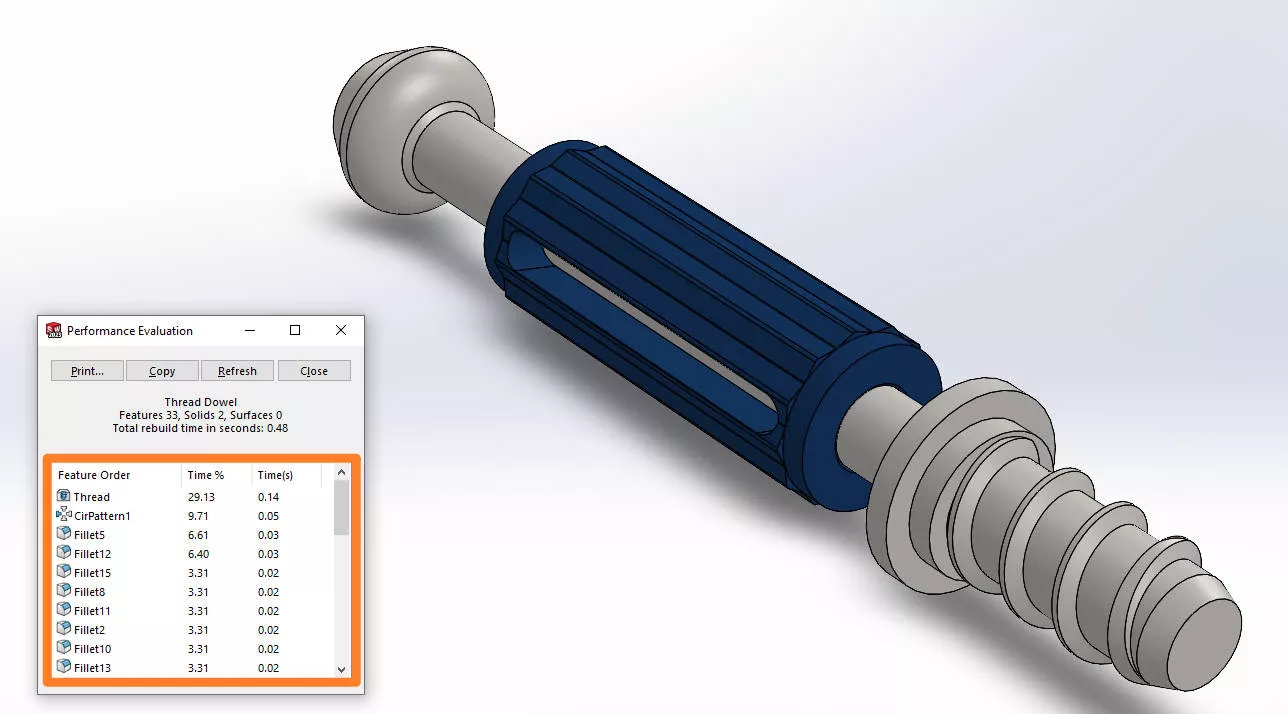
HOW TO CREATE A THREADS IN SOLIDWORKS
It’s important to note that the thread tool only works with cylindrical faces. So what if we need a tapering thread?
Well, we’ll have to revert to the manual method of creating threads by creating a tapered helix and sweeping a sketched profile around it.
To show you exactly how it’s done, we’ve pulled together this short tutorial video.
Take the Next Steps…
When using the Thread tool, there are a load of preset thread profiles available to use.
If you find that the thread profile you want isn’t listed, then you can create custom thread profiles in SOLIDWORKS. These need to be created in their own part file and saved to a specified location.
Categorised as: Tech Tips
Get Expert SOLIDWORKS Training
Get hands-on SOLIDWORKS training in-person or online, led by certified experts with real industry experience. With venues across the UK & Ireland, it’s easy to start learning today.
Related Posts

How to Find Reaction Forces in SOLIDWORKS Simulation
SOLIDWORKS helps us to find resultant forces through simulation studies. These virtual tests reduce the need for physical prototypes and give us an accurate answer.

Setting number of decimal places in a table on a drawing
When creating an equation in a drawing general table, is it possible to define the…

Why is my Flat Pattern not showing in SOLIDWORKS Drawings?
This may be linked to how the drawing is saved or it can be related to how sheet metal parts are displayed in drawings, read on to find out how to fix it.

Why is SOLIDWORKS Crashing?
It’s one of the great mysteries of life – why is SOLIDWORKS crashing? Let’s explore how SOLIDWORKS crashes and how we can improve performance in SOLIDWORKS.

Tech Support Blog: Why are my SOLIDWORKS BOM Quantities Wrong?
Why are my SOLIDWORKS BOM Quantities Wrong? A support call cropped up this week which…

How to Get Your Serial Number for SOLIDWORKS Visualize Standard
Want to download Visualize to make photorealistic renders? Follow this guide for accessing your Visualize serial number that comes bundled in with SolidWorks Professional and Premium.

How to Recover SOLIDWORKS Files After a Crash
SOLIDWORKS has two different methods to help you recover from an unexpected crash or loss of data in the form of auto-recovery and back-up settings.

SOLIDWORKS Magnetic Mates
Magnetic makes are used within SolidWorks assemblies to easily configure and position assembly components. Through defining connection points and ground plane(s) – position components through drag and dropping one component within close proximity of another to snap the asset into position.

SOLIDWORKS Dimensions – Collated Quick Tips
We have collated some of our favourite tips on creating, manipulating and controlling dimensions in SolidWorks, both at a sketching and drawing level. Read on to find out more…

How to Deactivate (Transfer) a SOLIDWORKS License
A SOLIDWORKS standalone license can only be activated on one machine at a time. If you plan on moving your SOLIDWORKS license to another machine you will first need to deactivate it. Additionally if a standalone license has ended up on multiple machines or you are making a change to your computer, you will need to deactivate the license first.