











Standard Procedure: How to Backup your Data in SOLIDWORKS PDM Standard

Written by: Wayne Marshall
Published: Dec 23, 2024
| View All Blogs
Modern servers tend to have a great deal of resilience built into them to reduce the risk of data loss.
However, in the unlikely event of database corruption or complete hardware failure, it is your responsibility to ensure that you have a disaster recovery plan in place should you need to restore your PDM Vault and recreate it from a backup onto replacement hardware.
Key Components of SOLIDWORKS PDM
SOLIDWORKS PDM Standard comprises two key components:
- The Vault Database containing the vault definition, metadata, references and the history of all files.
- The Archive contains all the files managed by SOLIDWORKS PDM as well as their previous versions.
When considering a disaster recovery plan, you should be backing up the Archive Server settings, the Archives and the Vault Database(s) and, unless you have a specific SQL Agent for your Backup solution it is likely you will need to manually create those SQL Backups locally first before backing up externally along with the Archive folders / settings also being backed up at the same time.
Backing up your Archive Server Settings
This is important as it contains the user details for accessing the Vault plus all the registry keys you would need to migrate / restore the Vault onto new hardware. This is simple to schedule via the Archive Server Configuration Tool.
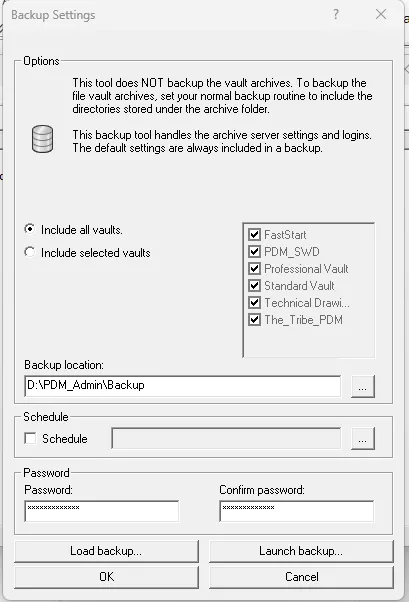
Under Tools select ‘Backup Settings’, then specify the options required (The Vaults whose settings you want to backup, location of the Backup, schedule for the backup and optionally a password on that backup).
Backing up the Archives
This is a case of using your standard Backup Tool to create a complete copy of all the files within the Vault. The default location for the Archives is in a ‘Data’ Folder under the SOLIDWORKS PDM ‘Program files’ location.
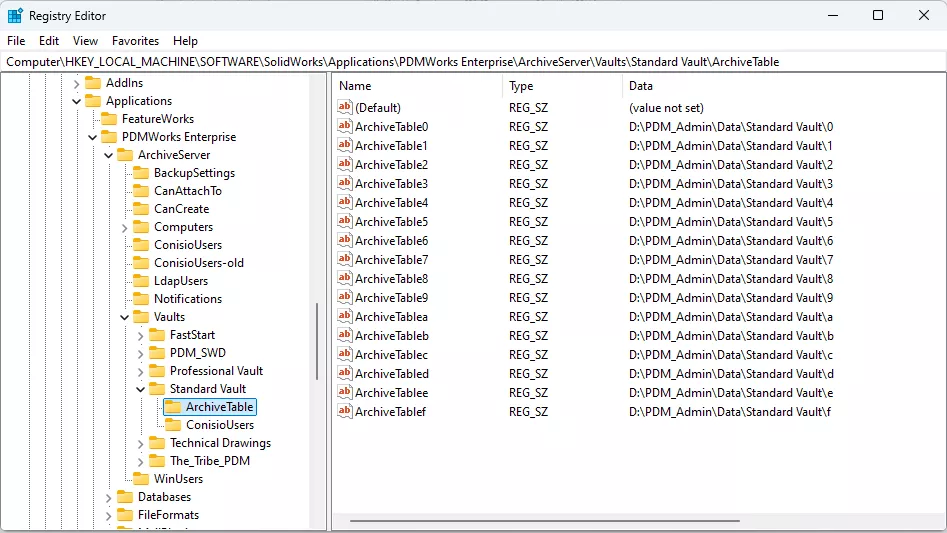
In there you should see a Folder named as per your Vault, which contains 16 folders named 0-9, A-F. This is the Archive for your Vault. It is possible however to change this location when the software is installed.
If you are unsure where the Archive folders are stored, the following Registry key will list the location for each of the 16 folders for the listed Vault.
HKEY_LOCAL_MACHINESOFTWARESOLIDWORKSApplicationsPDMWorks EnterpriseArchiveServerVaults[vaultname]ArchiveTable
Backing up the Database(s)
Whilst SQL Standard/Enterprise editions come with built-in tools to schedule backups and other maintenance tasks within the SQL Management Studio application, this isn’t possible ‘out-of-the-box’ with SQL Express, as used by PDM Standard.
SQL Express Edition has no SQL Server Agent, meaning it isn’t possible to create or execute Maintenance Plans which would be used to automate the process with SQL Standard.
This limitation makes it more difficult to generate regular backups, however we can still use a batch script to carry out these tasks, we just need to use Windows Task Scheduler to trigger the script instead.
The batch file runs an SQL script to generate a backup file (.bak) and save it to a specified location. It moves any existing backup files to a sub-folder and then deletes any older than a specified number of days.
It then runs a separate SQL script to rebuild the database index tables which can help improve and maintain performance. The batch file must be configured before use to work with your system.
Configuring the Backup Scripts
#1 Create a folder in which to save the backup files – it is recommended this is located in the same folder as your PDM archives and databases, e.g. C:PDM_AdminBackup.
#2 Extract the downloaded “SQL Express Backup.zip” to this same location (e.g. C:PDM_AdminSQL Express Backup).
#3 Browse into the “SQL Express Backup” folder and edit the BkUp.bat file by right-clicking it and selecting ‘Open With > Notepad’.
#4 Modify the highlighted sections to reflect your own environment:
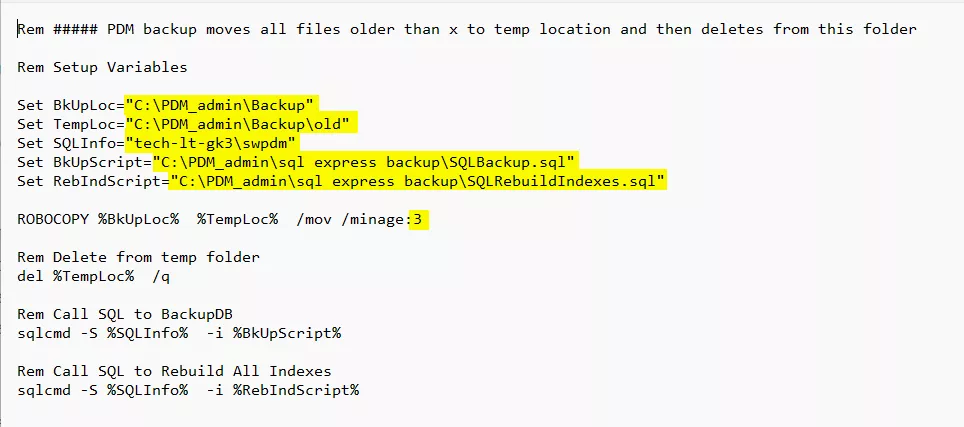
- Set BkUpLoc= Location you want the SQL database backup files to be created in.Note: Where possible, this should be the same location defined in SQL Management Studio. You may not select a UNC path or mapped drive, you must back up to a local folder. Check the SQL Service has read/write access to this folder.
- Set TempLoc= Location where ‘old’ SQL database backup files are moved and deleted.
- Set SQLInfo= Name of ServerSQL EXPRESS Instance name
- Set BkUpScript= Path to SQL Script that generates the backup file (.bak) (Found in the extracted folder “SQL Express Backup”).
- Set RebIndScript= Path to SQL Script that rebuilds the index tables (Found in the extracted folder “SQL Express Backup”).
- ROBOCOPY %BkUpLoc% %TempLoc% /mov /minage:3 – Setting for how old backup files have to be before being deleted. E.g. “3” would delete backups older than 3 days.
#5 Edit the “SQLBackup” script in the same way as step 3, modifying the highlighted sections as below:
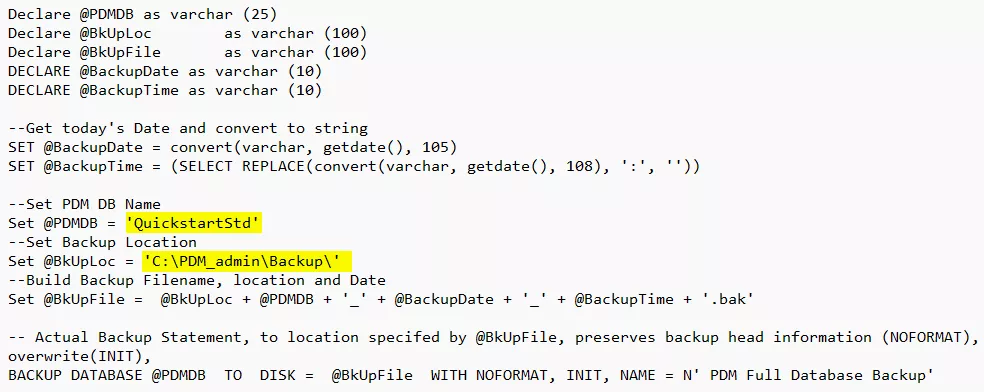
- Set @PDMDB = Database name of your PDM STD vault. The database name can be found in the vault properties in the PDM Administration Tool. Right-click on the vault name and select ‘Properties’.
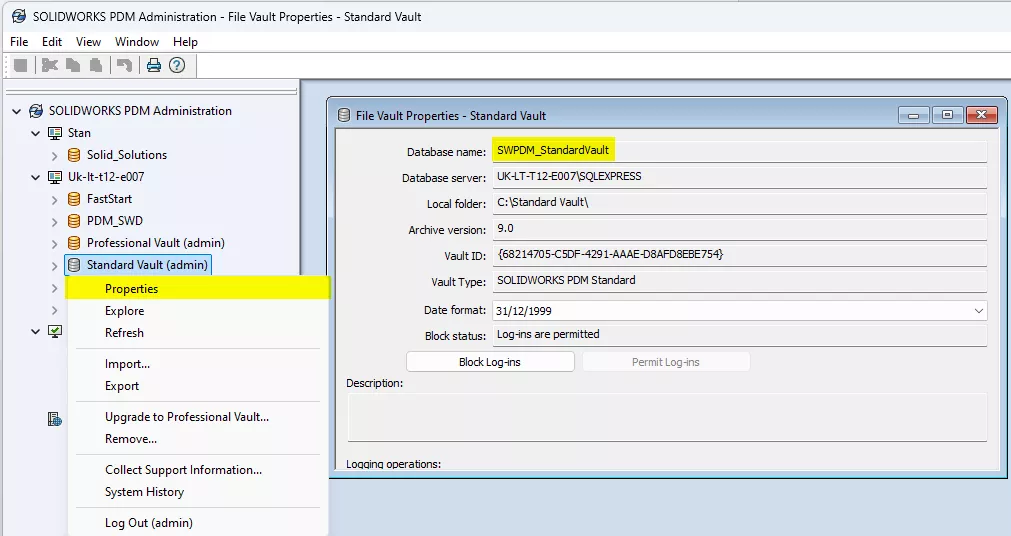
- Set @BkUpLoc = Location for the database backup file to be saved in (The same location set in the batch script).
#6 After configuring each of these files, manually trigger “BkUp.bat” by double-clicking it and verify it runs as expected. Test the integrity of the backup file by restoring a database from it.
Automating the script using Windows Task Scheduler
Using Windows Task Scheduler, create a task which runs the batch file every night.
#1 Select ‘Action > Create Basic Task’
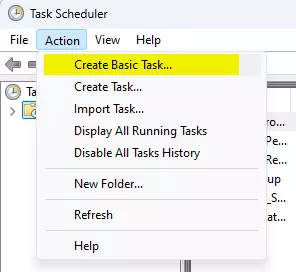
# 2 Give the task an appropriate name and description.
#3 Select ‘Daily’
#4 Choose a start time for the task, we recommend a time when no one is working in PDM to avoid issues with performance and backup integrity.
#5 Choose the action ‘Start a program’.
#6 Browse for the “BkUp.bat” file.
#7 Review the options and if you are happy with everything, click ‘Finish’.
#8 In the Task Scheduler library, right-click the new action and select ‘Properties’.
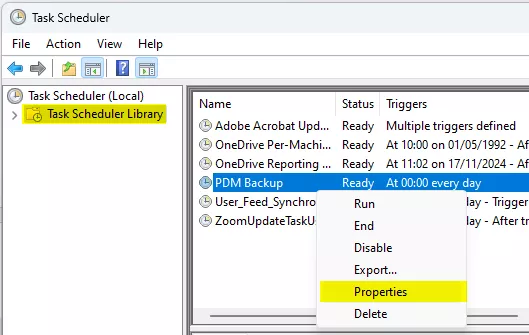
#9 In ‘Security Options’, set the task to run as a user who you have confirmed is able to run the batch file manually, and select the option to “Run whether user is logged on or not”.
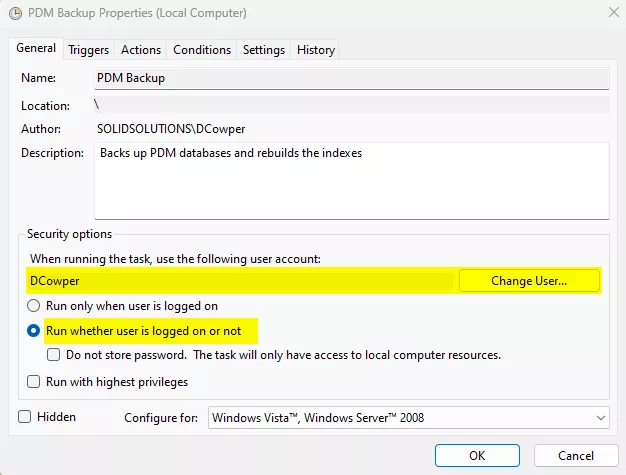
With the script set to run as above, automatic backups should be taken daily and you will have the files required to recover your PDM database in the event of a failure, be that hardware or from a malware attack.
You should also have a disaster recovery plan in place to utilise these backups in the event of loss of data.
Your backup files should be stored in multiple forms, preferably on separate sites, to protect against different scenarios – for example if malware has infected your entire network, an offline backup can still be used to recover from; or if your server becomes inoperable a cloud backup can be downloaded to new hardware.
For more information on disaster recovery or if you are concerned about your own system, then please give us a call on 01926 333777 and we can discuss your specific requirements and situation in more detail.
Categorised as: SOLIDWORKS PDM | Tech Tips
Get Expert SOLIDWORKS Training
Get hands-on SOLIDWORKS training in-person or online, led by certified experts with real industry experience. With venues across the UK & Ireland, it’s easy to start learning today.
Related Posts

How to Find Reaction Forces in SOLIDWORKS Simulation
SOLIDWORKS helps us to find resultant forces through simulation studies. These virtual tests reduce the need for physical prototypes and give us an accurate answer.

Setting number of decimal places in a table on a drawing
When creating an equation in a drawing general table, is it possible to define the…

Why is my Flat Pattern not showing in SOLIDWORKS Drawings?
This may be linked to how the drawing is saved or it can be related to how sheet metal parts are displayed in drawings, read on to find out how to fix it.

Why is SOLIDWORKS Crashing?
It’s one of the great mysteries of life – why is SOLIDWORKS crashing? Let’s explore how SOLIDWORKS crashes and how we can improve performance in SOLIDWORKS.

Tech Support Blog: Why are my SOLIDWORKS BOM Quantities Wrong?
Why are my SOLIDWORKS BOM Quantities Wrong? A support call cropped up this week which…

How to Get Your Serial Number for SOLIDWORKS Visualize Standard
Want to download Visualize to make photorealistic renders? Follow this guide for accessing your Visualize serial number that comes bundled in with SolidWorks Professional and Premium.

How to Recover SOLIDWORKS Files After a Crash
SOLIDWORKS has two different methods to help you recover from an unexpected crash or loss of data in the form of auto-recovery and back-up settings.

SOLIDWORKS Magnetic Mates
Magnetic makes are used within SolidWorks assemblies to easily configure and position assembly components. Through defining connection points and ground plane(s) – position components through drag and dropping one component within close proximity of another to snap the asset into position.

SOLIDWORKS Dimensions – Collated Quick Tips
We have collated some of our favourite tips on creating, manipulating and controlling dimensions in SolidWorks, both at a sketching and drawing level. Read on to find out more…

How to Deactivate (Transfer) a SOLIDWORKS License
A SOLIDWORKS standalone license can only be activated on one machine at a time. If you plan on moving your SOLIDWORKS license to another machine you will first need to deactivate it. Additionally if a standalone license has ended up on multiple machines or you are making a change to your computer, you will need to deactivate the license first.