











SWOOD Center – Design Once, Configure Endlessly
Written by: Franklin Fairbrass
Published: Mar 18, 2026
| View All Blogs
Do you end up re-doing the same steps over and over again when creating new variations of existing projects? SWOOD Center Configurator enables captured parameters of a SWOOD Frame to be changed and linked together to allow both simple and complex modifications to be executed at the touch of a button.
What is SWOOD Center?
SWOOD Center is a design automation tool that allows you to quickly and easily create variations of a frame ready for manufacture. This is perfect for products where only certain elements may change between designs such as hardware orientation, materials, and dimensions.
What are the benefits?
Efficiency
SWOOD Center vastly speeds up your workflow by cutting repetitive manual design changes out of the process entirely.
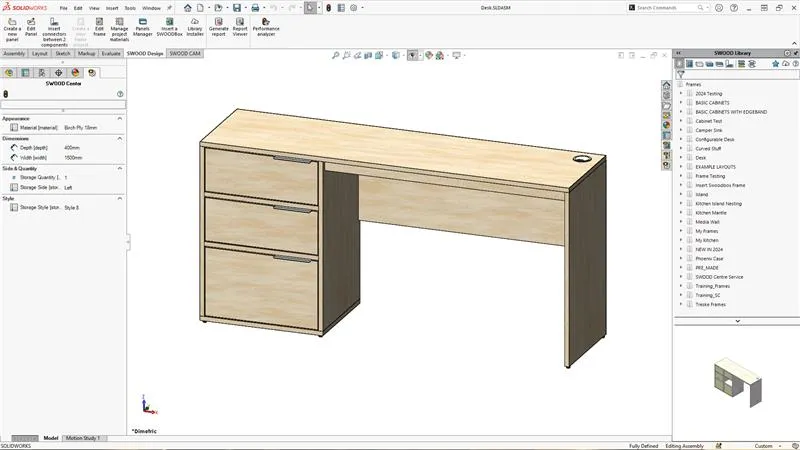
The example below shows a desk that has been set up using SWOOD Center Configurator, and the material, hinge & handle sides, drawer side, width of the desk, and layout of the drawers have all been changed at once with minimal effort.
Performing these changes manually would have required changing many parameters of the design one by one rather than in bulk, taking far longer and introducing the risk of human error as detailed below.
Eliminating User Error
When design changes are conducted manually, there is always a risk of human error creeping in. An incorrect material here, a missed dimension change there. If these aren’t caught before production, then they can result in costly material wastage and can bottleneck production as jobs need to be re-run.
With SWOOD Center, you can guarantee that every change you make to the model will be conducted in the same way every time. This ensures consistency among your projects, meaning less time spent re-running jobs and less cost to your company in wasted material and time.
Is it Difficult to Set Up?
SWOOD Center Configurator uses the same scripting and parameter-based process found in other areas of the software such as SWOODBoxes and Connectors.
This means that any user that is comfortable with the SWOOD Design package will be right at home, and those who are entirely new to SWOOD can learn just a single way of working to get started automating their designs in many ways.
For more complex projects, we offer consultancy to assist you in the process of designing and streamlining your SWOOD Center models to make them as efficient as possible. If you would like to discuss SWOOD Center consultancy with a member of our team, please give us a ring on 01926333777.
How do I Access it?
SWOOD Center configurator is part of the SWOOD Design package and comes at no extra cost to new or existing SWOOD Design customers. If you are interested in getting started, please send us an email at help@trimech.com, and consider booking onto one of our SWOOD Design Training courses from our website.
SWOOD CENTER SERVICE – A STEP FURTHER
SWOOD Center makes updating existing projects fast and effortless. But what if you could automate the entire journey, from initial input right through to production?
With SWOOD Center Service, that becomes reality. By pulling data from forms, ERP systems, or online configurators, it drives SWOOD to automatically produce the CAD models, CNC programs, panel drawings, and documentation needed for manufacturing.
Categorised as: Manufacturing | SWOOD | Tech Tips
Get a SOLIDWORKS Quote
Interested in SOLIDWORKS? Contact us for questions, trials, or demos by clicking the button below or call 01926 333777. Our experts will help you find the perfect solution.

Related Posts

How to Find Reaction Forces in SOLIDWORKS Simulation
SOLIDWORKS helps us to find resultant forces through simulation studies. These virtual tests reduce the need for physical prototypes and give us an accurate answer.

Setting number of decimal places in a table on a drawing
When creating an equation in a drawing general table, is it possible to define the…

Why is my Flat Pattern not showing in SOLIDWORKS Drawings?
This may be linked to how the drawing is saved or it can be related to how sheet metal parts are displayed in drawings, read on to find out how to fix it.

Why is SOLIDWORKS Crashing?
It’s one of the great mysteries of life – why is SOLIDWORKS crashing? Let’s explore how SOLIDWORKS crashes and how we can improve performance in SOLIDWORKS.

Tech Support Blog: Why are my SOLIDWORKS BOM Quantities Wrong?
Why are my SOLIDWORKS BOM Quantities Wrong? A support call cropped up this week which…

How to Get Your Serial Number for SOLIDWORKS Visualize Standard
Want to download Visualize to make photorealistic renders? Follow this guide for accessing your Visualize serial number that comes bundled in with SolidWorks Professional and Premium.

How to Recover SOLIDWORKS Files After a Crash
SOLIDWORKS has two different methods to help you recover from an unexpected crash or loss of data in the form of auto-recovery and back-up settings.

SOLIDWORKS Magnetic Mates
Magnetic makes are used within SolidWorks assemblies to easily configure and position assembly components. Through defining connection points and ground plane(s) – position components through drag and dropping one component within close proximity of another to snap the asset into position.

SOLIDWORKS Dimensions – Collated Quick Tips
We have collated some of our favourite tips on creating, manipulating and controlling dimensions in SolidWorks, both at a sketching and drawing level. Read on to find out more…

How to Deactivate (Transfer) a SOLIDWORKS License
A SOLIDWORKS standalone license can only be activated on one machine at a time. If you plan on moving your SOLIDWORKS license to another machine you will first need to deactivate it. Additionally if a standalone license has ended up on multiple machines or you are making a change to your computer, you will need to deactivate the license first.