











SWOOD Licensing Explained
Written by: Adam Humphries
Published: Mar 22, 2023
| View All Blogs
In SWOOD licensing there are two main types, the serial number for both types is 24 characters, for online licenses the serial starts with 3010 and for network licences it starts with 3020.
ONLINE LICENCE: 3010 XXX XXXX XXX XXXX XXXX
NETWORK LICENCE: 3020 XXX XXXX XXX XXXX XXXX
Online licences retrieve a licence from Eficad’s online server to be used an a local PC and then returned there when a customer needs to move it to another PC. Whereas network licences pull down a licence to a central onsite location to be shared by multiple users. Some users may have either only one type or a combination of both types i.e. SWOOD Design.
This blog will explain how to activate the two types of licencing.
How to Activate and Online Licence | 3010
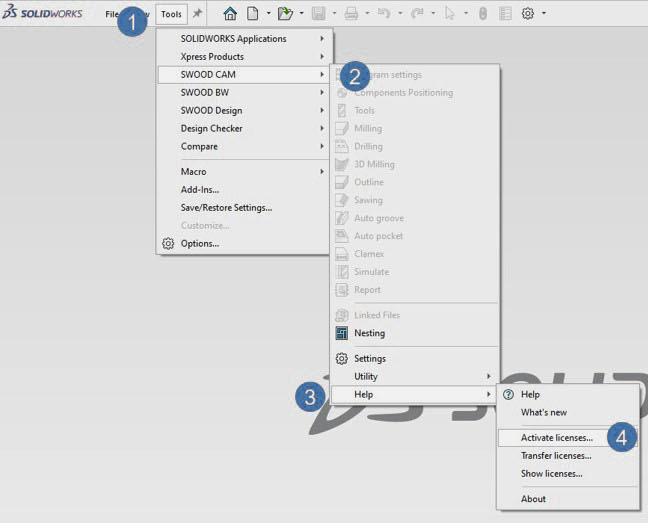
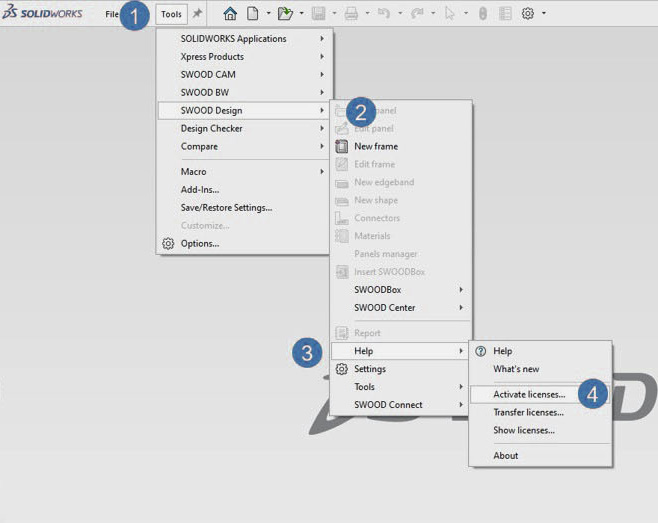
For 3010 licences all that is required to make a PC active in either SWOOD Design or SWOOD CAM is to go into SOLIDWORKS and go: Tools > SWOOD CAM/Design > Help > Activate Licences.
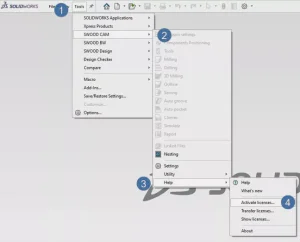
Activating SWOOD CAM
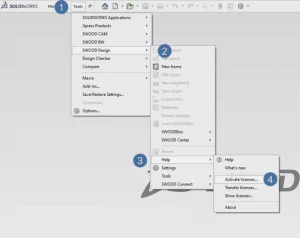
Activating SWOOD Design
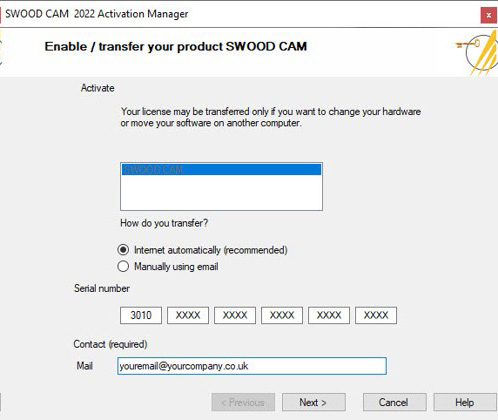
A UAC prompt will appear next onscreen as the activation manager needs permission to become active. Select yes and then activation manager will open up. Once open fill in your licence number and fill out your company email then click next. The activation process should start and a licence fill pulled down into the PC.
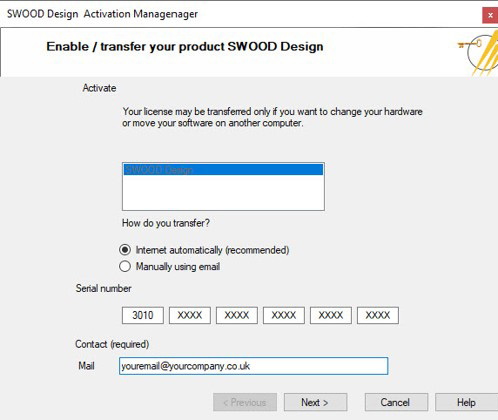
SWOOD Design
SWOOD CAM
The default option goes via the internet and this is the option you should typically use. If you need to use the option “manually using email” please contact Solid solutions support so that we can help in this process.

If after clicking the next button you see the above error message this likely indicates that the all of your licences are already in use on other PCs. Please check other PCs and deactivate them if required. If you find that none of your PCs have active licences and this message still appears please contact support.
Activating SWOOD CAM
Activating SWOOD Design
To remove the licence from the PC go to: Tools > SWOOD Design/CAM > Help Transfer licence. Clicking this will make the SWOOD licence manager active again and you can remove the licence by clicking Next in the dialogue.

How to Activate a Network Licence| 3020
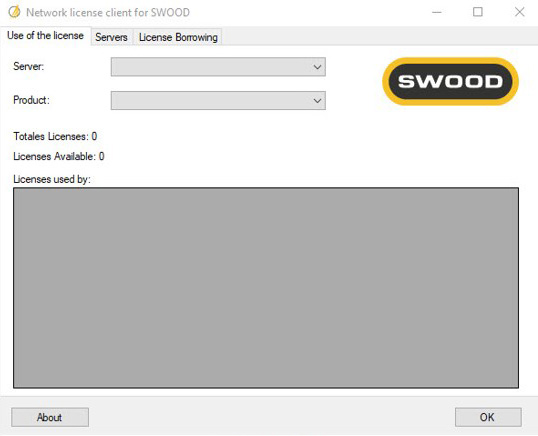
Client
Manager
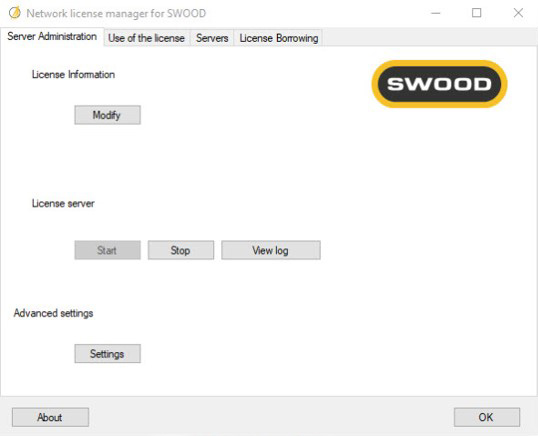
For network licences there are two software components the manager and the client. In a standard configuration the manager will be installed on a networked server and the client will reside on all local PCs that need to pull down licences. In the event of no server being present then it is possible to setup the manager on a standard PC. The only thing to ensure is that this PC is on and available to the other clients over the network so other uses can pull down licences.
NOTE: Online services such as Dropbox and Onedrive are not able to have the manager installed and run on them.

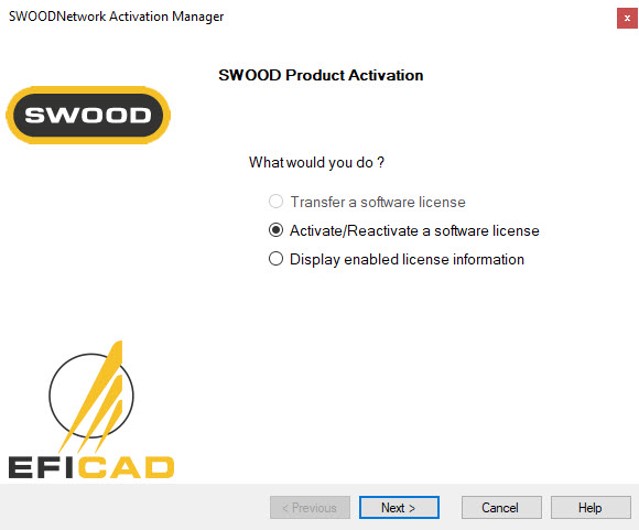
Once the Network manager is installed search for it using windows search to start the manager for the first time. Once the manager has been setup and is running this should not need to be opened often.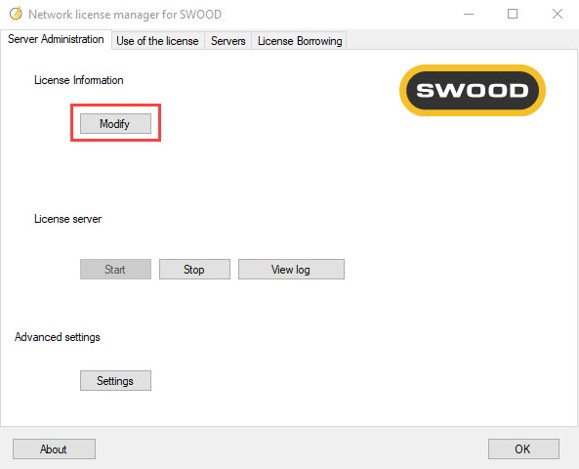
 .
.

The next panel will ask to name your host server/PC. Please use the device name you can find via windows system information. If the Server/PC has a firewall tick the box for‘a firewall is used on this server’.

Now enter your 3020 licence code into the licence panel and enter your email address. Once you clickNextthis will pull down the licence file from Eficad’s server. Once this is done please close the dialogue.

The next panel will ask to name your host server/PC. Please use the device name you can find via windows system information. If the Server/PC has a firewall tick the box for’a firewall is used on this server’.


Click the tab marked Servers to expose this panel. Then delete the default account @localhost and click Add.
Name the server: 35565@ followed by the name of your server then click ok to add the server.

Now search for your windows firewall settings. We need to create inbound and outbound rules for the firewall.


Right click on the Inbound Rules and Outbound Rules and create two rules for each. These will need to be port rules one for the standard connection and one for the firewall.


35565 and 35566 are the ports that need to be set. The name of the rules can be anything but for clarity set the rules asSWOOD Inbound Rules,SWOOD Inbound Rules Firewall and the opposite for the outbound rules.


Now on the client PCs add the server via the server tab and then select it from the drop down list. Once done you can then use the product dropdown list to view the amount of licences for the respective products.


Once everything everything is working you will be able to pull down a licence by ticketing the boxes in the add ins list in SOLIDWORKS. If you want to keep the licences on your PC long term tick the right hand box but if you are sharing licences with many users tick just the left hand boxes so once SOLIDWORKS is closed the licence will be returned to the manager for others to use.
It is possible using the client to arrange long time borrow of the lease by going to the licence borrowing tab and pulling out a licence. You can set the licence borrow date to over around a month from the date of borrowing.
Categorised as: Manufacturing | SWOOD | Tech Tips
Ready to Switch to SOLIDWORKS?
SOLIDWORKS Design has been the industry standard 3D CAD software for over 25 years. Solid Solutions offers a range of packages to suit your needs.

Related Posts

How to Find Reaction Forces in SOLIDWORKS Simulation
SOLIDWORKS helps us to find resultant forces through simulation studies. These virtual tests reduce the need for physical prototypes and give us an accurate answer.

Setting number of decimal places in a table on a drawing
When creating an equation in a drawing general table, is it possible to define the…

Why is my Flat Pattern not showing in SOLIDWORKS Drawings?
This may be linked to how the drawing is saved or it can be related to how sheet metal parts are displayed in drawings, read on to find out how to fix it.

Why is SOLIDWORKS Crashing?
It’s one of the great mysteries of life – why is SOLIDWORKS crashing? Let’s explore how SOLIDWORKS crashes and how we can improve performance in SOLIDWORKS.

Tech Support Blog: Why are my SOLIDWORKS BOM Quantities Wrong?
Why are my SOLIDWORKS BOM Quantities Wrong? A support call cropped up this week which…

How to Get Your Serial Number for SOLIDWORKS Visualize Standard
Want to download Visualize to make photorealistic renders? Follow this guide for accessing your Visualize serial number that comes bundled in with SolidWorks Professional and Premium.

How to Recover SOLIDWORKS Files After a Crash
SOLIDWORKS has two different methods to help you recover from an unexpected crash or loss of data in the form of auto-recovery and back-up settings.

SOLIDWORKS Magnetic Mates
Magnetic makes are used within SolidWorks assemblies to easily configure and position assembly components. Through defining connection points and ground plane(s) – position components through drag and dropping one component within close proximity of another to snap the asset into position.

SOLIDWORKS Dimensions – Collated Quick Tips
We have collated some of our favourite tips on creating, manipulating and controlling dimensions in SolidWorks, both at a sketching and drawing level. Read on to find out more…

How to Deactivate (Transfer) a SOLIDWORKS License
A SOLIDWORKS standalone license can only be activated on one machine at a time. If you plan on moving your SOLIDWORKS license to another machine you will first need to deactivate it. Additionally if a standalone license has ended up on multiple machines or you are making a change to your computer, you will need to deactivate the license first.