











The Best Way for Project Managers to Approach Part Numbering in SOLIDWORKS PDM Professional
Written by: Wayne Marshall
Published: Sep 26, 2024
| View All Blogs
When implementing a new SOLIDWORKS PDM Professional vault, customers have the option to review their part numbering in SOLIDWORKS and classification requirements as they move to a system that allows them to, in most cases, automate the way they identify parts within the vault.
Part Numbering in SOLIDWORKS PDM is something that a lot of customers approach differently, and this is often based on “how it’s always been done”, without necessarily considering what the purpose of a part number is within their organisation and their wider supply chains.
Why do designers use Part Numbers?
Let’s consider the humble part number – what is its purpose?
In essence, a part number is simply a unique identifier for an item approved for a specific application. It’s formatting should be consistent, and remain unambiguous throughout that items lifecycle. This is essential for correct product assembly, testing and maintenance.
A good part number therefore simply allows us to clearly distinguishing one part from another, but there are also best practices we should consider when using them.
- Numbers should have a consistent number of characters – research suggests a string of more than 7 characters increases the risk of data entry errors and are a lot less memorable.
- Numbers should have a consistent format – this should be easily identifiable and not prone to being truncated if reproduced in another system where (for example) leading zeros are not permitted in a field.
Common Approaches to Part Numbering in SOLIDWORKS PDM
To address the above, customers will typically employ one of the following approaches.
#1 – Simple Sequential Document and Part Numbers
These can be assigned by SOLIDWORKS PDM out-of-the-box and can also be configured to include a fixed component (a pre or post-fix) that, when added to a PDM file Template or file specific Data Card, can create a semi-significant scheme.
This distinguishes between parts and assemblies through a basic mnemonic (e.g. P for Parts, A for Assemblies, etc).
#2 – Semi-Significant Numbers
Both semi-significant and significant/intelligent part numbers (which require human interpretation and assignment) can take a number of forms.
Semi-significant part numbers can be assigned where simple classification requirements vary a prefix based on a high level classification.
This could be to differentiate between a designed component and a bought-in part, or to tag a component as being project- or product-specific by including an inherited project or product number within the prefix that the sequential counter is assigned to.
It could also be used to differentiate between types of assemblies where, for example, a top level arrangement is numbered differently to the subassemblies that make it up.
#3 – Significant/Intelligent Numbers
Significant or intelligent part numbers are often built up of a number of discreet components that can describe the part or assembly using codes to illustrate things such as a component category and sub-category/type, specific options, colour, finish and even revision.
These tend to be hangovers from a pre-CAD era, and often have accompanying ‘guides’ that a new employee must learn.
This learning curve is not straightforward, as there are often outliers – new variants and exceptions that do not fit within the original design of the intelligent part numbering system.
#4 – The Brisch System
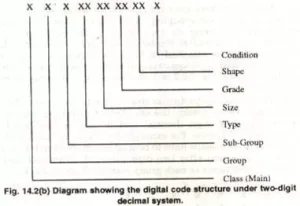
Brisch System
The Brisch system is an example of a classification model widely used from the 1950’s onwards.
It consists of seven digits and is applied in three phases. Items are grouped into suitable preliminary categories, such as assemblies, sub assemblies, components, off the shelf items.
After these preliminary categories, items are grouped with in the respective groups in order to bring similar items together.
These sorts of approaches, although common, are rarely flexible enough to remain in sync with technology, engineering methods, materials and processes over a prolonged period of time.
The Solution to Legacy Part Numbering?
Although Solid Solutions would advocate the use of a simple or semi-significant number within SOLIDWORKS PDM, metadata is being used in increasingly more user-friendly and sustainable ways to describe components.
Considering the observations of Watts in the Engineering Documentation Control Handbook, these systems do have a tendency to become outdated or surpassed sooner than project managers would like.
The most critical of these issues is that over time the significant numbering systems tend to break down… As time passes variations arise which were not foreseen. One digit was set aside where two are now needed.
Significant numbers thus tend to lose their significance. They no longer do the classification coding function intended by their inventors.
Watts: Engineering Documentation Control Handbook, page 49.
But legacy numbering systems are important! After all, they have catalogued all of your past data.
So we appreciate that design teams and managers may not be able to shake off a legacy numbering scheme, or require a degree of intelligence that isn’t provided ‘out-of-the-box’ with SOLIDWORKS PDM.
For this reason, we developed the Project Numbering Serial Number add-in for SOLIDWORKS PDM Professional.
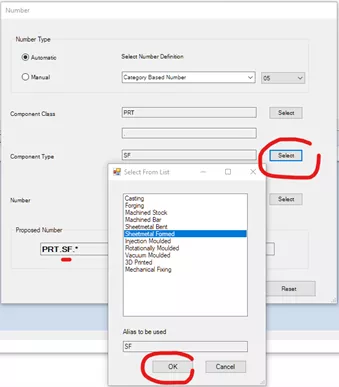
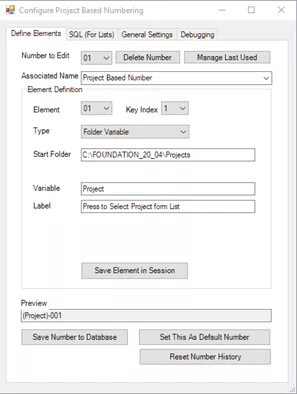
Project Numbering Add-In Capabilities
The add-in is linked to a serial number within SOLIDWORKS PDM Professional which enables it to be triggered via the save action inside SOLIDWORKS, via data cards and template cards, and the Copy Tree and Move Tree commands.
Key Features of the Project Numbering Add-In
- Single serial number component can generate many configured number types.
- Default number can be specified.
- Numbers can contain up 10 elements with the Key Index used to allocate a specific numeric counter to the configured number.
- Multiple elements can be combined to create the Key Index and may consist of:
- Fixed text/separators
- Folder variable values – inherit folder card data associated with the location of the new part (e.g. Project Number)
- PDM lists – the ‘alias’ list type in SOLIDWORKS PDM Professional lets us select descriptive text from a list that adds a predefined alphanumeric string to the Key Index.
- Counters – specify string length, initial value and increments.
Project Numbering is already included as standard for customers taking our Foundation Implementation Package for PDM Professional and this add-in is compatible with any existing SOLIDWORKS PDM Professional vaults.
Categorised as: Data Management | SOLIDWORKS PDM | Tech Tips
Get Expert SOLIDWORKS Training
Get hands-on SOLIDWORKS training in-person or online, led by certified experts with real industry experience. With venues across the UK & Ireland, it’s easy to start learning today.
Related Posts

How to Find Reaction Forces in SOLIDWORKS Simulation
SOLIDWORKS helps us to find resultant forces through simulation studies. These virtual tests reduce the need for physical prototypes and give us an accurate answer.

Setting number of decimal places in a table on a drawing
When creating an equation in a drawing general table, is it possible to define the…

Why is my Flat Pattern not showing in SOLIDWORKS Drawings?
This may be linked to how the drawing is saved or it can be related to how sheet metal parts are displayed in drawings, read on to find out how to fix it.

Why is SOLIDWORKS Crashing?
It’s one of the great mysteries of life – why is SOLIDWORKS crashing? Let’s explore how SOLIDWORKS crashes and how we can improve performance in SOLIDWORKS.

Tech Support Blog: Why are my SOLIDWORKS BOM Quantities Wrong?
Why are my SOLIDWORKS BOM Quantities Wrong? A support call cropped up this week which…

How to Get Your Serial Number for SOLIDWORKS Visualize Standard
Want to download Visualize to make photorealistic renders? Follow this guide for accessing your Visualize serial number that comes bundled in with SolidWorks Professional and Premium.

How to Recover SOLIDWORKS Files After a Crash
SOLIDWORKS has two different methods to help you recover from an unexpected crash or loss of data in the form of auto-recovery and back-up settings.

SOLIDWORKS Magnetic Mates
Magnetic makes are used within SolidWorks assemblies to easily configure and position assembly components. Through defining connection points and ground plane(s) – position components through drag and dropping one component within close proximity of another to snap the asset into position.

SOLIDWORKS Dimensions – Collated Quick Tips
We have collated some of our favourite tips on creating, manipulating and controlling dimensions in SolidWorks, both at a sketching and drawing level. Read on to find out more…

How to Deactivate (Transfer) a SOLIDWORKS License
A SOLIDWORKS standalone license can only be activated on one machine at a time. If you plan on moving your SOLIDWORKS license to another machine you will first need to deactivate it. Additionally if a standalone license has ended up on multiple machines or you are making a change to your computer, you will need to deactivate the license first.