











The Best Way to Work Efficiently with Windows Filenames and 3DEXPERIENCE Titles

Written by: Prasad Bhonsule
Published: Jan 22, 2026
| View All Blogs
#1 How to Correctly Define Your Files
It seems like a simple concept, but it can easily be overlooked when implementing new processes or workflows.
When working with the 3DEXPERIENCE platform, we move away from Windows file names, and use 3DEXPERIENCE Title or Enterprise Item Number to identify data.
This allows us to modify our file identifier (Title) directly within SOLIDWORKS using the 3DEXPERIENCE add-in or from our browser using the cloud platform.
For a direct comparison, Title is easier to access and is the default identifier for files in 3DEXPERIENCE. It can be defined manually, or configured for automatic definition.
Enterprise Item Number (EIN) is a tool that can be configured to use a more intelligent naming pattern.
#2 Best Practice for Working with Titles in 3DEXPERIENCE
By default, the 3DEXPERIENCE Title will be the same as the Windows file name.
From here it can be easily altered, either from within the SOLIDWORKS user interface through the 3DEXPERIENCE add-in, from the web, or while saving to the 3DEXPERIENCE platform.
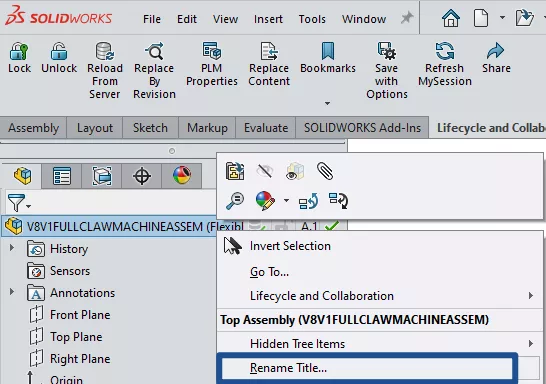
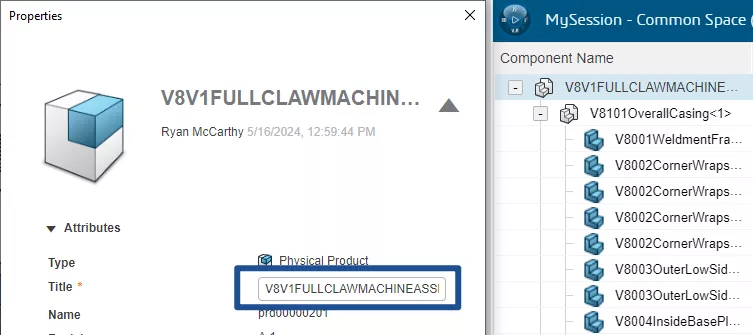
Titles can be edited from the FeatureManager Tree in SOLIDWORKS or the properties view in the 3DEXPERIENCE add-in.
Title forms the backbone of duplicate name checks inside 3DEXPERIENCE, as an option can be switched on to force title uniqueness.
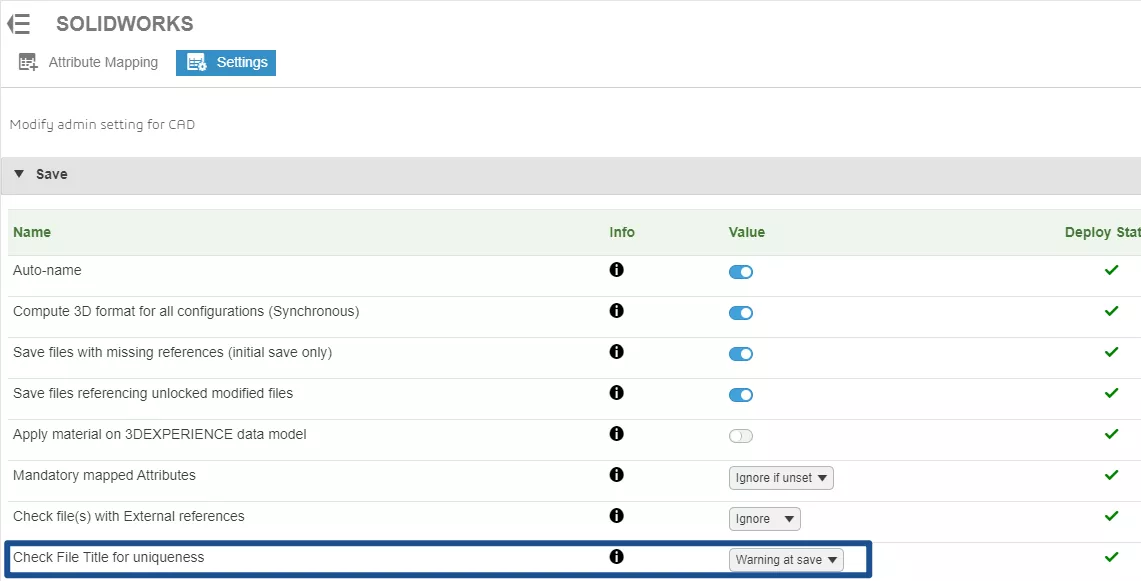
The option effectively acts as a check for duplicate names.
This will block users from saving to 3DEXPERIENCE if the file has a Title matching that of another item already in the platform.
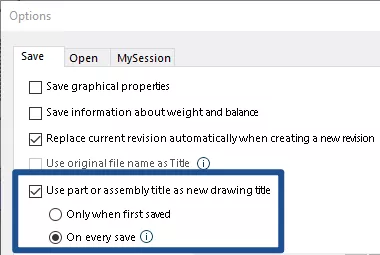
As the Title is our main identifier for files in 3DEXPERIENCE, there is an option we can switch on to re-use this as the title of the drawing for this item.
#3 Pitfalls to Avoid
When changing the Title, the Windows file name does not automatically change with it. This can cause an issue with references, as Windows will still read the Windows file name.
When opening a SOLIDWORKS file, it first checks if references of the same name are already open.
Hence, if we have a file named ‘Bracket’ open in the background, and then open an assembly that references ‘Bracket’, it will use that already open file, even if that’s not the correct ‘Bracket’ for this assembly.
SOLIDWORKS will prompt you with the below warning when this scenario occurs. This process occurs as a faster method for loading documents.
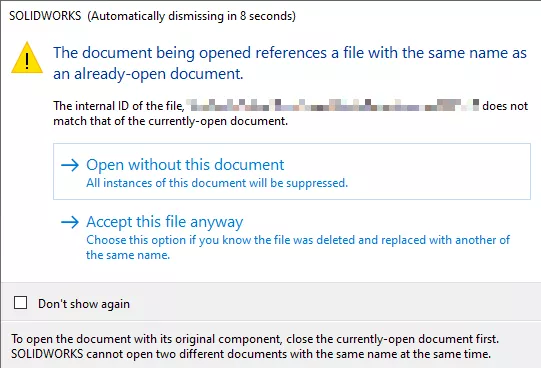
Even if the file name matches, the Internal ID will flag up as a different value.
You could run into the above scenario, and not realise it was going to happen as the Title (that you see) and Filename (that Windows sees) of a file could be different.
SOLIDWORKS will still warn you if this occurs, and our recommendation is to ensure all un-related files are closed when opening a new assembly or drawing.
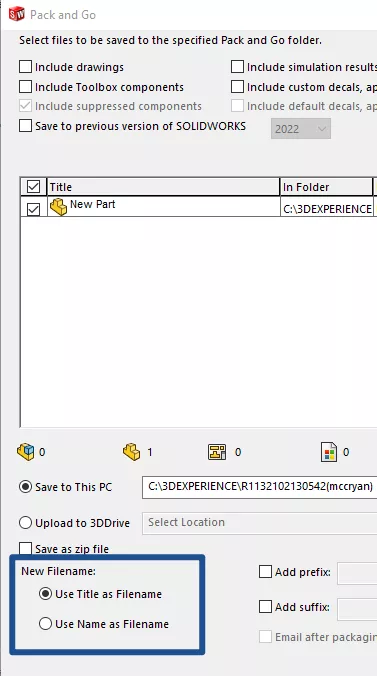
Another issue you can run into is using Pack & Go. Older versions of SOLIDWORKS will export the original Windows file name, and not Title when using Pack & Go.
With SOLIDWORKS 2024 SP2.0 onwards, the below option has been added to use the Title as the new files Windows file name.
#4 Working with Auto-Name
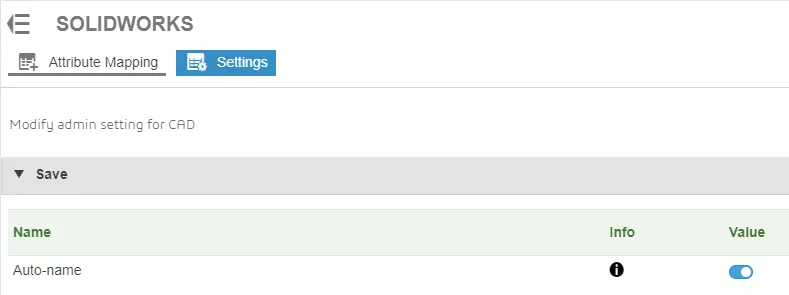
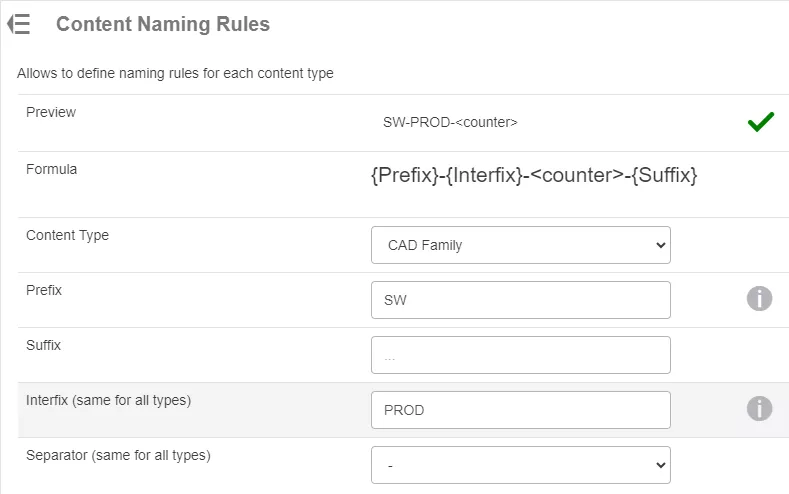
Auto-Name should be enabled to allow naming rules to be defined.
To avoid duplication of Title within the platform, an option can be enabled to automatically name files.
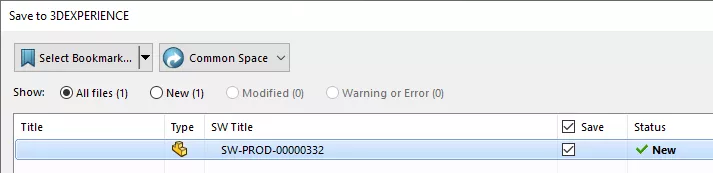
A preview of the generated name during saving to the 3DEXPERIENCE platform.
This utilises a sequential counter, a chosen prefix, suffix or interfix, and a separator to build a file name that is applied when a file is saved to 3DEXPERIENCE. This can be customized for different file types being saved into 3DEXPERIENCE.
#5 Identifying an Item with an Auto-Name
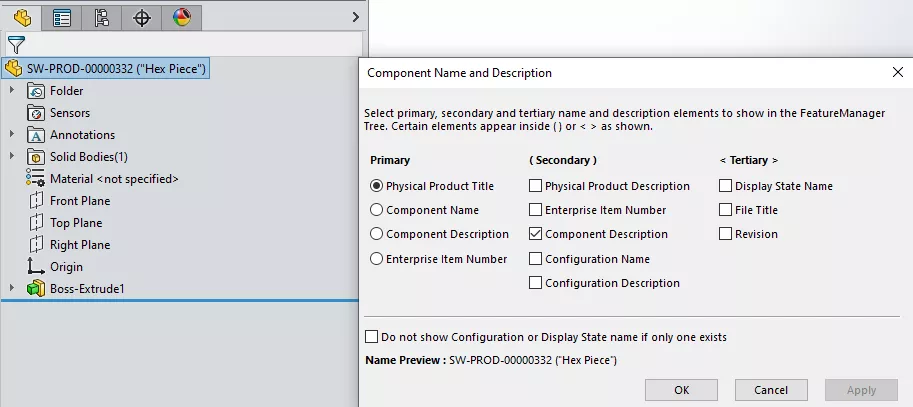
A descriptive name of the file should then be added to Description to allow for the easy identification of what the generated name is referring to.
This can then be added to the title when viewing the feature tree.
Categorised as: 3DEXPERIENCE | Tech Tips
Get Expert SOLIDWORKS Training
Get hands-on SOLIDWORKS training in-person or online, led by certified experts with real industry experience. With venues across the UK & Ireland, it’s easy to start learning today.
Related Posts

How to Find Reaction Forces in SOLIDWORKS Simulation
SOLIDWORKS helps us to find resultant forces through simulation studies. These virtual tests reduce the need for physical prototypes and give us an accurate answer.

Setting number of decimal places in a table on a drawing
When creating an equation in a drawing general table, is it possible to define the…

Why is my Flat Pattern not showing in SOLIDWORKS Drawings?
This may be linked to how the drawing is saved or it can be related to how sheet metal parts are displayed in drawings, read on to find out how to fix it.

Why is SOLIDWORKS Crashing?
It’s one of the great mysteries of life – why is SOLIDWORKS crashing? Let’s explore how SOLIDWORKS crashes and how we can improve performance in SOLIDWORKS.

Tech Support Blog: Why are my SOLIDWORKS BOM Quantities Wrong?
Why are my SOLIDWORKS BOM Quantities Wrong? A support call cropped up this week which…

How to Get Your Serial Number for SOLIDWORKS Visualize Standard
Want to download Visualize to make photorealistic renders? Follow this guide for accessing your Visualize serial number that comes bundled in with SolidWorks Professional and Premium.

How to Recover SOLIDWORKS Files After a Crash
SOLIDWORKS has two different methods to help you recover from an unexpected crash or loss of data in the form of auto-recovery and back-up settings.

SOLIDWORKS Magnetic Mates
Magnetic makes are used within SolidWorks assemblies to easily configure and position assembly components. Through defining connection points and ground plane(s) – position components through drag and dropping one component within close proximity of another to snap the asset into position.

SOLIDWORKS Dimensions – Collated Quick Tips
We have collated some of our favourite tips on creating, manipulating and controlling dimensions in SolidWorks, both at a sketching and drawing level. Read on to find out more…

How to Deactivate (Transfer) a SOLIDWORKS License
A SOLIDWORKS standalone license can only be activated on one machine at a time. If you plan on moving your SOLIDWORKS license to another machine you will first need to deactivate it. Additionally if a standalone license has ended up on multiple machines or you are making a change to your computer, you will need to deactivate the license first.