











What Are Labels in SOLIDWORKS PDM and How Can I Use Them?

Written by: Wayne Marshall
Published: Nov 14, 2022
| View All Blogs
In this blog I want to introduce you to a little used feature of labels in SOLIDWORKS PDM, they are a simple way to annotate a specific version of a model to describe a key point in its lifecycle outside of the standard ‘Revision’ label.
In this example, I have a problem with the fit of a part and after changing the CAD file I plan to have a 3D print created so that I can test the changes before releasing for manufacture. I will use a label to indicate the version of the model that I have sent for printing, but also use the content of the label to record who I sent it to.
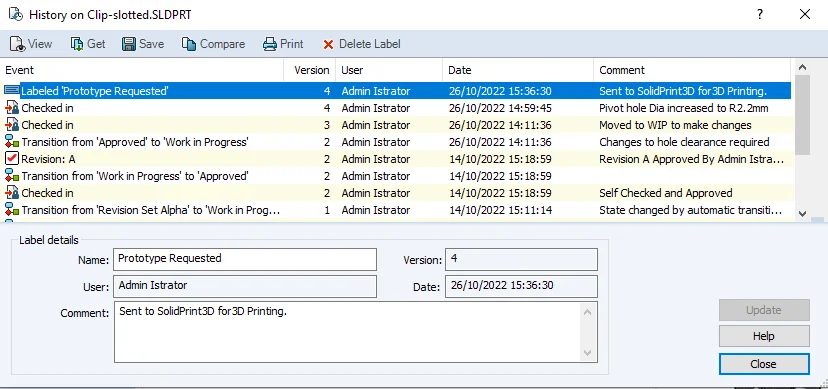
Figure 1: File History
On the face of it, labels may appear to be essentially the same as a version comment, but unlike a version comment, a label can be added without creating a new file version, they appear significantly in the ‘Get’
menu and versions attached to a label are also excluded from cold storage when cold storage rules have been configured to also exclude ‘Revisions’.
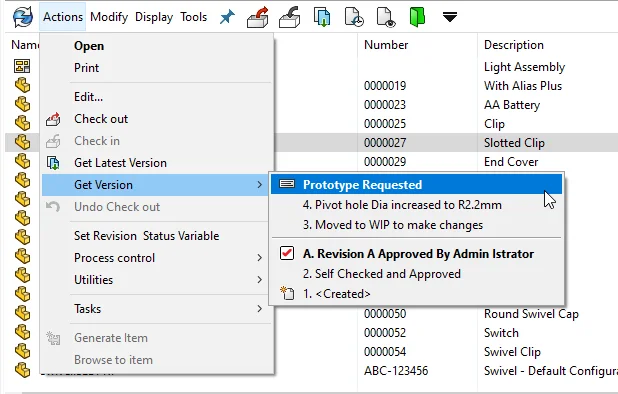
Figure 2: Get Version(with Labelled Version)
To add a label, browse the SOLIDWORKS PDM Vault View, select one or more files before selecting Label from the Modify pull-down menu.

Figure 3: Menu: Modify / Label
Note: If you do not see this option, it may be that you do not currently have the required permission to create labels. Two permissions relate to labels, one to create (set) labels and one to delete.
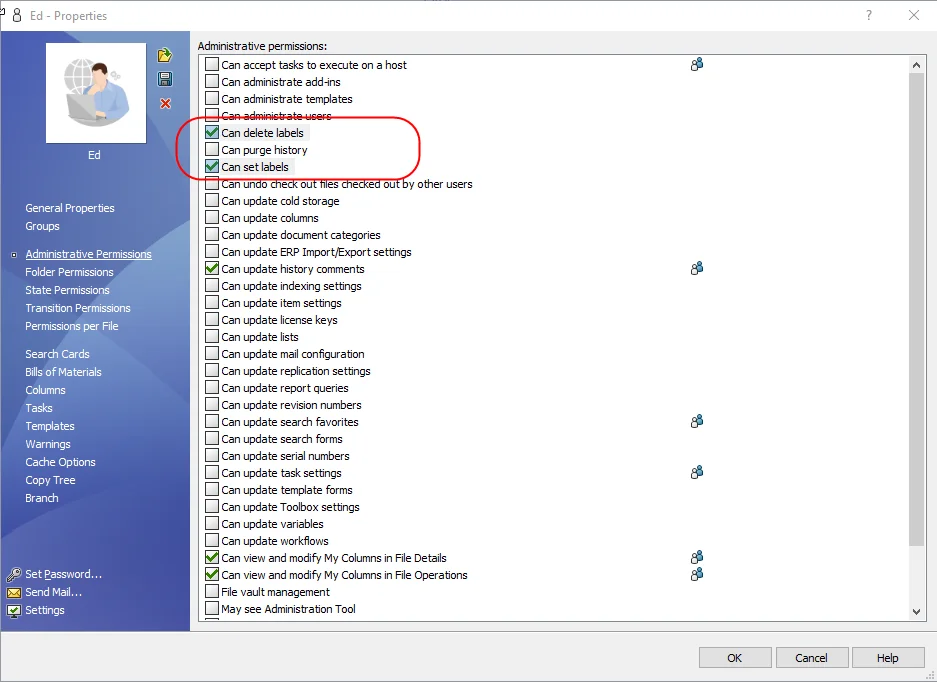
Figure 4: Administrative Permissions
This will display a dialog box that allows you to define the name for the label as you would see in the Get menu, and an optional comment for displaying within the full history dialogue.
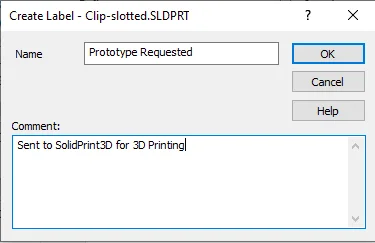
Figure 5: Creating the Label
Note: If you select a folder instead of a file then the label will be applied to all files in that folder. You can also apply it to the contents of any sub-folders by enabling the additional checkbox labelled ‘Recursive’ which is only shown when a folder is selected.
Labels can be modified or deleted within the History dialogue box by any user with the “Can Update History Comments” permission enabled.
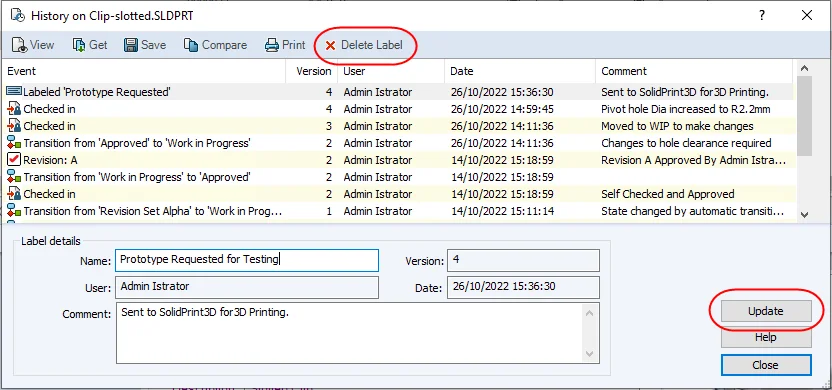
Figure 6: Update or Delete a Label
Labels can also be searched for using the Label tab on the built-in ‘Complete Search’ card. In the example below, I can search for Solid Print3D to quickly see which files I have sent out to that company for prototyping as a 3D Print.
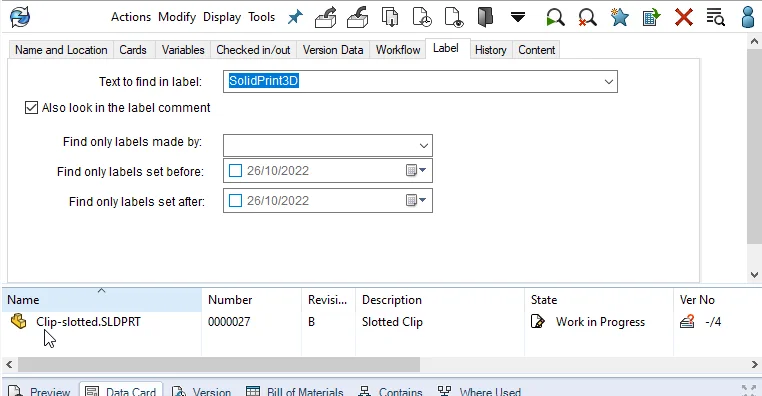
Figure 7: Searching by Label name or content
Categorised as: Data Management | Tech Tips
Get a SOLIDWORKS Quote
Interested in SOLIDWORKS? Contact us for questions, trials, or demos by clicking the button below or call 01926 333777. Our experts will help you find the perfect solution.

Related Posts

How to Find Reaction Forces in SOLIDWORKS Simulation
SOLIDWORKS helps us to find resultant forces through simulation studies. These virtual tests reduce the need for physical prototypes and give us an accurate answer.

Setting number of decimal places in a table on a drawing
When creating an equation in a drawing general table, is it possible to define the…

Why is my Flat Pattern not showing in SOLIDWORKS Drawings?
This may be linked to how the drawing is saved or it can be related to how sheet metal parts are displayed in drawings, read on to find out how to fix it.

Why is SOLIDWORKS Crashing?
It’s one of the great mysteries of life – why is SOLIDWORKS crashing? Let’s explore how SOLIDWORKS crashes and how we can improve performance in SOLIDWORKS.

Tech Support Blog: Why are my SOLIDWORKS BOM Quantities Wrong?
Why are my SOLIDWORKS BOM Quantities Wrong? A support call cropped up this week which…

How to Get Your Serial Number for SOLIDWORKS Visualize Standard
Want to download Visualize to make photorealistic renders? Follow this guide for accessing your Visualize serial number that comes bundled in with SolidWorks Professional and Premium.

How to Recover SOLIDWORKS Files After a Crash
SOLIDWORKS has two different methods to help you recover from an unexpected crash or loss of data in the form of auto-recovery and back-up settings.

SOLIDWORKS Magnetic Mates
Magnetic makes are used within SolidWorks assemblies to easily configure and position assembly components. Through defining connection points and ground plane(s) – position components through drag and dropping one component within close proximity of another to snap the asset into position.

SOLIDWORKS Dimensions – Collated Quick Tips
We have collated some of our favourite tips on creating, manipulating and controlling dimensions in SolidWorks, both at a sketching and drawing level. Read on to find out more…

How to Deactivate (Transfer) a SOLIDWORKS License
A SOLIDWORKS standalone license can only be activated on one machine at a time. If you plan on moving your SOLIDWORKS license to another machine you will first need to deactivate it. Additionally if a standalone license has ended up on multiple machines or you are making a change to your computer, you will need to deactivate the license first.