











What is 3DSWYM? A 3DEXPERIENCE Platform Tutorial
Written by: Prasad Bhonsule
Published: Sep 13, 2019
| View All Blogs
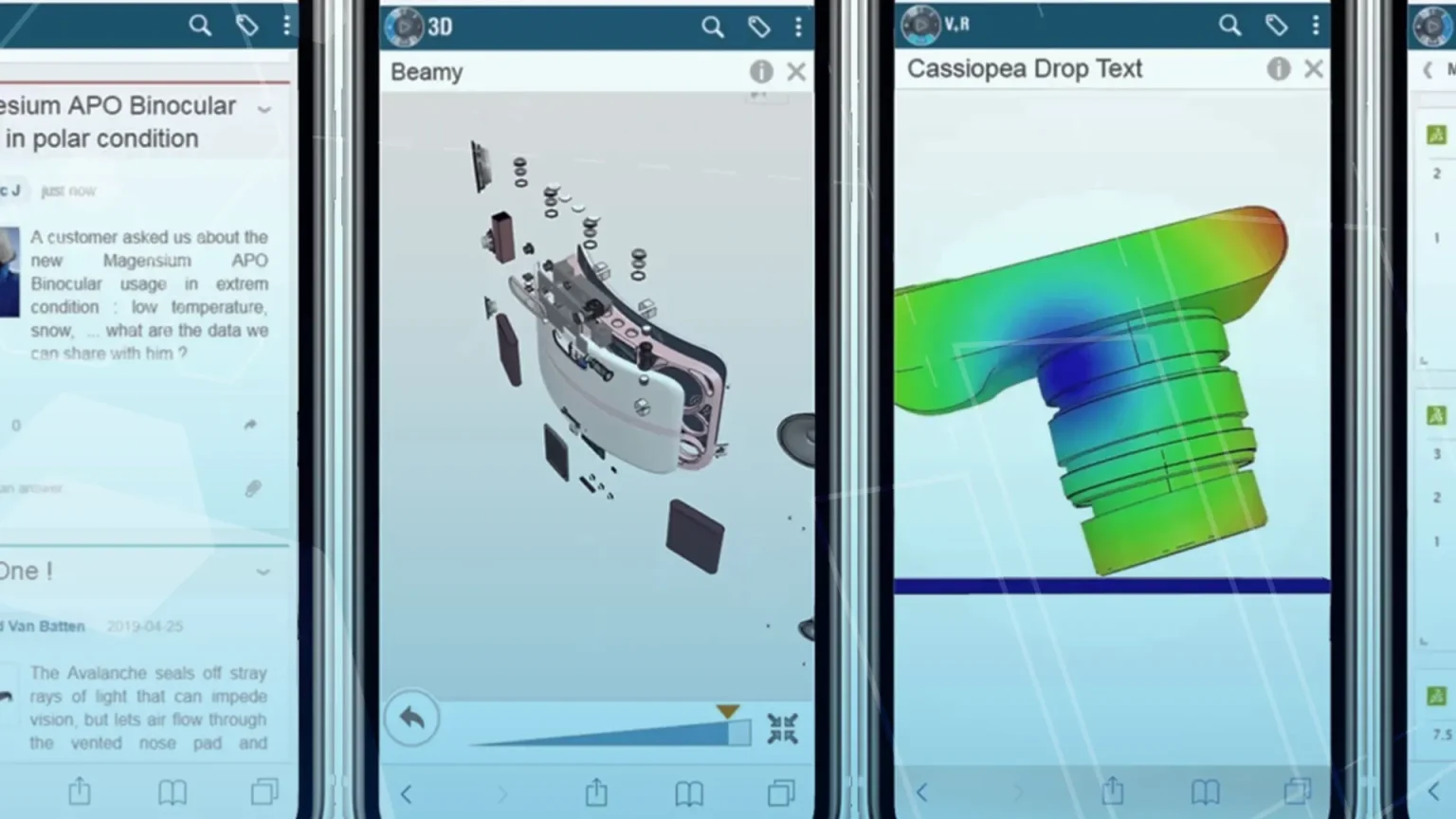
The 3DSwym application is at the heart of the 3DEXPERIENCE platform and is the gateway to collaboration within your business.
It allows users to interact with each other, engage with the wider community, generate ideas, and follow them as they progress from a mere proposal to an implemented reality.

The 3DSwym app is contained within the 3DSwymer role, and is accessible by any member on the platform through an internet browser. This is the main Social and Collaborative app within the role, and forms just one of several useful and intelligent apps to help you generate ideas and communicate effectively.
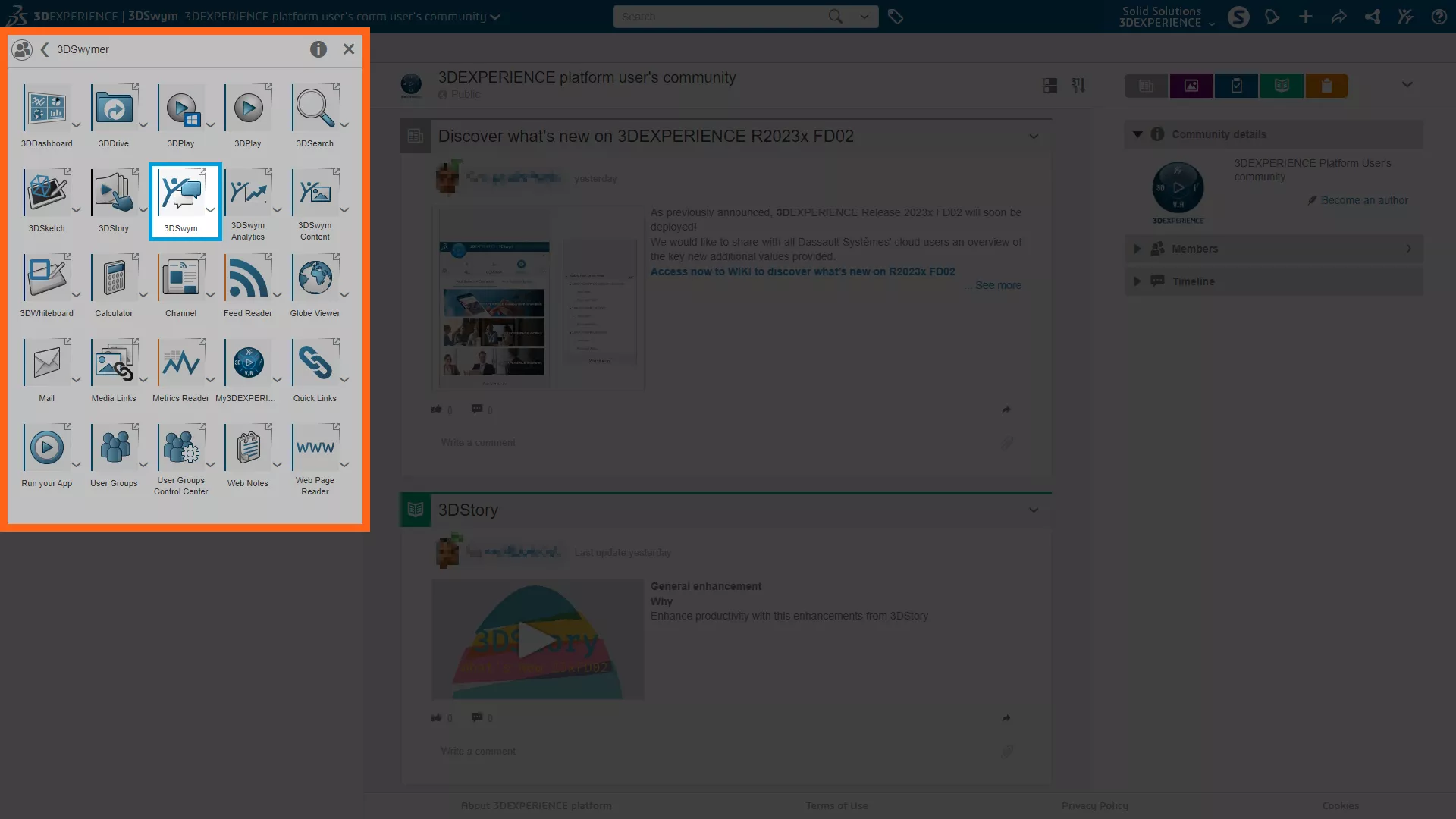
If you have purchased roles, then access the app by clicking on the compass in the top left corner. Clicking on the 3DSwymer role will reveal all the associated apps, including 3DSwym.
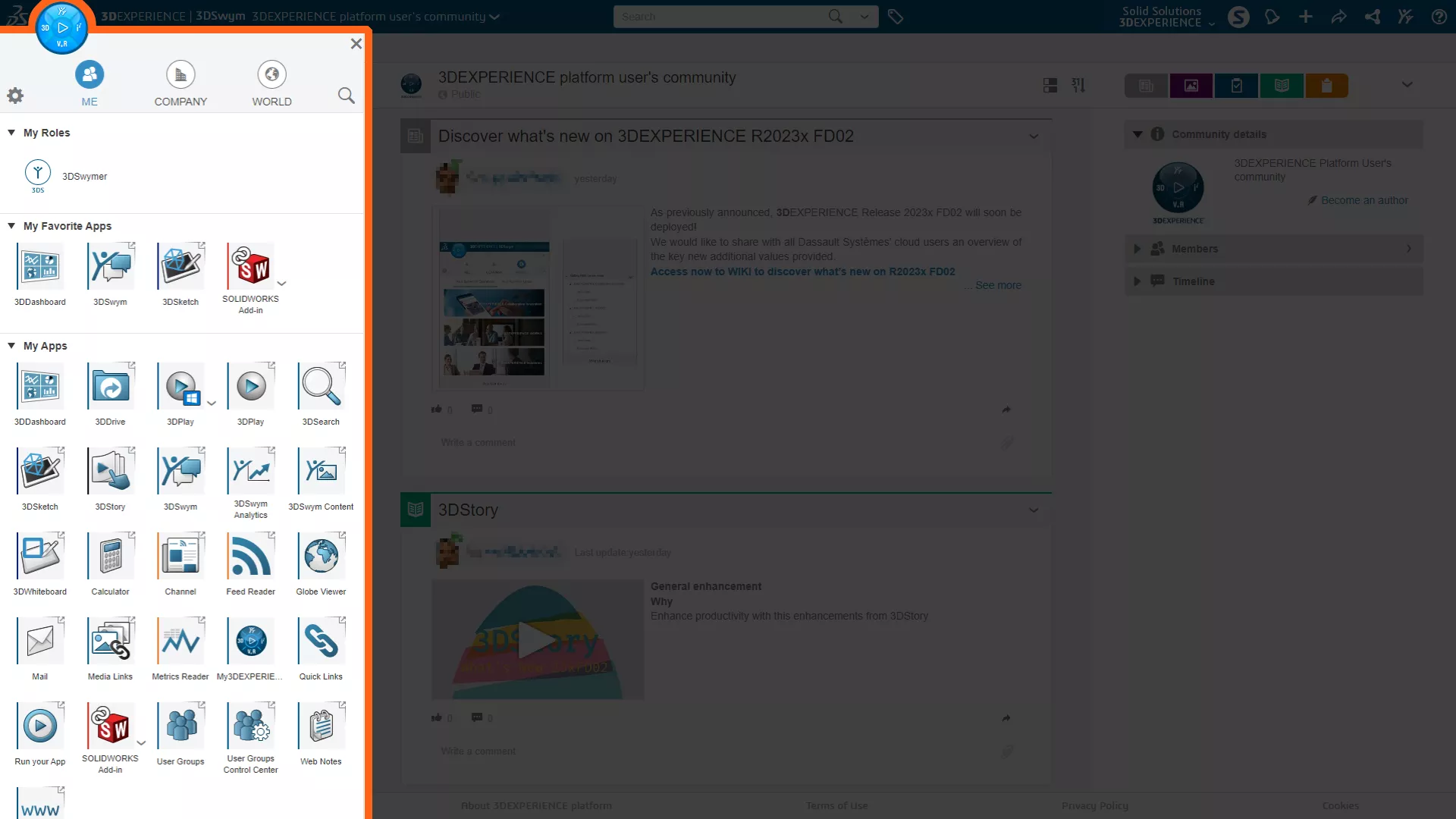
Alternatively, you can access the app from the My Apps list.
Apps in this list can be pinned to the My Favourite Apps section of the Compass menu or added to Dashboards for easy access.
The 3DSwym app is available to anyone with a 3DEXPERIENCE ID via the user communities, where you will have access to public communities of fellow innovators and engineers.
Ultimately, 3DSwym is a collection of communities that are organised by collective interests or teams. Engage and establish new relationships with members of these communities through likes, comments, shares, and direct messaging.
Communities can be public or private to just you and your team, so you can collaborate effectively across divisions and teams and ensure everyone has the latest information.
Public communities contain a wealth of knowledge and tutorials relating to the entire Dassault Systèmes portfolio, from SOLIDWORKS and CATIA to advanced simulation and the 3DEXPERIENCE platform itself.
Did you know? The arrow in the top right corner of an app icon indicates the app will open in a new tab when clicked.
What can I Post in 3DSwym Communities?
There are several types of posts that can be made. Communities may have different rules determined by the admins as to which posts are permitted in each one.
You can see what posts are permitted by looking at the icon of a new post. Permitted posts will be visible in the drop down.
Let’s take a look at what types of posts can be made in 3DSwym.
GENERAL POSTS
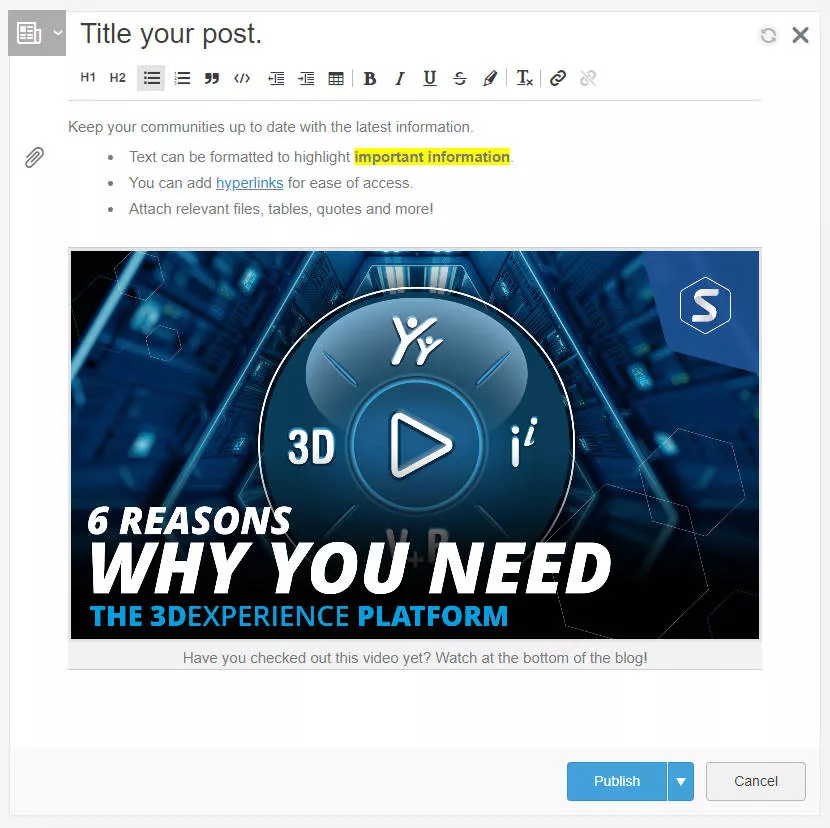
Denoted by the grey newspaper icon are general posts. These can contain both text and images. Expanding the double arrow in the top right of a post gives access to a variety of formatting tools and attachments.
MEDIA
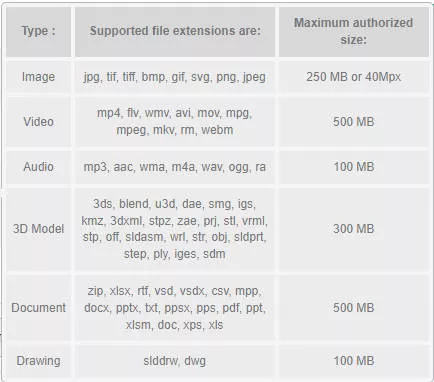
Documents and images can be uploaded as media posts. Images, videos, audio, 3D models, documents and drawings are all supported. This table contains the full list of supported files.
WEDOS
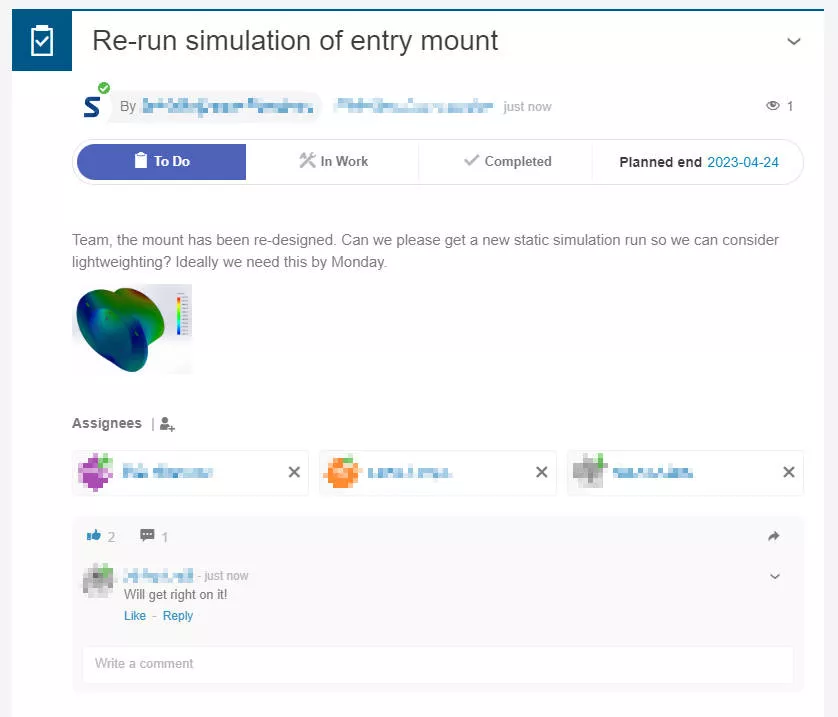
These are quick tasks that you might need to collaborate with someone on. Members can be assigned tasks and progress can be tracked on a WeDo through to completion.
IDEAS
Quick ideas can be suggested here for feedback and their progression tracked through the powerful Ideas Pipeline as tasks are completed. Pitch your ideas and collaborate to develop them into real solutions.
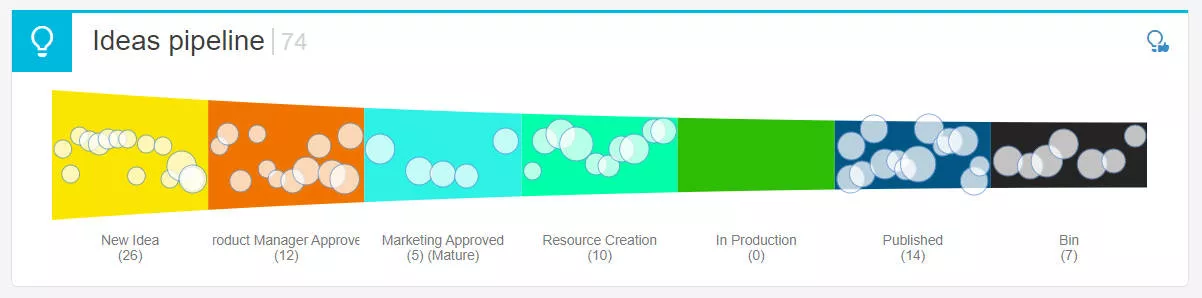
Any post can be converted to an Idea via the drop-down menu.
QUESTIONS
Ask questions of community members and validate correct answers.

WIKIS
A powerful tool to document your processes, Wikis can contain text, media, and links to store important information. Content can be bookmarked, shared, commented on and revisioned. With the 3DSwymer role, content can be pinned to Dashboards for easy access.
SURVEYS
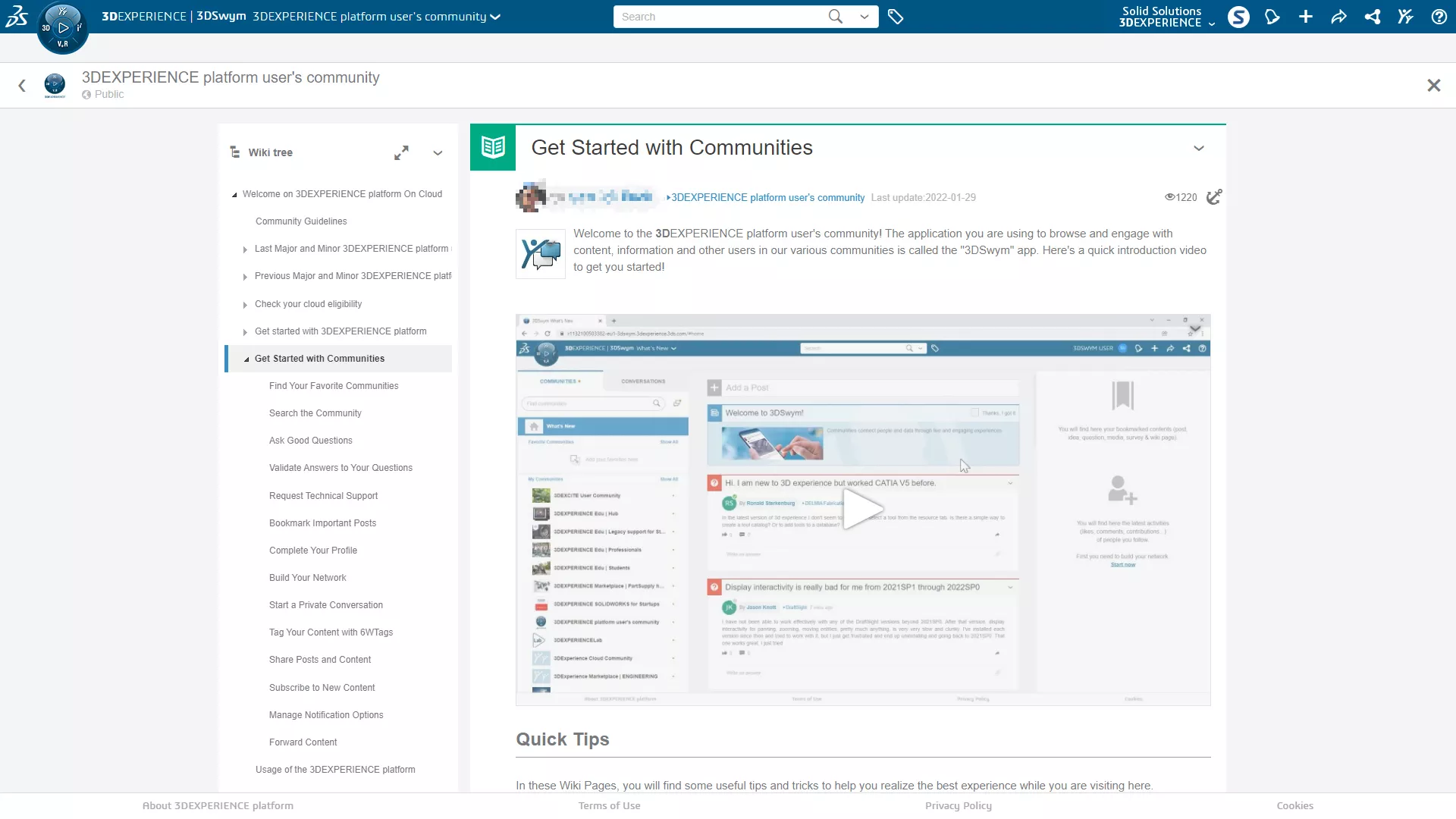
Gain feedback from a community through surveys up to 30 questions long. Answers can be single or multiple choice, quantitative ratings, or qualitative.
How to use the 3DSwym App in 3DEXPERIENCE
Now we know what types of posts we can make, let’s explore the interface of the app.
The left side of the app houses Communities and Conversations. Communities lists all the communities that you have joined or have been invited to. Drag communities into your Favorites list for quick access and click on them to switch between them.
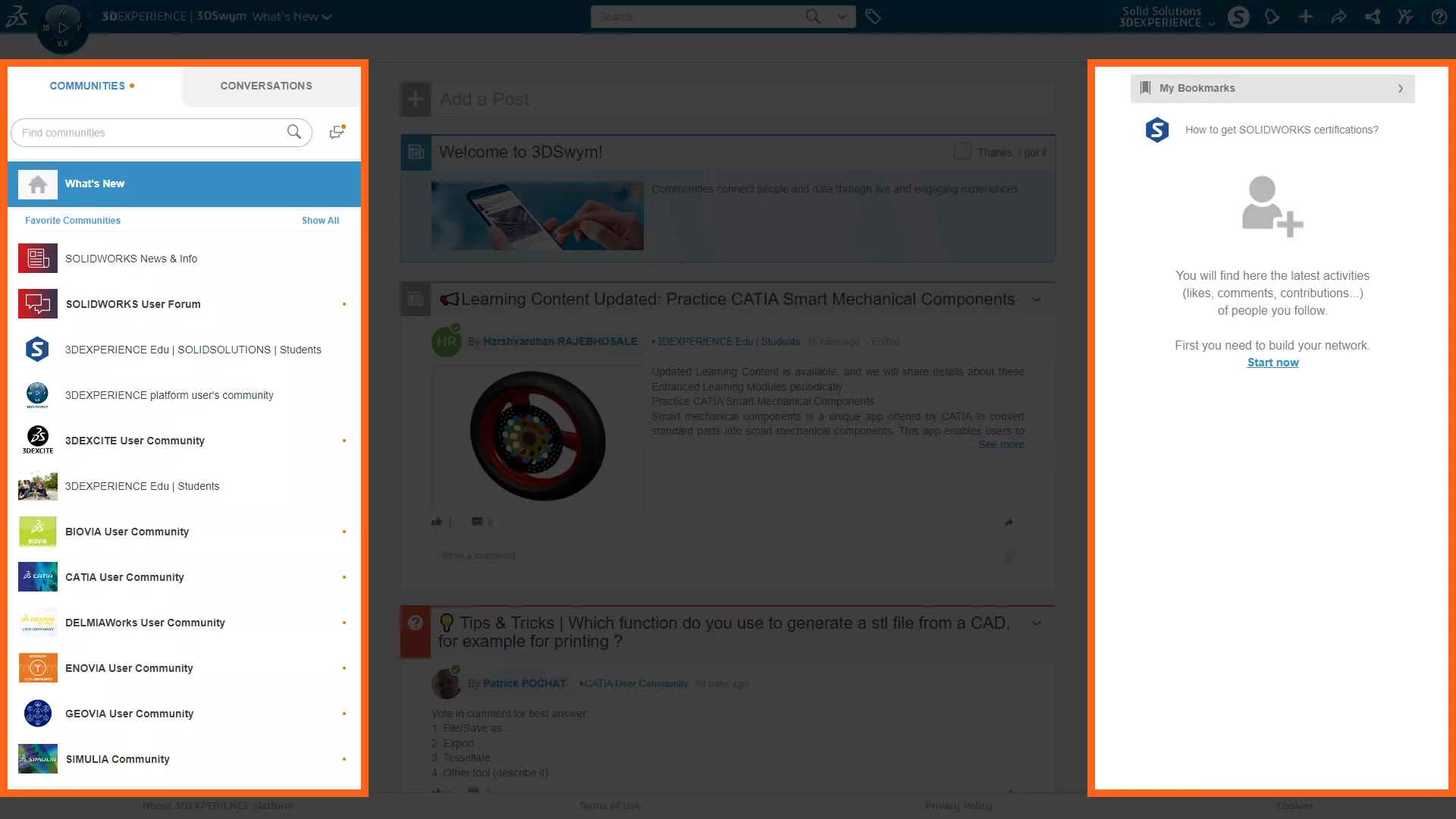
The What’s New page collates any unseen content from your communities and dispenses it to you in your feed. Communities with unseen content are marked by an orange dot and a bold title.
Any posts you bookmark via their drop-down menu will be shown on the right-hand side when What’s New is active for easy access.
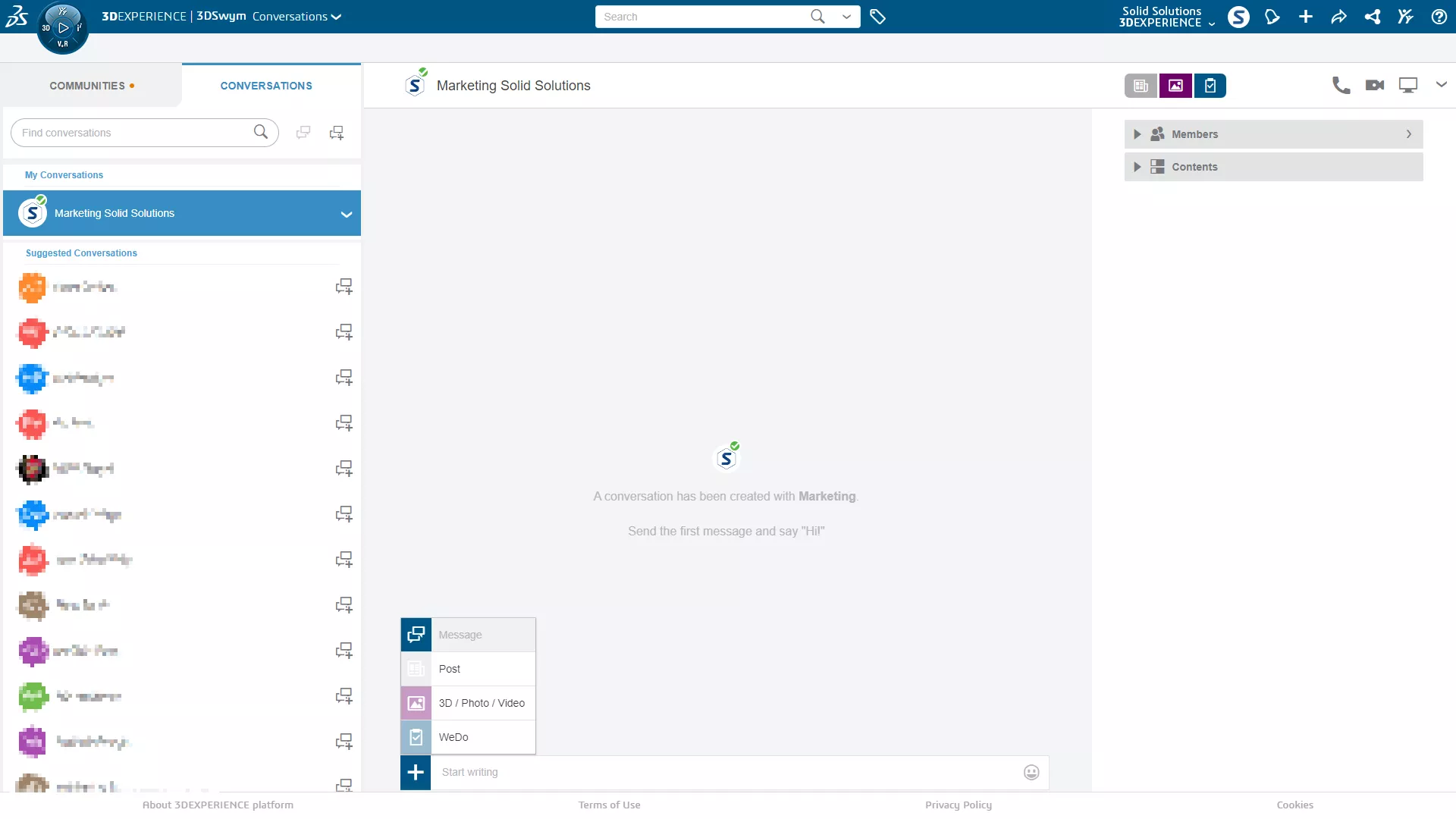
Toggling to the Conversations tab shows your direct messages. Start new conversations with a single or groups of users and respond to people in real-time.
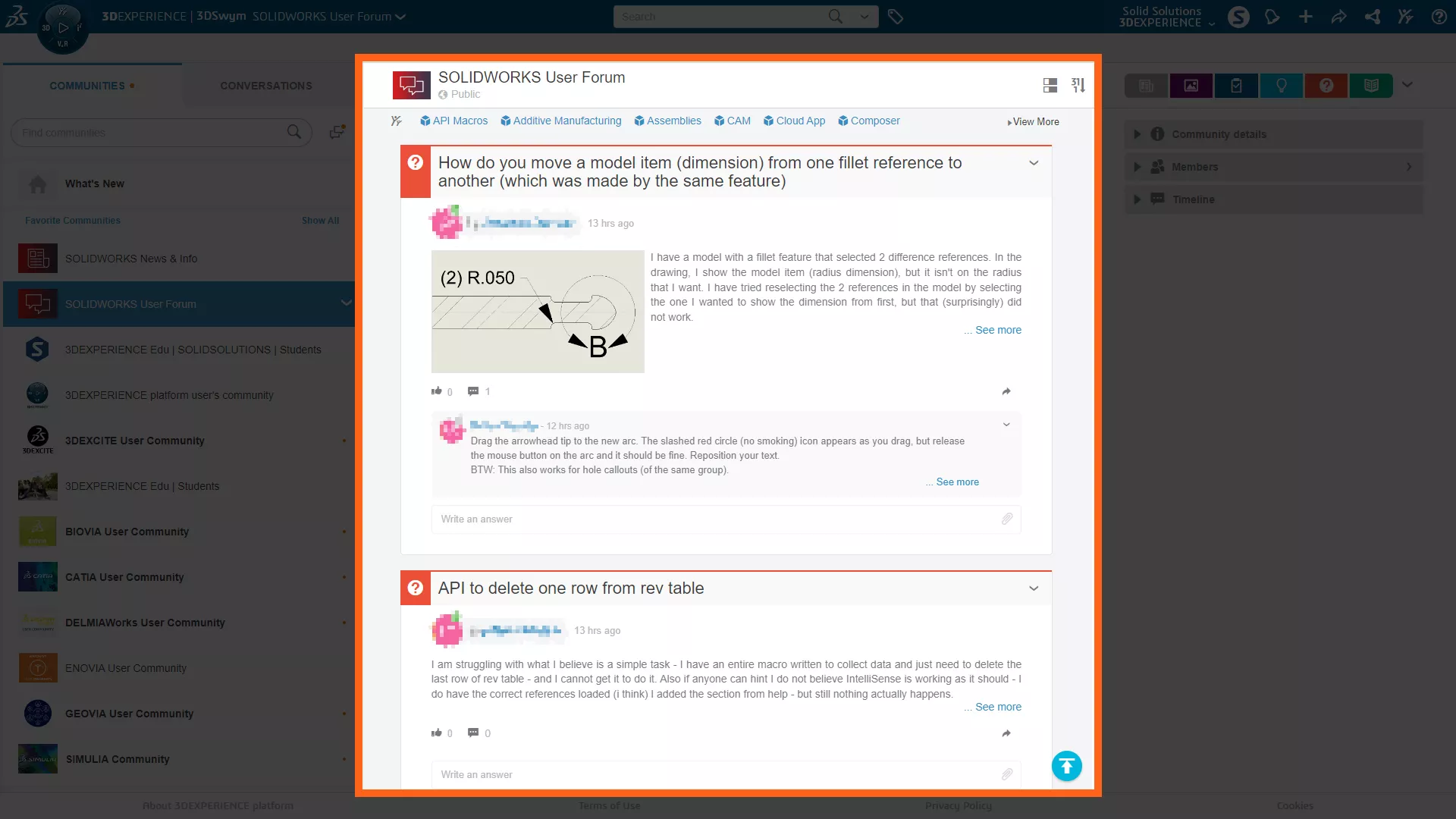
The central area of the app is your Feed. This is where you will see the latest community posts and can interact with threads. Clicking on a post title or content will open the post full screen.
Control whether your feed is displayed in large, compact, or timeline view, and show posts in chronological order by creation date or latest activity.
At the top of the feed are Community Tags. These can be attached to posts to allow for quick filtering by topics. Multiple tags can be selected.

The colourful post icons in the top right of the app are quick filters. Use these to filter by each post type.
The drop-down menu to the right of the filters contains sharing and further view options. In your own community, the community preferences can be found here.
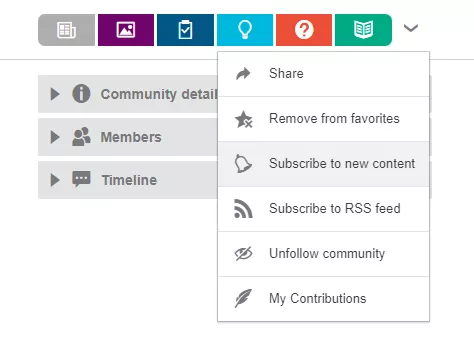
Be sure to subscribe to new content to be notified of new posts within communities.
Community details are displayed on the right-hand side of the app, below which is a list of community members and a timeline which displays all the activity happening within a community in chronological order.
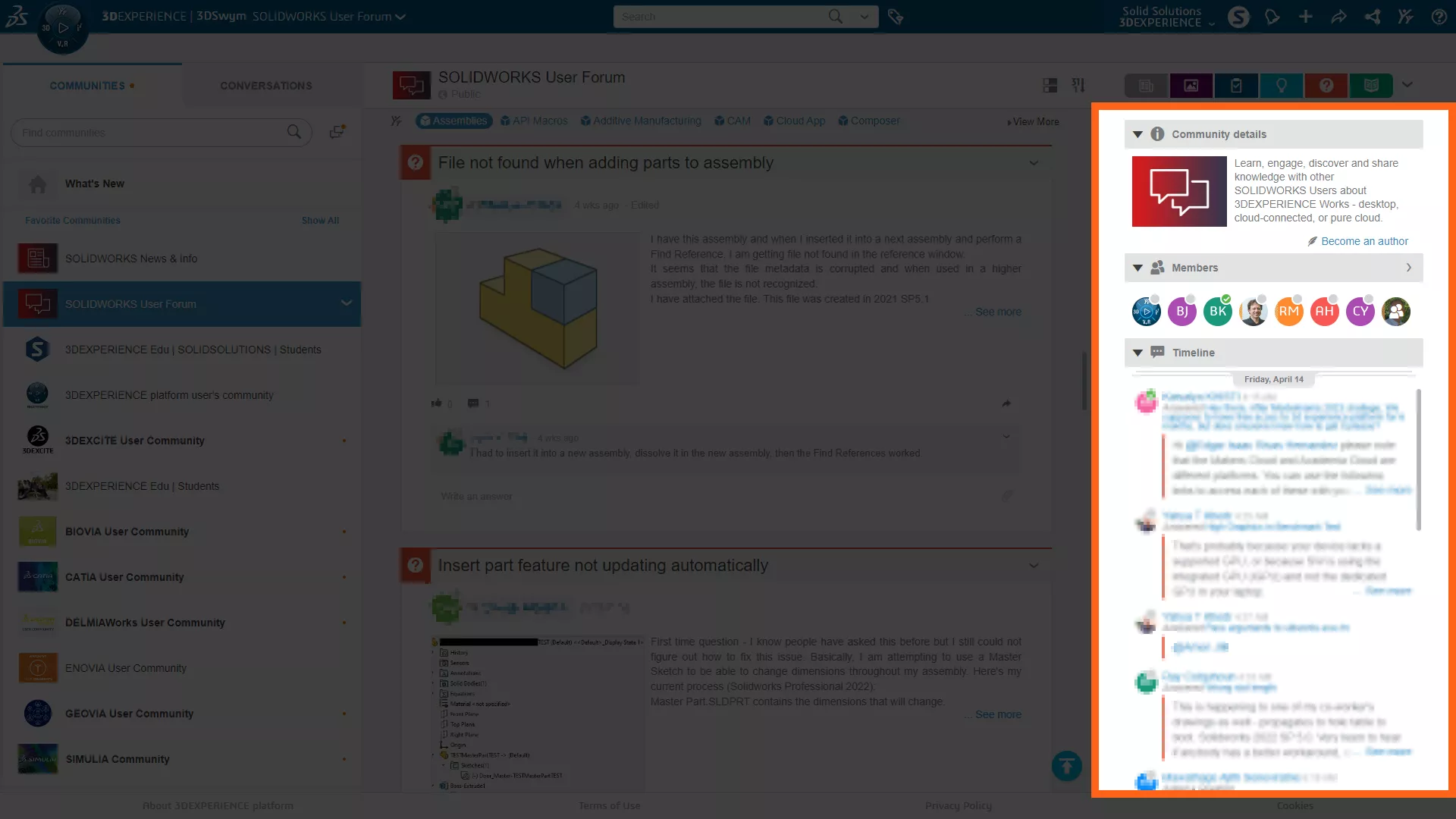
“Become an author” allows you ask the owner of the community for further responsibilities and gain access to creating other types of posts.
How to Share Posts in 3DSwym
It’s straightforward to add likes and comments to posts, but how you share posts might not be so obvious.

To share a post in 3DSWYM, click the curved arrow on the right-hand side just above the comments section.
This will open a dialog where you can share the post internally with other members of the platform, generate a link for authorised users to access, or share public content to your social media accounts.
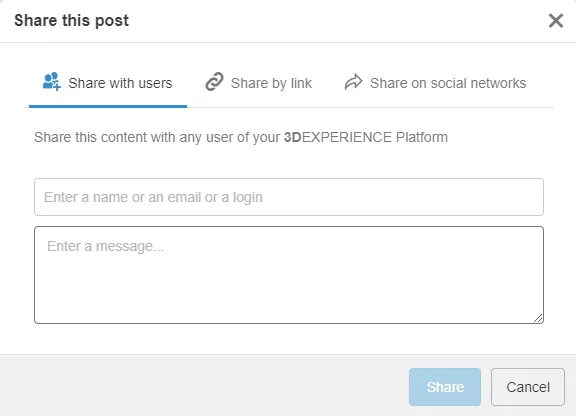
Links can then be copied and sent to any user. Only users with access to the specific community will be able to view the content.
Responsibilities in 3DSwym
Responsibilities define the permissions which allow you to interact with content.
Members are assigned these by their platform or community administrator to control interactions and content visibility.
The three permissions levels are:
- Owners have authority over all media in a community.
- Authors can create any post that has been approved in that community.
- Contributors can only respond to content posted by others on communities they are a member of.
Take the Next Steps…
The need to communicate effectively is vital.
Choosing the 3DEXPERIENCE eradicates disjointed email chains and ensures the correct people are always kept up to date and have access to accurate information and the latest version of events.
Not only does the thread-based community approach allow you to easily find old discussions and track the decision-making process, but it can also manage your CAD data effectively.
Watch this video find out why you should be using the 3DEXPERIENCE platform to manage your SOLIDWORKS and CAD data and take the next steps on your design journey.
Categorised as: 3DEXPERIENCE | Data Management | Tech Tips
Get Expert SOLIDWORKS Training
Get hands-on SOLIDWORKS training in-person or online, led by certified experts with real industry experience. With venues across the UK & Ireland, it’s easy to start learning today.
Related Posts

How to Find Reaction Forces in SOLIDWORKS Simulation
SOLIDWORKS helps us to find resultant forces through simulation studies. These virtual tests reduce the need for physical prototypes and give us an accurate answer.

Setting number of decimal places in a table on a drawing
When creating an equation in a drawing general table, is it possible to define the…

Why is my Flat Pattern not showing in SOLIDWORKS Drawings?
This may be linked to how the drawing is saved or it can be related to how sheet metal parts are displayed in drawings, read on to find out how to fix it.

Why is SOLIDWORKS Crashing?
It’s one of the great mysteries of life – why is SOLIDWORKS crashing? Let’s explore how SOLIDWORKS crashes and how we can improve performance in SOLIDWORKS.

Tech Support Blog: Why are my SOLIDWORKS BOM Quantities Wrong?
Why are my SOLIDWORKS BOM Quantities Wrong? A support call cropped up this week which…

How to Get Your Serial Number for SOLIDWORKS Visualize Standard
Want to download Visualize to make photorealistic renders? Follow this guide for accessing your Visualize serial number that comes bundled in with SolidWorks Professional and Premium.

How to Recover SOLIDWORKS Files After a Crash
SOLIDWORKS has two different methods to help you recover from an unexpected crash or loss of data in the form of auto-recovery and back-up settings.

SOLIDWORKS Magnetic Mates
Magnetic makes are used within SolidWorks assemblies to easily configure and position assembly components. Through defining connection points and ground plane(s) – position components through drag and dropping one component within close proximity of another to snap the asset into position.

SOLIDWORKS Dimensions – Collated Quick Tips
We have collated some of our favourite tips on creating, manipulating and controlling dimensions in SolidWorks, both at a sketching and drawing level. Read on to find out more…

How to Deactivate (Transfer) a SOLIDWORKS License
A SOLIDWORKS standalone license can only be activated on one machine at a time. If you plan on moving your SOLIDWORKS license to another machine you will first need to deactivate it. Additionally if a standalone license has ended up on multiple machines or you are making a change to your computer, you will need to deactivate the license first.