











How to Add Decals to Spheres in SOLIDWORKS

Written by: Terry O'Reilly
Published: Oct 4, 2023
| View All Blogs
Learn how to add decals to spheres in SOLIDWORKS quickly with this step-by-step tutorial.
Decals can be used to add your logo to parts, and we’ll show you how to map a decal to a sphere in SOLIDWORKS using the mapping controls.
Let’s take the model we created when showing you how to create a golf ball in SOLIDWORKS.
How to Add a Decal to Spheres in SOLIDWORKS
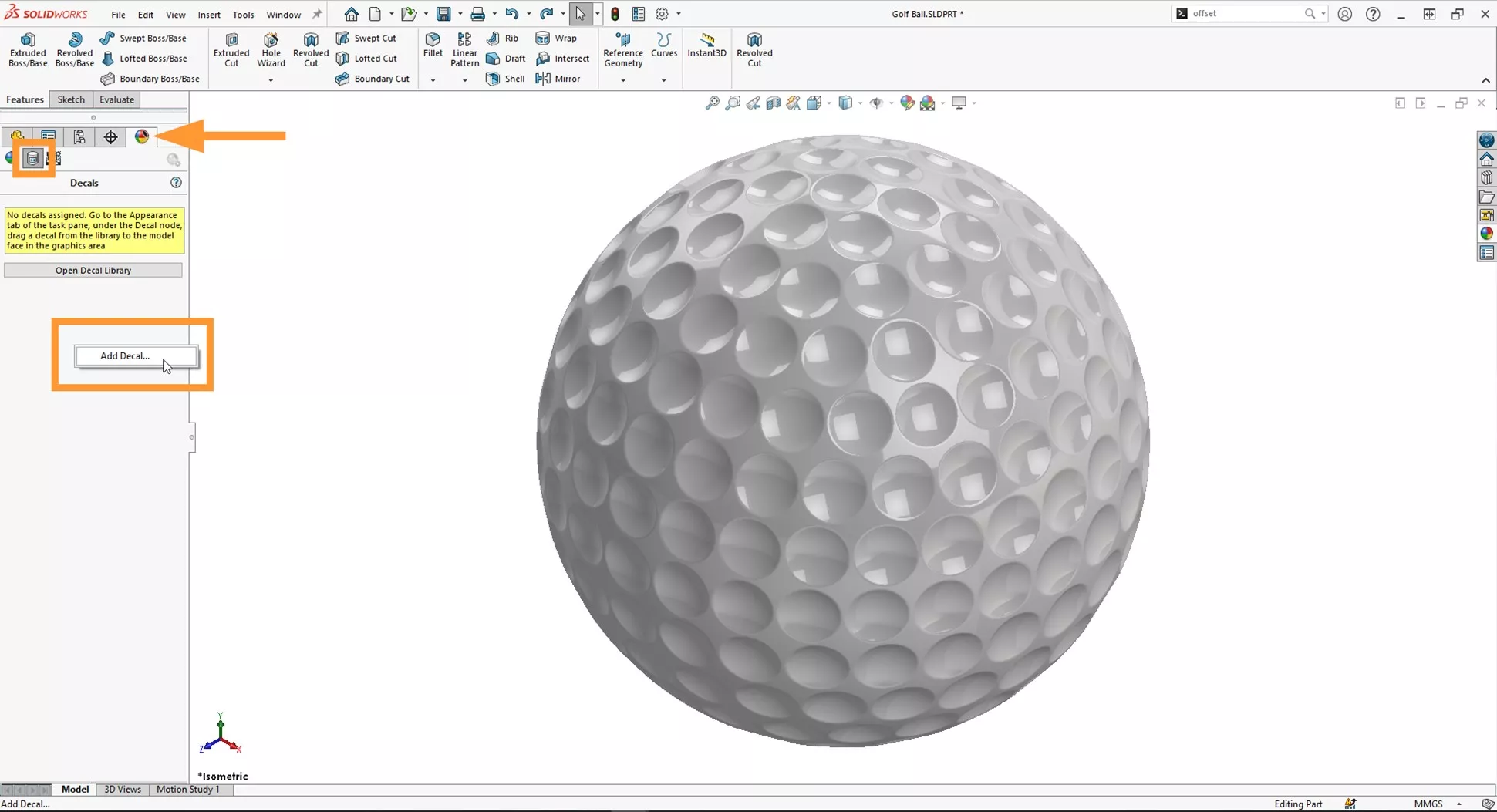
To add an image as a decal, head to the Display Manager tab, select View Decals, right click in the space below and select Add Decal.
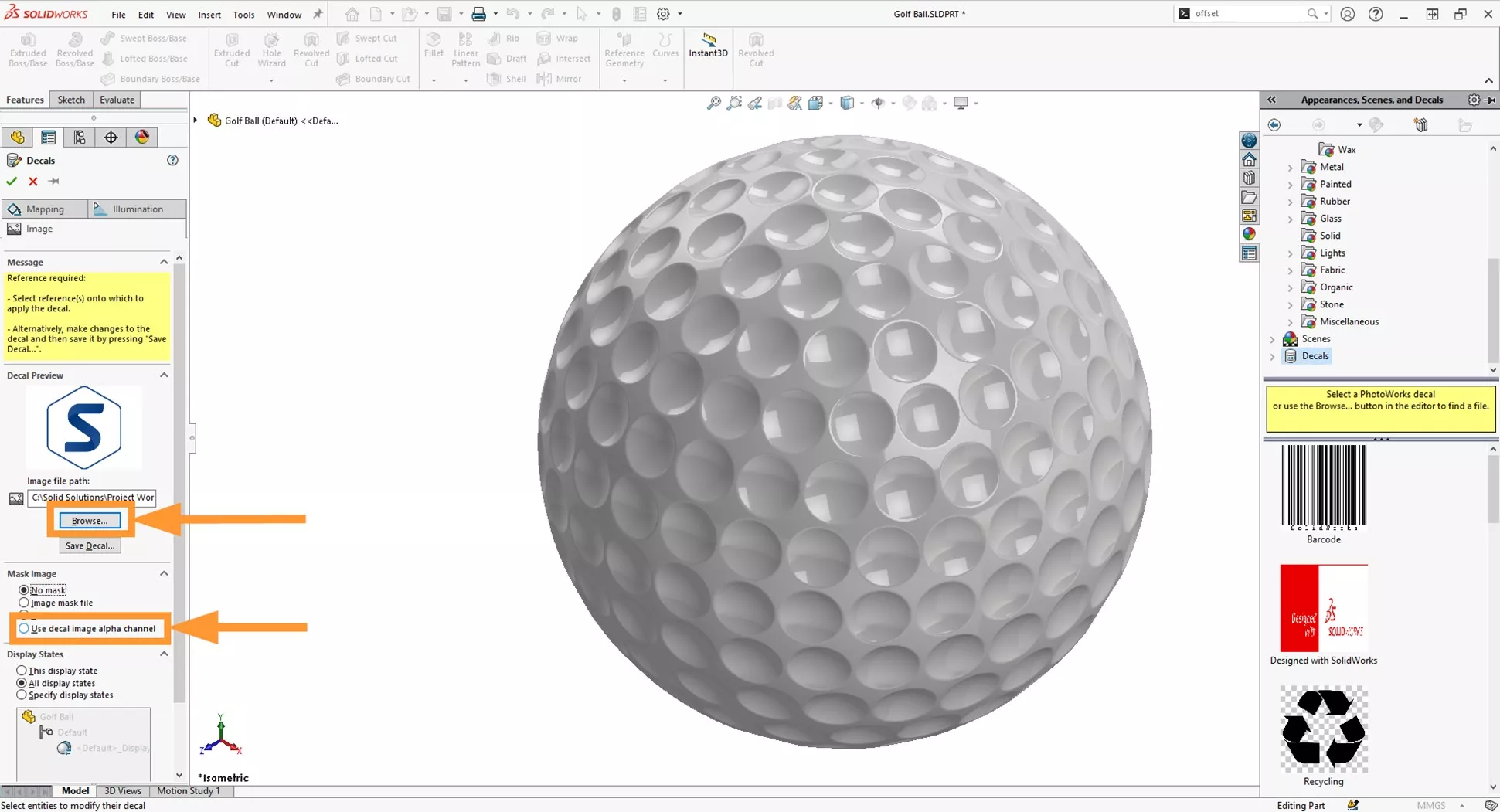
Select Browse and select the image file that you would like to use.
SOLIDWORKS gives us a few options to control the transparency of the decal, but if you’re working with a PNG file, then the alpha channel has already defined the transparency.
Our logo is a PNG and should have a transparent background, so we’ll select Use decal image alpha channel, to inherit the transparency from the file.
SOLIDWORKS Decal Mapping Tutorial
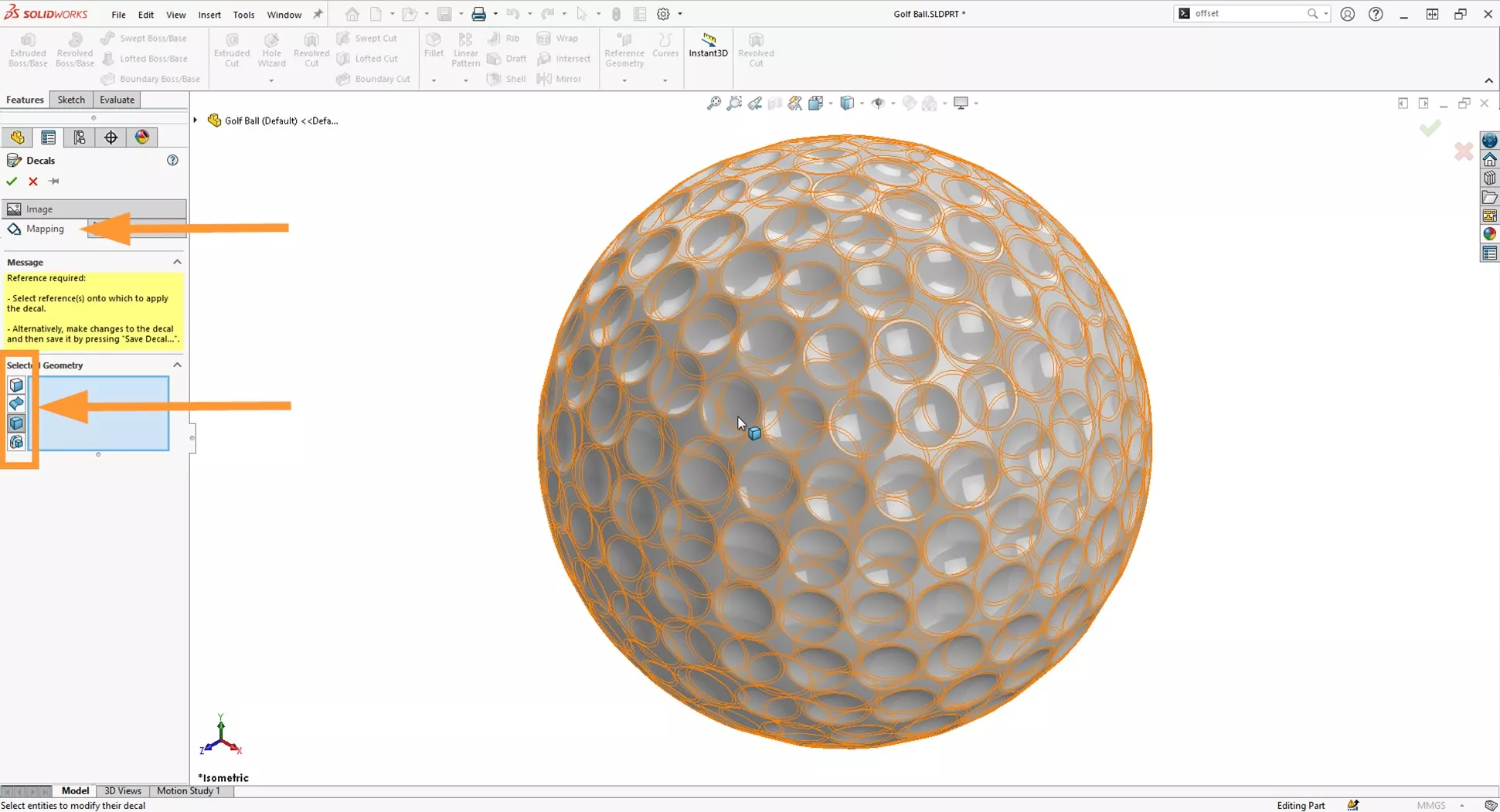
Head to the Mapping tab and switch off all the filters apart from the Solid Body filter and select the body in the graphics area.
We have selected the body filter due to having multiple faces that we want the decal to cross over, so instead of selecting the faces individually we have the entire surface.
This part can be a bit fiddly, depending on the mapping option selected.
When you select the Spherical mapping option, latitude, and longitude (red and green) lines appear in the graphics area circumscribing a bounding box cage around the object. These lines act as the reference axis for positioning/offsetting the decal from the south pole to the north pole.
The first step is to adjust the poles to be positioned at the top and bottom of the model. The default position of the poles is aligned with the X axis. We can do this by adjusting the axis direction values highlighted below.
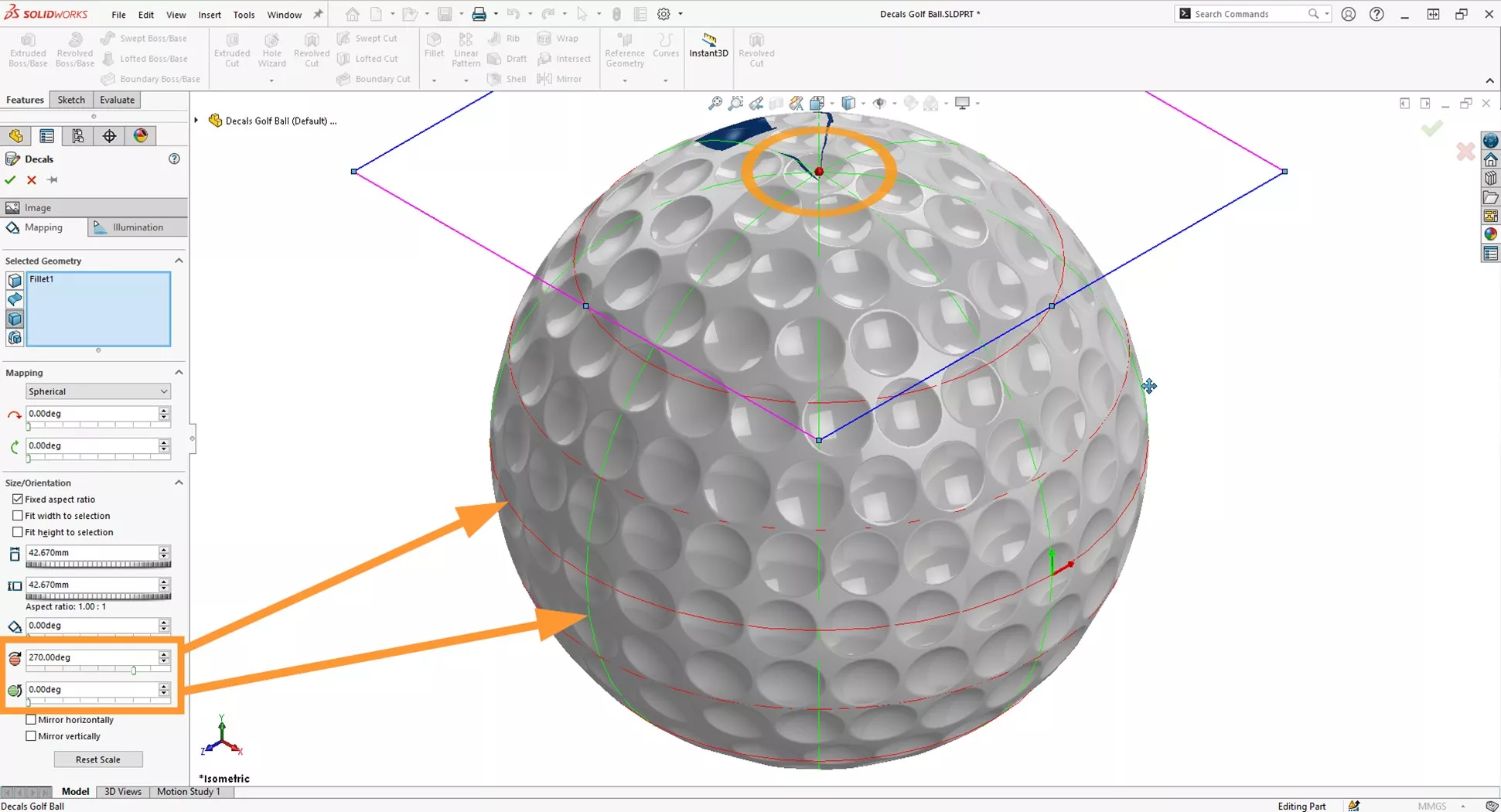
The first field – Axis direction 1, rotates the longitude lines about the Z axis and Axis direction 2 rotates the latitude lines about the Y axis.
Now we can adjust the mapping values, offsetting our decal into position from the pole positions using the values highlighted below.
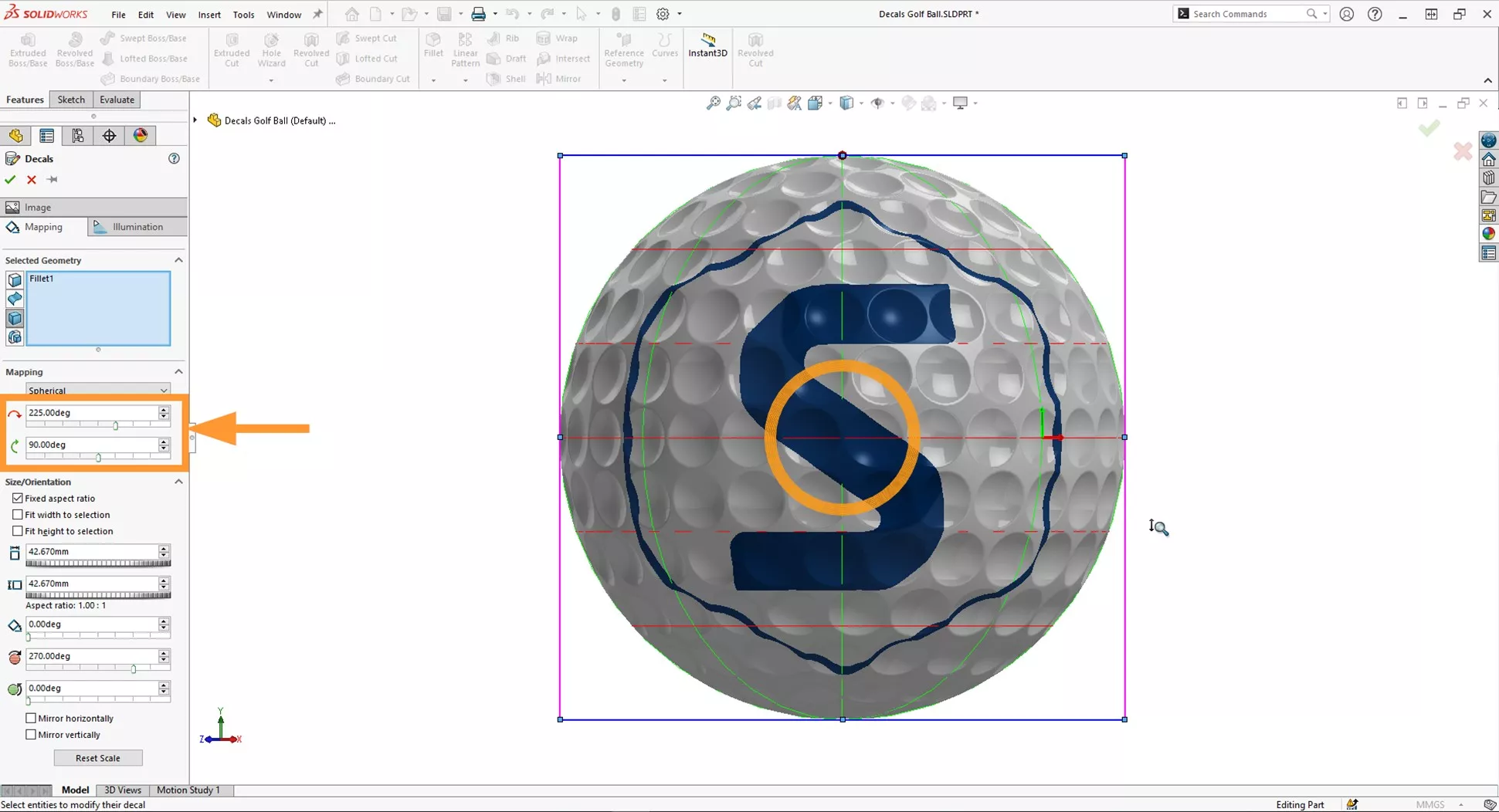
Next, we can adjust the rotation and scale of the decal to the right size, either by inserting values in the property window or in the graphics area we can drag one of the corners to adjust the scale and rotate by dragging the wheel.
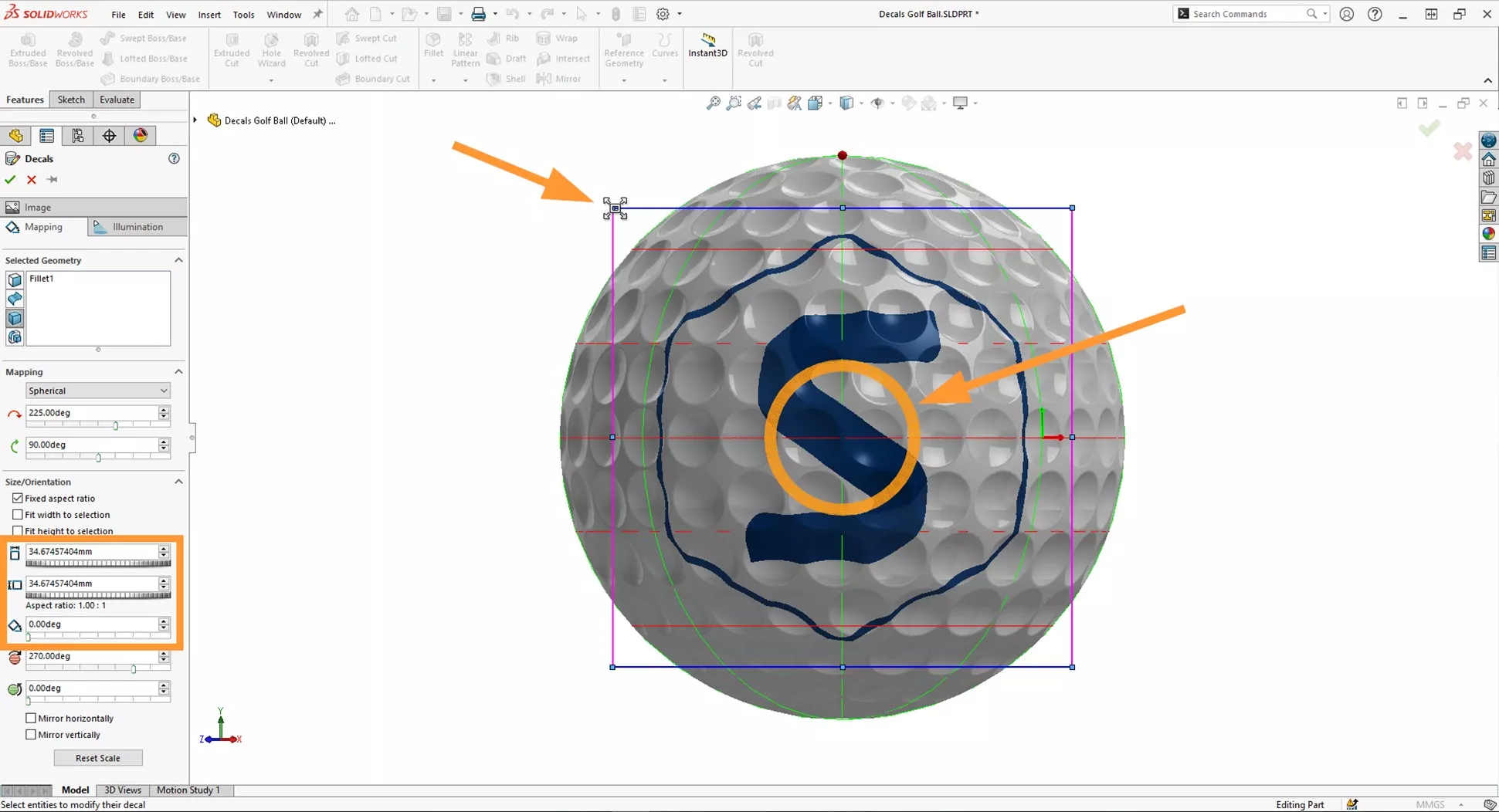
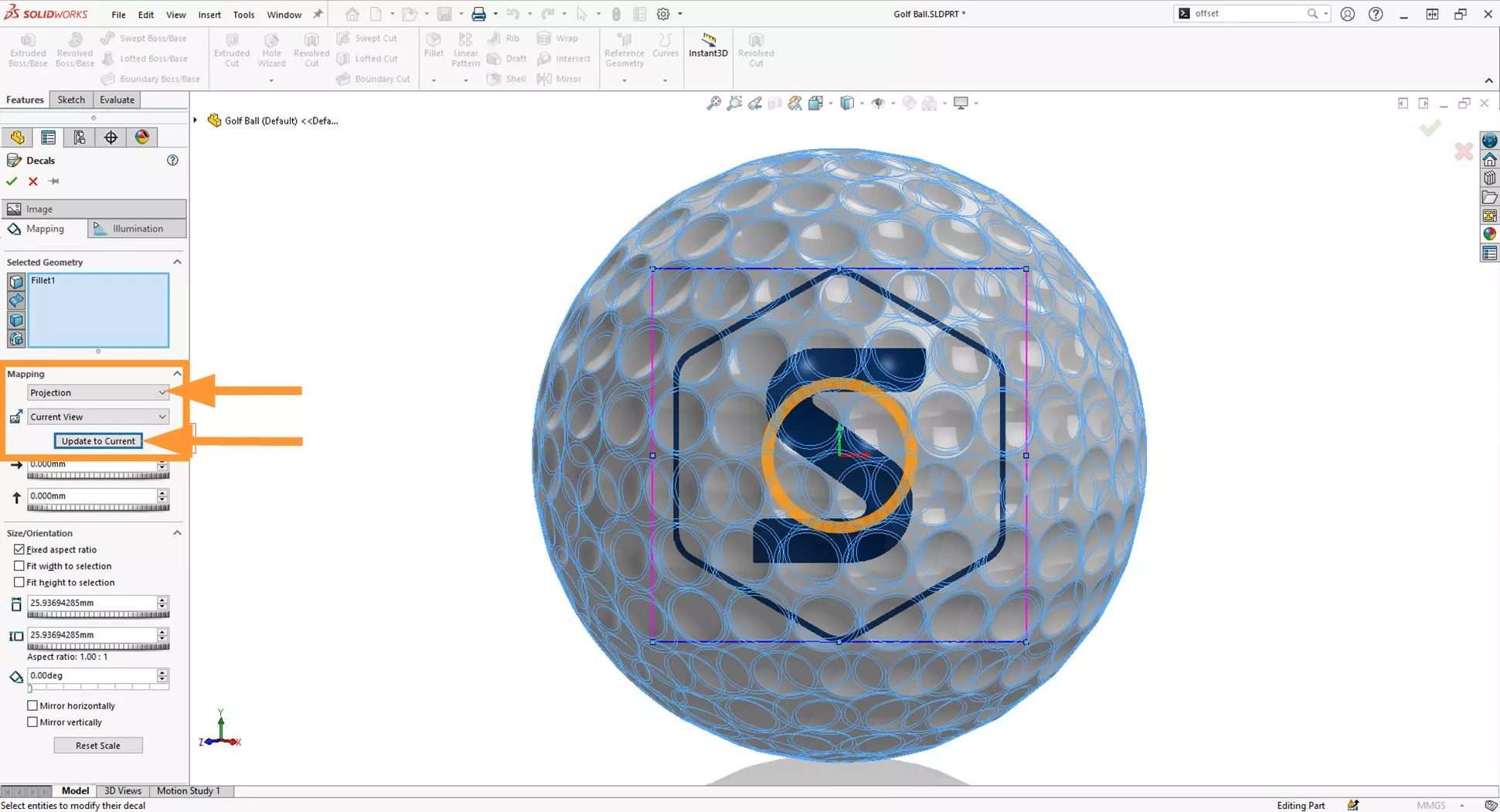
Alternatively, if you would prefer to use the Projection mapping option, you can select the projection direction as the XY / ZX / YZ axis, you can also choose Selected Reference which allows you to select a plane/face/axis or edge in the graphics area.
A fast way to map the decal into position is to select Current View from the drop down, then select the graphics area. Press the spacebar and select the orientation that you would like the decal to be in line with, and finally select Update to Current and the decal projection will align with the current orientation.
How to Use the Illumination Tab
Finally, to fine tune the lighting properties for the decal to sphere in SOLIDWORKS, this can be achieved on the Illumination tab. The tick box at the top for Dynamic help turns on extremely useful tooltips when you hover your cursor over each property.
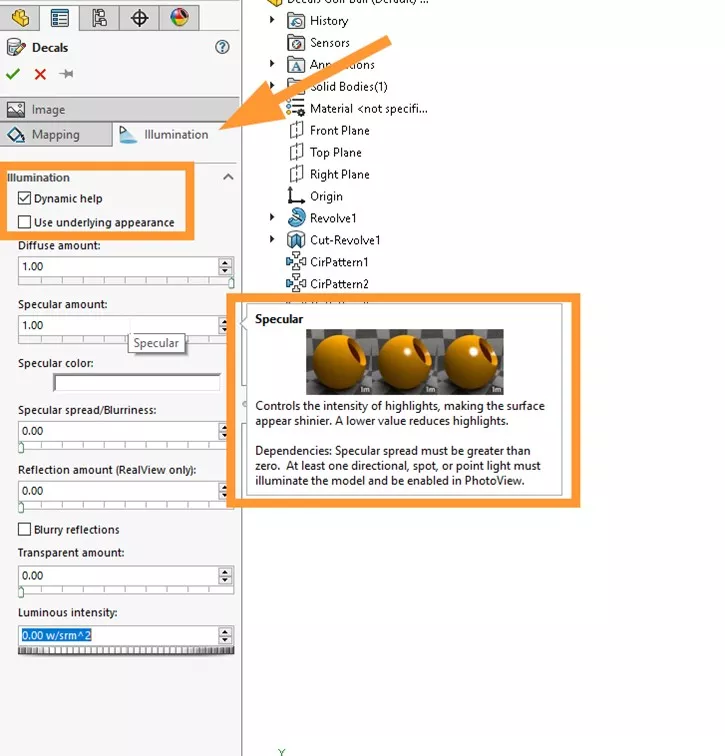
The second tick box Use underlying appearance is most used, as this applies the illumination settings from the appearance under the decal to the decal.
When cleared, this option sets the illumination for the decal directly and enables the remaining options in this PropertyManager.
Categorised as: Tech Tips
Get Expert SOLIDWORKS Training
Get hands-on SOLIDWORKS training in-person or online, led by certified experts with real industry experience. With venues across the UK & Ireland, it’s easy to start learning today.
Related Posts

How to Find Reaction Forces in SOLIDWORKS Simulation
SOLIDWORKS helps us to find resultant forces through simulation studies. These virtual tests reduce the need for physical prototypes and give us an accurate answer.

Setting number of decimal places in a table on a drawing
When creating an equation in a drawing general table, is it possible to define the…

Why is my Flat Pattern not showing in SOLIDWORKS Drawings?
This may be linked to how the drawing is saved or it can be related to how sheet metal parts are displayed in drawings, read on to find out how to fix it.

Why is SOLIDWORKS Crashing?
It’s one of the great mysteries of life – why is SOLIDWORKS crashing? Let’s explore how SOLIDWORKS crashes and how we can improve performance in SOLIDWORKS.

Tech Support Blog: Why are my SOLIDWORKS BOM Quantities Wrong?
Why are my SOLIDWORKS BOM Quantities Wrong? A support call cropped up this week which…

How to Get Your Serial Number for SOLIDWORKS Visualize Standard
Want to download Visualize to make photorealistic renders? Follow this guide for accessing your Visualize serial number that comes bundled in with SolidWorks Professional and Premium.

How to Recover SOLIDWORKS Files After a Crash
SOLIDWORKS has two different methods to help you recover from an unexpected crash or loss of data in the form of auto-recovery and back-up settings.

SOLIDWORKS Magnetic Mates
Magnetic makes are used within SolidWorks assemblies to easily configure and position assembly components. Through defining connection points and ground plane(s) – position components through drag and dropping one component within close proximity of another to snap the asset into position.

SOLIDWORKS Dimensions – Collated Quick Tips
We have collated some of our favourite tips on creating, manipulating and controlling dimensions in SolidWorks, both at a sketching and drawing level. Read on to find out more…

How to Deactivate (Transfer) a SOLIDWORKS License
A SOLIDWORKS standalone license can only be activated on one machine at a time. If you plan on moving your SOLIDWORKS license to another machine you will first need to deactivate it. Additionally if a standalone license has ended up on multiple machines or you are making a change to your computer, you will need to deactivate the license first.