











Ryder Cup 2023: How to Model a Golf Ball in SOLIDWORKS

Written by: Terry O'Reilly
Published: Sep 18, 2023
| View All Blogs
The Ryder Cup returns! To celebrate, we’ve got a new SOLIDWORKS modelling tutorial for you.
Previously, we’ve shown you how to create a sphere and turn it into a tennis ball, run simulations, and even generate photorealistic renders.
Practising your SOLIDWORKS skills is essential to become an expert CAD designer. This time, we’ll show you how to model a golf ball in SOLIDWORKS.
How to Model a Golf Ball in SOLIDWORKS

A golf ball is fundamentally a sphere, and a sphere is comprised of two symmetrical hemispheres. Which gives us a great opportunity to utilise symmetry in our modelling.
Symmetry is a great time-saving technique to employ when modelling in SOLIDWORKS. In fact, it will halve your workload!
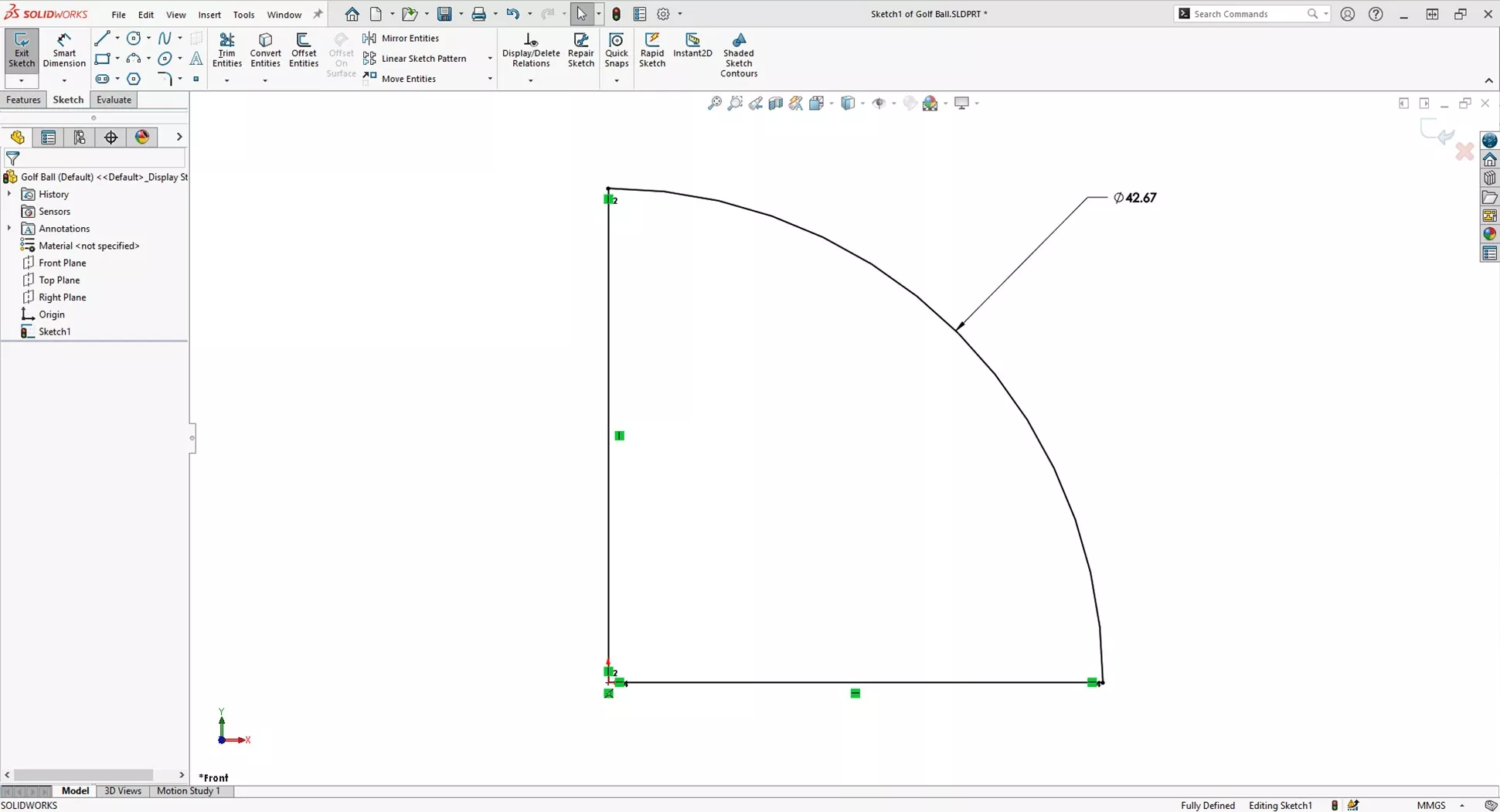
So let’s first create a hemisphere with the diameter of 42.67mm.
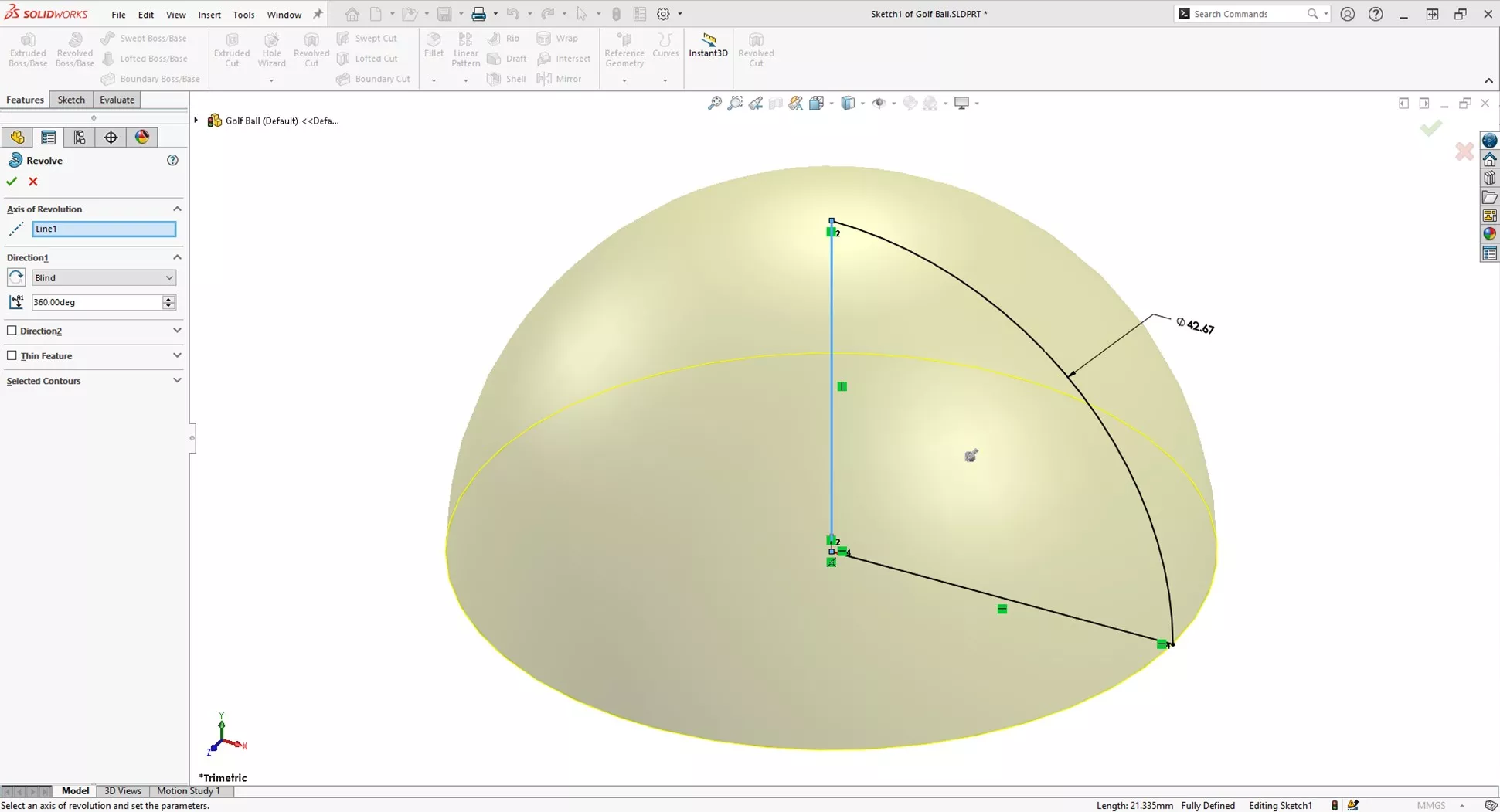
We’ll then use the Revolve Boss/Base feature, selecting the vertical line as the axis of revolution and confirming the feature.
CREATE THE FIRST DIMPLE
To cut the dimples, we need to create a sketch with a portion of the arc cutting into the surface of the ball.
The first dimple is located centrally at the top of the sphere.
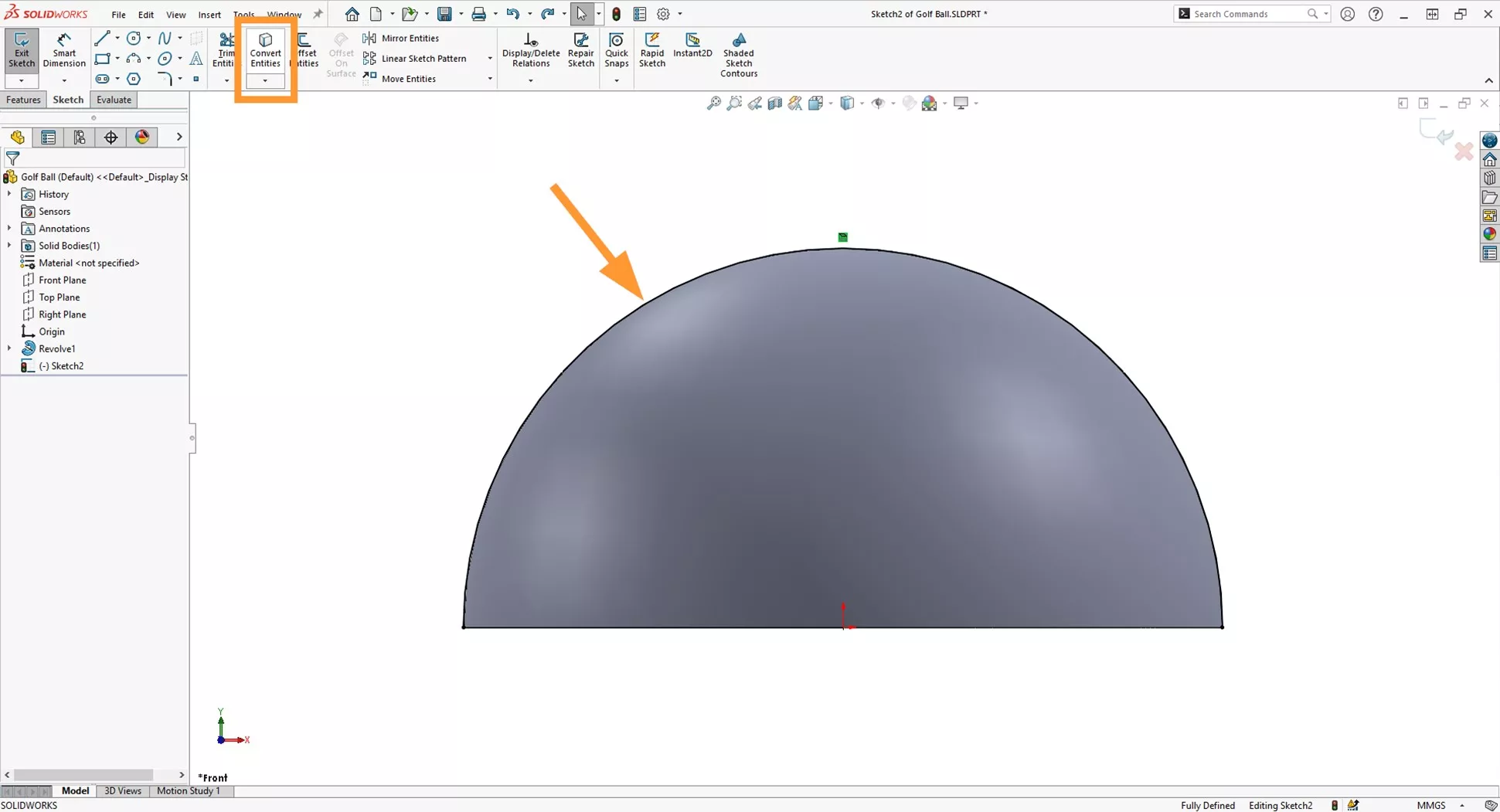
Select the outer circular edge of the hemisphere and select the Convert Entities command.
Confirming the command will create a copy of the circumference of the hemisphere as a sketch entity.
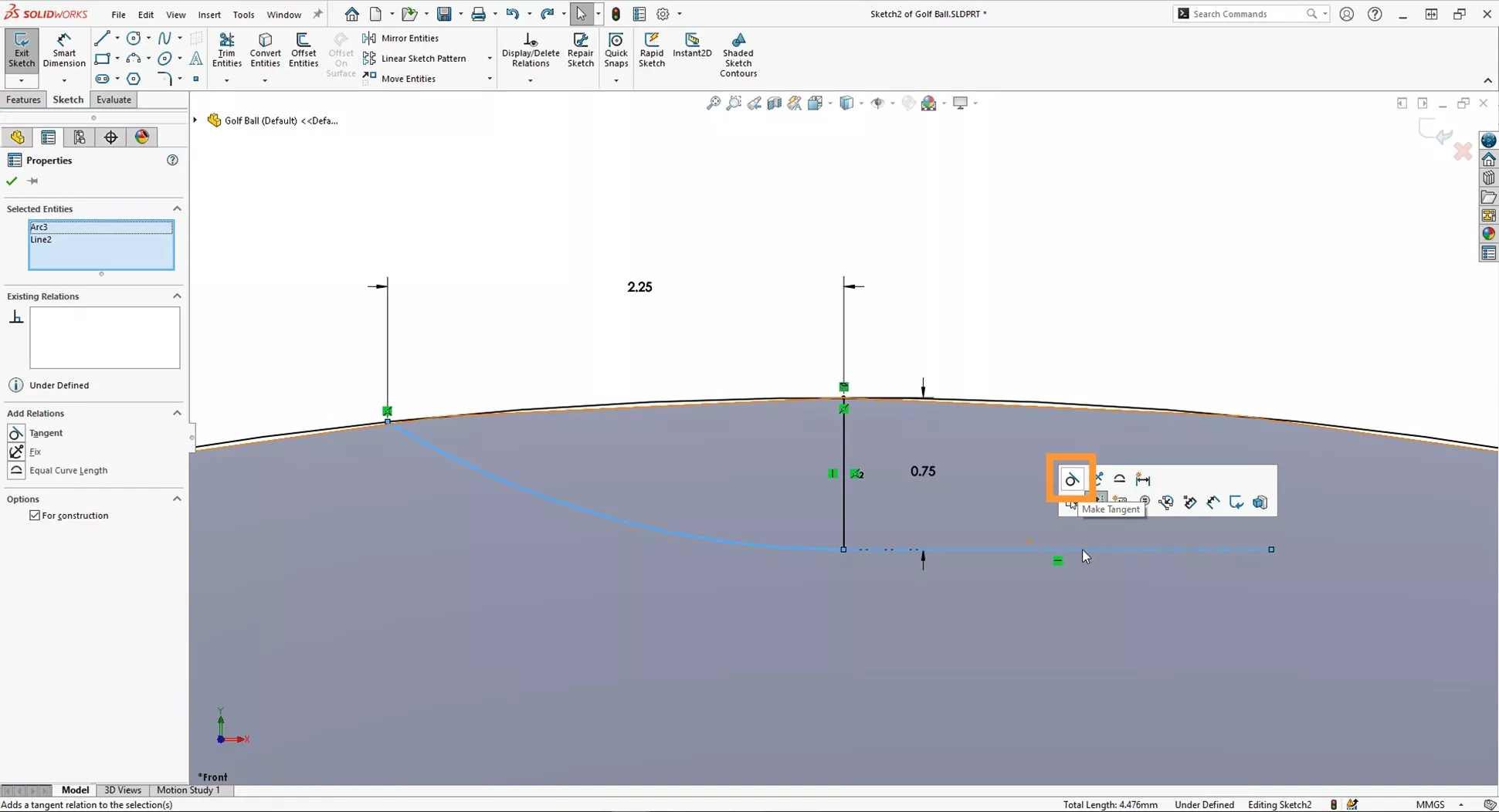
Within the same sketch, zoom in to the top of the hemisphere and sketch a vertical line from the top midpoint of the converted arc, a separate arc and a horizontal construction line as shown below.
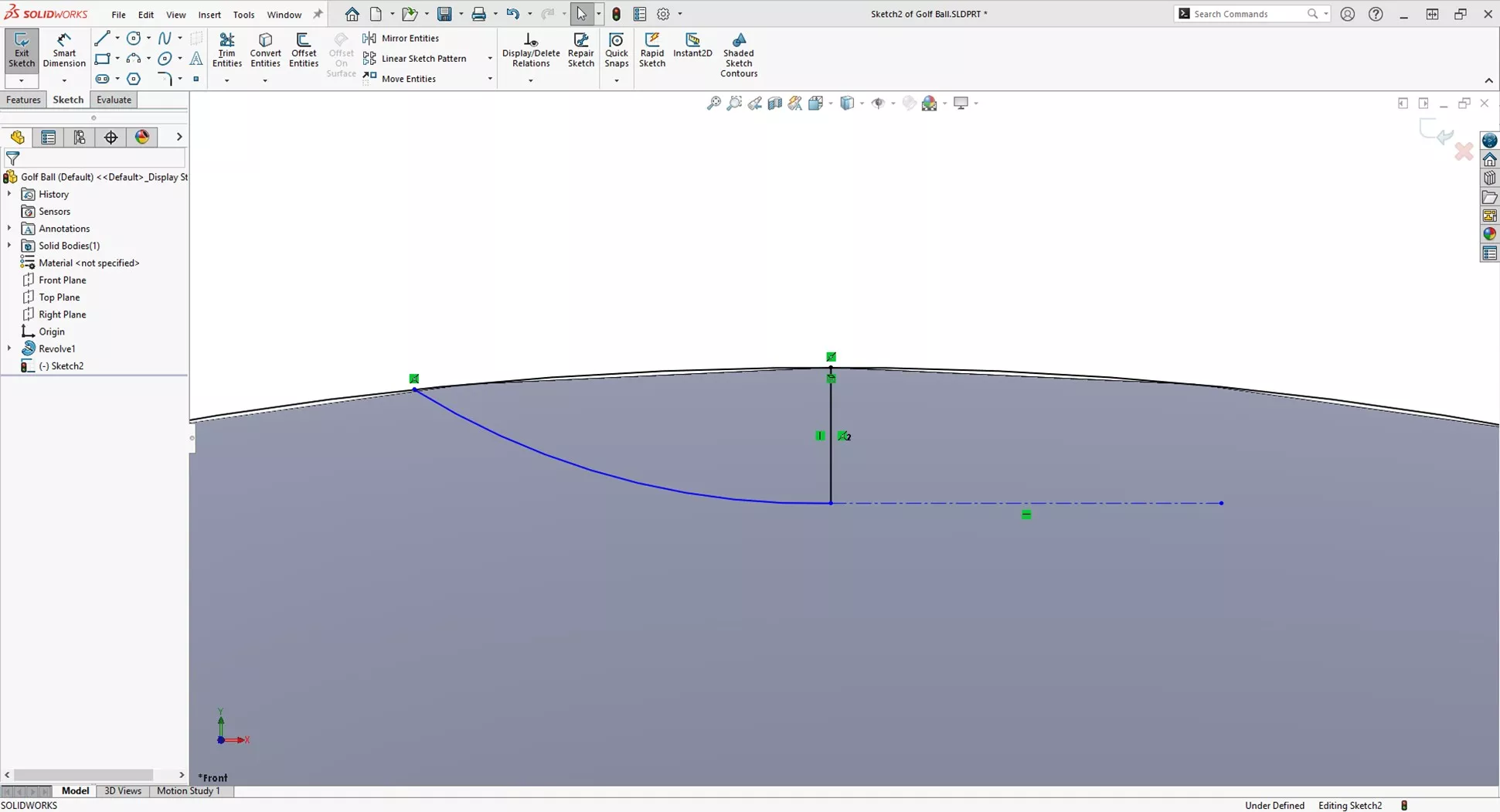
Fully define the sketch by adding the dimensions and the tangent relation between the arc and horizontal construction line.
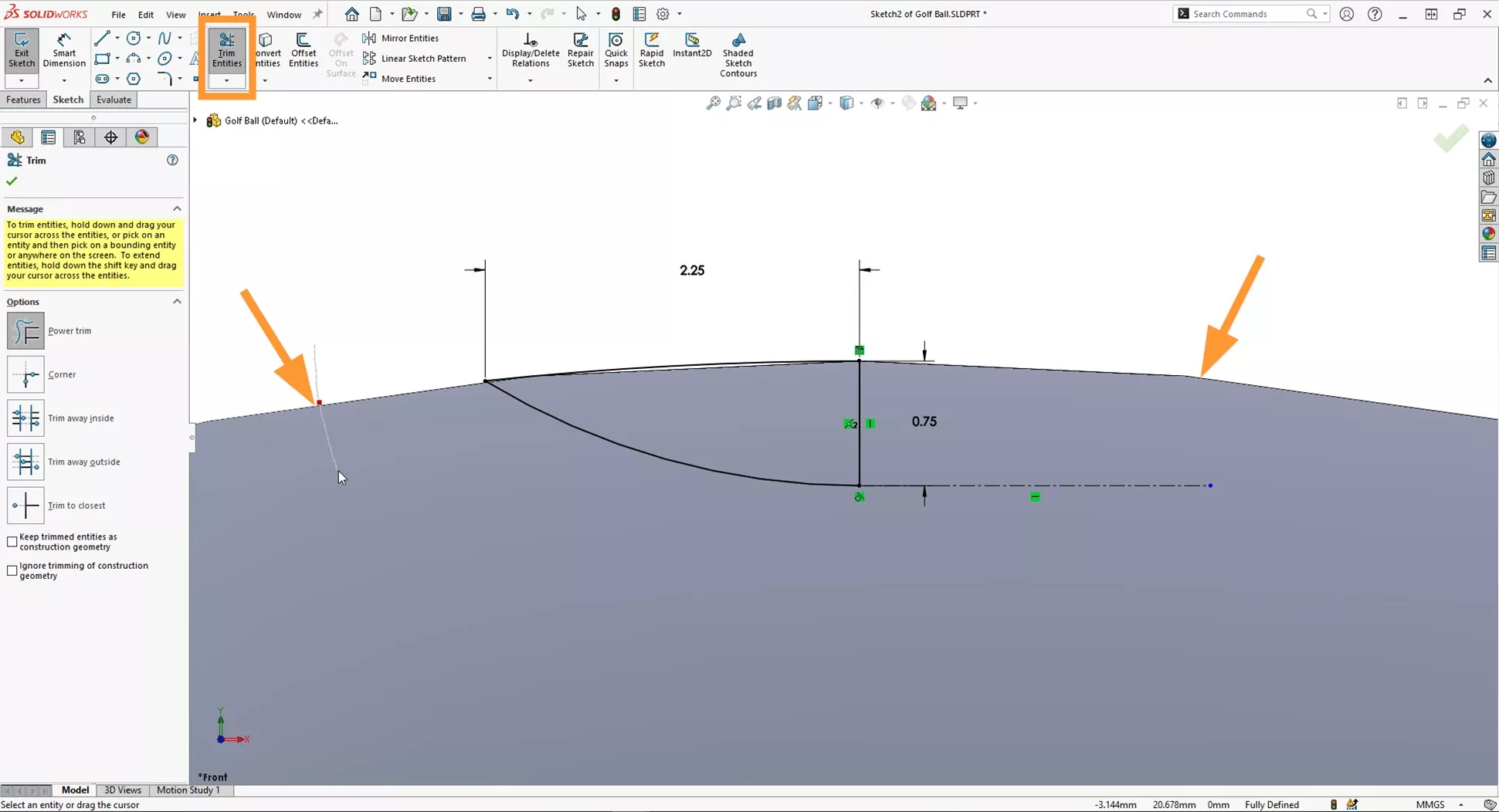
Use the Trim Entities command to cut the rest of the converted edge.
Use the Revolved Cut feature, selecting the vertical line as the axis of revolution.

HOW TO USE CIRCULAR PATTERNS IN SOLIDWORKS
We will use the Circular Pattern
We could create 2 new reference geometry axes. However, our first sketch has the required horizontal and vertical lines that will be sufficient to use as references instead.
The fewer features you use, the easier it is to edit models in future.
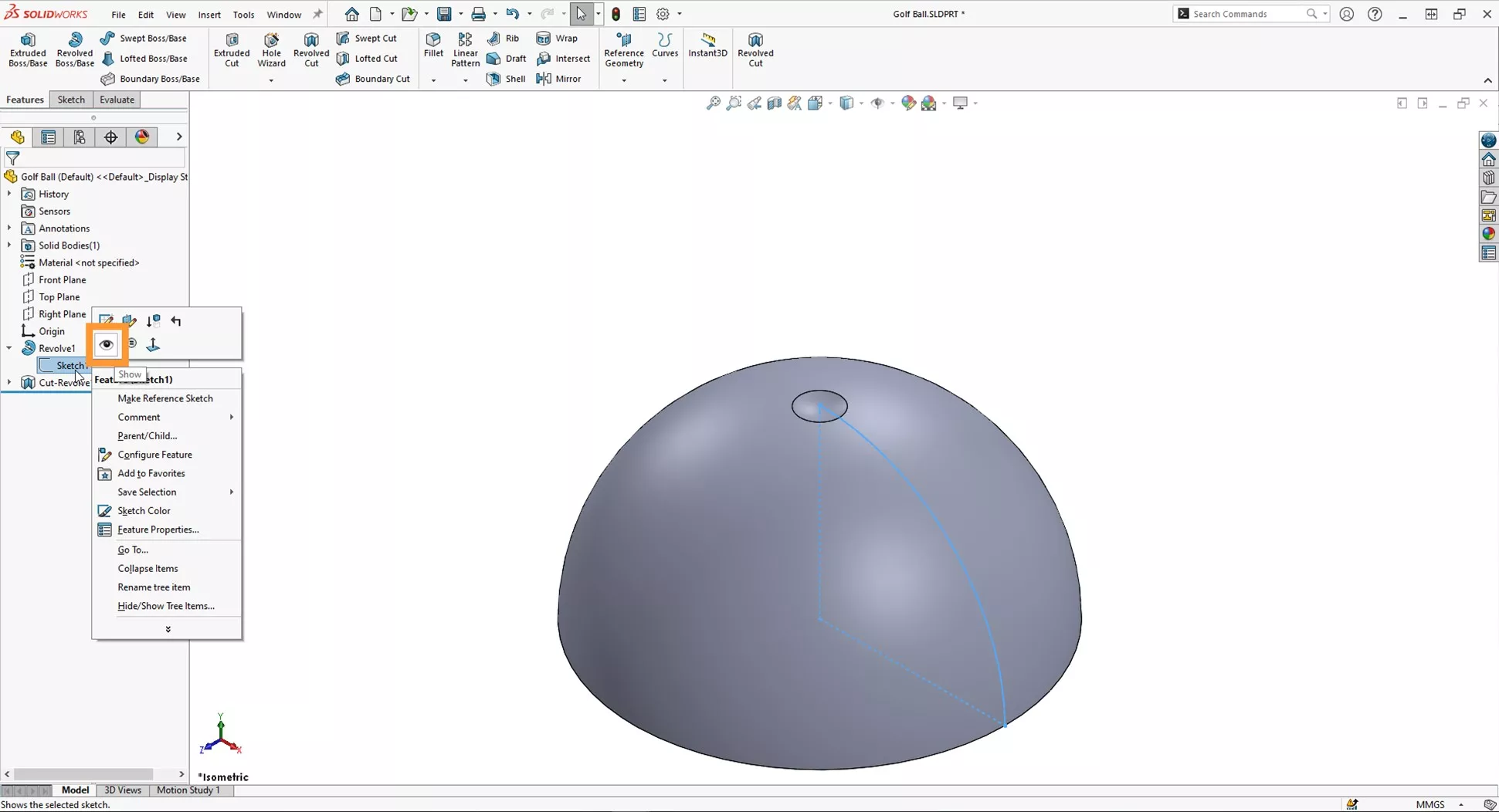
Right click on the first sketch and select the eye icon to make the sketch visible in the graphics area.
Select the Circular Pattern feature, found under the drop down from the Linear Pattern command.
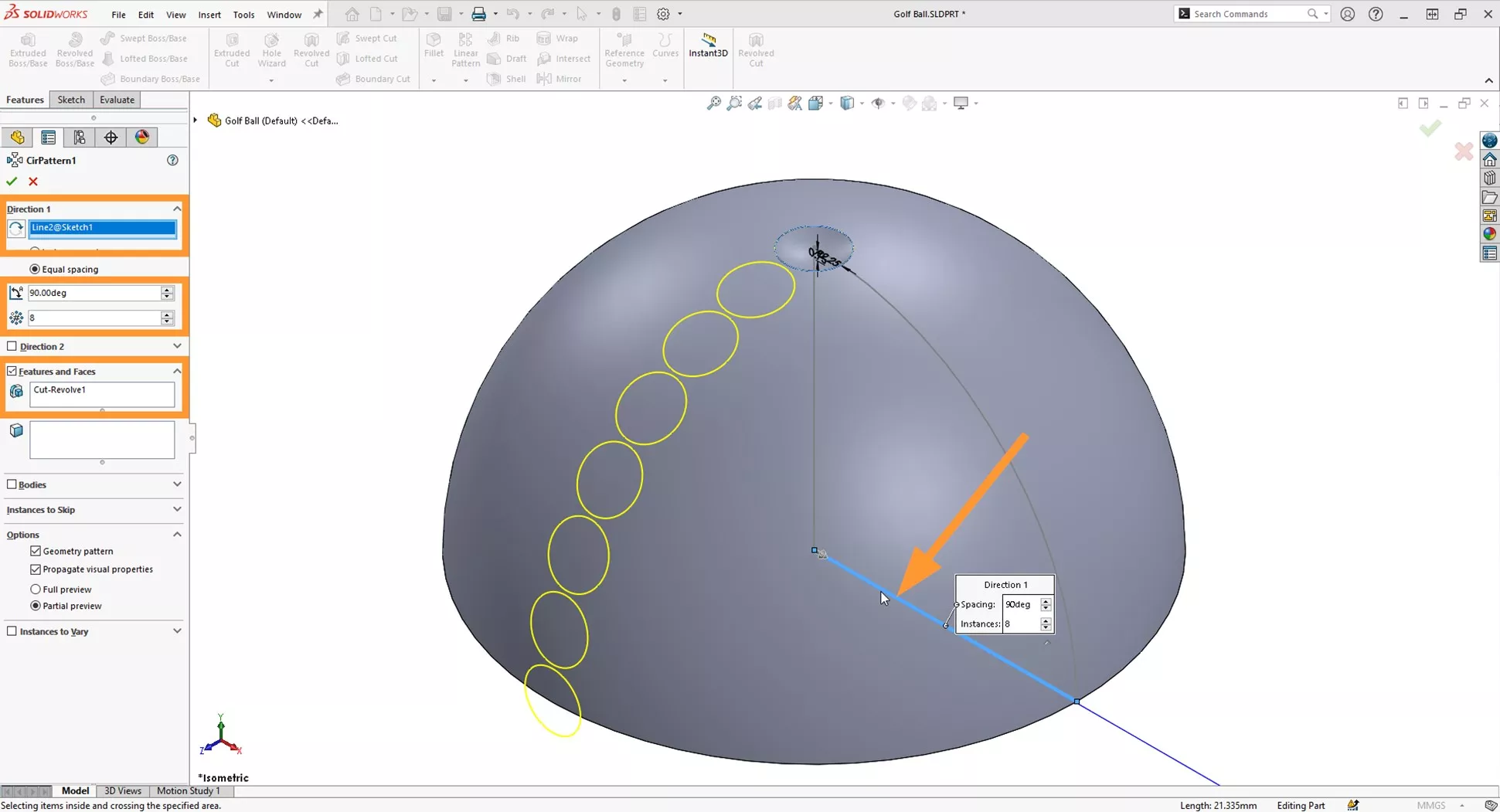
Within the Features and Faces selection box, select the face of the dimple to pick up the Revolved Cut. Then highlight the selection box under Direction1 and select the horizontal line from the sketch in the graphics area.
Select Equal Spacing and set the angle and number of instances to 90deg and 8 instances.
Create a second circular pattern, select the Faces selection box and pick the face of the first instance of the dimples the previous circular pattern. For the axis of revolution, select the vertical line from the visible sketch in the graphics area.
Select Equal Spacing and set the angle and number of instances to 360deg and 6 instances.
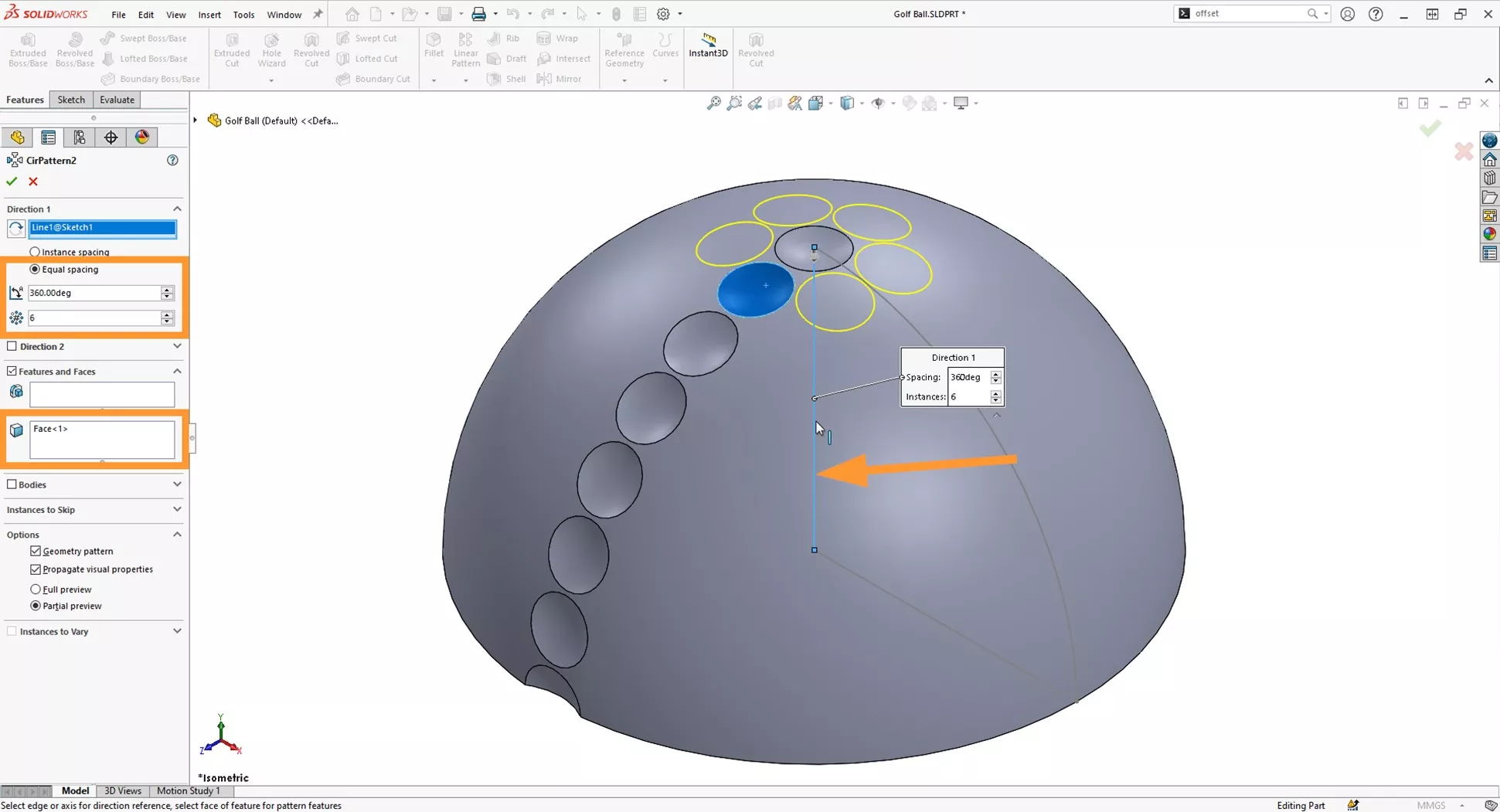
Repeat this process of inserting Circular Patterns using the face of the next dimple until you get to the last instance, using the same angle, and the number of instances as specified below:
- Circular Pattern 3 – 12 Instances
- Circular Pattern 4 – 18 Instances
- Circular Pattern 5 – 22 Instances
- Circular Pattern 6 – 25 Instances
- Circular Pattern 7 – 27 Instances
- Circular Pattern 8 – 29 Instances
THE FINAL PHASE
Now we need to make the most of that symmetry and mirror the hemisphere.
Right click on the sketch in the tree that is still visible in the graphics area and set this to be hidden.
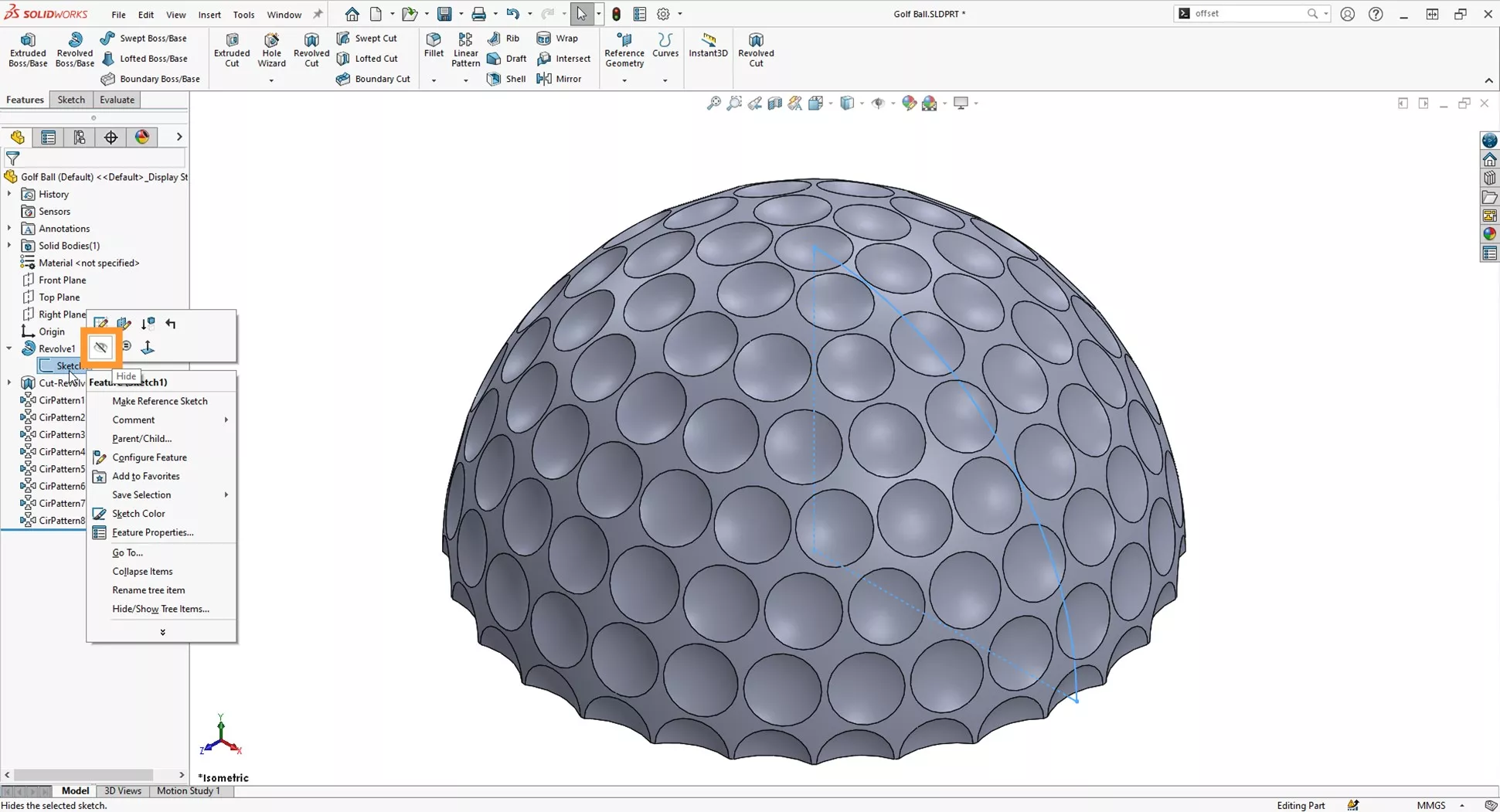
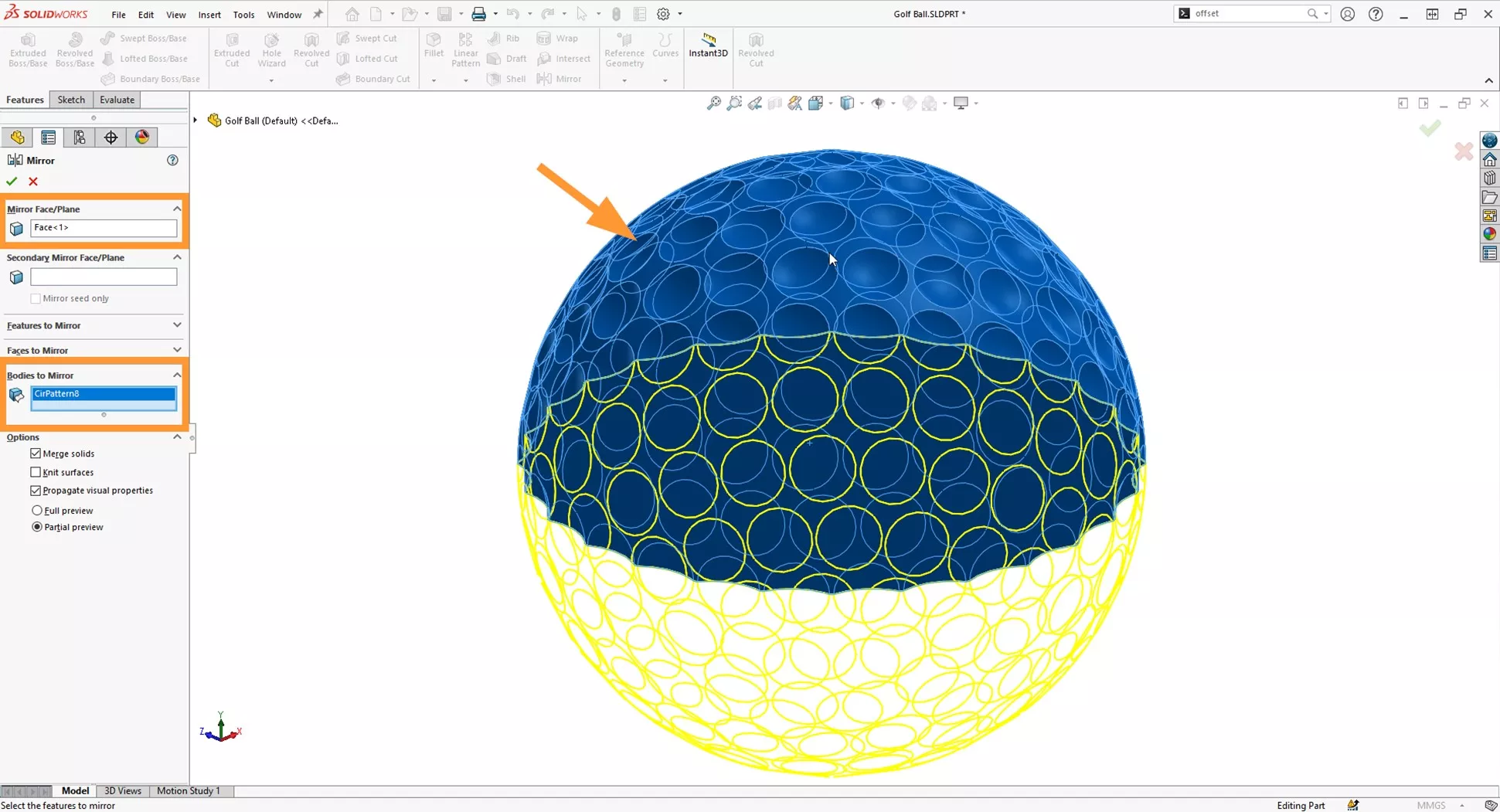
Use the Mirror feature and select the underside planar face for the Mirror Face/Plane reference, select the dropdown to use Bodies to Mirror and select the body in the graphics area.
Make sure the tick box for Merge Entitles is selected.
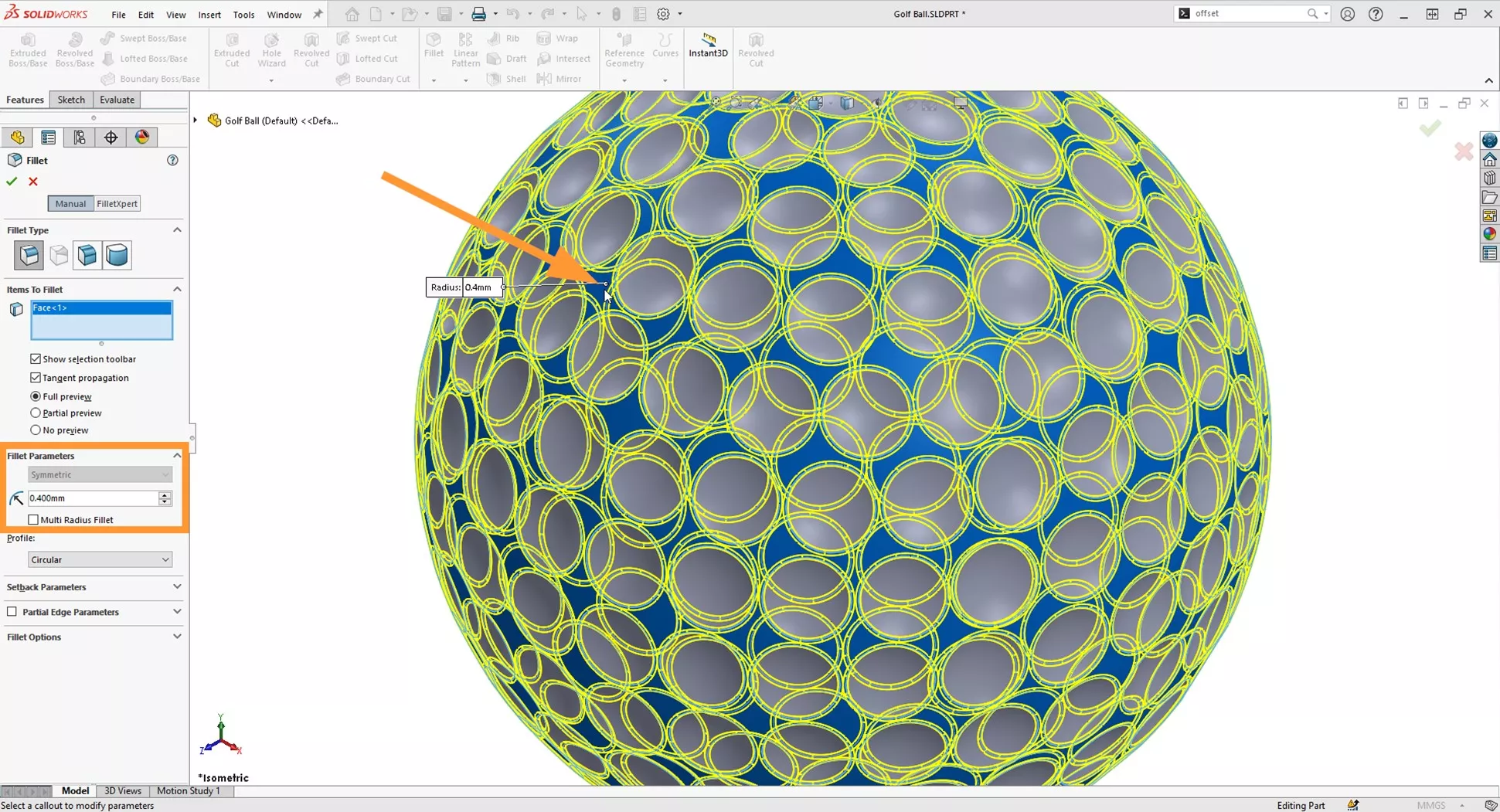
Add a Fillet feature, first setting the radius to 0.4mm then select the flat spherical face between the dimples.
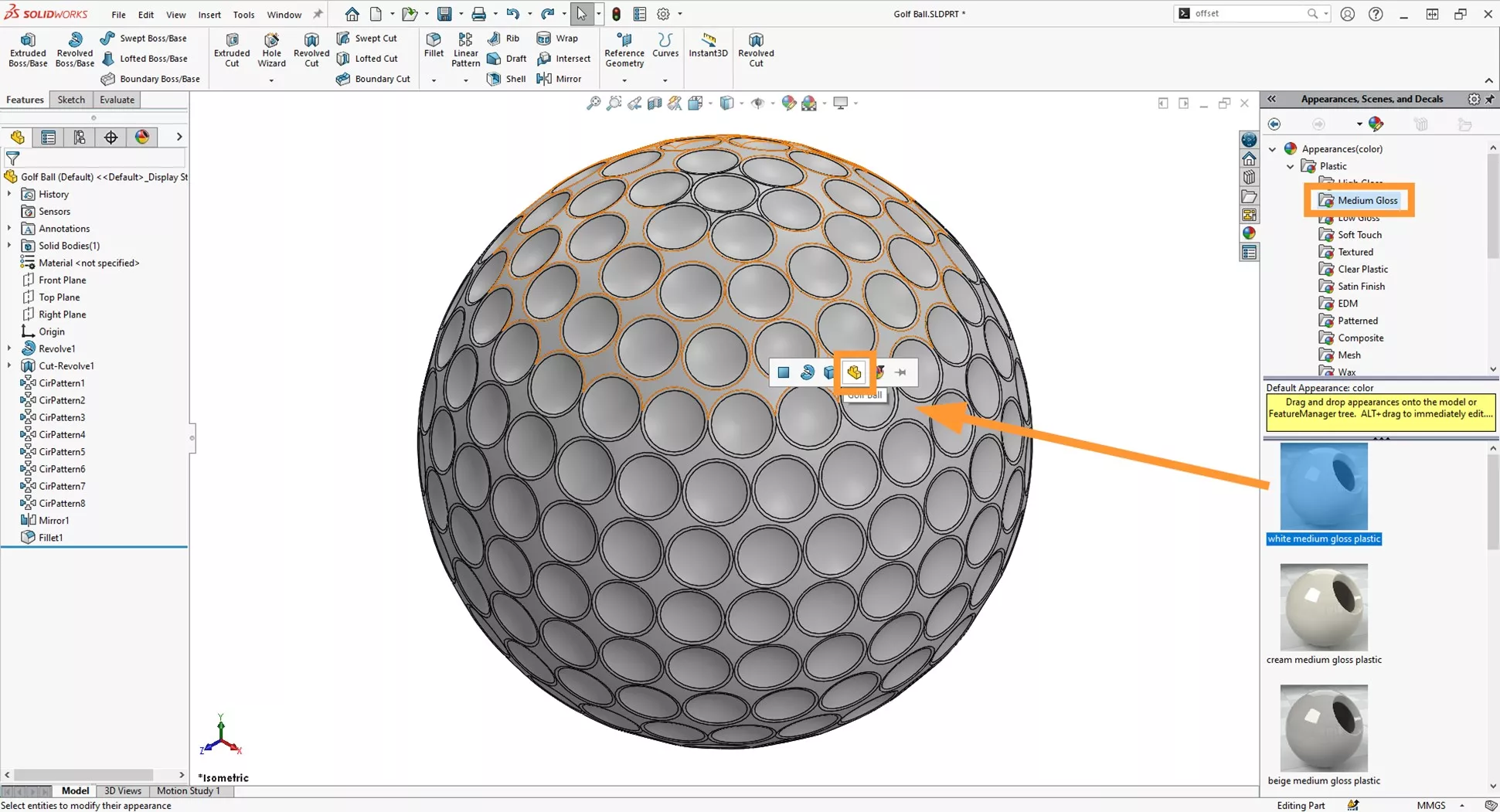
Finally, to add colour to the golf ball, we’ll find a suitable appearance to apply.
In the appearance tab, a nice glossy plastic will do nicely.
Navigate to Plastic > Medium Gloss > white medium gloss plastic and drag this onto the face of the geometry.
Once you release your left click after dragging the appearance onto the face, select the Part icon to apply this as a top-level appearance to the file.
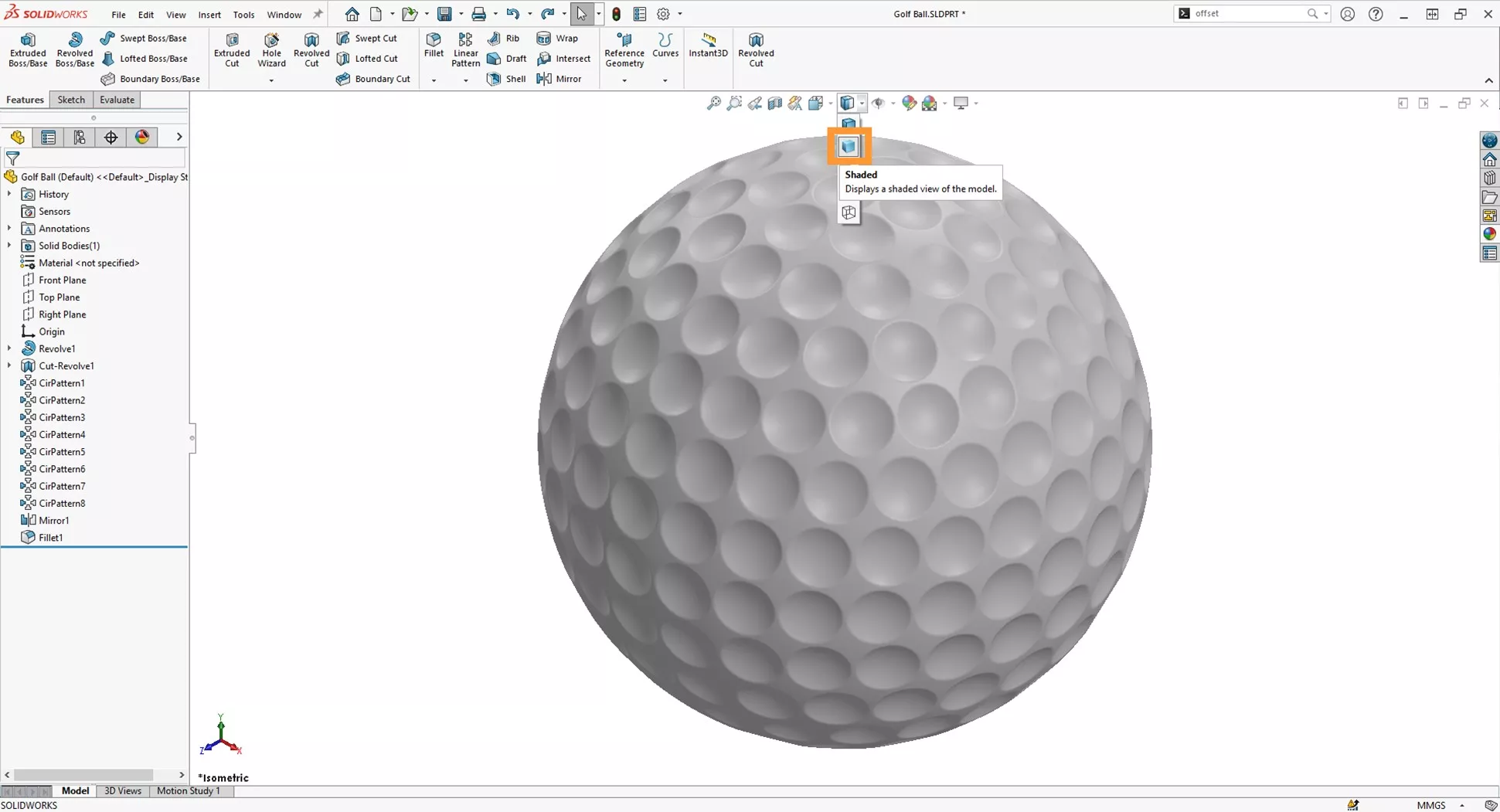
Remove the visibility of the edges by selecting Shaded from the Display Style drop down on the heads-up toolbar.
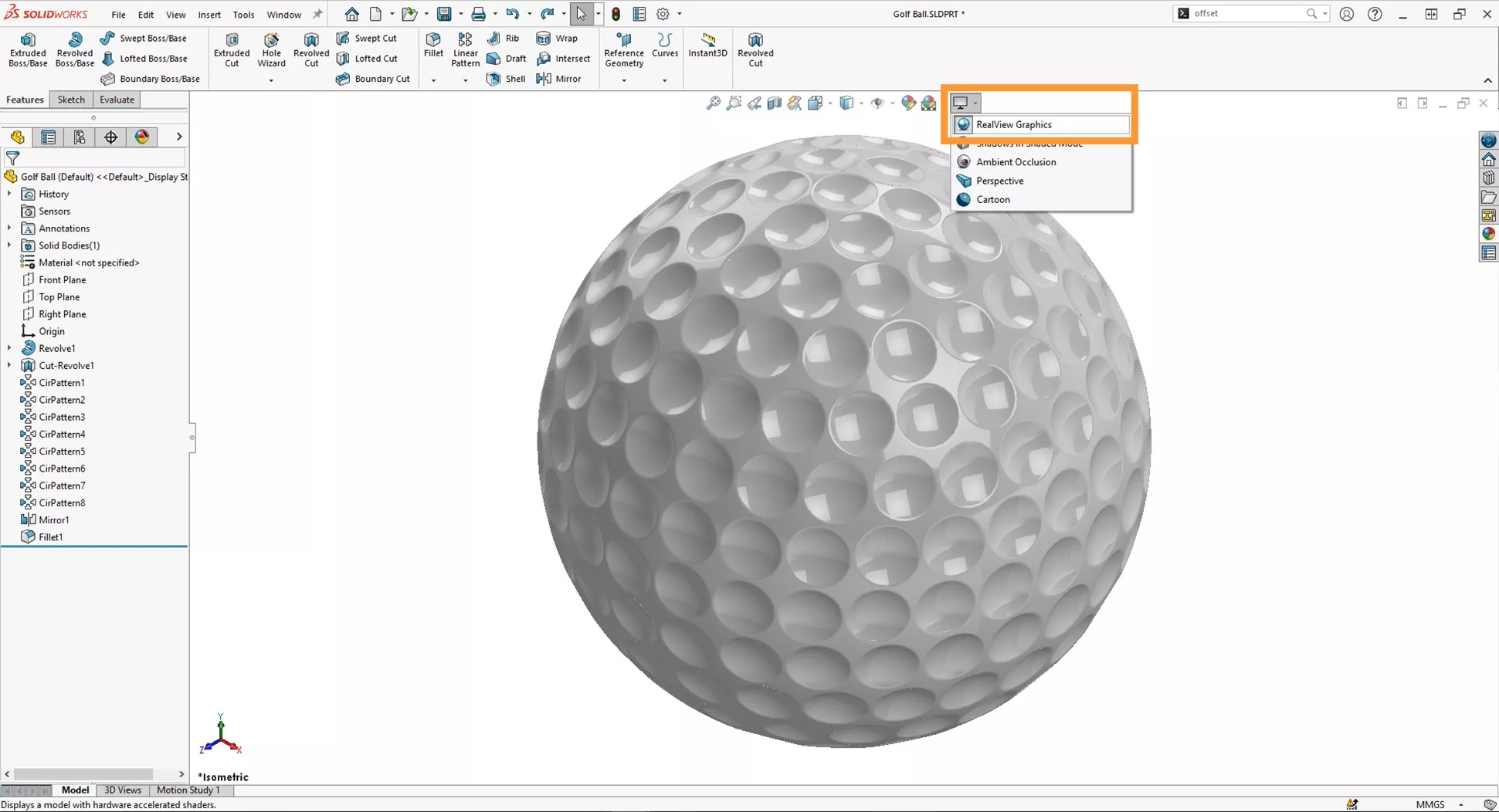
Also if you wish to see the reflections, turn on RealView Graphics under the view settings.
Now you can save the file and take it into SOLIDWORKS Visualize to render up a sleek product image!
In the next tutorial, we’ll show you how to add decals to this golf ball and any spherical object.
Missed a tutorial? Check back through our previous blogs to see what you missed!
Categorised as: SOLIDWORKS Design | Tutorials
Get SOLIDWORKS Technical Support
With a SOLIDWORKS subscription you gain access to our expert SOLIDWORKS Technical Support team.
Call on 01926 333 777 or drop an email to help@trimech.com and one of our expert engineers will be in contact.

Related Posts

How to Find Reaction Forces in SOLIDWORKS Simulation
SOLIDWORKS helps us to find resultant forces through simulation studies. These virtual tests reduce the need for physical prototypes and give us an accurate answer.

Setting number of decimal places in a table on a drawing
When creating an equation in a drawing general table, is it possible to define the…

SOLIDWORKS Smart Fasteners
SOLIDWORKS Smart Fasteners is a really useful time saving tool, allowing you to automatically insert toolbox fasteners such as bolts and screws into an assembly providing there is a standard hole.

Why is my Flat Pattern not showing in SOLIDWORKS Drawings?
This may be linked to how the drawing is saved or it can be related to how sheet metal parts are displayed in drawings, read on to find out how to fix it.

SOLIDWORKS Tips: Are you Making this Common Mistake in Fatigue Analysis?
Simulation is a vital and complex engineering need. Fortunately, SOLIDWORKS makes it easy to test, correct mistakes and obtain accurate results.

Series 1 Land Rover Pedal Car – Made Easy with Solidworks!
The Series1 began production in 1948 designed to help get Britain farming after the war effort. It grew extremely popular and today enthusiasts are prepared to throw their life savings at restoring originals from that period.

How to Recover SOLIDWORKS Files After a Crash
SOLIDWORKS has two different methods to help you recover from an unexpected crash or loss of data in the form of auto-recovery and back-up settings.

Redesigning Santa’s Sleigh in SOLIDWORKS
Every year Father Christmas has to fly in his sleigh to deliver presents to boys and girls all over the world in just one night. To put this into perspective, it takes a little under 24 hours to fly from London (UK) to Sydney (Australia) in a streamlined Boeing 747, whereas Father Christmas’ mode of transport is believed to be a rather non-aerodynamic sleigh.

SOLIDWORKS Grid Systems – hidden away, but very useful!
Rory Niles provides an insight into the uses for Grid Systems within SOLIDWORKS 2018

Furniture Design Made Easy with SOLIDWORKS
Calling all furniture and interior designers: the days of creating square cabinets are over. What if we told you there’s a much easier way to bring your products to life?
Here’s 10 reasons why we feel SOLIDWORKS is better than any other software, especially if you’re designing furniture: