











SOLIDWORKS Visualize. Why go pro? – 7 Lighting

Written by: Solid Solutions Marketing
Published: Oct 25, 2016
| View All Blogs
SOLIDWORKS Visualize uses a non-biased rendering engine, which allows for physically accurate lighting within a scene. It generates images with high amount of realism and correct set up can replicate photo studio lighting.
SOLIDWORKS Visualize lighting can be set up I a variety of ways. It may be:
- an HDR image in the background casting light and reflecting off your model
- a point object emitting light in all directions positioned a distance away from your model
- a spot light with adjustable cone angle and position
- a set of parallel beams shining along a desired direction
- the material itself emitting light
…and any combination of those!
Below is a brief summary of the available types of light.
Scene Lighting is by far the fastest and easiest way to put your model in a pleasing environment. Visualize comes with a set of spherical HDR images that define the ambient lighting cast on the model. It can be set as a visible background (left) or hidden away but still casting light (right): You can adjust environment brightness, rotate it, and tweak some minor parameters such as floor roughness and reflections. At zero brightness the scene becomes pitch black. As can be seen the floor shadows are extremely soft and any specular accents and self-cast shadows are rather weak.

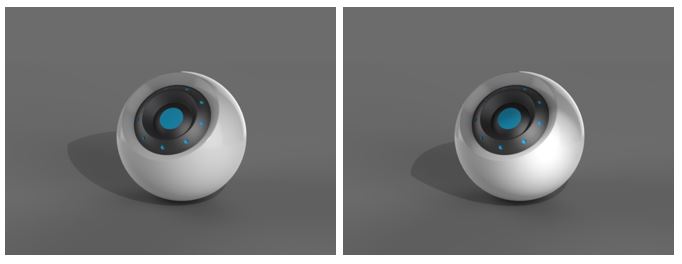
To spice up the image you can use a set of Photometric Lights available with SOLIDWORKS Visualize Professional. These come in three variety’s, each having their specific application. The first one is the Point Light. Think of it as a bright candle shining in all directions around it. You can position it with X, Y and Z coordinates, control brightness, colour temperature and the Point Light Radius (size of the flame, if you wish). The radius controls how soft are the shadow edges. Below are two spotlights – with zero radius (left) and a radius set to 1 (right):

The next one up is the Spot Light. This one can be a projector light (or a reading lamp) with a distinctive conical beam. The shadow edges do not blur out, but there is a gradient within the shadow itself. The Cone Angle controls how focused the light is, and Falloff adjusts the variation of brightness within the beam. The position of this light can be controlled via spherical coordinates rather than XYZ, this makes it easier to control the orientation and distance from the object in contrast with Point Light. If the Spot Light cone angle is too tight, a considerable portion of the shadow may be ‘cut off’ due to being outside of the cone. Look at the two images below and guess which Spot Light is more focused:
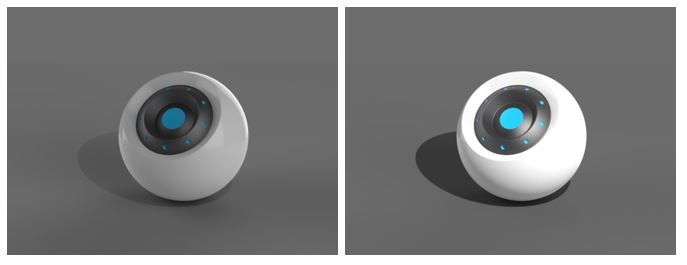
The last one is the Directional Light. This is a point light so far away from object all of the rays reaching the object are parallel. Closest analogy in the real world would be a direct sunlight. Spherical coordinates make it easy to manipulate, distance however has no effect on the shadow size. Subtle shadows can be achieved by lowering down the brightness (left), go too bright and the image becomes overexposed (right):
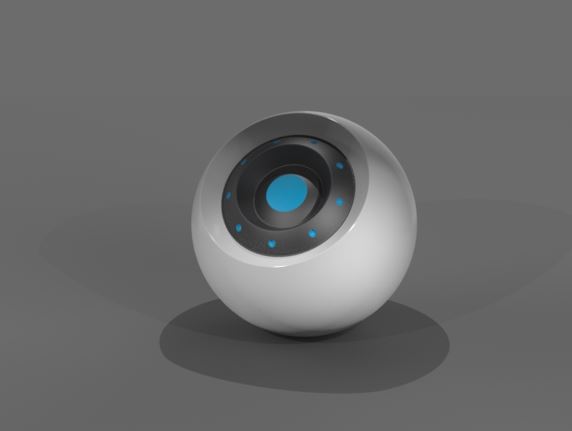
Photometric Lights can be mixed together and with Ambient Lighting from the environment to achieve studio-like effects. Below are three spotlights combined to add depth to the object by inflicting self-cast shadows and make it stand out from the background via a back light:
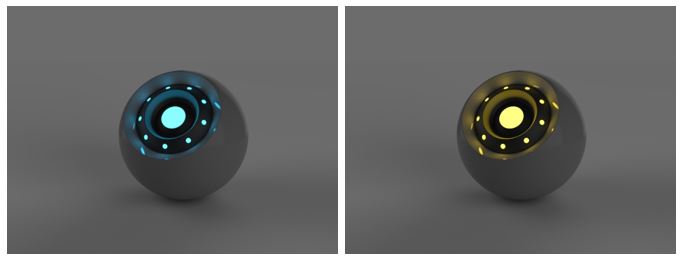
Parts of the model with Emissive Appearance applied become light sources themselves. This is handy when a soft area light is required, or the product has any light indicators as part of its design. The light is tinted as per colour of the material (can be white!) and the tint is realistically reflected off the surrounding surfaces:
This concludes our summary of the lighting types available in SOLIDWORKS Visualize.
Now go ahead and try them out yourself!
Categorised as: SOLIDWORKS Visualize | Visualisation
Get a SOLIDWORKS Quote
Interested in SOLIDWORKS? Contact us for questions, trials, or demos by clicking the button below or call 01926 333777. Our experts will help you find the perfect solution.

Related Posts

SOLIDWORKS Visualize. Why go pro? – 6 Post Processing
In this blog we will be look at the post-processing options that can be found in SOLIDWORKS Visualize

How to Get Your Serial Number for SOLIDWORKS Visualize Standard
Want to download Visualize to make photorealistic renders? Follow this guide for accessing your Visualize serial number that comes bundled in with SolidWorks Professional and Premium.
Creating Interactive Animations with SOLIDWORKS Visualize
Interactive Images are a great export option within Visualize Professional, allowing you to view the model in a series of 360 orbital spins within a web browser.
However, what happens if I want to use this interactive method to demonstrate a mechanism or animation instead?
How to Create 360VR Video using SOLIDWORKS Visualize
Virtual Reality(VR) videos provide one of the most immersive methods of viewing a design concept and can be used to bring your product showcases to the next level. Recently VR has become a valuable tool for many companies when it comes to design reviews and interactive product training. Check out this short blog to learn how to export 360VR videos using SOLIDWORKS Visualize.
Creating a Kicking Tee for the Rugby Lions Series – Modelling Walkthrough
As the Rugby Lions Series continues Solid Solutions and MECAD are continuing to compete off the pitch using SOLIDWORKS. Our second challenge was to create a Kicking Tee, a small yet key piece of equipment that is used almost every game. Various designs exist but we decided to model an adjustable kicking tee. Read on for some SOLIDWORKS tips and an overview of our modelling process.
How to Create Animations in SOLIDWORKS
3D animations are a great way to display your designs, no matter what stage of the design process you are at and can provide companies of almost any industry with huge leverage in improving their operational efficiency. Animated marketing videos are a fantastic way to communicate a message that may be difficult or costly to explain other than by using conceptual animations. They are very flexible with the only limitation being your imagination.
Below is an example of a marketing video of an GoPro gimbal.
SOLIDWORKS Visualize Import Modes – Updated for 2022
If you have been using SOLIDWORKS Visualize 2022 you may have noticed some subtle changes on the import geometry tab from previous versions. These changes weren’t listed in the What’s New documentation and were introduced a little under the radar. In this blog we’ll explain what has changed and how it can save you time.
How to Create Realistic Lighting in SOLIDWORKS Visualize
SOLIDWORKS Visualize is equipped with some simple tools to help you get realistic lighting for your product renders.
SOLIDWORKS Tips: How to Animate Rotations in SOLIDWORKS Visualize
Pivot points hold the key to unlocking awesome animations in SOLIDWORKS Visualize. Check out this walkthrough to learn how to create them easily!

SOLIDWORKS Visualize: Rendering with Gravity
SOLIDWORKS Visualize allows you to recreate the imperfections of photography by creating random, organic arrangements of components with gravity.