











Rendering with SOLIDWORKS: 5 Tips for a Better Rendering Workflow

Written by: Richard Earley
Published: Sep 19, 2023
| View All Blogs
To some, deadlines are the enemy of productivity. For others, those same deadlines are empowering.
Regardless of how you work under pressure, make sure you reduce render times and maximise your productivity to better rendering workflow, and meet your deadlines with SOLIDWORKS Visualize.
1. Import SOLIDWORKS Configurations

SOLIDWORKS Visualize Professional and Connected offer a plethora of features that are indispensable when dealing with high-volume projects and traditional post-processing workflows.
Configurations can be marked in SOLIDWORKS during the design phase for importing each one into Visualize for photorealistic rendering.
You can also import multiple SOLIDWORKS configurations into Visualize at the same time.
Simple configuration management and model set tools empower you to create collections of models that can represent products differently or showcase entirely different setups as part of a comprehensive product range.
By creating configurations and patterns in one project file, you eliminate the time taken to search for and open various files while efficiently using your hard drive space.
You can independently swap and modify each configuration as needed within one project, providing you with the flexibility you need to get the job done.
Learn more about how to harness the power of configurations by attending our SOLIDWORKS Visualize Professional training course!
2. Configure Colour Variants
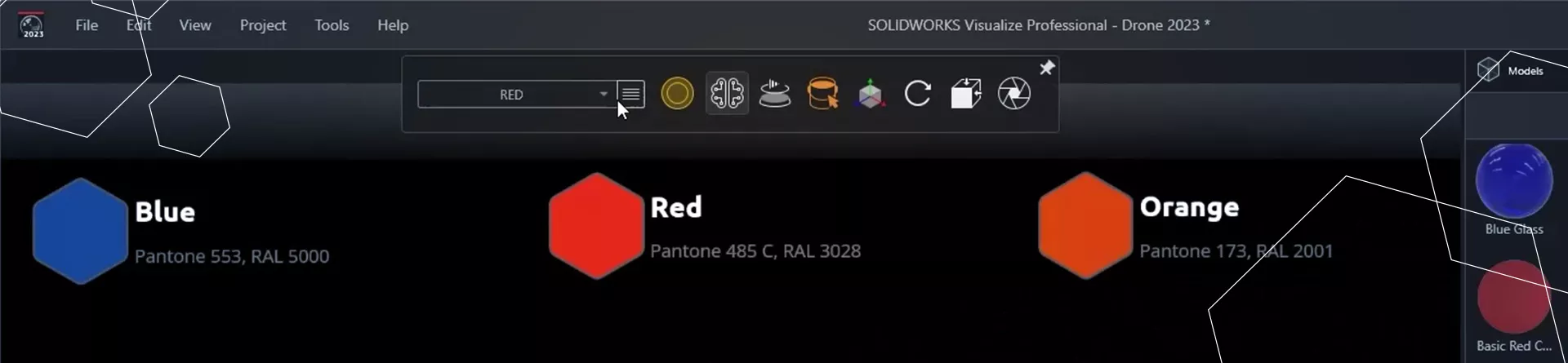
You may be familiar with display states in SOLIDWORKS that let you configure different colour variations, display different components, and control transparencies.
In SOLIDWORKS Visualize, you can also control various styles and colour schemes with ease using the Visualize version of configurations.
This means you can quickly create different design variants and output them as needed, saving you valuable time during the design process.
SOLIDWORKS Visualize Professional and Visualize Connected can utilise Model Items which can be linked to your SOLIDWORKS configurations, allowing you full freedom to create different setups of your models for different rendering scenes.
If you’re working with CAD models that have various designs or colour variants, then SOLIDWORKS Visualize is ideal for developing and arranging these variations.
3. Optimise Render Time with the Render Queue

When time is of the essence, waiting for renders to finish can be a productivity bottleneck.
SOLIDWORKS Visualize addresses this challenge with its Render Queue feature.
You can keep creating new images, cameras, and other design variants, and add each one to the queue.
Then (when it’s convenient for you, such as during lunchtime or overnight) you can start the render queue, and each job will be completed in turn.
This minimizes downtime and maximizes your render time, ensuring that you can keep your rendering workflow moving smoothly.
4. Visualize Boost for Enhanced Rendering

With an increase in remote and hybrid work, having the right hardware is crucial.
Many professionals are opting for portable laptops, which may lack the graphics power needed for rendering.
This is where SOLIDWORKS Visualize Professional’s “Visualize Boost” comes into play.
It allows you to offload renders onto a network machine or a render cluster made up of multiple computers, effectively leveraging more powerful hardware for rendering tasks.
Visualize Boost is the ultimate galvanising team player, helping you to harness the power of all of your business’ hardware for one collective goal.
5. Streamlined Post-Processing with SOLIDWORKS Visualize

After rendering, many projects require post-processing to achieve the desired final look.
Whether it’s adjustments in Adobe Photoshop or other editing software, both SOLIDWORKS Visualize Connected and SOLIDWORKS Visualize Professional offer advanced tools to simplify this process.
From simple tweaks like adjusting lighting and saturation to more advanced tasks like exporting render layers into Photoshop-compatible formats, Visualize has you covered.
Depth of field, bloom, and filters can all be managed from within Visualize, so you don’t need to fork out for additional software.
SOLIDWORKS Visualize is a powerhouse of productivity tools that can transform your rendering workflow.
By working smarter, leveraging features like the Render Queue and Visualize Boost, and streamlining post-processing tasks, you can save valuable time without compromising on quality.
Don’t forget you can also streamline your rendering workflow further with our visualisation consultancy service. Our expert consultants can take the pressure off to let you focus on the details, while we help you realise the full potential of your designs.
Explore your options to decrease your time-to-market and chat to our friendly expert team to see how we can enhance your design journey today.
Categorised as: SOLIDWORKS Design | Tech Tips | Visualisation
Get Expert SOLIDWORKS Training
Get hands-on SOLIDWORKS training in-person or online, led by certified experts with real industry experience. With venues across the UK & Ireland, it’s easy to start learning today.
Related Posts

How to Find Reaction Forces in SOLIDWORKS Simulation
SOLIDWORKS helps us to find resultant forces through simulation studies. These virtual tests reduce the need for physical prototypes and give us an accurate answer.

Setting number of decimal places in a table on a drawing
When creating an equation in a drawing general table, is it possible to define the…

SOLIDWORKS Smart Fasteners
SOLIDWORKS Smart Fasteners is a really useful time saving tool, allowing you to automatically insert toolbox fasteners such as bolts and screws into an assembly providing there is a standard hole.

Why is my Flat Pattern not showing in SOLIDWORKS Drawings?
This may be linked to how the drawing is saved or it can be related to how sheet metal parts are displayed in drawings, read on to find out how to fix it.

Why is SOLIDWORKS Crashing?
It’s one of the great mysteries of life – why is SOLIDWORKS crashing? Let’s explore how SOLIDWORKS crashes and how we can improve performance in SOLIDWORKS.

SOLIDWORKS Tips: Are you Making this Common Mistake in Fatigue Analysis?
Simulation is a vital and complex engineering need. Fortunately, SOLIDWORKS makes it easy to test, correct mistakes and obtain accurate results.

Tech Support Blog: Why are my SOLIDWORKS BOM Quantities Wrong?
Why are my SOLIDWORKS BOM Quantities Wrong? A support call cropped up this week which…

SOLIDWORKS Visualize. Why go pro? – 6 Post Processing
In this blog we will be look at the post-processing options that can be found in SOLIDWORKS Visualize

SOLIDWORKS Visualize. Why go pro? – 7 Lighting
SOLIDWORKS Visualize uses a non-biased rendering engine, which allows for physically accurate lighting within a scene. It generates images with high amount of realism and correct set up can replicate photo studio lighting.

How to Get Your Serial Number for SOLIDWORKS Visualize Standard
Want to download Visualize to make photorealistic renders? Follow this guide for accessing your Visualize serial number that comes bundled in with SolidWorks Professional and Premium.