











Simulation Tips: How to Customise MSC Apex
Written by: Tom McHale
Published: Dec 13, 2023
| View All Blogs
MSC Apex is Hexagon’s next generation pre/post processor for FEA. It does an amazing job of geometry preparation and meshing and addresses some basic job set up for MSC Nastran.
MSC Apex does not have the depth and breadth of feature support that, for example, Patran has. Apex is several decades younger than Patran in terms of development so to an extent this is to be expected, but the gap will close with each successive release with a focus on intuitive ease of use and process time savings.
This can be problematic for some clients who wish to migrate more quickly from their existing pre-processor, but there is a solution – customisation.
Apex uses Python as an API language. Python is becoming the de-facto standard scripting language among analysts and many commercial apps are now using it for API access.
There’s three ways you can use Python to automate and customise Apex:
MANUAL MACROS
It is a simple job to record a macro as Python script. Simply press ‘record’, give it a name, step through the actions in MSC Apex then press stop. The macro is saved into your working folder.
You can then edit this to use standard Python routines such as loops so that when you play the macro back a repetitive task would be automated.
Automating repetitive tasks not only saves time but eliminates the ‘pilot error’ problems from a human doing something over and over again.
AUTOMATIC SCRIPTS
Manual macros are of benefit, but the benefit accrues if they can be triggered automatically by actions in the GUI or at certain stages of a model build.
MSC Apex provides a configuration tool to allow you to define which functions get triggered after what actions.
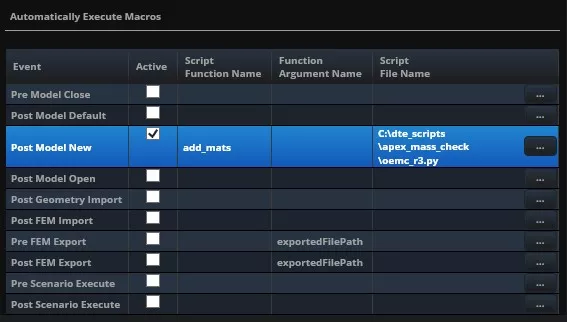
For example, as in the above image, you might have a standard set of materials that are used in your organisation. You could configure Apex to automatically create these materials in every new database as soon as it is created.
Another example, created for a client in the space industry, is a script that builds a standard set of model check runs when a Nastran deck is exported. It uses an IF check on the file name so that any deck written out with the string RUNCHECK included in the name triggers the script.
CUSTOM MENUS
This is where it gets really powerful. Apex is shipped with a whole toolbar full of customised tools for attribution, fastener creation, geometry/FEM, querying, custom views and more.
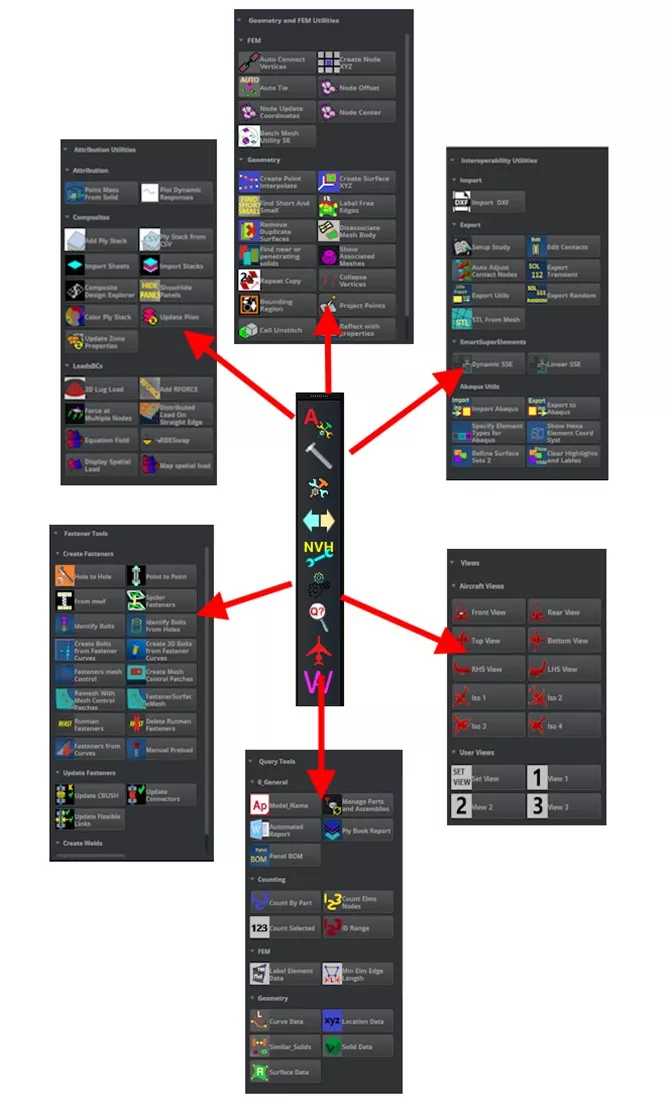
These are created by field engineers within Hexagon in order to streamline processes and to back fill capability for specific clients ahead of it being introduced through the rigorous development process.
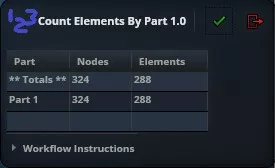
These tools have wide range of complexity. The simplest tools have capability such as producing a list of how many nodes and/or elements there are in each part in the model.
As an example of extending the complexity of the automated scripts, there is the ‘My Materials’ tool that allows you to selectively import materials from a pre-defined Excel sheet.
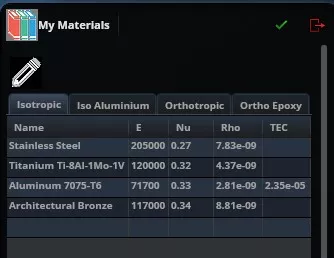
This would allow you to manage your materials database across all users from a shared document.
The most complex are probably those in the Fastener menu where one in particular is capable of scanning through all your selected geometry, identifying holes in surfaces and solids, checking for a matching hole on a neighbouring entity and automatically constructing a beam+RBE bolt representation with the diameter taken from the hole sizes.
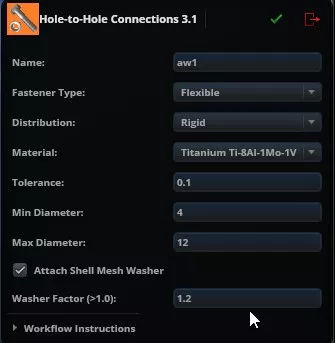
This is a fantastic bit of coding that could save users huge amounts of time.

All of these tools are supplied with the source code which greatly simplifies the process of creating your own tools by extracting and combining snippets and then defining your own toolbar with your own tools included.
If you are interested in adding to the capability within MSC Apex or interested in taking a look at Apex with a view to changing FEA modellers, please get in touch to talk about your requirements.
Categorised as: SOLIDWORKS Simulation | Tech Tips
Get Expert SOLIDWORKS Training
Get hands-on SOLIDWORKS training in-person or online, led by certified experts with real industry experience. With venues across the UK & Ireland, it’s easy to start learning today.
Related Posts

How to Find Reaction Forces in SOLIDWORKS Simulation
SOLIDWORKS helps us to find resultant forces through simulation studies. These virtual tests reduce the need for physical prototypes and give us an accurate answer.

Setting number of decimal places in a table on a drawing
When creating an equation in a drawing general table, is it possible to define the…

Why is my Flat Pattern not showing in SOLIDWORKS Drawings?
This may be linked to how the drawing is saved or it can be related to how sheet metal parts are displayed in drawings, read on to find out how to fix it.

Why is SOLIDWORKS Crashing?
It’s one of the great mysteries of life – why is SOLIDWORKS crashing? Let’s explore how SOLIDWORKS crashes and how we can improve performance in SOLIDWORKS.

Tech Support Blog: Why are my SOLIDWORKS BOM Quantities Wrong?
Why are my SOLIDWORKS BOM Quantities Wrong? A support call cropped up this week which…

How to Get Your Serial Number for SOLIDWORKS Visualize Standard
Want to download Visualize to make photorealistic renders? Follow this guide for accessing your Visualize serial number that comes bundled in with SolidWorks Professional and Premium.

How to Recover SOLIDWORKS Files After a Crash
SOLIDWORKS has two different methods to help you recover from an unexpected crash or loss of data in the form of auto-recovery and back-up settings.
So how accurate is SOLIDWORKS Simulation?
How accurate is SOLIDWORKS Simulation? Elite Applications Engineer Chris Boyles investigates.

SOLIDWORKS Magnetic Mates
Magnetic makes are used within SolidWorks assemblies to easily configure and position assembly components. Through defining connection points and ground plane(s) – position components through drag and dropping one component within close proximity of another to snap the asset into position.

SOLIDWORKS Dimensions – Collated Quick Tips
We have collated some of our favourite tips on creating, manipulating and controlling dimensions in SolidWorks, both at a sketching and drawing level. Read on to find out more…